
Introduction
- A firewall is software or hardware that monitors the network traffic and compares it against a set of rules before
passingorblockingit. - One simple analogy is a guard or gatekeeper at the entrance of an event.
This gatekeeper can check the ID of individuals against a set of rules before letting them enter (or leave).
- Before we go into more details about firewalls, it is helpful to remember the contents of an IP packet and TCP segment.
- The following figure shows the fields we expect to find in an IP header.
Different types of firewalls are capable of inspecting various packet fields; however, the most basic firewall should be able to inspect atleast the following fields:
1
2
3
  - Protocol
  - Source Address
  - Destination Address
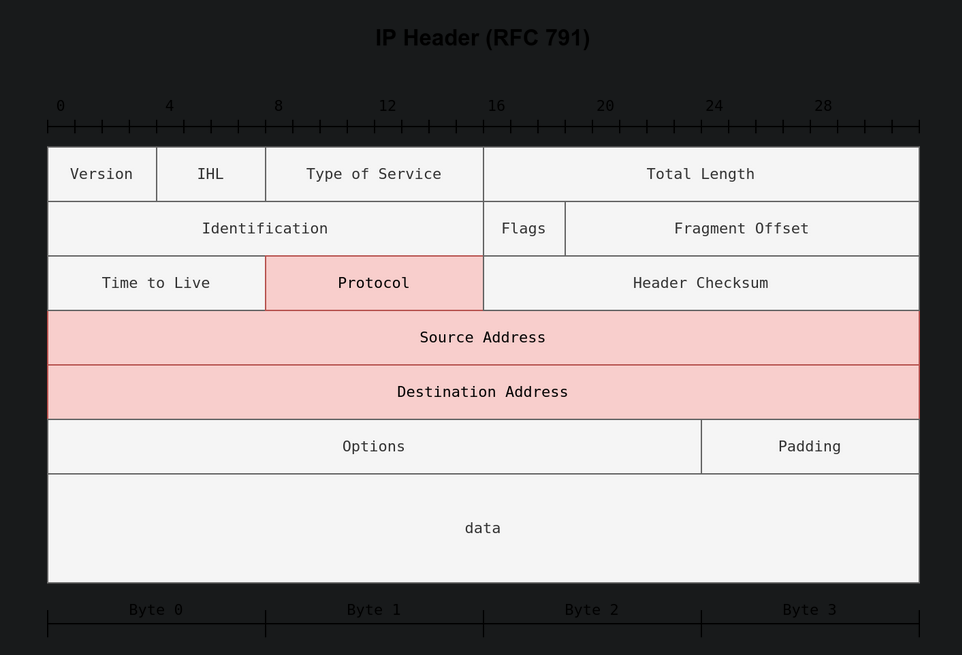
- Depending on the protocol field, the data in the IP datagram can be one of the many options.
Three common protocolsare:1 2 3
- TCP - UDP - ICMP
In the case of TCP or UDP, the firewall should at least be able to check the TCP and UDP headers for:
1
2
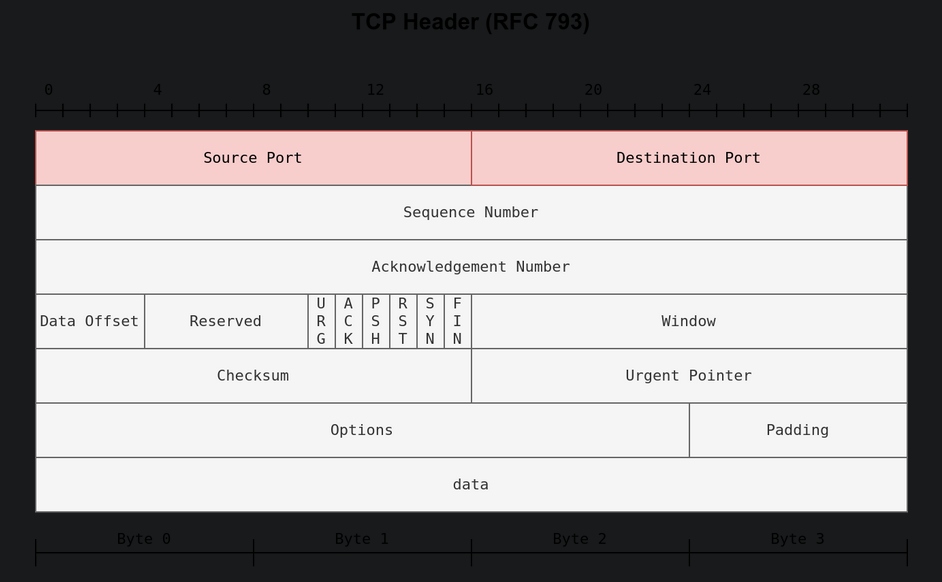
  - Source Port Number
  - Destination Port Number
- The TCP header is shown in the figure below.
- We notice that there are many fields that the firewall might or might not be able to analyze;
- However, even the most limited firewalls should give the firewall admin control over allowed or blocked source and destination port numbers.
Learning Objectives
1
2
1. The differentt ypes of firewalls, according to different classification criteria
2. Various techniques to evade firewalls.
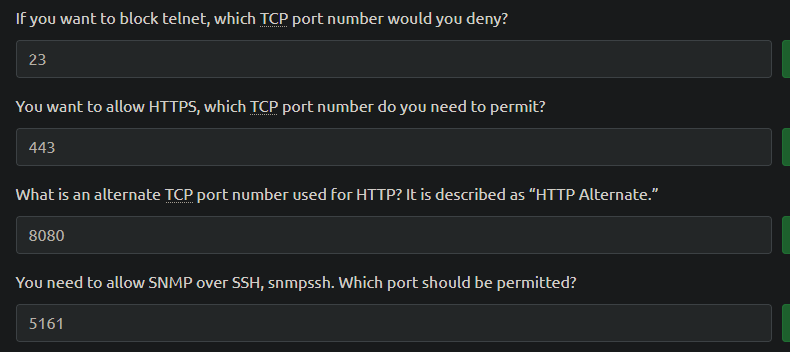
- The design logic of traditional firewalls is that a port number would identify the service and the protocol. For instance, visit
[Service Name and Transport Protocol Port Number Registry](http://www.iana.org/assignments/service-names-port-numbers/service-names-port-numbers.xhtml)to answer the following questions.
Types of Firewalls
- There are multiple ways to classify firewalls.
One way to classify firewalls would be whether they are independent appliances.
1
2
3
4
5
  1. "Hardware Firewall (appliance firewall)" : as the name implies, an appliance firewall is a separate piece of hardware that the network traffic has to go through. Examples:
          - Cisco ASA (Adaptive Security Appliance)
          - WatchGuard Firebox
          - Netgate pfsense plus appliance
  2. "Software Firewall" : this is a piece of software that comes bundled with the OS, or you can install it as an additional service. MS Windows has a built-in firewall, Windows Defender Firewall, that runs along with the other OS services and user apps. Another example is "Linux Iptables" and "firewalld".
We can also classify firewalls into:
1
2
  1. "Personal Firewall" : a personal firewall is designed to protect a single system or a small network. For exampl,e a small number of devices and systems at a home network. Most likely, you are using a personal firewall at home without paying much attention to it. For instance, many wireless AP designed for homes have a built-in firewall. One example is BitDefender BOX. Another example is the firewall that comes as part of many wireless AP and home routers from Linksys and Dlink.
  2. "Commercial Firewall" : a commercial firewall protects medium-to-large networks. Consequently, you would expect higher reliability and processing power, in addition to supporting a higher network bandwidth. Most likely, you are going through such a firewall when accessing the Internet from within your University or Company.
- From a
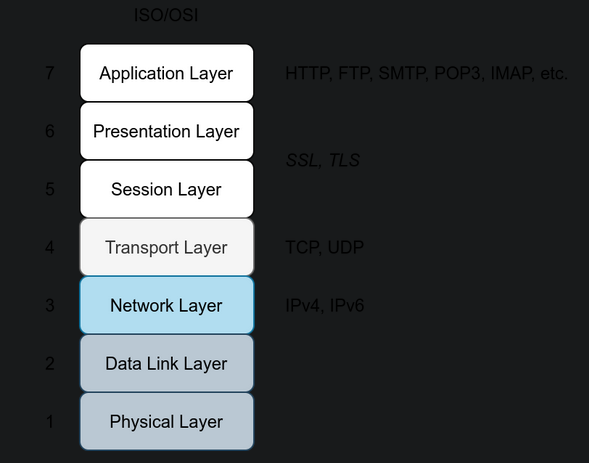
red team’s perspective, the most crucial classification would be based on the firewall inspection capabilities. - It is worth thinking about the firewall abilities in terms of the ISO/OSI layers shown in the figure below.
- Before we classify firewalls based on their abilities, it is worthy of remembering that firewalls focus on layers 3 and 4 and to a lesser extent layer 2.
- NFGW are also designed to cover layers 5,6 and 7.
- The more layers a firewall can inspect, the more sophisticated it gets and the more processing power it needs.
Firewall Types based on capabilities:
- Packet-Filtering Firewall: Packet-filtering is the most basic type of firewall. This type of firewall inspects the protocol, source and destination IP addresses, and source and destination ports in the case of TCP and UDP datagrams. It is a stateless inspection firewall.
- Circuit-Level Gateway: In addition to the features offered by the packet-filtering firewalls, circuit-level gateways can provide additional capabilities, such as checking TCP three-way-handshake against the firewall rules.
Stateful Inspection Firewall: Compared to the previous types, this type of firewall gives an additional layer of protection as it keeps track of the established TCP sessions. As a result, it can detect and block any TCP packet outside an established TCP session.
1
  - this shows that it can block IP addresses that are seen as malicious prior to them connecting to the network.
Proxy Firewall: A proxy firewall is also referred to as
Application Firewall (AF)andWeb Application Firewall (WAF). It is designed to masquerade as the original client and requests on its behalf. This process allows the proxy firewall to inspect the contents of the packet payload instead of being limited to the packet headers. Generally speaking, this is used for web applications and does not work for all protocols.1
- double checks the requests given by clients so when the actual web server process it, it wouldn't do anything malicious.
- Next-Generation Firewall (NGFW): NGFW offers the highest firewall protection. It can practically monitor all network layers, from OSI Layer 2 to OSI Layer 7. It has application awareness and control. Examples include the Juniper SRX series and Cisco Firepower.
- Cloud Firewall or Firewall as a Service (FWaaS): FWaaS replaces a hardware firewall in a cloud environment. Its features might be comparable to NGFW, depending on the service provider; however, it benefits from the scalability of cloud architecture. One example is Cloudflare Magic Firewall, which is a network-level firewall. Another example is Juniper vSRX; it has the same features as an NGFW but is deployed in the cloud. It is also worth mentioning AWS WAF for web application protection and AWS Shield for DDoS protection.
Evasion via Controlling the Source MAC/IP/Port
- When scanning a host behind a firewall, the firewall will usually
detectandblockport scans. - This situation would require you to adapt your network and port scan to evade the firewall.
- A network scanner like NMAP provides few features to help with such a task.
In this room, we group Nmap techniques into three groups:
1
2
3
  1. Evasion via controlling the source MAC/IP/Port
  2. Evasion via fragmentation, MTU, and data length
  3. Evasion through modifying header fields.
Spoofing/hiding the source with NMAP
1
2
3
4
5
	1. Decoy(s)
	2. Proxy
	3. Spoofed MAC Address
	4. Spoofed Source IP address
	5. Fixed Source Port number
- Before we elaborate on each approach, let’s show what an
NMAP stealth (SYN)scan looks like. - We are scanning an
MS Windows target(with default built-in firewall) The command used:
$ nmap -sS -Pn -F 10.10.113.2291 2 3
- Breakdown: - "-Pn" : we know that the target is alive - "-F" : scans the top 100 most common ports
Screenshot of Wireshark's capture of the NMAP probe packets:
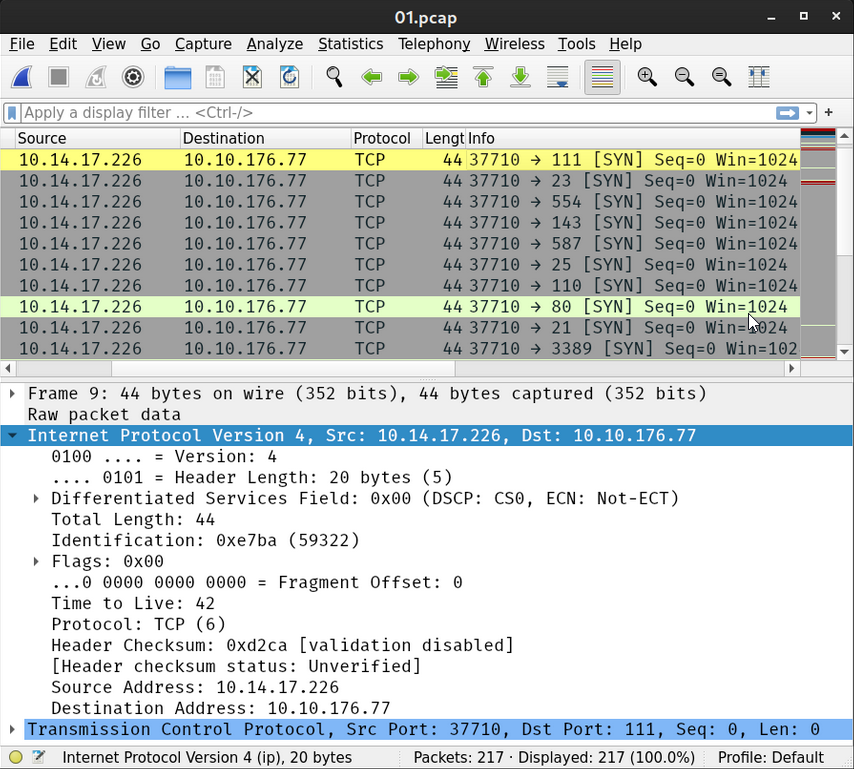
Note: Wireshark was running on the same system running the NMAP.
- We can dive into all the details embedded into each packet.
However for this exercise, we would like to note the following (context):
1
2
3
4
5
  - Our IP address "10.14.17.226" has generated and sent around "200" packets. The "-F" option limits the scan to the top 100 common ports; moreover, each port is sent a second SYN packet if it does NOT reply to the first one.
  - The source port number is chosen at 'random'. In the screenshot, you can see it is '37710'.
  - The total length of the IP packet is 44 bytes. There are 20 bytes for the IP header, which leaves 24 bytes for the TCP header. No data is sent via TCP.
  - The Time to live (TTL) is 42.
  - No errors are introduced in the checksum.
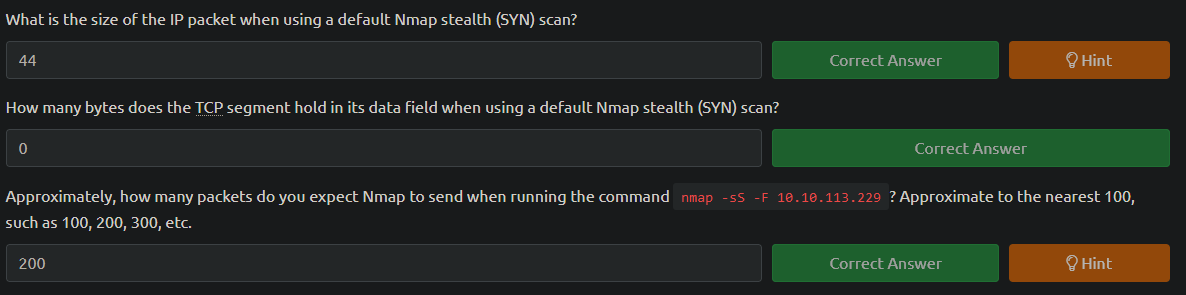
Questions:
Decoy(s)
- Hide your scan with decoy(s).
- Using decoys makes your IP address mix with other “decoy” IP addresses.
- Consequently, it will be difficult for the
firewallandtarget hostto know where theport scanis coming from. Moreover, this can exhaust the blue team investigating each source IP address.
1
  - Nmap "-D" option: decoy source IP addresses to confuse the target.
- Command used in the following Wireshark screenshot:
1
$ nmap -sS -Pn -D 10.10.10.1, 10.10.10.2, ME -F 10.10.113.229
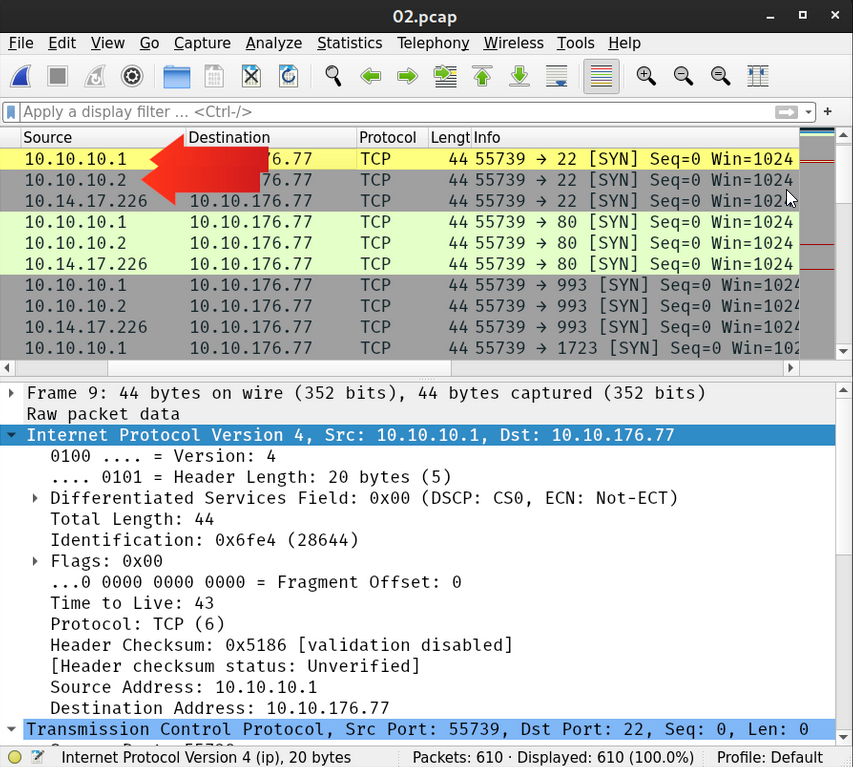
- The target
10.10.113.229will ALSO see scans coming from10.10.10.1and10.10.10.2when only one source IP address,ME, is running the scan. Note: If you omit the
MEentry in the command, the IP address that actually runs the scan will be placed in a random position in the sequence of packets.1 2
- In this evasion technique, the IP address of the attacker is still here but we added more IP address the defenders can look on to confuse them. - Think of this like "Rhythm Echo" from Hunter X Hunter. You know the assassin is still there encircling you and creates a lot of illusion but there's only one of them.
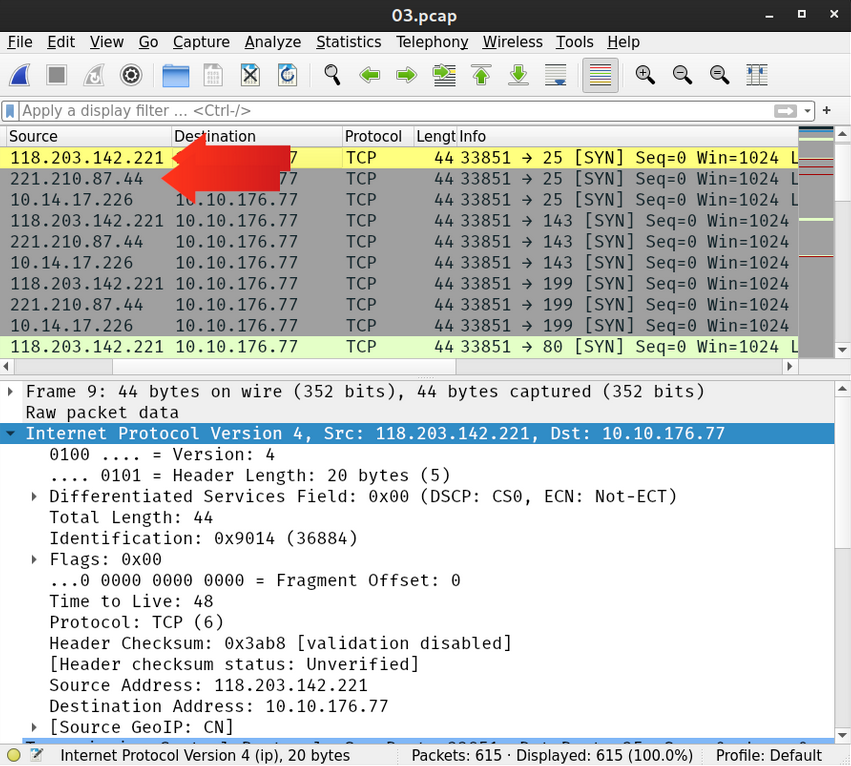
- You can also set NMAP to use random source IP addresses instead of explicitly specifying them.
- By running:
1
$ nmap -sS -Pn -D RND, RND, ME -F 10.10.113.229
1
2
- NMAP will choose two random source IP addresses to use as decoys.
- NMAP will use new random IP addresses each time you run this command.
Here's the screenshot how NMAP picked two random IP addresses in addition to our own to target 10.14.17.226:
Questions

1
2
3
4
- Why 800?
- If we only do 200 which is technically right, the defender will think that three IPs are NOT legitimate.
- By sending 800 packets, it creates a pattern that states to the defender that normally with a single IP address, an attacker will consider a scenario such that a packet to a port will not be sent so per port, it will send two packets totalling to 200 packets per IP address.
- Since there are 4 IP address in here, we as the attacker have to be commited to the illusion created that the other four IP addresses are also legitimate by sending 600 more packets 200 of it on each of the other three IP addresses.
Proxy
- Use an HTTP/SOCKS4 proxy.
- Relaying the port scan via a proxy helps keep your actual IP address unknown to the target host.
- This technique allows you to keep your IP address hidden while the target logs the IP address of the proxy server.
You can go this route using the NMAP option
--proxies <PROXY_URL>.- Question: Say, you want to do some kind of cyber counteroffensive, how will you find the real IP address of the attacker given it used 3 proxies?
Example:
1
$ nmap -sS -Pn --proxies PROXY_URL -F 10.10.113.229
- will send all its packets via the proxy server you specify.
- Note that you can chain proxies using
comma-separated list.

Spoofed MAC Address
- Spoof the source MAD address.
- NMAP allows you to spoof your MAC address using the option:
1
--spoof-mac <MAC_ADDRESS>
- This technique is tricky.
Condition to MAC Address Spoofing:
1
2
	1. Spoofing the MAC address works only if your system is on the same network segment as the target host.
	- Okay so basically, you have to pivot on the same network as the target host assuming you're on different network segmentation.
- The
target systemis going to reply to a spoofed MAC address. - If you are not on the same network segment, sharing the same Ethernet, you won’t be able to capture and read the response.
- It allows you to exploit any
trustrelationship based on MAC addresses. - Moreover, you can use thi technique to hide your scanning activities on the network.
Example:
Scans appear as if coming from a network printer.
1
  - This is because you can tamper the source IP address + use of Proxy + Decoy
Spoofed IP Address
- Spoof the source IP address.
- NMAP lets you spoof your IP address using
-S <Ip-addr>.
Condition(s):
1
2
3
- Spoofing the IP address is useful if your system is on the same subnetwork as the target host (basically the same LAN)
- Otherwise, you won't be able to read the replies sent back.
- The reason is that the target host will reply to the spoofed IP address, and unless you can capture the responses, you won't benefit from this technique.
- Another use for spoofing your IP address is when you control the system that has that particular IP address.
- Consequently, if you notice that the target started to block the spoofed IP address, you can switch to a different spoofed IP address that belongs to a system that you also control.
This scanning technique can help you maintain stealthy existence; moreoever, you can use this technique to exploit trust relationships on the network based on IP addresses.
- To mislead the opponent, you decided to make your port scans appear as if coming from a local access point that has the IP address
10.10.0.254. - What option needs to be added to your NMAP command to spoof your address accordingly?
1
$ nmap -Pn -sV -S 10.10.0.254 <target-ip>
Fixed Source Port Number
- Use a
specific source port number. Scanning from one particular source port number can be helpful if you discover that the firewalls allowincomingpackets from particular source port numbers, such asport 53orport 80. - Without inspecting the packet contents, packets from source TCp port 80 or 443 look like packets from a web server, while packets from UDP port 53 looks like responses to DNS queries.
You can set your pot number using ‘
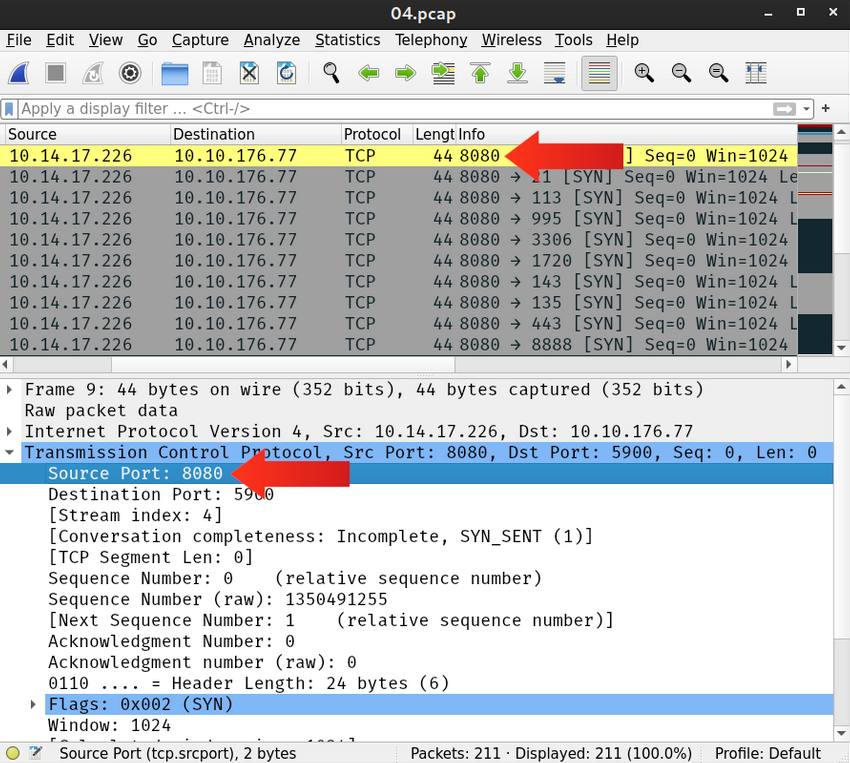
-g’ or ‘--source-port’ options.- The following Wireshark screenshot shows an NMAP scan with the fixed soruce TCP port number 8080.
- We have used the following NMAP command,
nmap -sS -Pn -g 8080 -F <machine-ip>. - You can see in the screenshot how it is that all the TCP connections are sent from the same TCP port number:
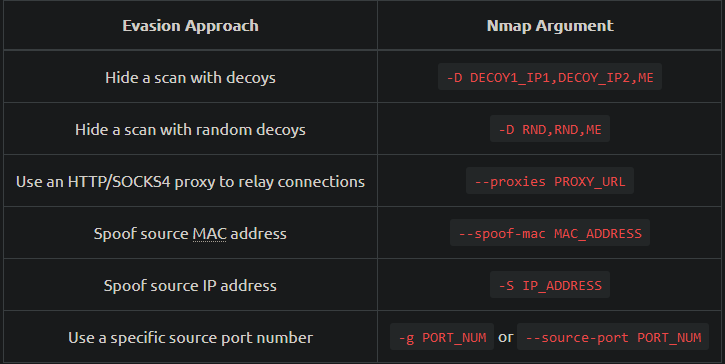
Summary:
Evasion via Forcing Fragmentation, MTU and Data Length
You can control the packet size as it allows you to:
1
2
  - "Fragment packets" : optionally, with given MTU. If the firewall, or the IDS/IPS, does NOT reassemble the packet, it will most likely let it pass. Consequently, the target system will reassemble and process it.
  - Send packets with specific data lengths.
Fragment your Packets with 8 bytes of data
- One easy way to fragment your packets would be to use the “
-f” option. - This option will fragment the IP packet to carry only 8 bytes of data.
- As mentioned earlier, running an NMAP TCP port scan means that the IP packet will hold 24 bytes, the
TCP header. - If you want to limit the IP data to
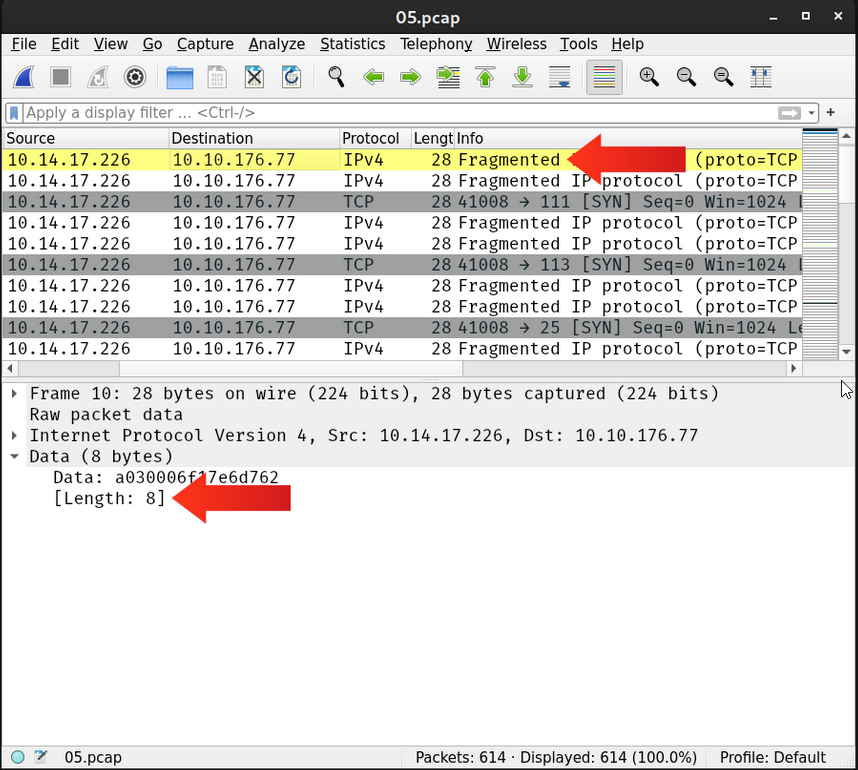
8 bytes, the 24 bytes of the TCP header will be divided across 3 IP packets. - And this is precisely what we obtained when we ran this NMAP scan,
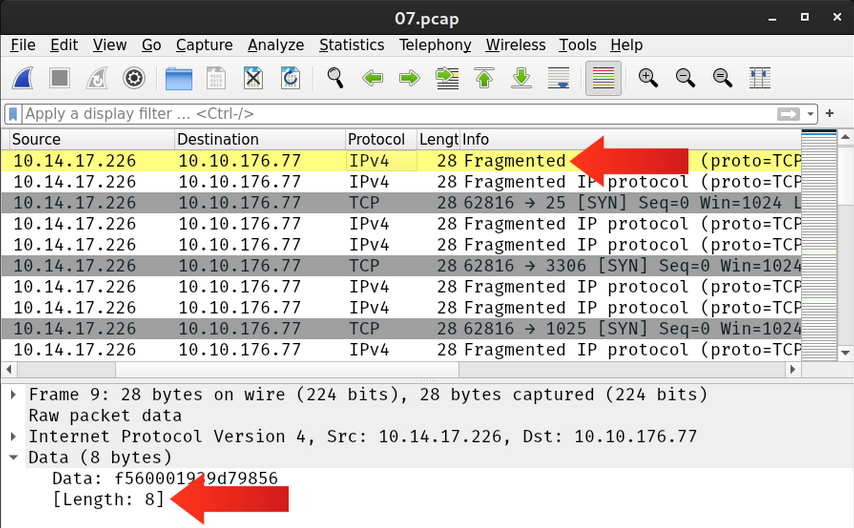
nmap -sS -Pn -f -F <machine-ip>. - As we can see in the Wireshark capture in the figure below, each IP packet is fragmented into three packets, each with 8 bytes of data.
1
- The 9 packets shown in here are the 3 normal packets sent via NMAP TCP scan if you compare how it is done normally.

1
2
- Note that as mentioned before, 20 bytes is the size of IP header and for the TCP one, 24 bytes. So the total length BEFORE is 44 bytes.
- In this case, we want to fragment the TCP header into 3 packets totalling the size of each packet to 28 bytes.
Fragment your Packets with 16 bytes of Data
- Another handy option is the “
-ff”, limiting the IP data to 16 bytes. One easy way to remember this is that:
1
2
  - "f" == 8
  - "ff" == 16
- By running
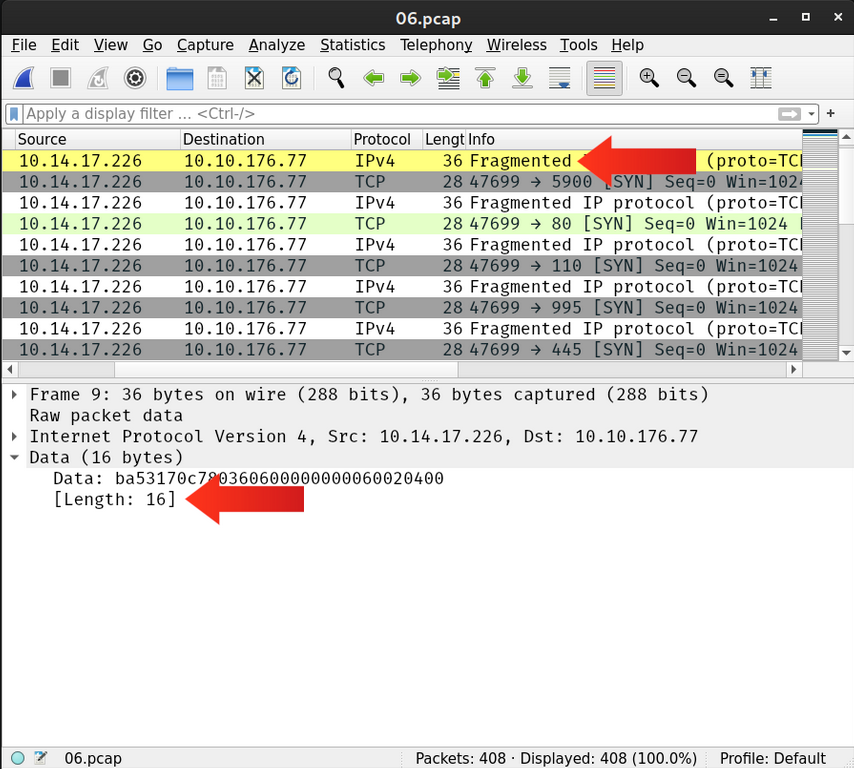
nmap -sS -Pn -ff -F <target-machine-ip>, we expect the 24 bytes of the TCP header to be divided between two IP packets, “16(1st) + 8(2nd)”, because “-ff” has put an upper limit of 16 bytes. - The first few packets are shown in the WIreshark capture below:

1
2
- 20 bytes for the IP header + 16 bytes for the fragmented TCP header so 36 bytes for the 1st packet.
- The 2nd packet has 28 bytes as discussed above.
Fragment your Packets according to a Set MTU
- Another neat way to fragment your packets is by setting the MTU.
- In NMAP, “
--mtu <value>” specifies the number of bytes per TCP header in an IP packet. - In other words, the IP header size is NOT included.
The value set for MTU must always be a multiple of 8.
1
2
3
  - Note that the Maximum Transmission Unit (MTU) indicates the max packet size that can pass on a certain link-layer connection.
  - For instance, Ethernet has an MTU of 1500, meaning that the largest IP packet that can be sent over an Ethernet (link layer) connection is 1500 bytes.
  - Please don't confuse this MTU with the "--mtu" in NMAP options.
- Running NMAP with
--mtu 8will be identical to “-f” as the IP data will be limited to 8 bytes. - The first few packets generated by this NMAP scan
nmap -sS -Pn --mtu 8 -F <machine-ip>are shown in the Wireshark capture:

Generate Packets with Specific Length
- In some instances, you might find out that the size of the packets is triggering the firewall or the IDS/IPS to detect and block you.
- If you ever find yourself in such a situation, you can make your port scanning more evasive by setting a specific length.
- You can set the length of data carried(
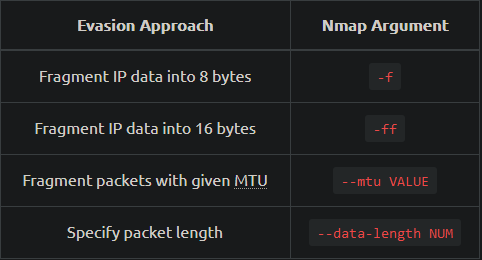
TCP segment) within the IP packet using “--data-length <value>”. Again, remember that the length should be multiple of 8.
- If you run the following NMAP scan,
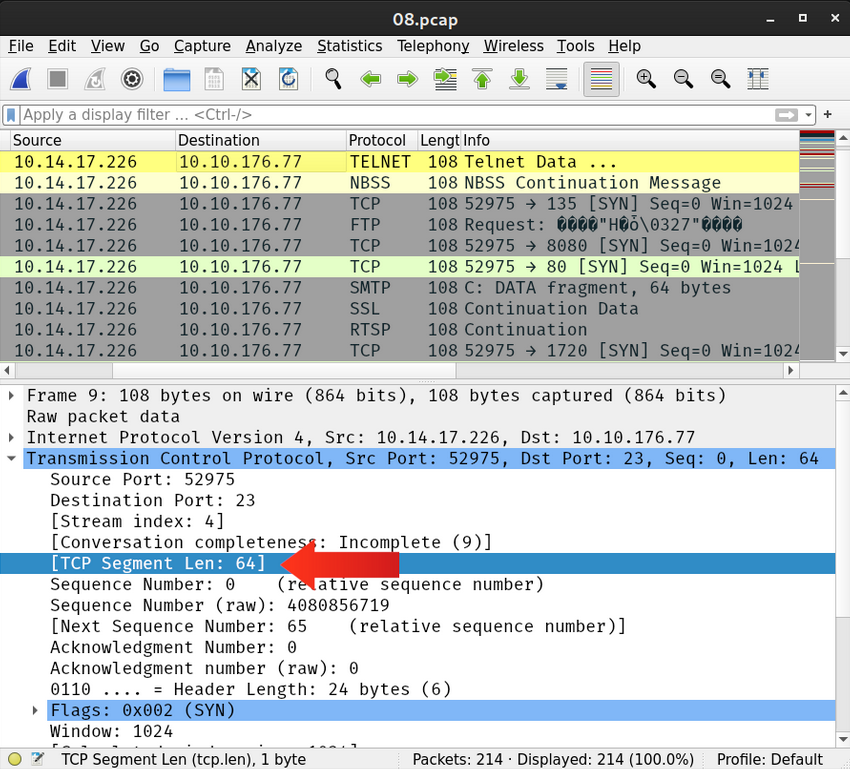
nmap -sS -Pn --data-length 64 -F <machine-ip>, each TCP segment will be padded with random data till its length is 64 bytes. - In the screenshot below, we can see that each TCP segment has a length of 64 bytes.

1
- 20 bytes for IP header, 128 bytes on TCP segment.
Summary
Evasion via Modifying Header Fields
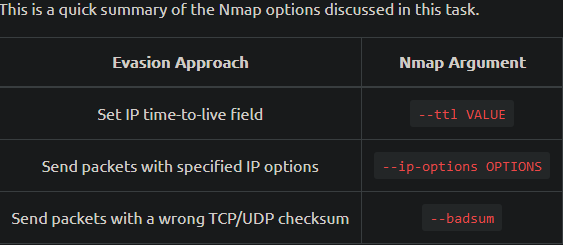
NMAP allows you to control various header fields that might help evade the firewall. You can:
1
2
3
  - Set IP time-to-live
  - Send packets with specified IP options
  - Send packets with a wrong TCP/UDP checksum
Set TTL
- NMAP gives you further control over the different fields in the IP header.
- One of the fields you can control is the TTL.
- NMAP options include “
--ttl <value>” to set the TTL to a custom value.
Assumption:
1
- This option might be useful if you think the default TTL exposes your port scan activities.
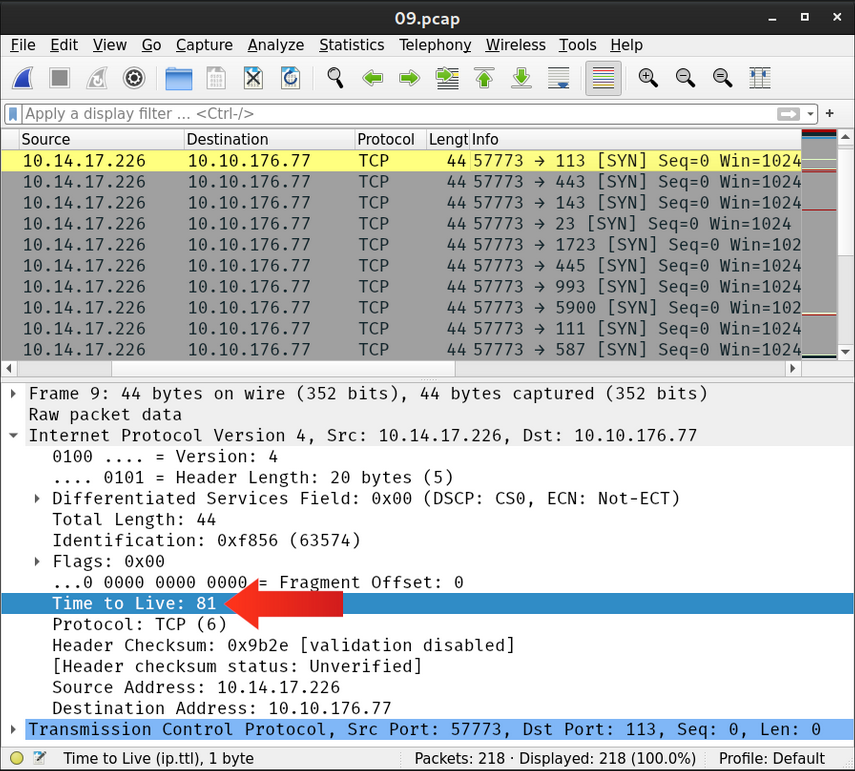
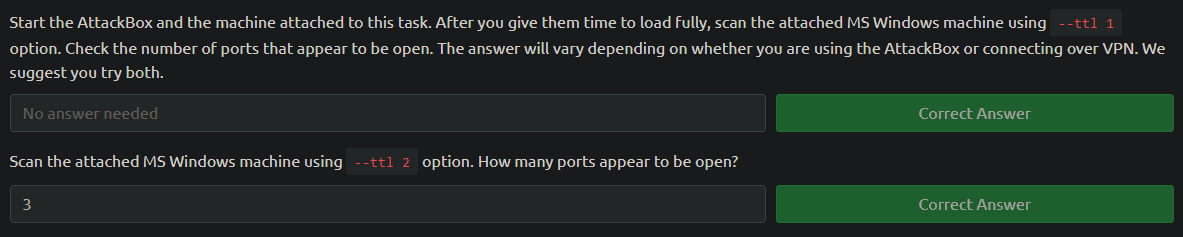
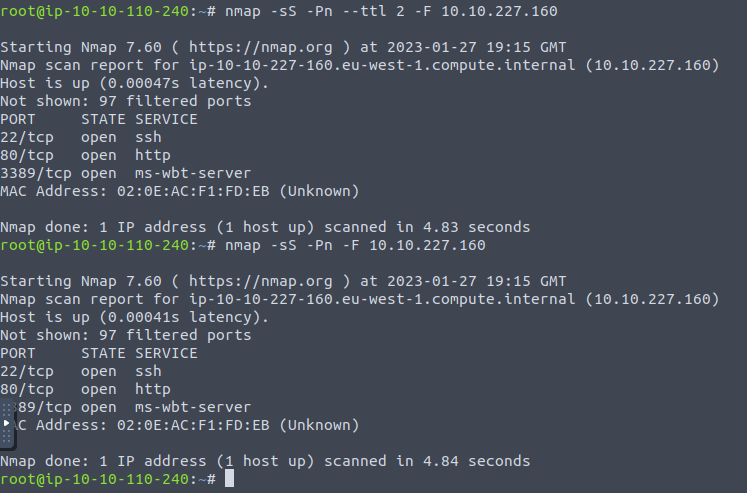
- In the following screenshot, we can see the packets capture by Wireshark after using a custom TTL as we run our scan,
nmap -sS -Pn --ttl 81 -F 10.10.227.160. - As with the previous examples, the packets below are captures on the same system running NMAP.
1
- Why does it matter to the firewall that it lets in some packets with certain Time-to-live?
1
- With or without the --ttl option, it shows that there are 3 ports open.
Set IP Options
- One of the IP header fields is the IP Options field.
- Nmap lets you control the value set in the IP Options field using
--ip-options <hex_string>, where the hex string can specify the bytes you want to use to fill in the IP Options field. - Each byte is written as “
\xHH”, where “HH” represents two hex digits (1-byte).
Shortcut provided by NMAP using the letters to make your requests:
R: to record-route.T: to record-timestamp.U: to record-route and record-timestampL: for loose source routing and needs to be followed by a list of IP addresses separated by space.S: for strict source routing and needs to be followed by a list of IP addresses separated by space.- The loose and strict source routing can be helpful if you want to try to make your packets take a particular route to avoid a specific security system.
Use a Wrong Checksum
- Another trick you can use is to send your packets with an intentionally
wrong checksum. - Some systems would drop a packet with a bad checksum, while others won’t.
- You can use this to your advantage to discover more about the systems in your network.
- All you need to do is add the option “
--badsum” to your NMAP command.
Nmap command:
1
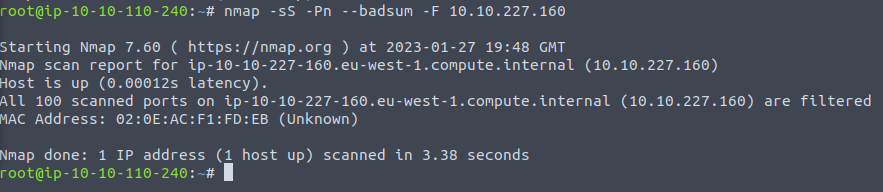
$ nmap -sS -Pn --badsum -F 10.10.227.160
- We scanned our target using intentionally incorrect TCP checksums.
- The target dropped ALL our packets and didn’t respond to any of them.
1
2
3
4
5
6
7
pentester@TryHackMe# nmap -sS -Pn --badsum -F 10.10.227.160
Host discovery disabled (-Pn). All addresses will be marked 'up' and scan times will be slower.
Starting Nmap 7.91 ( https://nmap.org ) at 2022-01-28 16:07 EET
Nmap scan report for 10.10.227.160
Host is up.
All 100 scanned ports on MACHINE_IP are filtered
Nmap done: 1 IP address (1 host up) scanned in 21.31 seconds
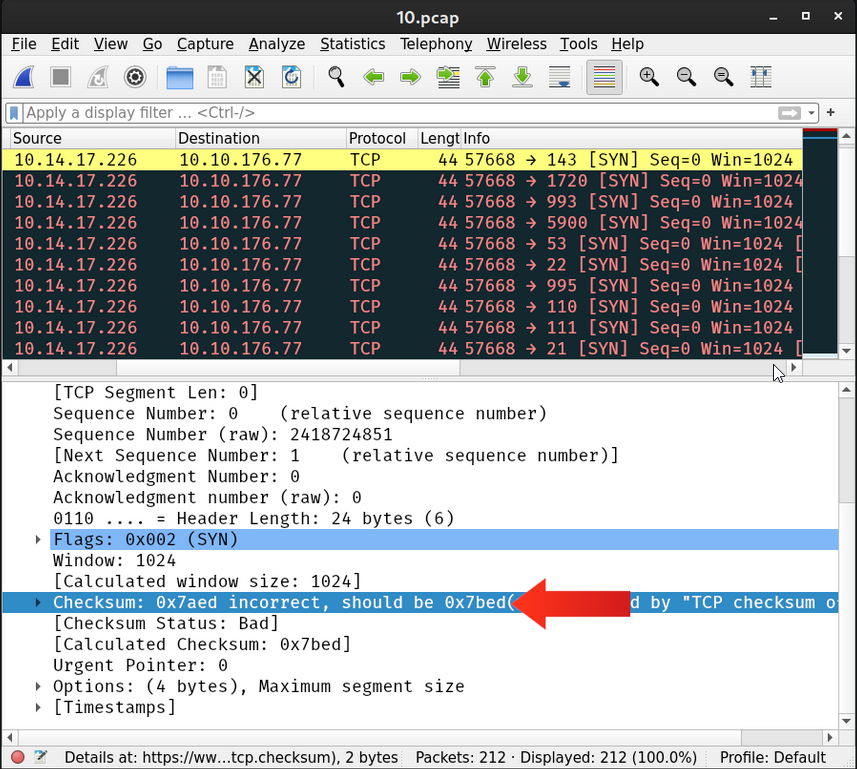
- The screenshot below shows the packets captured by Wireshark on the system running NMAP.
- Wireshark can be optionally set to verify the checksums, and we can notice how it highlights the errors.

1
- In what situation using bad checksum are actually useful? It seems like this one in this example is counterproductive?
Summary
Evasion using Port Hopping
Three common firewall evasion techniques are:
1
2
3
  - Port hopping
  - Port tunneling
  - Use of non-standard ports
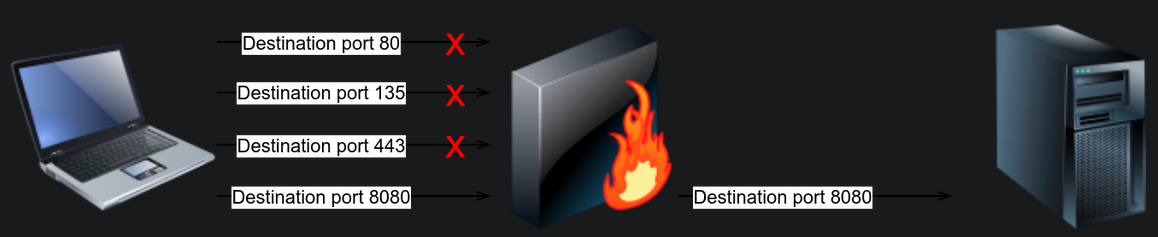
- Port Hopping is a technique where an application hops from one port to another till it can establish and maintain a connection.
- In other words, the app might try different ports till it can successfully establish a connection.
- Some “
legitimate” applications use this technique to evade firewalls. - In the following figure, the client kept trying different ports to reach the server till it discovered a destination port not blocked by the firewall.
- There is another type of port hopping where the application establishes the connection on one port and starts transmitting some data;
- After a while, it establishes a new connection on (i.e., hopping to) a different port and resumes sending more data.
- The purpose is to make it more difficult for the blue team to detect and tract all the exchanged traffic.
On the AttackBox, you can use the command ncat -lvnp PORT_NUMBER to listen on a certain TCP port.
-llistens for incoming connections-vprovides verbose details (optional)-ndoes not resolve hostnames via DNS (optional)-pspecifies the port number to use-lvnp PORT_NUMBERlistens on TCP portPORT_NUMBER. If the port number is less than 1024, you need to runncatas root.
For example, run ncat -lvnp 1025 on the AttackBox to listen on TCP port 1025, as shown in the terminal output below.
1
2
3
4
pentester@TryHackMe$ ncat -lvnp 1025
Ncat: Version 7.91 ( https://nmap.org/ncat )
Ncat: Listening on :::1025
Ncat: Listening on 0.0.0.0:1025
We want to test if the target machine can connect to the AttackBox on TCP port 1025. By browsing to http://10.10.90.75:8080, you will be faced with a web page that lets you execute commands on the target machine. _Note that in a real-case scenario, you might be exploiting a vulnerable service that allows remote code execution (RCE) or a misconfigured system to execute some code of your choice.

1
- The connection was first created through port 21 because that is what the firewall allows and then hops into a new port 44784 creating a conection there.
Evasion Using Port Tunneling
- Port tunneling is also known as port forwarding and port mapping. In simple terms, this technique forwards the packets sent to one destination port to another destination port. For instance, packets sent to port 80 on one system are forwarded to port 8080 on another system.