
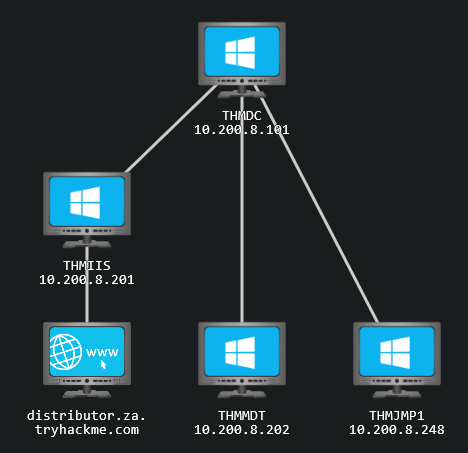
Network Topology
Why AD Enumeration
- This network is the continuation of the
Breaching ADnetwork - Also note that we will discuss AD objects extensively.
Assumption:
- Now that we have our very first set of valid AD credentials, we will explore the different methods that can be used to enumerate AD.
AD Enumeration
- Once we have that first set of AD credentials and the means to authenticate with them on the network, a whole new world of possibilities opens up.
We can start enumerating various details about the AD setup and structure with authenticated access, even super low-privileged access.
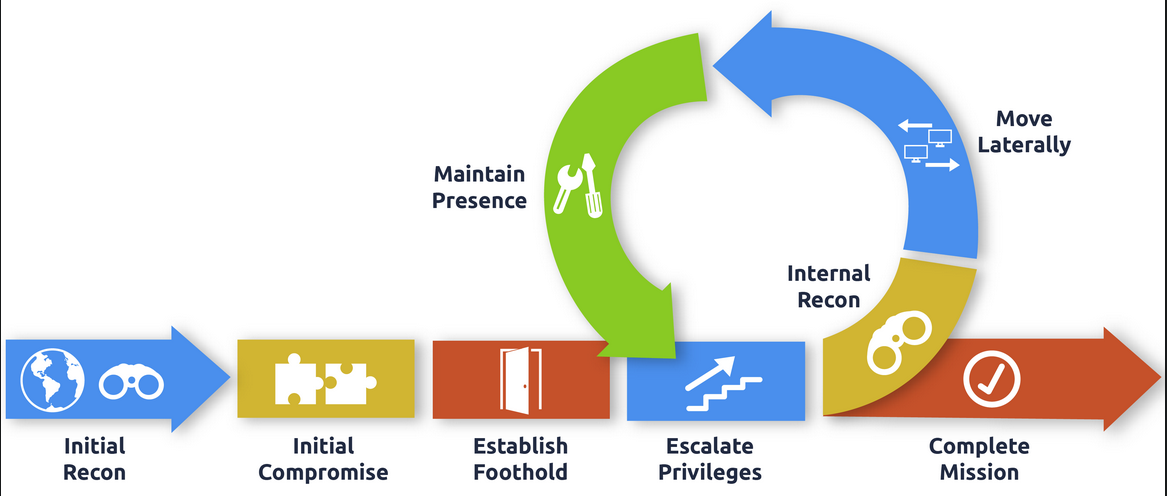
- During a red team engagement, this will usually lead to us being able to perform some form of privilege escalation or lateral movement to gain additional access until we have sufficient privileges to execute and reach our goals.
- In most cases, enumeration and exploitation are heavily entwined.
- Once an attack path shown by the enumeration phase has been exploited, enumeration is again performed from this new privileged position, as show in the diagram:
Learning Objectives
- In this network, we will cover several methods that can be used to enumerate AD.
- This is by no means a complete list as available methods are usually highly situational and dependent on the acquired breach.
However, we wil cover the following techniques for enumerating AD:
1
2
3
4
  -   The AD snap-ins of the Microsoft Management Console.
  -   The net commands of Command Prompt.
  -   The AD-RSAT cmdlets of PowerShell.
  -   Bloodhound.
Connecting to the Network with AttackBox:
AttackBox
If you are using the Web-based AttackBox, you will be connected to the network automatically if you start the AttackBox from the room’s page. You can verify this by running the ping command against the IP of the THMDC.za.tryhackme.com host. We do still need to configure DNS, however. Windows Networks use the Domain Name Service (DNS) to resolve hostnames to IPs. Throughout this network, DNS will be used for the tasks. You will have to configure DNS on the host on which you are running the VPN connection. In order to configure our DNS, run the following command:
Terminal
1
[thm@thm]$ systemd-resolve --interface enumad --set-dns $THMDCIP --set-domain za.tryhackme.com
- Remember to replace $THMDCIP with the IP of THMDC in your network diagram. You can test that DNS is working by running:
nslookup thmdc.za.tryhackme.com
This should resolve to the IP of your DC.
Note: DNS may be reset on the AttackBox roughly every 3 hours. If this occurs, you will have to restart the systemd-resolved service. If your AttackBox terminates and you continue with the room at a later stage, you will have to redo all the DNS steps.
1
$ sudo systemctl restart systemd-resolved
You should also take the time to make note of your VPN IP. Using ifconfig or ip a, make note of the IP of the enumad network adapter. This is your IP and the associated interface that you should use when performing the attacks in the tasks.
Requesting your Credentials
- To simulate an AD breach, you will be provided with your first set of AD credentials.
- Once your networking setup has been completed, on your AttackBox, navigate to:
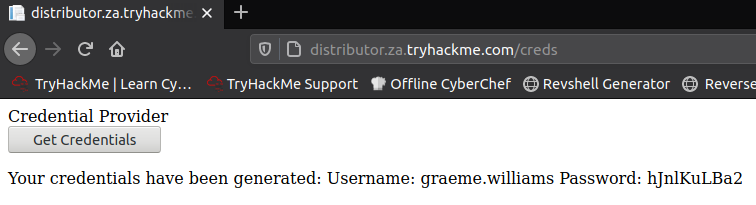
http://distributor.za.tryhackme.com/creds - to request your credential pair.
Click the “
Get Credentials” button to receive your credential pair that can be used for initial access.- This
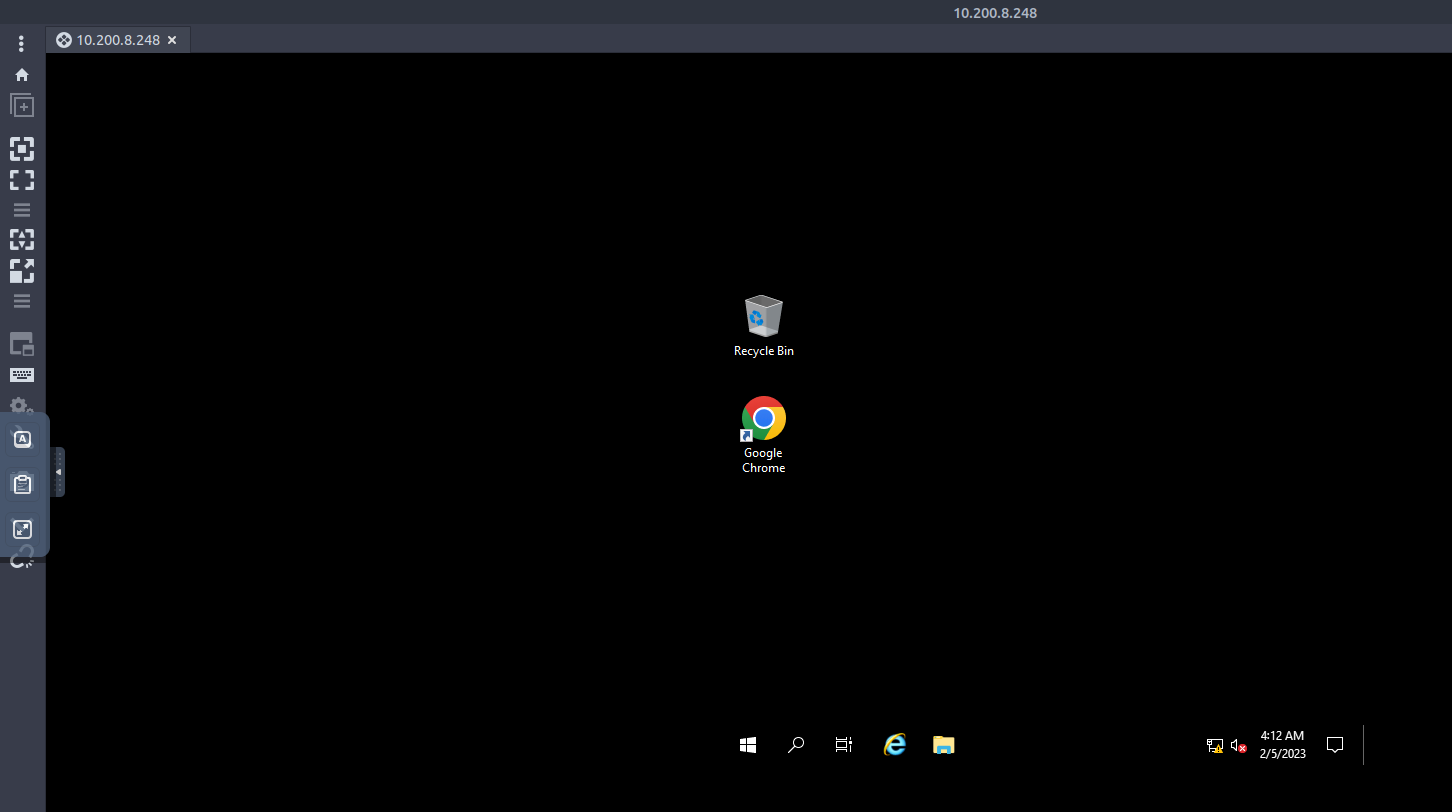
credential pairwill provide you RDP and SSH access toTHMJMP1.za.tryhackme.com. THMJMP1can be seen as a jump host into this environment, simulating a foothold that you have achieved.- Jump hosts are often targeted by the red team since they provide access to a new network segment.
- You can use Remmina or any other similar Remote Desktop client to connect to this host for RDP. Remember to specify the domain of
za.tryhackme.comwhen connecting. Task 2 and 3 will require RDP access.
Result you should see:
- For SSH access, you can use the following SSH command:
ssh za.tryhackme.com\\<AD Username>@thmjmp1.za.tryhackme.com
- When prompted, provide your account’s associated password. Although RDP can be used for all tasks, SSH is faster and can be used for Task 4, 5, and 6.
Logged in from the AttackBox:
Credential Injection
- Before jumping into AD objects and enumeration, let’s first talk about credential injection methods.
- From the
Breaching ADnetwork, you would have seen that credentials are often found WITHOUT compromising a domain-joined machine. - Specific enumeration techniques may require a particular setup to work.
Windows Vs. Linux
- You can get incredibly far doing AD enumeration from a Kali machine.
- Still, if you genuinely want to do in-depth enumeration and even exploitation, you need to understand and mimic your enemy.
- Thus, you need a Windows machine.
- This will allow us to use several built-in methods to stage our enumeration and exploits.
- In this network, we will explore one of these built-in tools, called the
runas.exebinary.
Runas Explained:
Have you ever found AD credentials but nowhere to log in with them?
Runasmaybe the answer you’ve been looking for.- In security assessments, you will often have network access and have just discovered AD credentials but have no means or
privilegeto create a new domain-joined machine. - So we need the ability to use those credentials on a Windows machine we control.
Step 1: Use Runas to use acquired AD credentials into logging into the domain
- If we have the AD credentials in the format of
<username>:<password>, we can useRunas, a legitimate Windows binary, to inject the credentials into memory.
Format:
> runas.exe /netonly /user:<domain>\<username> cmd.exe
1
2
3
4
Breakdown:
- "/netonly" : since we are NOT domain-joined, we want to load the credentials for network authentication but not authenticate against a domain controller. So commands executed locally on the computer will run in the context of your standard Windows account, but any network connections will occur using the account specified here.
- "/user" : Here, we provide details of the domain and username. It is always safe bet to use the Fully Qualified Domain Name (FQDN) instead of just the NetBIOS name of the domain since this will help with resolution.
- "cmd.exe" : this is the program we want to execute once the credentials are injected. This can be changed to anything(any executable), but the safest bet is cmd.exe since you can then use that to launch WHATEVER you want in the CONTEXT(this includes security and privilege I guess) of the credentials injected.
Step 2: Enter the password
- Once you run this command, you will be prompted to supply a
password. Note that since we added the
/netonlyparameter, the credentials will NOT be verified directly by a domain controller so that it will accept any password.1
- Why is that the case?
- We still need to confirm that the network creds are loaded successfully and correctly.
Note: If you use your own Windows machine, you should make sure that you run your first Command Prompt as Administrator. This will inject an Administrator token into CMD. If you run tools that require local Administrative privileges from your Runas spawned CMD, the token will already be available. This does NOT give you administrative privileges on the network, but will ensure that any local commands you execute, will execute with administrative privileges.
1
- What do you exactly mean by commands executed at the local level and at the network level?
It’s always DNS
Note : These next steps you only need to perform if you use your own Windows machine for the exercise. However, it is good knowledge to learn how to perform since it may be helpful on red team exercises.
- After providing the password, a new command prompt window will open.
Verifying that our credentials are working.
The most surefire way to do this is to list
SYSVOL.1
- Any AD account, no matter how low-privileged, can read the contents of the SYSVOL directory.
What is
SYSVOL? : a folder that exists on all domain controllers. It is ashared folderstoring theGroup Policy Objects(GPOs)and information along with any other domain related scripts.1 2
- It is essential for AD since it delivers these GPOs to all computers on the domain. - "Domain-joined computers" can then read these GPOs and apply the applicable ones, making domain-wide configuration changes from a central location.
- Before we can list
SYSVOL, we need to configure our DNS. - Sometimes you are lucky, and internal DNS will be configured for you automatically by the DHCP or the VPN connection, but not always.
- It is good to understand how to do it manually.
- Your safest bet for a DNS server is usually a
domain controller. - Using the IP of the
domain controller, we can execute the following commands in aPowerShell window:
1
2
3
$dnsip = "<DC IP>"
$index = Get-NetAdapter -Name 'Ethernet' | Select-Object -ExpandProperty 'ifIndex'
Set-DnsClientServerAddress -InterfaceIndex $index -ServerAddresses $dnsip
1
	- DNS server used == Domain Controller
- Of course,
Ethernetwill be whatever interface is connected to theTryHackMenetwork. We can verify that DNS is working by running the following:
1
C:\> nslookup za.tryhackme.com
- Which should now resolve to the DC IP since this is where the
FQDNis being hosted. - Now that DNS is working, we can finally test our credentials.
Forcing a network-based listing of the SYSVOL directory: (Credential testing)
1
2
3
4
5
6
7
8
9
10
11
C:\Tools>dir \\za.tryhackme.com\SYSVOL\
 Volume in drive \\za.tryhackme.com\SYSVOL is Windows
 Volume Serial Number is 1634-22A9

 Directory of \\za.tryhackme.com\SYSVOL

02/24/2022  09:57 PM    <DIR>          .
02/24/2022  09:57 PM    <DIR>          ..
02/24/2022  09:57 PM    <JUNCTION>     za.tryhackme.com [C:\Windows\SYSVOL\domain]
               0 File(s)              0 bytes
               3 Dir(s)  51,835,408,384 bytes free
1
- We won't go too much in-depth now into the contents of SYSVOL, but note that it is also good to enumerate its contents since there may be some additional AD credentials lurking there.
IP vs Hostnames
Question : Is there a difference between
dir \\za.tryhackme.com\SYSVOLanddir \\<DC IP>\SYSVOLand why the big fuss about DNS?1 2
- "dir \\za.tryhackme.com\SYSVOL" : this authenticates via Kerberos. (More secure) - "dir \\<DC IP>\SYSVOL" : this authenticates using NTLM which basically is less secure as we can do Pass-The-Hash attack.
Note : Forcing NTLM authentication is a good trick to have in the book to avoid detection in these cases.
Using Injected Credentials
- Now that we have injected our AD cerdentials into memory, this is where the fun begins.
- With the
/netonlyoption, all network communication will use these injected credentials for authentication. This includes all network communications of applications executed from that command prompt window.
- This is where it becomes potent.
- Have you ever had a case where an
MSSQLdatabase used Windows Authentication, and you werenot domain-joined? - Start
MSSQL studiofrom that command prompt even though it shows your local username, clickLog In, and it will use the AD credentials in the background to authenticate. - We can even use this to authenticate to web apps that use NTLM Authentication:
https://labs.f-secure.com/blog/pth-attacks-against-ntlm-authenticated-web-applications/
Question: Can SYSVOL be poisoned? I mean, any AD account just follows whatever in the SYSVOL right? What permissions do you need in order to write in SYSVOL let alone modify it?
THM Questions:
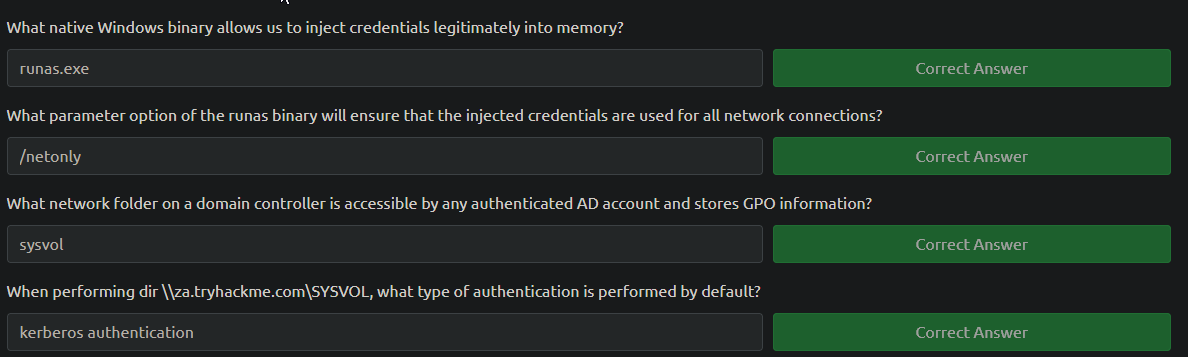
Enumeration through Microsoft Management Console (MMC)
- You should have completed the
AD Basics Roomby now, where different ND objects were initially introduced. - In this task, it will be assumed that you understand what these objects are.
Step 1: Connect to THMJMP1 and your provisioned credentials from Task 1 to perform this task.
Microsoft Management Console
- In this task, we will explore our first enumeration method, which is the only method that makes use of a GUI until the very last task.
We will be using the Microsoft Management Console (MMC) with the
Remote Server Administration Tools (RSAT)AD Snap-Ins.1 2
- https://docs.microsoft.com/en-us/powershell/module/activedirectory/?view=windowsserver2022-ps - I guess RSAT is the dependency of Active Directory? idk??
- Note on the
AttackBox: If you use the provided Windows VM(THMJMP1), it has already been installed for you.
Step 2: Installing MMC (assuming you don’t have it)
1
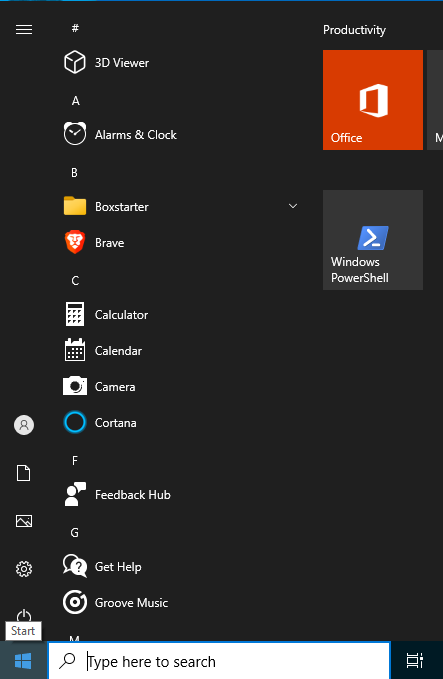
1. Press "Start"
1
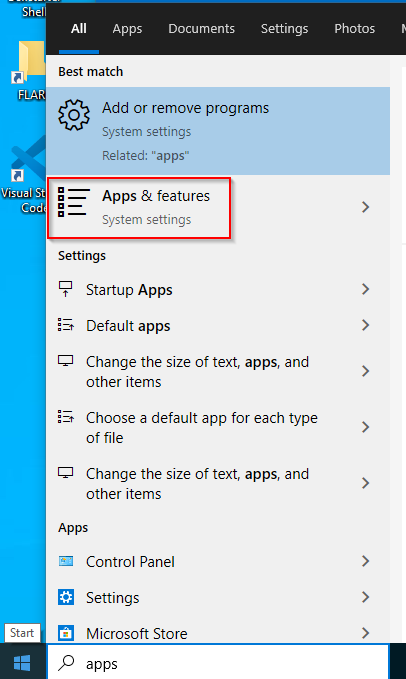
2. Search "Apps and Features" and press enter
1
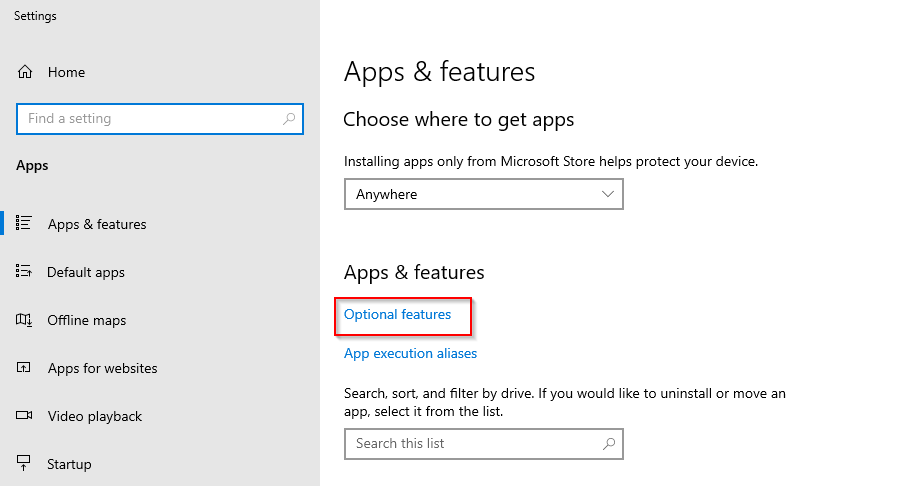
3. Click "Manage Optional Features"
1
4. Click "Add a feature"
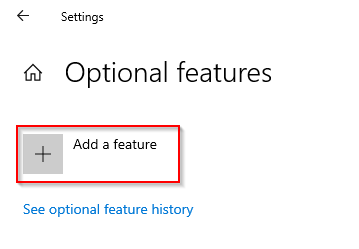
1
2
3
5. Search for "RSAT"

 6. Select "RSAT: Active Directory Domain Services and Lightweight Directory Tools" and click "Install".
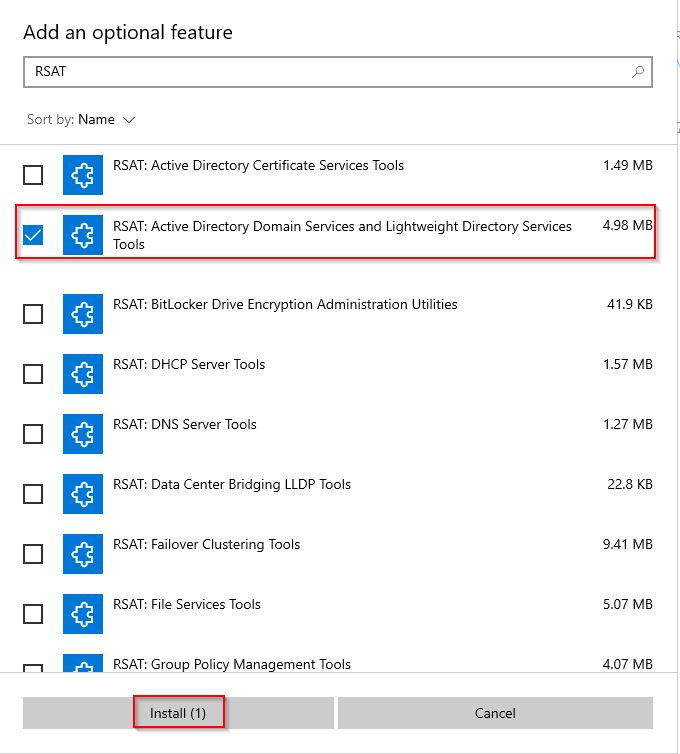
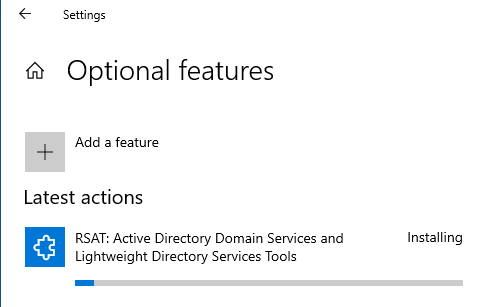
Installation:
Once it is downloaded:
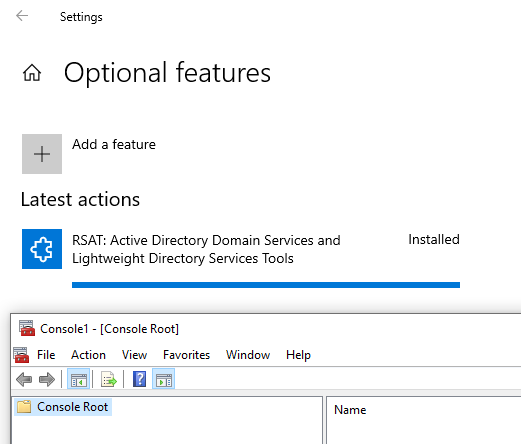
Step 3: starting MMC
We can start
MMCby using theWindows Start button, searchingrun, and typing inMMC.1
- Start button > Run > MMC
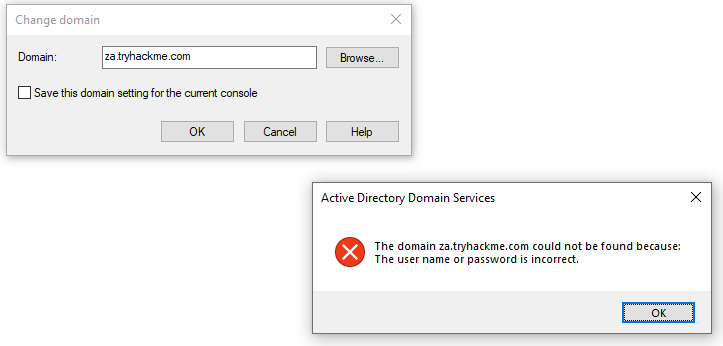
If we just run
MMCnormally, it would not work as our computer is notdomain-joined, and our local accountcannotbe used to authenticate to the domain.
1
2
3
- What is used to authenticate our account to the domain then?
- > By using Runas.exe!
- Okay, this makes logging into the domain exclusive.
- This is where the
Runaswindow from the previous task comes into play. In that window, we can start
MMC, which will ensure that all MMC network connections will use our injected AD credentials.- In
MMC, we can now attach theAD RSATSnap-in:
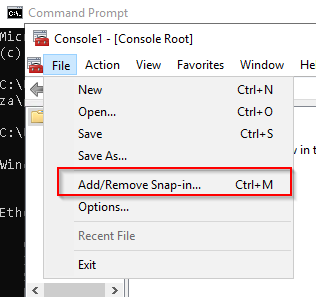
Steps:
1. Click File -> Add/Remove Snap-in
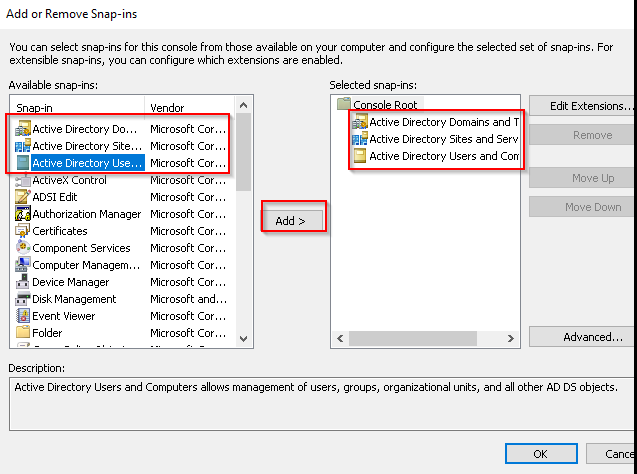
2. Select and Add all three Active Directory Snap-ins
3. Click through any errors and warnings
1
- In mine, there aren't any.
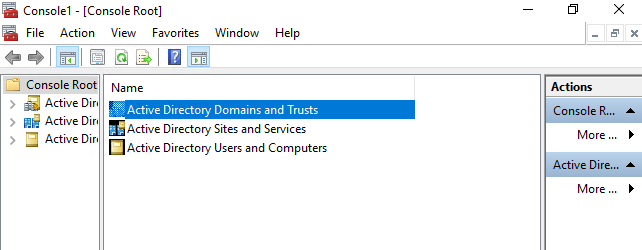
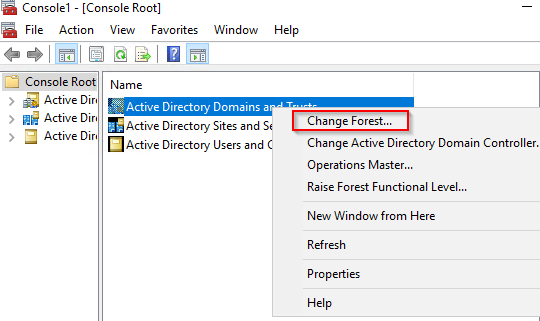
4. Right-click on Active Directory Domains and Trusts and select Change Forest
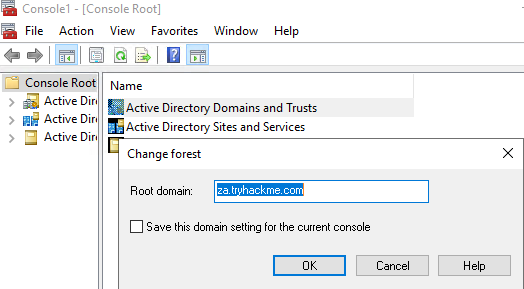
5. Enter za.tryhackme.com as the Root domain and Click OK.
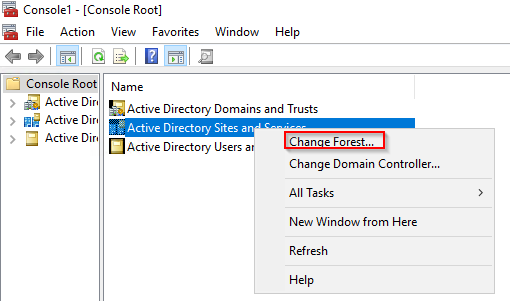
6. Right-click on Active Directory Sites and Services and select Change Forest
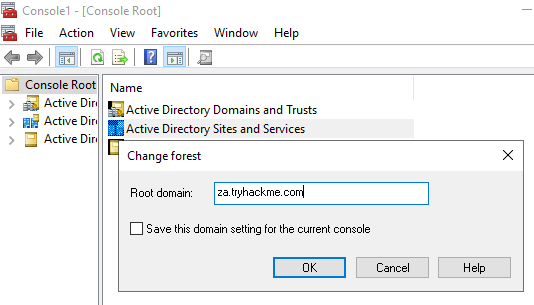
7. Enter za.tryhackme.com as the Root domain and Click OK
8. Right-click on Active Directory Users and Computers and select Change Domain
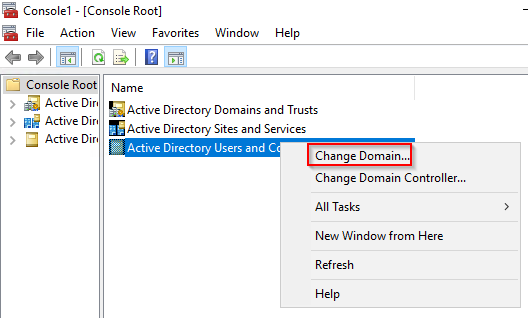
9. Enter za.tryhackme.com as the Domain and Click OK
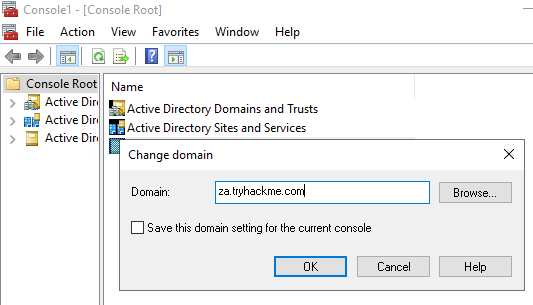
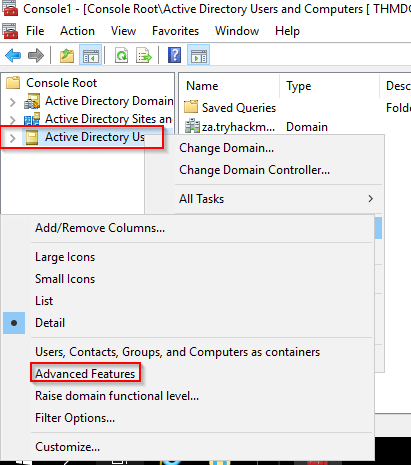
10. Right-click on Active Directory Users and Computers in the left-hand pane.
11. Click on View -> Advanced Features
- If everything up to this point worked correctly, your
MMCshould now be pointed to, and authenticated against, the target Domain:
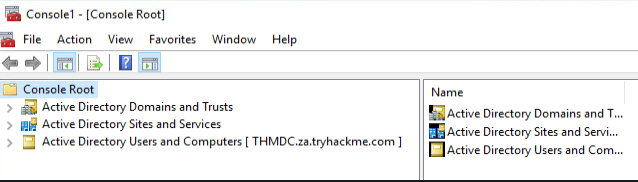
- We can now start enumerating information about the AD structure here.
Users and Computers
Step 4: Let’s take a look at the AD structure.
- For this task, we will focus on
AD Users and Computers. - Expand that
snap-inand expand thezadomain to see the initialOrganisational Unit(OU)structure:
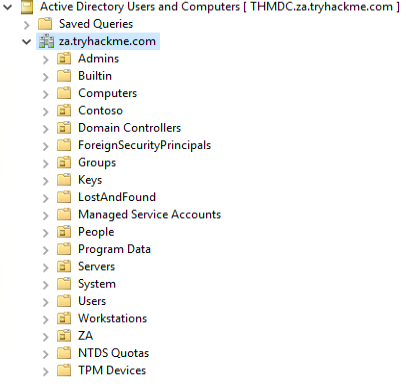
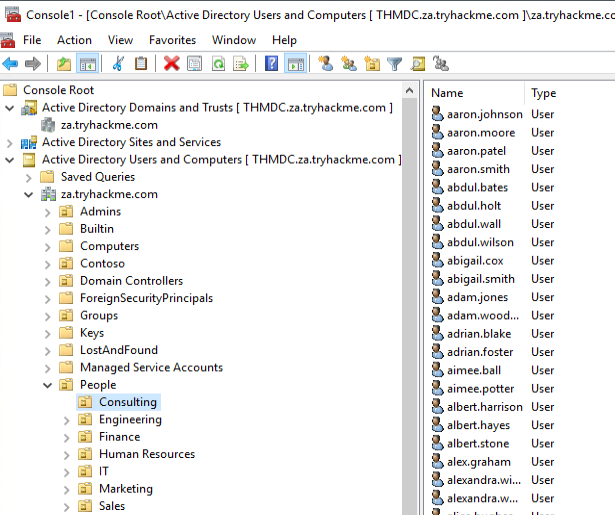
Step 5: Let’s take a look at the People directory.
- Here we see that the users are divided according to department OUs.
- Clicking on each of these OUs will show the users that belong to that department:
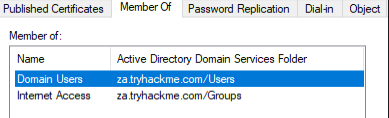
- Clicking on any of these users will allow us to review all of their properties and attributes.
- We can also see what groups they are a member of:
Step 6: Finding host in the environment with MMC
- We can also use
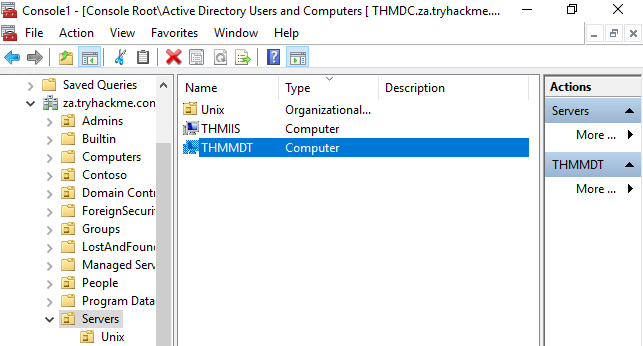
MMCto find hosts in the environment. - If we click on either
ServersorWorkstations, the list ofdomain-joinedmachines will be displayed:
Domain-Joined Servers:
Domain-Joined Workstations:
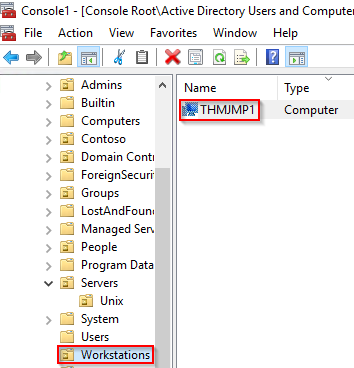
- If we had the relevant permissions, we could also use
MMCto directly make changes toAD, such as changing the user’s password or adding an account to a specific group. - Play around with
MMCto better understand the AD domain structure. - Make use of the
searchfeature to look for objects.
Benefits
1
2
3
4
- The GUI provides an excellent method to gain a holistic view of the AD environment.
- Rapid searching of different AD objects can be performed.
- It provides a direct method to view "specific updates" of AD objects.
- If we have sufficient privileges, we can directly update existing AD objects or add new ones.
Drawbacks
1
2
- The GUI requires RDP access to the machine where it is executed.
- Although searching for an object is fast, gathering AD wide properties or attributes cannot be performed.
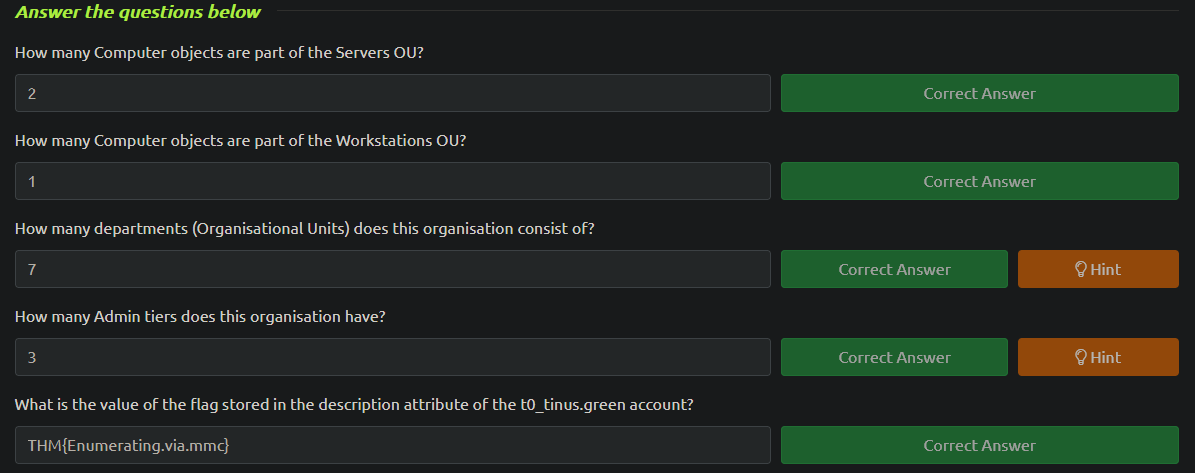
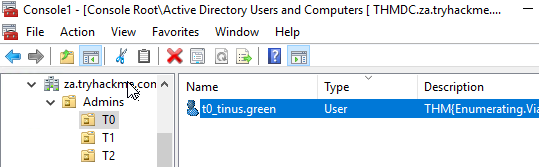
THM Questions:
In the VM:
Enumeration through Command Prompt
Command Prompt
- There are times when you just need to perform a quick and dirty
AD lookup, andCommand Prompthas your back. - Good ol’ reliable
CMDis handy when you parhaps don’t have RDP access to a system,defendersare monitoring for PowerShell use, and you need to perform your AD Enumeration through aRemote Access Trojan(RAT). It can be helpful to embed a couple of simple AD enumeration commands in your
phishing payloadto help you gain the vital information that can help you stage the final attack.CMDhas a built-in command that we can use to enumerate information about AD, namelynet.- The
netcommand is a handy tool to enumerate information about the local system and AD. - We will look at a couple of interesting things we can enumerate from this position, but this is NOT an exhaustive list.
Note: For this task, you will have to use THMJMP1 and won’t be able to use your own Windows VM. This will be explained in the drawbacks.
Users
Step 1: Listing all users in the AD domain with the use of net command with user sub-option:
C:\>net user /domain
The request will be processed at a domain controller for domain za.tryhackme.com

User accounts for \\THMDC

-------------------------------------------------------------------------------
aaron.conway             aaron.hancock            aaron.harris
aaron.johnson            aaron.lewis              aaron.moore
aaron.patel              aaron.smith              abbie.joyce
abbie.robertson          abbie.taylor             abbie.walker
abdul.akhtar             abdul.bates              abdul.holt
abdul.jones              abdul.wall               abdul.west
abdul.wilson             abigail.cox              abigail.cox1
abigail.smith            abigail.ward             abigail.wheeler
[....]
The command completed successfully.
In the VM:
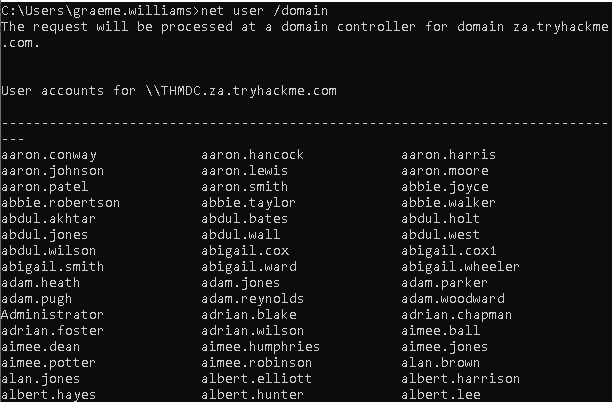
Step 2: Enumerating information about a specific user in the Domain
- This will return all AD users for us and can be helpful in determining the size of the domain to stage further attacks.
- We can also use this sub-option to enumerate more detailed more information about a single user account:
1
2
3
4
5
6
7
8
9
10
11
12
13
14
15
16
17
18
19
20
21
22
23
24
25
26
27
28
C:\>net user zoe.marshall /domain
The request will be processed at a domain controller for domain za.tryhackme.com

User name                    zoe.marshall
Full Name                    Zoe Marshall
Comment
User's comment
Country/region code          000 (System Default)
Account active               Yes
Account expires              Never

Password last set            2/24/2022 10:06:06 PM
Password expires             Never
Password changeable          2/24/2022 10:06:06 PM
Password required            Yes
User may change password     Yes

Workstations allowed         All
Logon script
User profile
Home directory
Last logon                   Never

Logon hours allowed          All

Local Group Memberships
Global Group memberships     *Domain Users         *Internet Access
The command completed successfully.
In the VM:
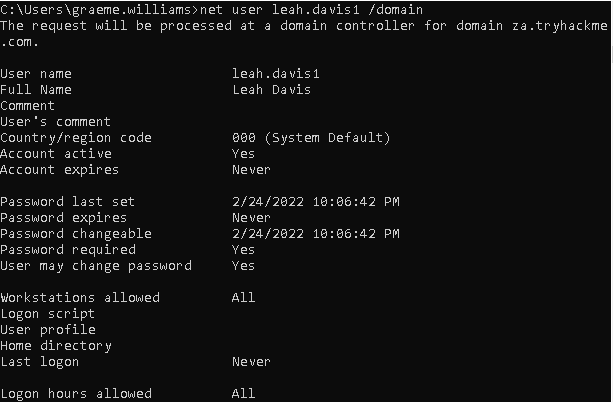

Note : If the user is only part of a small number of AD groups, this command will be able to show up group memberships. However, usually, after more than ten group memberships, the command will fail to list them all.
Groups
Step 3: Enumerating the groups of the domain through the use of net tool with the group sub-option:
1
2
3
4
5
6
7
8
9
10
11
12
13
14
15
16
17
18
19
20
C:\>net group /domain
The request will be processed at a domain controller for domain za.tryhackme.com

Group Accounts for \\THMDC

-------------------------------------------------------------------------------
*Cloneable Domain Controllers
*DnsUpdateProxy
*Domain Admins
*Domain Computers
*Domain Controllers
*Domain Guests
*Domain Users
[...]
*Schema Admins
*Server Admins
*Tier 0 Admins
*Tier 1 Admins
*Tier 2 Admins
The command completed successfully.
In the VM:
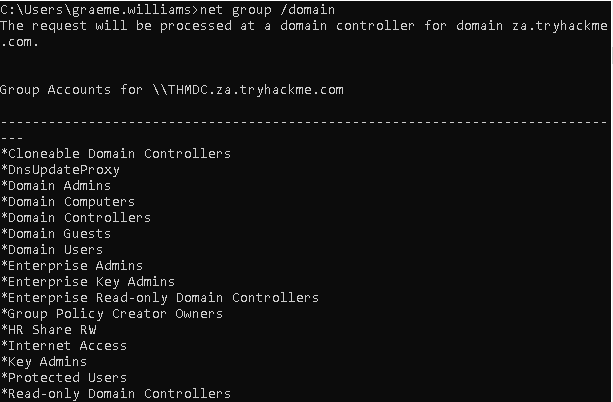
- This information can help us find specific groups to target for goal execution.
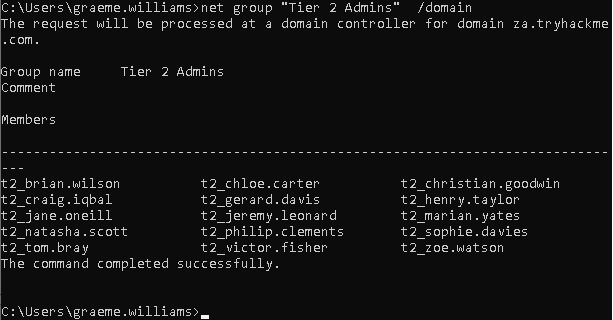
Step 4: Enumerating information about a specific group in the Domain
- We could also enumerate more details such as membership to a group by specifying the group in the same command:
1
2
3
4
5
6
7
8
9
10
11
12
13
C:\>net group "Tier 1 Admins" /domain
The request will be processed at a domain controller for domain za.tryhackme.com

Group name     Tier 1 Admins
Comment

Members

-------------------------------------------------------------------------------
t1_arthur.tyler          t1_gary.moss             t1_henry.miller
t1_jill.wallis           t1_joel.stephenson       t1_marian.yates
t1_rosie.bryant
The command completed successfully.
In the VM:
Password Policy
Step 5: Enumerating password policy in the entire domain with the net tool and accounts sub-option:
1
2
3
4
5
6
7
8
9
10
11
12
13
C:\>net accounts /domain
The request will be processed at a domain controller for domain za.tryhackme.com

Force user logoff how long after time expires?:       Never
Minimum password age (days):                          0
Maximum password age (days):                          Unlimited
Minimum password length:                              0
Length of password history maintained:                None
Lockout threshold:                                    Never
Lockout duration (minutes):                           30
Lockout observation window (minutes):                 30
Computer role:                                        PRIMARY
The command completed successfully.
In the VM:
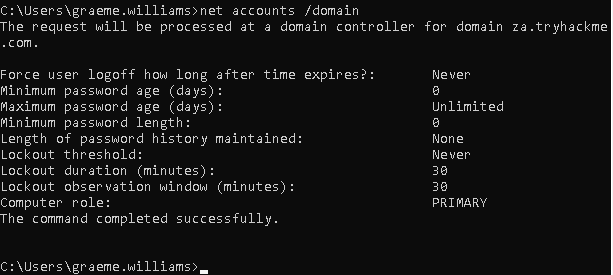
This will provide us with helpful information such as:
1
2
3
4
  - Length of password history kept. Meaning, how many unique passwords must the user provide before they can reuse an old password.
  - The lockout threshold for incorrect password attempts and for how long the account will be locked.
  - The minimum length of the password.
  - The maximum age that passwords are allowed to reach indicating if passwords have to be rotated at a regular interval.
- This information can benefit us if we want to stage additional password spraying attacks against the other user accounts that we have now enumerated.
- It can help us better guess what single passwords we should use in the attack and how many attacks can we run before we risk locking accounts.
However, it should be noted that if we perform a
blind password spraying attack, we may lock out anyway since we did not check to determine how many attempts that specific account had left before being locked.- Full reference for the
netcommand:https://docs.microsoft.com/en-us/troubleshoot/windows-server/networking/net-commands-on-operating-systems
Benefits
No additional or external tooling is required, and these simple commands dare often not monitored for by the Blue team.
- We do not need a GUI to do this enumeration.
- VBScript and other macro languages that are often use for phishing payloads support these commands natively so they can be used to enumerate initial information regarding the AD domain before more specific payloads are crafted.
Drawbacks
- The
netcommands must be executed from adomain-joinedmachine. If the machine is NOTdomain-joined, it will default to theWORKGROUPdomain. - The
netcommands may not show ALL information. For example, if a user is a member ofmore than ten groups,not all of these groupswill be show in the output.
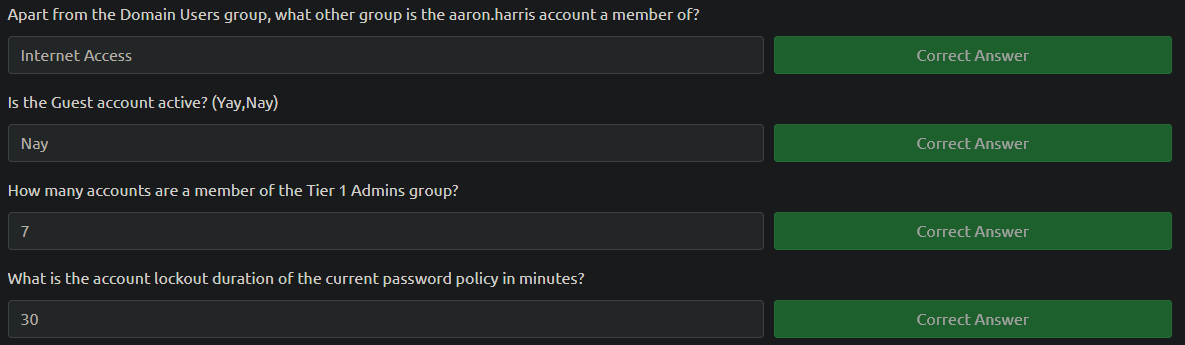
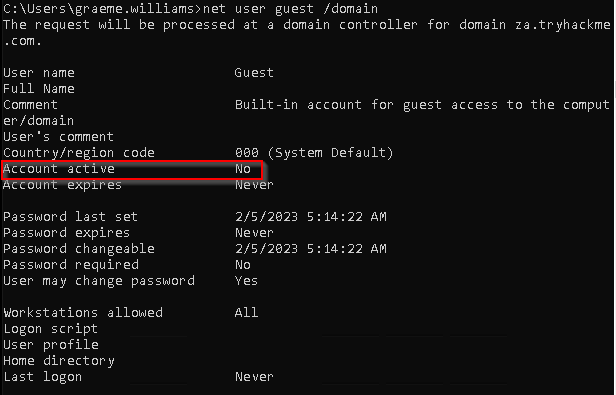
THM Questions:
Enumeration through PowerShell
PowerShell
- PowerShell is the upgrade of the Command Prompt.
- Microsoft first released it in 2006.
- While
PowerShellhas all the standard functionalityCommand Promptprovides, it also provides acccess tocmdlets(pronounced “command-lets”), which are .NET classes to perform specific functions. While we can write our own cmdlets, like the creators of
PowerViewdid, we can already get very far using the built-in ones.- Since we installed the
AD-RSATtooling fromTask 3, it automatically installed the associated cmdlets for us. - There are
50+ cmdletsinstalled. We will be looking at some of these, but refer to this list:
https://docs.microsoft.com/en-us/powershell/module/activedirectory/?view=windowsserver2022-ps1- Using our
SSH terminal, we can upgrade it to aPowerShellterminal using the following command:powershell
Users
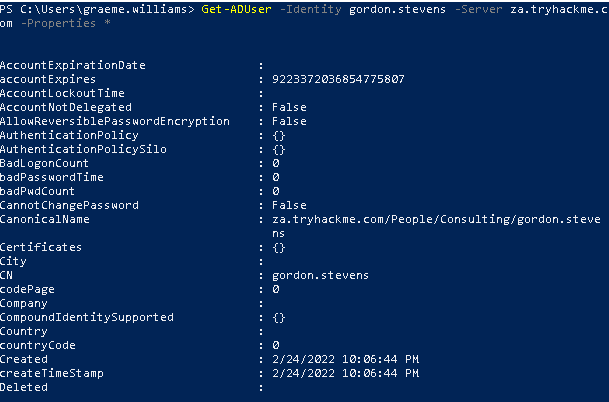
Step 1: Enumerating information about a specific AD user with Get-ADUser
1
2
3
4
5
6
7
8
9
10
11
12
PS C:\> Get-ADUser -Identity gordon.stevens -Server za.tryhackme.com -Properties *

AccountExpirationDate                :
accountExpires                       : 9223372036854775807
AccountLockoutTime                   :
[...]
Deleted                              :
Department                           : Consulting
Description                          :
DisplayName                          : Gordon Stevens
DistinguishedName                    : CN=gordon.stevens,OU=Consulting,OU=People,DC=za,DC=tryhackme,DC=com
[...]
1
- This allows us to enumerate information about a specific user.
In the VM:
1
2
3
4
Breakdown:
- "-Identity" : The account name that we are enumerating
- "-Properties" : which properties associated with the account will be shown , '*' will show all properties.
- "-Server" : Since we are NOT domain-joined, we have to use this parameter to point it to our domain controller.
Step 2: Using “-Filter” parameter to create a neat format for the output
- For most of these cmdlets, we can also use the
-Filterparameter that allows more control over enumeration and use theFormat-Tablecmdlet to display the results such as the following neatly:
1
2
3
4
5
6
7
8
9
PS C:\> Get-ADUser -Filter 'Name -like "*stevens"' -Server za.tryhackme.com | Format-Table Name,SamAccountName -A

Name             SamAccountName
----             --------------
chloe.stevens    chloe.stevens
samantha.stevens samantha.stevens
[...]
janice.stevens   janice.stevens
gordon.stevens   gordon.stevens
Groups
Step 3: Enumerating AD groups with Get-ADGroup:
1
2
3
4
5
6
7
8
9
10
11
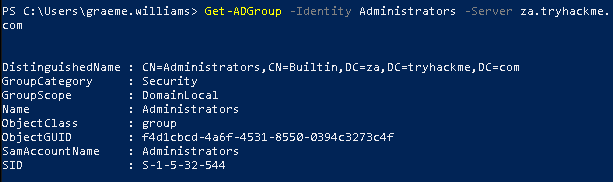
PS C:\> Get-ADGroup -Identity Administrators -Server za.tryhackme.com


DistinguishedName : CN=Administrators,CN=Builtin,DC=za,DC=tryhackme,DC=com
GroupCategory     : Security
GroupScope        : DomainLocal
Name              : Administrators
ObjectClass       : group
ObjectGUID        : f4d1cbcd-4a6f-4531-8550-0394c3273c4f
SamAccountName    : Administrators
SID               : S-1-5-32-544
1
- This enumerates the information about a specific group "Administrators" in the domain.
In the VM:
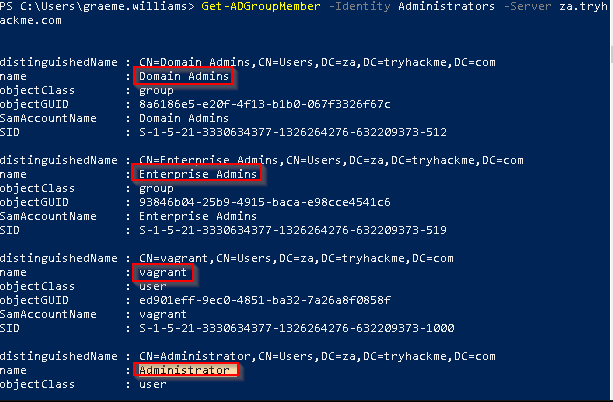
Step 4: Enumerating group membership using the Get-ADGroupMember cmdlet:
1
2
3
4
5
6
7
8
9
10
11
12
13
14
15
16
17
PS C:\> Get-ADGroupMember -Identity Administrators -Server za.tryhackme.com


distinguishedName : CN=Domain Admins,CN=Users,DC=za,DC=tryhackme,DC=com

name              : Domain Admins
objectClass       : group
objectGUID        : 8a6186e5-e20f-4f13-b1b0-067f3326f67c
SamAccountName    : Domain Admins
SID               : S-1-5-21-3330634377-1326264276-632209373-512

[...]

distinguishedName : CN=Administrator,CN=Users,DC=za,DC=tryhackme,DC=com name              : Administrator
objectClass       : user
objectGUID        : b10fe384-bcce-450b-85c8-218e3c79b30fSamAccountName    : Administrator
SID               : S-1-5-21-3330634377-1326264276-632209373-500
1
- This enumerates ALL members of the group "Administrator".
In the VM:
1
	- This enumerates all groups that the user "Administrator" is a member of.
AD Objects
Step 5: Searching for any AD Objects that were changed after a specific date
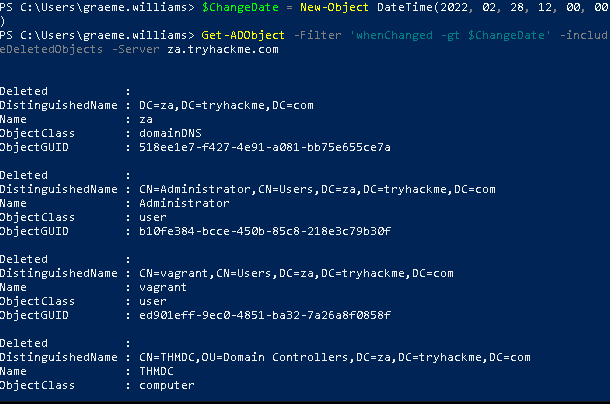
- A more generic search for any AD objects can be performed using the
Get-ADObjectcmdlet. - For example, if we are looking for all AD objects that were changed after a specific date:
1
2
3
4
5
6
7
8
9
10
11
12
13
PS C:\> $ChangeDate = New-Object DateTime(2022, 02, 28, 12, 00, 00)
PS C:\> Get-ADObject -Filter 'whenChanged -gt $ChangeDate' -includeDeletedObjects -Server za.tryhackme.com
Deleted           :
DistinguishedName : DC=za,DC=tryhackme,DC=com
Name              : za
ObjectClass       : domainDNS
ObjectGUID        : 518ee1e7-f427-4e91-a081-bb75e655ce7a

Deleted           :
DistinguishedName : CN=Administrator,CN=Users,DC=za,DC=tryhackme,DC=com
Name              : Administrator
ObjectClass       : user
ObjectGUID        : b10fe384-bcce-450b-85c8-218e3c79b30f
1
2
- I guess we are looking for AD Objects after Feb. 28,2022 at 12:00:00
- As you can see, the objects are 'za' and 'Administrator'
In the VM:
1
- Note that there's a lot more to the output!
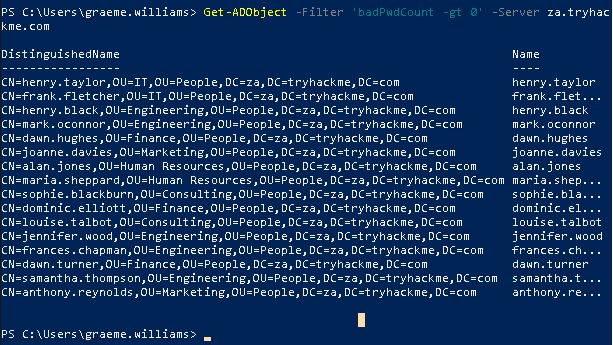
Step 6: Enumerating accounts that have a badPwdCount which indicates the accounts that have lockout policy:
1
PS C:\> Get-ADObject -Filter 'badPwdCount -gt 0' -Server za.tryhackme.com
1
2
- Output from this command will show which accounts have lockout policy so when we are doing "Password Spraying Attack", we are not applying so much pressure to accounts that have this lockout policy applied.
- Question: Do ALL users have account lockout policy or does it just apply to important users?
- This will only show results if one of the users in the network
mistypedtheir password a couple of times.
In the VM:
Domains
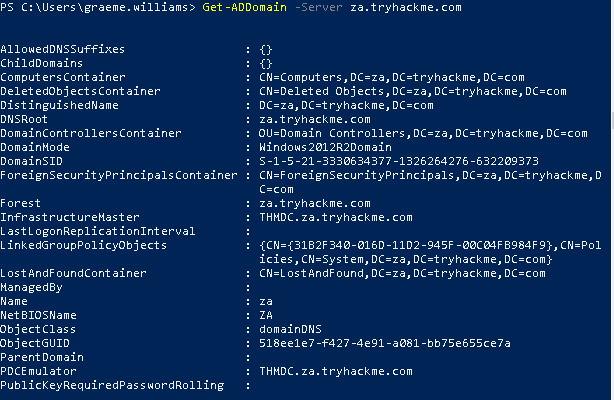
Step 7: Retrieve additional information about the specific domain using Get-ADDomain
1
2
3
4
5
6
7
8
9
10
11
PS C:\> Get-ADDomain -Server za.tryhackme.com

AllowedDNSSuffixes                 : {}
ChildDomains                       : {}
ComputersContainer                 : CN=Computers,DC=za,DC=tryhackme,DC=com
DeletedObjectsContainer            : CN=Deleted Objects,DC=za,DC=tryhackme,DC=com
DistinguishedName                  : DC=za,DC=tryhackme,DC=com
DNSRoot                            : za.tryhackme.com
DomainControllersContainer         : OU=Domain Controllers,DC=za,DC=tryhackme,DC=com
[...]
UsersContainer                     : CN=Users,DC=za,DC=tryhackme,DC=com
In the VM:
Altering AD Objects
- The great thing about the
AD-RSATcmdlets is that some even allow you to create new or alter existing AD objects. However, our focus for this network is on enumeration.
Note: Creating new objects or altering existing ones would be considered
AD exploitation, which is covered later in the AD module.- However, we will show an example of this by force changing the password of our AD user by using the
Set-ADAccountPasswordcmdlet:
Format:
1
PS C:\> Set-ADAccountPassword -Identity <username> -Server za.tryhackme.com -OldPassword (ConvertTo-SecureString -AsPlaintext "<old_password>" -force) -NewPassword (ConvertTo-SecureString -AsPlainText "<new_password>" -Force)
1
- AD User's(any) password is considered an object in the Active Directory.
Example:
1
PS C:\> Set-ADAccountPassword -Identity gordon.stevens -Server za.tryhackme.com -OldPassword (ConvertTo-SecureString -AsPlaintext "old" -force) -NewPassword (ConvertTo-SecureString -AsPlainText "new" -Force)
1
- Remember to change the identity value and password for the account you were provided with for enumeration on the distributor webpage in Task 1.
In the VM:
1
PS C:\> Set-ADAccountPassword -Identity graeme.williams -Server za.tryhackme.com -OldPassword (ConvertTo-SecureString -AsPlaintext "hJnlKuLBa2" -force) -NewPassword (ConvertTo-SecureString -AsPlainText "HelloWorld123" -Force)

- Let’s try logging in again with this username:
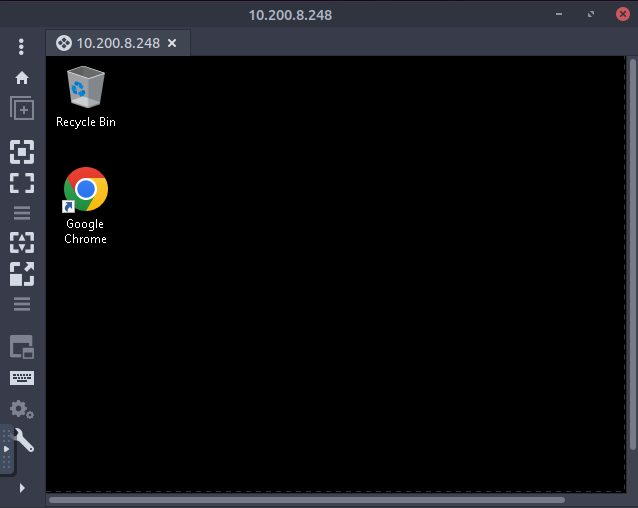
1
- The newly modified password worked!
Benefits
- The
PowerShellcmdlets can enumerate significantly more information than thenetcommands fromCommand Prompt. - We can specify the server and domain to execute these commands using
runasfrom anon-domain-joinedmachine. - We can create our own cmdlets to enumerate specific information. (See
PowerView) - We can use the
AD-RSATcmdlets to directly change AD objects, such asresetting passwordsoradding a user to a specific group.
Drawbacks
PowerShellis often monitored more by the blue teams than command prompt.- We have to install the
AD-RSATtooling or use other, potentially detectable, scripts for PowerShell enumeration.
THM Questions:
1.

Command:
1
PS C:\Users\graeme.williams> Get-ADUser -Identity beth.nolan -Server za.tryhackme.com -Properties *

...
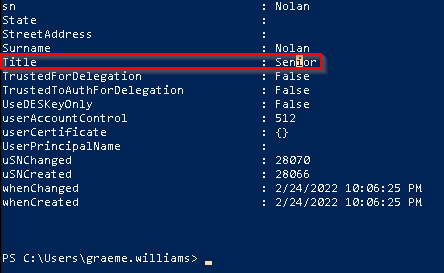
2.

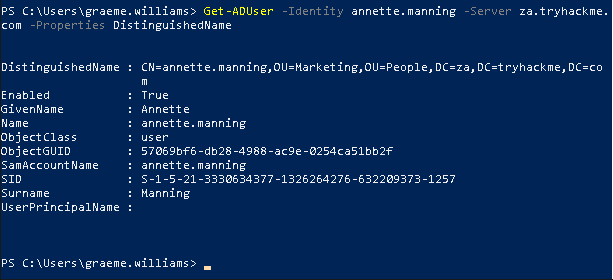
1
PS C:\Users\graeme.williams> Get-ADUser -Identity annette.manning -Server za.tryhackme.com -Properties DistinguishedName
3.When was the Tier 2 Admins group created?

1
- You have to enumerate all GROUPS in the domain:
1
> Get-ADGroup -Filter *
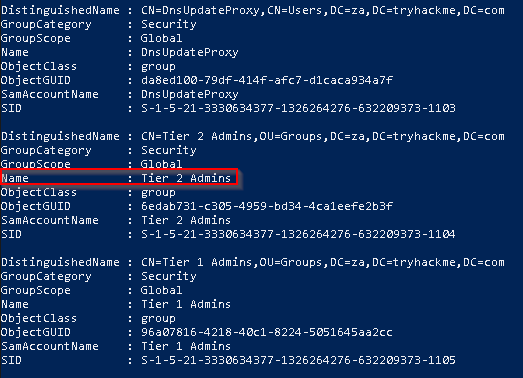
Command used:
1
> Get-ADGroup -Identity "Tier 2 Admins" -Server za.tryhackme.com -Property *
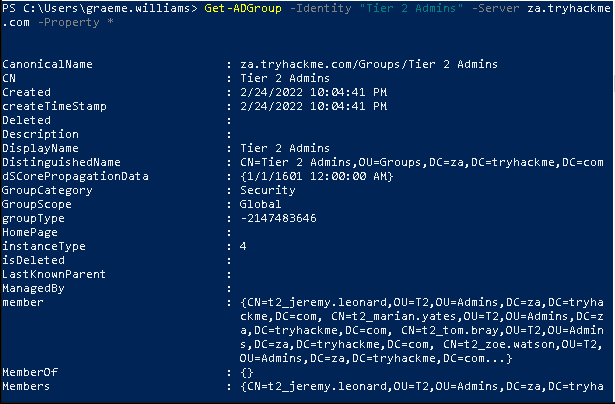
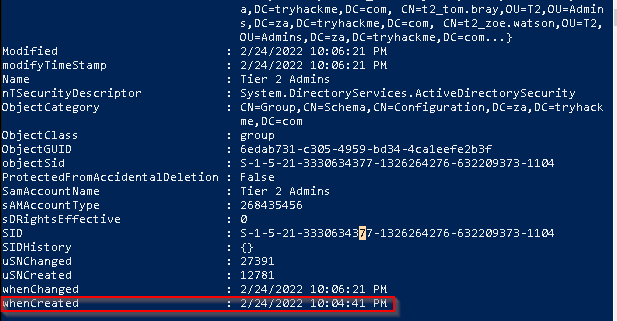
4.What is the value of the SID attribute of the Enterprise Admins group?
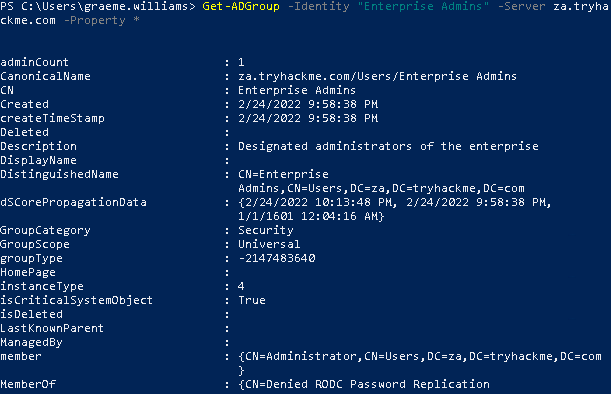
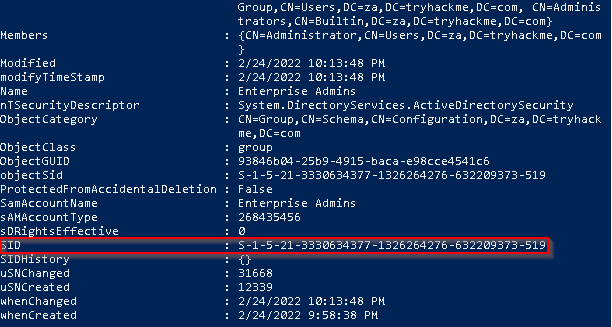
1
> Get-ADGroup -Identity "Enterprise Admins" -Server za.tryhackme.com -Property *
Output
5.Which container is used to store deleted AD objects?
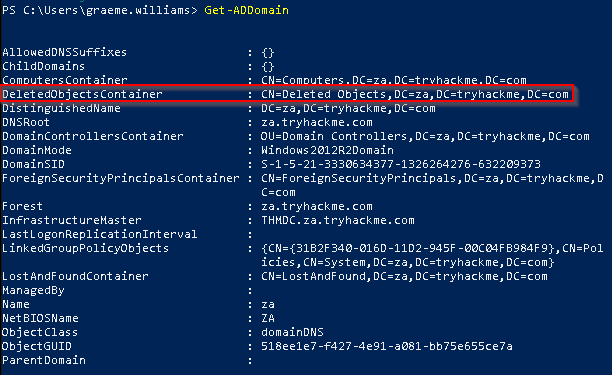
Enumeration through Bloodhound
- Lastly, we will look at performing AD enumeration using
Bloodhound. Bloodhoundis the most powerful AD enumeration tool to date, and when it was released in 2016, it changed the AD enumeration landscape forever.
Bloodhound History
For a significant amount of time, red teamers (and, unfortunately, attackers) had the upper hand. So much so that Microsoft integrated their own version of Bloodhound in its Advanced Threat Protection solution. It all came down to the following phrase:
“Defenders think in lists, Attackers think in graphs.” - Unknown
Bloodhound allowed attackers (and by now defenders too) to visualise the AD environment in a graph format with
interconnected nodes. Each connection is a possible path that could be exploited to reach a goal. In contrast, the defenders used lists, like a list of Domain Admins or a list of all the hosts in the environment.This
graph-based thinkingopened up a world to attackers. It allowed for a two-stage attack. In the first stage, the attackers would perform phishing attacks to get an initial entry to enumerate AD information. This initial payload was usually incredibly noisy and would be detected and contained by the blue team before the attackers could perform any actionsapart from exfiltrating the enumerated data. However, the attackers could now use this data(exfiltrated data) offline to create an attack path in graph format, showing precisely the steps and hops required. Using this information during the second phishing campaign, the attackers could often reach their goal in minutes once a breach was achieved. It is often even faster than it would take the blue team to receive their first alert. This is the power of thinking in graphs, which is why so many blue teams have also started to use these types of tools to understand their security posture better.
Sharphound
- You will often hear users refer to
SharphoundandBloodhoundinterchangeably. - However, they are NOT the same.
Sharphoundis the enumeration tool ofBloodhound.1
- Sharphound : used to enumerate AD information that can then be visually displayed in Bloodhound.
Bloodhoundis the actual GUI used to display the AD attack graphs.- Therefore, we first need to learn how to use
Sharphoundto enumerate AD before we can look at the results visually usingBloodhound.
Sharphound Collectors:
1
2
3
- "Sharphound.ps1" : PowerShell script for running Sharphound. However, the latest release of Sharphound has stopped releasing the PowerShell script version. This version is good to use with RATs since the script can be loaded directly into memory, evadding on-disk AV scans(How exactly???).
- "Sharphound.exe" : A windows executable version for running Sharphound.
- "AzureHound.ps1" : PowerShell script for running Sharphound for Azure (Microsoft Cloud Computing Services) instances. Bloodhound can ingest data enumerated from Azure to find attack paths related to the configuration of Azure Identity and Access Management.
Note: Your Bloodhound and Sharphound versions must match for the best results. Usually there are updates made to Bloodhound which means old Sharphound results cannot be ingested. This network was created using Bloodhound v4.1.0. Please make sure to use this version with the Sharphound results.
Step 0: Using Runas to point Sharphound to a Domain Controller
- When using these collector scripts on an assessment, there is a high likelihood that these files will be detected as
malwareand raise an alert to the blue team. - This is again where our Windows machine that is non-domain-joined can assist.
- We can use the
runascommand to inject the AD credentials and pointSharphoundto aDomain Controller. - Since we control this Windows machine(
initially compromised machine), we can either disable the AV or create exceptions for specific files or folders (file/folder exclusion from the AV), which has already been performed for you on theTHMJMP1machine. - You can find the
Sharphoundbinaries on this host in theC:\Tools\directory. - We will use the
Sharphound.exeversion for our enumeration, but feel free to play with the other two. - We will execute
Sharphoundas follows:
1
> .\C:\Tools\Sharphound.exe --CollectionMethods <Methods> --Domain za.tryhackme.com --ExcludeDCs
1
2
3
4
Parameters Breakdown:
- "CollectionMethods" : Determines what kind of data Sharphound would collect. The most common options are `Default` or `All`. Also, since Sharphound caches information, once the first run has been completed, you can only use the "Session collection" method to retrieve new user sessions to speed up the process.
- "Domain" : Here, we specify the domain we want to enumerate on. In some instances, you may want to enumerate a parent or other domain that has trust with your existing domain. You can tell Sharphound which domain should be enumerated by altering this parameter.
- "ExcludeDCs" : this will instruct Sharphound not to touch domain controllers, which reduces the likelihood that the Sharphound run will raise an alert. This parameter is for evasion I guess.
- Reference to ALL Sharphound parameters:
https://bloodhound.readthedocs.io/en/latest/data-collection/sharphound-all-flags.html
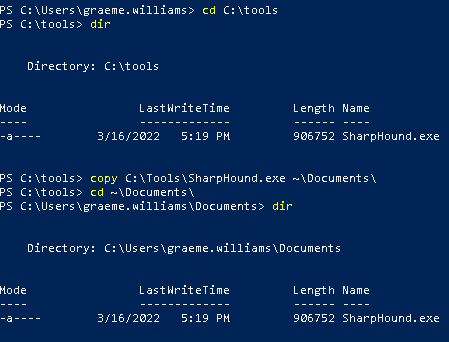
Step 1: Using SSH PowerShell session to copy the Sharphound binary to your AD user’s Documents directory:
1
2
3
PS C:\> copy C:\Tools\Sharphound.exe ~\Documents\
PS C:\> cd ~\Documents\
PS C:\Users\gordon.stevens\Documents>
In the VM:
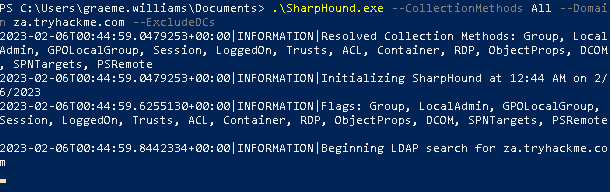
Step 2: Running Sharphound with All and Session collection methods:
1
2
3
4
5
6
7
8
9
10
11
12
PS C:\Users\gordon.stevens\Documents\> .\SharpHound.exe --CollectionMethods All --Domain za.tryhackme.com --ExcludeDCs

2022-03-16T19:11:41.2898508+00:00|INFORMATION|Resolved Collection Methods: Group, LocalAdmin, GPOLocalGroup, Session, LoggedOn, Trusts, ACL, Container, RDP, ObjectProps, DCOM, SPNTargets, PSRemote
2022-03-16T19:11:41.3056683+00:00|INFORMATION|Initializing SharpHound at 7:11 PM on 3/16/2022
2022-03-16T19:11:41.6648113+00:00|INFORMATION|Flags: Group, LocalAdmin, GPOLocalGroup, Session, LoggedOn, Trusts, ACL, Container, RDP, ObjectProps, DCOM, SPNTargets, PSRemote
2022-03-16T19:11:41.8211318+00:00|INFORMATION|Beginning LDAP search for za.tryhackme.com
[....]
2022-03-16T19:12:31.6981568+00:00|INFORMATION|Output channel closed, waiting for output task to complete
Closing writers
2022-03-16T19:12:32.2605943+00:00|INFORMATION|Status: 2163 objects finished (+2163 43.26)/s -- Using 85 MB RAM
2022-03-16T19:12:32.2605943+00:00|INFORMATION|Enumeration finished in 00:00:50.4369344
2022-03-16T19:12:32.5418517+00:00|INFORMATION|SharpHound Enumeration Completed at 7:12 PM on 3/16/2022! Happy Graphing!
In the VM:
1
2
- It takes a few minutes for the Sharphound to enumerate.
- In larger organization, expect that the wait to be much longer .
Step 3: Checking the zip file output from Sharphound:
- Once completed, you will have a timestamped ZIP file in the same folder you executed Sharphound from:
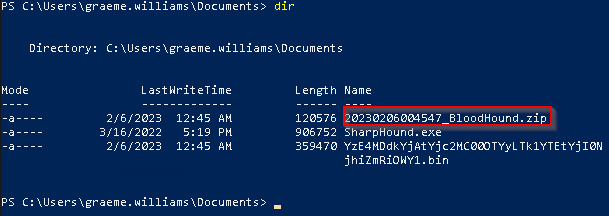
1
- We can now use Bloodhound to 'ingest' this ZIP to show us attack paths visually.
Bloodhound
- As mentioned before,
Bloodhoundis the GUI that allows us to import data captured bySharphoundand visualize it into attack paths. Bloodhounduses Neo4j as its backend database and graphing system.- Neo4j is a graph database management system.
Step 4: Starting Bloodhound:
- If you’re using the
AttackBox, you may use the red Bloodhound icon in the Dock to launch it. - In all other cases, make sure Bloodhound and neo4j are instsalled and configured on your attacking machine.
- EIther way, it is good to understand what happens in the background.
- Before we can start
Bloodhound, we need to load Neo4j:
1
2
3
4
5
6
7
8
9
10
11
12
13
14
thm@thm:~# neo4j console start
Active database: graph.db
Directories in use:
home:         /var/lib/neo4j
config:       /etc/neo4j
logs:         /var/log/neo4j
plugins:      /var/lib/neo4j/plugins
import:       /var/lib/neo4j/import
data:         /var/lib/neo4j/data
certificates: /var/lib/neo4j/certificates
run:          /var/run/neo4j
Starting Neo4j.
[....]
2022-03-13 19:59:18.014+0000 INFO  Bolt enabled on 127.0.0.1:7687.
In the VM:
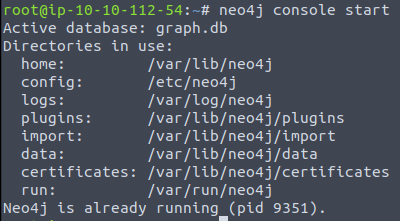
- Initial State:
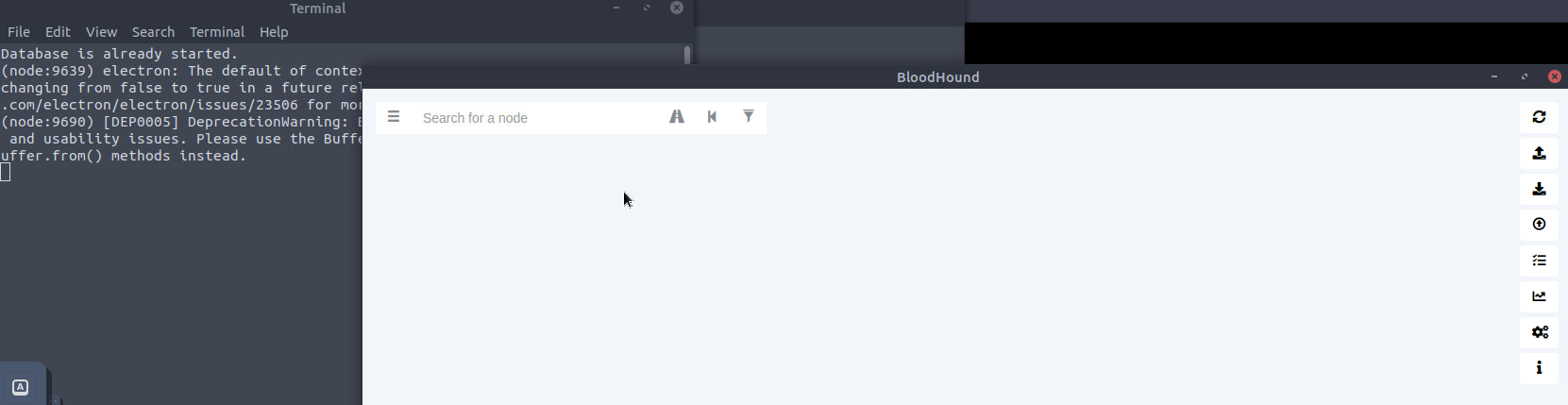
Step 5: Run Bloodhound
- In another Terminal tab, run
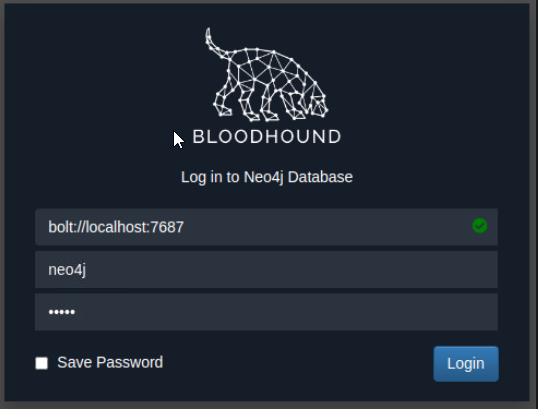
bloodhound --no-sandbox. This will show you the authentication GUI:
In the VM:

1
2
- Default creds for neo4j database == neo4j:neo4j
- Use this to authenticate in Bloodhound.
Step 6: Importing the results of Sharphound from the compromised Windows machine to our AttackBox locally:
- In this case, we want to use
scp:
1
$ scp <AD Username>@THMJMP1.za.tryhackme.com:C:/Users/<AD Username>/Documents/<Sharphound ZIP> .
1
$ scp lynda.franklin@THMJMP1.za.tryhackme.com:C:/Users/lynda.franklin/Documents/20230206033032_BloodHound.zip .
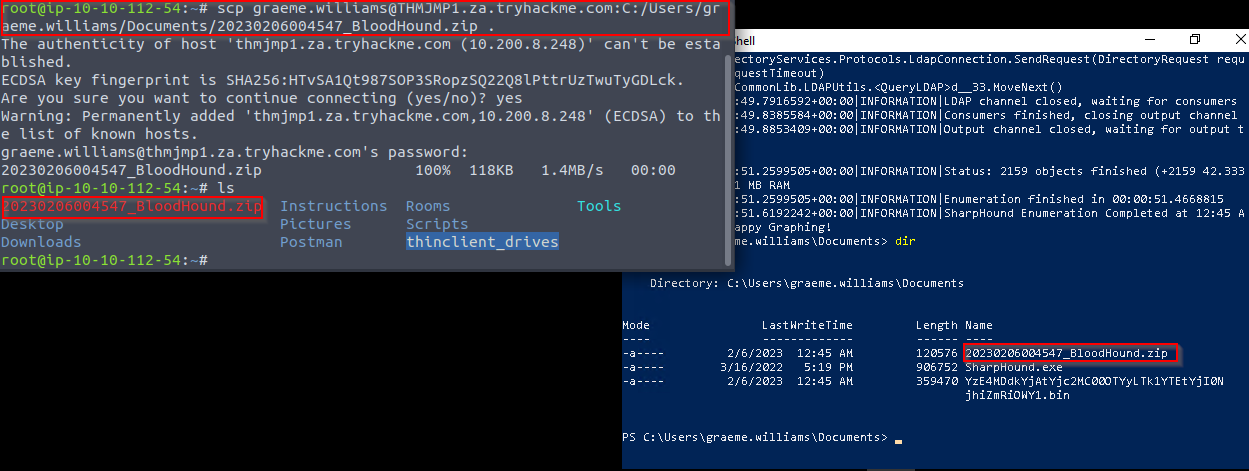
- Once you provide your password, this will copy the results to your current working directory.
Step 7: Copy the zip file into Bloodhound GUI
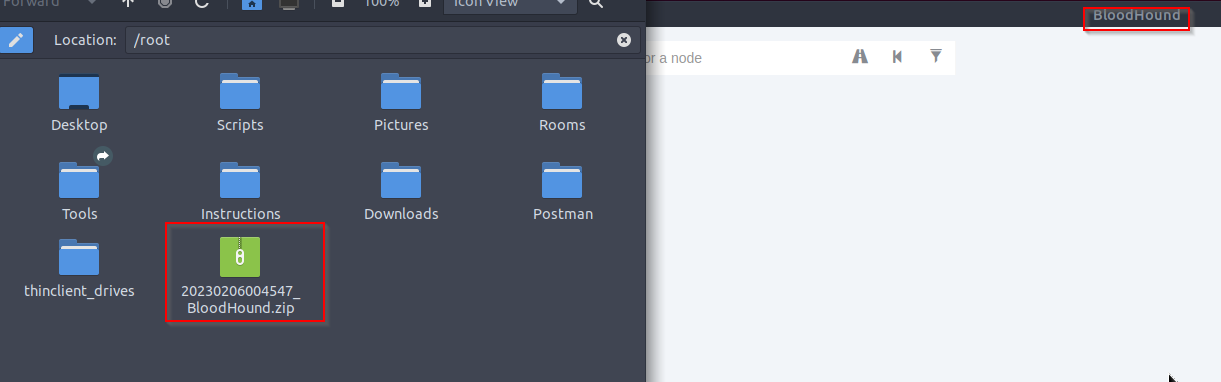
- Drag and drop the
ZIPfile onto theBloodhound GUIto import into Bloodhound.
- It will show that it is extracting the files and initiating the report.
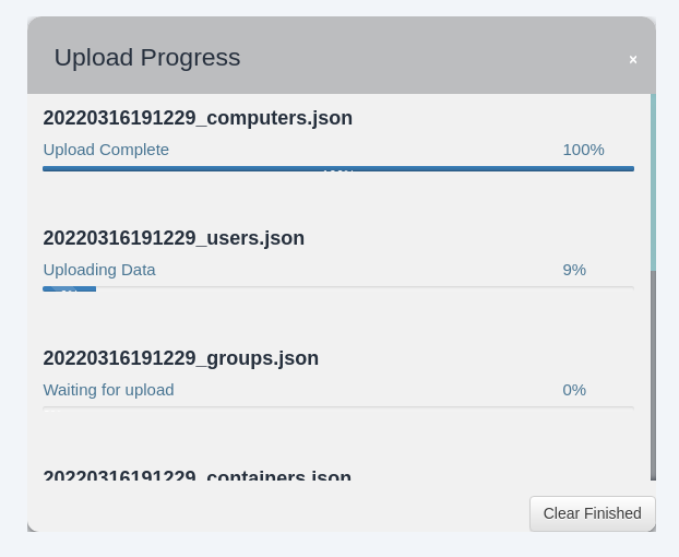
1
- Once ALL the JSON files have been imported, we can start using Bloodhound to enumerate attack paths for this specific domain.
Attack Paths
- There are several attack paths that Bloodhound can show.
- Pressing the three stripes next to “
Search for a node” will show the options.
- The very first tab shows us the information regarding our current imports.
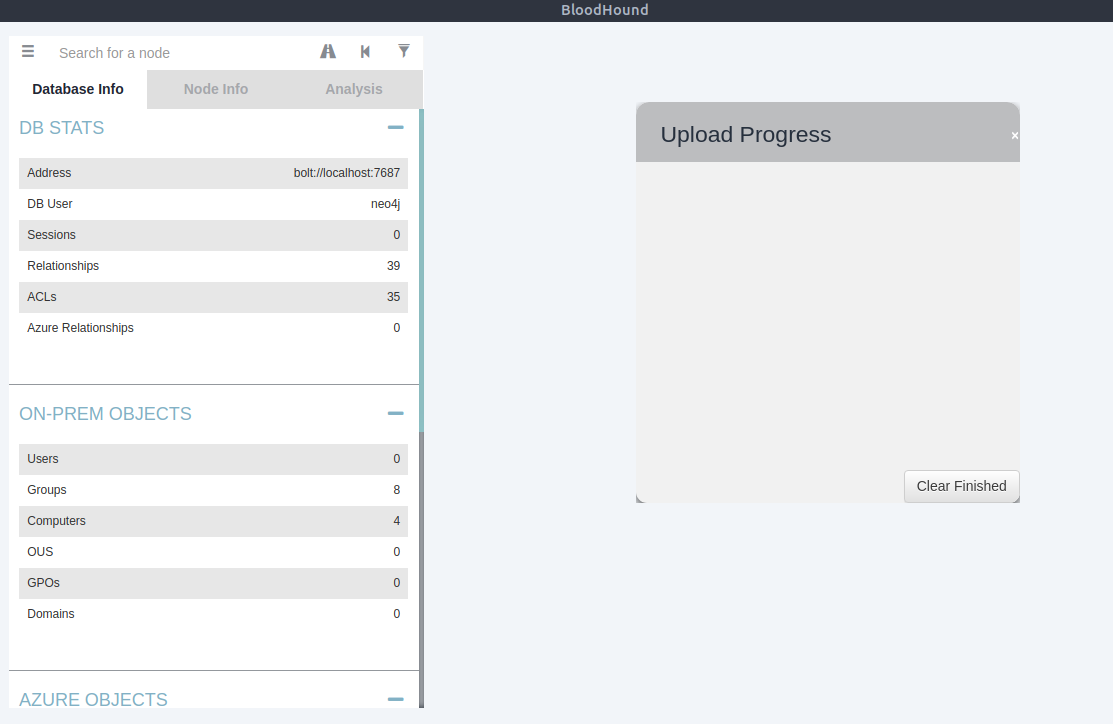
- Note that if you import a new run of
Sharphound, it would cumulatively increase these counts.
Step 8: Looking at Node info
- First, we will look at
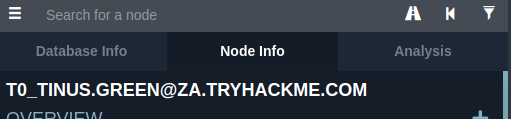
Node Info. - Let’s search for our AD account in
Bloodhound. - You must click on the node to refresh the view.

1
- The refresh button is on the upper right corner.
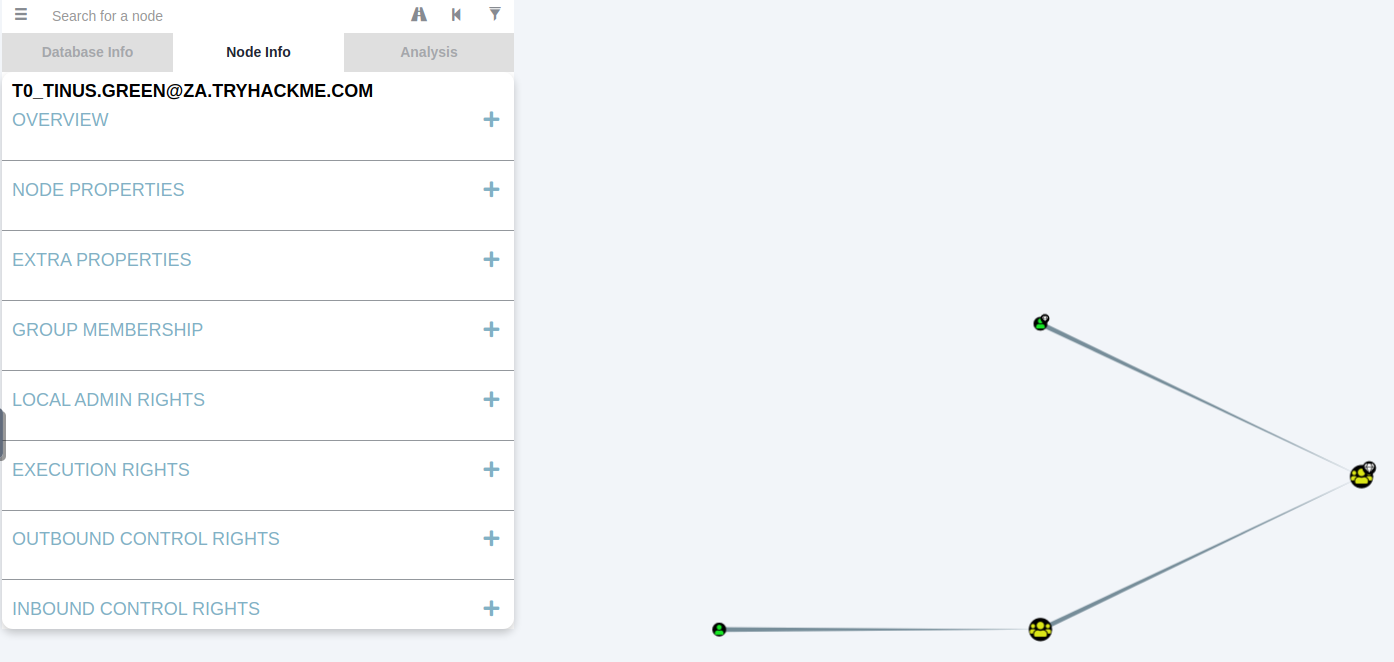
- Also note you can change the
label schemeby pressingLeft-CTRL.
Without Labels:
With Labels:
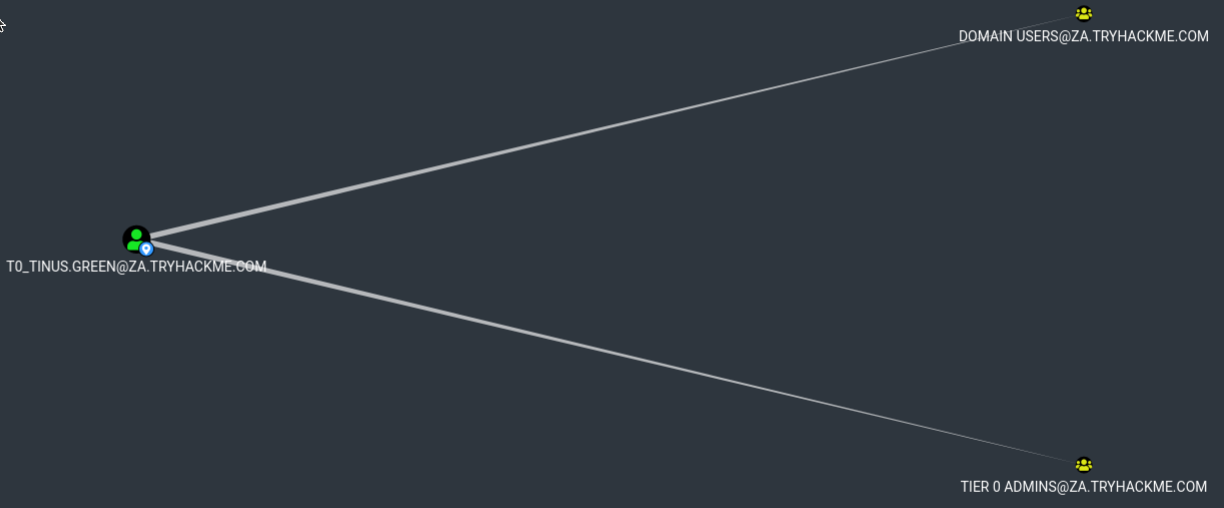
- We can see that there is a significant amount of information returned regarding our use.
Each of the categories provides the following information:
1
2
3
4
5
6
7
8
  - "Overview" : Provides summaries information such as the number of active sessions the account has and if it can reach high-value targets.
  - "Node Properties" : Shows information regarding the AD account, such as the display name and the title.
  - "Extra Properties" : provides more detailed AD information such as the distinguished name and when the account was created.
  - "Group Membership" : Shows information regarding the groups that the account is a member of.
  - "Local Admin Rights" : Provides information on domain-joined hosts where the account has administrative privileges.
  - "Execution Rights" : Provides information on special privileges such as the ability to RDP into a machine.
  - "Outbound Control Rights" : Shows information regarding AD objects where this account has permissions to modify their attributes.
  - "Inbound Control Rights" : Provides information regarding AD objects that can modify the attributes of this account.
Step 9: Interacting with Group Membership of a Node
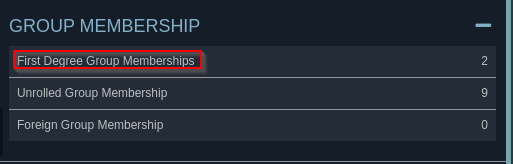
- If you want more information in each of these categories, you can press the number next to the
information query. - For instance, let’s look at the group membership associated with our account.
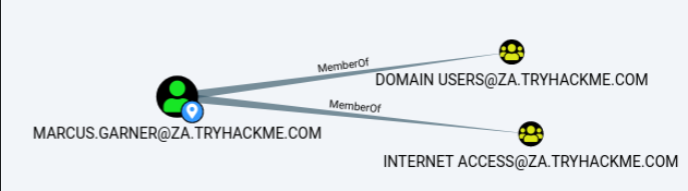
- By pressing the number next to “
First Degree Group Membership”, we can see that our account is a member of two groups:
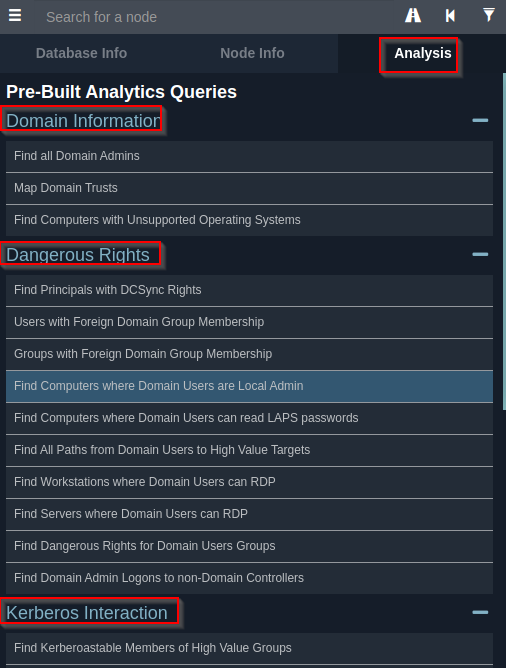
Step 9: Looking at Analysis Queries
- These are the queries that the creators of Bloodhound have written themselves to
enumeratehelpful info.
1
2
- Notice that this is the powerful part of the Bloodhound tool.
- This tool gives you options to what to do with the information acquired using Sharphound depending on which one helps you achieve your objectives.
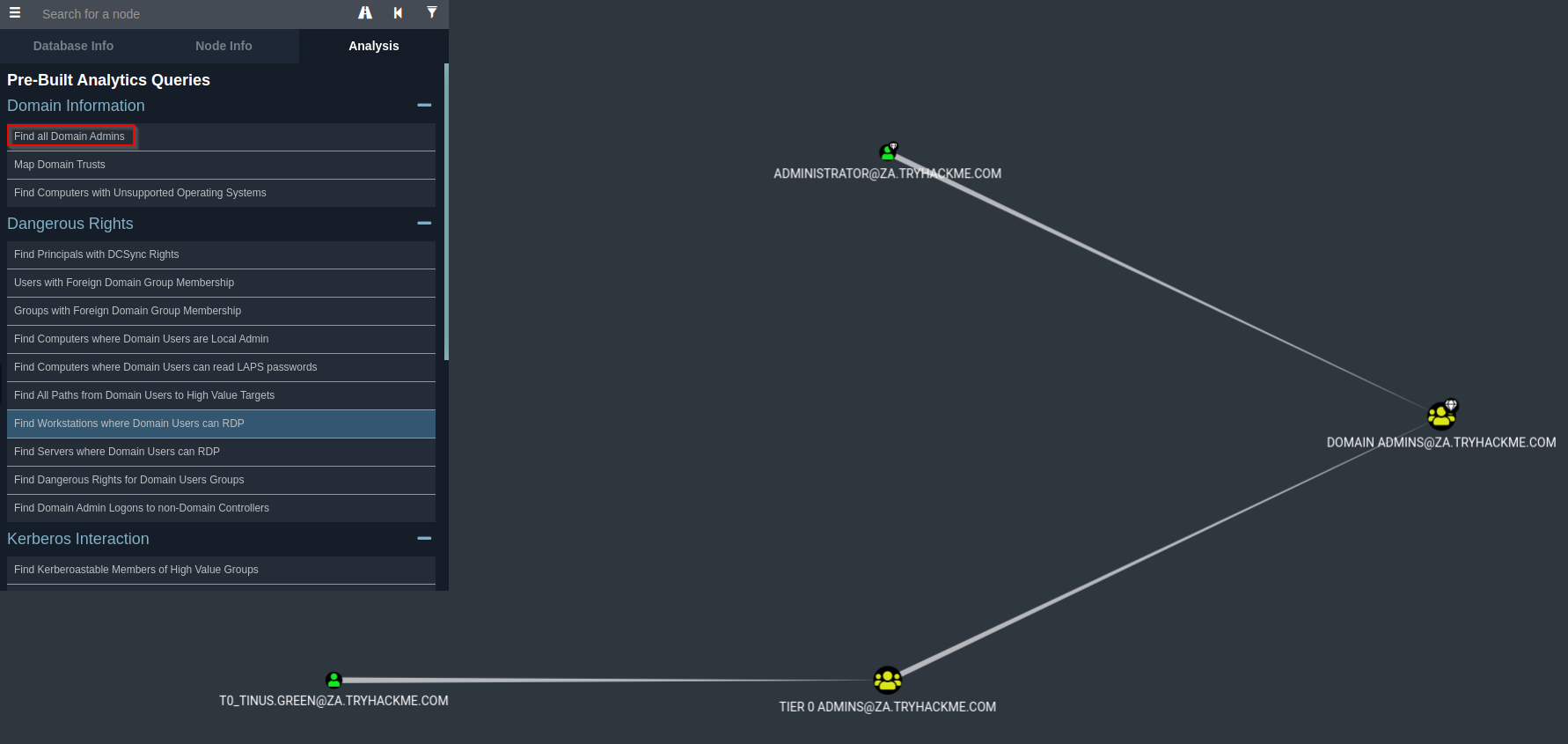
Step 10: Find all Domain Admins query:
- Under the
Domain Informationsection, we can run theFind all Domain Admins query. - Note that you can press
LeftCtrlto change the label settings.
1
- Upon pressing "Find all Domain Admins", it shows this graph and how they are dependent of one another(e.g., which one belongs to who)
- The icons are called
nodes, and the lines are callededges. - Let’s take a deeper dive into what
Bloodhoundis showing us. - There is an AD user account with the username of
T0_TINUS.GREEN, that is a member of the groupTier 0 ADMINS. But, this group is a nested group into the
DOMAIN ADMINSgroup, meaning all users that are part of theTier 0 ADMINSgroup are effectively DAs.1
- T0_Tinus(User) -> T0_Admins(Group) -> Domain_admins(Group)
- Furthermore, there is an additional AD account with the username of
ADMINISTRATORthat is part of theDOMAIN ADMINSgroup. Hence, there are two accounts in our attack surface that we can probably attempt to compromise if we want to gain DA rights.
1
2
3
  - Users:
  1. T0_Tinus.Green (User Account)
  2. Administrator (Built-in User Account)
- Since the
ADMINISTRATORaccount is a built-in account, we would likely focus on theuser accountinstead.
Step 11: Working with Bloodhound Edges
- Each AD object that was discussed in the previous tasks can be a node in
Bloodhound, and each will have a different icon depicting the type of object it is. - If we want to formulate an attack path, we need to look at the available edges between the
current positionandprivilegeswe have and where we want to go. Bloodhoundhas various available edges that can be accessed by the filter icon:
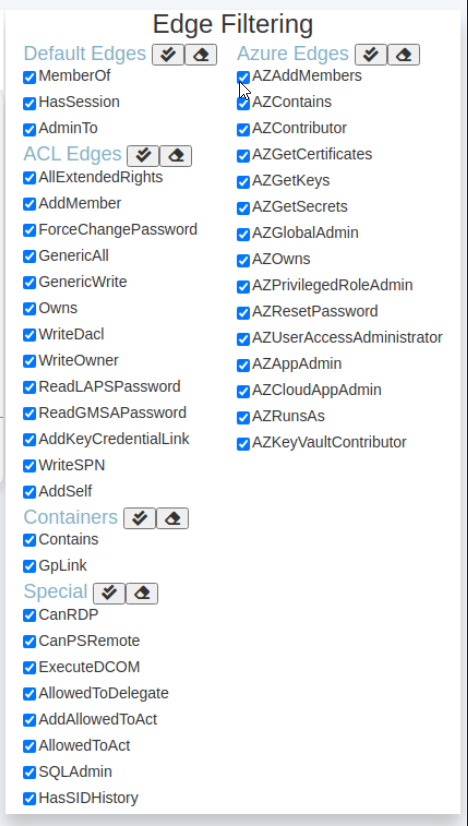
- There are also constantly being updated as new attack vectors are discovered.
- We will be looking at exploiting these different edges in a future network.
- However, let’s look at the most basic attack path using only the default and some special edges.
Step 12: We will run a search in Bloodhound to enumerate the attack path.
- Press the
pathicon to allow for path searching.

- Our
Start Nodewould be our AD username and ourEnd Nodewill be theTier 1 ADMINSgroup since this group has administrative privileges over servers.
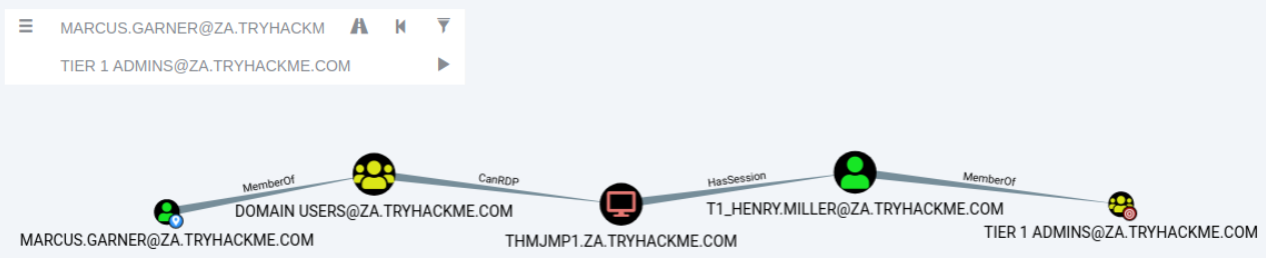
If there is NO available attack path using the selected edge filters,
Bloodhoundwill display “No Results Found”.Note, this may also be due to a Bloodhound/Sharphound mismatch, meaning the results were not properly ingested. Please make use of Bloodhound
v4.1.0However, in our case, Bloodhound shows an
attack path.
Reason for this vulnerability:
It shows that one of the
T1 ADMINS, ACCOUNT,broke the tiering model by using their credentials to authenticate toTHMJMP1, which is a workstation.1 2
- Administrative users should only be logged into specific secured machines. - This is the EXACT reason why you always log off after using your computer.
Step 13: Exploiting the given Attack Path by Bloodhound
- It also shows that any user that is part of the
DOMAIN USERSgroup, including our AD account, has the ability to RDP into this host.
Steps to exploit this path:
1
2
3
4
	1. Use our AD credentials to RDP into "THMJMP1".
	2. Look for a privilege escalation vector on the host that would provide us with Administrative access.
	3. Using Administrative access, we can use credential harvesting techniques and tools such as Mimikatz.
	4. Since the T1 Admin has an active session on THMJMP1, our credential harvesting would provide us with the NTLM hash of the associated account.
- This is a straightforward example.
- The
attack pathsmay be relatively complex in normal circumstances and require several actions to reach the final goal. - If you are interested in the exploits associated with each edge, use this documentation:
Note that this reference is EXTREMELY HELPFUL: https://bloodhound.readthedocs.io/en/latest/data-analysis/edges.html
- Bloodhound is an incredibly powerful AD enumeration tool that provides in-depth insights into the AD structure of an attack surface.
- It is worth the effort to play around with it and learn its various features.
Session Data Only
- The structure of AD does not change very often in large organizations.
There may be a couple of new employees, but the overall structure of OUs, Groups, Users and permission will remain the same.
- However, the one thing that does change constantly is
active sessionsandLogOnevents. - Since
Sharphoundcreates a point-in-time snapshot of the AD structure,active sessionsdata is NOT always accurate since some users may have already logged off their sessions or new users may have established new sessions. This is an essential thing to note and is why we would want to execute
Sharphoundat regular intervals.- A good approach is to execute
Sharphoundwith the “All” collection method at the start of your assessment and then executeSharphoundat least twice a day using the “Session” collection method. - This will provide you with
new session dataand ensure that theseruns are fastersince they do not enumerate the entire AD structure again. The best time to execute these session runs is at around
10:00when users have their first coffee and start to work and again around14:00, when they get back from their lunch breaks but before they go home.1 2
- Since this just become a public information, I'm sure the Blue Team heavily monitors at these hours. - Basically, these are just examples of the time and the reasons they come with for you to apply it.
Clearing Stagnant Session Data
- You can clear stagnant session data in
Bloodhoundon theDatabase Infotab by clicking the “Clear Session Information” before importing the data from these newSharphoundruns.
Benefits
1
2
3
- Provides a GUI for AD Enumeration
- Has the ability to show attack paths for the enumerated AD information.
- Provides more profound insights into AD objects that usually require several manual queries to recover.
Drawbacks
1
- Requires the execution of `Sharphound`, which is noisy and can often be detected by AV or EDR solutions.
THM Questions:
1. Apart from the krbtgt account, how many other accounts are potentially kerberoastable?
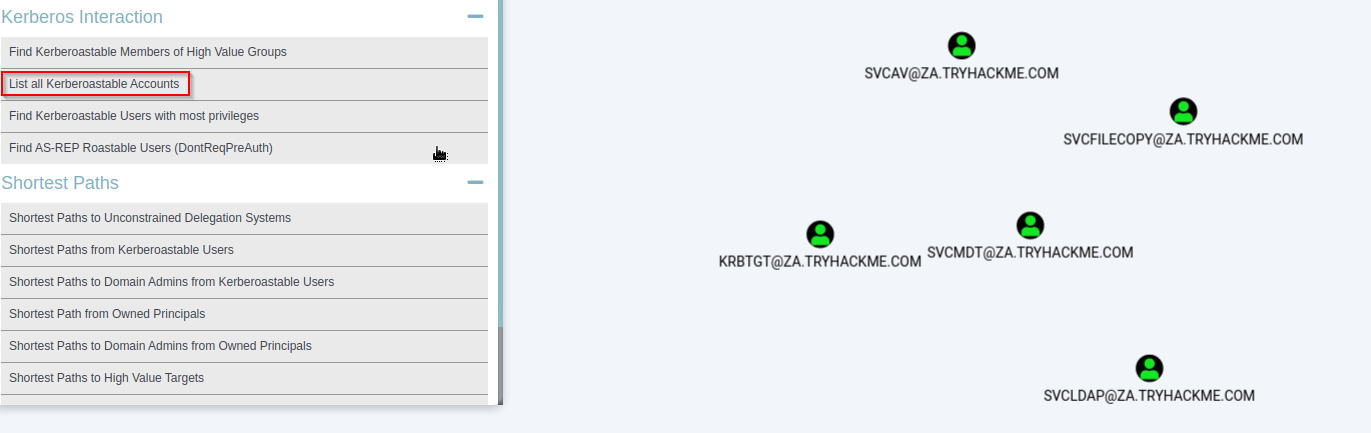
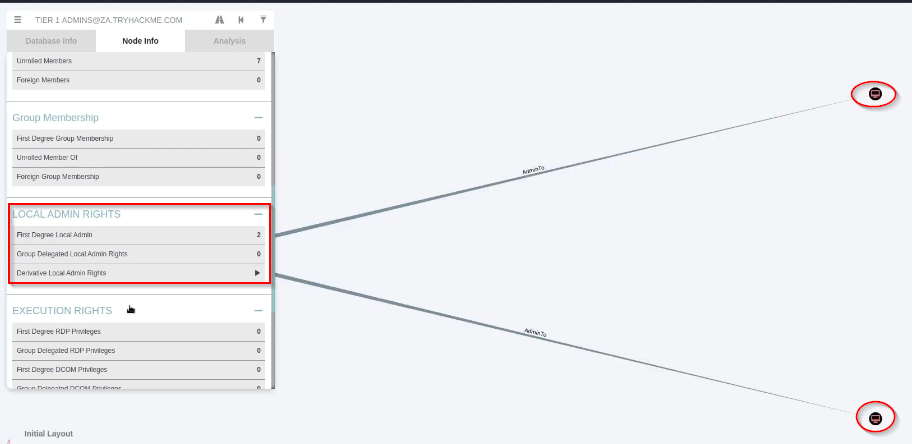
2. How many machines do members of the Tier 1 Admins group have administrative access to?
1
- Note that for this question, you have to look for the LOCAL ADMIN RIGHTS on the TIER 1 ADMIN GROUP Node Informationn and Check the First Degree Local Admin.
3. How many users are members of the Tier 2 Admins group? 15
1
- This one is easy to spot on.