Intro
Splunk is a powerful SIEM solution that provides the ability to search and explore machine data. Search Processing Language (SPL) is used to make the search more effective. It comprises various functions and commands used together to form complex yet effective search queries to get optimized results.
This room will dive deep into some key fundamentals of searching capability, like chaining SPL queries to construct simple to complex queries.
Learning Objectives
This room will teach the following topics:
1
2
3
4
- What are Search processing Language?
- How to apply filters to narrow down results.
- Using transformational commands.
- Changing the order of the results.
Room Prerequisites
- This room is based on the SIEM concepts covered in Intro to SIEM and Splunk: Basics rooms. Complete these rooms and continue to the next task.
Search and Reporting App Overview
Search & Reporting App is the default interface used to search and analyze the data on the Splunk Home page. It has various functionalities that assist analysts in improving the search experience.
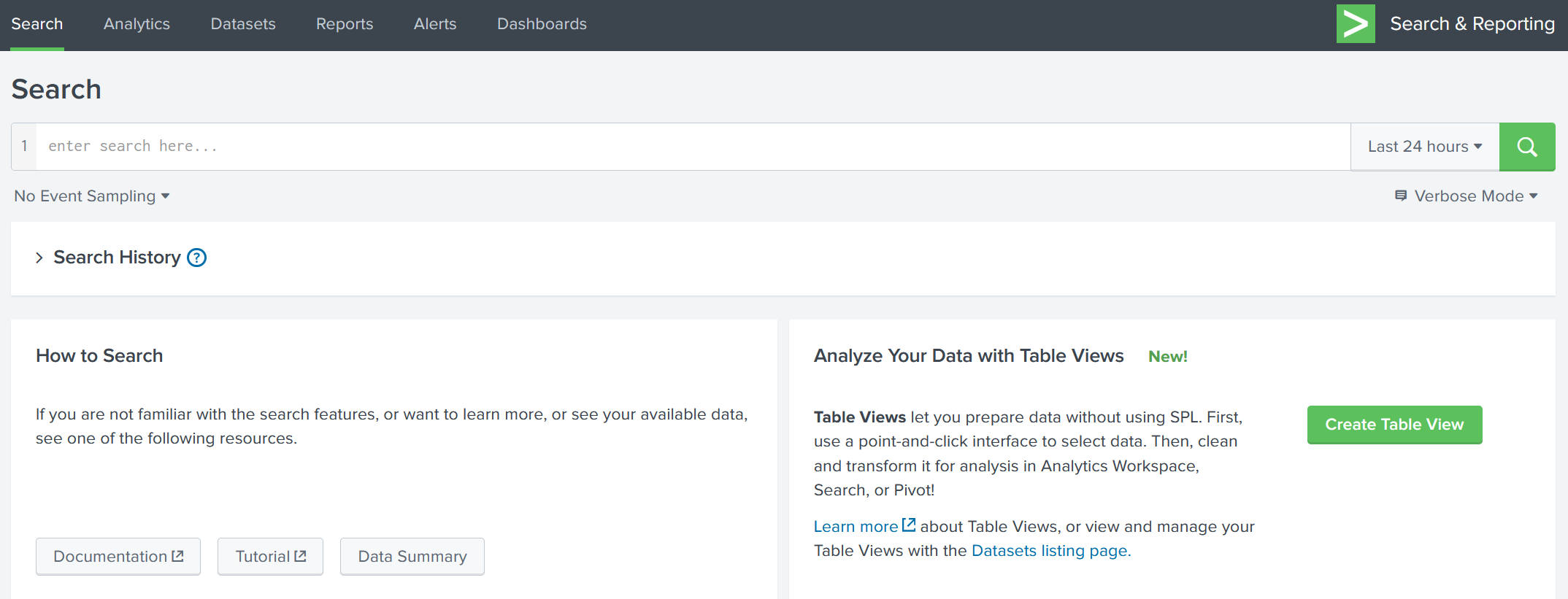
1
- Some important functionalities present in the search App are explained below:
1) Search Head:
Search Head is where we use search processing language queries to look for the data.

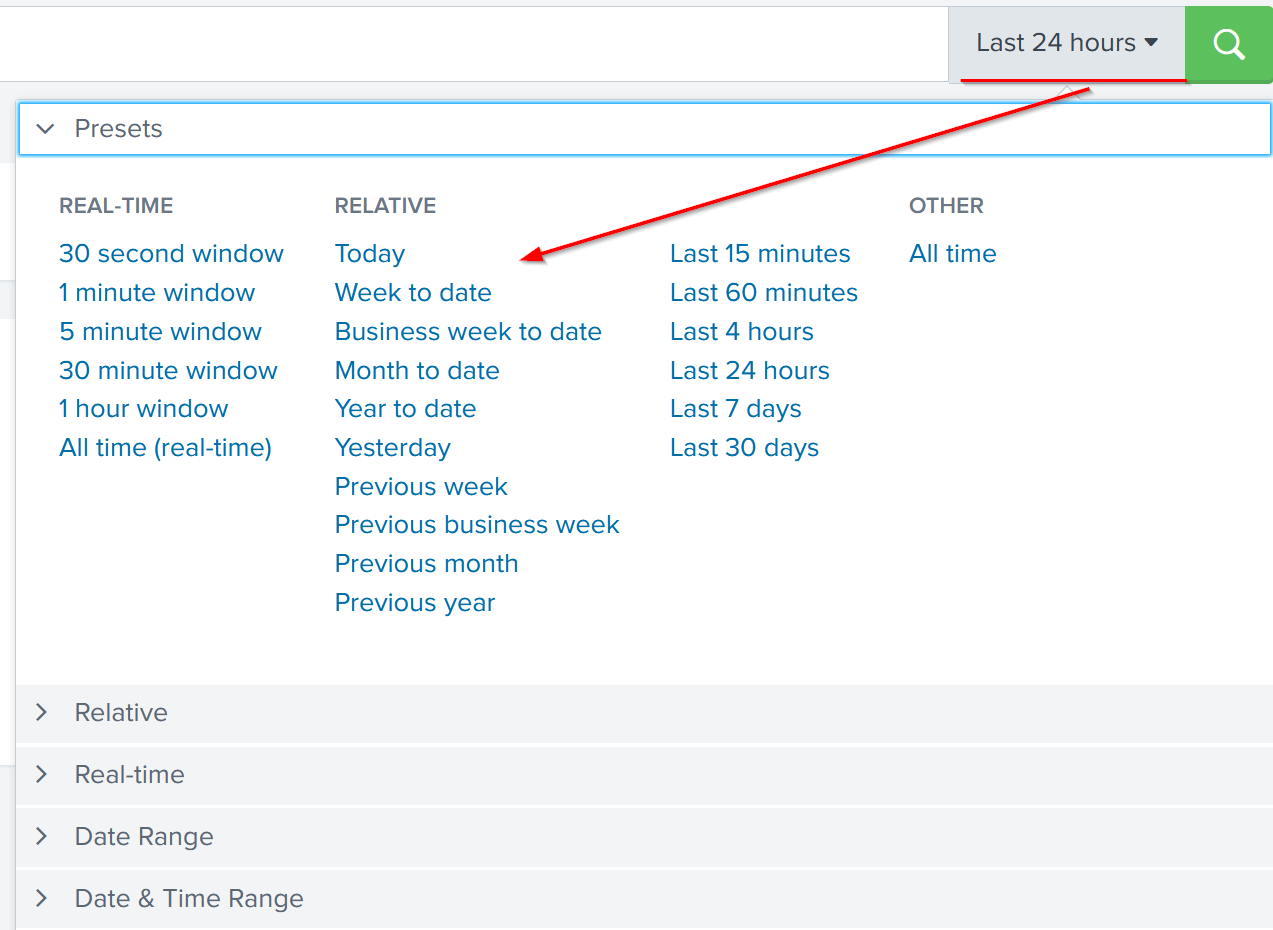
2) Time Duration:
This tab option provides multiple options to select the time duration for the search. All-time will display the events in real-time. Similarly, the last 60 minutes will display all the events captured in the last hour.
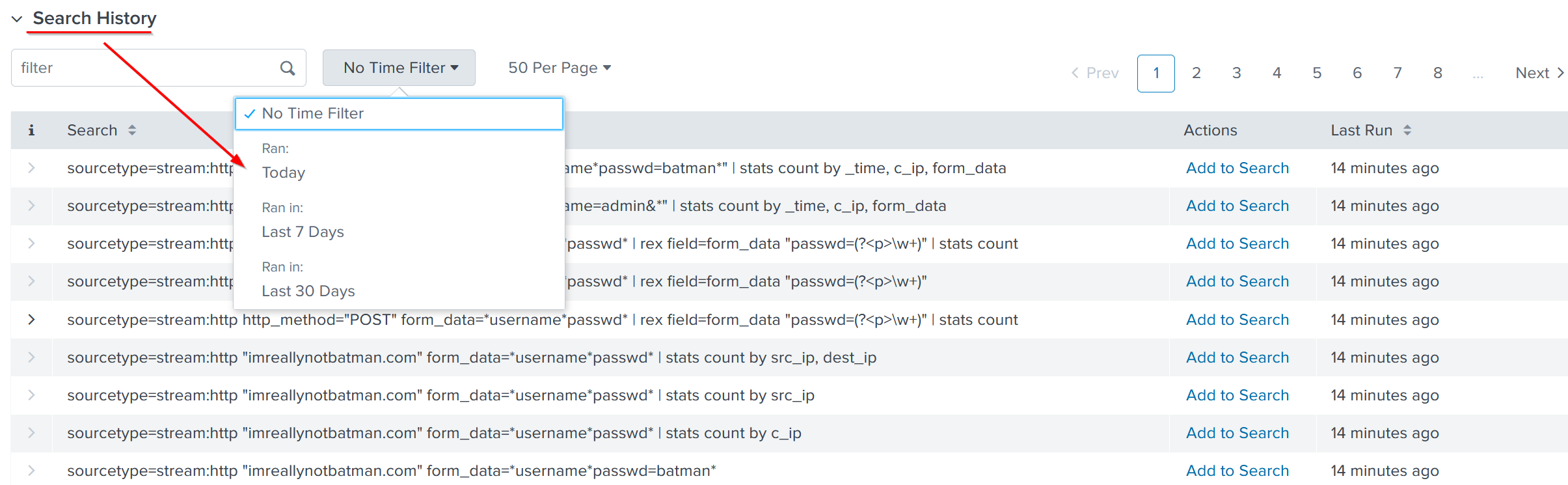
3) Search History:
This tab saves the search queries that the user has run in the past along with the time when it was run. It lets the user click on the past searches and look at the result. The filter option is used to search for the particular query based on the term.
4) Data Summary:
This tab provides a summary of the data type, the data source, and the hosts that generated the events as shown below. This tab is very important feature used to get a brief idea about the network visibility.
5) Field Sidebar:
The Field Sidebar can be found on the left panel of Splunk search. This sidebar has two sections showing selected fields and interesting fields. It also provides quick results, such as top values and raw values against each field.
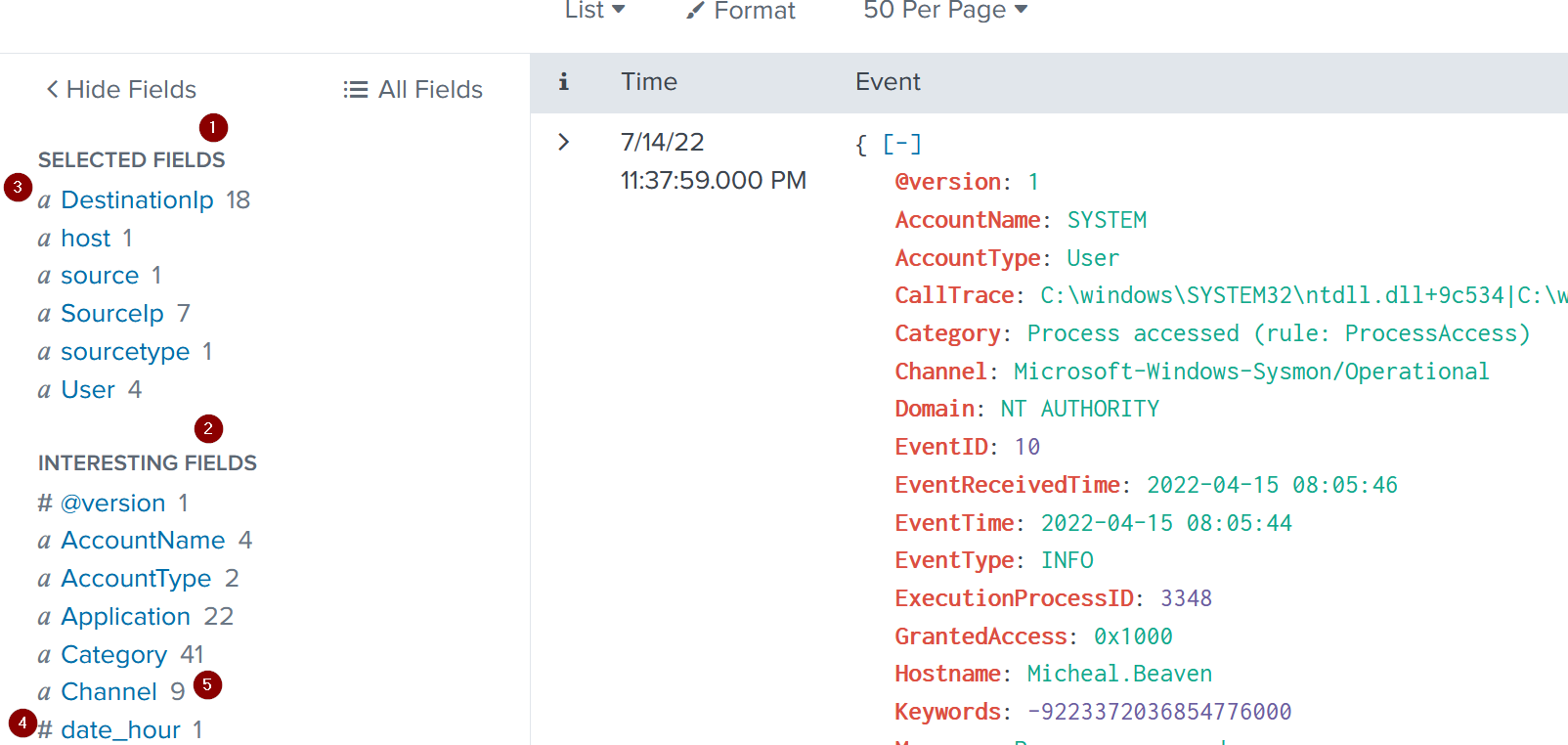
Some important points to understand about the sidebar are explained below:

Question and Answers section:
- In the search History, what is the 7th search query in the list? (excluding your searches from today)
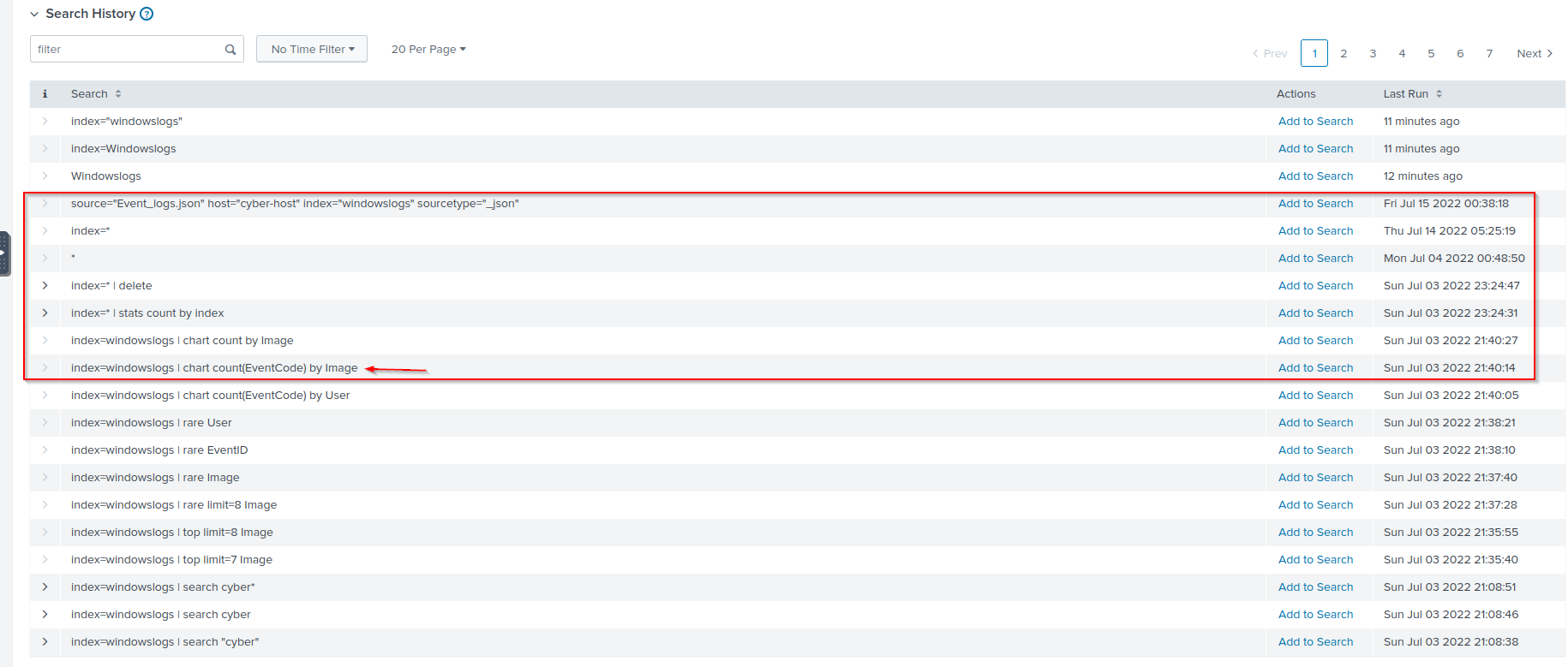
Answer:
1
index=windowslogs | chart count(EventCode) by Image
- In the left field panel, which
Source IPhas recorded max events?
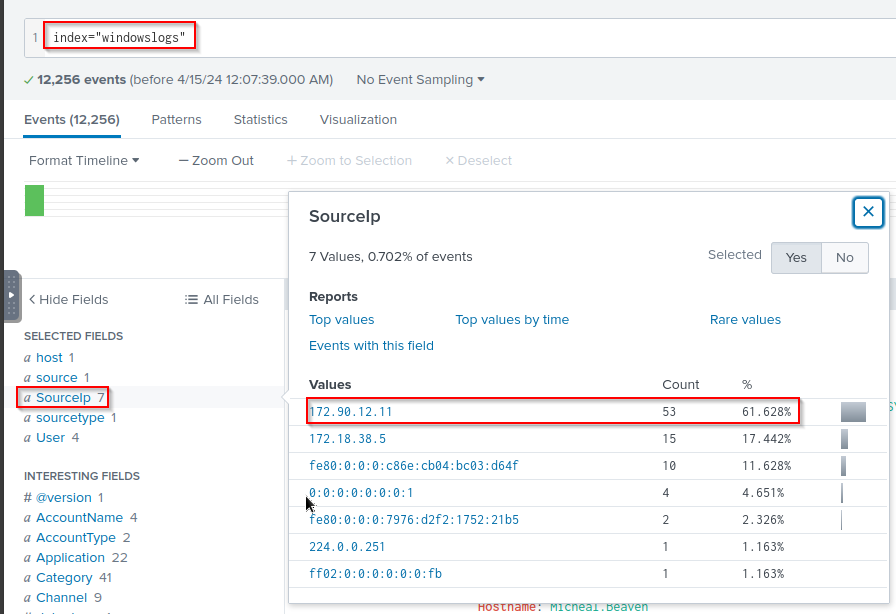
Answer:
1
172[.]90[.]12[.]11
- How many events are returned when we apply the time filter to display events on
04/15/2022and Time from08:05 AM to 08:06 AM?

Answer:
1
134
Splunk Processing Language Overview
Splunk Search Processing Language comprises of multiple functions, operators and commands that are used together to form a simple to complex search and get the desired results from the ingested logs. Main components of SPL are explained below:
(a) Search Field Operators
Splunk field operators are the building blocks used to construct any search query. These field operators are used to filter, remove, and narrow down the search result based on the given criteria. Common field operators are Comparison operators, wildcards, and boolean operators.
(b) Comparison Operators
These operators are used to compare the values against the fields. Some common comparisons operators are mentioned below: 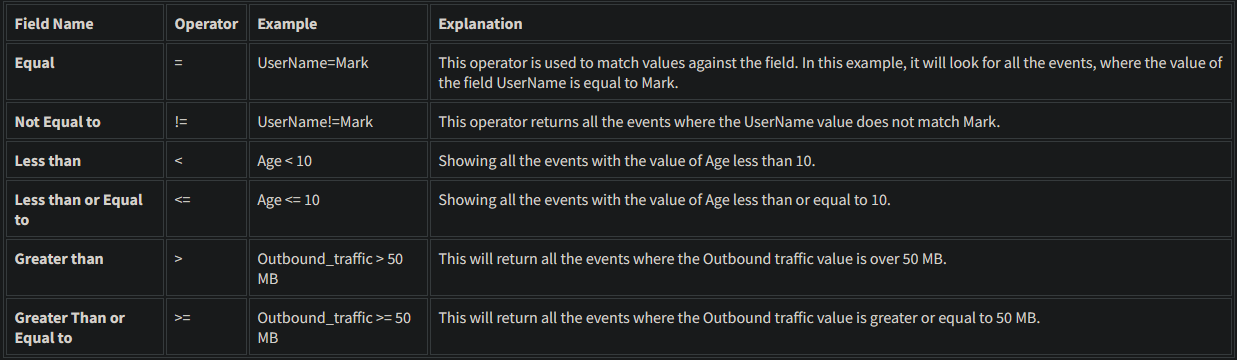
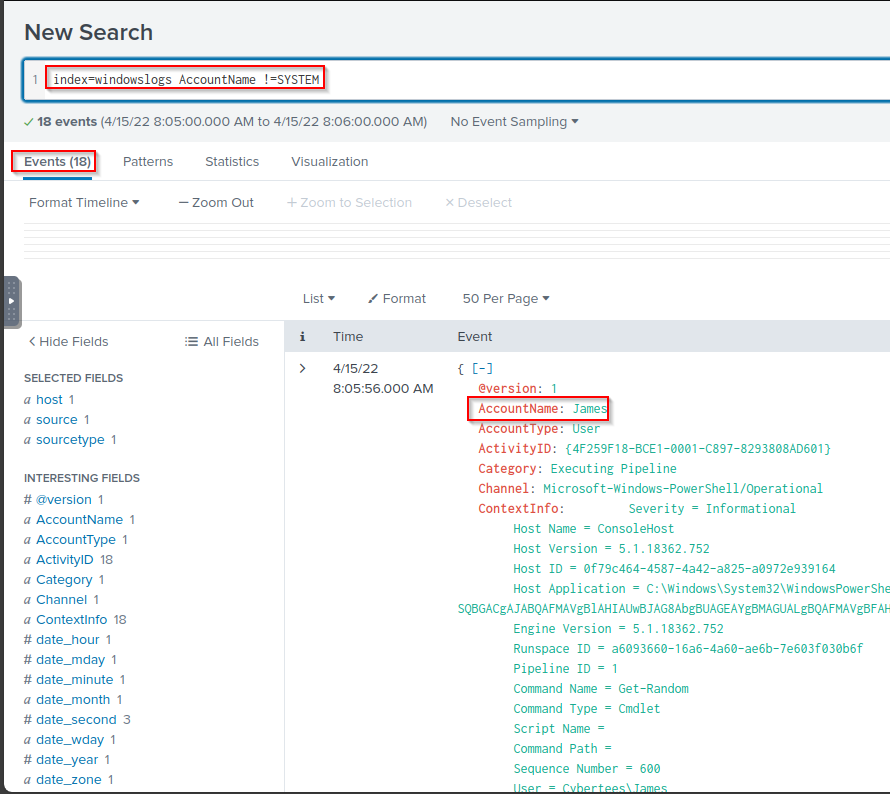
1. Lets use the comparison operator to display all the event logs from the index “windowslogs”, where AccountName is not Equal to “System”
Search Query:
1
index=windowslogs AccountName !=SYSTEM
(c) Boolean Operators
Splunk supports the following Boolean operators, which can be very handy in searching/filtering and narrowing down results.

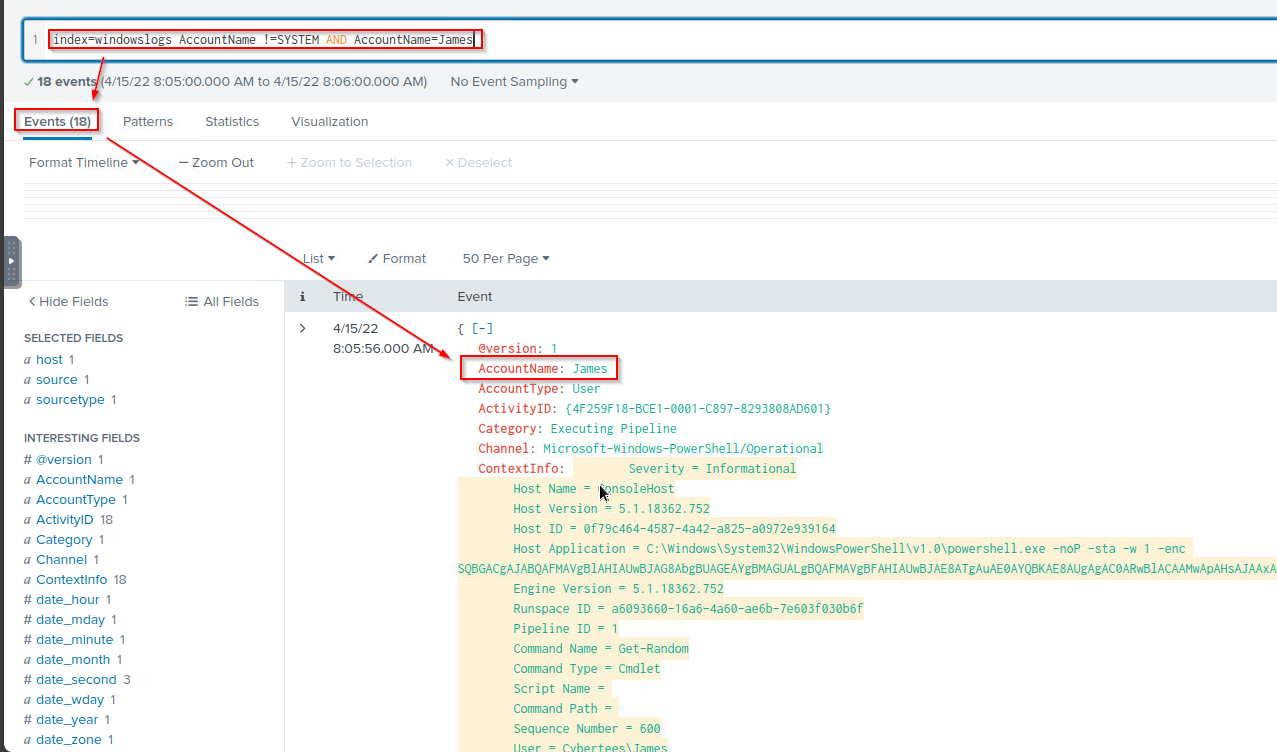
To understand how boolean operator works in SPL, lets add the condition to show the events from the James account.
Search Query:
1
index=windowslogs AccountName !=SYSTEM **AND** AccountName=James
(d) Wild Card
Splunk supports wildcards to match the characters in the strings.
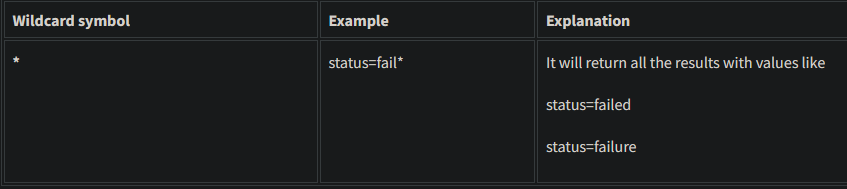
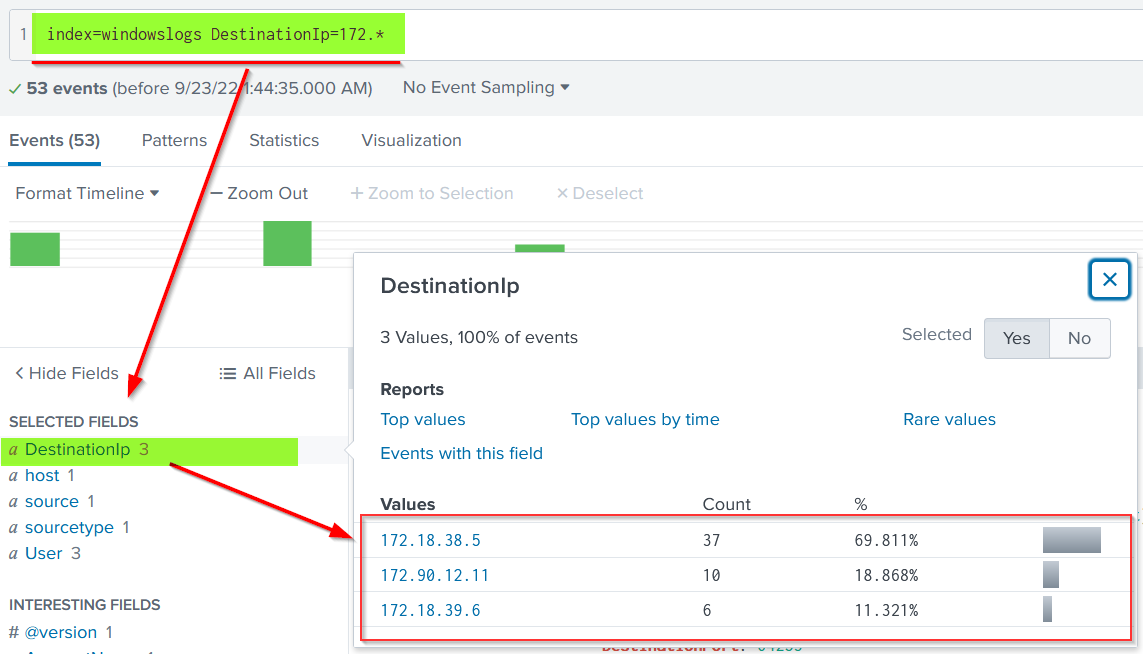
In the events, there are multiple DestinationIPs reported. Let’s use the wildcard only to show the DestinationIP starting from 172.*
Search Query:
1
index=windowslogs DestinationIp=172.*
Question and Answers section:
- How many Events are returned when searching for
Event ID 1ANDUserasJames?
Query:
1
index="windowslogs" User="Cybertees\\James" EventID=1
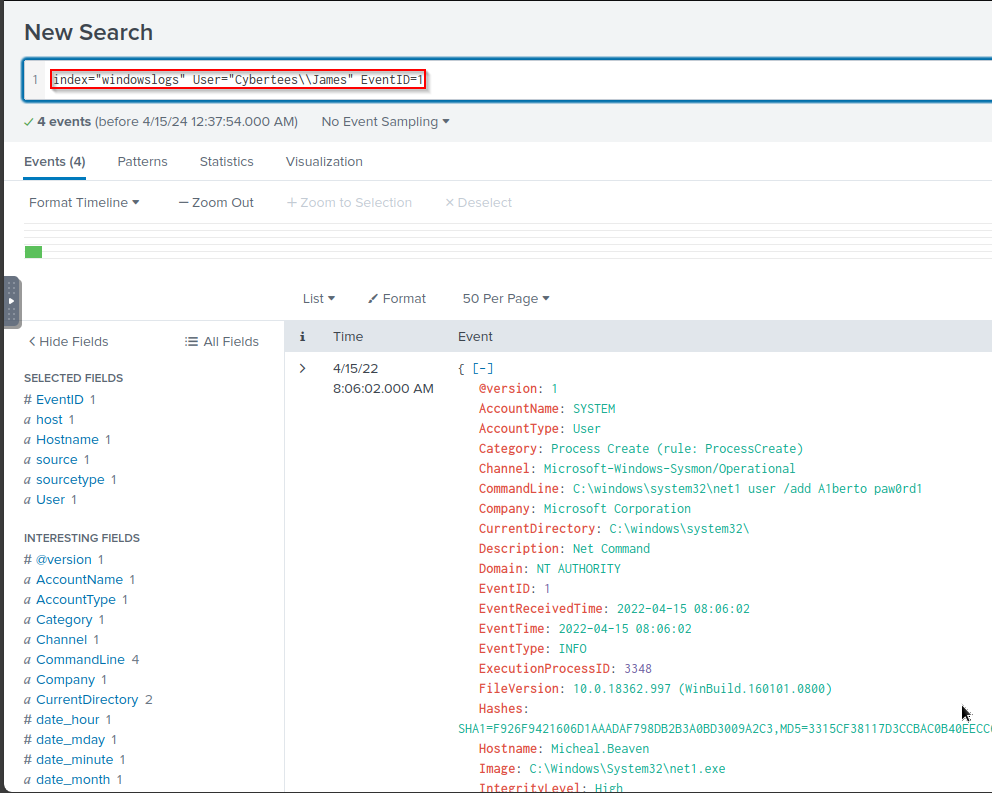
Answer:
1
4
- How many events are observed with Destination IP
172.18.39.6AND destinationPort 135?
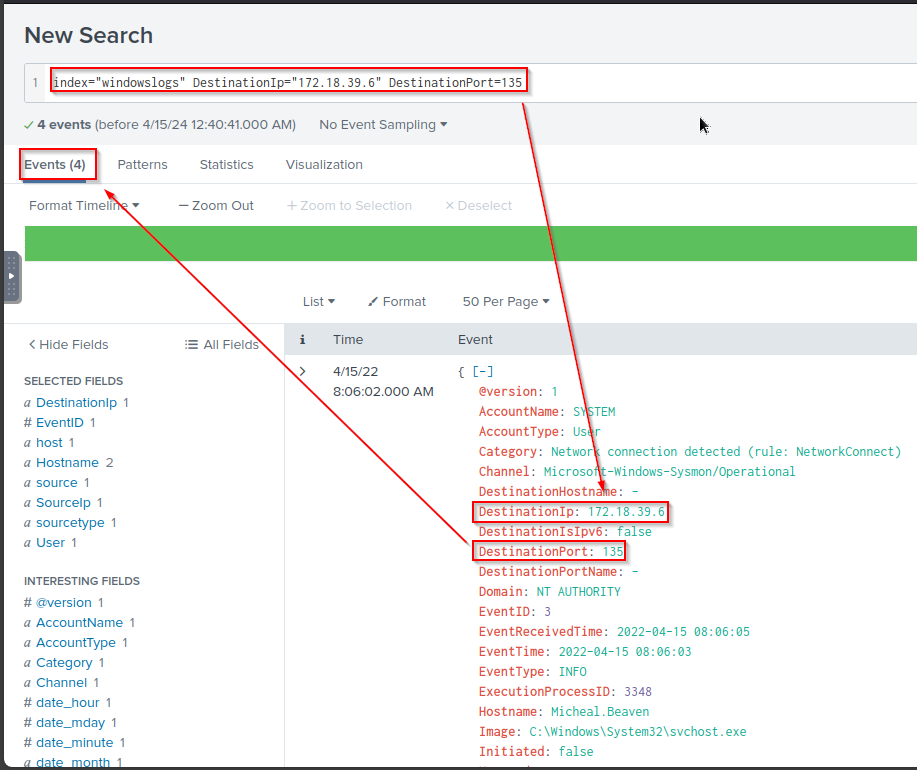
Answer:
1
4
- What is the
Source IPwith highest count returned with this Search query? Search Query:1
index=windowslogs Hostname="Salena.Adam" DestinationIp="172.18.38.5"
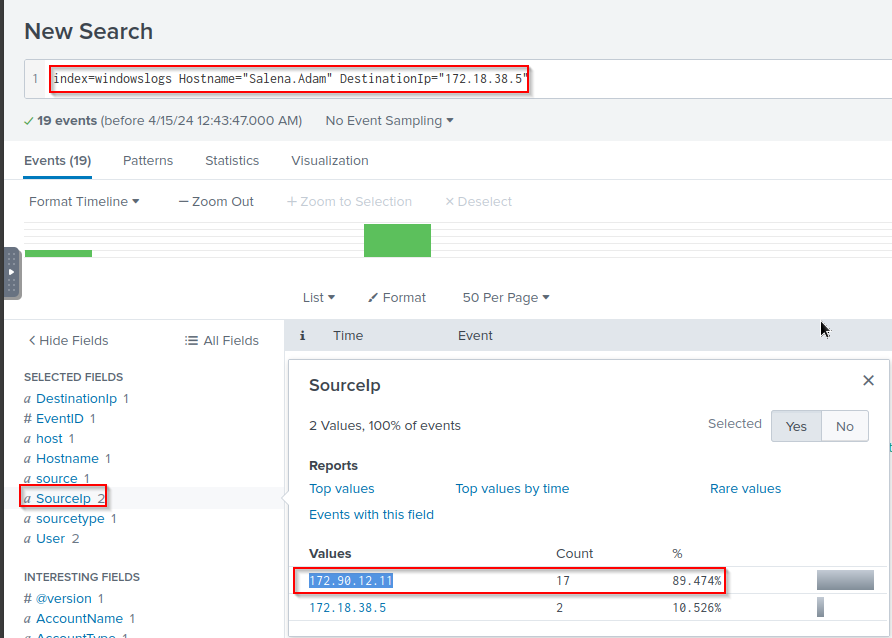
Event log example: 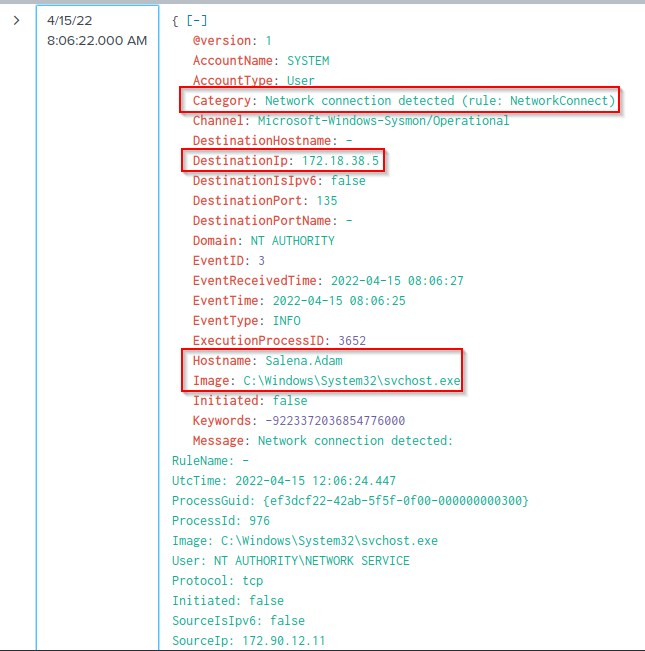
1
- Weird to have an 'svchost.exe' connecting the machine to somewhere else
Answer:
1
172.90.12.11
- In the index
windowslogs, search for all the events that contain the term cyber how many events returned?1
0 - Now search for the term
cyber*, how many events are returned?
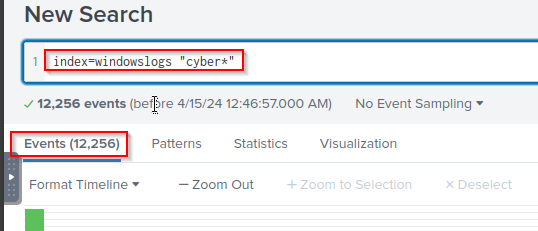
Answer:
1
12256
Filtering the results in SPL
Our network generates thousands of logs each minute, all ingesting into our SIEM solution. It becomes a daunting task to search for any anomaly without using filters. SPL allows us to use Filters to narrow down the result and only show the important events that we are interested in. We can add or remove certain data from the result using filters. The following commands are useful in applying filters to the search results.
Fields:

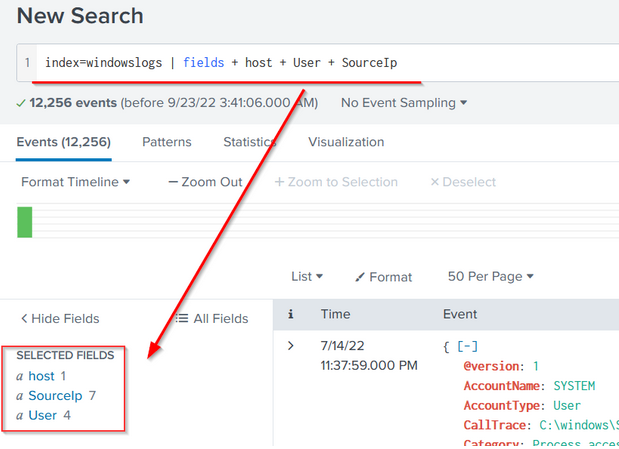
Let’s use the fields command to only display host, User, and SourceIP fields using the following syntax.
Search Query:
1
index=windowslogs | fields + host + User + SourceIp
1
- Automatically select three fields along in the search query
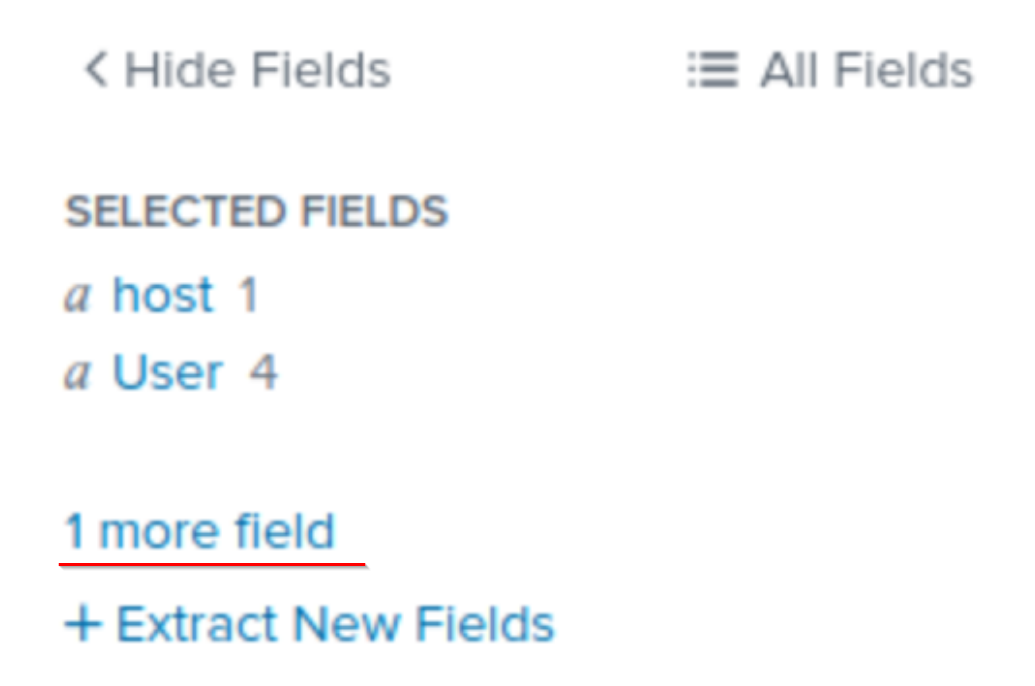
Note: Click on the More field to display the fields if some fields are not visible.
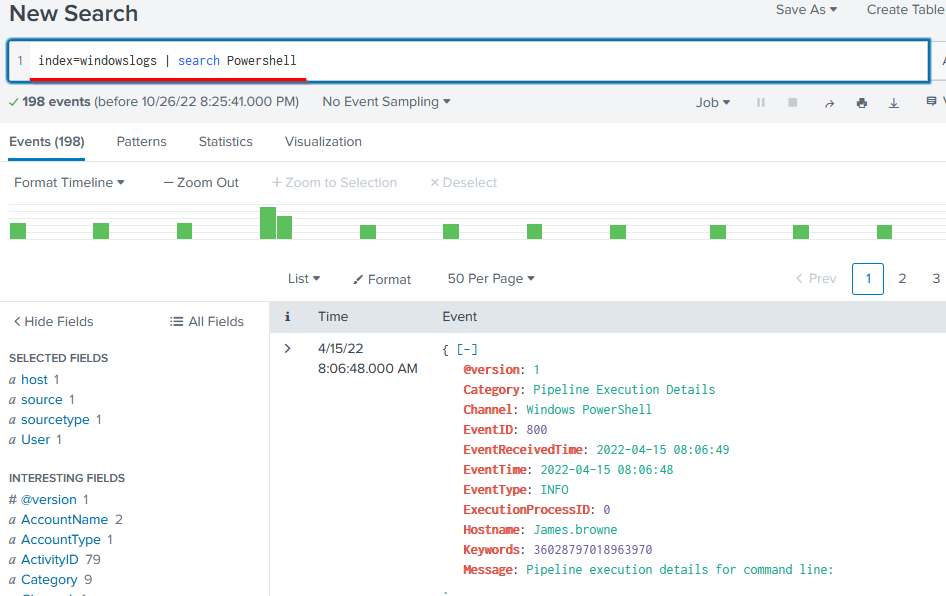
Search
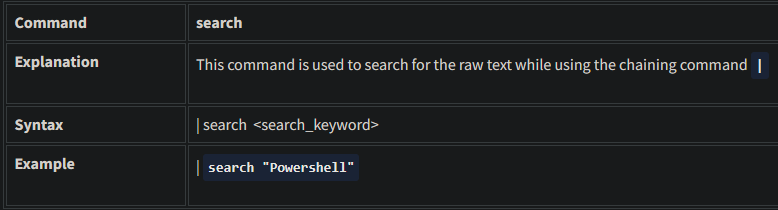
Use the search command to show all the events containing the term Powershell. This will return all the events that contain the term “Powershell”.
Search Query:
1
index=windowslogs | search Powershell
Dedup

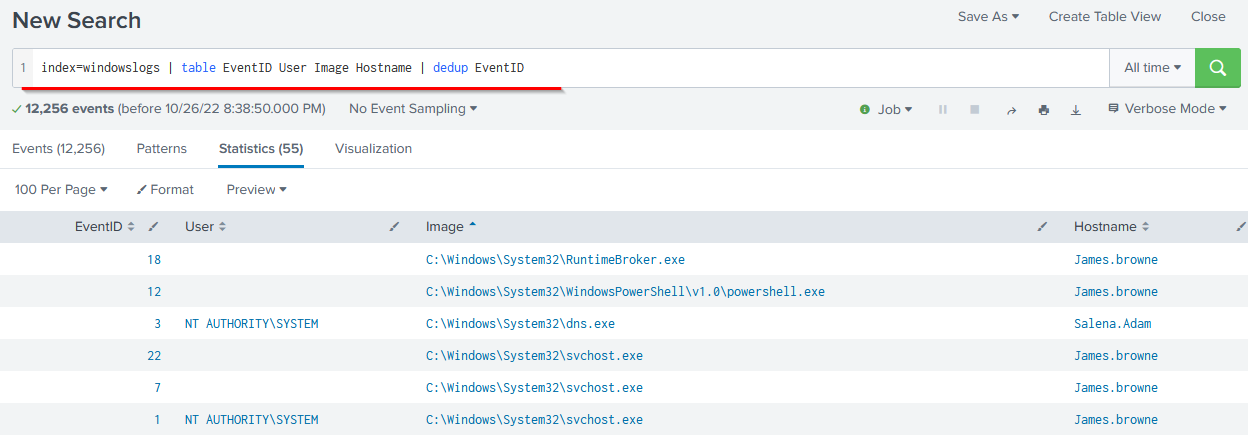
We can use the dedup command to show the list of unique EventIDs from a particular hostname.
Search Query:
1
index=windowslogs | table EventID User Image Hostname | dedup EventID
Rename

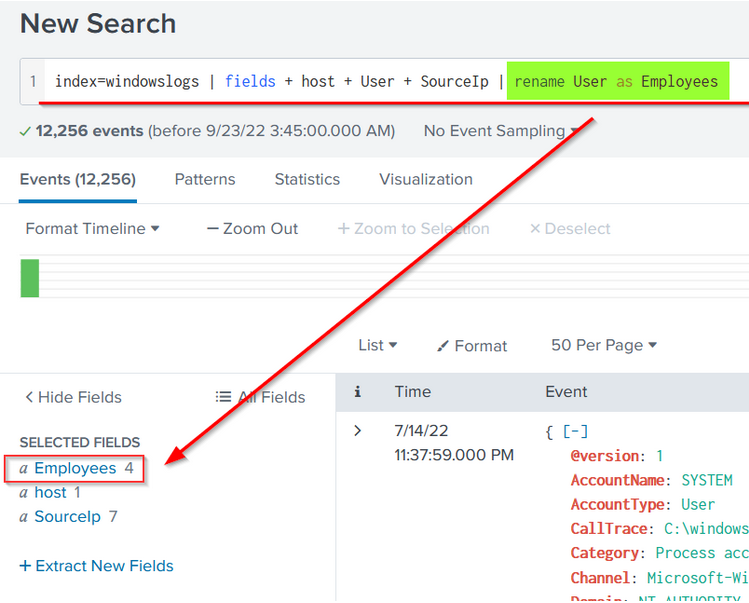
Let’s rename the User field to Employees using the following search query.
Search Query:
1
index=windowslogs | fields + host + User + SourceIp | rename User as Employees
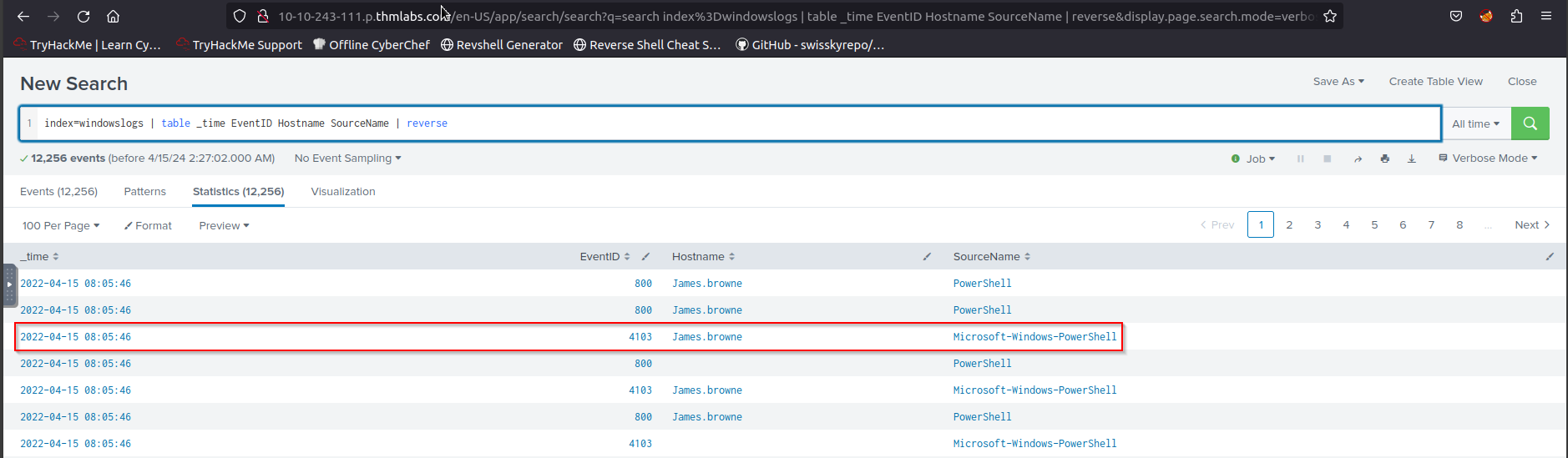
- What is the third EventID returned against this search query?
Search Query:
1
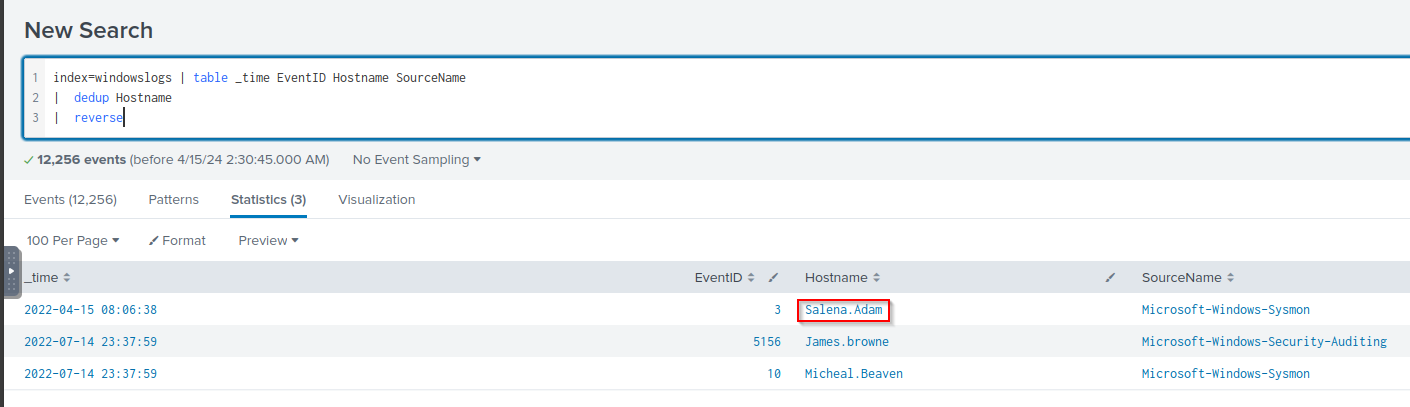
index=windowslogs | table _time EventID Hostname SourceName | reverse
- Use the
dedupcommand against theHostnamefield before thereversecommand in the query mentioned in Question 1. What is the firstusernamereturned in theHostnamefield?
Search Query:
1
index=windowslogs | table _time EventID Hostname SourceName | reverse | dedup EventID
SPL - Structuring the Search results
SPL provides various commands to bring structure or order to the search results.
These sorting commands like head, tail, and sort can be very useful during logs investigation. These ordering commands are explained below:
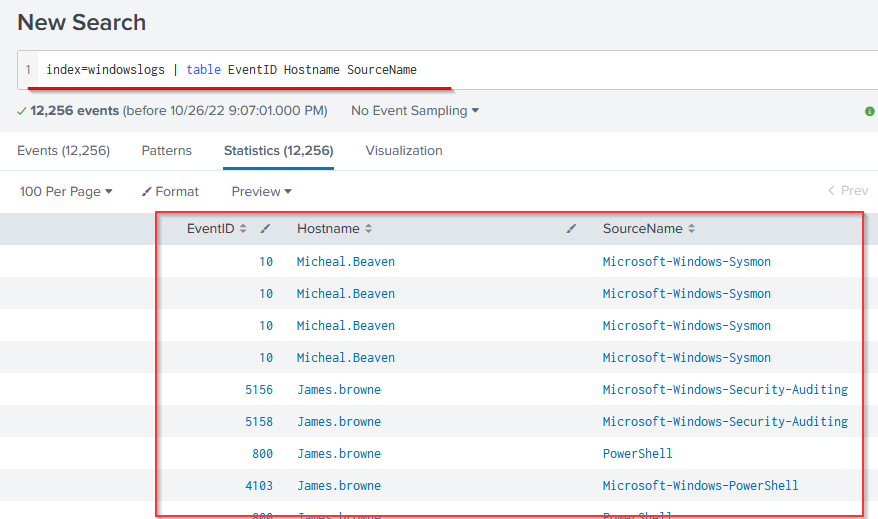
Table

This search query will create a table with three columns selected and ignore all the remaining columns from the display.
Search Query:
1
index=windowslogs | table EventID Hostname SourceName
Head
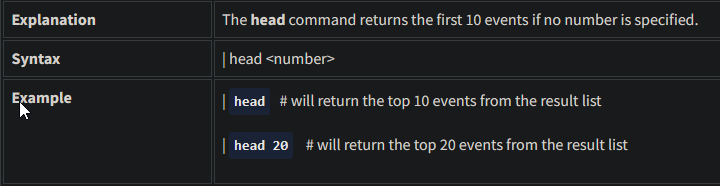
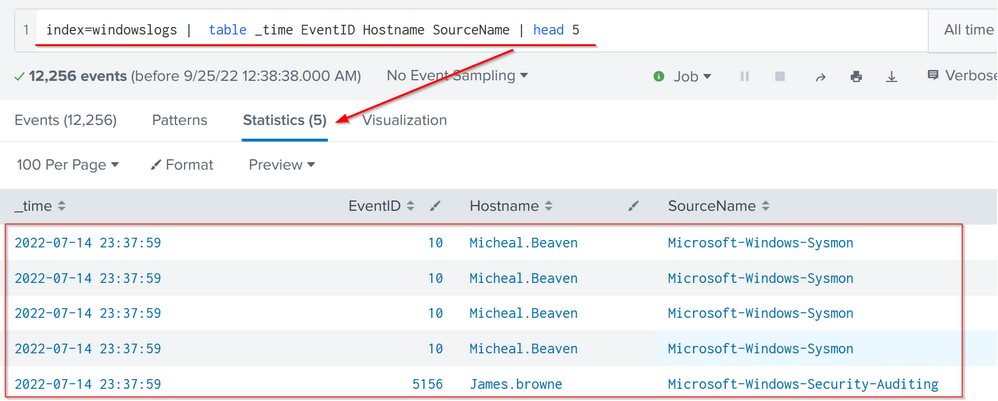
The following search query will show the table containing the mentioned fields and display only the top 5 entries.
Search Query:
1
index=windowslogs |  table _time EventID Hostname SourceName | head 5
Tail
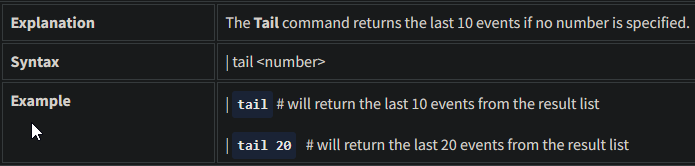
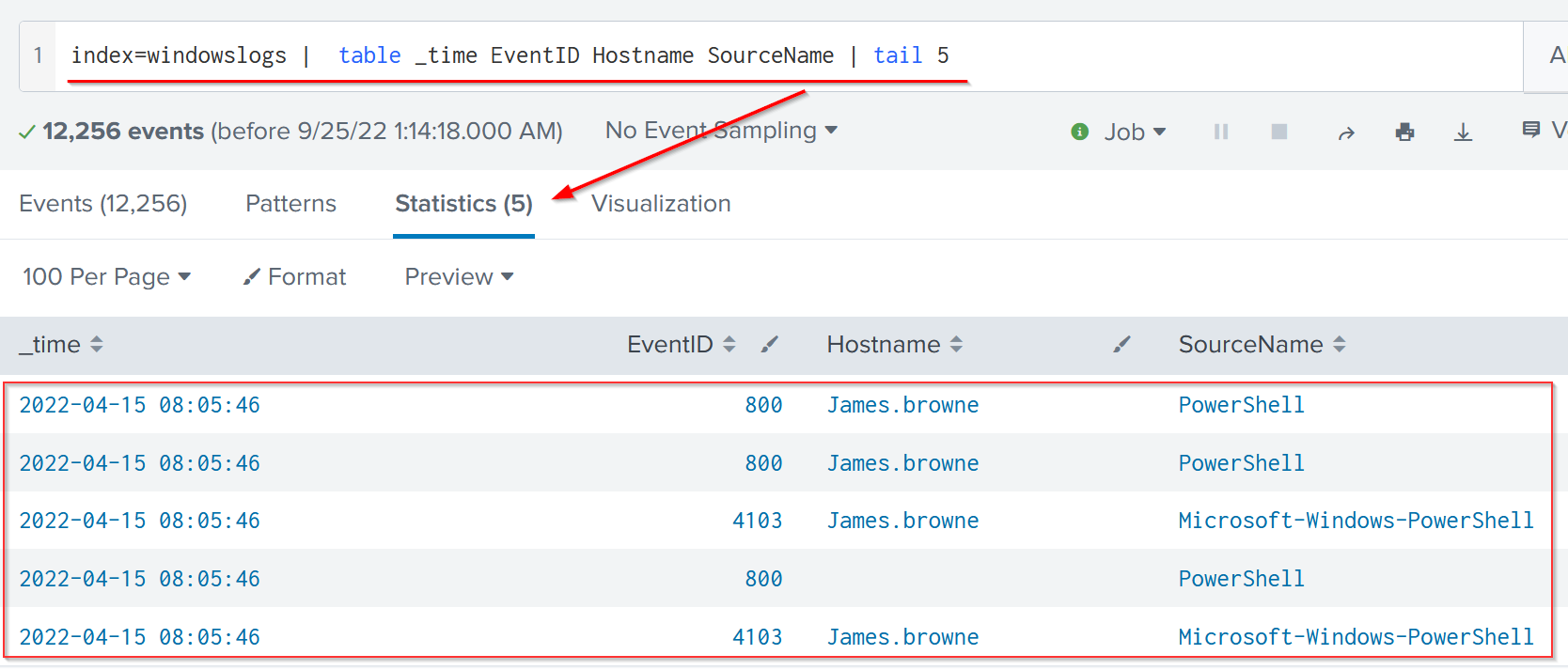
The following search query will show the table containing the mentioned fields and display only 5 entries from the bottom of the list.
Search Query:
1
index=windowslogs |  table _time EventID Hostname SourceName | tail 5
sort
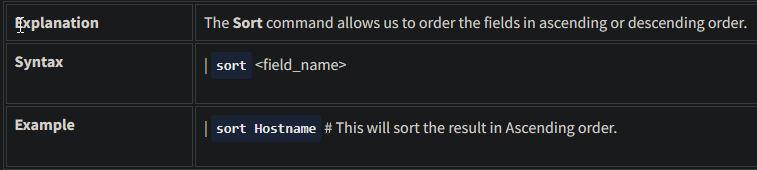
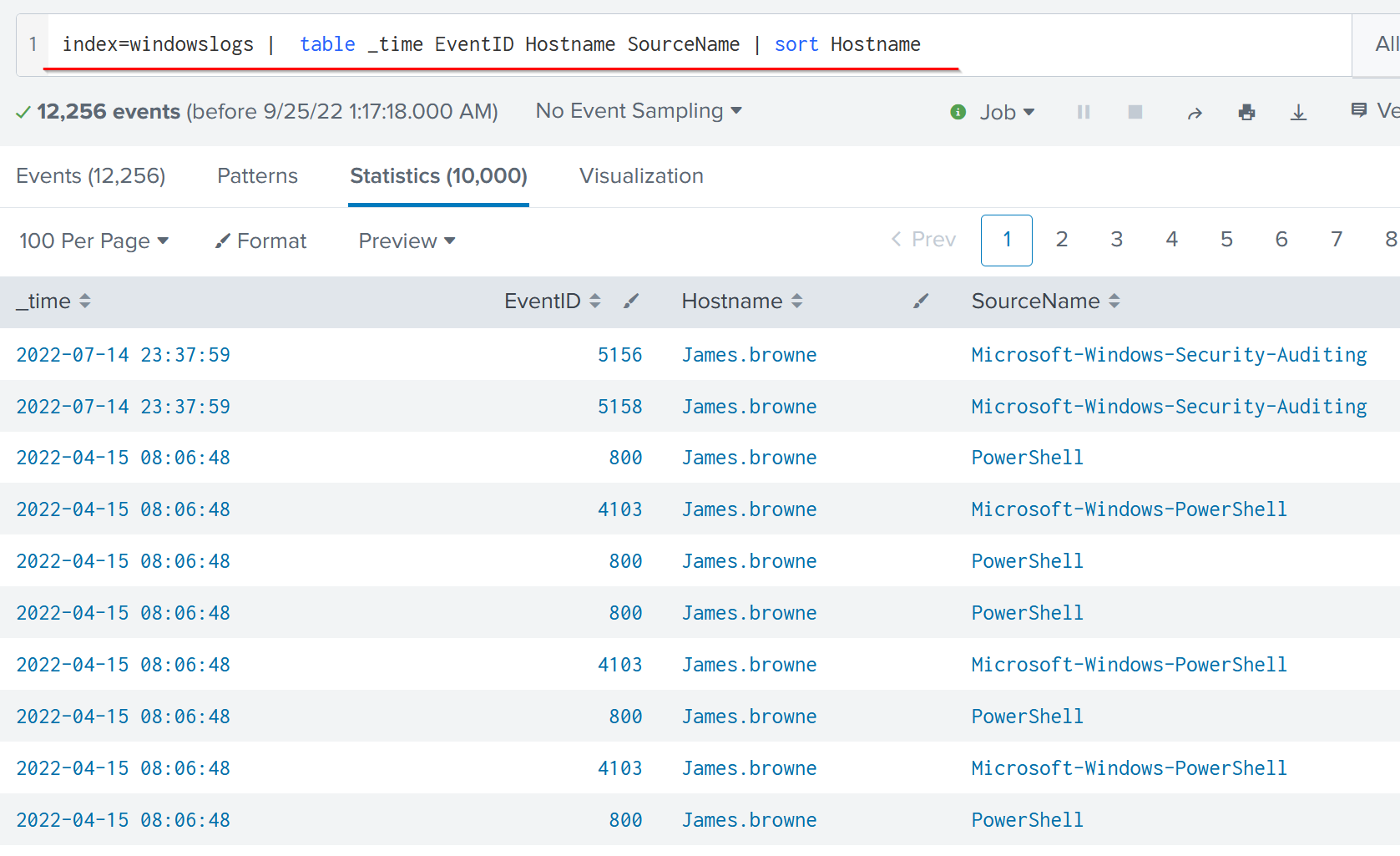
The following search query will sort the results based on the Hostname field.
Search Query:
1
index=windowslogs |  table _time EventID Hostname SourceName | sort Hostname
Reverse
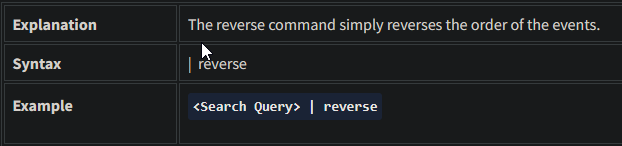
Search Query:
1
index=windowslogs | table _time EventID Hostname SourceName | reverse
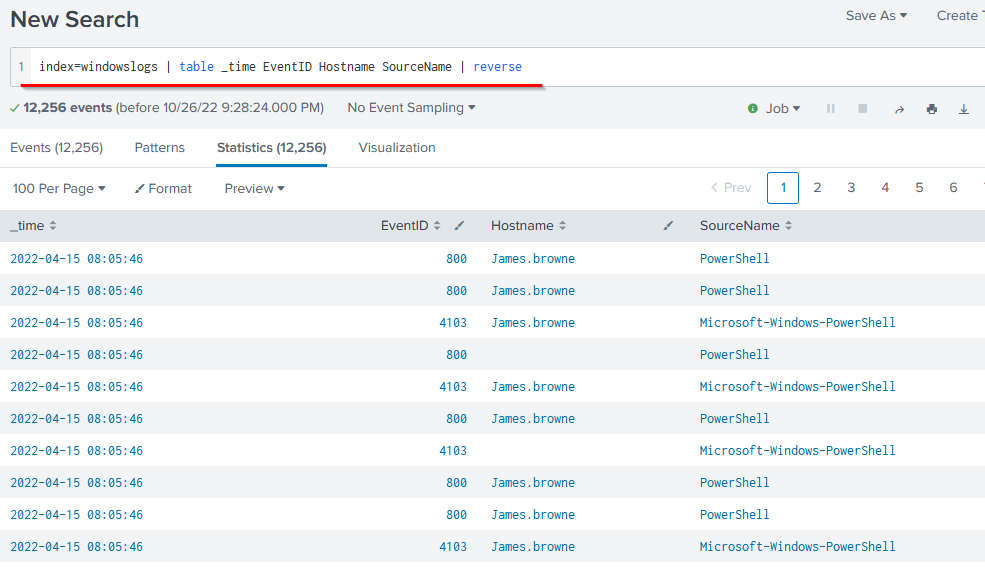
- Using the Reverse command with the search query index=windowslogs | table _time
EventIDHostnameSourceName- what is theHostNamethat comes on top?1
James.Browne
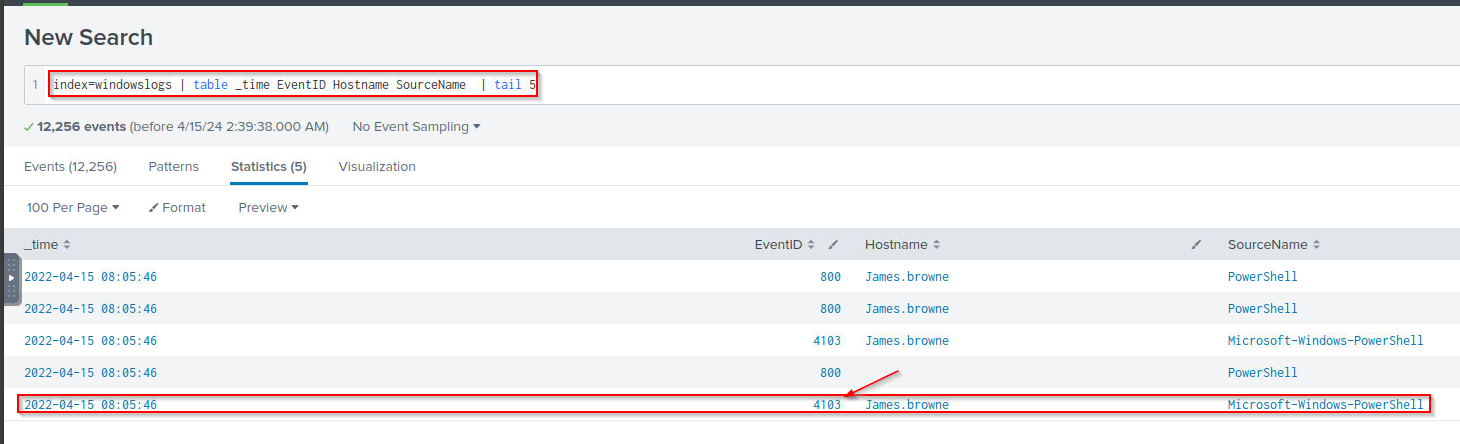
- What is the
lastEventIDreturned when the query in question 1 is updated with thetailcommand? Query:1
index=windowslogs | table _time EventID Hostname SourceName | tail 5
Output:
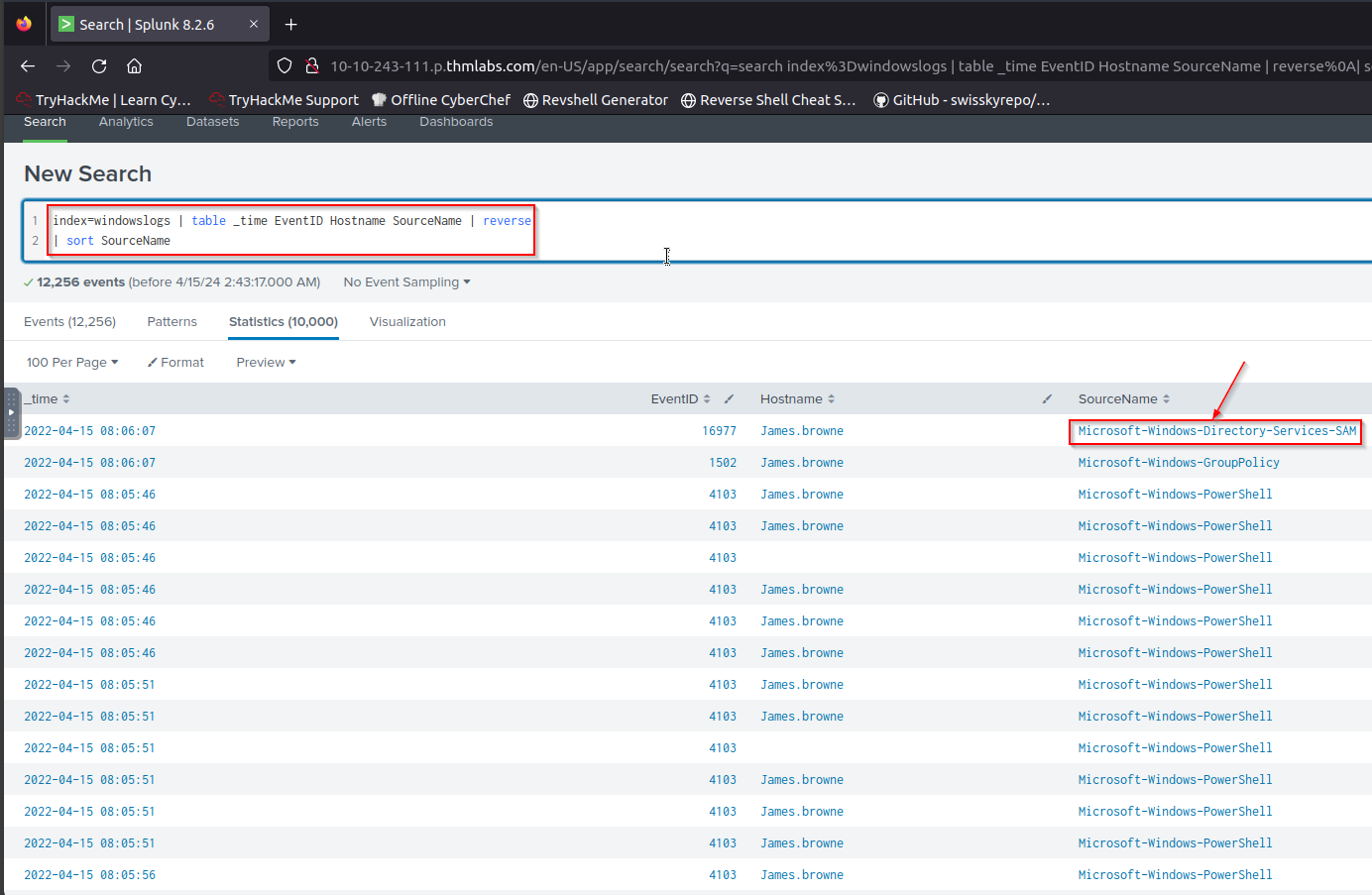
- Sort the above query against the
SourceName. What is thetopSourceNamereturned? Query:1 2
index=windowslogs | table _time EventID Hostname SourceName | reverse | sort SourceName
1
Microsoft-Windows-Directory-Services-SAM
Transformational Commands in SPL
Transformational commands are those commands that change the result into a data structure from the field-value pairs.
These commands simply transform specific values for each event into numerical values which can easily be utilized for statistical purposes or turn the results into visualizations.
Searches that use these transforming commands are called transforming searches.
Some of the most used transforming commands are explained below.
General Transformational Commands
Top
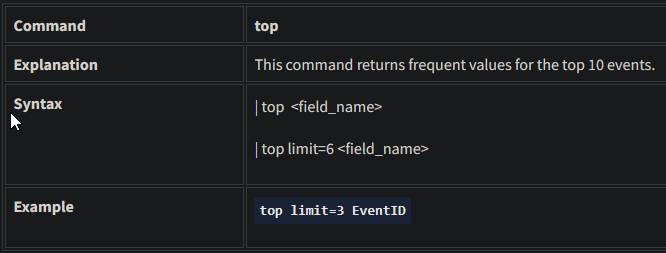
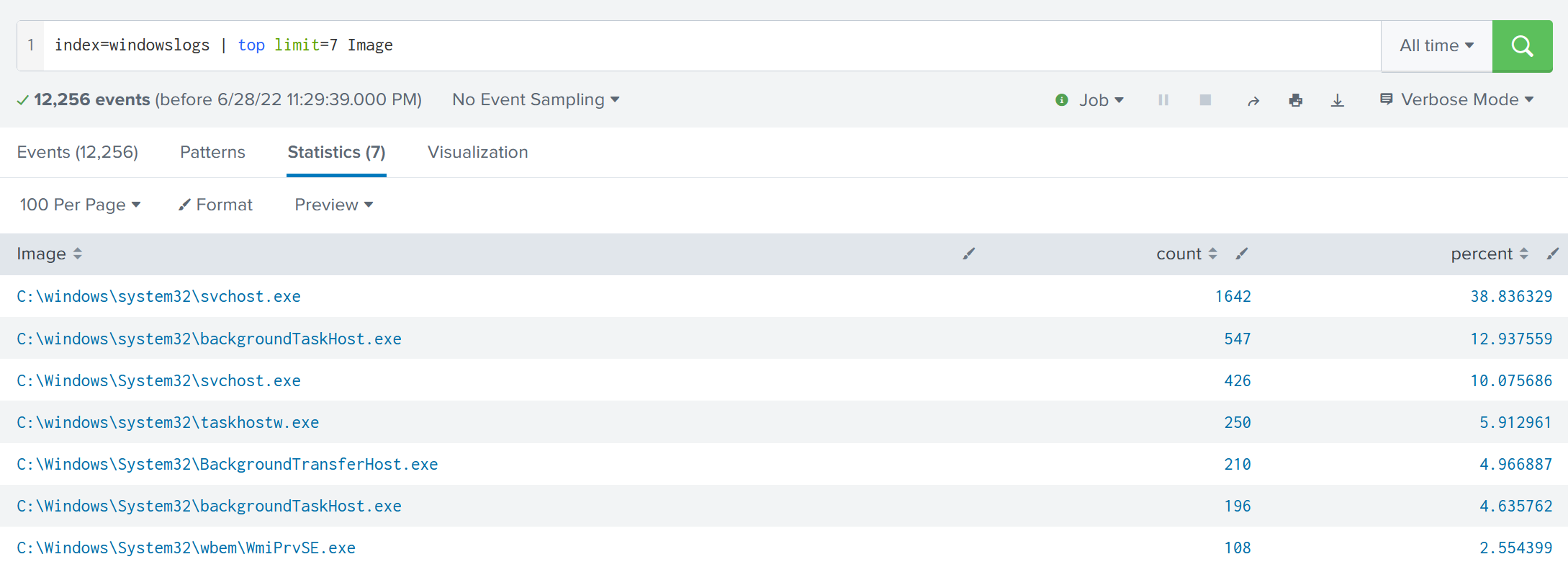
The following command will display the top 7 Image (representing Processes) captured.
1
- Basically uses two parameters to query: "Image" and "Count"
Search Query:
1
index=windowslogs | top limit=7 Image
Rare
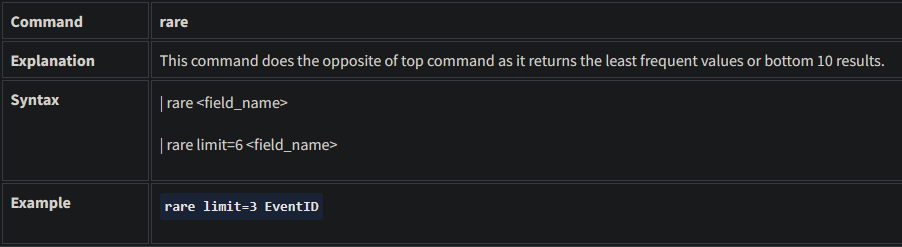
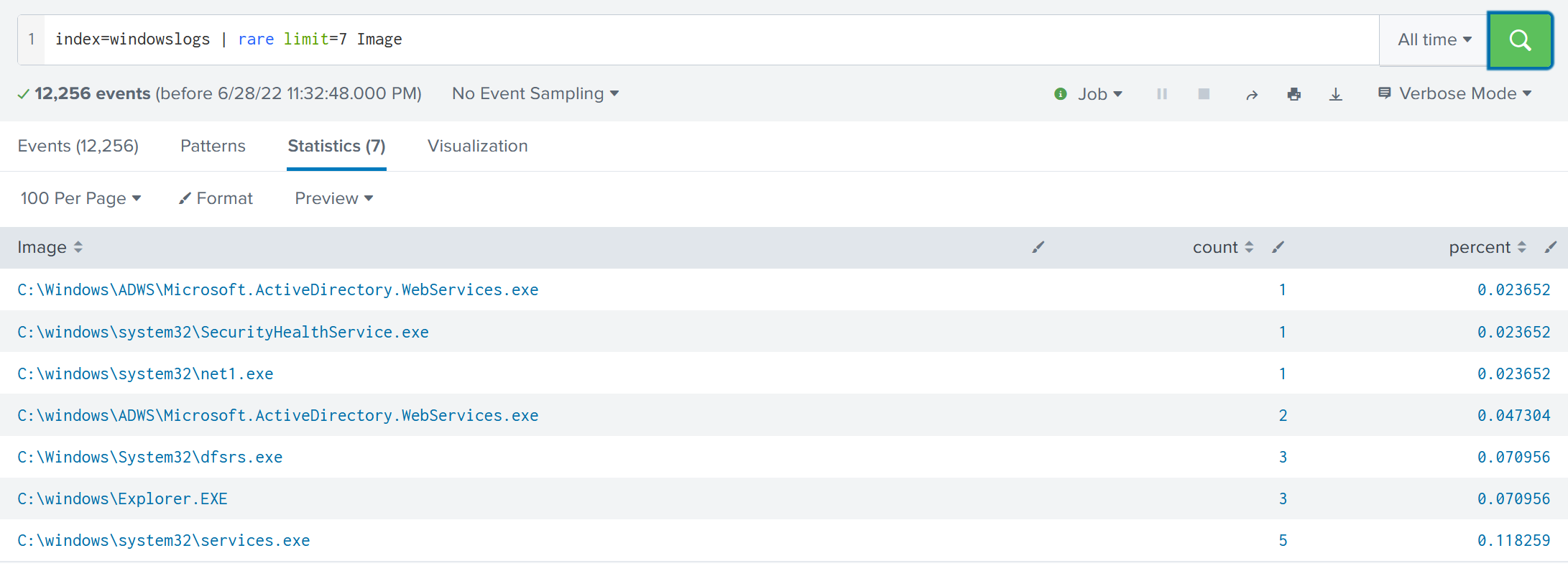
The following command will display the rare 7 Image (Processes) captured.
Search Query:
1
index=windowslogs | rare limit=7 Image
Highlight
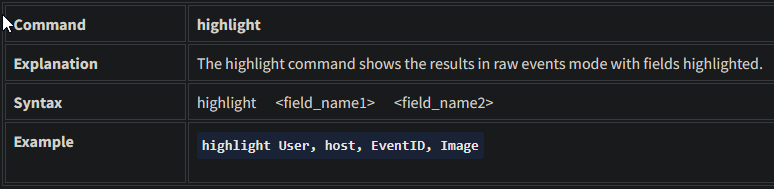
The following command will highlight the three mentioned fields in the raw logs
Search Query:
1
index=windowslogs | highlight User, host, EventID, Image
STATS Commands
SPL supports various stats commands that help in calculating statistics on the values. Some common stat commands are:
| Command | Explanation | Syntax | Example |
|---|---|---|---|
Average | This command is used to calculate the average of the given field. | stats avg(field_name) | stats avg(product_price) |
Max | It will return the maximum value from the specific field. | stats max(field_name) | stats max(user_age) |
Min | It will return the minimum value from the specific field. | stats min(field_name) | stats min(product_price) |
Sum | It will return the sum of the fields in a specific value. | stats sum(field_name) | stats sum(product_cost) |
Count command returns the number of data occurrences. | stats count(function) AS new_NAME | stats count(source_IP) |
Splunk Chart Commands
These are very important types of transforming commands that are used to present the data in table or visualization form. Most of the chart commands utilize various stat commands.
Chart
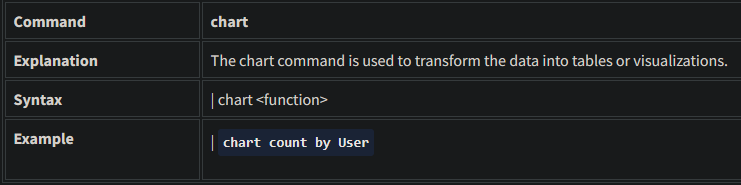
Search Query:
1
index=windowslogs | chart count by User
Timechart

The following query will display the Image chart based on the time.
Search Query:
1
index=windowslogs | timechart count by Image
Question and Answers section:
- List the top 8 Image processes using the top command - what is the total count of the 6th Image?
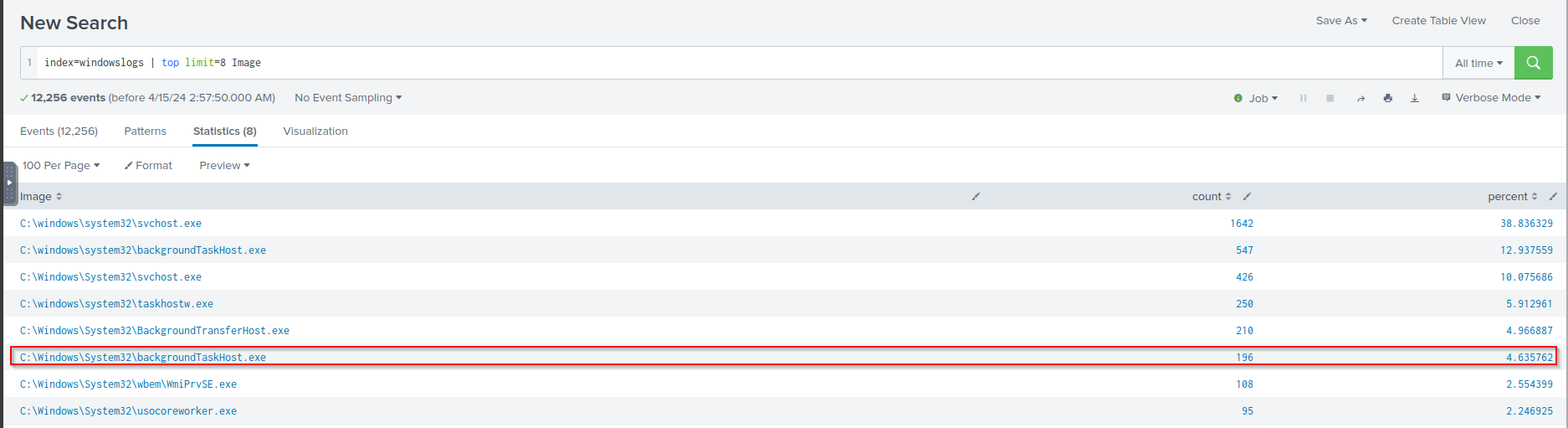
Answer:
1
196
- Using the rare command, identify the
userwith the least number of activities captured? Query:1
index=windowslogs | rare User
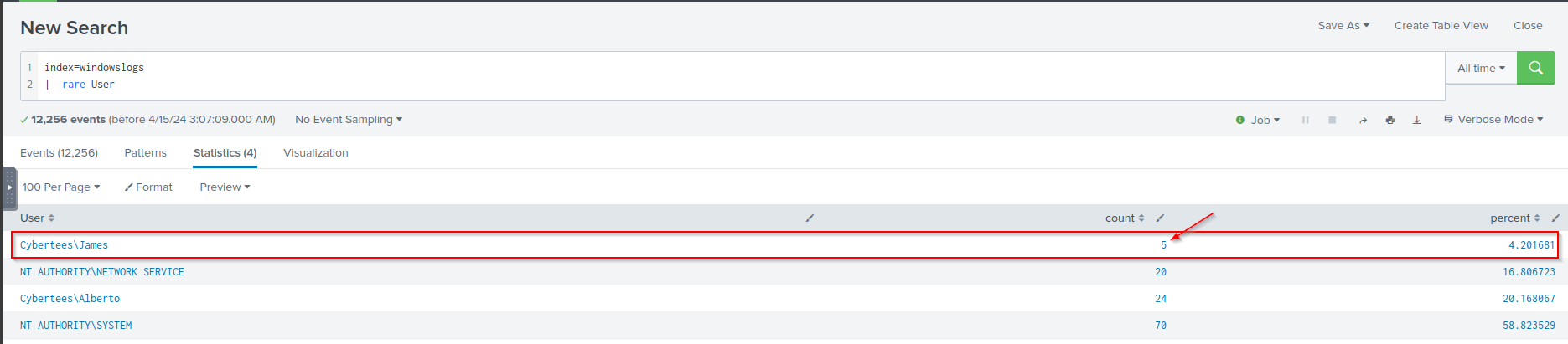
Answer:
1
James
- Create a
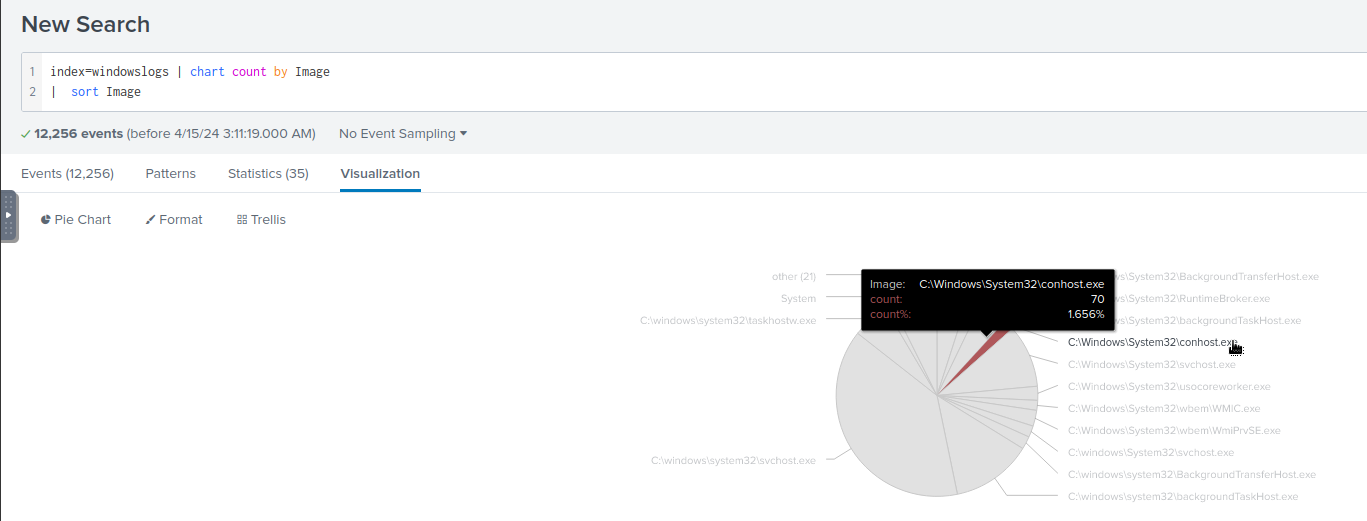
pie-chartusing the chart command - what is the count for theconhost.exeprocess? Query:1
index=windowslogs | chart count by Image | sort Image
Statistics:
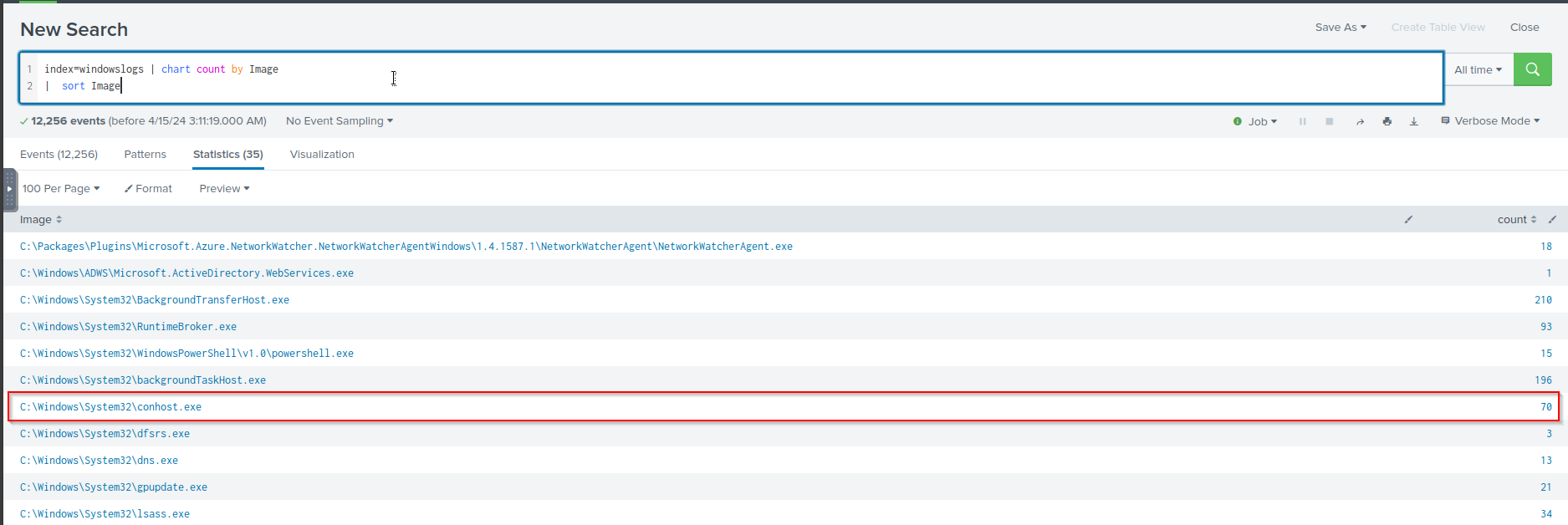
Pie chart: