
Intro
Wazuh is an open-source security detection tool that works on top of the ELK stack (Elasticsearch, Logstash, and Kibana) and is designed to identify threats using its alert rule system.
This system uses rules to search for potential security threats or issues in logs from various sources, such as operating system logs, application logs, endpoint security logs, etc.
Out of the box, Wazuh has a comprehensive set of pre-configured rules. While these rules cover a wide range of potential security issues, there are still scenarios or risks unique to an organisation that these rules may not cover. To compensate for this, organisations can create custom alert rules, which is the focus of this room.
Learning objectives:
1
2
3
4
- Learn how important data is extracted from logs using Decoders.
- Learn how alerts are triggered using Rules.
- Learn how to add new rules to extend detection capabilities.
- Learn how to simulate a real-world attack to test existing rules.
Decoders
One of the many features of Wazuh is that it can ingest logs from different sources and generate alerts based on their
contents.However, various logs can have varied data types and structures. To manage this, Wazuh uses
Decodersthat useregexto extract only the needed data for later use.
Understanding Decoders
1. To help us better understand what Decoders are and how they work, let us look at how logs from a tool like Sysmon (System Monitor) are processed.
- As a popular tool, there is already a pre-existing decoder for this listed in the
windows_decoders.xmlfile on (https://github.com/wazuh/wazuh-ruleset/tree/b26f7f5b75aab78ff54fc797e745c8bdb6c23017/decoders). This file can also be downloaded for your reference by clicking on the “
Download Task Files” button on the top right corner of this task.windows_decoders.xml:
1
2
3
4
5
6
7
<decoder name="Sysmon-EventID#1_new">
    <parent>windows</parent>
    <type>windows</type>
    <prematch>INFORMATION\(1\).+Hashes</prematch>
    <regex>Microsoft-Windows-Sysmon/Operational: \S+\((\d+)\)</regex>
    <order>id</order>
</decoder>
Let's break down the parts of this Decoder block:
1
2
3
4
5
- 'Decoder Name' : The name of this decoder. (Note: Multiple decoder blocks can have the same name; think of this as though they are being grouped together).
- 'Parent' : The name of the parent decoder. The parent decoder is processed first before the children are
- 'Prematch' : Uses regular expressions to look for a match. If this succeeds, it will process the "regex" option below.
- 'Regex' : Uses regular expressions to extract data. Any string in between a non-escaped open and closed parenthesis is extracted.
- 'Order' : Contains a list of names to which the extracted data will be stored.
1
2
- There are a whole lot more options that can be set for decoders. For now, we are only interested in the ones listed above.
- If you want to check out all the options, you can visit the Wazuh documentation's [Decoder Syntax page](https://documentation.wazuh.com/current/user-manual/ruleset/ruleset-xml-syntax/decoders.html).
- For us to know what data is to be extracted from the log, we need to look at an example log entry from Sysmon:
1
2
3
4
5
6
7
8
9
10
11
12
13
14
15
16
17
Mar 29 13:36:36 WinEvtLog: Microsoft-Windows-Sysmon/Operational: INFORMATION(1): Microsoft-Windows-Sysmon: SYSTEM: NT AUTHORITY: WIN-P57C9KN929H: Process Create:
UtcTime: 2017-03-29 11:36:36.964
ProcessGuid: {DB577E3B-9C44-58DB-0000-0010B0983A00}
ProcessId: 3784
Image: C:\Windows\System32\WindowsPowerShell\v1.0\powershell.exe
CommandLine: "C:\Windows\System32\WindowsPowerShell\v1.0\powershell.exe" "-file" "C:\Users\Alberto\Desktop\test.ps1"
CurrentDirectory: C:\Users\Alberto\Desktop\
User: WIN-P57C9KN929H\Alberto
LogonGuid: {DB577E3B-89E5-58DB-0000-0020CB290500}
LogonId: 0x529cb
TerminalSessionId: 1
IntegrityLevel: Medium
Hashes: MD5=92F44E405DB16AC55D97E3BFE3B132FA,SHA256=6C05E11399B7E3C8ED31BAE72014CF249C144A8F4A2C54A758EB2E6FAD47AEC7
ParentProcessGuid: {DB577E3B-89E6-58DB-0000-0010FA3B0500}
ParentProcessId: 2308
ParentImage: C:\Windows\explorer.exe
ParentCommandLine: C:\Windows\Explorer.EXE
Breakdown:
1
2
3
- The log entry above shows an example event a Wazuh agent installed in a Windows machine sent.
- It describes an event where the user ran a PowerShell script named '`test.ps1`' from his system using the '`powershell.exe`' executable initiated by the Explorer process ('`C:\Windows\explorer.exe`').
- As you can see, there''s a lot of data in there, and it is a decoder''s job to EXTRACT them.
2. Once this log entry is ingested, all appropriate decoder blocks will kick into action where they will first check the prematch option.
The decoder block above will check if any strings match the regular expression:
1
INFORMATION\(1\).+Hashes
3. If you feel your regex-fu needs some refreshing, let’s break down the step-by-step process of how this will go: (Reference: [regex101: build, test, and debug regex](https://regex101.com/))
1
2
3
4
5
6
(a) First, the regex will look for the 'INFORMATION' string.
(b) Followed by an escaped open parenthesis '\('.
(c) Followed by a number '1'.
(d) Followed by an escaped close parenthesis '\)'.
(e) And then any number of characters '.+'.
(f) Until it reaches the 'Hashes' string.
4. If you check the expression above with the log entry, you will find out it is a match. And because it is a match, the decoder would process the regex option below.
- This time it will try to match the string, “
Microsoft-Windows-Sysmon/Operational: \S+\((\d+)\)”:
1
2
3
4
5
6
7
(a) First, the regex will look for the 'Microsoft-Windows-Sysmon/Operational:' string.
(b) Followed by any string of any length '\S+'.
(c) Followed by an escaped open parenthesis '\('.
(d) Followed by an open parenthesis '(' (Remember, this is where the extracted data will start).
(e) Then by any digit character of any length '\d+'.
(f) Then a closing parenthesis ')' (This is where the extracted data ends).
(g) And finally followed by an escaped closing parenthesis '\)'.
After all of the above steps, the value of 1 will be extracted and stored in the id field as listed it the order option.
Testing the Decoder
We can quickly test decoders from the Wazuh dashboard using the “Ruleset Test” tool. But first, let’s access the dashboard:
5. If you haven’t yet, run the virtual machine by pressing the “Start Machine” button on Task 1. Wait for a few minutes for Wazuh to load correctly.
6. To access the Wazuh dashboard, you can do it in two ways:
1
2
- Connect via OpenVPN (More info [here]('https://tryhackme.com/access')) and then type the machine''s IP `'http://10.10.126.183'` on your browser''s address bar.
- Log in to AttackBox VM, open the web browser inside AttackBox, and then type the machine''s IP `'http://10.10.126.183'` on the address bar.
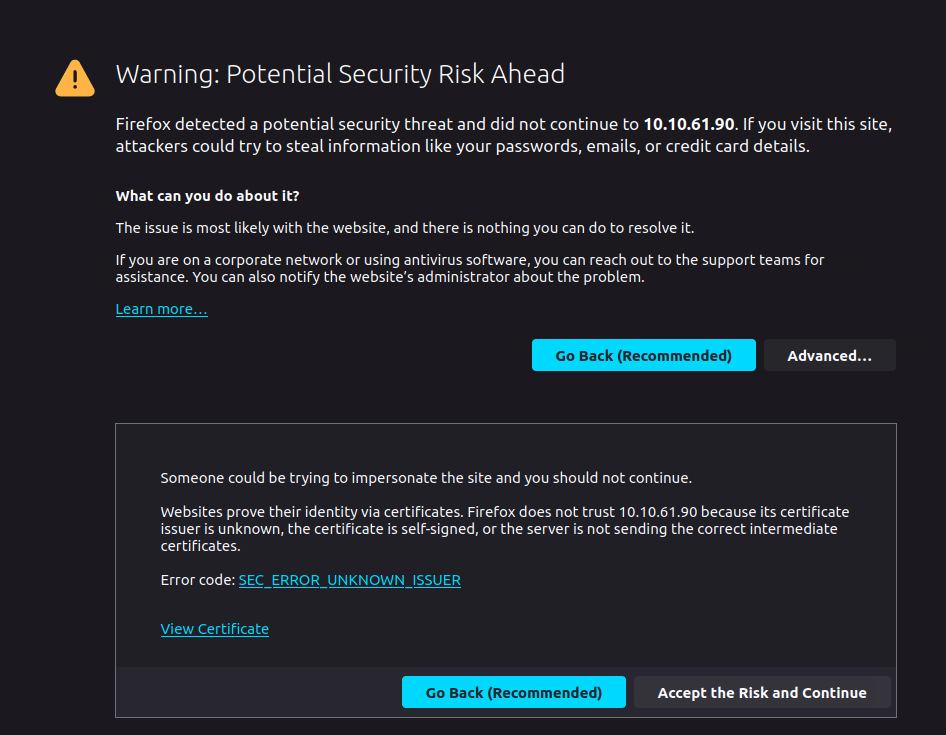
7. You’ll encounter a Security alert, which you can safely ignore by clicking “Advanced > Accept the Risk and Continue”:
8. When presented with the Wazuh login screen, enter wazuh for the username and TryHackMe! for the password.
1
wazuh:TryHackMe!
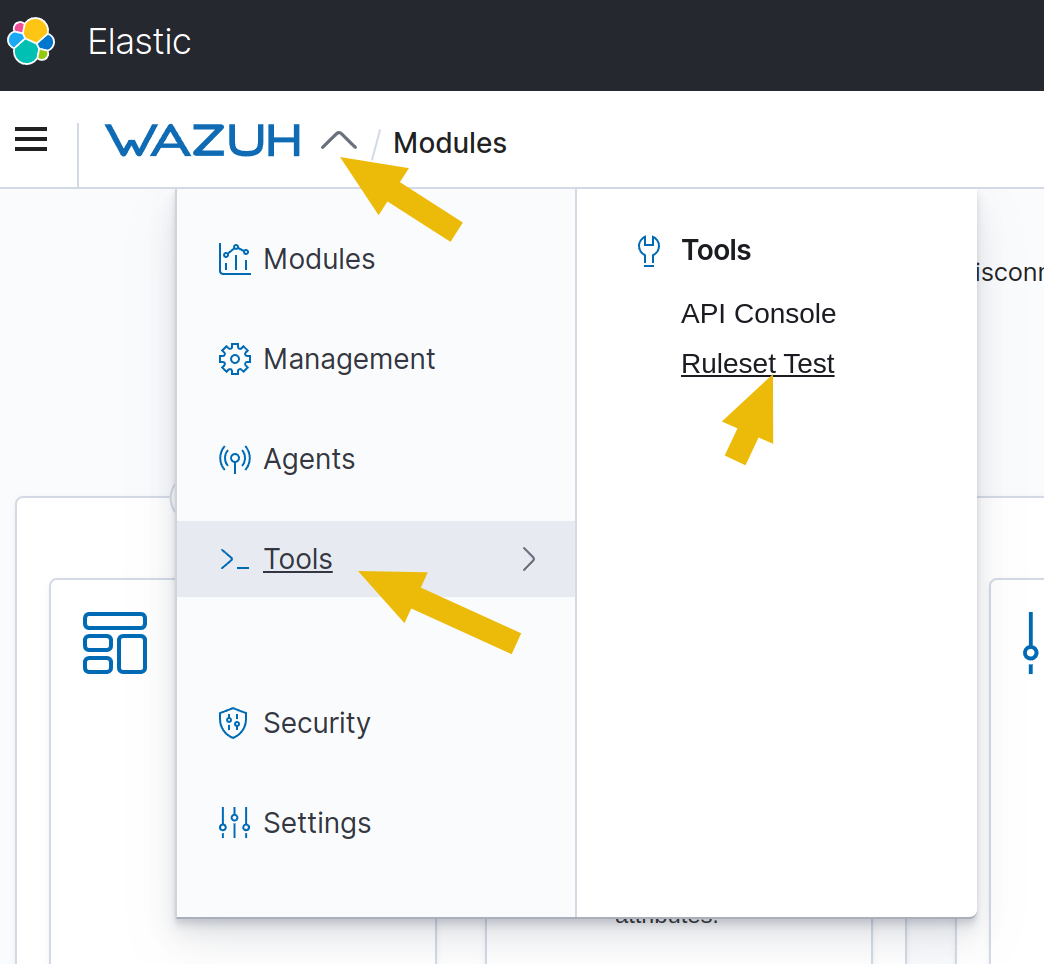
9. Once in the Wazuh dashboard, access the “Ruleset Test” tool page by doing the following:
1
2
1. Click on the dropdown button on the Wazuh Logo
2. Click on Tools > Ruleset Test
1
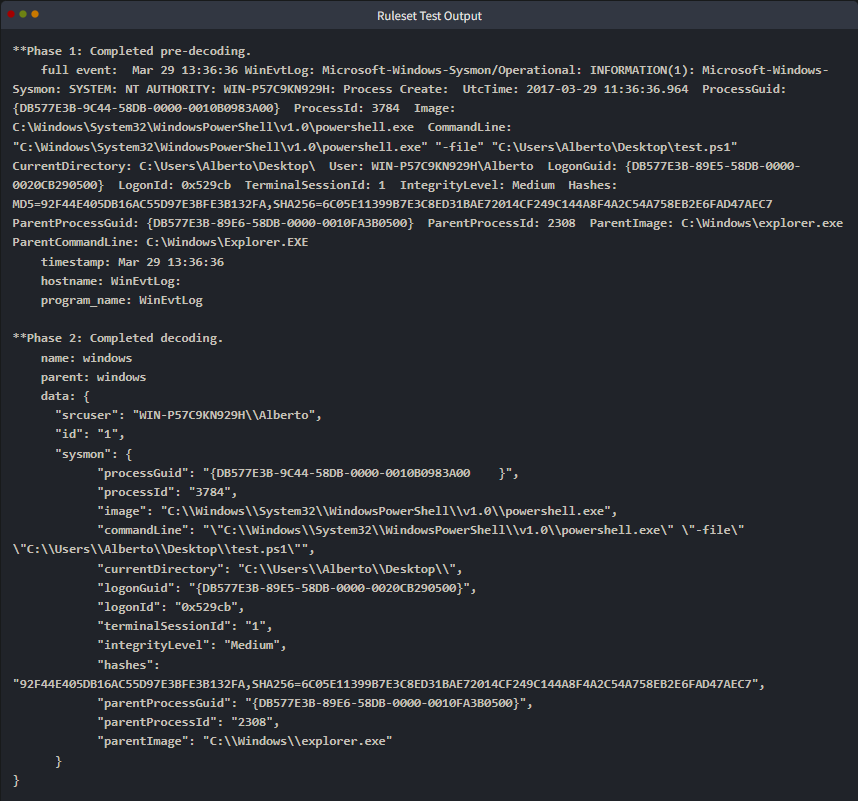
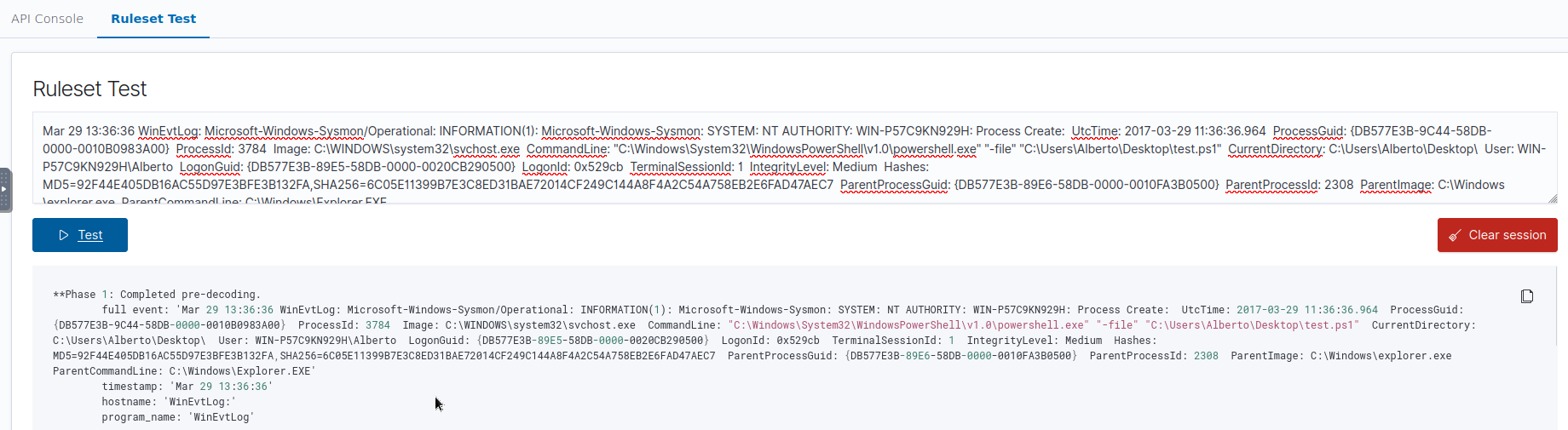
3. Once on the Ruleset Test page, paste the example Sysmon log entry above into the textbox and click the "Test" button. This will output the following results:
1
2
- Pre-decoding : Unstructured
- Decoded : Structured version of the sysmon log to be displayed on the Wazuh dashboard (Kibana)
Ruleset Testing and Phase 1:
Phase 2:
Phase 3:
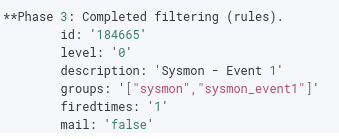
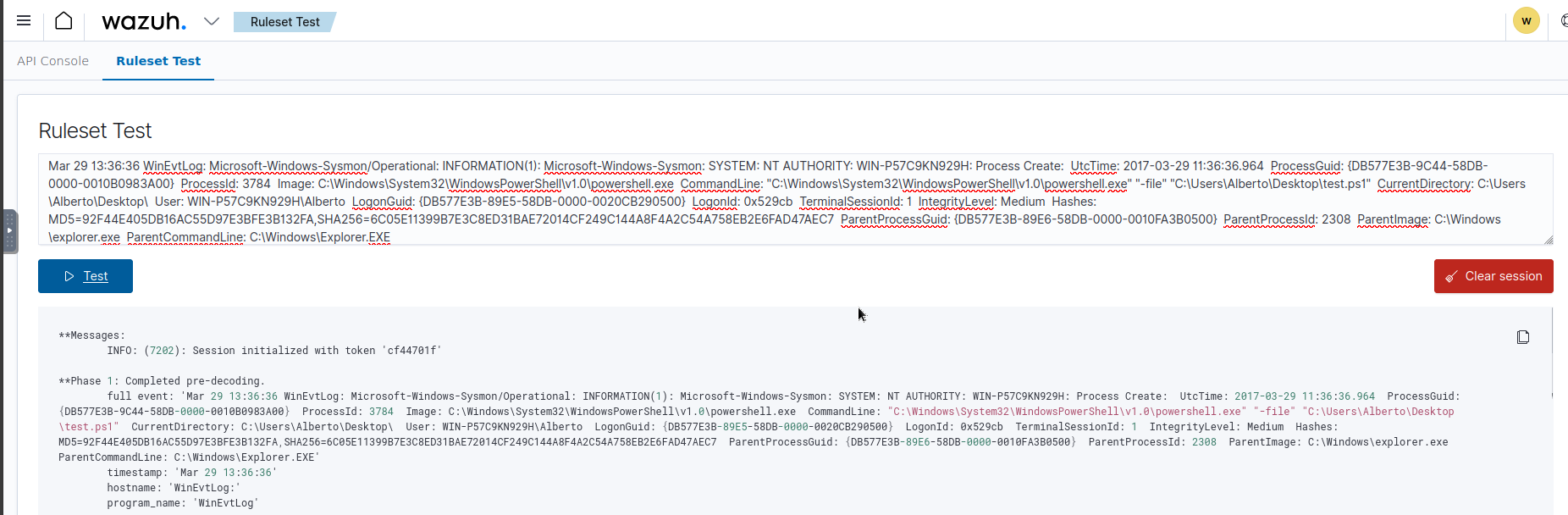
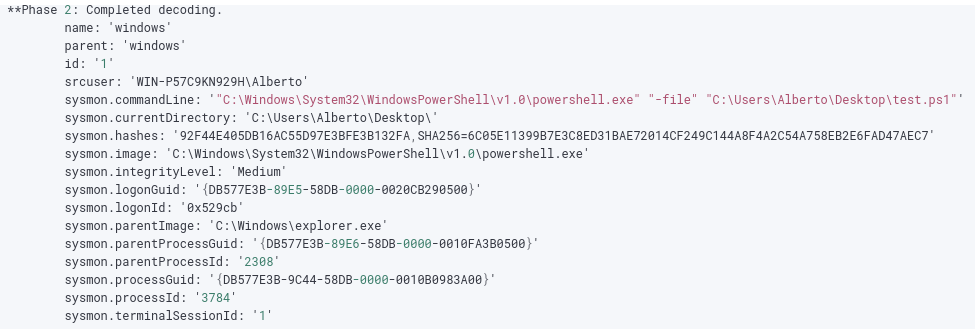
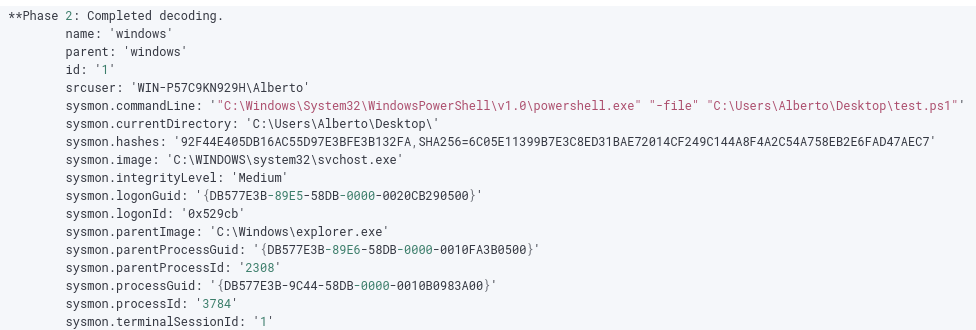
10. As you can see in the output above, this output has three stages. For the topic of Decoders, we will focus on the first two phases for now:
1
2
(a) Phase 1 is the 'pre-decoding phase'. The event log is parsed, and the header details like 'timestamp', 'hostname', and 'program_name' are retrieved. This is done automatically on the backend by Wazuh.
(b) Phase 2 is the 'decoding phase', where the decoders do their magic. When done, all the extracted data from the declared 'decoder blocks' are displayed here. For example, we can see in the results that the "id" field has been assigned the value of 1, which shows that the decoder works.
11. As for the other data like “processGuid”, “processId”, etc., they were extracted by a separate decoder block, like the one below:
1
2
3
4
5
6
<decoder name="Sysmon-EventID#1_new">
    <parent>windows</parent>
    <type>windows</type>
    <regex offset="after_regex">ProcessGuid: (\.*) \s*ProcessId: (\.*) \s*Image: (\.*) \s*CommandLine: (\.*)\s+CurrentD</regex>
    <order>sysmon.processGuid, sysmon.processId, sysmon.image, sysmon.commandLine</order>
</decoder>
- You will notice more values in the
orderoption in this decoder. Each named value corresponds to the number of data enclosed in the parenthesis found in theregexoption. - In this case, the data in the first pair of parenthesis
()will be stored onsysmon.processGuid, the second onsysmon.processId, and so on.
Question and Answers section:
- Looking at the Sysmon Log, what will the value of
sysmon.commandLinebe?

1
'"C:\Windows\System32\WindowsPowerShell\v1.0\powershell.exe" "-file" "C:\Users\Alberto\Desktop\test.ps1"'
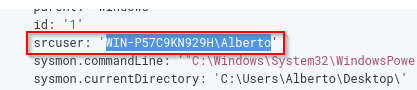
- What would the extracted value be if the regex is set to “
User: \S*”?
Answer:
1
WIN-P57C9KN929H\Alberto
Rules
Rules contain defined conditions to detect specific events or malicious activities using the
extracted datafromdecoders.An alert is generated on the Wazuh dashboard when an event matches a rule.
In this task, we will look at the pre-existing Sysmon rules defined in the
sysmon_rules.xmlrule file found on Wazuh’s Github page.
Goal:
- The downloaded file contains multiple rule blocks, but we will focus primarily on blocks that look for suspicious Sysmon events with an
ID of 1.
Understanding Rules
1. Here is an example of an alert rule that looks for the “svchost.exe” string in the “sysmon.image” field:
1
2
3
4
5
6
7
8
9
<rule id="184666" level="12">
	<if_group>sysmon_event1</if_group>
	<field name="sysmon.image">svchost.exe</field>
	<description>Sysmon - Suspicious Process - svchost.exe</description>
	<mitre>
		<id>T1055</id>
	</mitre>
	<group>pci_dss_10.6.1,pci_dss_11.4,...</group>
</rule>
2. A rule block has multiple options. In this case, the options that interest us at this moment are the following:
1
2
3
4
5
- 'Rule id' : The unique identifier of the rule.
- 'Rule level' : The classification level of the rule ranges from 0 to 15. Each number corresponds to a specific value and severity, as listed in the Wazuh documentation''s rule classifications page [here](https://documentation.wazuh.com/current/user-manual/ruleset/rules-classification.html).
- 'If_group' : Specifies the group name that triggers this rule when that group has matched.
- 'Field name' : The name of the field extracted from the decoder. The value in this field is matched using regular expressions.
- 'Group' :  Contains a list of groups or categories that the rule belongs to. It can be used for organizing and filtering rules.
As with decoders, there are other options available for rules. You can check out the complete list on the Rules Syntax page in the Wazuh documentation.
Testing the Rule
3. Go back to the “Ruleset Test” page. Paste the exact log entry we used in the previous task. The result should be the same, but this time, we will focus on Phase 3 of the output.
1
2
3
4
5
6
7
8
9
10
11
12
13
14
15
**Phase 3: Completed filtering (rules).
    id: 184665
    level: -
    description: Sysmon - Event 1
    groups: ["sysmon","sysmon_event1"]
    firedtimes: 1
    gdpr: "-"
    gpg13: "-"
    hipaa: "-"
    mail: "-"
    mitre.id: "-"
    mitre.technique: "-"
    nist_800_53: "-"
    pci_dss: "-"
    tsc: "-"
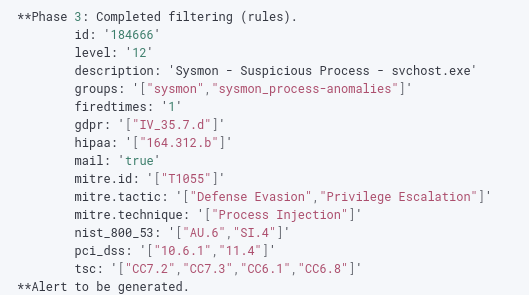
Phase 3 shows what information an alert would contain when a rule is triggered, like “id”, “level”, “description”, etc.
4. Right now, the output shows that the triggered rule ID is 184665. This is not the rule block that we examined above, which has the ID of 184666. The reason for this is that 184666 is looking for “svchost.exe” in the “sysmon.image” field option.
For triggering rule ID 184665:

For triggering rule ID 184666:

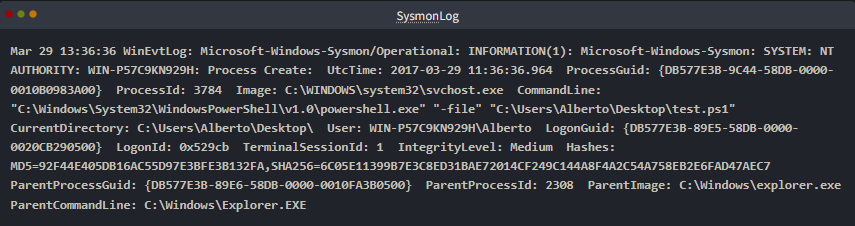
5. For this rule to trigger, we need to change “C:\Windows\System32\WindowsPowerShell\v1.0\powershell.exe” to “C:\WINDOWS\system32\svchost.exe”, as shown below:
6. When this is done, press the “Test” button again to run the Ruleset Test. The output should now be different, especially in Phase 3:
Expected Output:
1
2
3
4
5
6
7
8
9
10
11
12
13
14
15
16
**Phase 3: Completed filtering (rules).
	id: 184666
	level: 12
	description: Sysmon - Suspicious Process - svchost.exe
	groups: ["sysmon","sysmon_process-anomalies"]
	firedtimes: 1
	gdpr: ["IV_35.7.d"]
	gpg13: "-"
	hipaa: ["164.312.b"]
	mail: true
	mitre.id: {"id":["T1055"],"tactic":["Defense Evasion","Privilege Escalation"],"technique":["Process Injection"]}
	mitre.technique: {"id":["T1055"],"tactic":["Defense Evasion","Privilege Escalation"],"technique":["Process Injection"]}
	nist_800_53: ["AU.6","SI.4"]
	pci_dss: ["10.6.1","11.4"]
	tsc: ["CC7.2","CC7.3","CC6.1","CC6.8"]
**Alert to be generated.
Rule test and Phase 1:
Phase 2 and 3:
1
- Basically, it is weird for svchost.exe to spawn a powershell process.
Because our rule now matches the log, the triggered Rule is now 184666. There is now also more information on the output thanks to the mitre and group options in the rule block.
Question and Answers section:
- From the Ruleset Test results, what is the
<mitre>ID of rule id184666?
1
T1055
- According to the
Wazuhdocumentation, what is the description of the rule with aclassification levelof12?

Answer:
1
High importance event
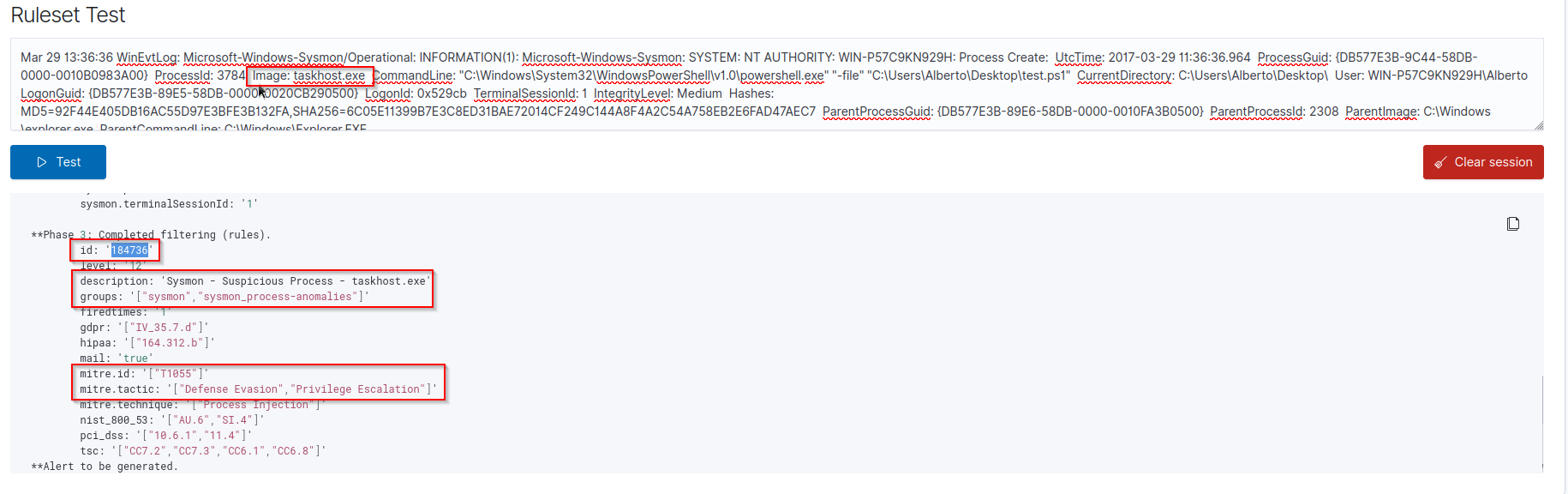
- In the Ruleset Test page, change the value of “
sysmon.image” to “taskhost.exe’, and press the “Test” button again. What is the ID of the rule that will get triggered?
Answer:
1
184736
Rule Order
- In Wazuh, rules are processed based on several factors determining rule order.
- One factor that will be discussed that is relevant to making custom rules is the “
if” condition prerequisites.
1. We’ve seen the if_group option in the previous task, but there are other “if” condition prerequisites like the if_sid option shown below:
1
2
3
4
5
<rule id="184667" level="0">
	<if_sid>184666</if_sid>
	<field name="sysmon.parentImage">\\services.exe</field>
	<description>Sysmon - Legitimate Parent Image - svchost.exe</description>
</rule>
1
- 'if_sid' : Specifies the ID of another rule that triggers this rule. In this example, the rule is triggered if an event with the ID of '184666' has been triggered.
These “if” condition prerequisites are considered the “parent” that must be evaluated first.
Because of this parent-child relationship, it is essential to note that Wazuh Rules are triggered from a top-to-down manner.
When rules are processed, the condition prerequisites are checked, and the rule order is updated.
Testing the Rule Order
2. Go back to the “Ruleset Test” page. Paste the exact log entry we used in the previous task.
- We want to trigger Rule ID
184667, so our Sysmon log entry should have the value of “sysmon.parentImage” changed toC:\\Windows\\services.exe.
The log entry should now look like the one below: (Unstructured Version of the log)
1
Mar 29 13:36:36 WinEvtLog: Microsoft-Windows-Sysmon/Operational: INFORMATION(1): Microsoft-Windows-Sysmon: SYSTEM: NT AUTHORITY: WIN-P57C9KN929H: Process Create: UtcTime: 2017-03-29 11:36:36.964 ProcessGuid: {DB577E3B-9C44-58DB-0000-0010B0983A00} ProcessId: 3784 Image: C:\WINDOWS\system32\svchost.exe CommandLine: "C:\Windows\System32\WindowsPowerShell\v1.0\powershell.exe" "-file" "C:\Users\Alberto\Desktop\test.ps1" CurrentDirectory: C:\Users\Alberto\Desktop\ User: WIN-P57C9KN929H\Alberto LogonGuid: {DB577E3B-89E5-58DB-0000-0020CB290500} LogonId: 0x529cb TerminalSessionId: 1 IntegrityLevel: Medium Hashes: MD5=92F44E405DB16AC55D97E3BFE3B132FA,SHA256=6C05E11399B7E3C8ED31BAE72014CF249C144A8F4A2C54A758EB2E6FAD47AEC7 ParentProcessGuid: {DB577E3B-89E6-58DB-0000-0010FA3B0500} ParentProcessId: 2308 ParentImage: C:\Windows\services.exe ParentCommandLine: C:\Windows\Explorer.EXE
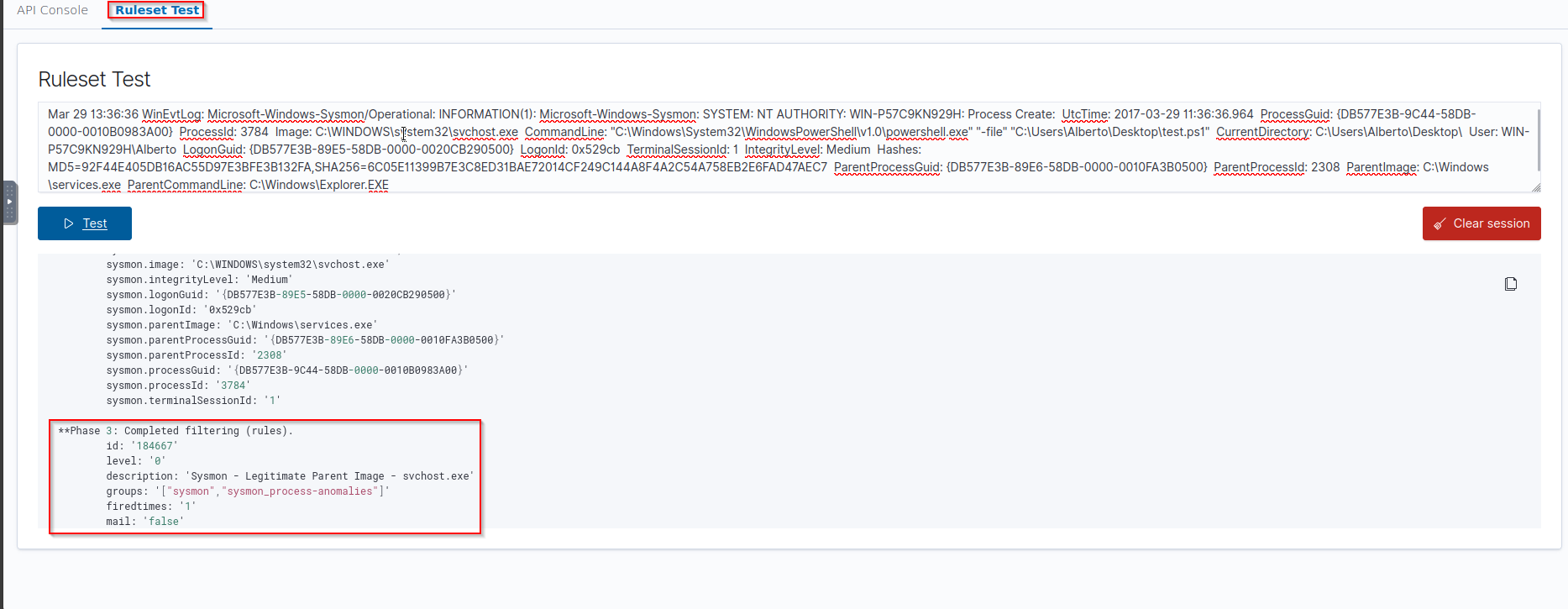
3. Pressing the “Test” button would then output the following:
1
2
3
4
5
6
7
8
9
10
11
12
13
14
15
**Phase 3: Completed filtering (rules).
	id: 184667
	level: -
	description: Sysmon - Legitimate Parent Image - svchost.exe
	groups: ["sysmon","sysmon_process-anomalies"]
	firedtimes: 1
	gdpr: "-"
	gpg13: "-"
	hipaa: "-"
	mail: "-"
	mitre.id: "-"
	mitre.technique: "-"
	nist_800_53: "-"
	pci_dss: "-"
	tsc: "-"
We can see that the triggered rule is
184667, which is what we expected.What is NOT shown in the output, however, is that before
184667was triggered, Wazuh first checkedif_sidand found that Rule ID184666was aprerequisite.Before rule ID
184666, Wazuh then saw that it hasif_groupset tosysmon_event1, which is associated with Rule ID184665.This goes on and on until all the chains of prerequisites are satisfied.
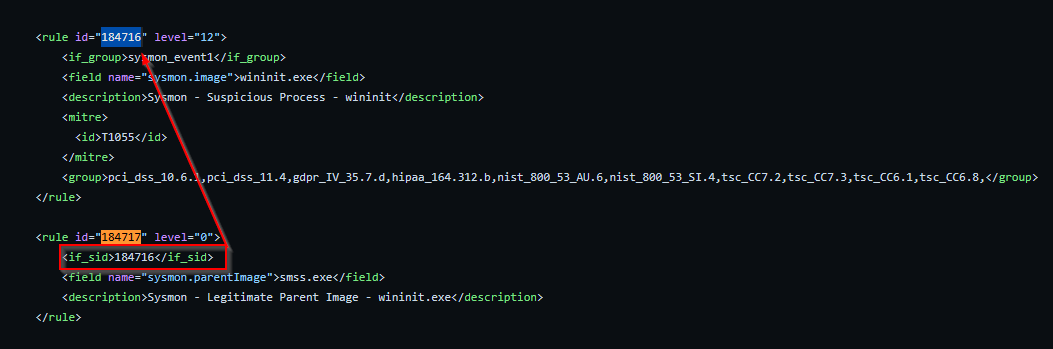
-> In the sysmon_rules.xml file, what is the Rule ID of the parent of 184717?
1
184716
Custom Rules
- As mentioned before, the pre-existing rules are comprehensive. However, it cannot cover all use cases, especially for organizations with unique needs and requirements.
- To compensate for this, we can modify or create new rules to customize them for our needs.
There are several reasons why we want to have custom rules:
1
2
3
4
5
- You want to enhance the detection capabilities of Wazuh.
- You are integrating a not-so-well-known security solution.
- You use an old version of a security solution with an older log format.
- You recently learned of a new attack and want to create a specific detection rule.
- You want to fine-tune a rule.
0. We’ve previously looked at how Wazuh processes Sysmon logs from Windows, so this time, let’s look at the rules for auditd for Linux machines and whether it can detect file creation events via Syscalls.
- This time we will be looking at the
auditd_rules.xmlrule file found on Wazuh’s Github page.
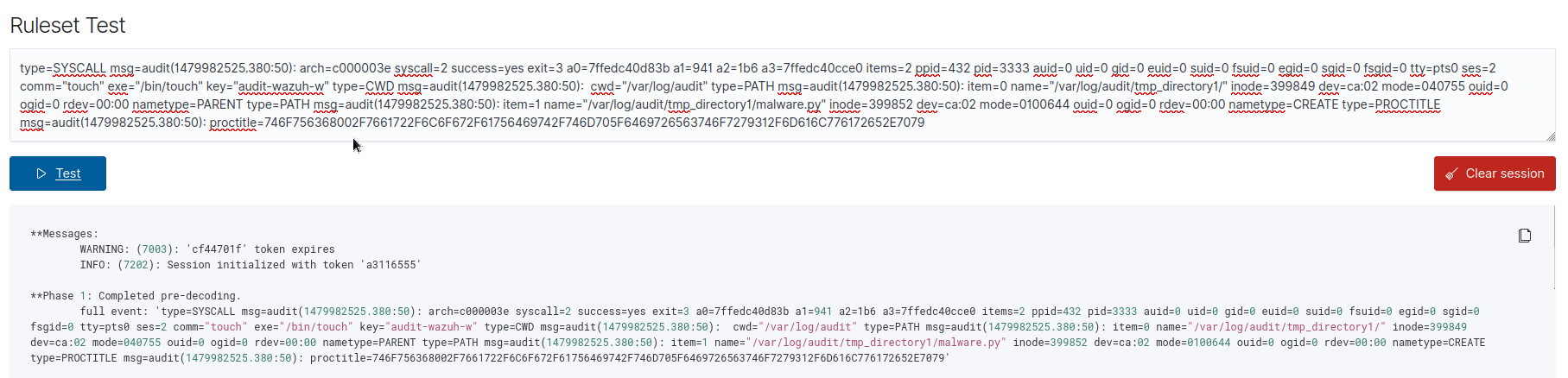
1. To help us better understand how to build our custom rule, let’s look at an example of an auditd log:
1
type=SYSCALL msg=audit(1479982525.380:50): arch=c000003e syscall=2 success=yes exit=3 a0=7ffedc40d83b a1=941 a2=1b6 a3=7ffedc40cce0 items=2 ppid=432 pid=3333 auid=0 uid=0 gid=0 euid=0 suid=0 fsuid=0 egid=0 sgid=0 fsgid=0 tty=pts0 ses=2 comm="touch" exe="/bin/touch" key="audit-wazuh-w" type=CWD msg=audit(1479982525.380:50):  cwd="/var/log/audit" type=PATH msg=audit(1479982525.380:50): item=0 name="/var/log/audit/tmp_directory1/" inode=399849 dev=ca:02 mode=040755 ouid=0 ogid=0 rdev=00:00 nametype=PARENT type=PATH msg=audit(1479982525.380:50): item=1 name="/var/log/audit/tmp_directory1/malware.py" inode=399852 dev=ca:02 mode=0100644 ouid=0 ogid=0 rdev=00:00 nametype=CREATE type=PROCTITLE msg=audit(1479982525.380:50): proctitle=746F756368002F7661722F6C6F672F61756469742F746D705F6469726563746F7279312F6D616C776172652E7079
- The log describes an event wherein a
touchcommand (probably asrootuser) was used to create a new file calledmalware.pyin the/var/log/audit/tmp_directory1/directory. - The command was successful, and the log was generated based on an audit rule with the key “
audit-wazuh-w”.
Ruleset Test and Phase 1:
Phase 2:
1
2
3
4
5
6
7
8
9
10
11
12
13
14
15
16
17
18
19
20
21
22
23
24
25
26
27
28
29
30
31
32
**Phase 2: Completed decoding.
	name: 'auditd'
	parent: 'auditd'
	audit.arch: 'c000003e'
	audit.auid: '0'
	audit.command: 'touch'
	audit.cwd: '/var/log/audit'
	audit.directory.inode: '399849'
	audit.directory.mode: '040755'
	audit.directory.name: '/var/log/audit/tmp_directory1/'
	audit.egid: '0'
	audit.euid: '0'
	audit.exe: '/bin/touch'
	audit.exit: '3'
	audit.file.inode: '399852'
	audit.file.mode: '0100644'
	audit.file.name: '/var/log/audit/tmp_directory1/malware.py'
	audit.fsgid: '0'
	audit.fsuid: '0'
	audit.gid: '0'
	audit.id: '50'
	audit.key: 'audit-wazuh-w'
	audit.pid: '3333'
	audit.ppid: '432'
	audit.session: '2'
	audit.sgid: '0'
	audit.success: 'yes'
	audit.suid: '0'
	audit.syscall: '2'
	audit.tty: 'pts0'
	audit.type: 'SYSCALL'
	audit.uid: '0'
Phase 3:
1
2
3
4
5
6
7
8
9
**Phase 3: Completed filtering (rules).
	id: '80790'
	level: '3'
	description: 'Audit: Created: /var/log/audit/tmp_directory1/malware.py.'
	groups: '["audit","audit_watch_create","audit_watch_write"]'
	firedtimes: '1'
	gdpr: '["II_5.1.f","IV_30.1.g"]'
	mail: 'false'
**Alert to be generated.
2. When Wazuh ingests the above log, the pre-existing rule below will get triggered because of the value of <match>:
1
2
3
4
5
6
<rule id="80790" level="3">
	<if_group>audit_watch_write</if_group>
	<match>type=CREATE</match>
	<description>Audit: Created: $(audit.file.name)</description>
	<group>audit_watch_write,audit_watch_create,gdpr_II_5.1.f,gdpr_IV_30.1.g,</group>
</rule>
Adding Local Rules
3. For this exercise, let’s create a custom rule that will override the above rule so we have more control over the information we display.
To do this, you need to do the following:
1
2
3
4
(a) Connect to the server using SSH at '10.10.115.9' and use 'thm' for the username and 'TryHackMe!' the password. The credentials and connection details are listed in Task 1 of this room.
(b) Use the `sudo su` command to become the root user.
(c) Open the file  `/var/ossec/etc/rules/local_rules.xml` using your favourite editor.
(d) Paste the following text at the end of the file:
1
2
3
4
5
6
7
8
<group name="audit,">
	<rule id="100002" level="3">
		<if_sid>80790</if_sid>
		<field name="audit.cwd">downloads|tmp|temp</field>
		<description>Audit: $(audit.exe) created a file with filename $(audit.file.name) the folder $(audit.directory.name).</description>
		<group>audit_watch_write,</group>
	</rule>
</group>
-> The rule above will get triggered if a file is created in the downloads, tmp, or temp folders. Let’s break this down so we can better understand:
1
2
3
4
5
6
7
8
9
10
11
12
13
- `group name="audit,"` : We are setting this to the same value as the grouped rules in audit_rules.xml.

- `rule id="100002"` : Each custom rule needs to have a unique ID. Custom IDs start from `100001` onwards. Since there is already an existing example rule that uses `100001`, we are going to use `100002`.

- `level="3"` : We are setting this to 3 (Successful/Authorized events) because a file created in these folders isn''t necessarily malicious.

- `'if_sid'` : We set the parent to rule ID `80790` because we want that rule to be processed before this one.

- `field name="audit.directory.name"` : The string here is matched using regex. In this case, we are looking for tmp, temp, or downloads matches. This value is compared to the `audit.cwd` variable fetched by the auditd decoder.

- 'description' : The description that will appear on the alert. Variables can be used here using the format `$(variable.name)`.

- 'group' : Used for grouping this specific alert. We just took the same value from rule `80790`.
4. Save the file and run the code below to restart wazuh-manager so it can load the new custom rules:
1
systemctl restart wazuh-manager

5. Go back to the Wazuh dashboard, access the “Ruleset Test” page and paste the sample auditd log entry found above. If all goes well, you should see the following “Phase 3” output:
1
2
3
4
5
6
7
**Phase 3: Completed filtering (rules).
	id: '100002'
	level: '3'
	description: 'Audit: /bin/touch created a file with filename /var/log/audit/tmp_directory1/malware.py the folder /var/log/audit.'
	groups: '["audit","audit_watch_write"]'
	firedtimes: '1'
	mail: 'false'
Actual Output:
- Doesn’t work.
Question and Answers section:
- What is the regex field name used in the
local_rules.xml?1
audit.cwd
- Looking at the log, what is the
current working directory(cwd) from where the command was executed?1
/var/log/audit
Fine-Tuning
1. You can fine-tune the custom rule by adding more child rules, each focusing on specific related data from the logs. For example, you can use the values decoded by auditd decoder, as shown in the Phase 2 results of the previous test.
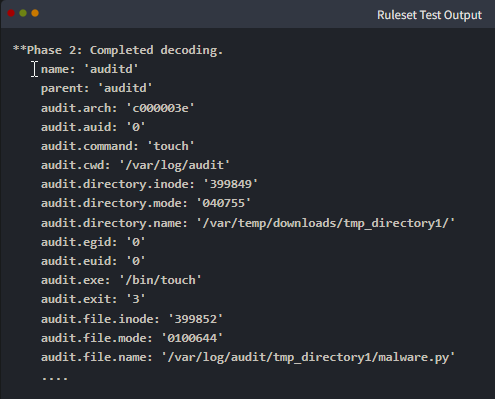
2. We can use the above data to make our detection rules as broad or as specific as needed. The following is an expanded version of local_rules.xml that incorporates more of the log’s data.
1
2
3
4
5
6
7
8
9
10
11
12
13
14
15
16
17
18
19
20
21
22
23
24
25
26
27
28
29
30
31
32
33
34
35
36
<group name="audit,">
   <rule id="100002" level="3">
        <if_sid>80790</if_sid>
        <field name="audit.directory.name">downloads|tmp|temp</field>
        <description>Audit: $(audit.exe) created a file with filename $(audit.file.name) in the folder $(audit.directory.name).</description>
        <group>audit_watch_write,</group>
    </rule>

   <rule id="100003" level="12">
        <if_sid>100002</if_sid>
        <field name="audit.file.name">.py|.sh|.elf|.php</field>
        <description>Audit: $(audit.exe) created a file with a suspicious file extension: $(audit.file.name) in the folder $(audit.directory.name).</description>
        <group>audit_watch_write,</group>
    </rule>

   <rule id="100004" level="6">
        <if_sid>100002</if_sid>
        <field name="audit.success">no</field>
        <description>>Audit: $(audit.exe) created a file with filename $(audit.file.name) but failed</description>
        <group>audit_watch_write,</group>
    </rule>

   <rule id="100005" level="12">
        <if_sid>100003</if_sid>
        <field name="audit.file.name">>malware|shell|dropper|linpeas</field>
        <description>Audit: $(audit.exe) created a file with suspicious file name: $(audit.file.name) in the folder $(audit.directory.name).</description>
        <group>audit_watch_write,</group>
    </rule>

   <rule id="100006" level="0">
        <if_sid>100005</if_sid>
        <field name="audit.file.name">malware-checker.py</field>
        <description>False positive. "malware-checker.py" is used by our red team for testing. This is just a temporary exception.</description>
        <group>audit_watch_write,</group>
    </rule>
</group>
1
- You can test these rules by updating the `local_rules.xml` file and checking the output on the Ruleset Test Page.
Question and Answers section:
- If the filename in the logs is “
test.php”, what rule ID will be triggered?1
100003 - If the filename in the logs is “
malware-checker.sh”, what is the rule classification level in the generated alert?1
12