Date: 03/06/2024 —
NMAP Scans
Nmap is an industry-standard tool for mapping networks, identifying live hosts and discovering the services. As it is one of the most used network scanner tools, a security analyst should identify the network patterns created with it. This section will cover identifying the most common Nmap scan types.
1
2
3
- TCP connect scans
- SYN scans
- UDP scans
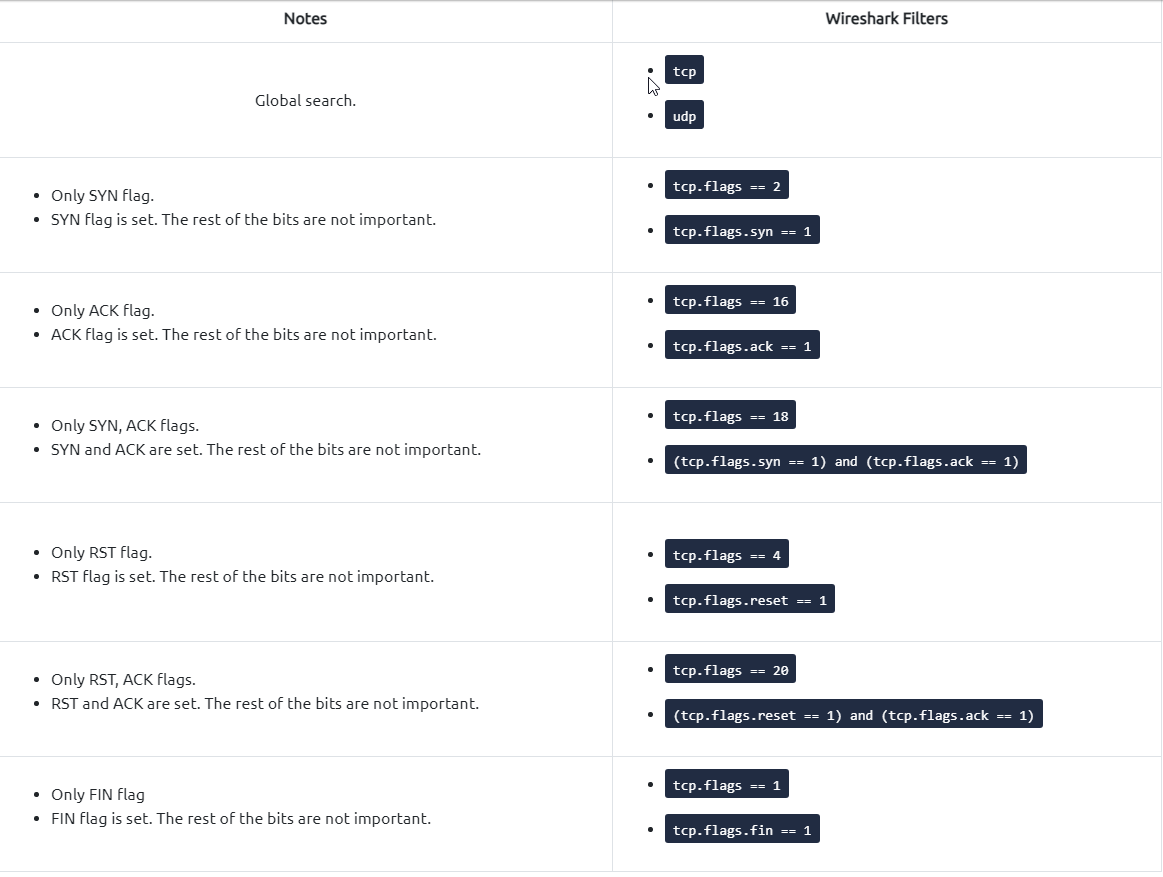
It is essential to know how Nmap scans work to spot scan activity on the network. However, it is impossible to understand the scan details without using the correct filters.
- Below are the base filters to probe Nmap scan behaviour on the network:
TCP Connect Scans
TCP Connect Scan in a nutshell:
- Relies on the three-way handshake (needs to finish the handshake process).
- Usually conducted with
nmap -sTcommand. - Used by non-privileged users (only option for a non-root user).
- Usually has a windows size larger than 1024 bytes as the request expects some data due to the nature of the protocol.

The images below show the three-way handshake process of the open and close TCP ports. Images and pcap samples are split to make the investigation easier and understand each case’s details:
Open TCP Port (Connect):

*Closed TCP port (Connect):

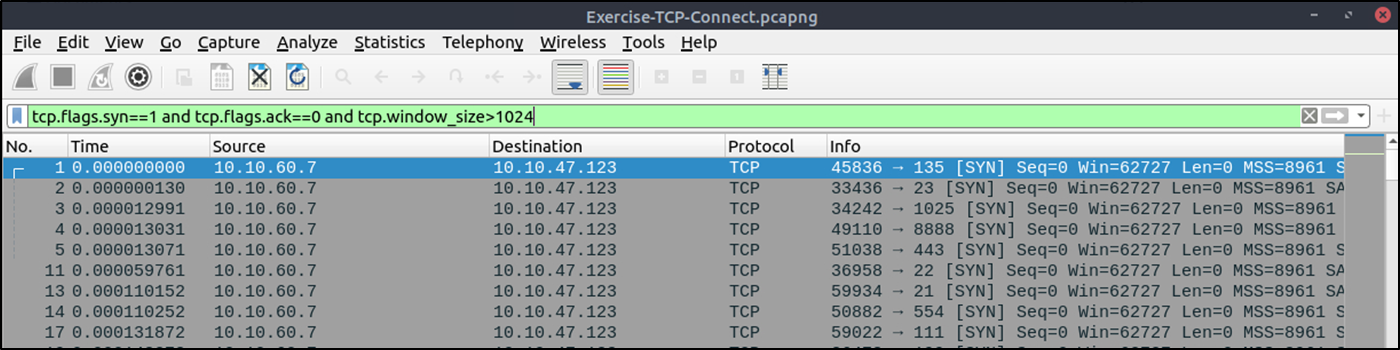
The above images provide the patterns in isolated traffic. However, it is not always easy to spot the given patterns in big capture files. Therefore analysts need to use a generic filter to view the initial anomaly patterns, and then it will be easier to focus on a specific traffic point.
- The given filter shows the TCP Connect scan patterns in a capture file:
1
tcp.flags.syn==1 and tcp.flags.ack==0 and tcp.window_size > 1024
SYN Scans
TCP SYN Scan in a nutshell:
- Doesn’t rely on the three-way handshake (no need to finish the handshake process).
- Usually conducted with:
1
$ nmap -sS
- Used by privileged users.
- Usually have a size less than or equal to
1024 bytesas the request is not finished and it doesn’t expect to receive data.

Open TCP port (SYN):

Closed TCP port (SYN):

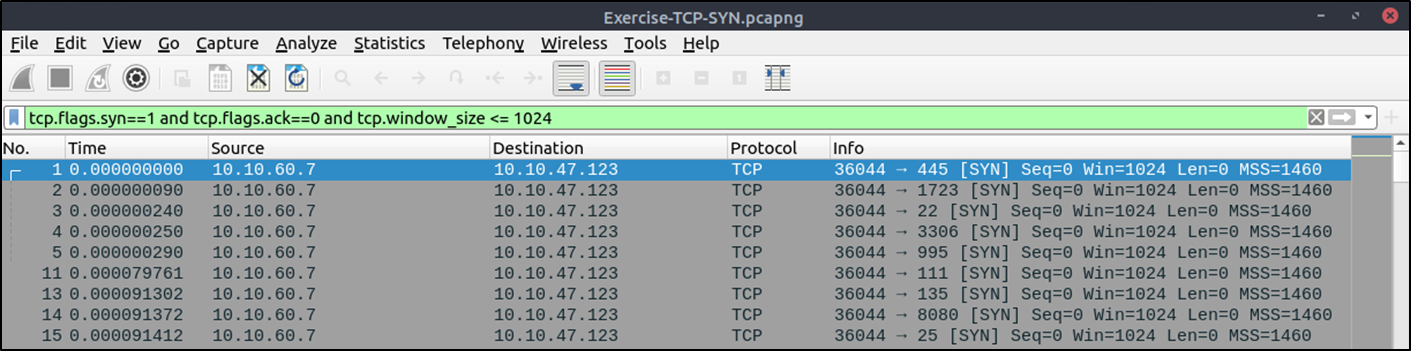
The given filter shows the TCP SYN scan patterns in a capture file:
1
tcp.flags.syn==1 and tcp.flags.ack==0 and tcp.window_size <= 1024
1
- I dont get it. Why does it only show the SYN parts? Its just the beginning of the interaction.
UDP Scans
UDP Scan in a nutshell:
- Doesn’t require a handshake process
- No prompt for open ports
- ICMP error message for close ports
- Usually conducted with:
1
$ nmap -sU

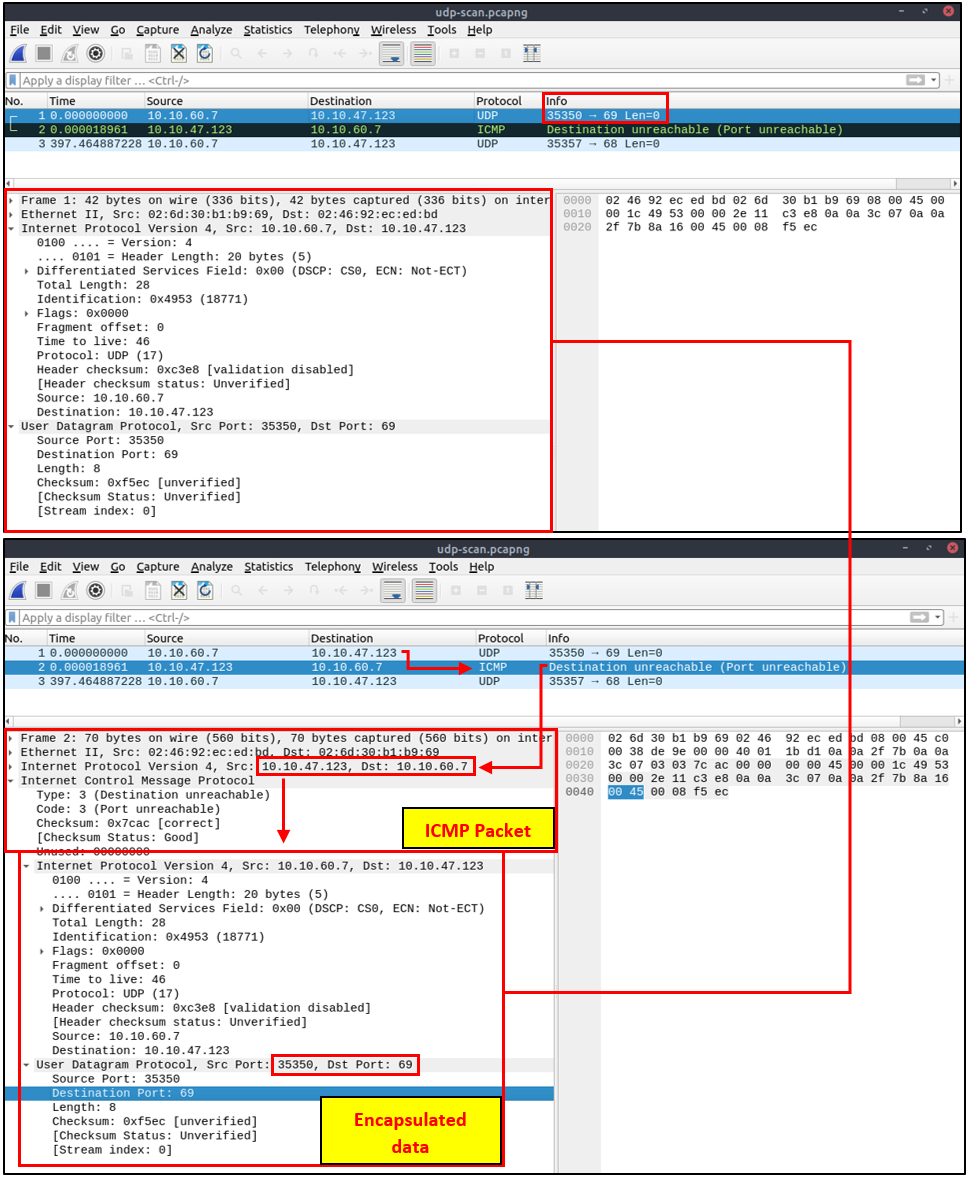
Closed (port no. 69) and open (port no. 68) UDP ports:

1
- The above image shows that the closed port returns an ICMP error packet.
- No further information is provided about the error at first glance, so how can an analyst decide WHERE(source of error) this error message belongs?
- The ICMP error message uses the original request as encapsulated data to show the source/reason of the packet. Once you expand the ICMP section in the packet details pane, you will see the encapsulated data and the original request, as shown in the below image.
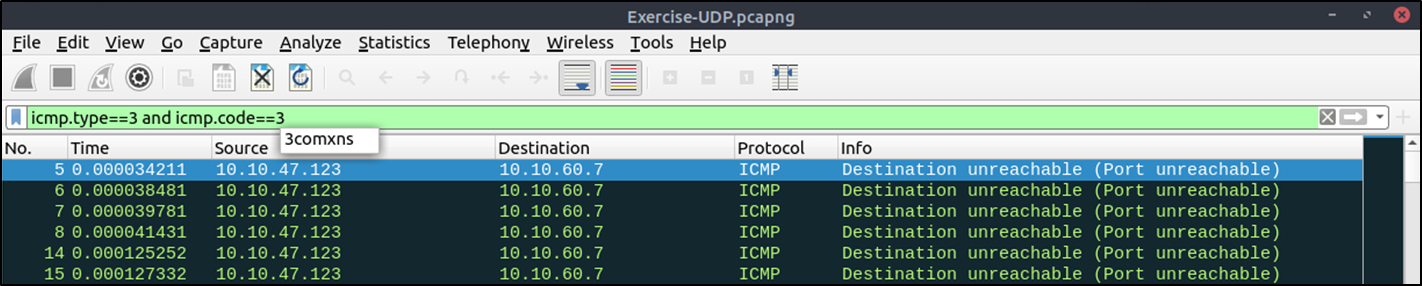
The given filter shows the UDP scan patterns in a capture file:
1
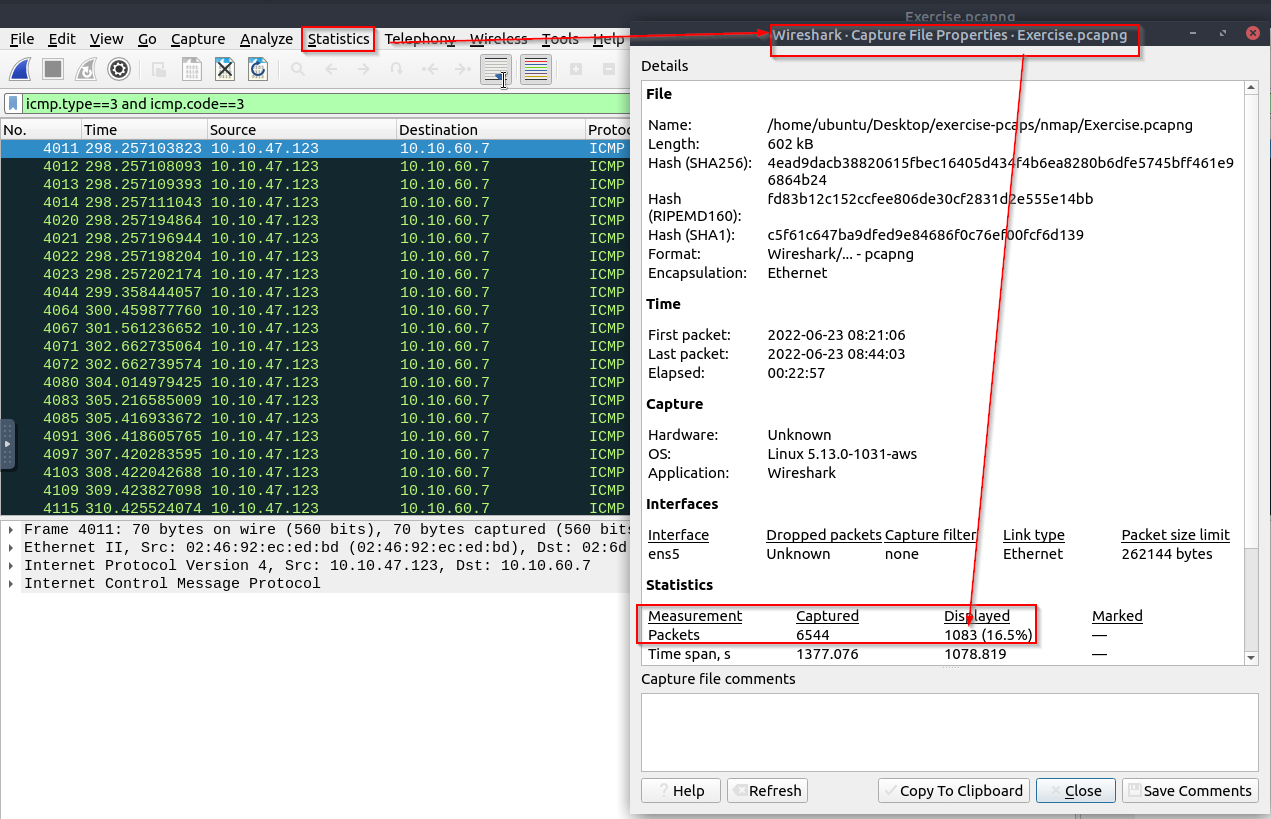
icmp.type==3 and icmp.code==3
1
- Shows all the failed UDP packet sent and if you deep dive enough, you'll see to which UDP packet this ICMP packet is partnered with.
Questions and Answer sections:
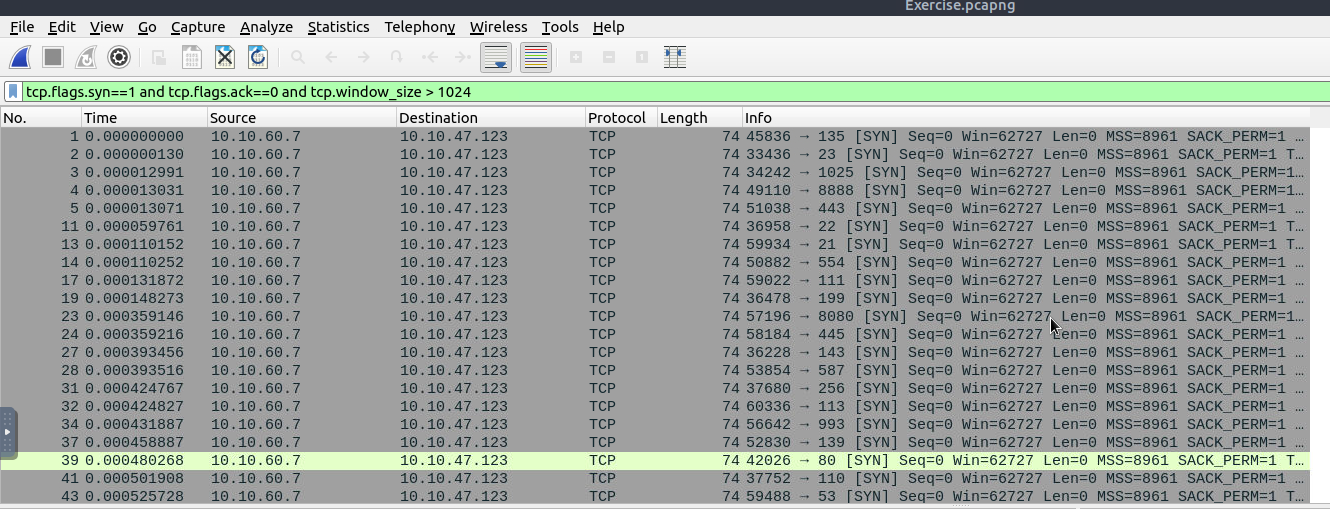
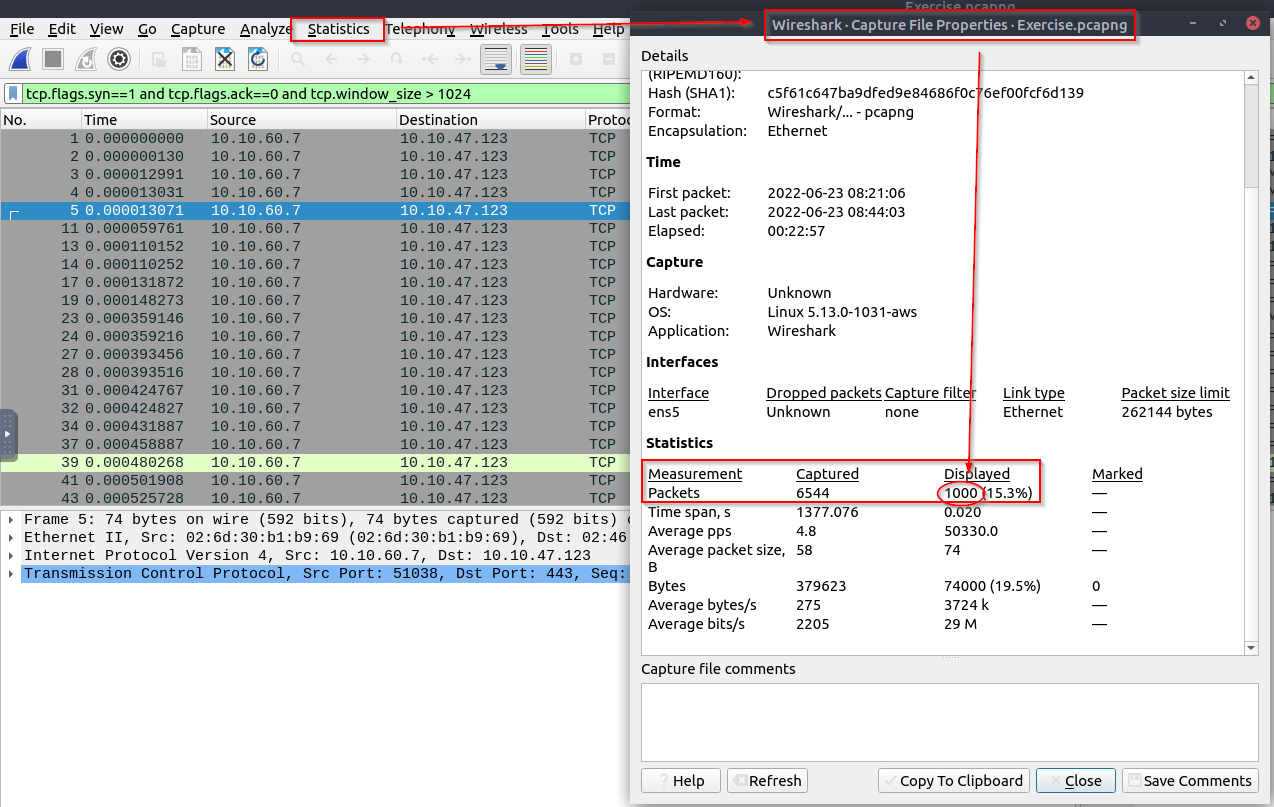
- What is the total number of the “TCP Connect” scans? Filter:
1
tcp.flags.syn==1 and tcp.flags.ack==0 and tcp.window_size > 1024
Output:
Navigation: Wireshark > Statistics > Capture File Properties > Packets Captured
Which scan type is used to scan the TCP port 80?
TCP ConnectHow many “
UDP close port” messages are there?
The given filter shows the UDP scan patterns in a capture file:
1
icmp.type==3 and icmp.code==3
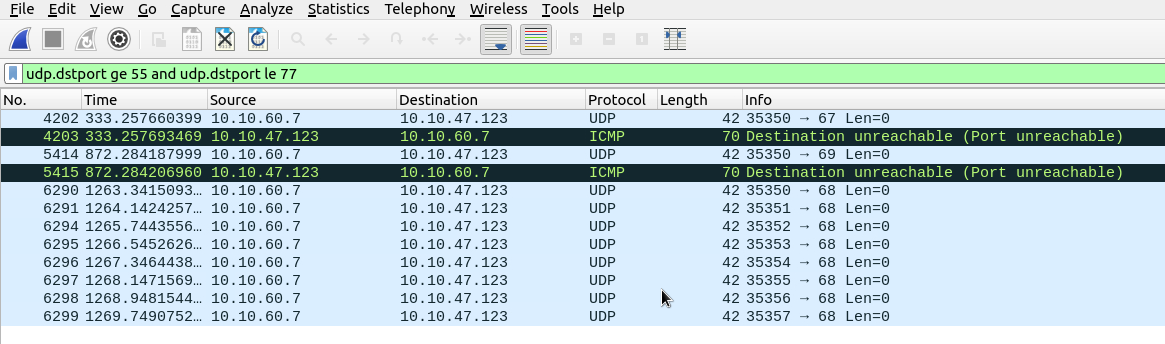
- Which UDP port in the
55-70 portrange is open? (I assume this is inclusive on both sides?)
1
2
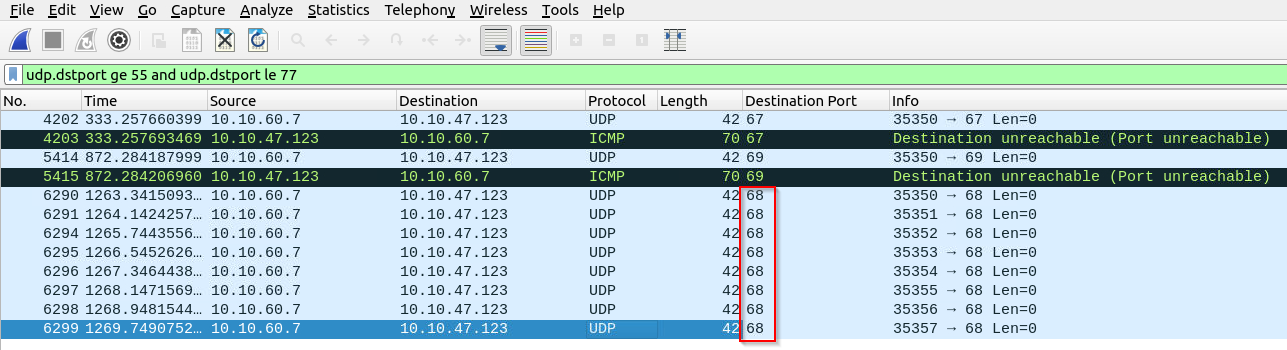
- Notice that there are TWO Closed ports that received UDP packets.
- What we want are the Open ports that received it:
1
- All destination port is 68!
ARP Poisoning and MiTM
ARP Poisoning/Spoofing (A.K.A. Man In The Middle Attack)
ARP protocol, or Address Resolution Protocol (ARP), is the technology responsible for allowing devices to identify themselves on a network. Address Resolution Protocol Poisoning (also known as ARP Spoofing or Man In The Middle (MITM) attack) is a type of attack that involves network jamming/manipulating by sending malicious ARP packets to the default gateway. The ultimate aim is to manipulate the “IP to MAC address table” and sniff the traffic of the target host.
There are a variety of tools available to conduct ARP attacks. However, the mindset of the attack is static, so it is easy to detect such an attack by knowing the ARP protocol workflow and Wireshark skills.
ARP analysis in a nutshell:
1
2
3
4
5
6
- Works on the local network
- Enables the communication between MAC addresses
- Not a secure protocol
- Not a routable protocol
- It doesn''t have an authentication function
- Common patterns are request & response, announcement and gratuitous packets.
- Before investigating the traffic, let’s review some legitimate and suspicious ARP packets.
The legitimate requests are similar to the shown picture:
1
2
  - A broadcast request that asks if any of the available hosts use an IP address
  - A reply from the host that uses the particular IP address
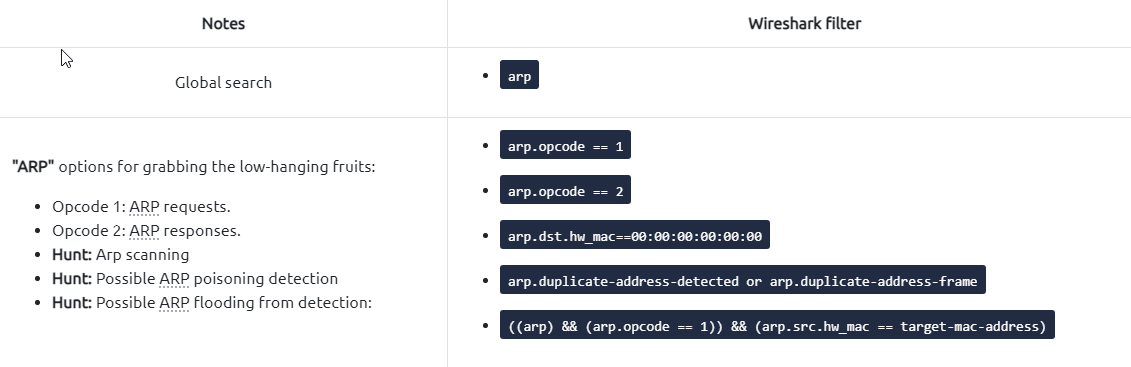
ARP in Wireshark:
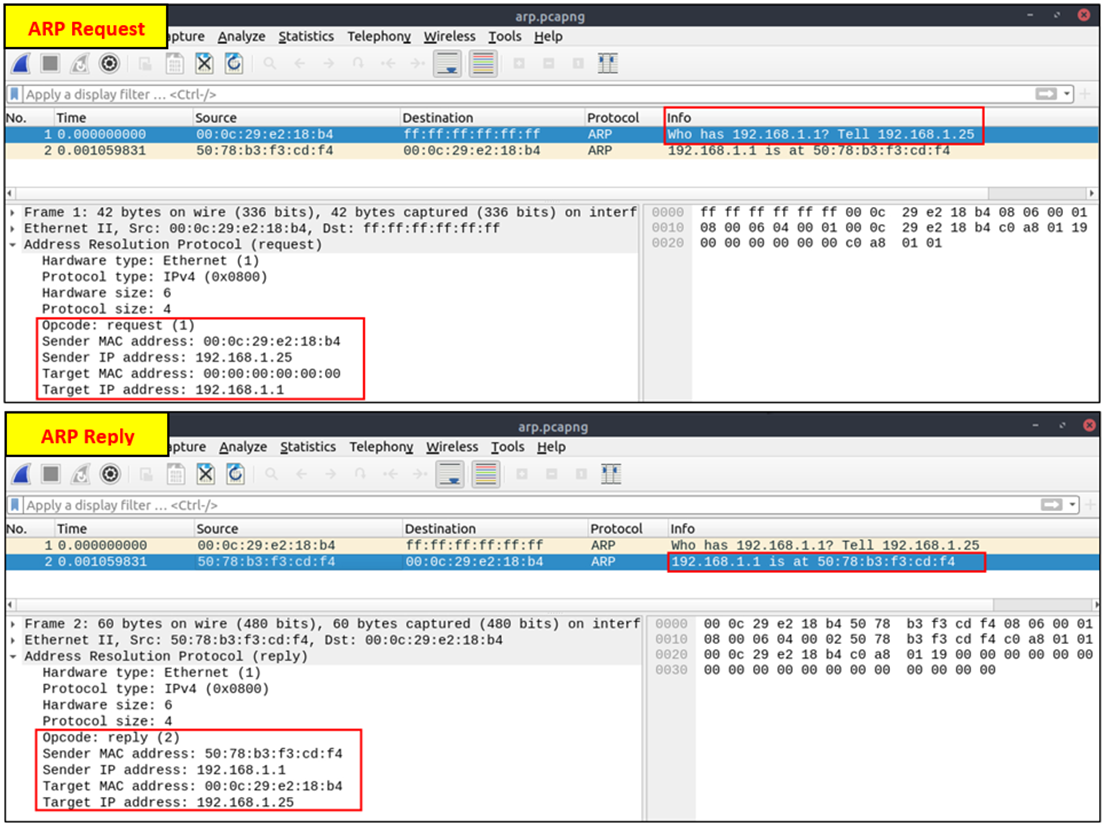
- A suspicious situation means having two different ARP responses (conflict) for a particular IP address.
- In that case, Wireshark’s expert info tab warns the analyst. However, it only shows the second occurrence of the duplicate value to highlight the conflict.
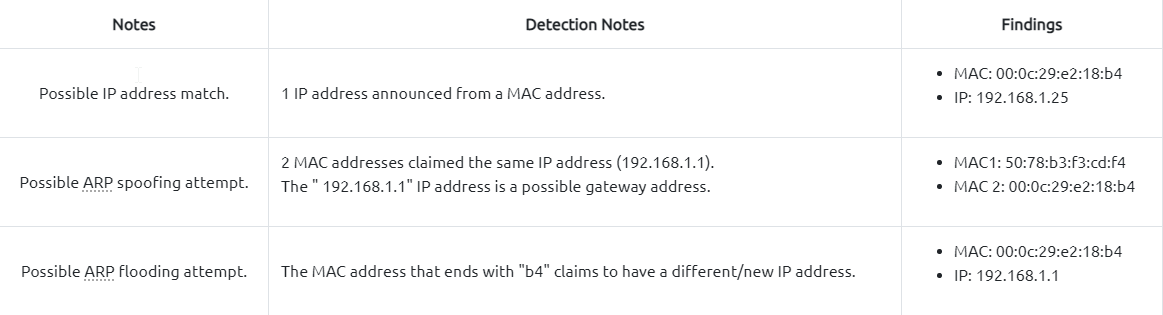
- Therefore, identifying the malicious packet from the legitimate one is the analyst’s challenge. A possible IP spoofing case is shown in the picture below.
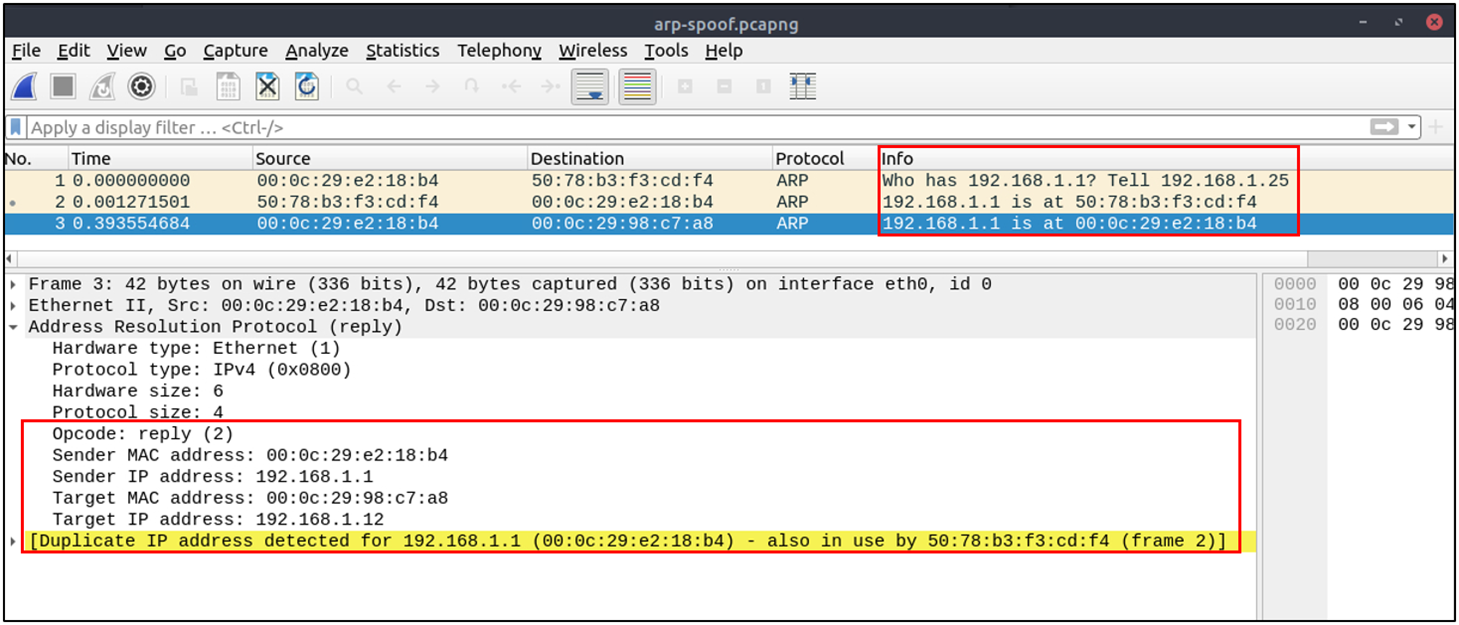
- Here, knowing the network architecture and inspecting the traffic for a specific time frame can help detect the anomaly.
- As an analyst, you should take notes of your findings before going further.
- This will help you be organised and make it easier to correlate the further findings.
- Look at the given picture; there is a conflict; the MAC address that ends with “
b4” crafted an ARP request with the “192.168.1.25” IP address, then claimed to have the “192.168.1.1” IP address.