
Introduction
In the previous few rooms, we learned about performing forensics on Windows machines. While Windows is still the most common Desktop Operating System, especially in enterprise environments, Linux also constitutes a significant portion of the pie. Especially, Linux is very common in servers that host different services for enterprises.
In an Enterprise environment, the two most common entry points for an external attacker are either through public-facing servers or through endpoints used by individuals. Since Linux can be found in any of these two endpoints, it is useful to know how to find forensic information on a Linux machine, which is the focus of this room.
Learning Objectives:
After completing this room, we will have learned:
1
2
3
4
5
- An introduction to Linux and its different flavors.
- Finding OS, account, and system information on a Linux machine
- Finding information about running processes, executed processes, and processes that are scheduled to run
- Finding system log files and identifying information from them
- Common third-party applications used in Linux and their logs
Linux Forensics
The Linux Operating System can be found in a lot of places. While it might not be as easy to use as Windows or macOS, it has its own set of advantages that make its use widespread. It is found in the Web servers you interact with, in your smartphone, and maybe, even in the entertainment unit of your car. One of the reasons for this versatility is that Linux is an open-source Operating System with many different flavors. It is also very lightweight and can run on very low resources. It can be considered modular in nature and can be customized as per requirements, meaning that only those components can be installed which are required. All of these reasons make Linux an important part of our lives.
For learning more about Linux, it is highly recommended that you go through the Linux Fundamentals 1, Linux Fundamentals 2, and Linux Fundamentals 3 rooms on TryHackMe.
Linux Distributions:
Linux comes in many different flavors, also called distributions. There are minor differences between these distributions. Sometimes the differences are mostly cosmetic, while sometimes the differences are a little more pronounced. Some of the common Linux distributions include:
1
2
3
4
5
6
7
- Ubuntu
- Redhat
- ArchLinux
- Open SUSE
- Linux Mint
- CentOS
- Debian
OS and Account Information
OS release information
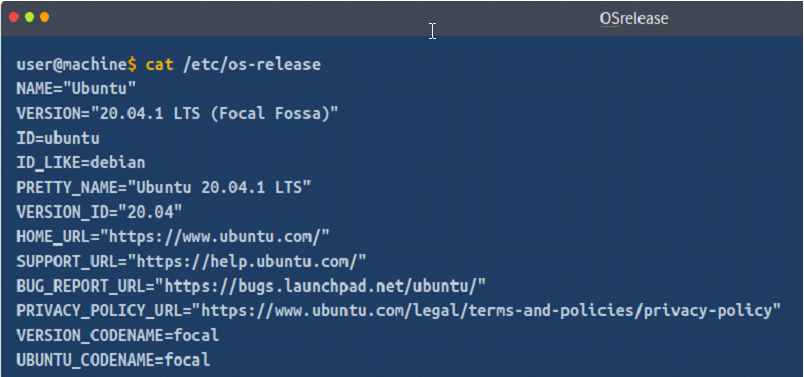
To find the OS release information, we can use the cat utility to read the file located at /etc/os-release. To know more about the cat utility, you can read its man page.
1
man cat
The below terminal shows the OS release information.
User accounts
The /etc/passwd file contains information about the user accounts that exist on a Linux system. We can use the cat utility to read this file. The output contains 7 colon-separated fields, describing username, password information, user id (uid), group id (gid), description, home directory information, and the default shell that executes when the user logs in. It can be noticed that just like Windows, the user-created user accounts have uids 1000 or above. You can use the following command to make it more readable:
1
cat /etc/passwd| column -t -s :
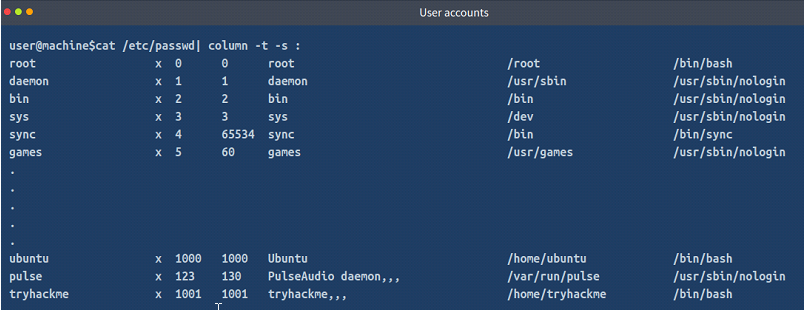
In the above command, we can see the information for the user ubuntu. The username is ubuntu, its password information field shows x, which signifies that the password information is stored in the /etc/shadow file. The uid of the user is 1000. The gid is also 1000. The description, which often contains the full name or contact information, mentions the name Ubuntu. The home directory is set to /home/ubuntu, and the default shell is set to /bin/bash. We can see similar information about other users from the file as well.
Group Information
The /etc/group file contains information about the different user groups present on the host. It can be read using the cat utility.
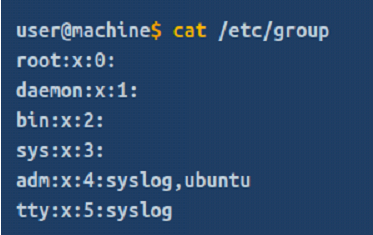
We can see that the user ubuntu belongs to the adm group, which has a password stored in the /etc/shadow file, signified by the x character. The gid is 4, and the group contains 2 users, Syslog, and ubuntu.
Sudoers List
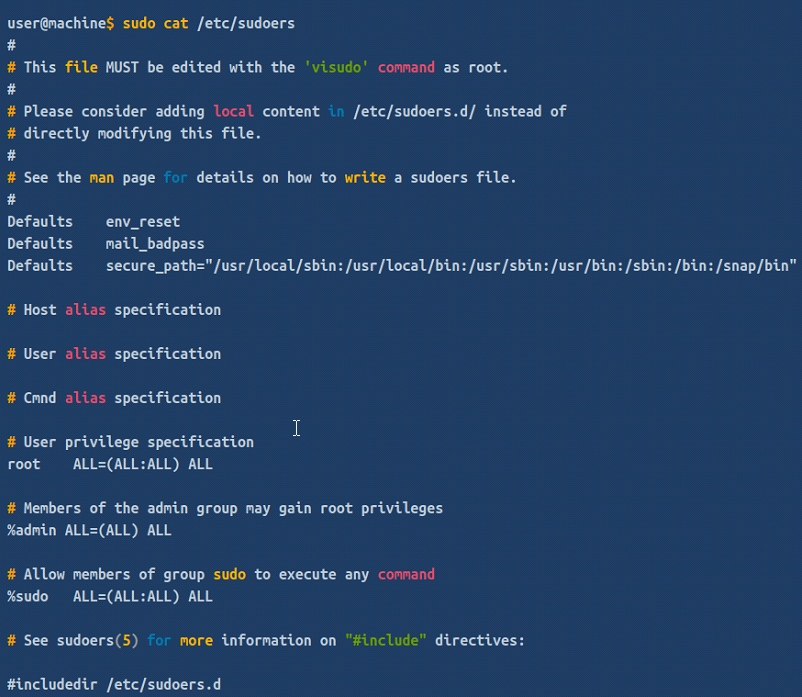
A Linux host allows only those users to elevate privileges to sudo, which are present in the Sudoers list. This list is stored in the file /etc/sudoers and can be read using the cat utility. You will need to elevate privileges to access this file.
Login information
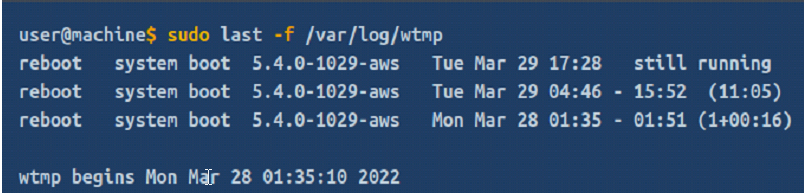
In the /var/log directory, we can find log files of all kinds including wtmp and btmp. The btmp file saves information about failed logins, while the wtmp keeps historical data of logins. These files are not regular text files that can be read using cat, less or vim; instead, they are binary files, which have to be read using the last utility. You can learn more about the last utility by reading its man page.
1
man last
The following terminal shows the contents of wtmp being read using the last utility.
Authentication logs
Every user that authenticates on a Linux host is logged in the auth log. The auth log is a file placed in the location /var/log/auth.log. It can be read using the cat utility, however, given the size of the file, we can use tail, head, more or less utilities to make it easier to read.
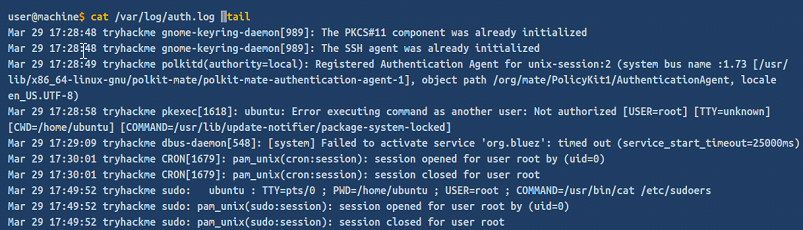
In the above log file, we can see that the user ubuntu elevated privileges on Mar 29 17:49:52 using sudo to run the command cat /etc/sudoers. We can see the subsequent session opened and closed events for the root user, which were a result of the above-mentioned privilege escalation.
System Configuration
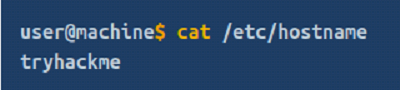
Once we have identified the OS and account information, we can start looking into the system configuration of the host. Hostname The hostname is stored in the /etc/hostname file on a Linux Host. It can be accessed using the cat utility.
Timezone
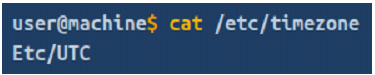
Timezone information is a significant piece of information that gives an indicator of the general location of the device or the time window it might be used in. Timezone information can be found at the location /etc/timezone and it can be read using the cat utility.
Network Configuration
To find information about the network interfaces, we can cat the /etc/network/interfaces file. The output on your machine might be different from the one shown here, depending on your configuration.
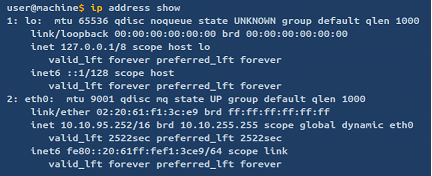
Similarly, to find information about the MAC and IP addresses of the different interfaces, we can use the ip utility. To learn more about the ip utility, we can see its man page.
1
man ip
The below terminal shows the usage of the ip utility. Note that this will only be helpful on a live system.
Active network connections
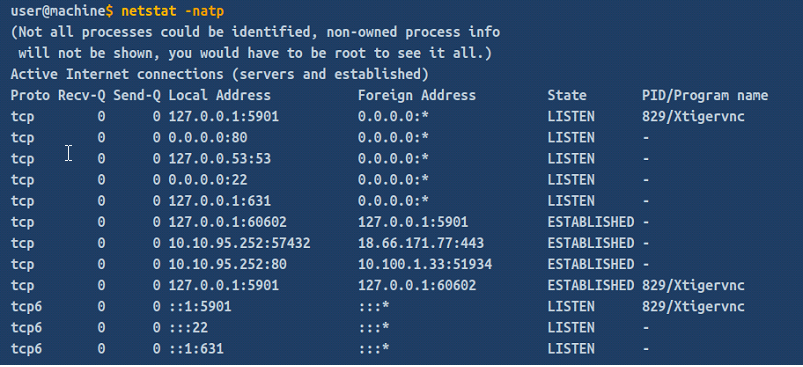
On a live system, knowing the active network connections provides additional context to the investigation. We can use the netstat utility to find active network connections on a Linux host. We can learn more about the netstat utility by reading its man page.
1
man netstat
The below terminal shows the usage of the netstat utility.
Running processes
If performing forensics on a live system, it is helpful to check the running processes. The ps utility shows details about the running processes. To find out about the ps utility, we can use the man page.
1
man ps
The below terminal shows the usage of the ps utility.

DNS information
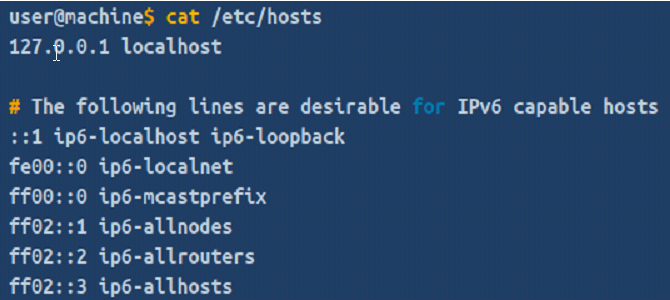
The file /etc/hosts contains the configuration for the DNS name assignment. We can use the cat utility to read the hosts file. To learn more about the hosts file, we can use the man page.
1
man hosts
The below terminal shows a sample output of the hosts file.
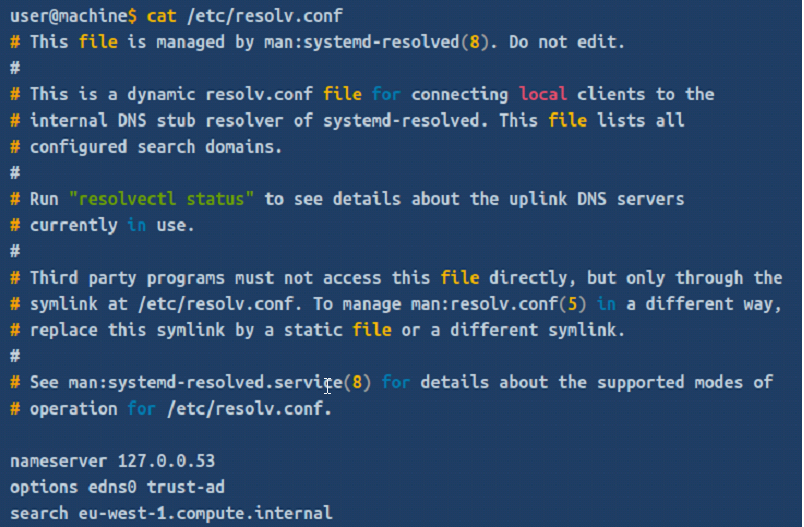
The information about DNS servers that a Linux host talks to for DNS resolution is stored in the resolv.conf file. Its location is /etc/resolv.conf. We can use the cat utility to read this file.
Persistence Mechanisms
Knowing the environment we are investigating, we can then move on to finding out what persistence mechanisms exist on the Linux host under investigation. Persistence mechanisms are ways a program can survive after a system reboot. This helps malware authors retain their access to a system even if the system is rebooted. Let’s see how we can identify persistence mechanisms in a Linux host.
Cron jobs
Cron jobs are commands that run periodically after a set amount of time. A Linux host maintains a list of Cron jobs in a file located at /etc/crontab. We can read the file using the cat utility.
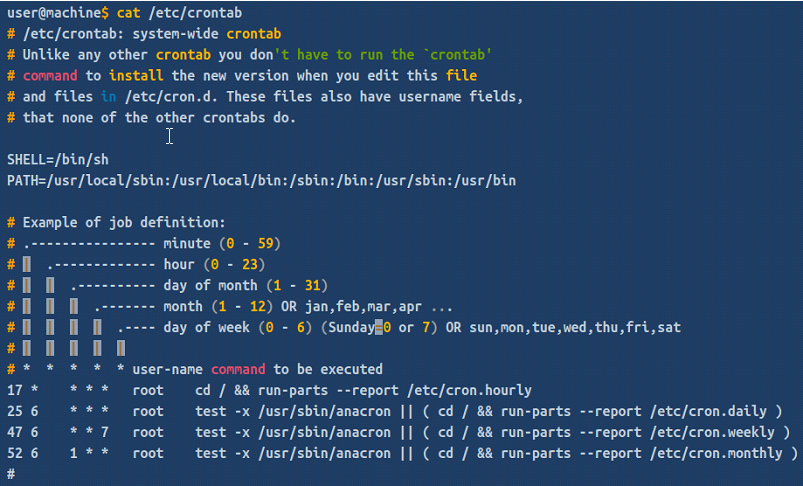
The above terminal output shows the contents of a sample /etc/crontab file. As can be seen, the file contains information about the time interval after which the command has to run, the username that runs the command, and the command itself. It can also contain scripts to run, where the script that needs to be run will be placed on the disk, and the command to run it will be added to this file.
Service startup
Like Windows, services can be set up in Linux that will start and run in the background after every system boot. A list of services can be found in the /etc/init.d directory. We can check the contents of the directory by using the ls utility.
.Bashrc
When a bash shell is spawned, it runs the commands stored in the .bashrc file. This file can be considered as a startup list of actions to be performed. Hence it can prove to be a good place to look for persistence. The following terminal shows an example .bashrc file.
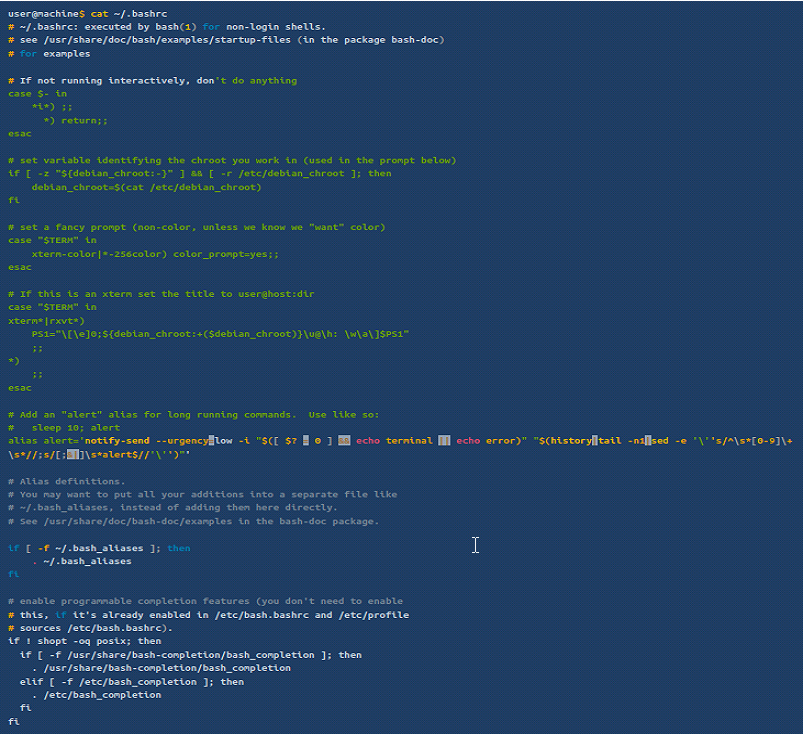
System-wide settings are stored in /etc/bash.bashrc and /etc/profile files, so it is often a good idea to take a look at these files as well.
Knowing what programs have been executed on a host is one of the main purposes of performing forensic analysis. On a Linux host, we can find the evidence of execution from the following sources.
Sudo execution history
All the commands that are run on a Linux host using sudo are stored in the auth log. We already learned about the auth log in Task 3. We can use the grep utility to filter out only the required information from the auth log.
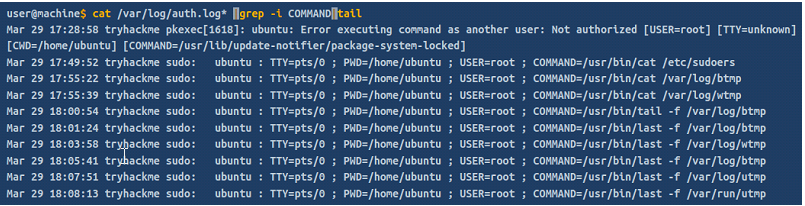
The above terminal shows commands run by the user ubuntu using sudo.
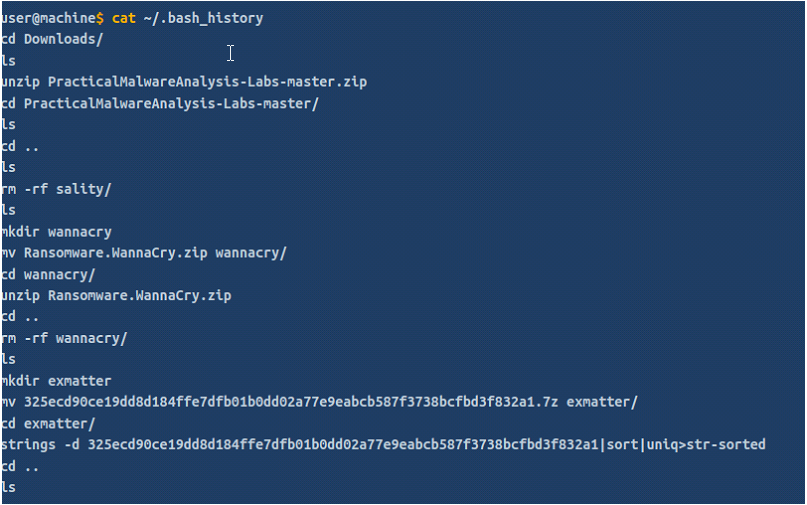
Bash history
Any commands other than the ones run using sudo are stored in the bash history. Every user’s bash history is stored separately in that user’s home folder. Therefore, when examining bash history, we need to get the bash_history file from each user’s home directory. It is important to examine the bash history from the root user as well, to make note of all the commands run using the root user as well.
Files accessed using vim
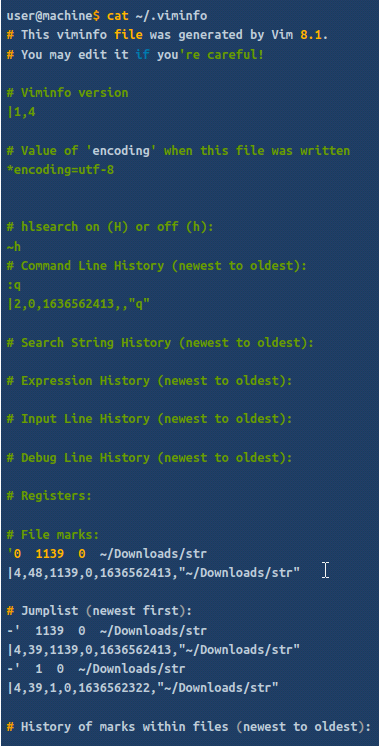
The Vim text editor stores logs for opened files in Vim in the file named .viminfo in the home directory. This file contains command line history, search string history, etc. for the opened files. We can use the cat utility to open .viminfo.
One of the most important sources of information on the activity on a Linux host is the log files. These log files maintain a history of activity performed on the host and the amount of logging depends on the logging level defined on the system. Let’s take a look at some of the important log sources. Logs are generally found in the /var/log directory.
Syslog
The Syslog contains messages that are recorded by the host about system activity. The detail which is recorded in these messages is configurable through the logging level. We can use the cat utility to view the Syslog, which can be found in the file /var/log/syslog. Since the Syslog is a huge file, it is easier to use tail, head, more or less utilities to help make it more readable.
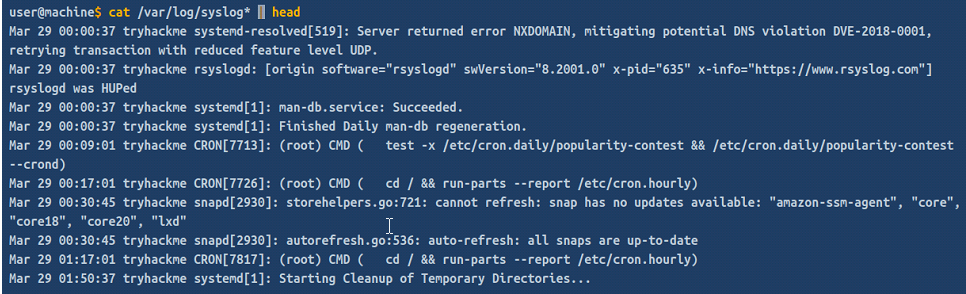
The above terminal shows the system time, system name, the process that sent the log [the process id], and the details of the log. We can see a couple of cron jobs being run here in the logs above, apart from some other activity. We can see an asterisk(*) after the syslog. This is to include rotated logs as well. With the passage of time, the Linux machine rotates older logs into files such as syslog.1, syslog.2 etc, so that the syslog file doesn’t become too big. In order to search through all of the syslogs, we use the asterisk(*) wildcard.
Auth logs
We have already discussed the auth logs in the previous tasks. The auth logs contain information about users and authentication-related logs. The below terminal shows a sample of the auth logs.
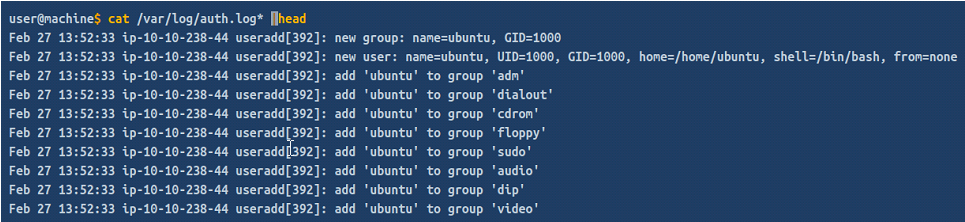
We can see above that the log stored information about the creation of a new group, a new user, and the addition of the user into different groups.
Third-party logs
Similar to the syslog and authentication logs, the /var/log/ directory contains logs for third-party applications such as webserver, database, or file share server logs. We can investigate these by looking at the /var/log/ directory.
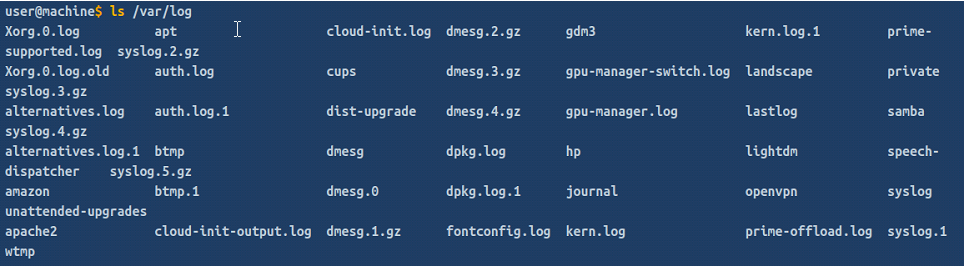
As is obvious, we can find the apache logs in the apache2 directory and samba logs in the samba directory.

Similarly, if any database server like MySQL is installed on the system, we can find the logs in this directory.