
Introduction to Computer Forensics for Windows:
Computer forensics is an essential field of cyber security that involves gathering evidence of activities performed on computers. It is a part of the wider Digital Forensics field, which deals with forensic analysis of all types of digital devices, including recovering, examining, and analyzing data found in digital devices. The applications of digital and computer forensics are wide-ranging, from the legal sphere, where it is used to support or refute a hypothesis in a civil or criminal case, to the private sphere, where it helps in internal corporate investigations and incident and intrusion analysis.
A perfect example of Digital Forensics solving a criminal case is the BTK serial killer case. This case had gone cold for more than a decade when the killer started taunting the police by sending letters. The case took a major turn when he sent a floppy disk to a local news station that was later taken to into evidence by the police. The police were able to recover a deleted word document on the drive, and using the metadata and some other evidence, they pinpointed and arrested him.
Microsoft Windows is by large the most used Desktop Operating System right now. Private users and Enterprises prefer it, and it currently holds roughly 80% of the Desktop market share. This means that it is important to know how to perform forensic analysis on Microsoft Windows for someone interested in Digital Forensics. In this module, we will learn about the different ways we can gather forensic data from the Windows Registry and make conclusions about the activity performed on a Windows system based on this data.
Forensic Artifacts:
- When performing forensic analysis, you will often hear the word ‘artifact’. Forensic artifacts are essential pieces of information that provide evidence of human activity. For example, during the investigation of a crime scene, fingerprints, a broken button of a shirt or coat, the tools used to perform the crime are all considered forensic artifacts. All of these artifacts are combined to recreate the story of how the crime was committed.
- In computer forensics, forensic artifacts can be small footprints of activity left on the computer system. On a Windows system, a person’s actions can be traced back quite accurately using computer forensics because of the various artifacts a Windows system creates for a given activity. These artifacts often reside in locations ‘normal’ users won’t typically venture to. For our purposes, these artifacts can be analyzed to provide the trial of activity for an investigation.
So is my computer spying on me?
- What do you think? A Windows system keeps track of a lot of activity performed by a user. But is all that tracking for malicious purposes, or is there another reason for that? As we’ll see in this room, the filesystem components that forensic experts deem artifacts primarily originated from Microsoft’s efforts to improve the user’s experience.
- Assuming the same build of Windows is installed on a system, excluding the actions taken during installation, the out-of-the-box experience is similar for all users. However, with time, each user personalizes their computer according to their preferences. These preferences include the Desktop layout and icons, the bookmarks in the internet browser, the name of the user, installing of different applications, and logging in to different accounts for each of these applications and other accounts using the internet browser.
- Windows saves these preferences to make your computer more personalized. However, forensic investigators use these preferences as artifacts to identify the activity performed on a system. So while your computer might be spying on you, it is not for the explicit reason of spying, instead to make it more pleasant to use the computer according to your taste. But that same information is used by forensic investigators to perform forensic analysis. As we move through this room, we’ll see that Windows stores these artifacts in different locations throughout the file system such as in the registry, a user’s profile directory, in application-specific files, etc.
In the next task, we will learn about the Windows Registry and how it can help us in forensic analysis of a Windows system.
Windows Registry and Forensics:
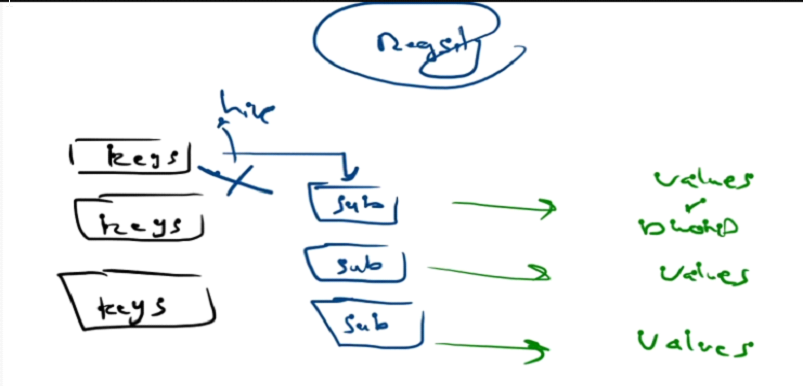
The Windows Registry is a collection of databases that contains the system’s configuration data. This configuration data can be about the hardware, the software, or the user’s information. It also includes data about the recently used files, programs used, or devices connected to the system. As you can understand, this data is beneficial from a forensics standpoint. Throughout this room, we will learn ways to read this data to identify the required information about the system. You can view the registry using regedit.exe, a built-in Windows utility to view and edit the registry. We’ll explore other tools to learn about the registry in the upcoming tasks. The Windows registry consists of Keys and Values. When you open the regedit.exe utility to view the registry, the folders you see are Registry Keys. Registry Values are the data stored in these Registry Keys.
→ A Registry Hive is a group of Keys, subkeys, and values stored in a single file on the disk.
Registry Structure: (Keys → Subkeys → Values)
1
- Program to use: regedit.exe
Main keys in the Windows OS registry: (five root keys)
1
2
3
4
5
- HKEY_USER
- HKEY_USERS
- HKEY_LOCAL_MACHINE
- HKEY_CLASSES_ROOT
- HKEY_CURRENT_CONFIG
What can we find in these keys?
1
2
3
4
5
- HKEY_USER : configuration of the currently logged-in user.
- HKEY_USERS : information about ALL user profiles (regardless of it logged on or not)
- HKEY_LOCAL MACHINE : configuration of the machine regardless of the user
- HKEY_CLASSES_ROOT : details about the software OS and important subkeys
- HKEY_CURRENT_CONFIG : info about the hardware profile
A more comprehensive info about these five root keys:
Folder/predefined key <-> Description
HKEY_CURRENT_USER: Contains the root of the configuration information for the user who is currently logged on. The user’s folders, screen colors, and Control Panel settings are stored here. This information is associated with the user’s profile. This key is sometimes abbreviated as HKCU.HKEY_USERS: Contains all the actively loaded user profiles on the computer. HKEY_CURRENT_USERis a subkey of HKEY_USERS. HKEY_USERS is sometimes abbreviated as HKU.HKEY_LOCAL_MACHINE: Contains configuration information particular to the computer (for any user). This key is sometimes abbreviated as HKLM.HKEY_CLASSES_ROOT: Is a subkey of HKEY_LOCAL_MACHINE\Software. The information that is stored here makes sure that the correct program opens when you open a file by using Windows Explorer. This key is sometimes abbreviated as HKCR. Starting with Windows 2000, this information is stored under both the HKEY_LOCAL_MACHINEand HKEY_CURRENT_USER keys. TheHKEY_LOCAL_MACHINE\Software\Classeskeycontains default settings that can apply to all users on the local computer. TheHKEY_CURRENT_USER\Software\Classeskey has settings that override the default settings and apply only to the interactive user. The HKEY_CLASSES_ROOTkey provides a view of the registry that merges the information from these two sources.HKEY_CLASSES_ROOTalso provides this merged view for programs that are designed for earlier versions of Windows. To change the settings for the interactive user, changes must be made underHKEY_CURRENT_USER\Software\Classesinstead of underHKEY_CLASSES_ROOT. To change the default settings, changes must be made underHKEY_LOCAL_MACHINE\Software\Classes.If you write keys to a key under HKEY_CLASSES_ROOT, the system stores the information underHKEY_LOCAL_MACHINE\Software\Classes. If you write values to a key underHKEY_CLASSES_ROOT, and the key already exists underHKEY_CURRENT_USER\Software\Classes, the system will store the information there instead of underHKEY_LOCAL_MACHINE\Software\Classes.HKEY_CURRENT_CONFIG: Contains information about the hardware profile that is used by the local computer at system startup.
Accessing registry hives OFFLINE:
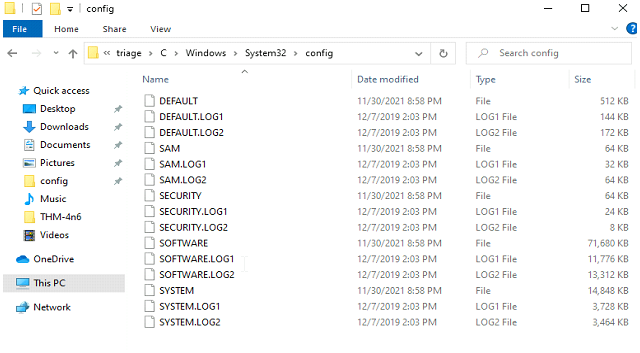
If you are accessing a live system, you will be able to access the registry using regedit.exe, and you will be greeted with all of the standard root keys we learned about in the previous task. However, if you only have access to a disk image, you must know where the registry hives are located on the disk. The majority of these hives are located in the C:\Windows\System32\Config directory and are: (System settings rather than User settings)
1
2
3
4
5
- DEFAULT (mounted on HKEY_USERS\DEFAULT)
- SAM (mounted on HKEY_LOCAL_MACHINE\SAM)
- SECURITY (mounted on HKEY_LOCAL_MACHINE\Security)
- SOFTWARE (mounted on HKEY_LOCAL_MACHINE\Software)
- SYSTEM (mounted on HKEY_LOCAL_MACHINE\System)
Hives containing user information:
Apart from these hives, two other hives containing user information can be found in the User profile directory. For Windows 7 and above, a user’s profile directory is located in C:\Users\<username>\ where the hives are:
1
2
- NTUSER.DAT (mounted on HKEY_CURRENT_USER when a user logs in)
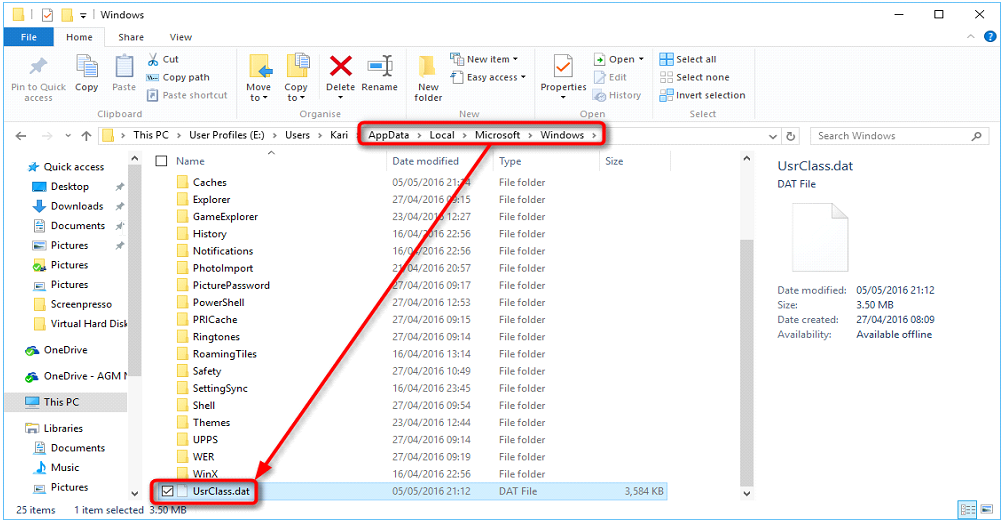
- USRCLASS.DAT (mounted on HKEY_CURRENT_USER\Software\CLASSES)
The USRCLASS.DAT hive is located in the directory C:\Users\<username>\AppData\Local\Microsoft\Windows.
The NTUSER.DAT hive is located in the directory C:\Users\<username>\.
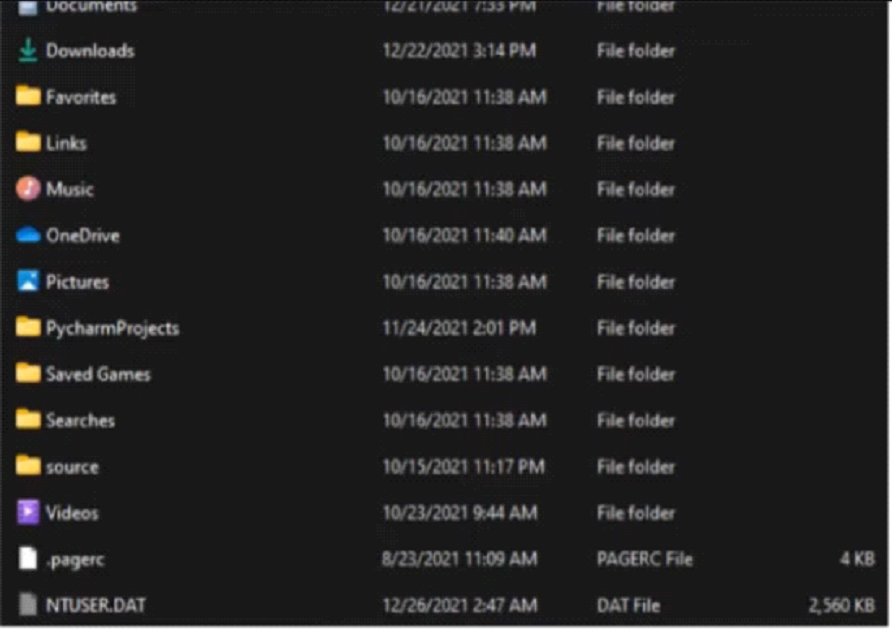
Remember that NTUSER.DAT and USRCLASS.DAT are hidden files:
1
2
	- Where are the hives?
	- Parsing the hives
The Amcache Hive:
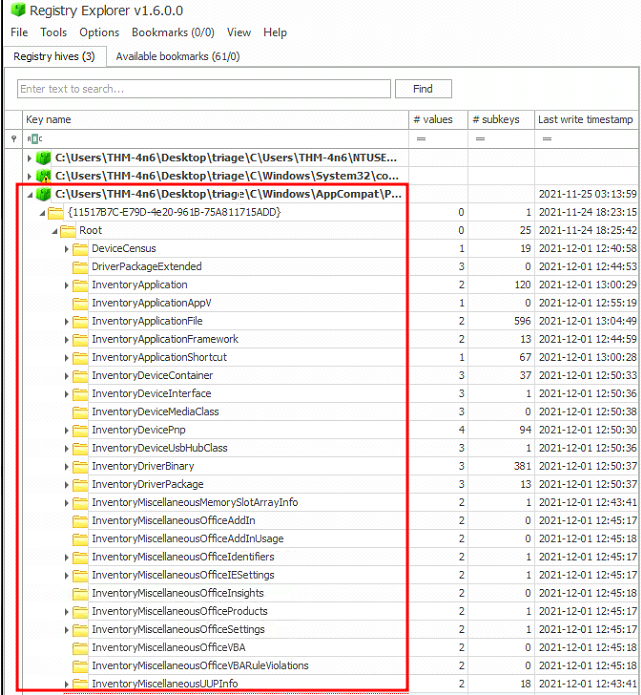
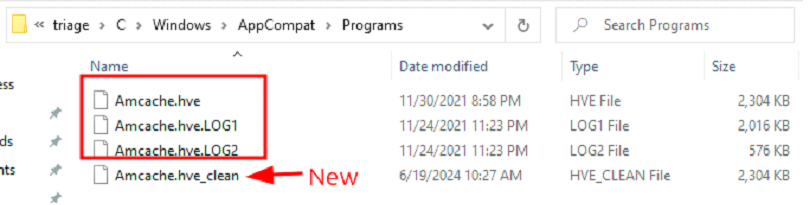
Apart from these files, there is another very important hive called the AmCache hive. This hive is located in C:\Windows\AppCompat\Programs\Amcache.hve. Windows creates this hive to save information on programs that were recently run on the system.
What Amcache looks like:
Transaction Logs and Backups:
Some other very vital sources of forensic data are the registry transaction logs and backups. The transaction logs can be considered as the journal of the changelog of the registry hive.
Windows often uses transaction logs when writing data to registry hives. This means that the transaction logs can often have the latest changes in the registry that haven’t made their way to the registry hives themselves.
The transaction log for each hive is stored as a .LOG file in the same directory as the hive itself. It has the same name as the registry hive, but the extension is .LOG. For example, the transaction log for the SAM hive will be located in C:\Windows\System32\Config in the filename SAM.LOG. Sometimes there can be multiple transaction logs as well. In that case, they will have .LOG1, .LOG2 etc., as their extension. It is prudent to look at the transaction logs as well when performing registry forensics.
Registry backups are the opposite of Transaction logs. These are the backups of the registry hives located in the C:\Windows\System32\Config directory. These hives are copied to the C:\Windows\System32\Config\RegBack directory every ten days. It might be an excellent place to look if you suspect that some registry keys might have been deleted/modified recently.
For Amcache log:
Hive along with their transactional logs:
When performing forensics, we will either encounter a live system or an image taken of the system. For the sake of accuracy, it is recommended practice to image the system or make a copy of the required data and perform forensics on it. This process is called data acquisition. Below we discuss different ways to acquire registry data from a live system or a disk image:
- Though we can view the registry through the registry editor, the forensically correct method is to acquire a copy of this data and perform analysis on that. However, when we go to copy the registry hives from
%WINDIR%\System32\Config, we cannot because it is a restricted file. So, what to do now? For acquiring these files, we can use one of the following tools:
KAPE:
KAPE is a live data acquisition and analysis tool which can be used to acquire registry data. It is primarily a command-line tool but also comes with a GUI. The below screenshot shows what the KAPE GUI looks like. We have already selected all the settings to extract the registry data using KAPE in this screenshot. We will learn more about collecting forensic artifacts using KAPE in a dedicated KAPE room.
Autopsy:
Autopsy gives you the option to acquire data from both live systems or from a disk image. After adding your data source, navigate to the location of the files you want to extract, then right-click and select the Extract File(s) option.
FTK Imager:
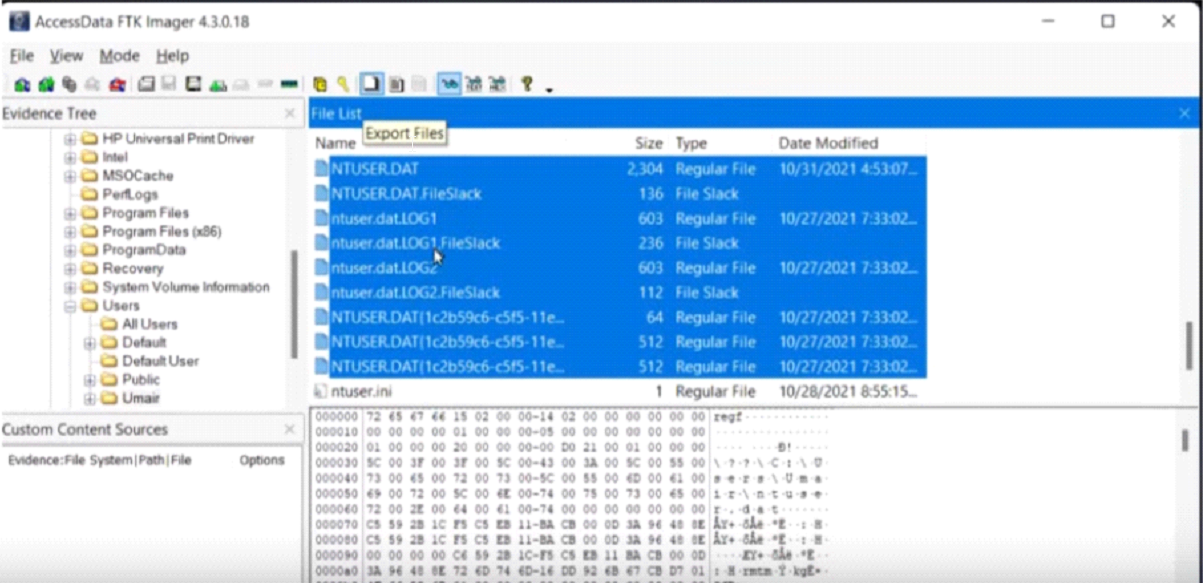
FTK Imager is similar to Autopsy and allows you to extract files from a disk image or a live system by mounting the said disk image or drive in FTK Imager. Below you can see the option to Export files as highlighted in the screenshot.
1
2
- File acquisition with Hex and File viewer.
- Can also capture RAM images.
Another way you can extract Registry files from FTK Imager is through the “Obtain Protected Files” option. This option is only available for live systems and is highlighted in the screenshot below. This option allows you to extract all the registry hives to a location of your choosing. However, it will not copy the Amcache.hve file, which is often necessary to investigate evidence of programs that were last executed.
Tools to IMAGE the registry: (analyzing the registry offline)
1
2
- FTK Imager : used for imaging the entire disks, registry only, examining the registry ,etc.
- Autopsy
Important keys that we want to look at to extract important artifacts:
1
2
3
- Key to look at for last logged-on users:
- Installed Apps:
- USB devices:
Exploring Windows Registry
Once we have extracted the registry hives, we need a tool to view these files as we would in the registry editor. Since the registry editor only works with live systems and can’t load exported hives, we can use the following tools:
Registry Viewer
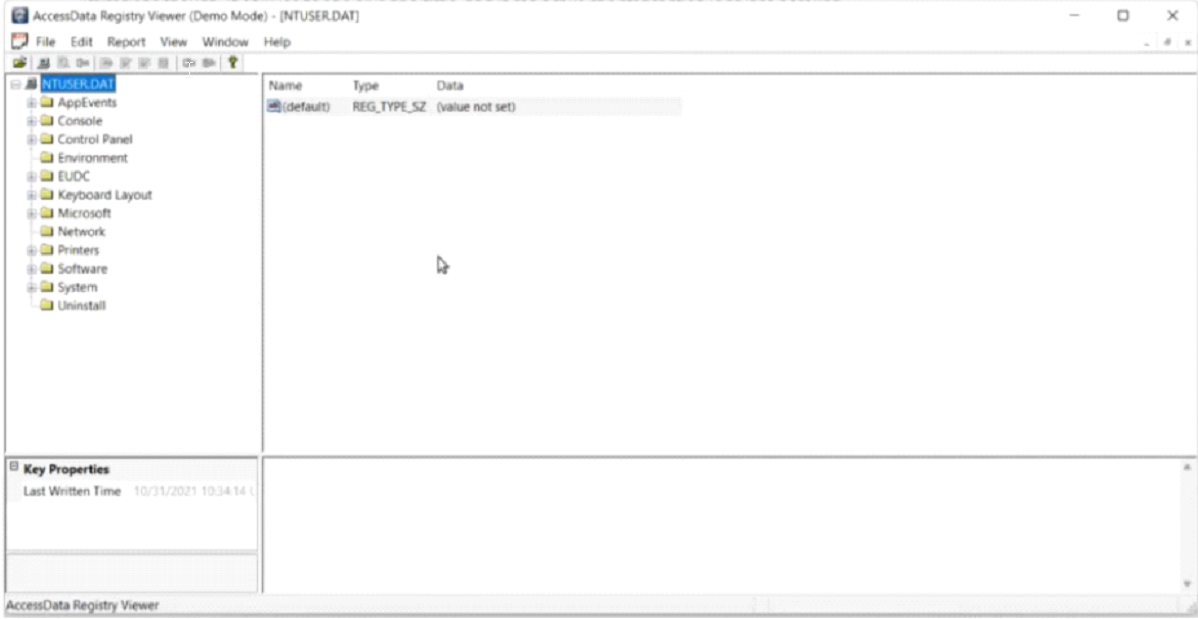
As we can see in the screenshot below, AccessData’s Registry Viewer has a similar user interface to the Windows Registry Editor. There are a couple of limitations, though. It only loads one hive at a time, and it can’t take the transaction logs into account. (Source: https://accessdata.com/product-download/registry-viewer-2-0-0)
1
- Can only load ONE hive at a time.
Zimmerman’s Registry Explorer
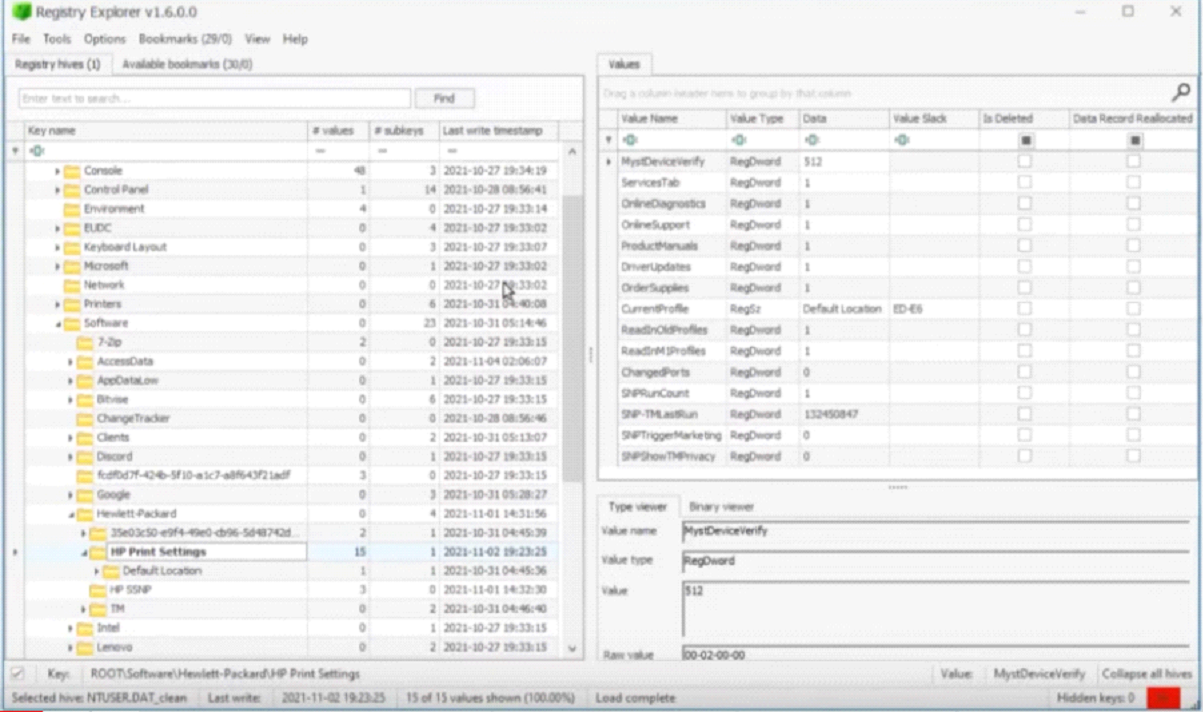
Eric Zimmerman has developed a handful of tools that are very useful for performing Digital Forensics and Incident Response. One of them is the Registry Explorer. It looks like the below screenshot. It can load multiple hives simultaneously and add data from transaction logs into the hive to make a more ‘cleaner’ hive with more up-to-date data. It also has a handy ‘Bookmarks’ option containing forensically important registry keys often sought by forensics investigators. Investigators can go straight to the interesting registry keys and values with the bookmarks menu item. We will explore these in more detail in the upcoming tasks.
RegRipper
- RegRipper is a utility that takes a registry hive as input and outputs a report that extracts data from some of the forensically important keys and values in that hive. The output report is in a text file and shows all the results in sequential order.
- RegRipper is available in both a CLI and GUI form which is shown in the screenshot below.
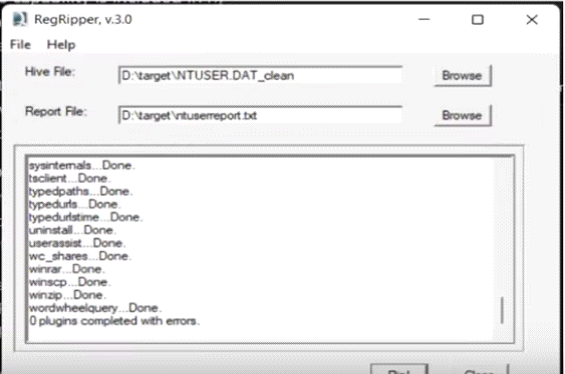
One shortcoming of RegRipper is that it does NOT take the transaction logs into account. We must use Registry Explorer to merge transaction logs with the respective registry hives before sending the output to RegRipper for a more accurate result.
1
- RegRipper is built into Autopsy. Even though we have discussed these different tools, for the purpose of this room, we will only be using Registry Explorer and some of Eric Zimmerman's tools. The other tools mentioned here will be covered in separate rooms.
System Information and System Accounts
Now that we have learned how to read registry data, let’s find out where to look in the registry to perform our forensic analysis. When we start performing forensic analysis, the first step is to find out about the system information. This task will cover gathering information related to a machine’s System and Account information.
OS Version:
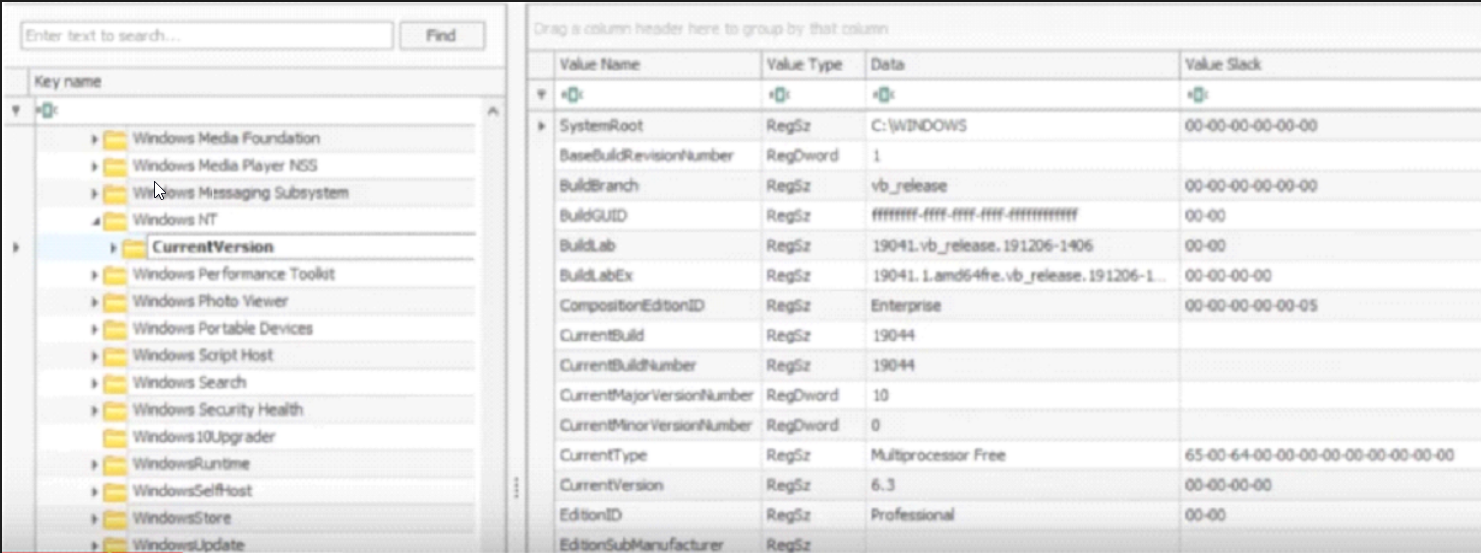
If we only have triage data to perform forensics, we can determine the OS version from which this data was pulled through the registry. To find the OS version, we can use the following registry key:
1
SOFTWARE\Microsoft\Windows NT\CurrentVersion
- Should be on HKLM which is at
C:\Windows\System32\configcontaining the hive you can find HKLM. This is how Registry Explorer shows this registry key. Take a look and answer Question # 1.
1
- Doesnt show up...
Current control set:
The hives containing the machine’s configuration data used for controlling system startup are called Control Sets. Commonly, we will see two Control Sets, ControlSet001 and ControlSet002, in the SYSTEM hive on a machine. In most cases, ControlSet001 will point to the Control Set that the machine booted with, and ControlSet002 will be the last known good configuration. Their locations will be:
1
2
- SYSTEM\ControlSet001
- SYSTEM\ControlSet002
Windows creates a volatile Control Set when the machine is live, called the CurrentControlSet (HKLM\SYSTEM\CurrentControlSet).
1
 - For getting the most accurate system information, this is the hive that we will refer to.
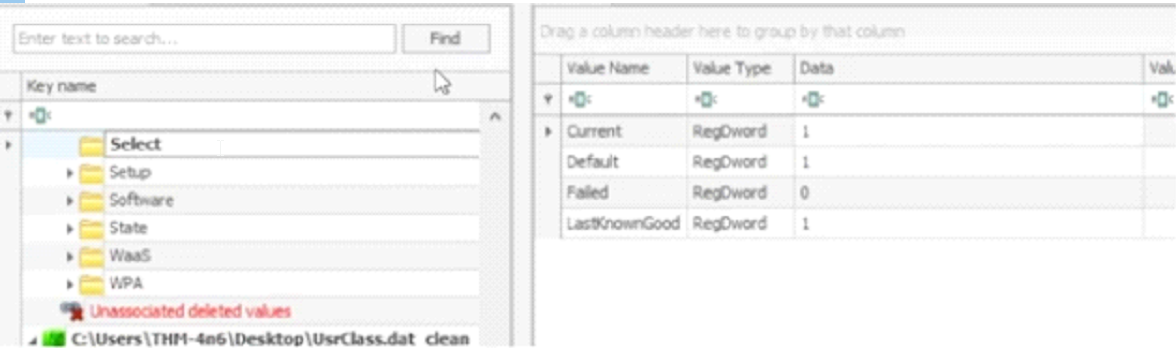
We can find out which Control Set is being used as the CurrentControlSet by looking at the following registry value:
1
SYSTEM\Select\Current
Similarly, the last known good configuration can be found using the following registry value:
1
SYSTEM\Select\LastKnownGood
This is how it looks like in Registry Explorer. Take a look and answer Question # 2.
1
- It is vital to establish this information before moving forward with the analysis. As we will see, many forensic artifacts we collect will be collected from the Control Sets.
Computer Name:
- It is crucial to establish the Computer Name while performing forensic analysis to ensure that we are working on the machine we are supposed to work on. We can find the Computer Name from the following location: (Found at
C:\Windows\System32\Config\SYSTEM)1
SYSTEM\CurrentControlSet\Control\ComputerName\ComputerName
- Registry Explorer shows it like this. Take a look and answer Question # 3:

Time Zone Information:
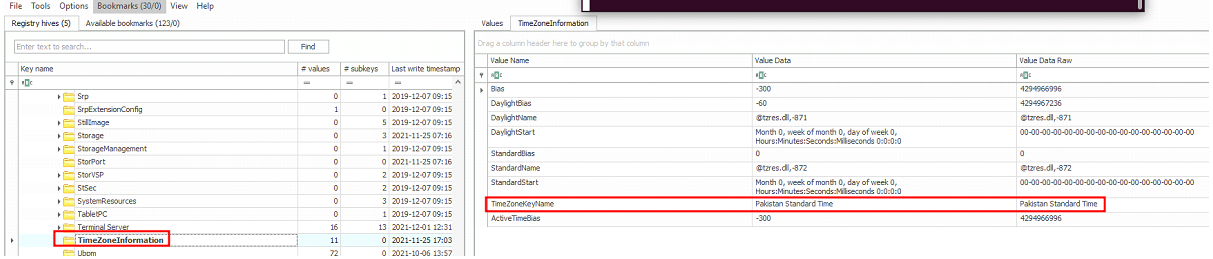
For accuracy, it is important to establish what time zone the computer is located in. This will help us understand the chronology of the events as they happened. For finding the Time Zone Information, we can look at the following location: (Found at C:\Windows\System32\Config\SYSTEM)
1
SYSTEM\CurrentControlSet\Control\TimeZoneInformation
Here’s how it looks in Registry Explorer. Take a look and answer Question # 4.
1
2
3
4
- Timestamps are saved in UTC.
- Whatever timezone you are using will be used on the fly.
- FAT filesystem stores the timestamp directly and no calculation will be done.
- Filesystem the data was stored on is crucial for the timestamps.
Network Interfaces and Past Networks:
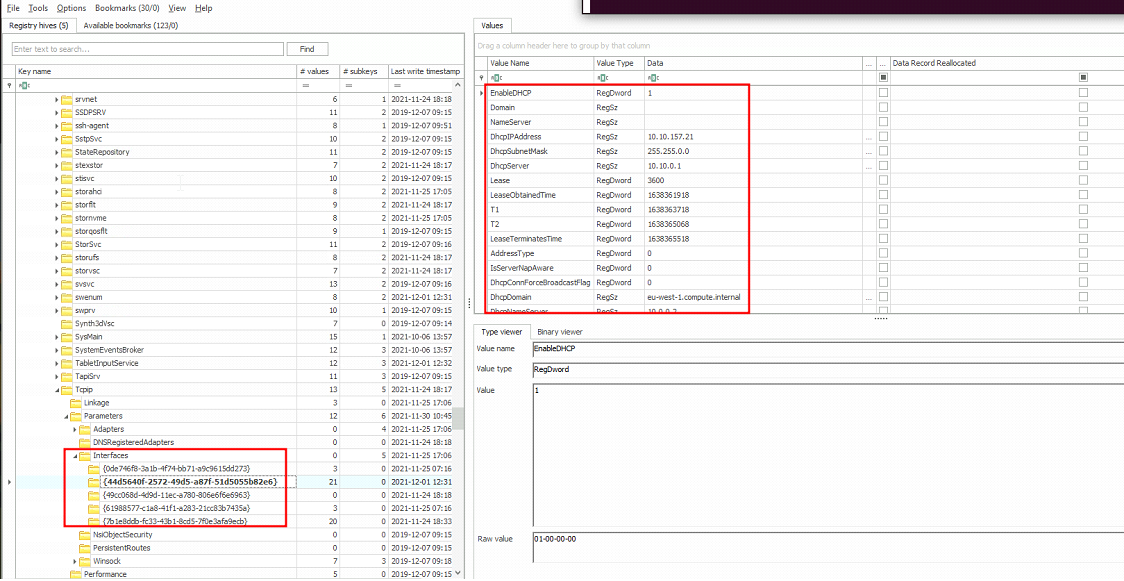
The following registry key will give a list of network interfaces on the machine we are investigating: (Found at C:\Windows\System32\Config\SYSTEM) SYSTEM\CurrentControlSet\Services\Tcpip\Parameters\Interfaces
- Take a look at this registry key as shown in Registry Explorer and answer Question # 5.

1
- Interface on its first local network
Interface on its 2nd local network:
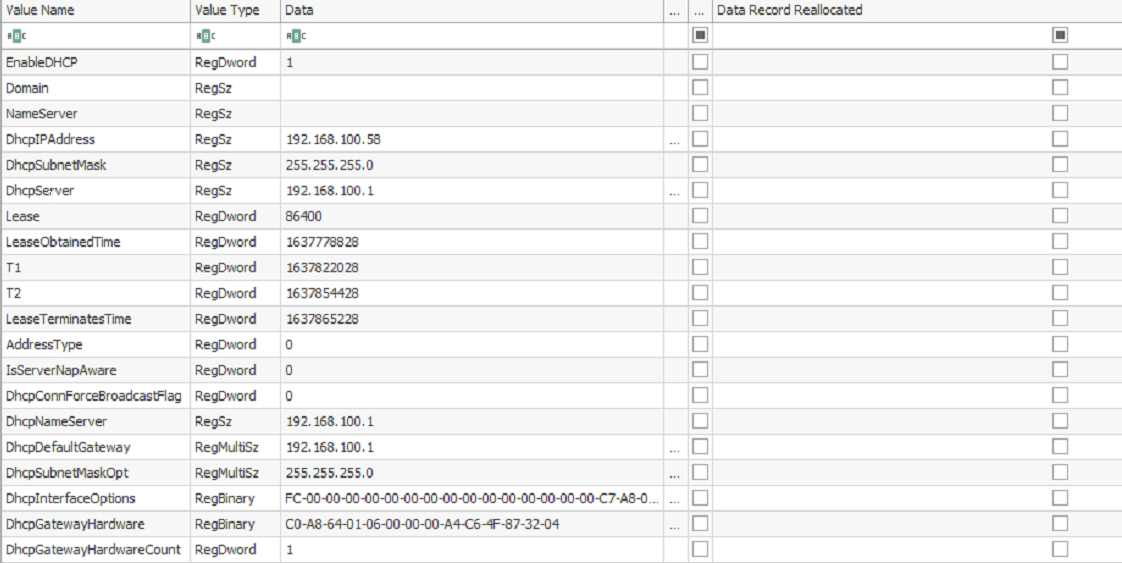
Each Interface is represented with a unique identifier (GUID) subkey, which contains values relating to the interface’s TCP/IP configuration. (Look at the string connected with ‘-’ enclosed with curly brackets)
This key will provide us with information like:
1
2
3
4
	- IP addresses,
	- DHCP IP address,
	- Subnet Mask,
	- DNS Servers, and more.
This information is significant because it helps you make sure that you are performing forensics on the machine that you are supposed to perform it on.
1
- If on the chance that we want to find out previous IP or DHCP IP address after it changed, we can still dig into the Registry backups. (By how much was it backed up though?)
The past networks a given machine was connected to can be found in the following locations:
1
2
	- SOFTWARE\Microsoft\Windows NT\CurrentVersion\NetworkList\Signatures\Unmanaged
	- SOFTWARE\Microsoft\Windows NT\CurrentVersion\NetworkList\Signatures\Managed

1
2
- These registry keys contain past networks as well as the last time they were connected.
- The last write time of the registry key points to the last time these networks were connected.
Found one at C:\Windows\System32\Software Hive:
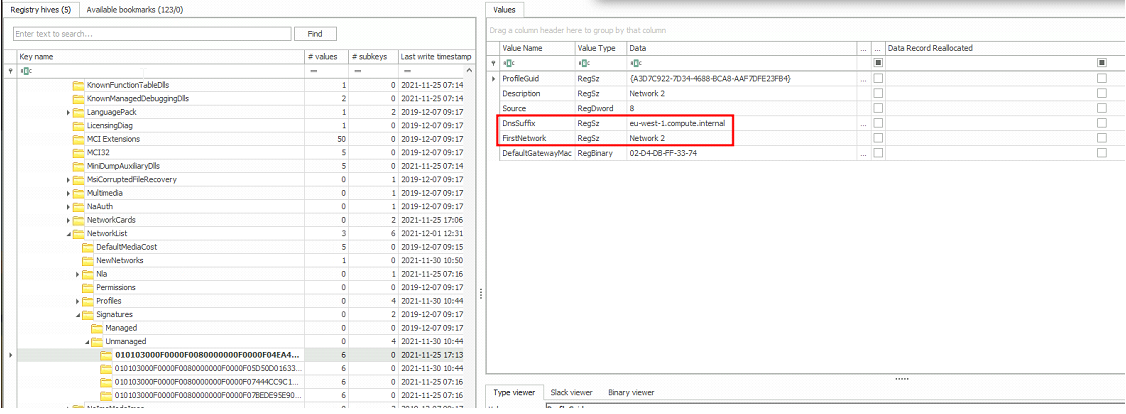
- There are FOUR networks this machine got connected to:

Second one: <missing>
Third:

Fourth:

Differences:
Managed
1
2
3
4
5
6
7
- Location: SOFTWARE\Microsoft\Windows NT\CurrentVersion\NetworkList\Signatures\Managed
- Description: The Managed subkey typically stores network profiles that are actively managed by the operating system or network administrator.
- Characteristics:
- Profiles under Managed are usually those created or configured under a domain environment or by an IT department using group policies.
- Managed profiles often have stricter security policies and settings enforced by the organization, such as specific firewall rules, security protocols (like WPA2 for Wi-Fi), or domain authentication requirements.
- These profiles may be centrally controlled and may have restrictions on user modifications.
Unmanaged
1
2
3
4
5
6
- Location: SOFTWARE\Microsoft\Windows NT\CurrentVersion\NetworkList\Signatures\Unmanaged
- Description: The Unmanaged subkey contains network profiles that are not actively managed by the operating system or by network policies.
- Characteristics:
- Profiles under Unmanaged are typically those created by individual users or devices without direct oversight or control from an IT administrator.
- Users manually connect to these networks and configure settings like SSID, security type, and passphrase themselves.
- These profiles may have less stringent security configurations compared to managed profiles and can be freely modified or deleted by users.
Autostart Programs (Autoruns):
The following registry keys include information about programs or commands that run when a user logs on. (Important when doing Malware Analysis since this is where most binaries for persistence can be found)
1
- NTUSER.DAT\Software\Microsoft\Windows\CurrentVersion\Run

1
2
3
4
- NTUSER.DAT\Software\Microsoft\Windows\CurrentVersion\RunOnce
- SOFTWARE\Microsoft\Windows\CurrentVersion\RunOnce
- SOFTWARE\Microsoft\Windows\CurrentVersion\policies\Explorer\Run
- SOFTWARE\Microsoft\Windows\CurrentVersion\Run
The following registry key contains information about services:
1
SYSTEM\CurrentControlSet\Services
Notice the Value of the Start key in the screenshot below:
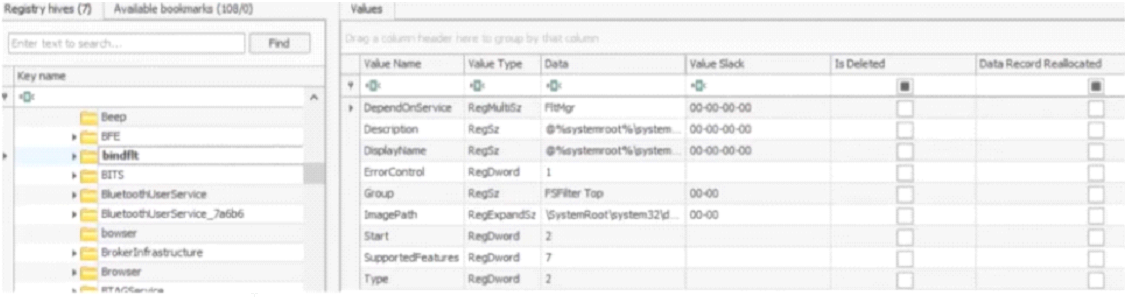
In this registry key, if the start key is set to 0x02, this means that this service will start at boot.
SAM hive and user information:
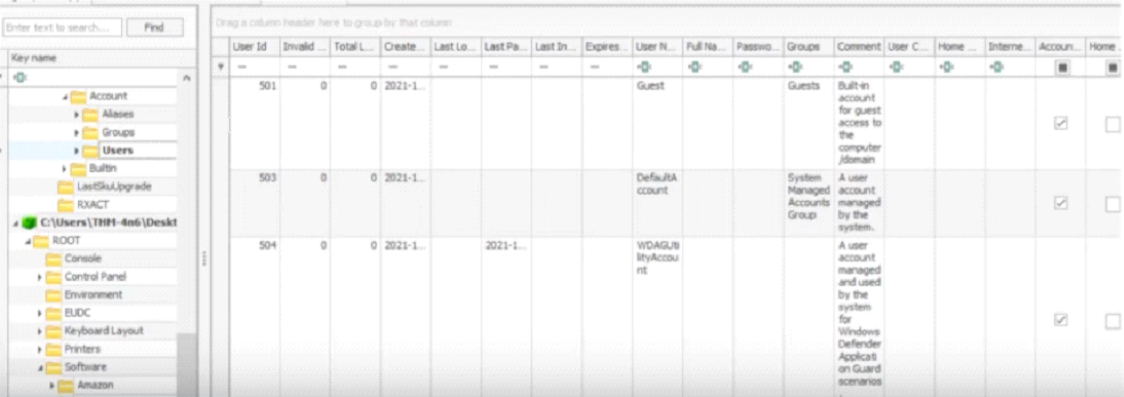
The SAM hive contains user account information, login information, and group information. This information is mainly located in the following location:
1
SAM\Domains\Account\Users
Take a look at the below screenshot and answer Question # 6.
1
- Anything under 1000 (user ID) is a built-in account.
The information contained here includes the:
1
2
3
4
5
6
7
8
	- Relative identifier (RID) of the user, (User ID as stated above)
	- Number of times the user logged in,
	- Last login time,
	- Last failed login,
	- Last password change,
	- Password expiry,
	- Password policy and password hint, and
	- Any groups that the user is a part of
Usage or knowledge of files/folders
Recent Files:
Windows maintains a list of recently opened files for each user. As we might have seen when using Windows Explorer, it shows us a list of recently used files. This information is stored in the NTUSER hive and can be found on the following location:
1
NTUSER.DAT\Software\Microsoft\Windows\CurrentVersion\Explorer\RecentDocs
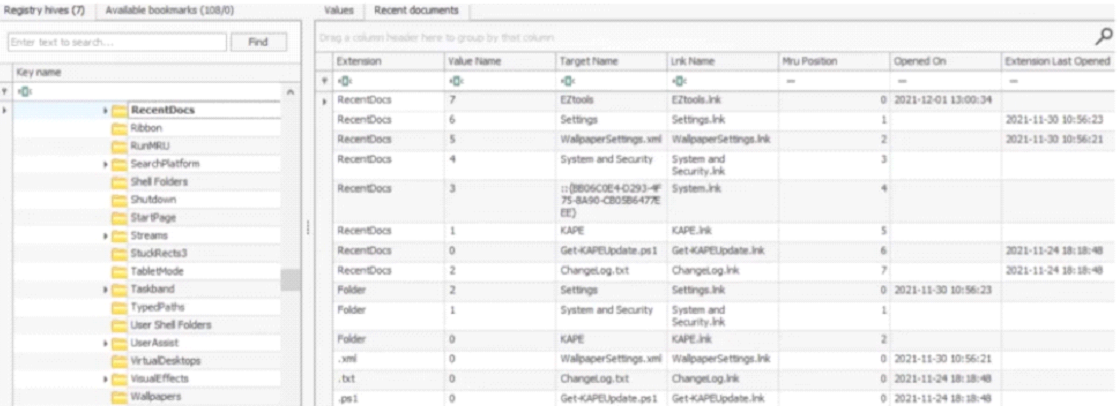
Registry Explorer allows us to sort data contained in registry keys quickly. For example, the Recent documents tab arranges the Most Recently Used (MRU) file at the top of the list. Registry Explorer also arranges them so that the Most Recently Used (MRU) file is shown at the top of the list and the older ones later.
Another interesting piece of information in this registry key is that there are different keys with file extensions, such as
.pdf, .jpg, .docx etc. These keys provide us with information about the last used files of a specific file extension. So if we are looking specifically for the last used PDF files, we can look at the following registry key:1
NTUSER.DAT\Software\Microsoft\Windows\CurrentVersion\Explorer\RecentDocs\.pdf
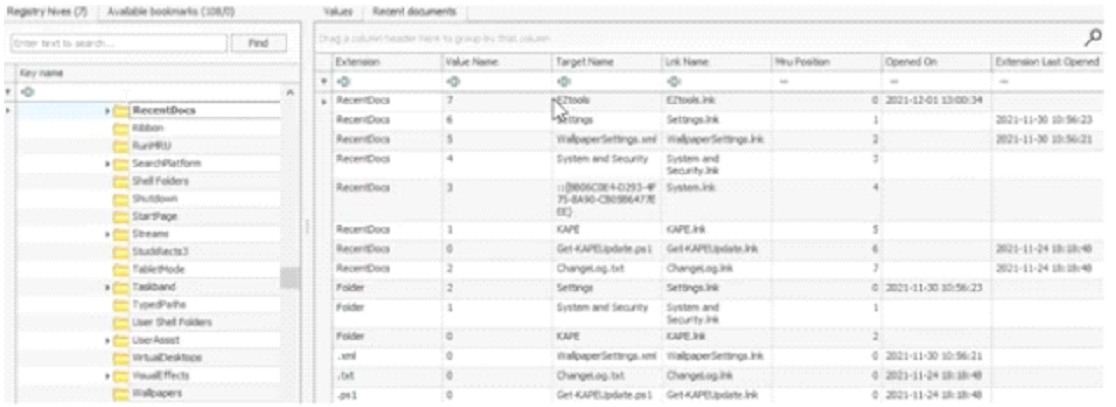
Registry Explorer also lists the Last Opened time of the files. Answer Question # 1 by looking at the above screenshot.
Office Recent Files:
Similar to the Recent Docs maintained by Windows Explorer, Microsoft Office also maintains a list of recently opened documents. This list is also located in the NTUSER hive. It can be found in the following location:
1
NTUSER.DAT\Software\Microsoft\Office\VERSION
The version number for each Microsoft Office release is different. An example registry key will look like this:
1
NTUSER.DAT\Software\Microsoft\Office\15.0\Word
Here, the 15.0 refers to Office 2013. A list of different Office releases and their version numbers can be found on this link. Starting from Office 365, Microsoft now ties the location to the user’s live ID. In such a scenario, the recent files can be found at the following location.
1
NTUSER.DAT\Software\Microsoft\Office\VERSION\UserMRU\LiveID_####\FileMRU
In such a scenario, the recent files can be found at the following location. This location also saves the complete path of the most recently used files.
ShellBags:
When any user opens a folder, it opens in a specific layout. Users can change this layout according to their preferences. These layouts can be different for different folders. This information about the Windows ‘shell’ is stored and can identify the Most Recently Used files and folders. Since this setting is different for each user, it is located in the user hives. We can find this information on the following locations:
1
2
3
4
- USRCLASS.DAT\Local Settings\Software\Microsoft\Windows\Shell\Bags
- USRCLASS.DAT\Local Settings\Software\Microsoft\Windows\Shell\BagMRU
- NTUSER.DAT\Software\Microsoft\Windows\Shell\BagMRU
- NTUSER.DAT\Software\Microsoft\Windows\Shell\Bags
Registry Explorer doesn’t give us much information about ShellBags. However, another tool from Eric Zimmerman’s tools called the ShellBag Explorer shows us the information in an easy-to-use format. We just have to point to the hive file we have extracted, and it parses the data and shows us the results. An example is shown below. Take a look and answer Question # 2.

Open/Save and LastVisited Dialog MRUs(Most Recently Used):
When we open or save a file, a dialog box appears asking us where to save or open that file from. It might be noticed that once we open/save a file at a specific location, Windows remembers that location. This implies that we can find out recently used files if we get our hands on this information. We can do so by examining the following registry keys:
1
2
- NTUSER.DAT\Software\Microsoft\Windows\CurrentVersion\Explorer\ComDlg32\OpenSavePIDlMRU
- NTUSER.DAT\Software\Microsoft\Windows\CurrentVersion\Explorer\ComDlg32\LastVisitedPidlMRU
This is how Registry Explorer shows this registry key. Take a look to answer Question # 3 and 4.

Windows Explorer Address/Search Bars:
Another way to identify a user’s recent activity is by looking at the paths typed in the Windows Explorer address bar or searches performed using the following registry keys, respectively.
1
2
	- NTUSER.DAT\Software\Microsoft\Windows\CurrentVersion\Explorer\TypedPaths
	- NTUSER.DAT\Software\Microsoft\Windows\CurrentVersion\Explorer\WordWheelQuery
Here is how the TypedPaths key looks like in Registry Explorer:

Evidence of Execution
UserAssist:
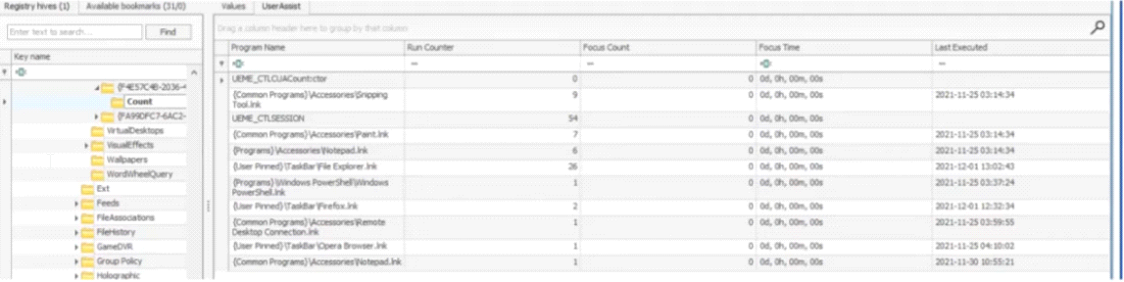
Windows keeps track of applications launched by the user using Windows Explorer for statistical purposes in the User Assist registry keys. These keys contain information about the programs launched, the time of their launch, and the number of times they were executed. However, programs that were run using the command line can’t be found in the User Assist keys. The User Assist key is present in the NTUSER hive, mapped to each user’s GUID. We can find it at the following location:
1
	- NTUSER.DAT\Software\Microsoft\Windows\Currentversion\Explorer\UserAssist\{GUID}\Count
Take a look at the below screenshot from Registry Explorer and answer Question #1.
ShimCache:
ShimCache is a mechanism used to keep track of application compatibility with the OS and tracks all applications launched on the machine. Its main purpose in Windows is to ensure backward compatibility of applications. It is also called Application Compatibility Cache (AppCompatCache). It is located in the following location in the SYSTEM hive:
1
2
3
4
5
	- SYSTEM\CurrentControlSet\Control\Session Manager\AppCompatCache
ShimCache stores:
	- File name,
	- file size, and
	- last modified time of the executables
Our goto tool, the Registry Explorer, doesn’t parse ShimCache data in a human-readable format, so we go to another tool called AppCompatCache Parser, also a part of Eric Zimmerman’s tools. It takes the SYSTEM hive as input, parses the data, and outputs a CSV file that looks like this:

We can use the following command to run the AppCompatCache Parser Utility:
Command:
1
AppCompatCacheParser.exe --csv <path to save output>-f <path to SYSTEM hive for data parsing>-c <control set to parse>
The output can be viewed using EZviewer, another one of Eric Zimmerman’s tools.
1
ShimCache → AppCompatCacheParser → csv → EZViewer (Human-readable)
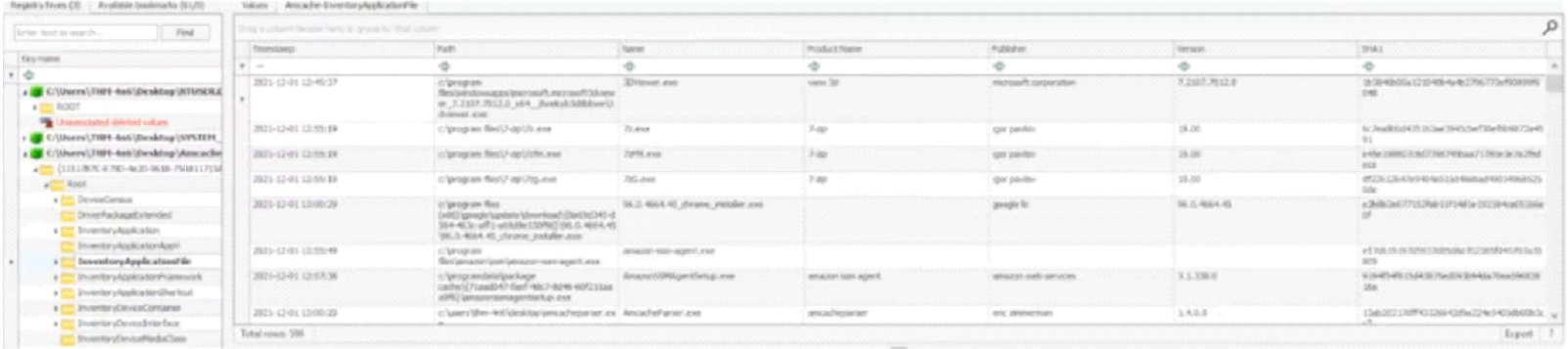
AmCache:
The AmCache hive is an artifact related to ShimCache. This performs a similar function to ShimCache, and stores additional data related to program executions. This data includes:
1
2
3
4
- Execution path,
- Installation,
- Execution and deletion times, and
- SHA1 hashes of the executed programs
This hive is located in the file system at:
1
	- C:\Windows\appcompat\Programs\Amcache.hve
Information about the last executed programs can be found at the following location in the hive:
1
- Amcache.hve\Root\File\{Volume GUID}\
This is how Registry Explorer parses the AmCache hive:
BAM/DAM:
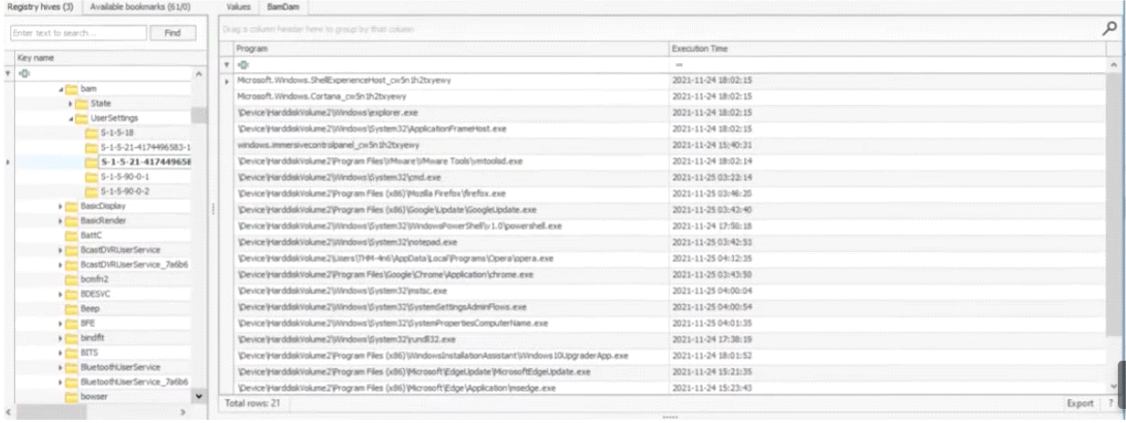
- Background Activity Monitor or BAM keeps a tab on the activity of background applications.
Similar Desktop Activity Moderator or DAM is a part of Microsoft Windows that optimizes the power consumption of the device. Both of these are a part of the Modern Standby system in Microsoft Windows.
- In the Windows registry, the following locations contain information related to BAM and DAM. This location contains information about: ```c
- Last run programs,
- Their full paths, and
- Last execution time -> SYSTEM\CurrentControlSet\Services\bam\UserSettings{SID} -> SYSTEM\CurrentControlSet\Services\dam\UserSettings{SID} ```
Below you can see how Registry Explorer parses data from BAM:
External Devices / USB device forensics
When performing forensics on a machine, often the need arises to identify if any USB or removable drives were attached to the machine. If so, any information related to those devices is important for a forensic investigator. In this task, we will go through the different ways to find information on connected devices and the drives on a system using the registry.
Device identification:
The following locations keep track of USB keys plugged into a system. These locations store the:
1
2
3
	- Vendor id,
	- Product id, and
	- Version of the USB device plugged in and can be used to identify unique devices.
These locations also store the time the devices were plugged into the system.
1
2
	- SYSTEM\CurrentControlSet\Enum\USBSTOR
	- SYSTEM\CurrentControlSet\Enum\USB
Registry Explorer shows this information in a nice and easy-to-understand way. Take a look at this and answer Questions # 1 and 2.

First/Last Times:
Similarly, the following registry key tracks the (0064)first time the device was connected, (0066)the last time it was connected and (0067)the last time the device was removed from the system:
1
- SYSTEM\CurrentControlSet\Enum\USBSTOR\Ven_Prod_Version\USBSerial#\Properties\{83da6326-97a6-4088-9453-a19231573b29}\####
In this key, the #### sign can be replaced by the following digits to get the required information:

Although we can check this value manually, as we have seen above, Registry Explorer already parses this data and shows us if we select the USBSTOR key.
USB device Volume Name:
The device name of the connected drive can be found at the following location:
1
- SOFTWARE\Microsoft\Windows Portable Devices\Devices

Hands-on Challenge
Once we log in, we will see two folders on the Desktop named triage and EZtools. The triage folder contains a triage collection collected through KAPE, which has the same directory structure as the parent. This is where our artifacts will be located. The EZtools folder contains Eric Zimmerman’s tools, which we will be using to perform our analysis. You will also find RegistryExplorer, EZViewer, and AppCompatCacheParser.exe in the same folder.
The Challenge:
- Now that we know where the required toolset is, we can start our investigation. We will have to use our knowledge to identify where the different files for the relevant registry hives are located and load them into the tools of our choice. Let’s answer the questions below using our knowledge of registry forensics.
Scenario:
One of the Desktops in the research lab at Organization X is suspected to have been accessed by someone unauthorized. Although they generally have only one user account per Desktop, there were multiple user accounts observed on this system. It is also suspected that the system was connected to some network drive, and a USB device was connected to the system. The triage data from the system was collected and placed on the attached VM. Can you help Organization X with finding answers to the below questions?
Note: When loading registry hives in RegistryExplorer, it will caution us that the hives are dirty. This is nothing to be afraid of. We just need to remember the little lesson about transaction logs and point RegistryExplorer to the .LOG1 and .LOG2 files with the same filename as the registry hive. It will automatically integrate the transaction logs and create a ‘clean’ hive. Once we tell RegistryExplorer where to save the clean hive, we can use that for our analysis and we won’t need to load the dirty hives anymore. RegistryExplorer will guide you through this process.
Registry cheatsheet:
1
2
3
4
5
6
7
8
9
10
11
12
13
14
15
16
- DEFAULT (mounted on HKEY_USERS\DEFAULT)
- SAM (mounted on HKEY_LOCAL_MACHINE\SAM)
- SECURITY (mounted on HKEY_LOCAL_MACHINE\Security)
- SOFTWARE (mounted on HKEY_LOCAL_MACHINE\Software) SYSTEM (mounted on HKEY_LOCAL_MACHINE\System)
- (hidden-file)USRCLASS.DAT hive => C:\Users\<username>\AppData\Local\Microsoft\Windows
- (hidden-file)NTUSER.DAT hive => C:\Users\<username>\
- SAM file and log => C:\Windows\System32\Config
- OS version => SOFTWARE\Microsoft\Windows NT\CurrentVersion
- Current Control Set => HKLM\SYSTEM\CurrentControlSet
- SYSTEM\ControlSet001
- SYSTEM\ControlSet002
- SYSTEM\Select\Current
- SYSTEM\Select\LastKnownGood
- Computer Name: SYSTEM\CurrentControlSet\Control\ComputerName\ComputerName
- Timezone: SYSTEM\CurrentControlSet\Control\TimeZoneInformation
- Network Info: SYSTEM\CurrentControlSet\Services\Tcpip\Parameters\Interfaces
Past networks a machine was connected:
1
2
3
4
5
6
7
8
- SOFTWARE\Microsoft\Windows NT\CurrentVersion\NetworkList\Signatures\Unmanaged
- SOFTWARE\Microsoft\Windows NT\CurrentVersion\NetworkList\Signatures\Managed
- Autostart Programs: (Location:  C:\Users\<username>\AppData\Local\Microsoft\Windows)
- NTUSER.DAT\Software\Microsoft\Windows\CurrentVersion\Run
- NTUSER.DAT\Software\Microsoft\Windows\CurrentVersion\RunOnce
- SOFTWARE\Microsoft\Windows\CurrentVersion\RunOnce
- SOFTWARE\Microsoft\Windows\CurrentVersion\policies\Explorer\Run
- SOFTWARE\Microsoft\Windows\CurrentVersion\Run
Services:
1
2
3
4
5
- SYSTEM\CurrentControlSet\Services
- SAM hive and User info:
- SAM\Domains\Account\Users
- List of opened files for each user:
- NTUSER.DAT\Software\Microsoft\Windows\CurrentVersion\Explorer\RecentDocs
Last used pdf(or any) file:
1
2
3
- NTUSER.DAT\Software\Microsoft\Windows\CurrentVersion\Explorer\RecentDocs\.pdf
- Recently opened documents (NTUSER hive):
- NTUSER.DAT\Software\Microsoft\Office\VERSION
Recent Files:
1
2
3
4
5
- NTUSER.DAT\Software\Microsoft\Windows\CurrentVersion\Explorer\RecentDocs
- Recently opened docs with version number:
- NTUSER.DAT\Software\Microsoft\Office\15.0\Word
- Recently opened docs on Office 365’s liveID:
- NTUSER.DAT\Software\Microsoft\Office\VERSION\UserMRU\LiveID_####\FileMRU
Shellbags:(directory layout preferences) → Use ShellBag Explorer
1
2
3
4
- USRCLASS.DAT\Local Settings\Software\Microsoft\Windows\Shell\Bags
- USRCLASS.DAT\Local Settings\Software\Microsoft\Windows\Shell\BagMRU
- NTUSER.DAT\Software\Microsoft\Windows\Shell\BagMRU
- NTUSER.DAT\Software\Microsoft\Windows\Shell\Bags
Open/Save and Last Visited Dialog MRUs
1
2
3
4
5
- NTUSER.DAT\Software\Microsoft\Windows\CurrentVersion\Explorer\ComDlg32\OpenSavePIDlMRU
- NTUSER.DAT\Software\Microsoft\Windows\CurrentVersion\Explorer\ComDlg32\LastVisitedPidlMRU
- Windows Explorer Address/Search Bars
- NTUSER.DAT\Software\Microsoft\Windows\CurrentVersion\Explorer\TypedPaths
- NTUSER.DAT\Software\Microsoft\Windows\CurrentVersion\Explorer\WordWheelQuery
Evidence of Execution:
1
2
3
4
5
⦁	UserAssist:
⦁	NTUSER.DAT\Software\Microsoft\Windows\Currentversion\Explorer\UserAssist\{GUID}\Count
⦁	ShimCache:
⦁	SYSTEM\CurrentControlSet\Control\Session Manager\AppCompatCache
⦁	Command: AppCompatCacheParser.exe --csv <path to save output> -f <path to SYSTEM hive for data parsing> -c <control set to parse>
AmCache:
1
2
⦁	Hive location → C:\Windows\appcompat\Programs\Amcache.hve
⦁	Registry location → Amcache.hve\Root\File\{Volume GUID}\
BAM/DAM:
1
2
3
4
5
⦁	SYSTEM\CurrentControlSet\Services\bam\UserSettings\{SID}
⦁	SYSTEM\CurrentControlSet\Services\dam\UserSettings\{SID}
⦁	External Devices/USB device forensics
⦁	SYSTEM\CurrentControlSet\Enum\USBSTOR
⦁	SYSTEM\CurrentControlSet\Enum\USB
First and last connection times:
1
2
3
4
- SYSTEM\CurrentControlSet\Enum\USBSTOR\Ven_Prod_Version\USBSerial#\Properties\{83da6326-97a6-4088-9453-a19231573b29}\####
- 0064 : First Connection time
- 0066 : Last Connection time
- 0067 : Last removal time
USB device Volume Name:
1
- SOFTWARE\Microsoft\Windows Portable Devices\Devices
Tools:
1
2
3
- Registry viewer (live)
- Zimmerman''s Registry Explorer
- RegRipper
Questions:
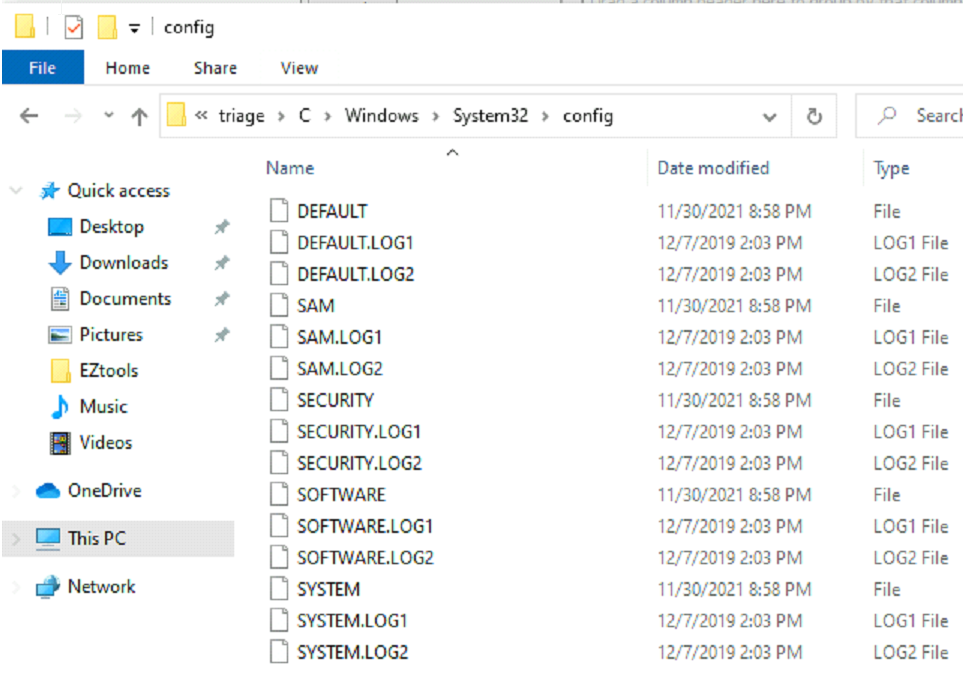
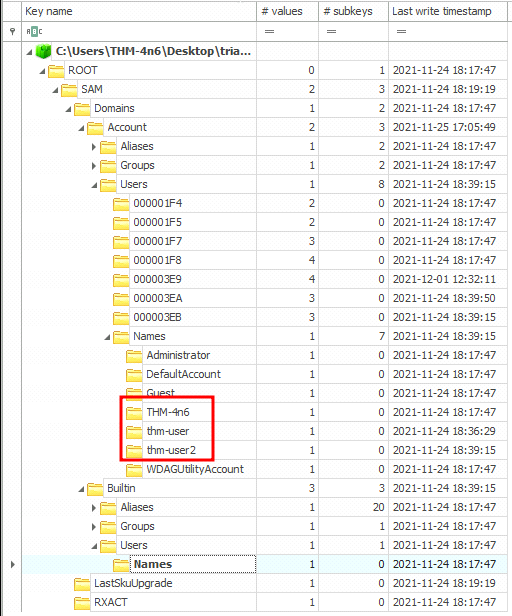
- How many user created accounts are present on the system? Load the Registry Explorer inside:
triage\C\windows\system32\config\SAM
-> Open Registry Explorer:
- What is the username of the account that has never been logged in?
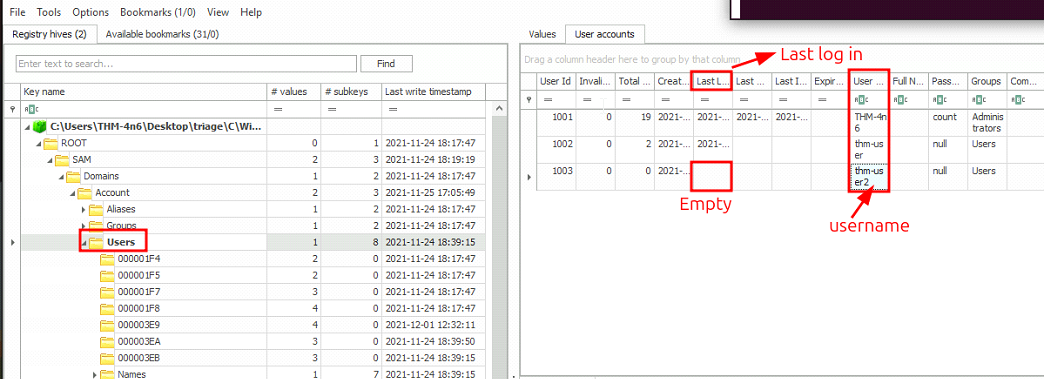
1
- Ans: thmuser2
- What’s the password hint for the user
THM-4n6?
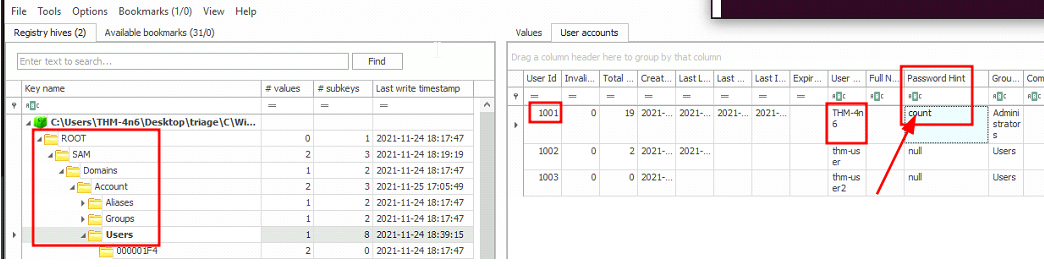
1
- Ans: count
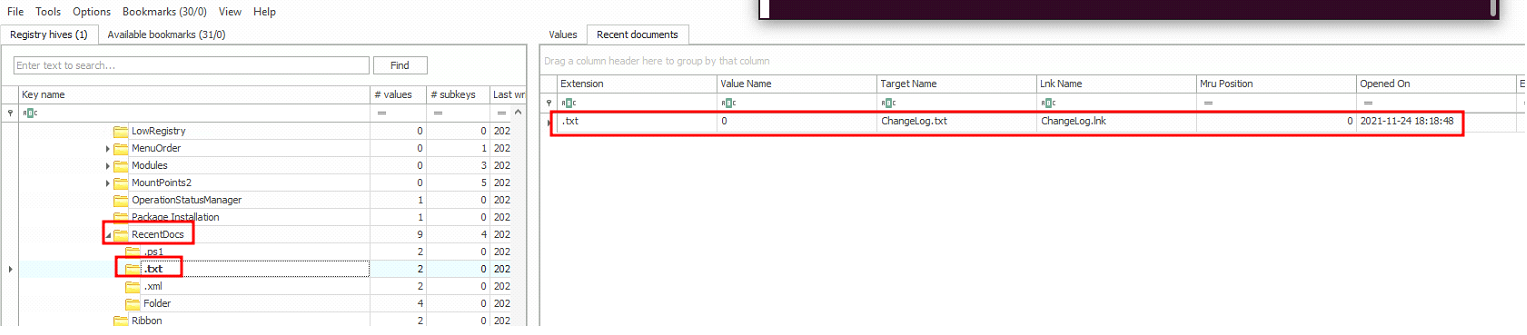
- When was the file ‘
Changelog.txt’ accessed? Went to:1
C:\User\<user_name>\NTUSER.DAT\Software\Microsoft\Windows\CurrentVersion\Explorer\RecentDocs
1
2
- Contains all the file types on the left hand side user THM4n6 accessed.
- Answer: 2021-11-24 18:18:48
- What is the complete path from where the python 3.8.2 installer was run? Starting from ‘
SOFTWARE’ section:1
C:\Users\THM-4n6\AppData\Local\Programs\Python\Python38-32\
- UserAssist:
1
NTUSER.DAT\Software\Microsoft\Windows\Currentversion\Explorer\UserAssist\{GUID}\Count
→
Z:\setups\python-3.8.2.exe
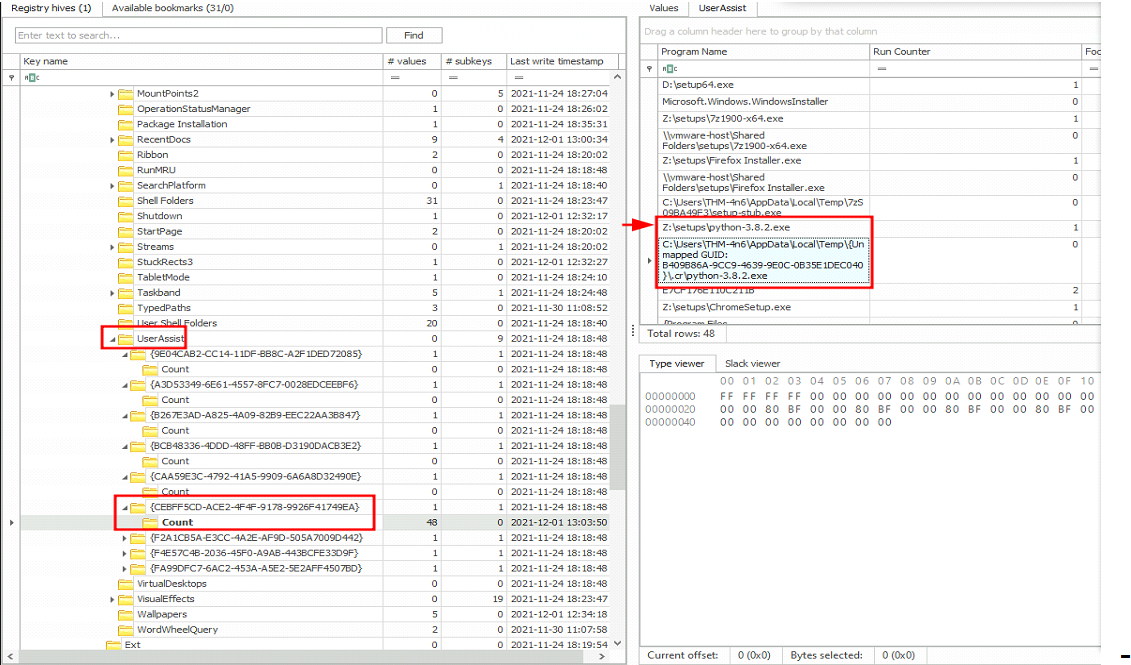
Probably the GUID of user THM-4n6?
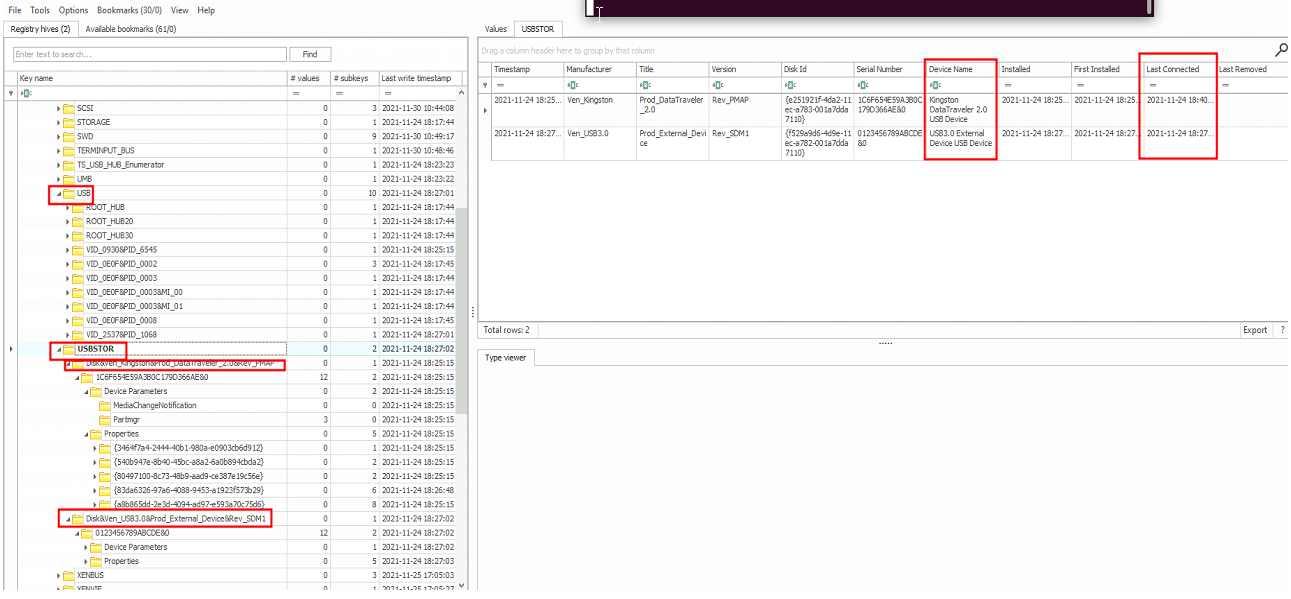
- When was the USB device with the friendly name ‘
USB’ last connected? Info to use: Also, get out of theC:\Users\<username>\NTUSER.datbut go toC:\Windows\System32\Config\SYSTEMsince USB info would be there regardless of the user info.
1
2
3
4
5
6
7
8
9
10
11
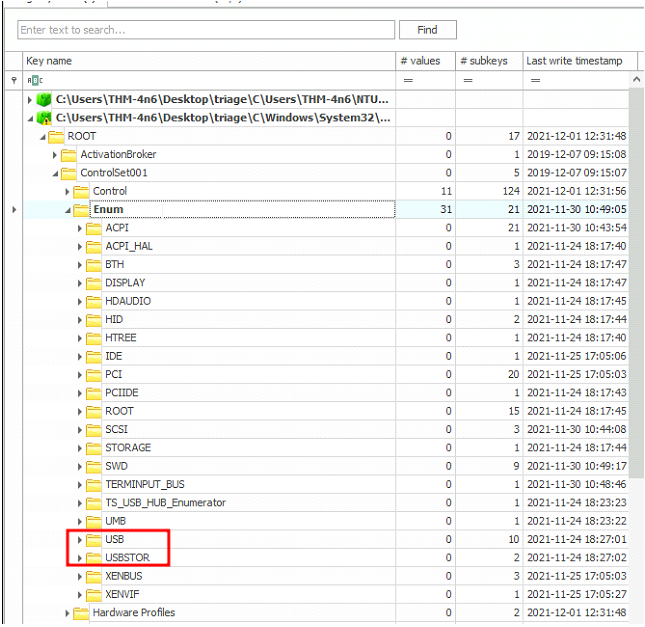
- External Devices/USB device forensics
- SYSTEM\CurrentControlSet\Enum\USBSTOR
- SYSTEM\CurrentControlSet\Enum\USB
- First and last connection times:
- SYSTEM\CurrentControlSet\Enum\USBSTOR\Ven_Prod_Version\USBSerial#\Properties\{83da6326-97a6-4088-9453-a19231573b29}\####
	- 0064 : First Connection time
	- 0066 : Last Connection time
	- 0067 : Last removal time

USB device Volume Name:
- SOFTWARE\Microsoft\Windows Portable Devices\Devices → (Not useful in this case)
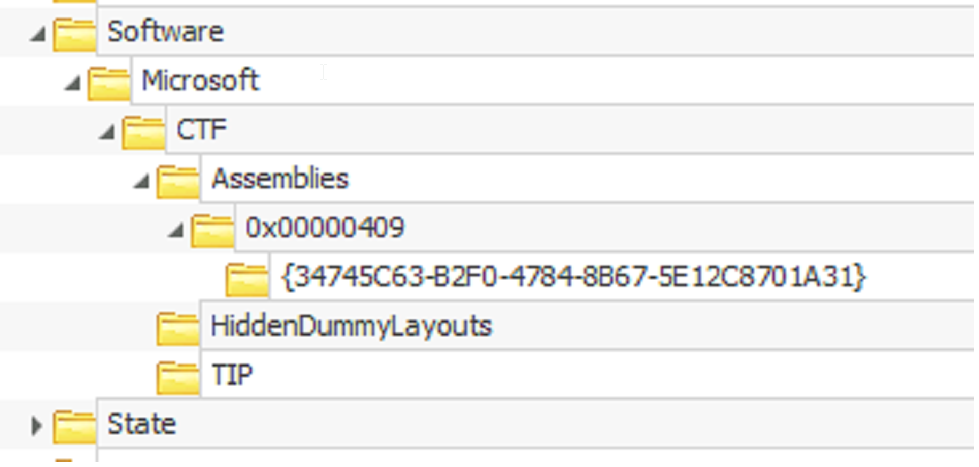
How to get to the forensic info for USB:
1
- Ans: 2021-11-24 18:40:06
Question: There are a lot of NTUSER.dat found on different directories after extraction. How are they different from each other?
(From ChatGPT not sure if correct) When you encounter multiple NTUSER.DAT files in different directories after extracting them from a disk image or another source, it’s important to understand how they differ and what each of them represents. Here’s a breakdown of the typical NTUSER.DAT files you might encounter:
1. NTUSER.DAT in User Profiles
- Location: Each user profile on a Windows system typically has its own
NTUSER.DATfile located in their user directory (C:\Users\Username). - Purpose: This file contains the user-specific configuration settings and preferences for that particular user profile.
- Usage: When a user logs into the system, their
NTUSER.DATfile is loaded into the registry asHKEY_CURRENT_USER. This hive represents the current user’s registry settings and preferences.
2. NTUSER.DAT in Backup or Old Profiles
- Location: Sometimes, Windows creates backup copies or retains old versions of
NTUSER.DATfiles. These can be found in directories likeC:\Users\Username\AppData\Local\Microsoft\Windows\UsrClass.dat{GUID}. - Purpose: These backup files serve as copies of the user’s registry settings at specific points in time. They may be used for recovery purposes or to revert to previous configurations.
3. NTUSER.DAT in Default Profile
- Location: There may be an
NTUSER.DATfile associated with the default user profile (Default User). This file is typically located inC:\Users\Default. - Purpose: This file provides the base settings and configurations applied to new user profiles created on the system. It serves as a template for initial user settings.
4. NTUSER.DAT in Service Profiles
- Location: Some system services or accounts (such as
SYSTEMorNetworkService) may also have associatedNTUSER.DATfiles, though these are less common and often not directly accessible by standard means. - Purpose: These files store specific settings or configurations related to system services that may interact with the user environment.
Key Points:
- File Association: Each
NTUSER.DATfile is associated with a specific user or system context, encapsulating unique registry settings and configurations. - Registry Loading: These files are typically loaded into the Windows Registry as
HKEY_CURRENT_USERor other relevant hives when the corresponding user or service is active.
Handling Multiple NTUSER.DAT Files:
When dealing with multiple NTUSER.DAT files, especially in a forensic or administrative context:
- Identify the Context: Determine which user or system context each
NTUSER.DATfile relates to based on its location and associated metadata. - Use Tools: Utilize registry editing tools or forensic software that allows you to load and analyze
NTUSER.DATfiles separately to examine their contents. - Backup and Restore: Exercise caution when manipulating these files to avoid unintended changes to system configurations or user settings.
By understanding the differences and purposes of NTUSER.DAT files found in various directories, you can effectively manage and analyze user-specific registry settings within Windows systems.