What is Brim?
- Brim is an open-source desktop application that processes pcap files and logs files, with a primary focus on providing search and analytics.
- It uses the Zeek log processing format. It also supports Zeek signatures and Suricata Rules for detection.
It can handle two types of data as an input:
Packet Capture Files: Pcap files created with tcpdump, tshark and Wireshark like applications.Log Files: Structured log files like Zeek logs.
Brim is built on open-source platforms:
- Zeek: Log generating engine.
- Zed Language: Log querying language that allows performing keywoırd searches with filters and pipelines.
- ZNG Data Format: Data storage format that supports saving data streams.
- Electron and React: Cross-platform UI.
Why Brim?
- Ever had to investigate a big pcap file? Pcap files bigger than one gigabyte are cumbersome for Wireshark.
- Processing big pcaps with tcpdump and Zeek is efficient but requires time and effort.
- Brim reduces the time and effort spent processing pcap files and investigating the log files by providing a simple and powerful GUI application.
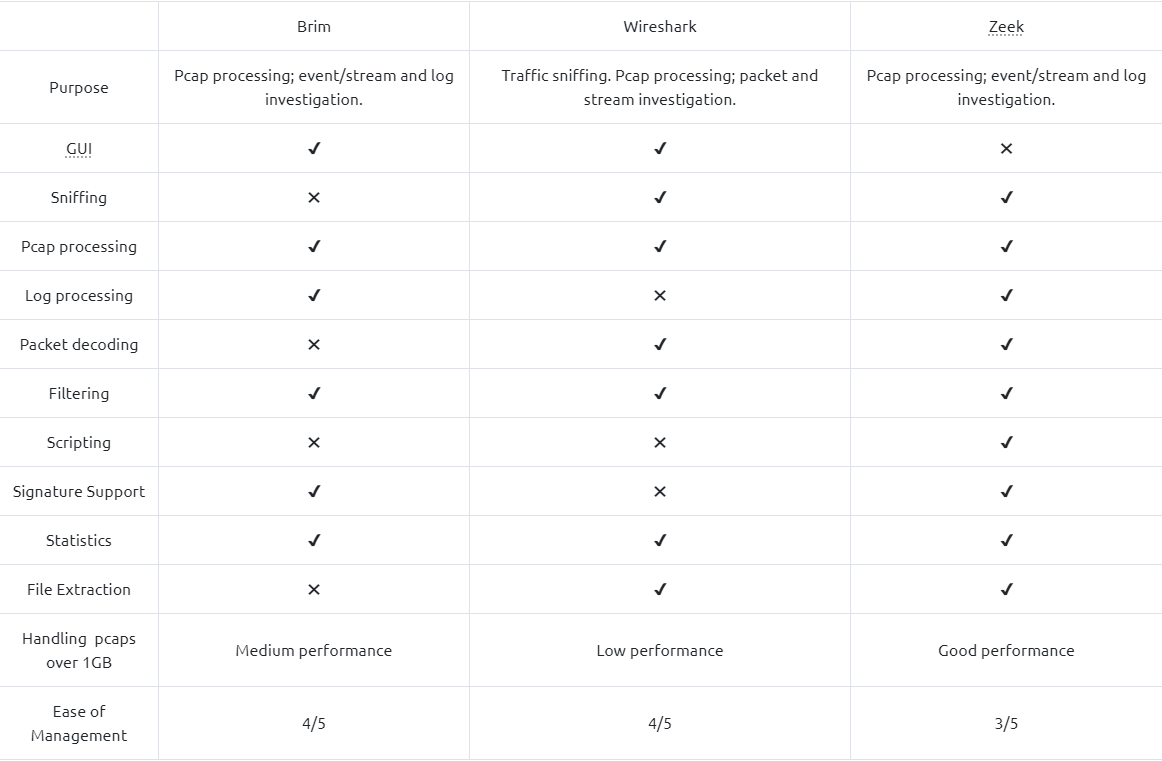
Brim vs Wireshark vs Zeek
- While each of them is powerful and useful, it is good to know the strengths and weaknesses of each tool and which one to use for the best outcome.
- As a traffic capture analyser, some overlapping functionalities exist, but each one has a unique value for different situations.
The common best practice is handling medium-sized pcaps with Wireshark, creating logs and correlating events with Zeek, and processing multiple logs in Brim.
The Basics
Landing Page
Once you open the application, the landing page loads up. The landing page has three sections and a file importing window. It also provides quick info on supported file formats.
1
2
3
- **'Pools':** Data resources, investigated pcap and log files.
- **'Queries':** List of available queries.
- **'History':** List of launched queries.
Pools and Log Details
- Pools represent the imported files.
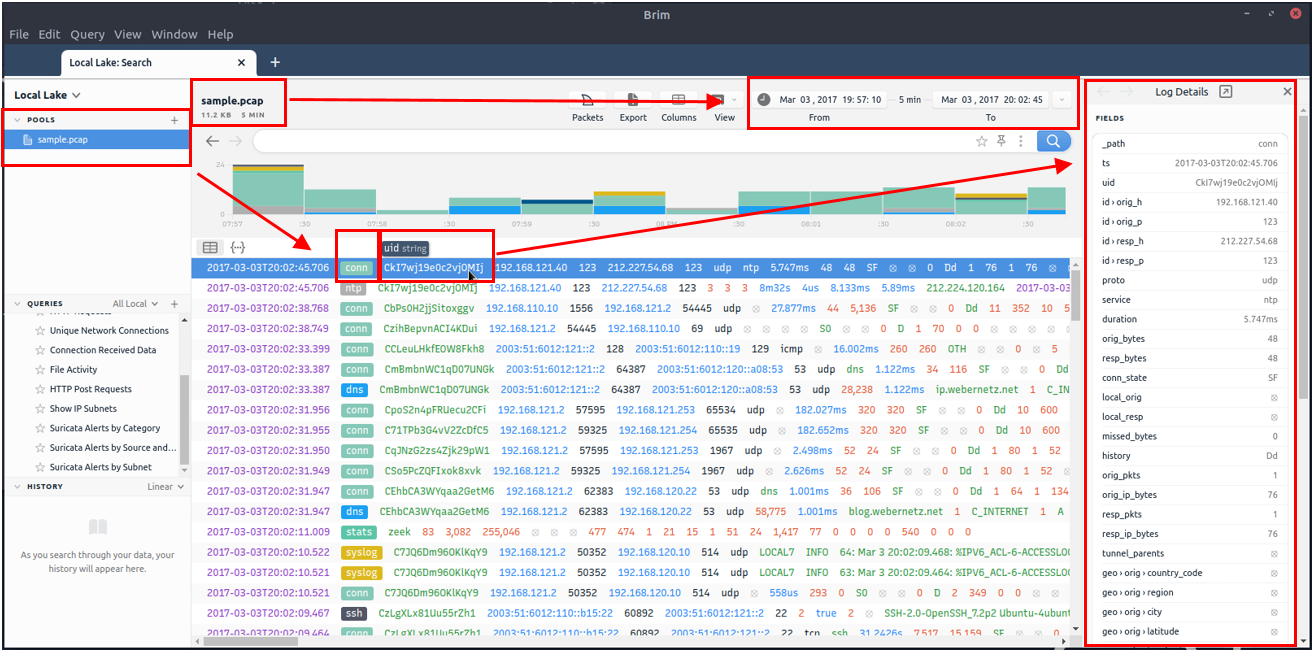
- Once you load a pcap, Brim processes the file and creates Zeek logs, correlates them, and displays all available findings in a timeline, as shown in the image below:
Breakdown:
1
2
3
4
5
6
- The timeline provides information about 'capture start' and 'end dates'.
- 'Brim' also provides information fields. You can hover over fields to have more details on the field.
- The above image shows a user hovering over the Zeek''s `'conn.log'` file and `'uid'` value.
- This information will help you in creating custom queries.
- The rest of the log details are shown in the right pane and provides details of the log file fields.
- Note that you can always export the results by using the export function located near the timeline.
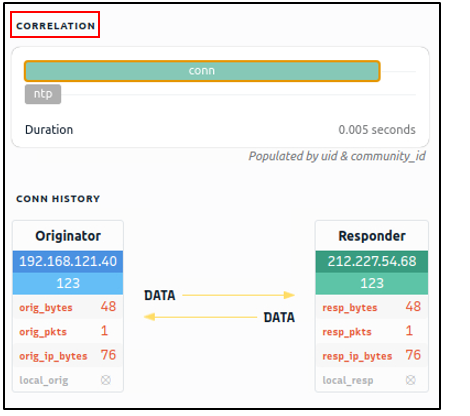
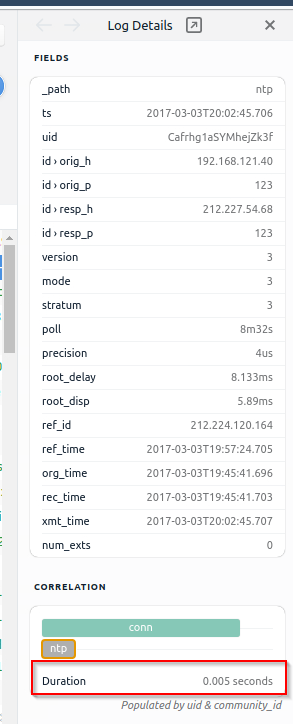
You can correlate each log entry by reviewing the correlation section at the log details pane (shown on the image below). This section provides information on the source and destination addresses, duration and associated log files.
- This quick information helps you answer the “
Where to look next?” question and find the event of interest and linked evidence.
You can also right-click on each field to filter and accomplish a list of tasks:
1
2
3
4
5
6
- Filtering values
- Counting fields
- Sorting (A-Z and Z-A)
- Viewing details
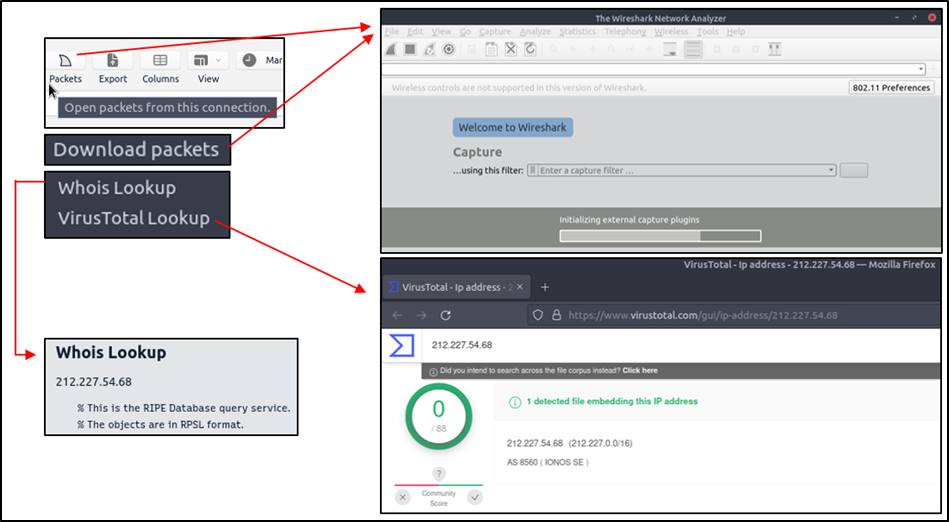
- Performing whois lookup on IP address
- Viewing the associated packets in Wireshark
How to perform whois lookup and Wireshark Packet Inspection
Queries and History
- Queries help us to correlate finding and find the event of the interest. History stores executed queries.
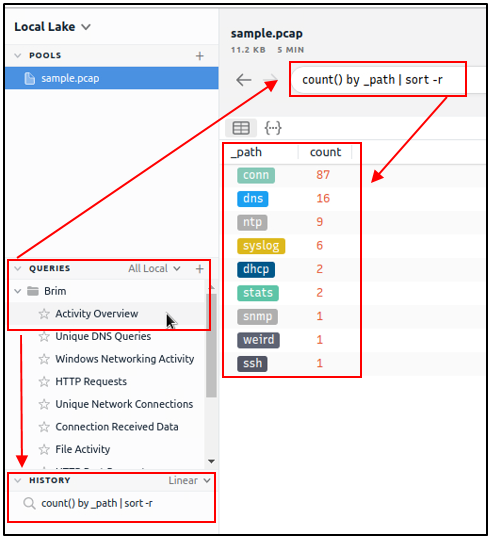
How to browse the queries and load a specific query from the library:
1
count() by _path | sort -r
1
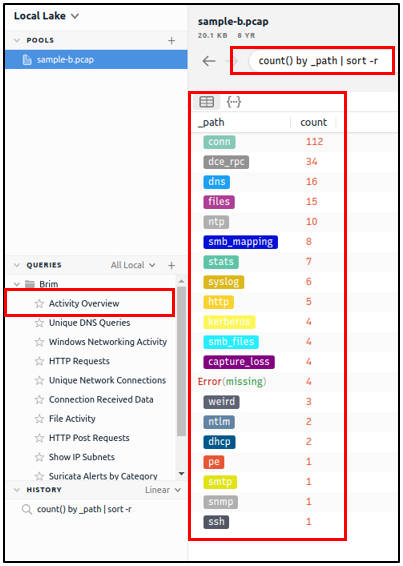
- The results are shown under the search bar. In this case, we listed all available log sources created by Brim. In this example, we only insert a pcap file, and it automatically creates nine types of Zeek log files.
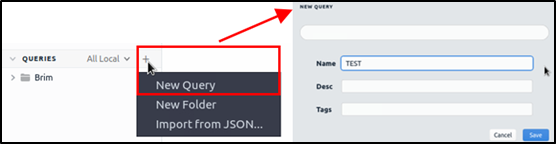
- Queries can have
names,tagsanddescriptions. Query library lists the
query names, and once you double-click, it passes the actual query to the search bar.- You can double-click on the query and execute it with ease.
- Once you double-click on the query, the actual query appears on the search bar and is listed under the history tab.
Brim has 12 premade queries listed under the “Brim” folder. These queries help us discover the Brim query structure and accomplish quick searches from templates. You can add new queries by clicking on the “+” button near the “Queries” menu:
Questions and Answer section:
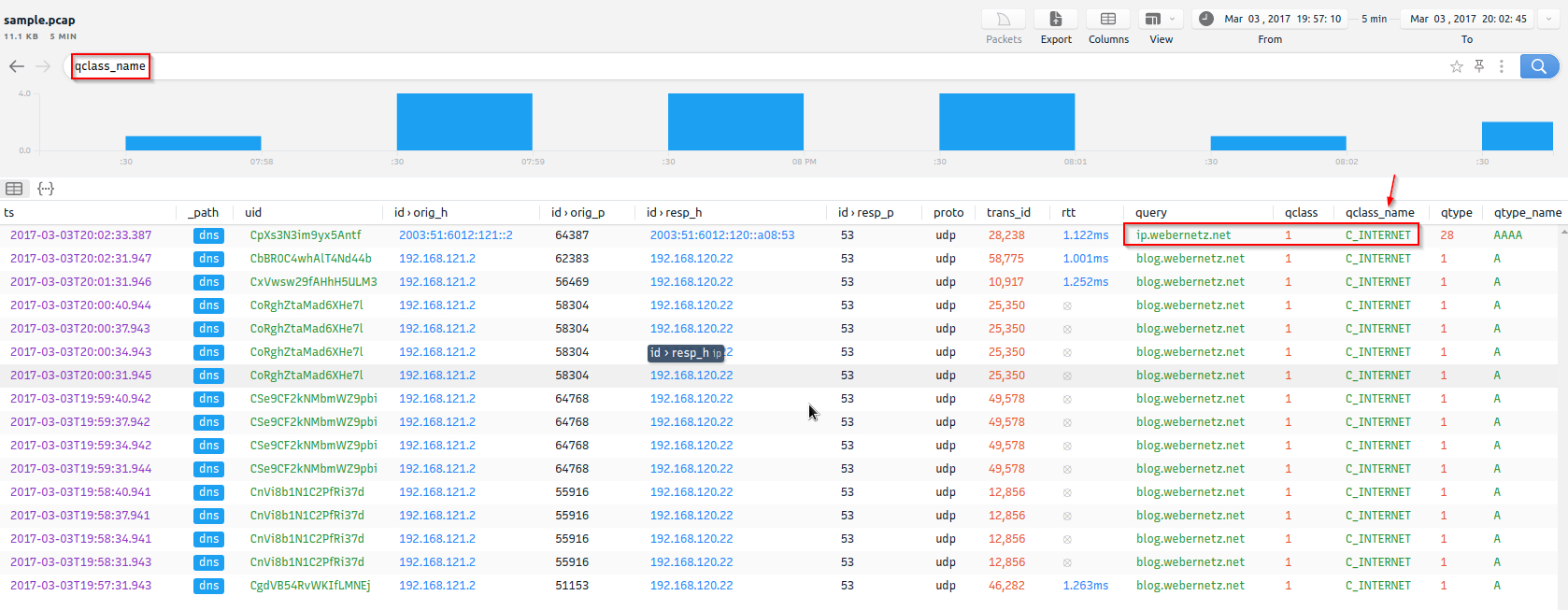
- Process the “
sample.pcap” file and look at the details of the first DNS log that appear on the dashboard. What is the “qclass_name”?
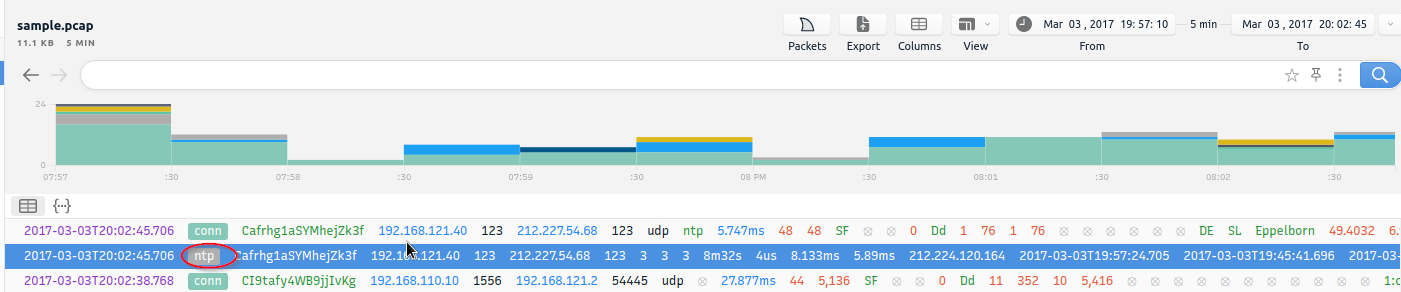
- Look at the details of the
first NTP logthat appear on the dashboard. What is the “duration” value?
Correlation section:
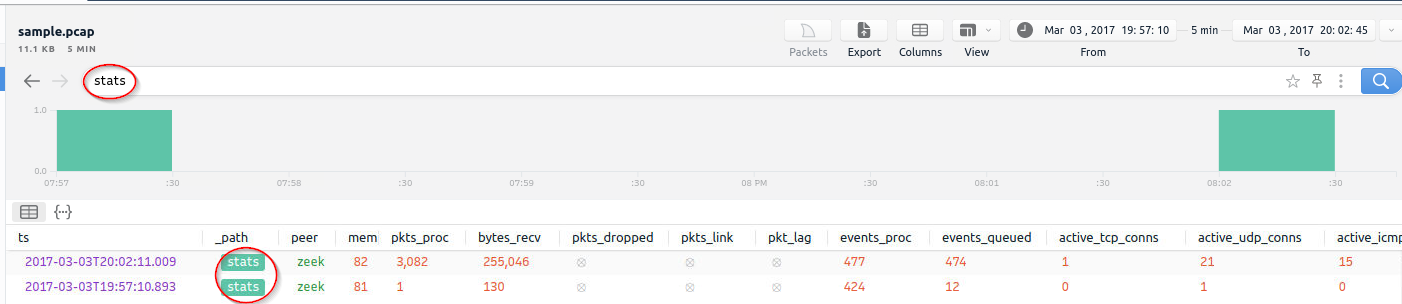
- Look at the details of the
STATSpacket log that is visible on the dashboard. What is the “reassem_tcp_size”?

Default Queries
Default Queries
We mentioned that Brim had 12 premade queries in the previous task. Let’s see them in action! Now, open Brim, import the sample pcap and go through the walkthrough.
Reviewing Overall Activity
This query provides general information on the pcap file. The provided information is valuable for accomplishing further investigation and creating custom queries. It is impossible to create advanced or case-specific queries without knowing the available log files.
The image on the left shows that there are 20 logs generated for the provided pcap file.
1
count() by _path | sort -r
Windows Specific Networking Activity
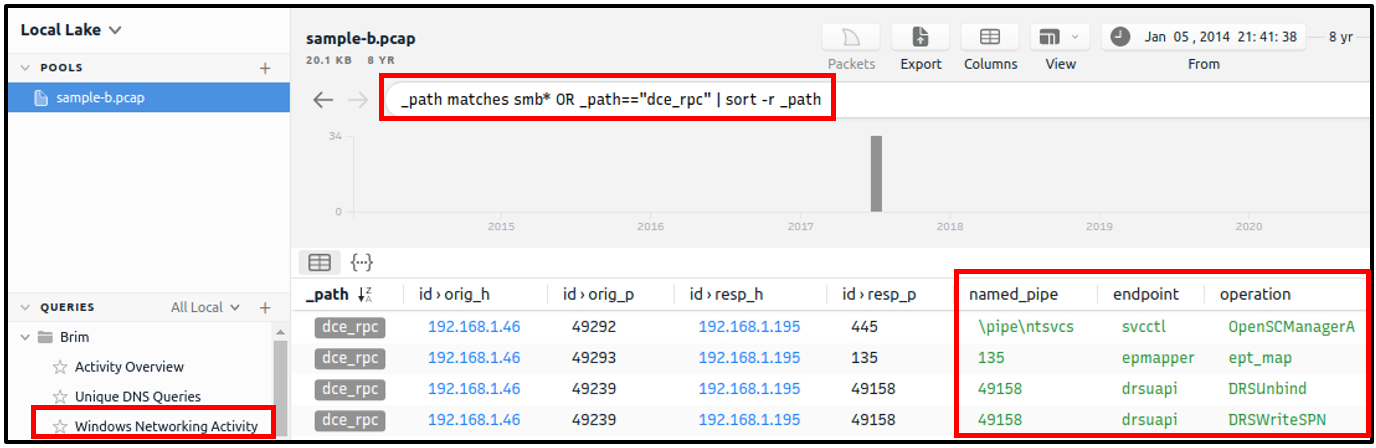
This query focuses on Windows networking activity and details the source and destination addresses and named pipe, endpoint and operation detection. The provided information helps investigate and understand specific Windows events like SMB enumeration, logins and service exploiting.
Example search query:
1
_path matches smb* OR _path=="dce_rpc" | sort -r _path
Unique Network Connections and Transferred Data
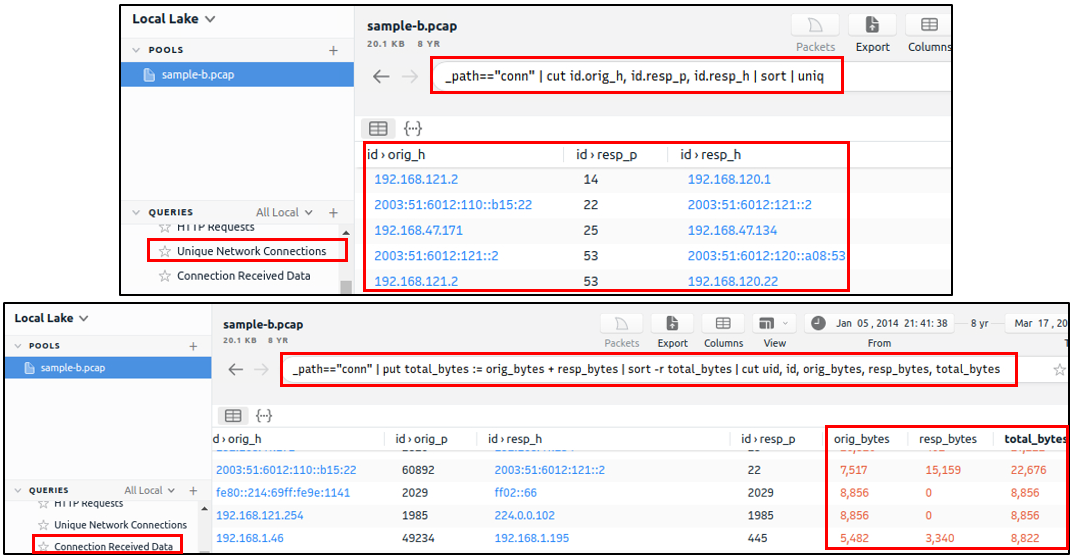
- These two queries provide information on unique connections and connection-data correlation.
- The provided info helps analysts detect weird and malicious connections and suspicious and beaconing activities.
- The
uniqlist provides a clear list of unique connections that help identify anomalies. - The data list summarises the data transfer rate that supports the anomaly investigation hypothesis.
Example search query:
1
2
3
Command 1: _path=="conn" | cut id.orig_h, id.resp_p, id.resp_h | sort | uniq

Command 2: _path=="conn" | put total_bytes := orig_bytes + resp_bytes | sort -r total_bytes | cut uid, id, orig_bytes, resp_bytes, total_bytes
1
- The second command added another column named "total_bytes"
DNS and HTTP Methods
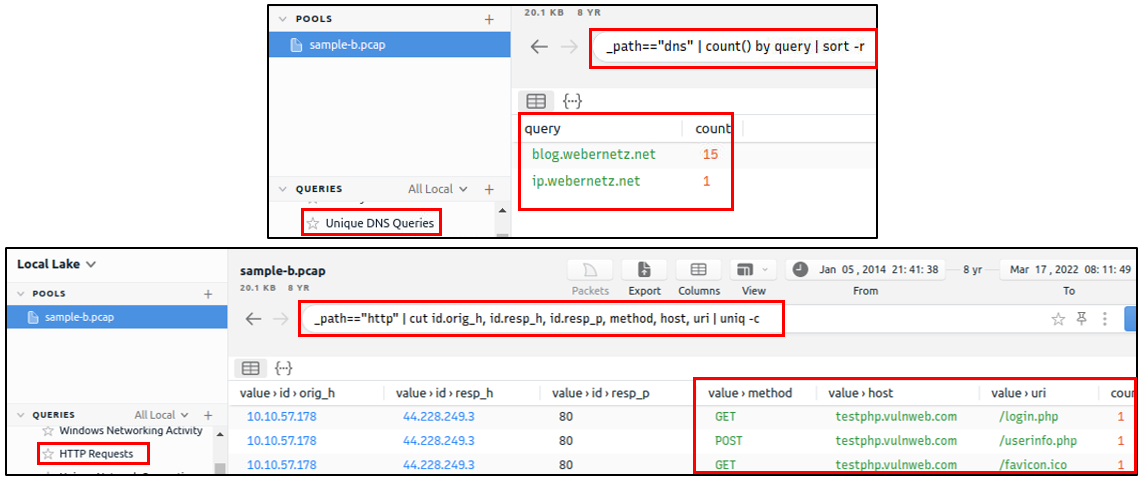
- These queries provide the list of the DNS queries and HTTP methods.
- The provided information helps analysts to detect anomalous DNS and HTTP traffic.
- You can also narrow the search by viewing the “
HTTP POST” requests with the available query and modifying it to view the “HTTP GET” methods.
Example search query:
1
2
3
Command 1: _path=="dns" | count() by query | sort -r

Command 2: _path=="http" | cut id.orig_h, id.resp_h, id.resp_p, method, host, uri | uniq -c
File Activity
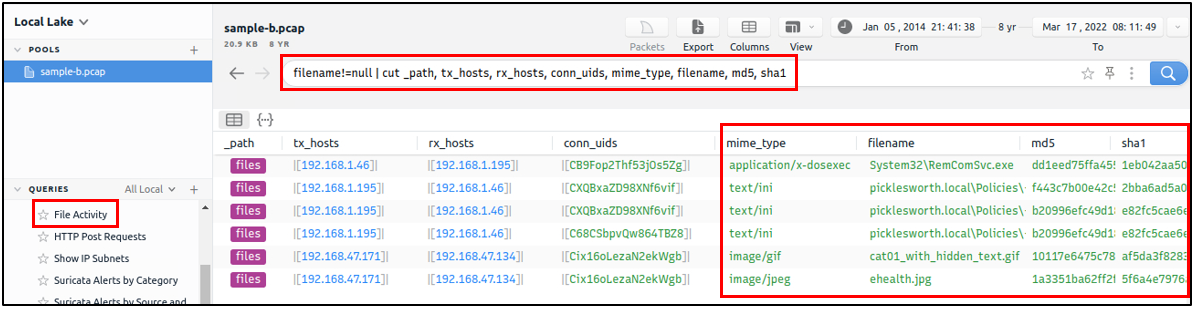
This query provides the list of the available files. It helps analysts to detect possible data leakage attempts and suspicious file activity. The query provides info on the detected file MIME and file name and hash values (MD5, SHA1).
Example search query:
1
filename!=null | cut_path, tx_hosts, rx_hosts, conn_uids, mime_type,filename, md5, sha1
IP Subnet Statistics
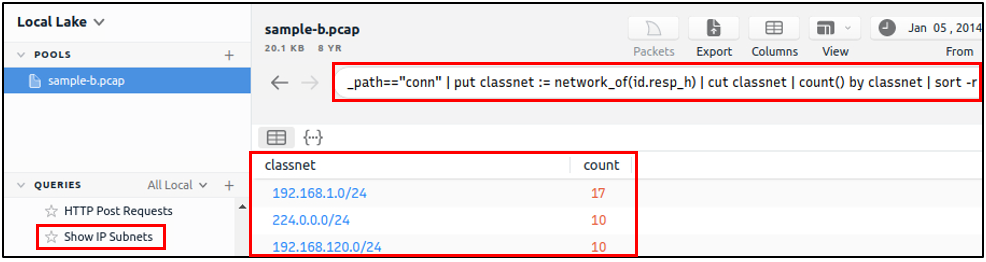
This query provides the list of the available IP subnets. It helps analysts detect possible communications outside the scope and identify out of ordinary IP addresses.
Example search query:
1
_path=="conn" | put classnet := network_of(id.resp_h) | cut classnet | count() by classnet | sort -r
Suricata Alerts
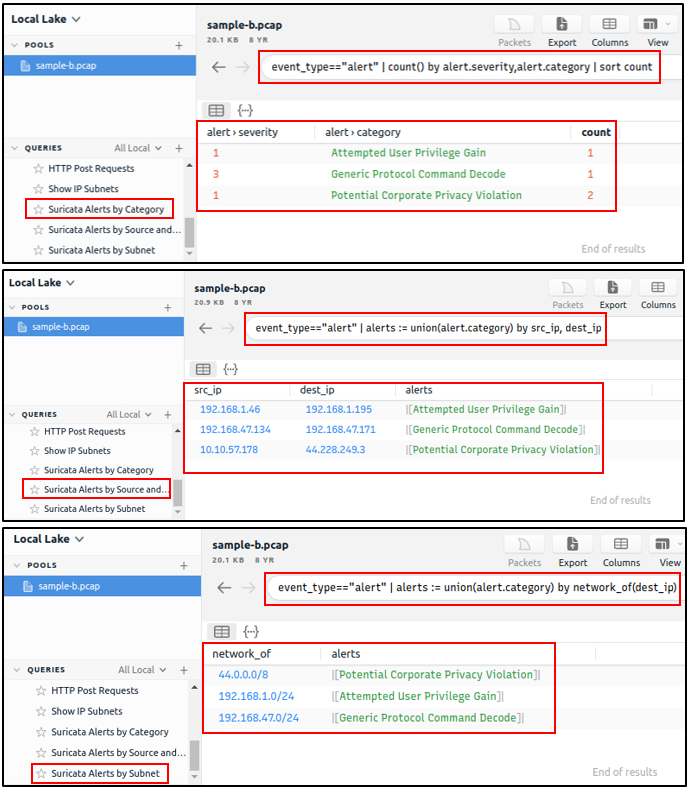
These queries provide information based on Suricata rule results. Three different queries are available to view the available logs in different formats:
1
2
3
- Category-based,
- Source and Destination-based
- Subnet based
Example search query:
1
2
3
4
5
Command 1: event_type=="alert" | count() by alert.severity,alert.category | sort count

Command 2: event_type=="alert" | alerts := union(alert.category) by src_ip, dest_ip

Command 3: event_type=="alert" | alerts := union(alert.category) by network_of(dest_ip)
Questions and Answer section:
1. Investigate the files. What is the name of the detected GIF file?
Answer: cat01_with_hidden_text.gif
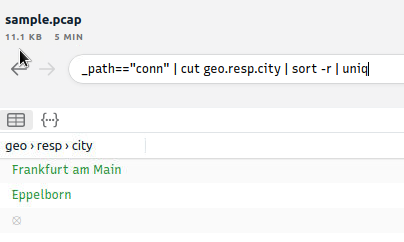
2. Investigate the conn logfile. What is the number of the identified city names?
Search Query:
1
_path=="conn" | cut geo.resp.city | sort -r | uniq
3. Investigate the Suricata alerts. What is the Signature id of the alert category “Potential Corporate Privacy Violation”?
- Answer:
2,012,887
Use Cases
Custom Queries and Use Cases
- There are a variety of use case examples in traffic analysis.
- For a security analyst, it is vital to know the common patterns and indicators of anomaly or malicious traffic.
- In this task, we will cover some of them. Let’s review the basics of the Brim queries before focusing on the custom and advanced ones.
Brim Query Reference
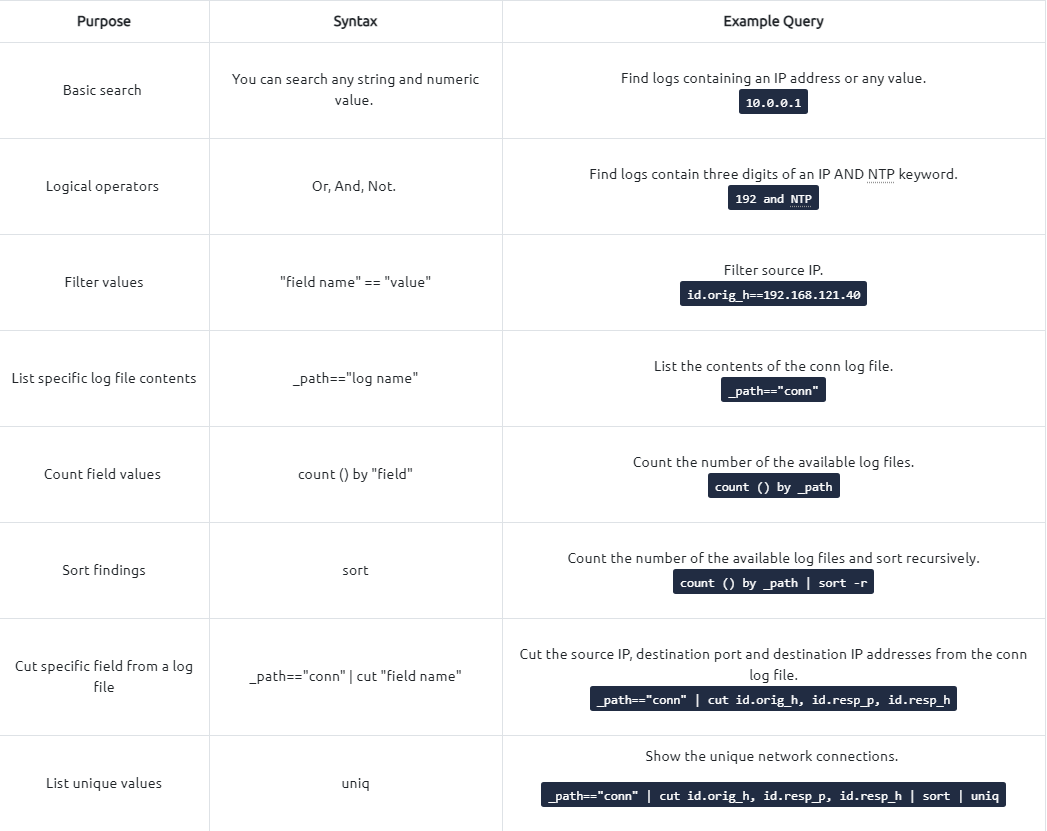
Note: It is highly suggested to use field names and filtering options and not rely on the blind/irregular search function. Brim provides great indexing of log sources, but it is not performing well in irregular search queries. The best practice is always to use the field filters to search for the event of interest.
1
2
3
4
5
6
7
8
9
10
11
12
13
14
15
16
17
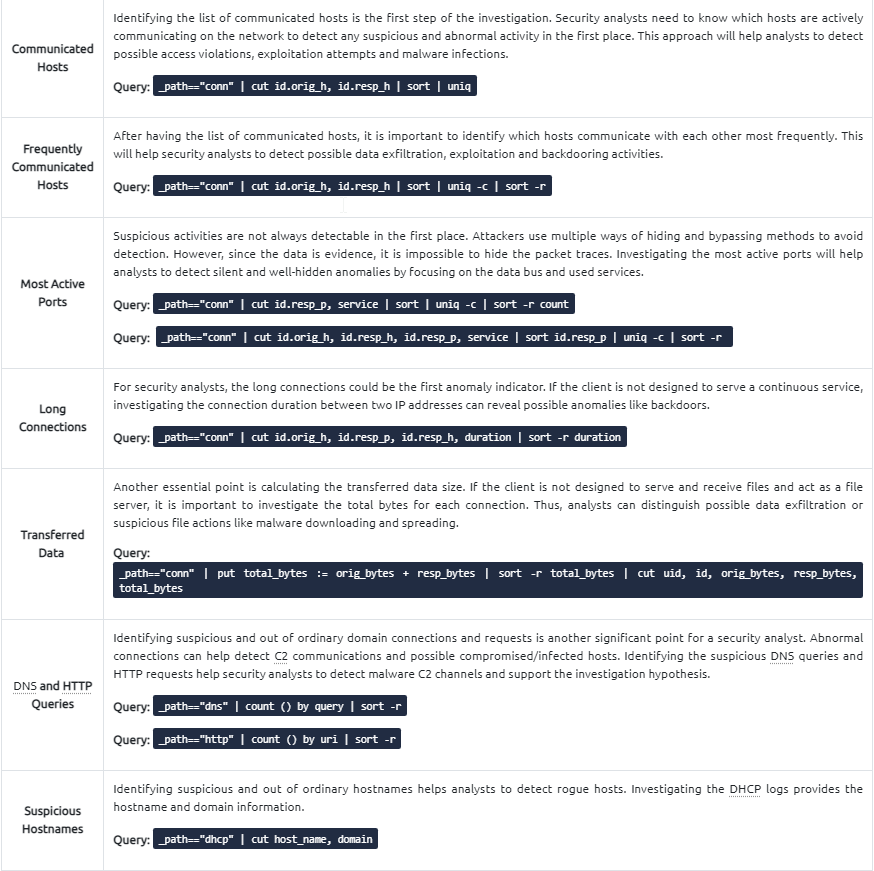
- 'Communicated Hosts': _path=="conn" | cut id.orig_h, id.resp_h | sort | uniq

- 'Frequently communicated hosts': _path=="conn" | cut id.orig_h, id.resp_h | sort | uniq -c | sort -r

- 'Most Active Ports':
	- _path=="conn" | cut id.resp_p, service | sort | uniq -c | sort -r count
	- _path=="conn" | cut id.orig_h, id.resp_h, id.resp_p, service | sort id.resp_p | uniq -c | sort -r

- 'Long Connections': _path=="conn" | cut id.orig_h, id.resp_p, id.resp_h, duration | sort -r duration

- 'Transferred Data': _path=="conn" | put total_bytes := orig_bytes + resp_bytes | sort -r total_bytes | cut uid, id, orig_bytes, resp_bytes, total_bytes

- 'DNS and HTTP Queries' :
	- _path=="dns" | count () by query | sort -r
	- _path=="http" | count () by uri | sort -r

- 'Suspicious Hostnames' : _path=="dhcp" | cut host_name, domain
1
2
3
4
5
6
7
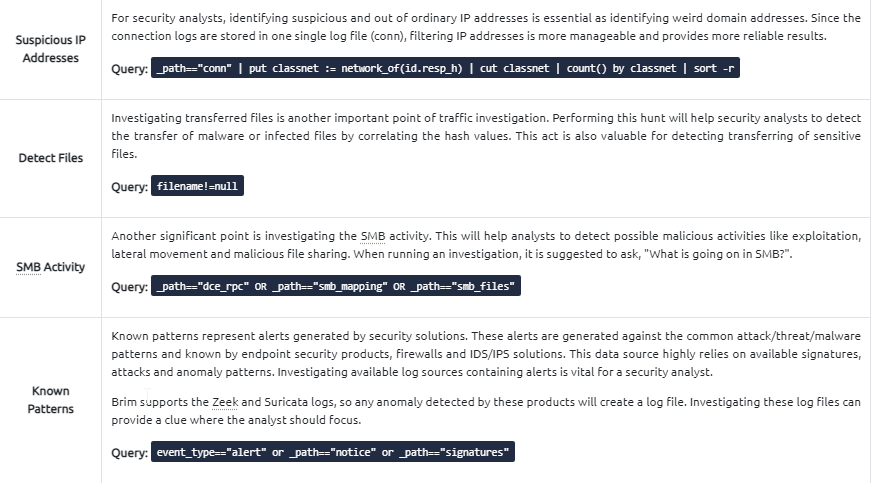
- 'Suspicious IP Addresses' : _path=="conn" | put classnet := network_of(id.resp_h) | cut classnet | count() by classnet | sort -r

- 'Detect Files' : filename!=null

- 'SMB Activity' : _path=="dce_rpc" OR _path=="smb_mapping" OR _path=="smb_files"

- 'Known Patterns' : event_type=="alert" or _path=="notice" or _path=="signatures"
Exercise: Threat Hunting with Brim - Malware C2 Detection
It is just another malware campaign spread with CobaltStrike. We know an employee clicks on a link, downloads a file, and then network speed issues and anomalous traffic activity arises. Now, open Brim, import the sample pcap and go through the walkthrough.
Let’s investigate the traffic sample to detect malicious C2 activities:
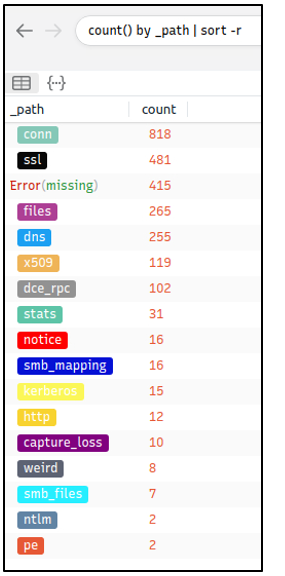
Let’s look at the available log files first to see what kind of data artefact we could have. The image on the left shows that we have many alternative log files we could rely on. Let’s review the frequently communicated hosts before starting to investigate individual logs.
Query 1:
1
count() by _path | sort -r
Query:
1
$ cut id.orig_h, id.resp_p, id.resp_h | sort  | uniq -c | sort -r count
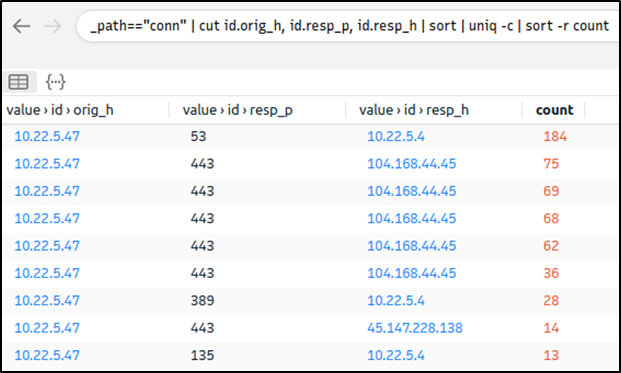
This query provides sufficient data that helped us decide where to focus. The IP addresses “10.22.xx” and “104.168.xx” draw attention in the first place. Let’s look at the port numbers and available services before focusing on the suspicious IP address and narrowing our search.
Query:
1
_path=="conn" | cut id.resp_p, service | sort | uniq -c | sort -r count
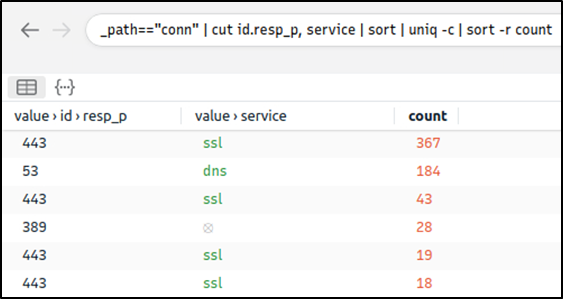
Nothing extremely odd in port numbers, but there is a massive DNS record available. Let’s have a closer look:
Query:
1
_path=="dns" | count() by query | sort -r
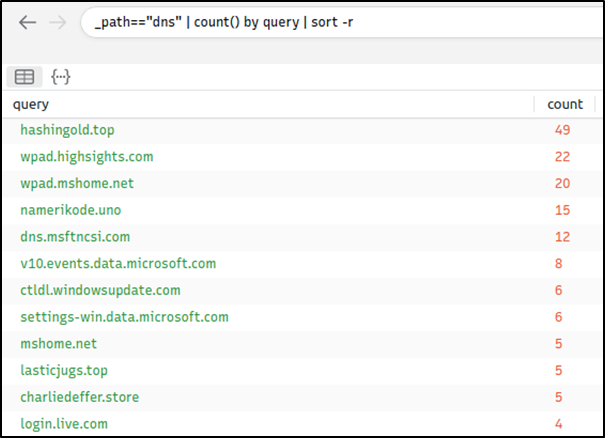
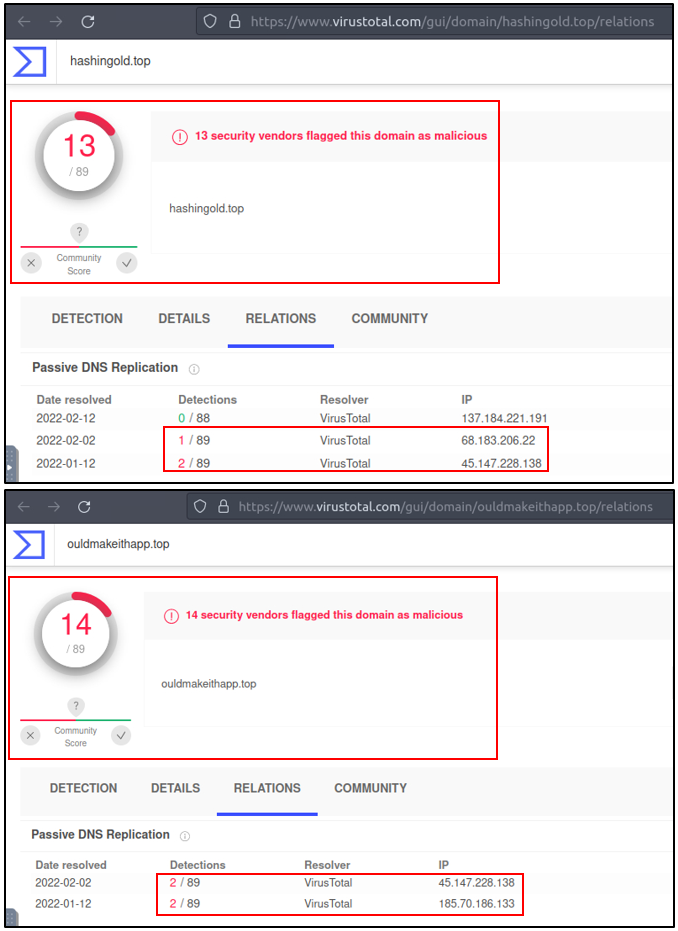
- There are out of ordinary DNS queries. Let’s enrich our findings by using VirusTotal to identify possible malicious domains:
1
- We have detected two additional malicious IP addresses (we have the IP 45.147.xx from the log files and gathered the 68.138.xx and 185.70.xx from VirusTotal) linked with suspicious DNS queries with the help of external research.
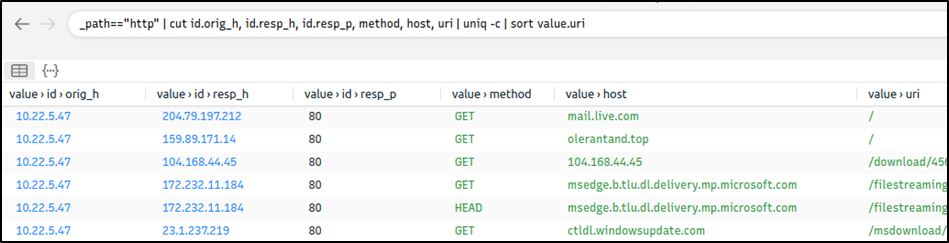
Let’s look at the HTTP requests before narrowing down our investigation with the found malicious IP addresses: Query:
1
_path=="http" | cut id.orig_h, id.resp_h, id.resp_p, method, host, uri | uniq -c | sort value.uri
1
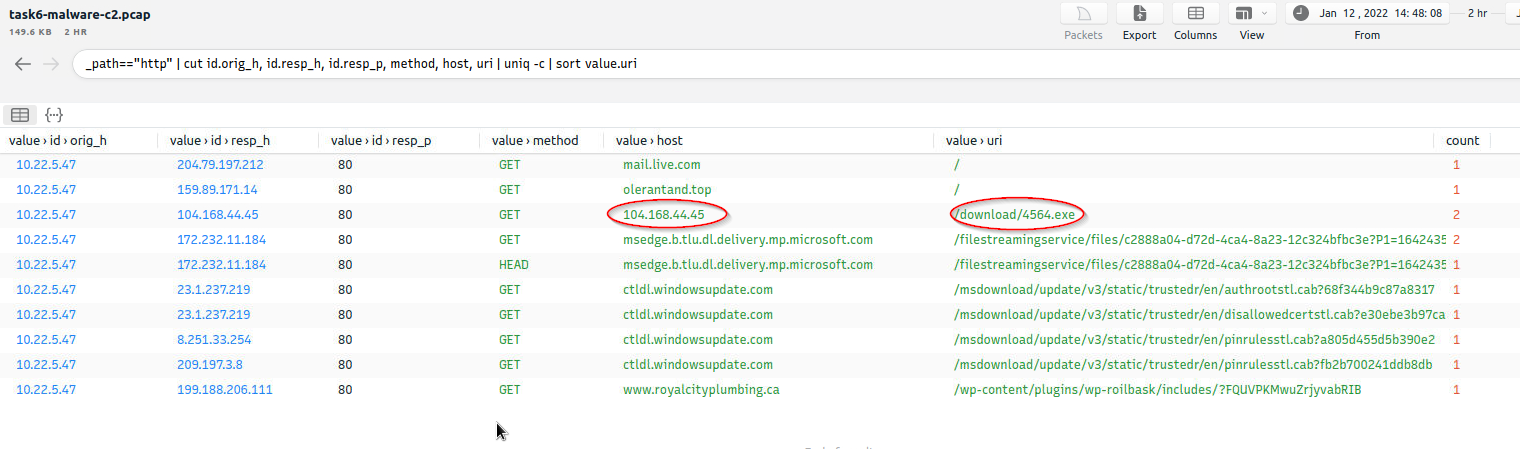
- Important IP -> 104.168.44.45
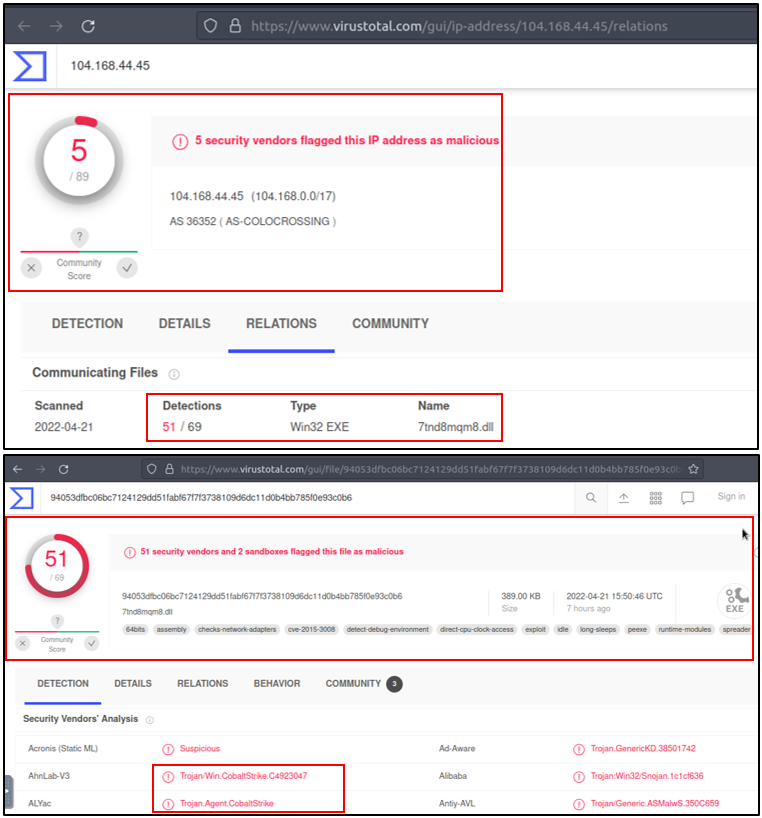
- We detect a file download request from the IP address we assumed as malicious. Let’s validate this idea with VirusTotal and validate our hypothesis:
1
- VirusTotal results show that the IP address "`104.xx`" is linked with a file. Once we investigate that file, we discover that these two findings are associated with CobaltStrike. Up to here, we've followed the abnormal activity and found the malicious IP addresses. Our findings represent the C2 communication.
Now let’s conclude our hunt by gathering the low hanging fruits with Suricata logs.
Query:
1
event_type=="alert" | count() by alert.severity,alert.category | sort count
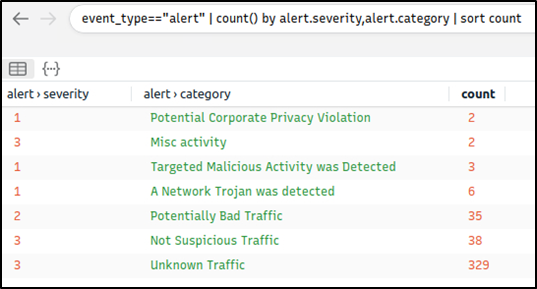
Now we can see the overall malicious activities detected by Suricata. Note that you can investigate the rest of the IP addresses to identify the secondary C2 traffic anomaly without using the Suricata logs. This task demonstrates two different approaches to detecting anomalies.
Investigating each alarm category and signature to enhance the threat hunting activities and post-hunting system hardening operations (IR) is suggested.
Please note, Adversaries using CobaltStrike are usually skilled threats and don’t rely on a single C2 channel.
Common experience and use cases recommend digging and keeping the investigation by looking at additional C2 channels.
Questions and Answers section:
- What is the name of the file downloaded from the CobaltStrike C2 connection?
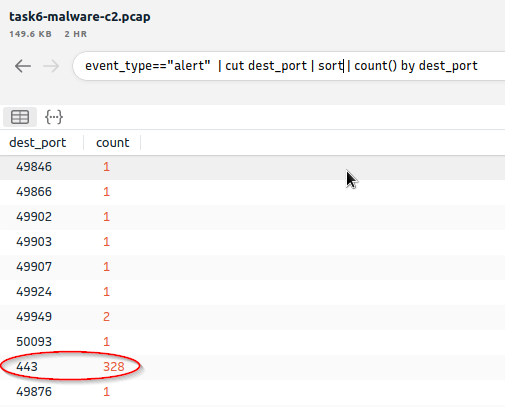
- What is the number of CobaltStrike connections using port 443?
Query:
1
event_type=="alert" | cut dest_port | sort | count() by dest_port
1
- This is from inside the "Unknown Traffic" from Suricata Alerts.
- There is an additional C2 channel in used the given case. What is the name of the secondary C2 channel? Query:
1
event_type=="alert" | cut alert.signature |sort | uniq -c | sort -r count
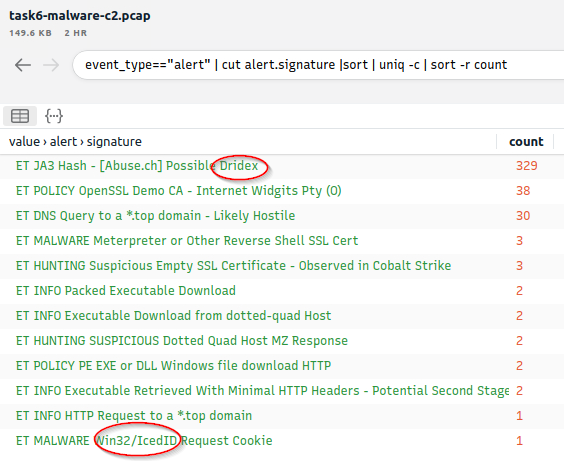
- Answer:
IcedID
Exercise: Threat Hunting with Brim : Crypto Mining
Threat Hunting with Brim | Crypto Mining
Cryptocurrencies are frequently on the agenda with their constantly rising value and legal aspect. The ability to obtain cryptocurrencies by mining other than purchasing is becoming one of the biggest problems in today’s corporate environments. Attackers not only compromise the systems and ask for a ransom, but sometimes they also install mining tools (cryptojacking). Other than the attackers and threat actors, sometimes internal threats and misuse of trust and privileges end up installing coin miners in the corporate environment.
Usually, mining cases are slightly different from traditional compromising activities. Internal attacks don’t typically contain major malware samples. However, this doesn’t mean they aren’t malicious as they are exploiting essential corporate resources like computing power, internet, and electricity. Also, crypto mining activities require third party applications and tool installations which could be vulnerable or create backdoors. Lastly, mining activities are causing network performance and stability problems. Due to these known facts, coin mining is becoming one of the common use cases of threat hunters.
Now, open Brim, import the sample pcap and go through the walkthrough.
Let’s investigate a traffic sample to detect a coin mining activity!
Query:
1
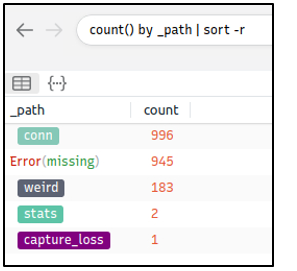
count() by _path | sort -r
1
- Found 4 log files
Let’s look at the available logfiles first to see what kind of data artefact we could have. The image on the left shows that we don’t have many alternative log files we could rely on.
Let’s review the frequently communicated hosts to see if there is an anomaly indicator.
Query:
1
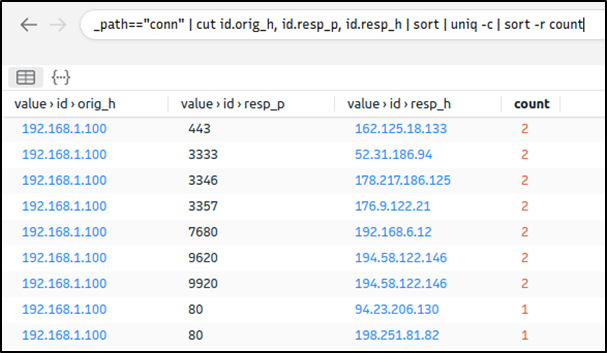
cut id.orig_h, id.resp_p, id.resp_h | sort  | uniq -c | sort -r
Output:
1
- The IP address "192.168.xx" draws attention in the first place since there's a lot of it connecting to outside servers.
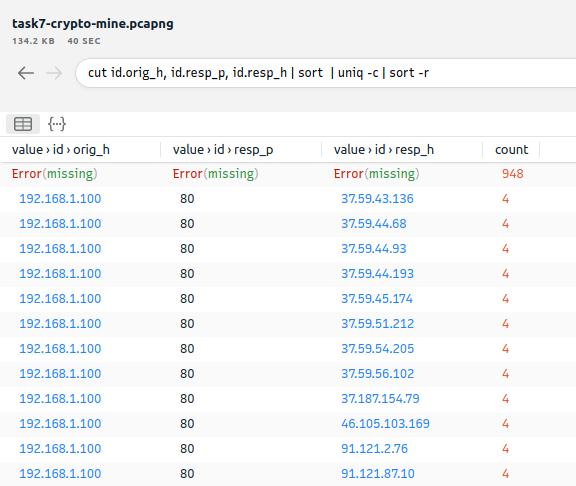
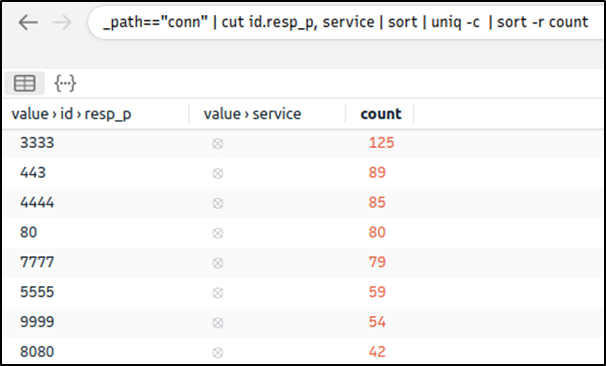
Let’s look at the port numbers and available services before focusing on the suspicious IP address and narrowing our search
1
_path=="conn" | cut id.resp_p, service | sort | uniq -c | sort -r count
Output:
1
- There is multiple weird port usage, and this is not usual. Now, we are one step closer to the identification of the anomaly
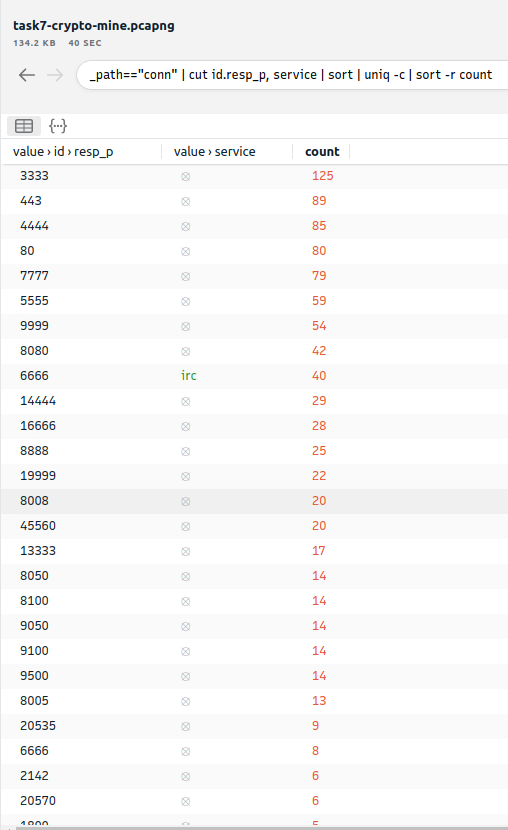
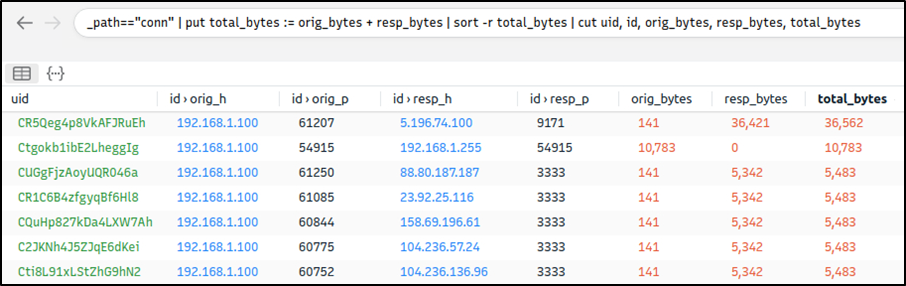
Let’s look at the transferred data bytes to support our findings and find more indicators:
1
_path=="conn" | put total_bytes := orig_bytes + resp_bytes | sort -r total_bytes | cut uid, id, orig_bytes, resp_bytes, total_bytes
Output:
1
- The query result proves massive traffic originating from the suspicious IP address. The detected IP address is suspicious. However, we don't have many supportive log files to correlate our findings and detect accompanying activities.
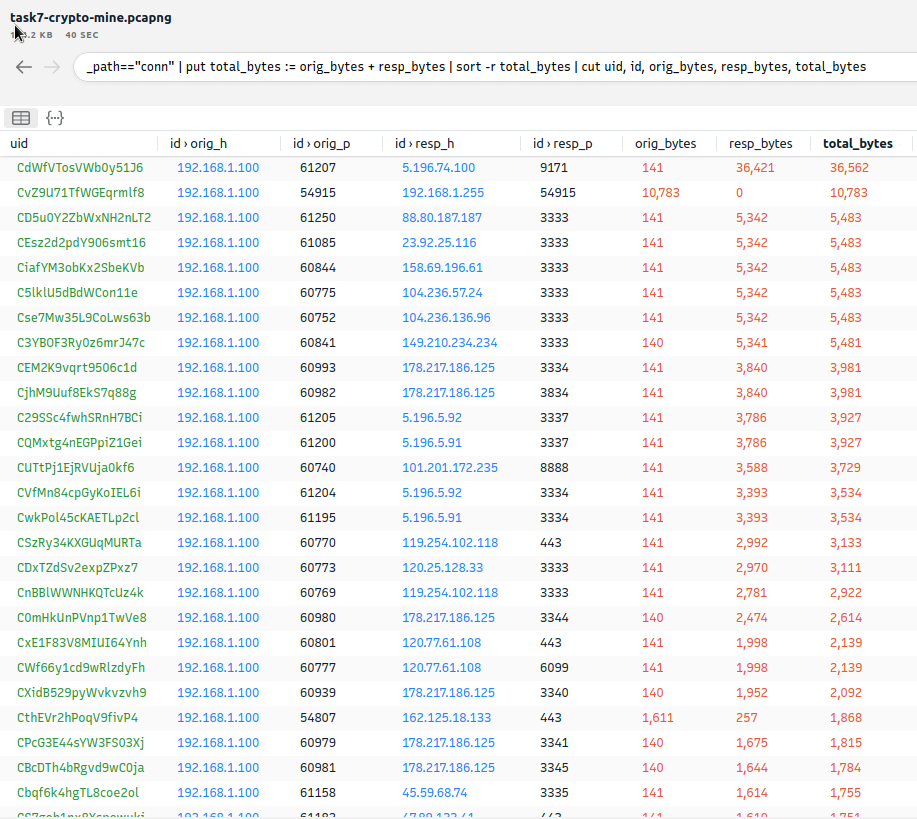
At this point, we will hunt the low hanging fruits with the help of Suricata rules. Let’s investigate the Suricata logs.
Query:
1
event_type=="alert" | count() by alert.severity,alert.category | sort count
Output:
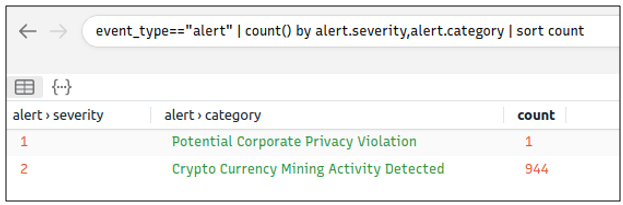
1
- Suricata rules have helped us conclude our hunt quickly, as the alerts tell us we are investigating a "Crypto Currency Mining" activity.
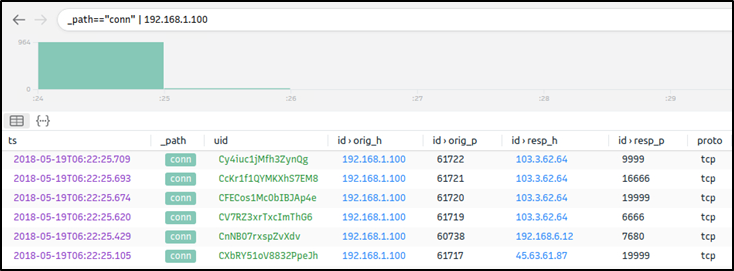
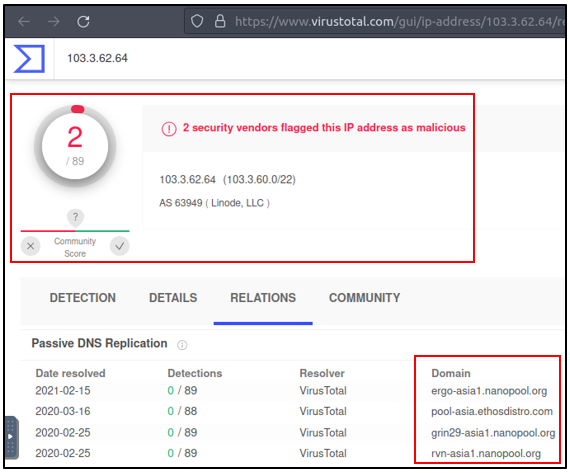
Let’s dig deeper and discover which data pool is used for the mining activity. First, we will list the associated connection logs with the suspicious IP, and then we will run a VirusTotal search against the destination IP.
Query:
1
_path=="conn" | 192.168.1.100
1
- We investigated the first destination IP address and successfully identified the mining server. In real-life cases, you may need to investigate multiple IP addresses to find the event of interest.
Lastly, let’s use Suricata logs to discover mapped out MITRE ATT&CK techniques.
Query:
1
event_type=="alert" | cut alert.category, alert.metadata.mitre_technique_name, alert.metadata.mitre_technique_id, alert.metadata.mitre_tactic_name | sort | uniq -c

Now we can identify the mapped out MITRE ATT&CK details as shown in the table below:

Questions and Answers section:
- How many connections used port
19999?22Query:1
_path=="conn" | 19999 | count()
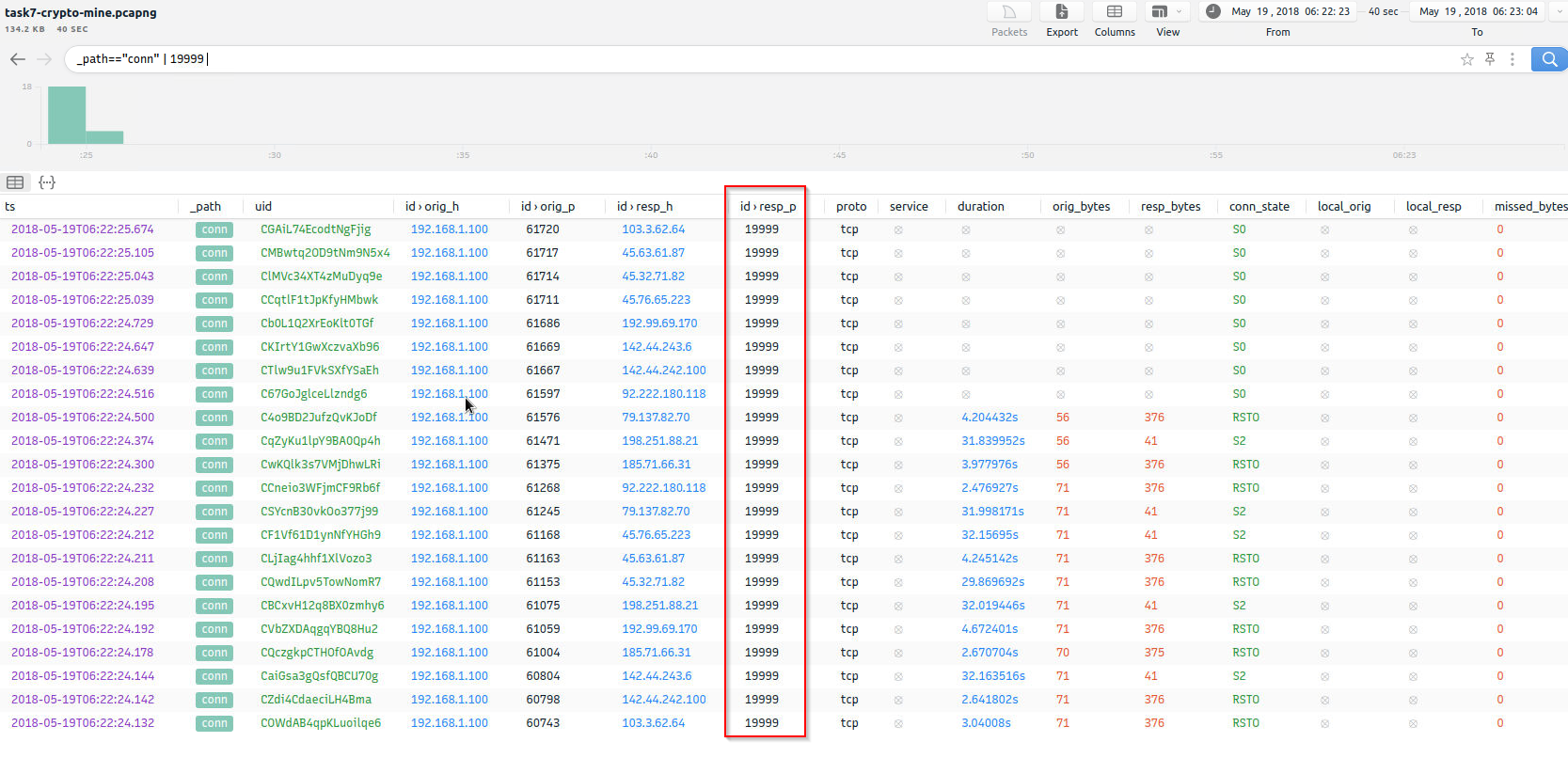
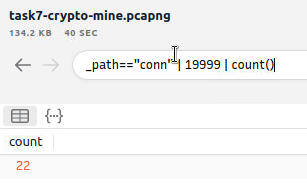
- What is the name of the service used by port
6666?
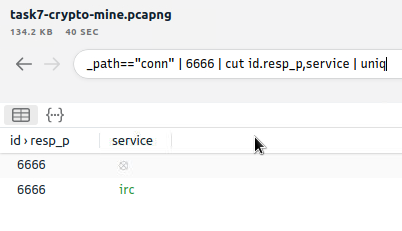
1
- Answer: irc
- What is the amount of transferred total bytes to “
101.201.172.235:8888”?
Command:
1
_path=="conn" | 101.201.172.235 | 8888 | put total_bytes := orig_bytes + resp_bytes | cut uid, id.orig_h, id.orig_p, id.resp_h, id.resp_p, orig_bytes,resp_bytes,total_bytes

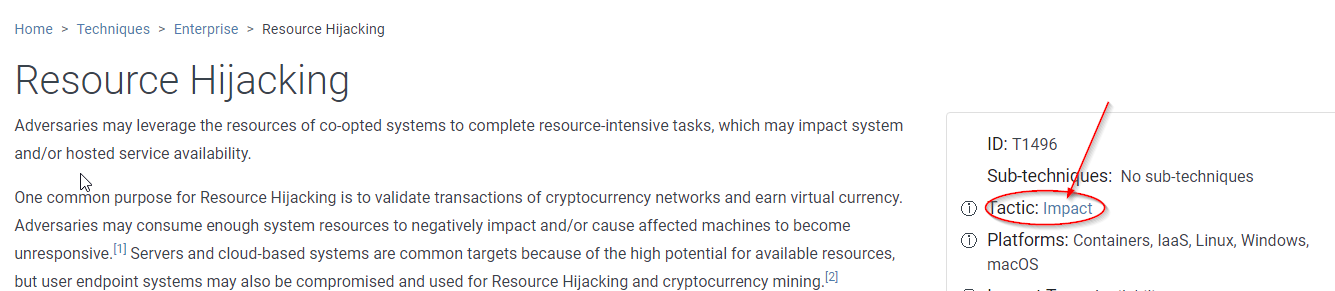
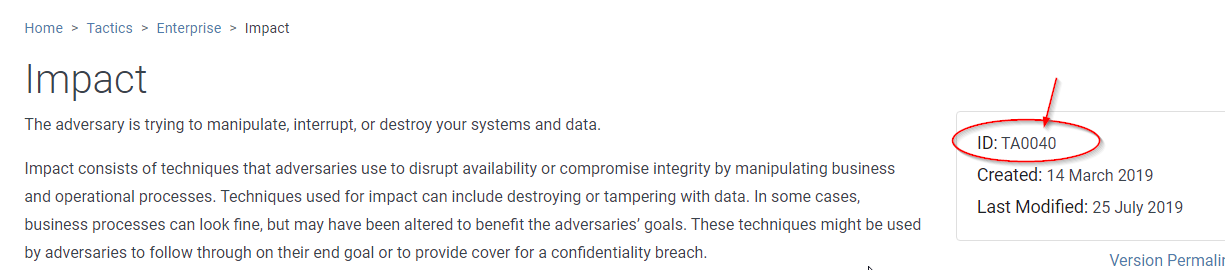
- What is the detected MITRE tactic id?
TA00401
event_type=="alert" | cut alert.category, alert.metadata.mitre_technique_name, alert.metadata.mitre_technique_id, alert.metadata.mitre_tactic_name | sort | uniq -c